Staff Settings (Optional)
Modified on Mon, 23 Feb at 10:36 AM
Adjust working hours for individual employees. This may include longer shifts, flexible hours, or other special arrangements.
You have the option to assign specific services and individual booking times to certain employees.
To do this, go to the Staff menu in the dashboard.
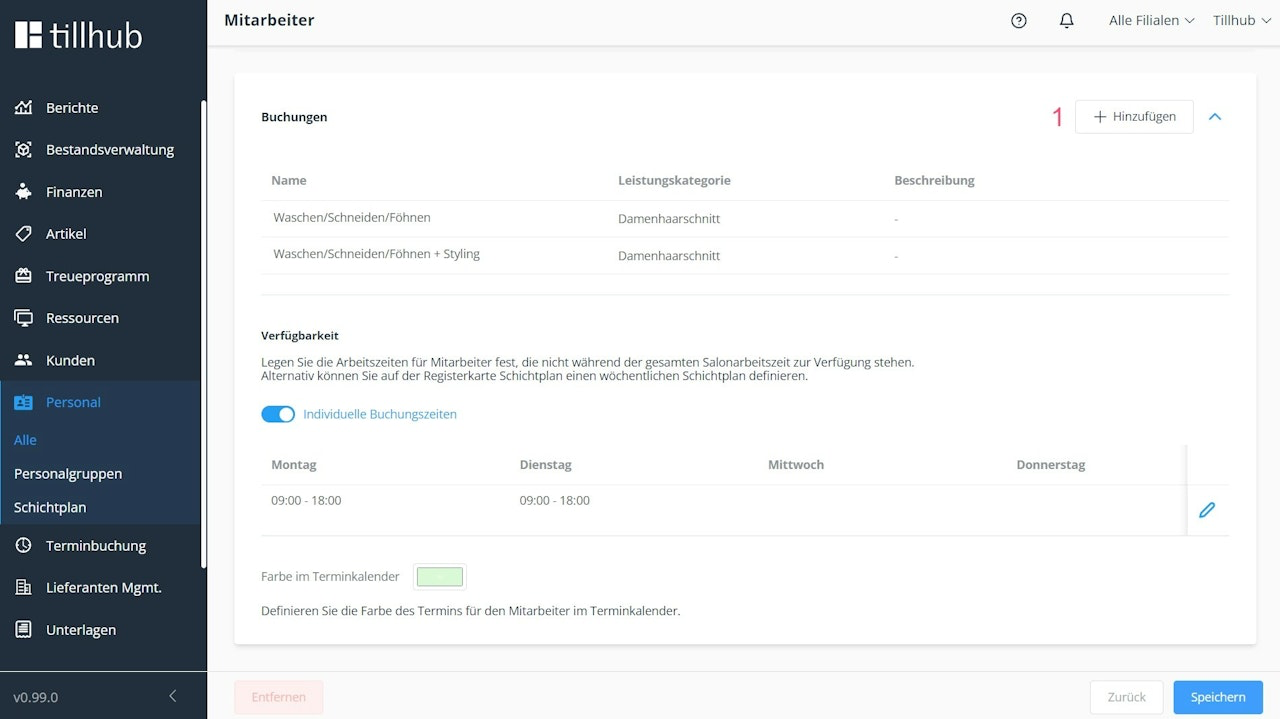
You will automatically be directed to the employee list under All. Select a person and scroll down in their profile.
- Add a service to the employee by clicking + Add in the top right corner.
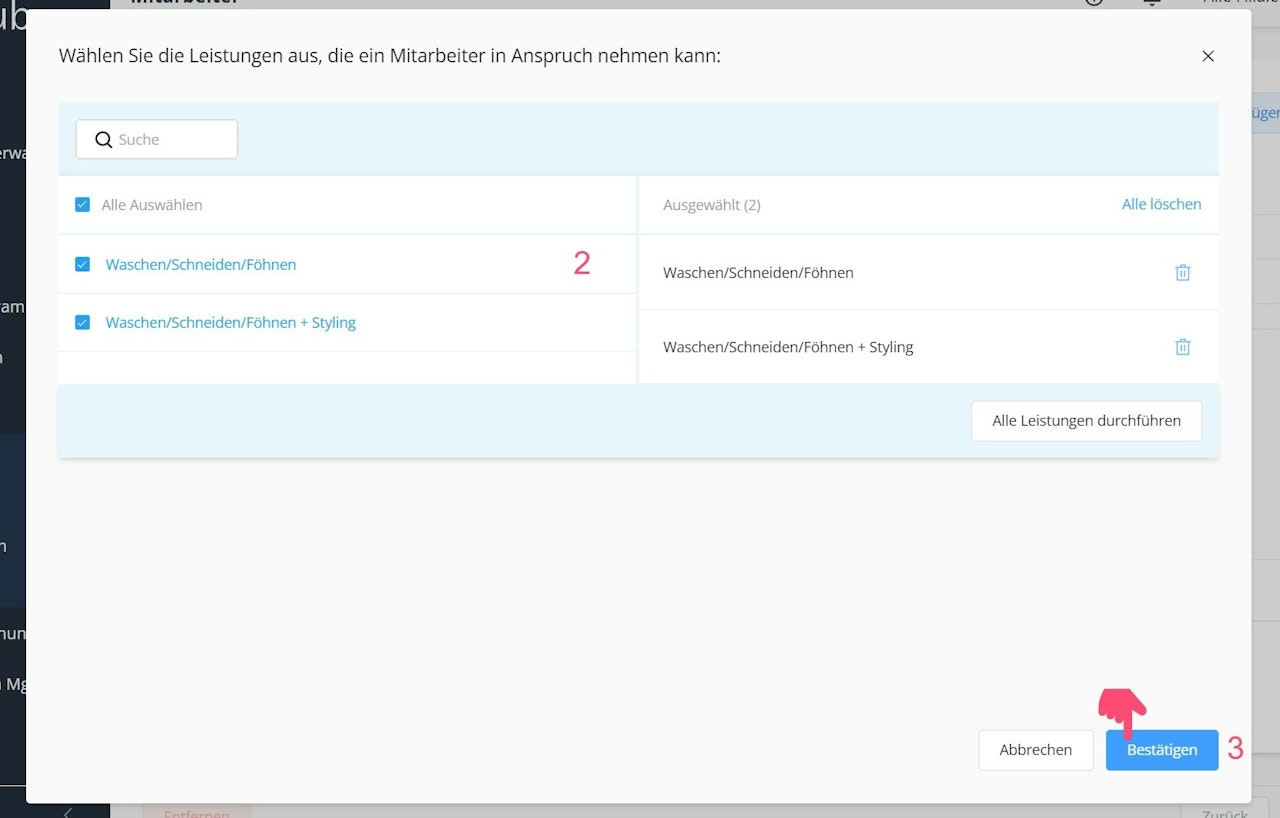
- A list will open where you can select services by checking the boxes.
- Confirm your selection to complete the setting.
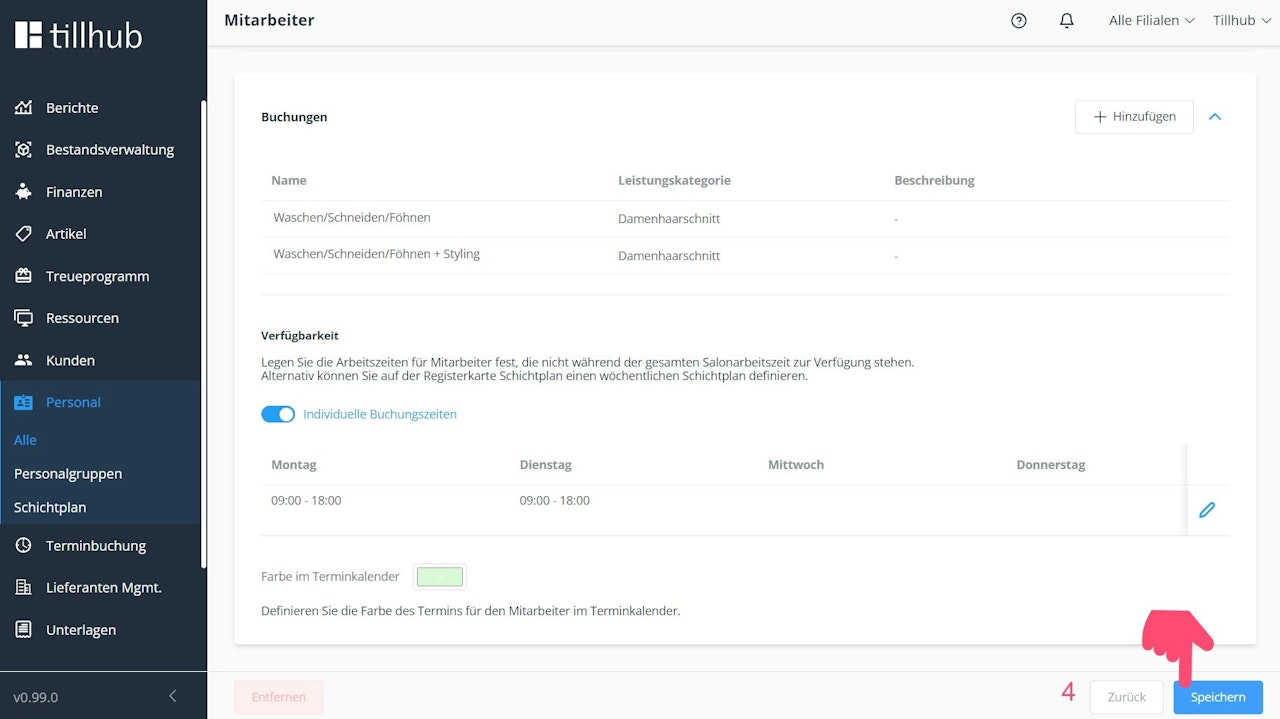
- If you do not wish to make any additional adjustments, click Save at the bottom right of the staff profile card.
Alternatively, you can select all services by clicking Perform All Services at the bottom right of the list.
Assign Branch, Set Availability & Color Scheme
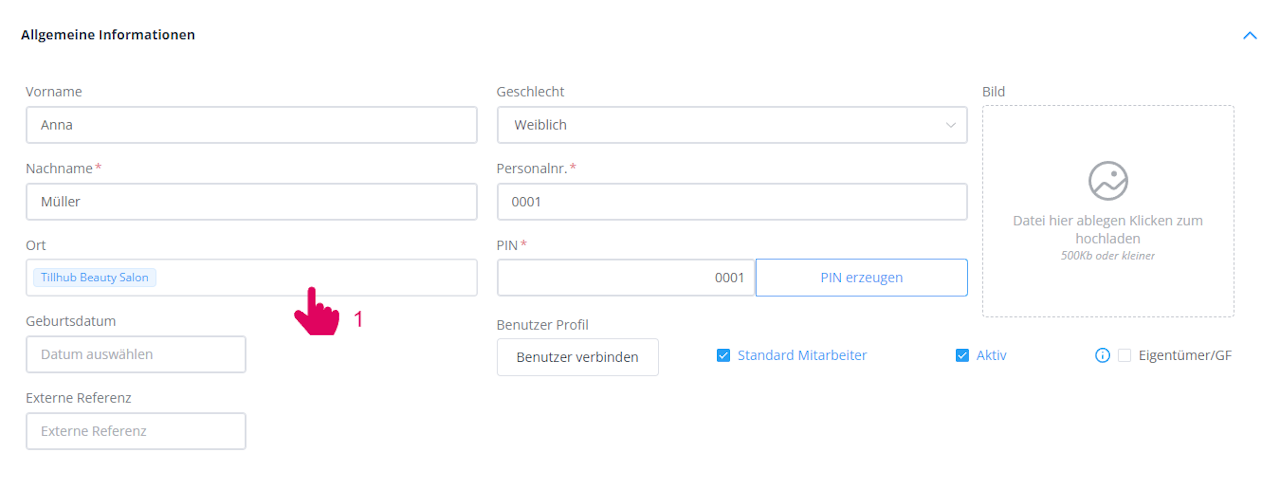
Assign Branch (Optional)
- Assign an employee to one or more branches.
Set Availability
- Enable the Individual Booking Times toggle.
- Select a weekday from the list and click +.
- Set the person’s availability. You can add multiple time slots and optionally assign or remove branches.
- If no further adjustments are needed, click the disk icon on the right-hand side of the booking times.
- Click Save.
Set Color Scheme
- Click the color block below the availability settings.
- Choose a predefined or custom color for the employee.
- Confirm your selection with OK.
- Click Save in the bottom right corner of the staff profile card.
Create a Shift Plan (Optional)
Schedule shifts to manage each employee’s availability. This makes it easier to assign appointments according to working hours.
Set up a shift plan for your employees for one week or longer.
The booking page will automatically display employee availability according to this plan. Shift plan settings take priority over staff and basic settings.
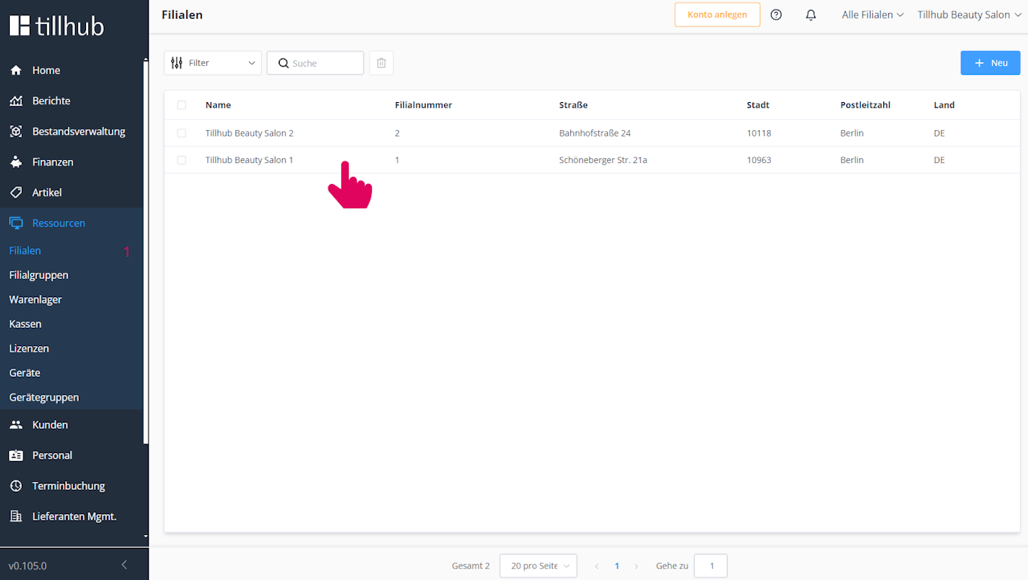
- In the dashboard, go to the Branches section. Open your business location.
- Scroll all the way down and enable the Shift Plan toggle.
- Click Save.
- Next, go to the Staff section and open Shift Plan.
- The display corresponds to the selected week, which you can set via the date option.
- Choose the availability for each employee.
- Confirm the settings by clicking Save at the bottom right.
Was this article helpful?
That’s Great!
Thank you for your feedback
Sorry! We couldn't be helpful
Thank you for your feedback
Feedback sent
We appreciate your effort and will try to fix the article
