Specify service categories
Modified on Mon, 23 Feb at 10:36 AM
Categorize and specify the services offered.
Start by creating a service category, to which you can then assign specific services.
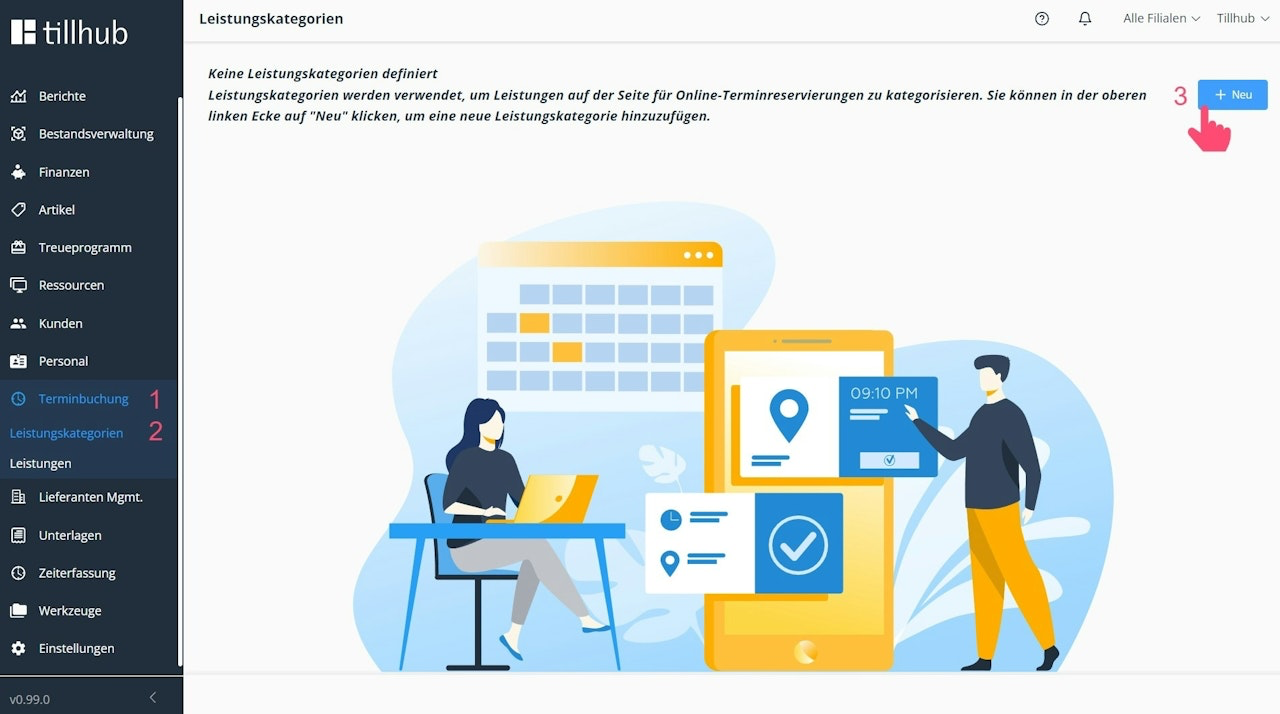
- In the dashboard, go to Appointment Booking:
You will automatically be directed to the service categories. - Click the +New button in the upper right corner.
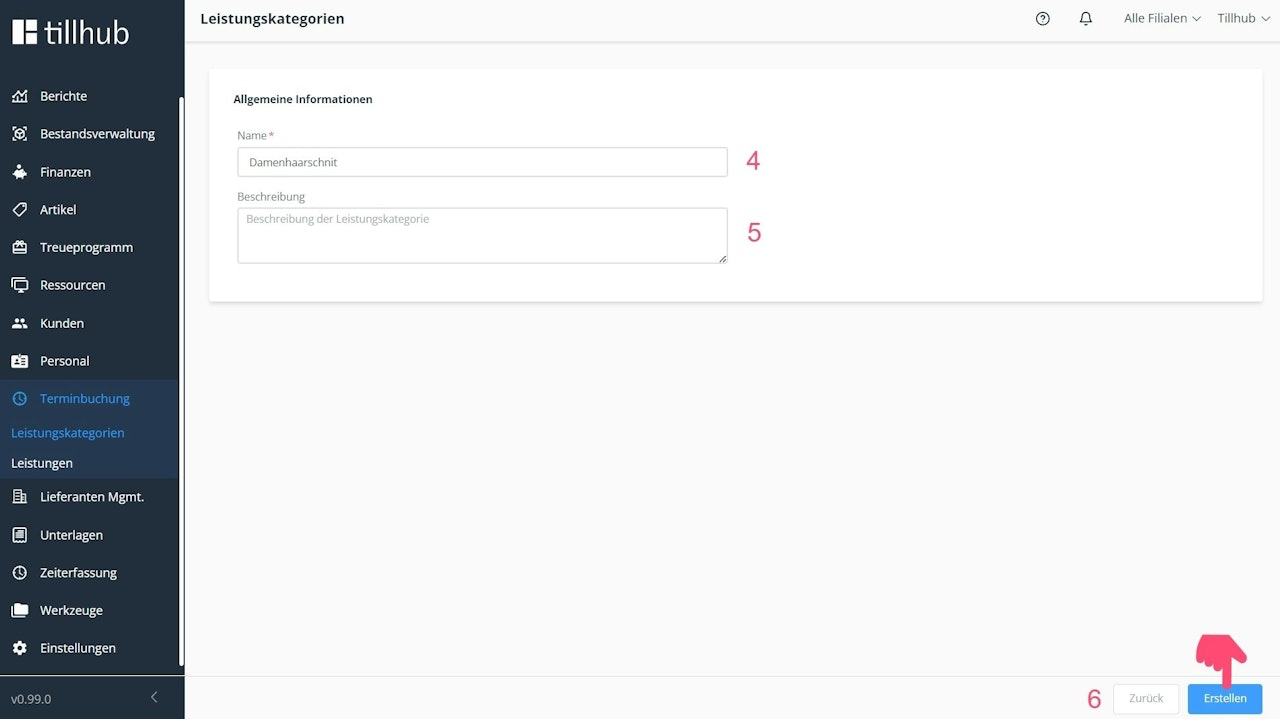
- Enter the name of the service category. The name will be displayed to your customers and employees for selection in the appointment calendar.
- Optionally, add a description for the service category.
- Finally, click Create in the bottom right corner.
Tip: Use your product groups as inspiration for naming service categories.
For example: Women’s Haircut, Manicure, Facial Treatments.
Assign services to categories
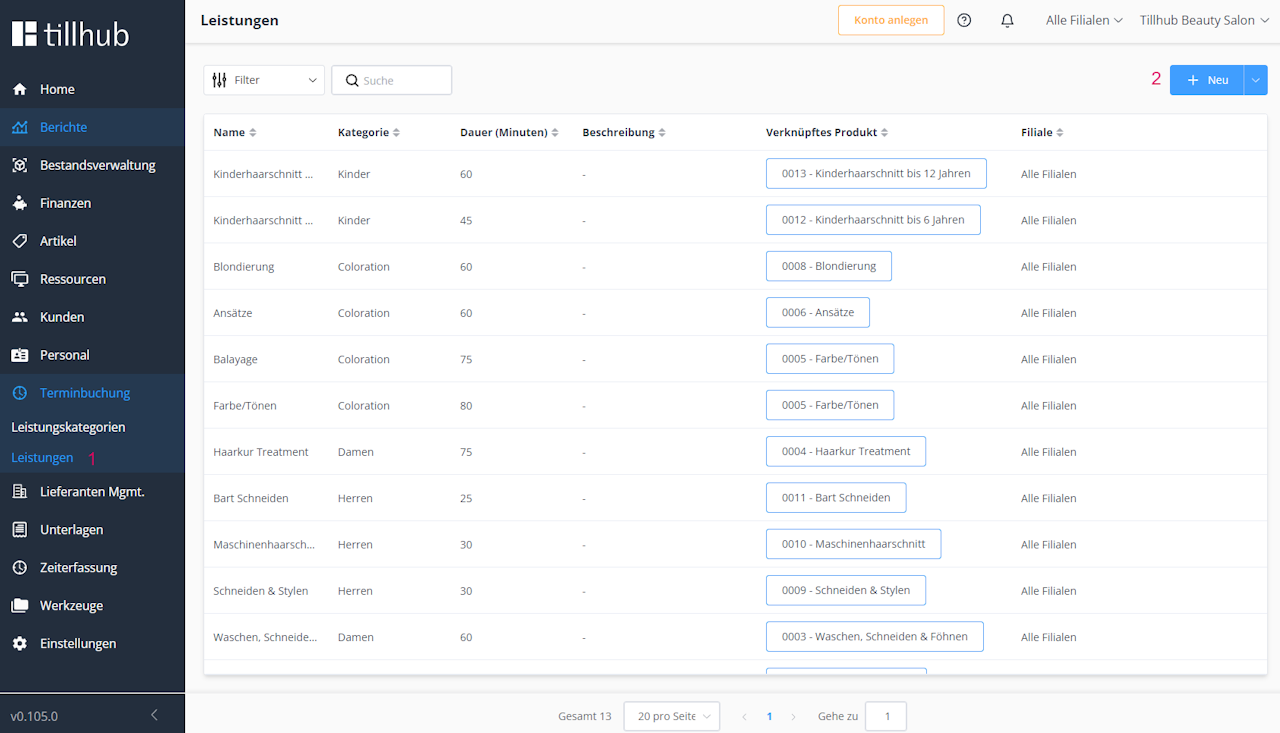
Within the Appointment Booking menu, navigate to the Services section.
- Click the +New button in the top right corner.
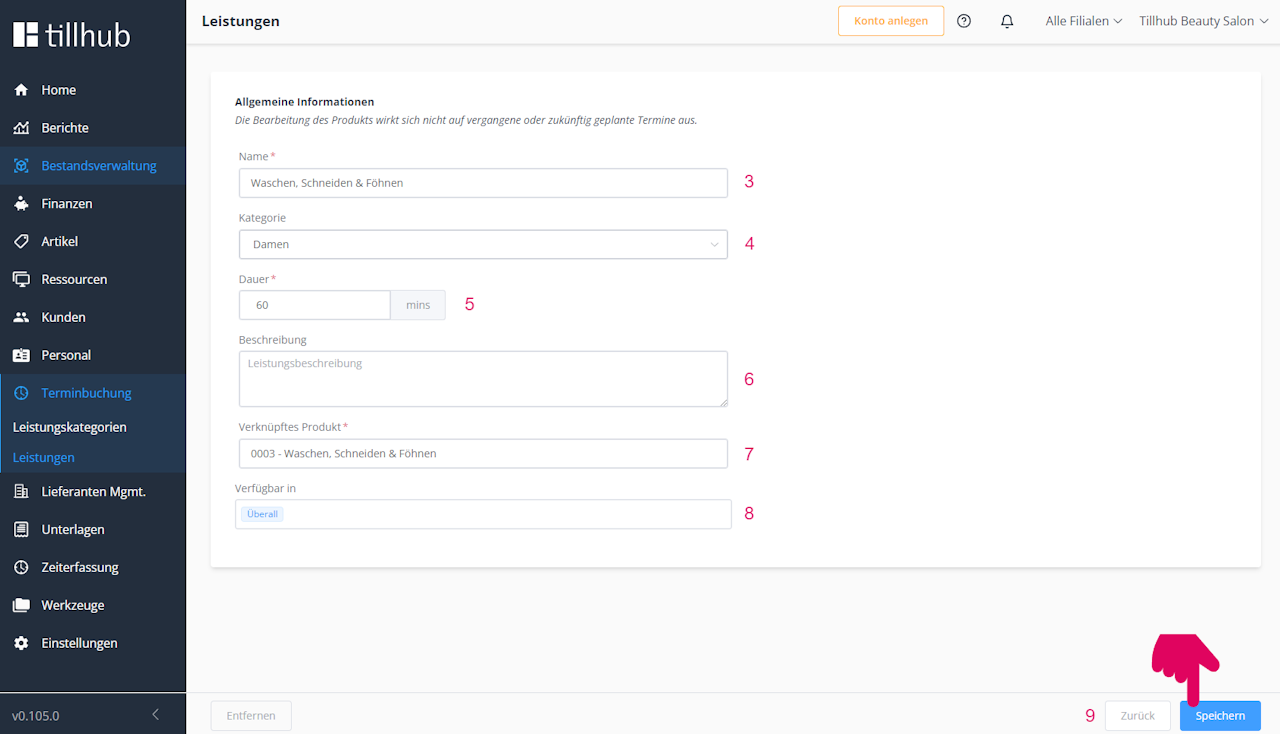
- Give your service a name. This will be shown to both your customers and employees when selecting in the appointment calendar.
- Assign the service to a service category.
- Define the service duration in minutes.
- Write a short description of the service.
- Link the service to a product or another service.
- Optional: If you have multiple branches, you can specify at which locations the service is available.
- Finally, click Create in the bottom right corner.
Tip: Use your product and service names as a guide.
For example: Wash-Cut-Blow Dry, Manicure with Polish, Brow Lamination.
Was this article helpful?
That’s Great!
Thank you for your feedback
Sorry! We couldn't be helpful
Thank you for your feedback
Feedback sent
We appreciate your effort and will try to fix the article
