Set Business Hours & Days Off
Modified on Mon, 23 Feb at 10:36 AM
Define your company’s business hours to establish availability in the calendar.
In the dashboard, go to Settings. You will automatically be directed to the General Settings, where you can select the Appointment Booking menu item.
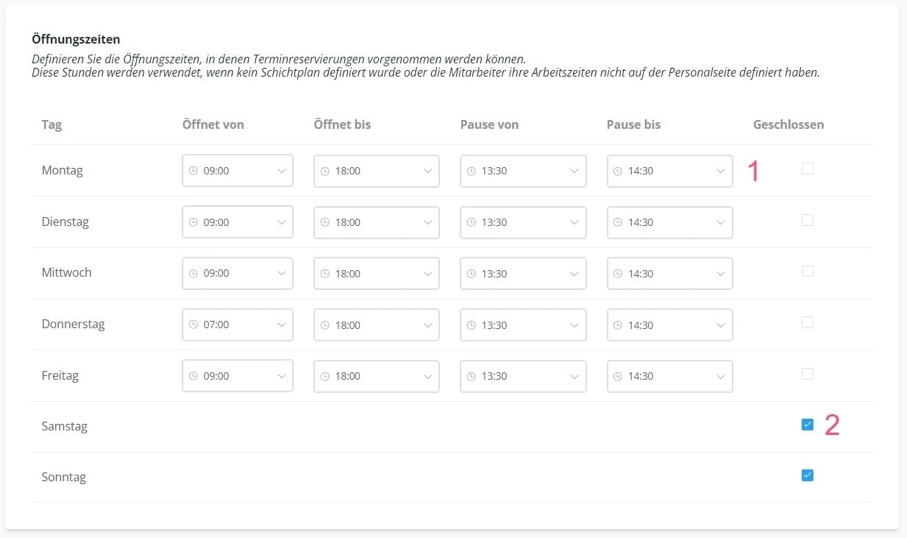
Business Hours
- Enter your opening hours and break times for each day. You can set different time blocks per day by selecting the time from the drop-down menus.
- Click the selection box if your business is closed on a specific weekday.
Days Off
- Define a custom day off by giving it a title and choosing a date.
Settings for Multiple Branches
If your branches have different opening hours, you can adjust them individually.
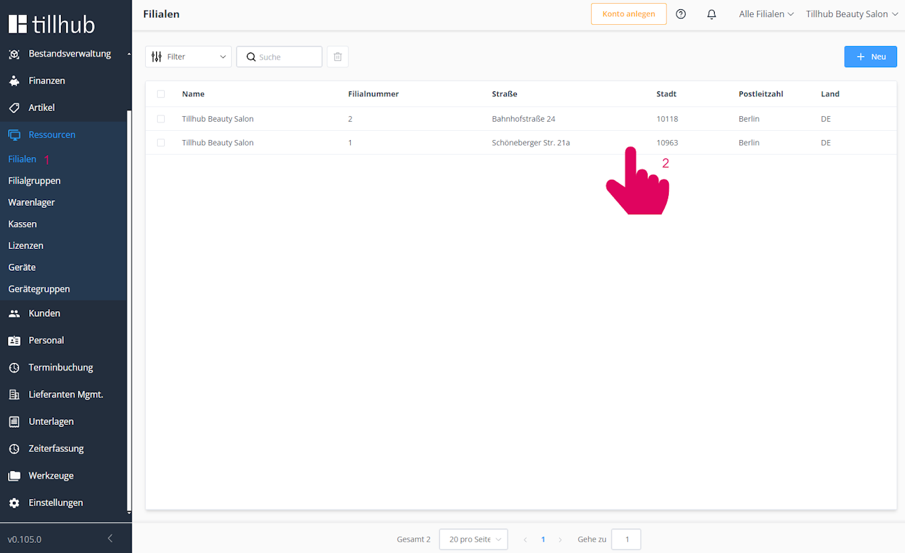
- Go to Resources and select the Branches section.
- Choose the branch for which you want to make individual settings.
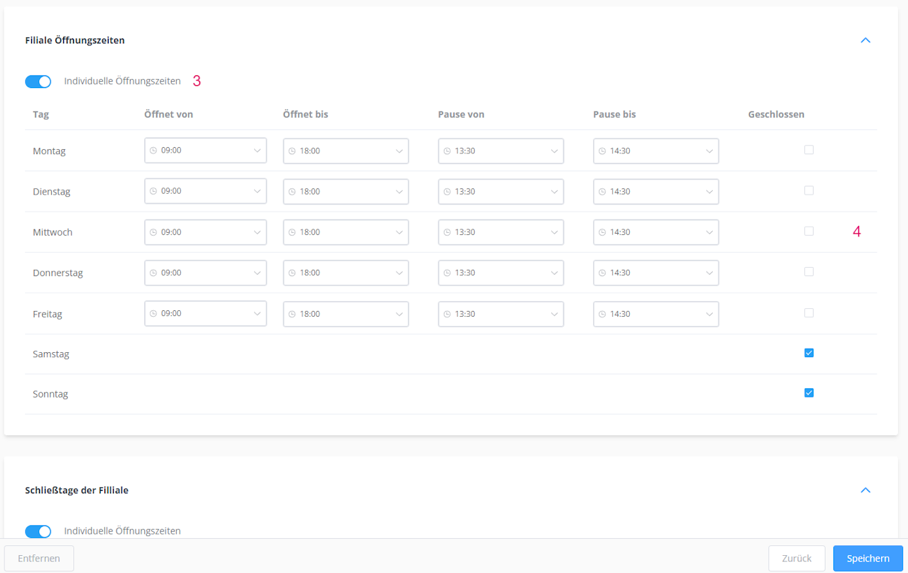
Individual Opening Hours
- Scroll down on the branch page and activate the Individual Opening Hours option.
- Set the opening and break times. In between, click the Save button at the bottom right.
Branch Closing Times
- Scroll further down and activate the Individual Opening Hours option here as well.
- Define your own days off and/or select holidays from our predefined holiday list.
- Finally, click Save to complete the process.
Was this article helpful?
That’s Great!
Thank you for your feedback
Sorry! We couldn't be helpful
Thank you for your feedback
Feedback sent
We appreciate your effort and will try to fix the article
