Setting Opening Hours & Days Off
Modified on Tue, 17 Feb at 2:16 PM
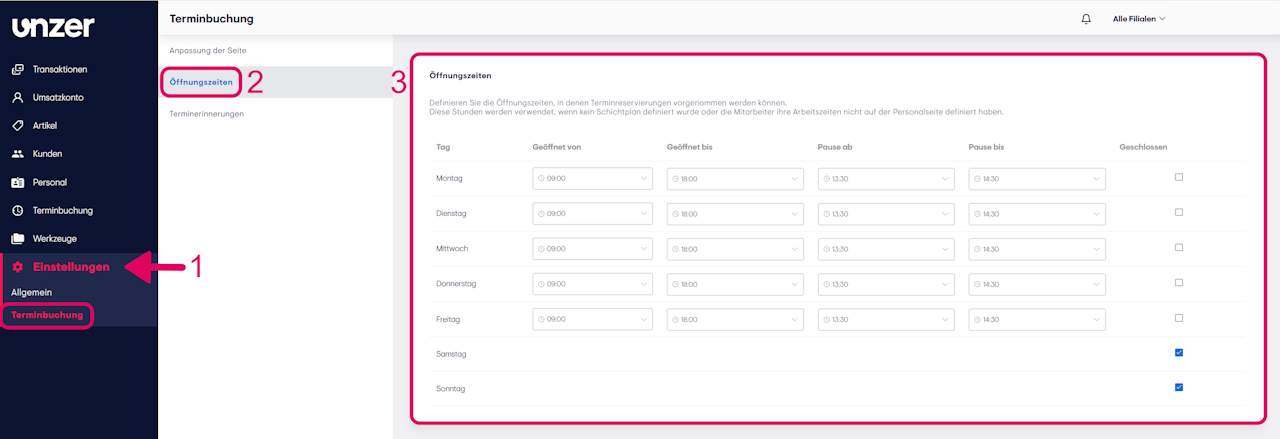
- Go to Settings in the dashboard. You will automatically be redirected to the General Settings, where you can select the “Appointment Booking” menu item.
- Opening Hours: Enter your opening and break times for each day.
- You can set multiple time blocks per day by selecting the time drop-down menus.
- Check the box if your business is closed on a specific weekday.
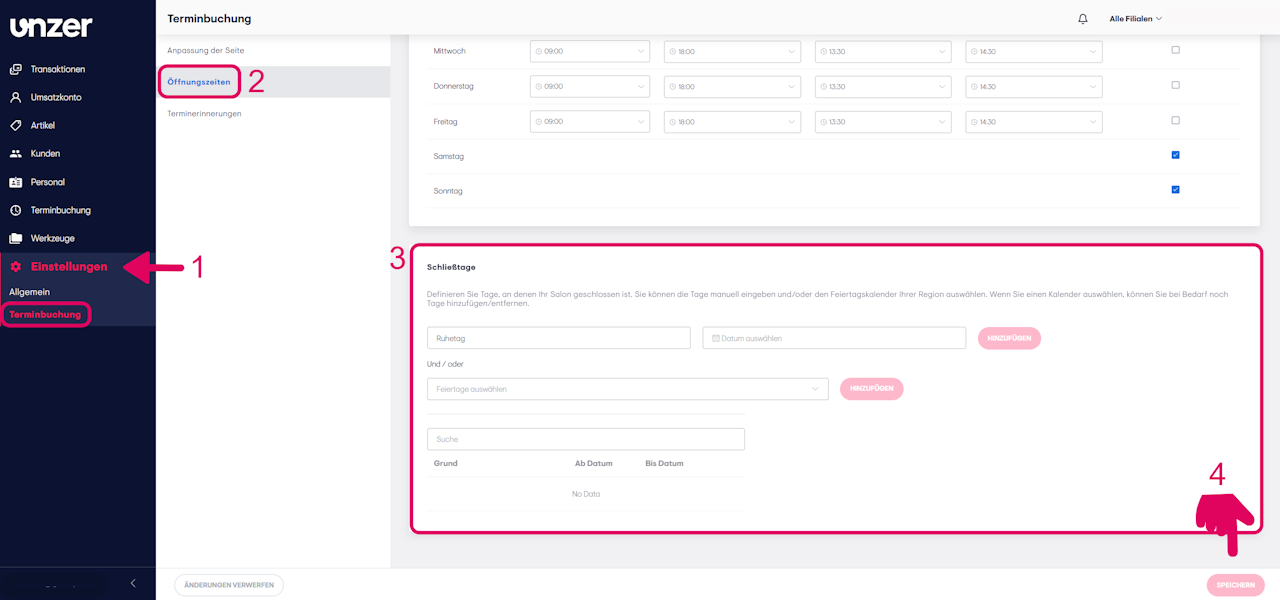
- Days Off:
- Define a custom day off by giving it a title and selecting a date.
- Optionally, you can choose from predefined public holidays. You can select between federal states in Germany and public holidays in Austria.
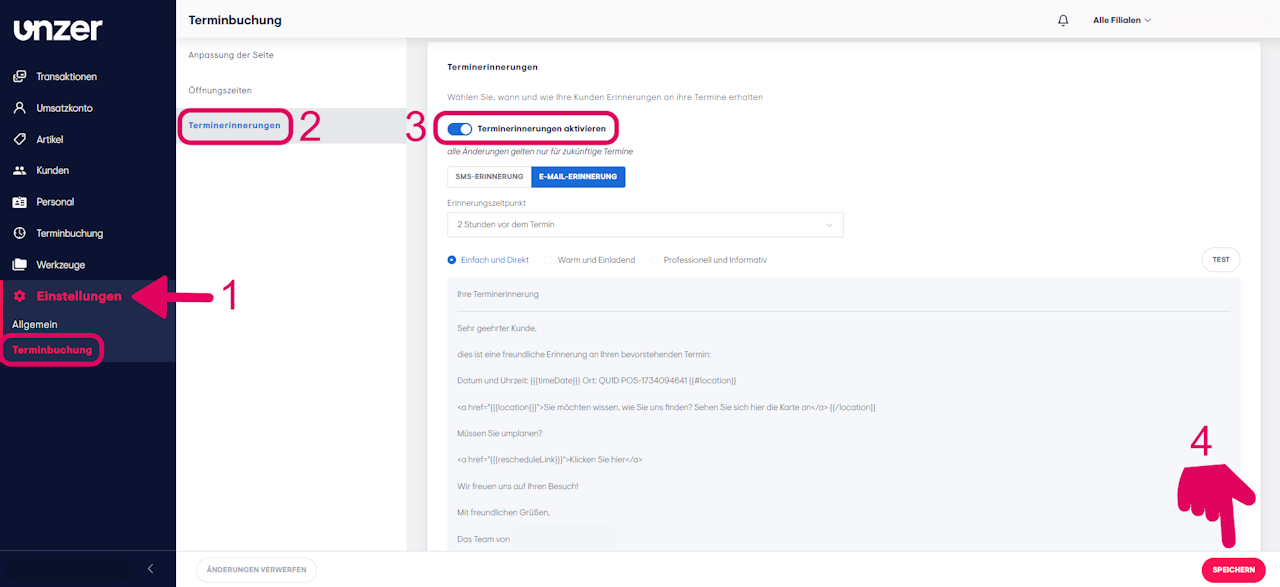
- Appointment Reminders (Optional):
Activate this option and choose when and how your customers will receive reminders about their appointments — by SMS or email.
If the customer opts for email reminders, they can choose from different templates that can be tailored to their business model:- Simple and direct – for clear and concise communication.
- Warm and inviting – for a personal and friendly tone.
- Professional and informative – for a factual and businesslike style.
Was this article helpful?
That’s Great!
Thank you for your feedback
Sorry! We couldn't be helpful
Thank you for your feedback
Feedback sent
We appreciate your effort and will try to fix the article
