Fiskaltrust, Fiskaly & FinanzOnline (Austria)
Modified on Wed, 1 Apr at 1:15 PM
Create a cash register web service user on FinanzOnline
In this section, we show you how to create a cash register web service user on FinanzOnline. If your tax advisor is not registering on your behalf, ask them to provide you with your personal login credentials for FinanzOnline.at.
Step 1: Login
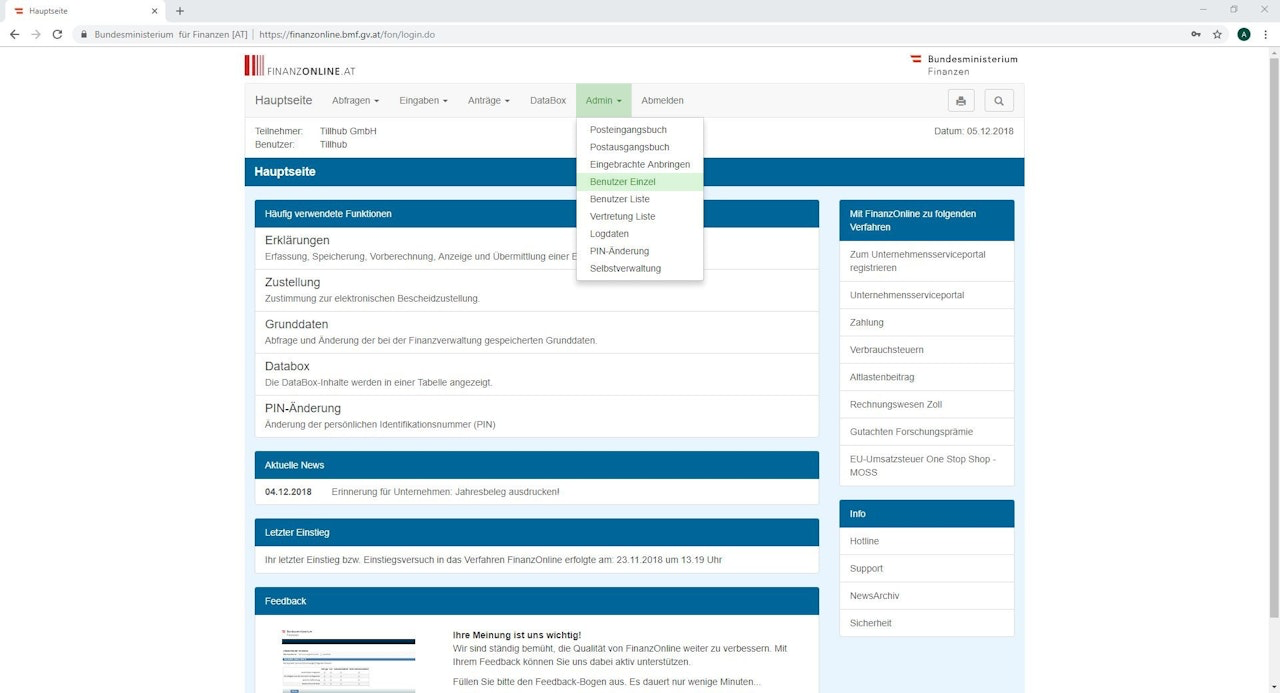
Log in with your credentials at FinanzOnline and then navigate to "Admin - Benutzer Einzel"
Step 2/1: Create a cash register web service user
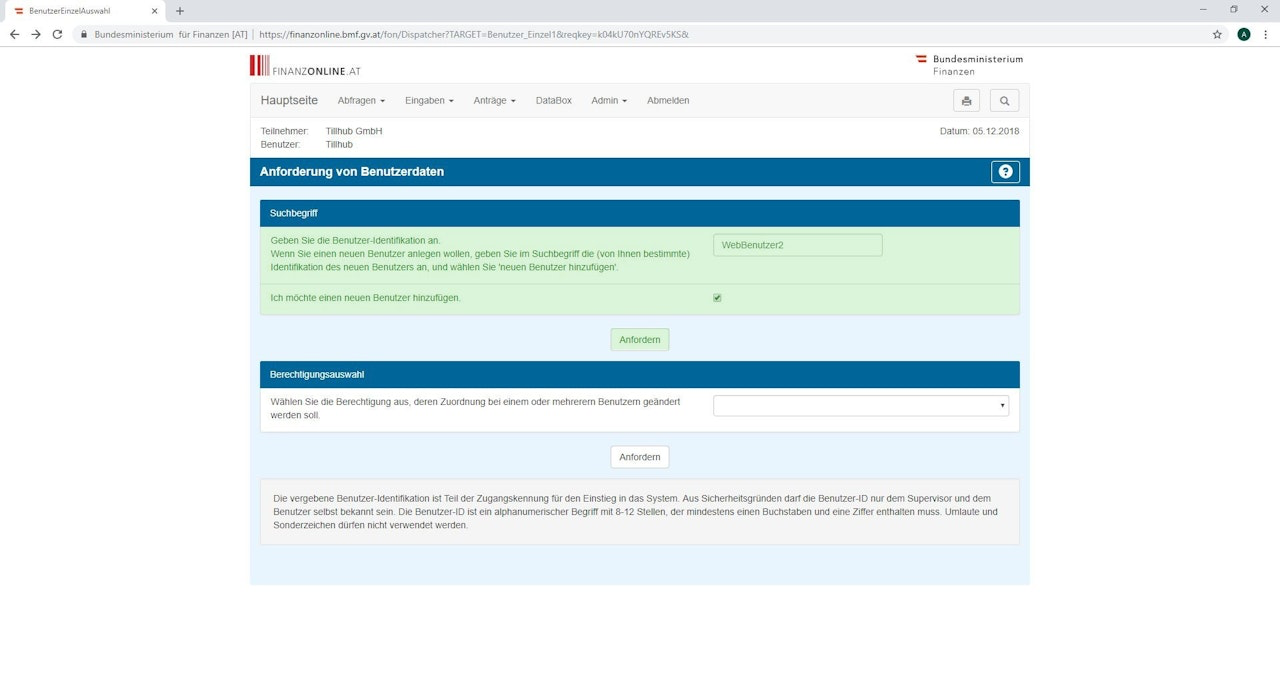
Enter a name for the user under "Search term" in the next window, e.g. "WebBenutzer"
Check "✔" for "I want to add a new user"
Click "Request"
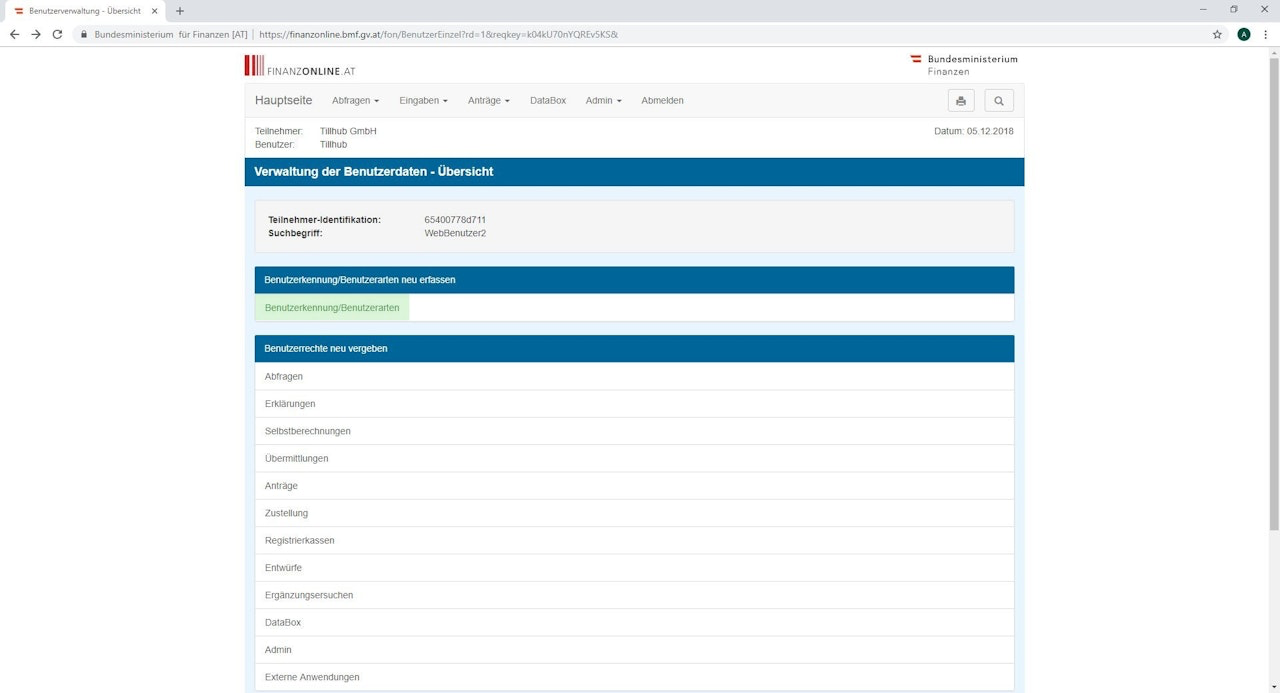
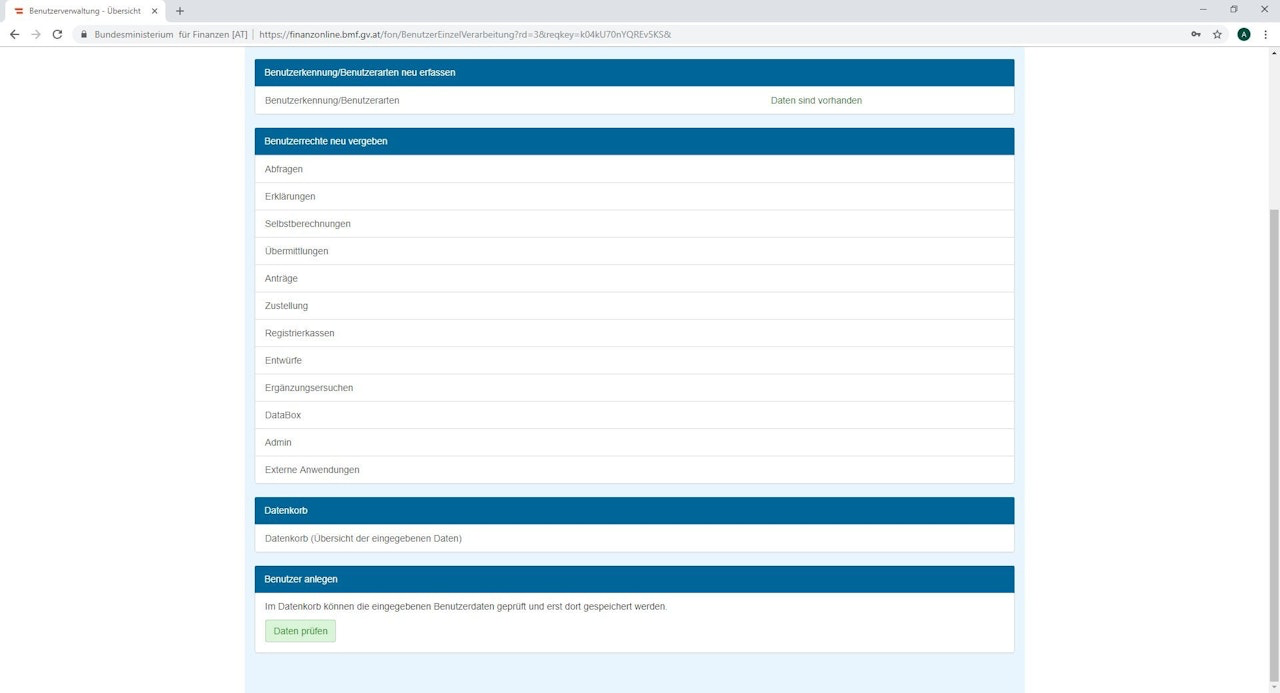
In the next window, click "User ID/User types"
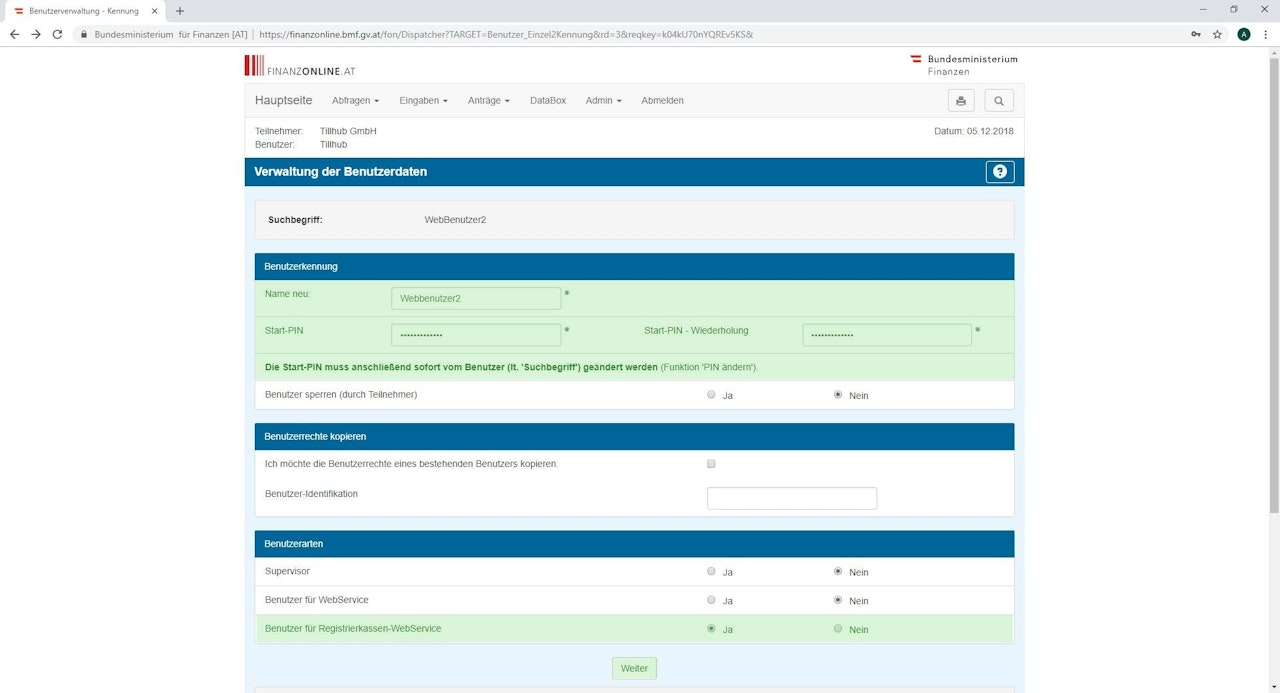
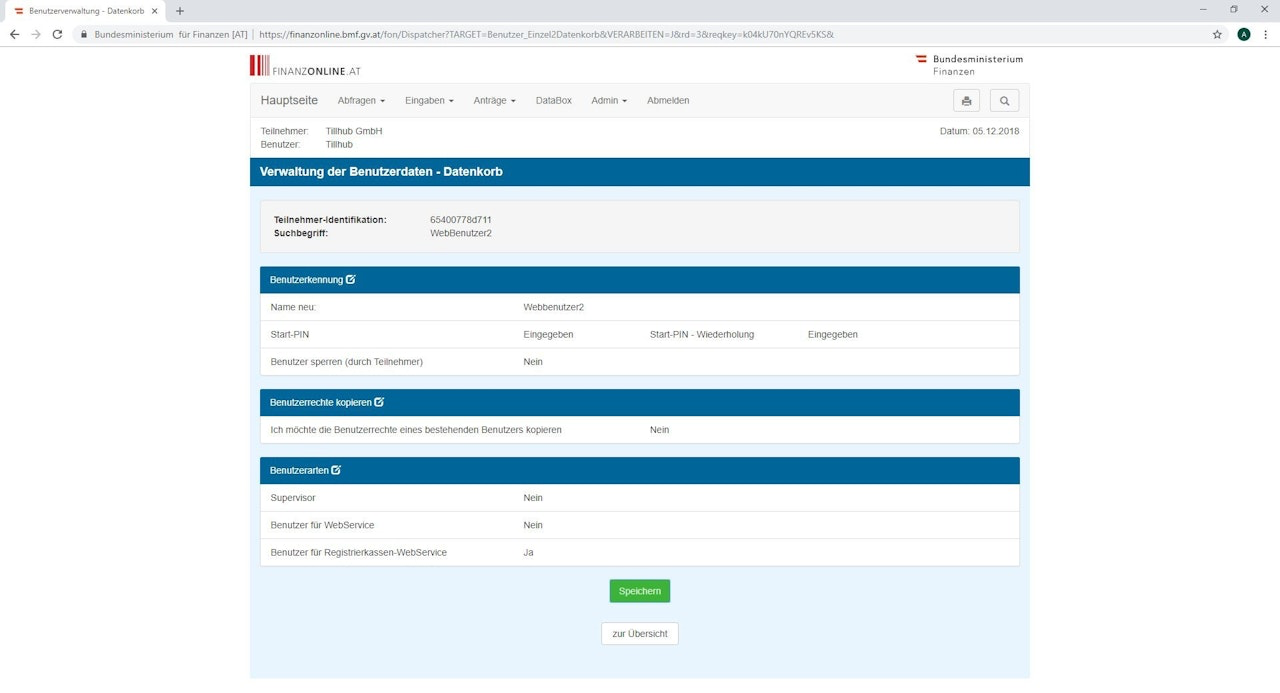
Enter the name, a PIN, and the rights of a cash register web service user in the following window
Confirm your entries by clicking "Next"
Step 2/2: Create a cash register web service user
In the next window, click "Check data" at the bottom left
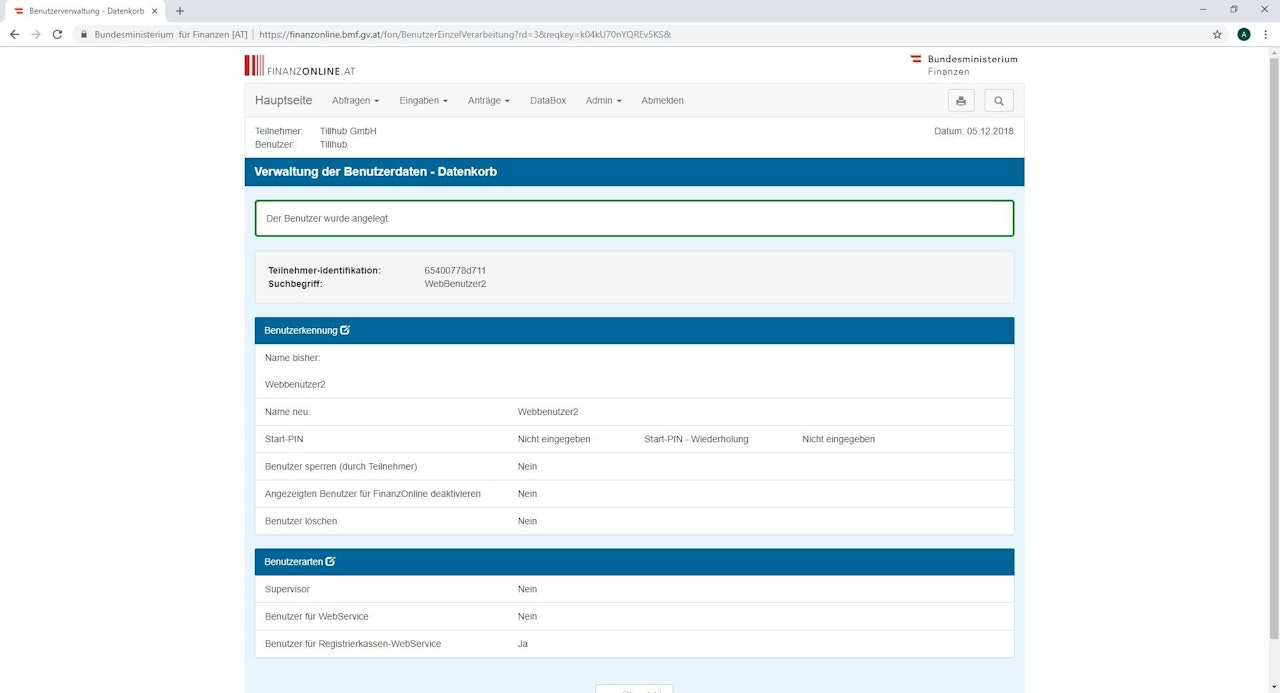
Click "Save" in the next window
If everything worked, you will see a green message "The user was created"
Perfect, now we can continue with the next steps!
Register at fiskaltrust and enter your master data
Step 1: Register on the fiskaltrust portal
Navigate to the fiskaltrust portal and register:
https://portal.fiskaltrust.at/Account/Login?ReturnUrl=%2FHome%2FDashboard
Step 2: Register as a cash register operator
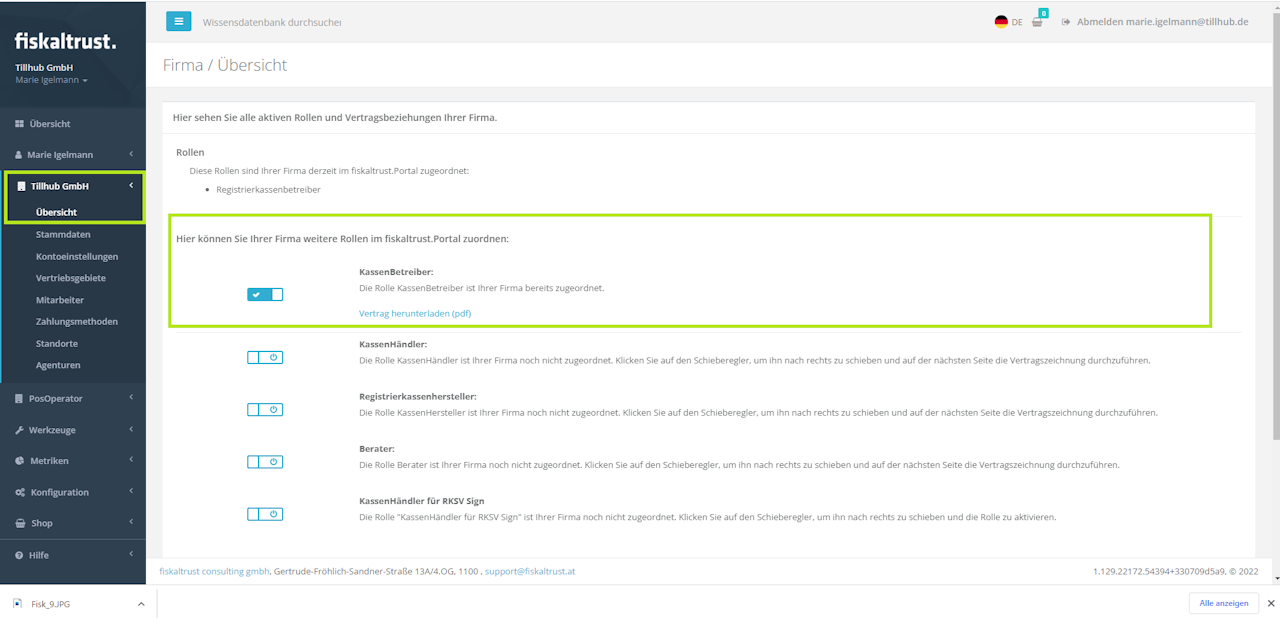
Click on your username in the main menu (e.g. "Tillhub GmbH")
Navigate to "Overview"
Check the box for "Cash register operator"
Accept the terms and conditions, enter your first and last name in the signature field, and submit the form
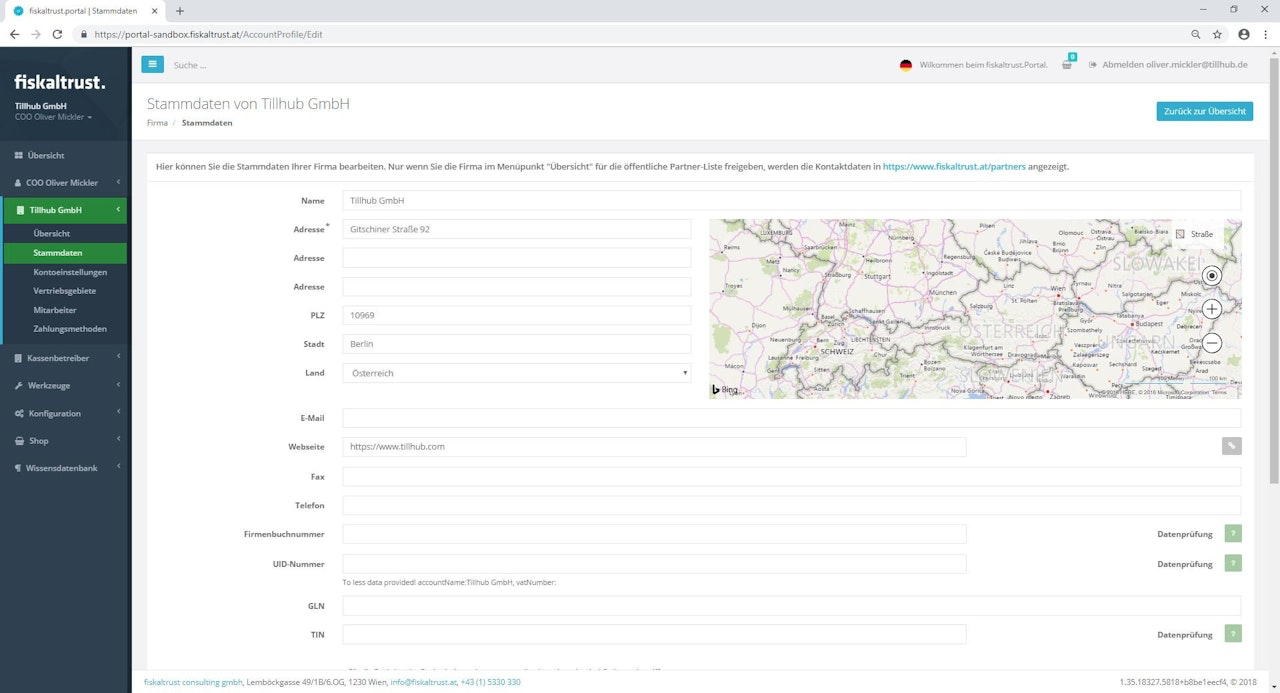
Step 3: Enter your company’s master data
Click on your username in the main menu (e.g. "Tillhub GmbH")
Go to "Master data" in the submenu
Fill out your company’s master data on the right side of the screen
You must enter at least one of the following numbers correctly:
1) VAT Identification Number (UID)
"ATU" + 8 digits, numeric
Example: ATU12345678
2) Global Location Number (GLN)
13 digits, numeric
Request: http://www.gepir.at
Example: 1234567890123
3) Taxpayer Identification Number (TIN)
Tax office number (2 digits) + TIN (7 digits) without spaces or separators
Example: Linz tax office (46), TIN 123 / 4567 → Enter: 461234567
Enter the name under which the number is registered with a European tax authority. This may be your first and last name or your company name. Check your documents used for tax audits.
After entering your data, click "Save"
Step 4: Verify your master data
Click the "?" boxes next to the input fields to verify your data.
If correct, the "?" becomes a "✔"
You must verify the data to confirm UID or TIN
If incorrect, update and recheck. Contact your tax advisor if needed.
Step 5: Purchase the Sorglos package
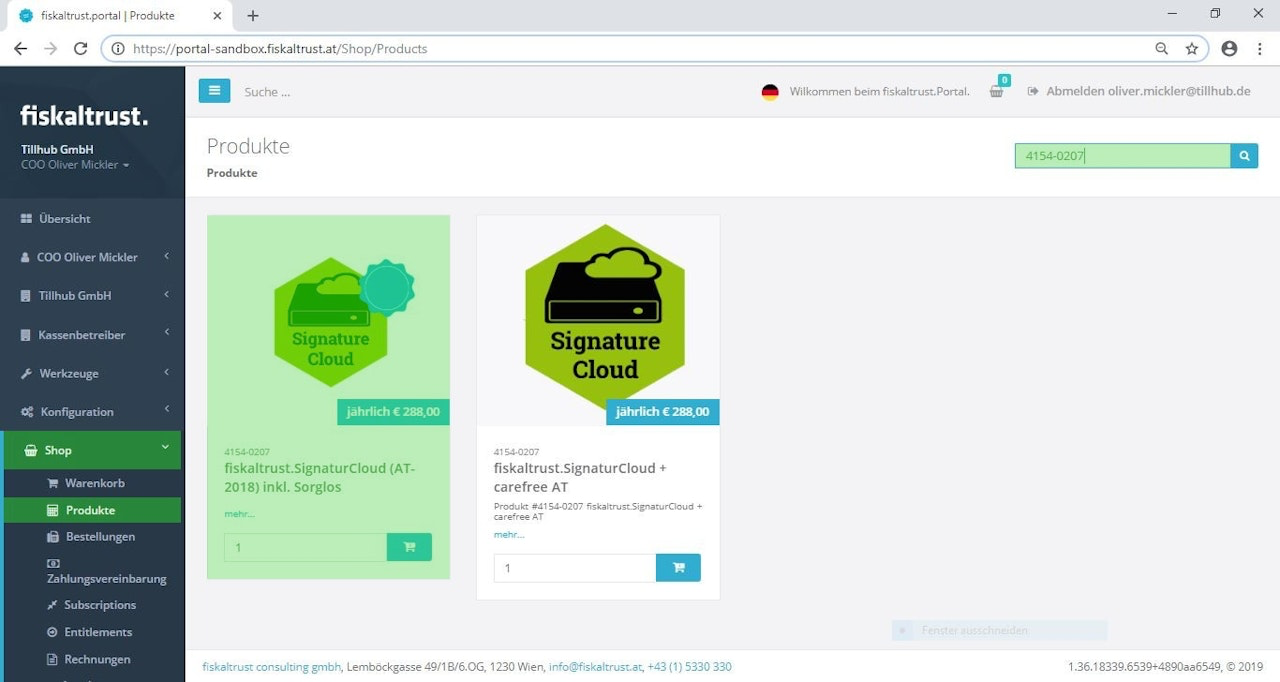
Click "Shop" in the main menu
Go to "Products"
Select fiskaltrust.SignatureCloud incl. Sorglos Package AT (# 4154-0207) for €288
Click the shopping cart icon to add it to the cart
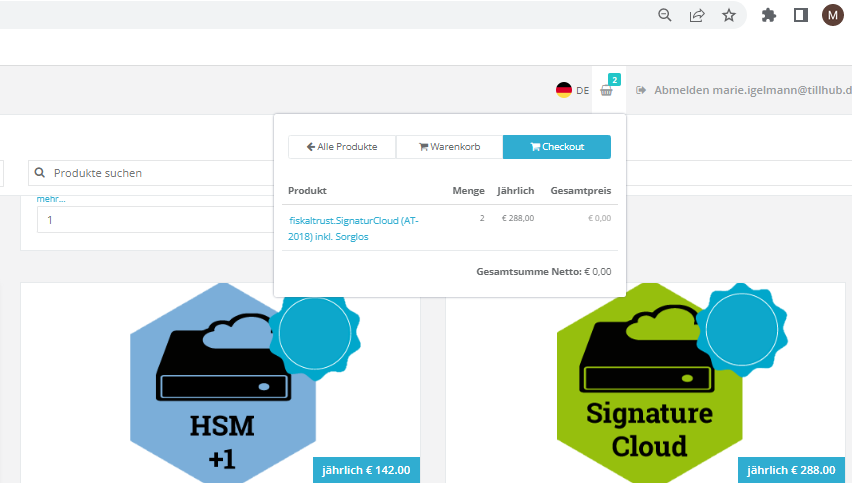
Only one package per company is needed, regardless of branches or licenses
Click the cart icon top right, then "Checkout" to complete the purchase
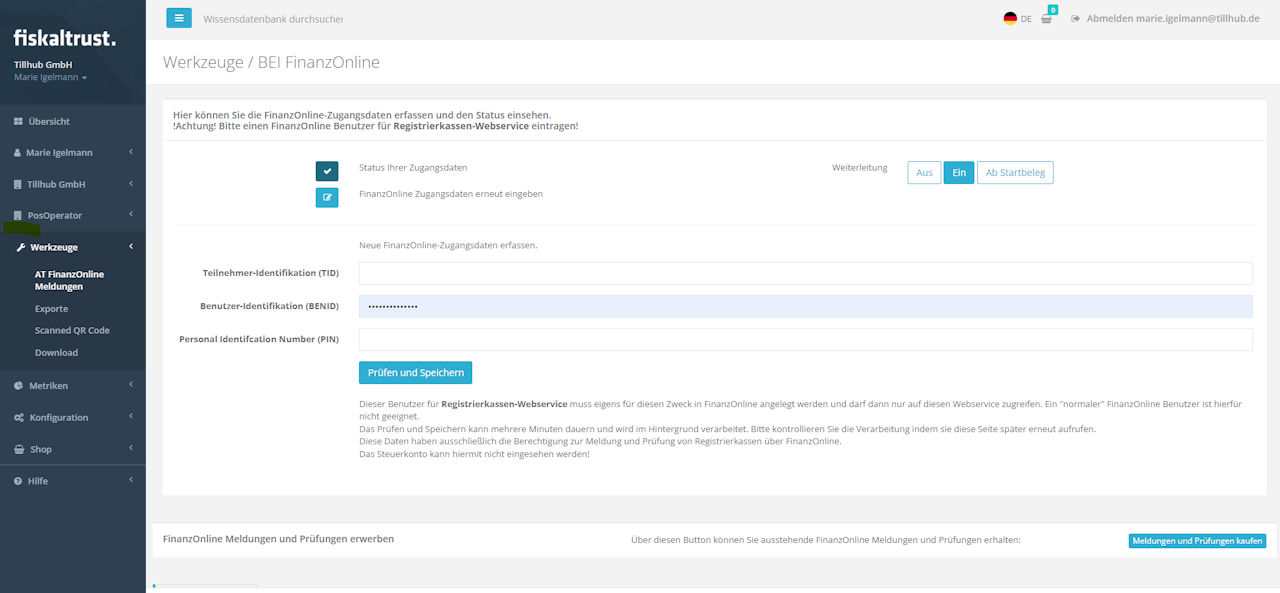
Step 6: Enter user data from FinanzOnline portal
Click "Tools" in the main menu
Go to "ATFinanzOnline Meldungen"
Enter the "cash register web service user data" from FinanzOnline:
- Participant ID (TID)
- User ID (BENID)
- Personal Identification Number (PIN)
Click "Check and Save"
Step 7: Verify certificate and cash register ID from Fiskaltrust
Click "Tools" in the main menu
Go to "ATFinanzOnline Meldungen"
Check if “Initial operation cash register ID” and “Initial operation certificate” are marked as "Done"
It may take up to 30 minutes. If a red triangle appears, review your entries from steps 3 and 6.
Integrate fiskaltrust data into the Tillhub dashboard
Step 1: Copy fiskaltrust CashboxID and AccessToken
Navigate to "Configuration" in fiskaltrust
Click on "Cashbox"
Copy "CashBoxID" and "AccessToken" using the green copy icons
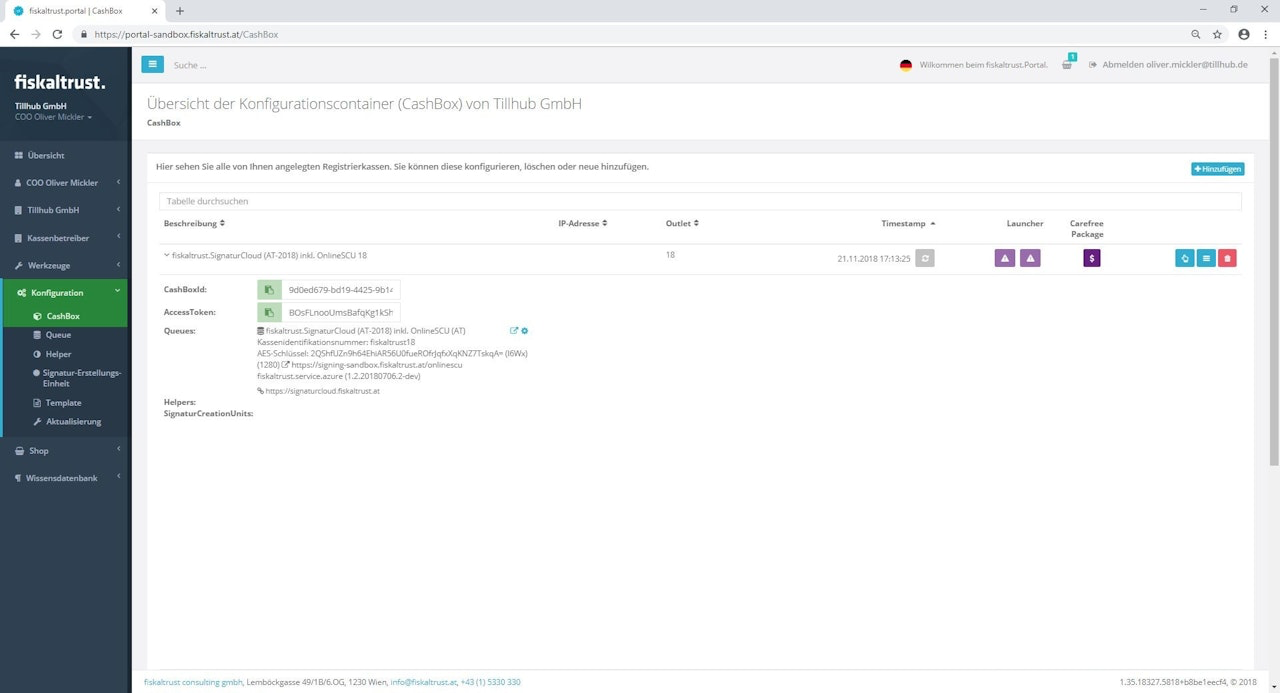
Step 2: Insert CashboxID and AccessToken into Tillhub dashboard
Log in to https://dashboard.tillhub.com/login
Go to Resources > Branches
Select the relevant branch (click the row, not the checkbox)
Scroll down to "Fiskalisation" and expand the section
Enter "CashBox-ID" under "Signature Resource"
Enter "AccessToken" under "Signature Authentication"
Click "Add signature configuration"
Click "Save"
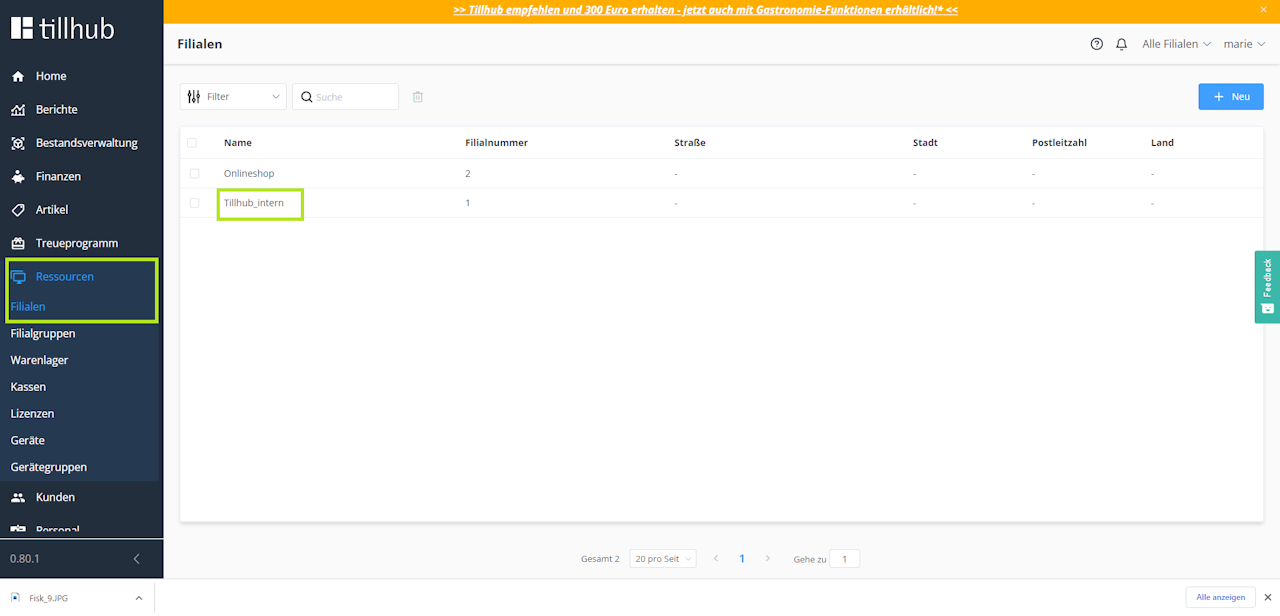
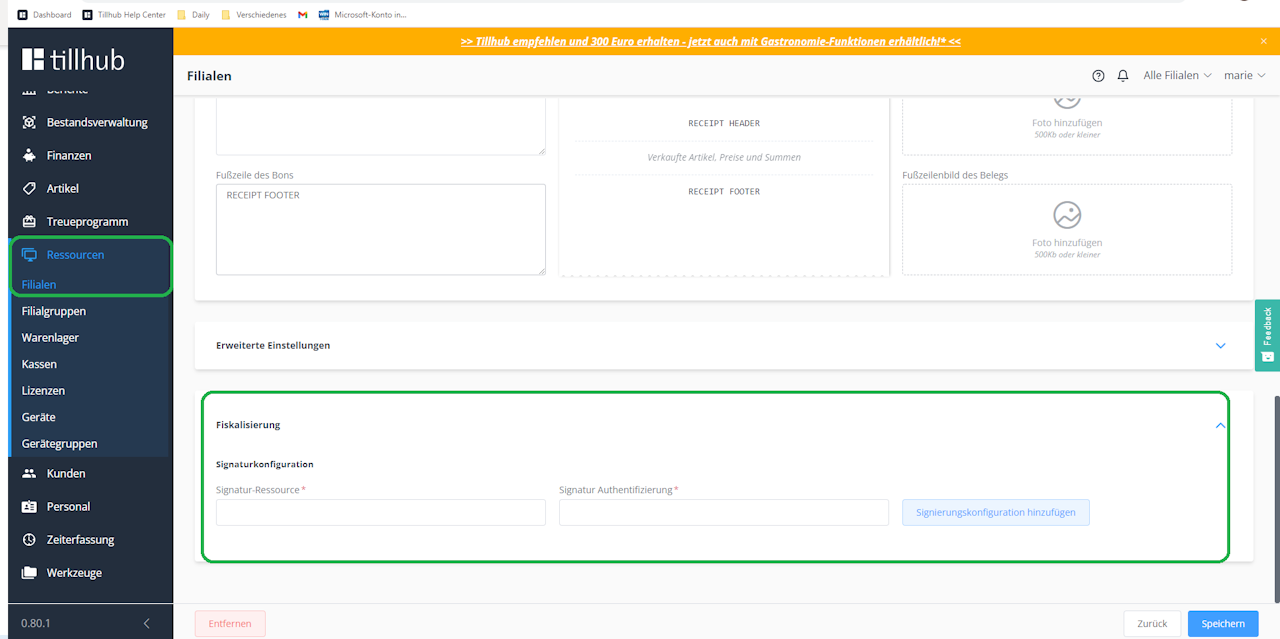
Create zero receipt with the Tillhub App and scan it with the BMF app
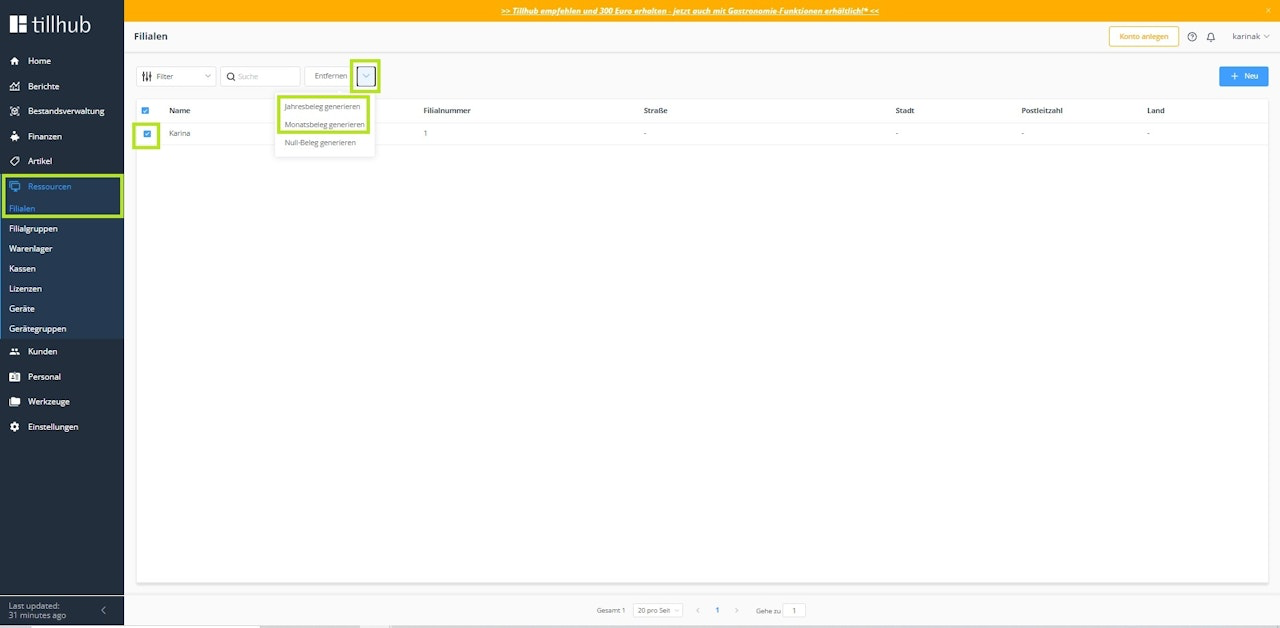
Step 1: Generate zero receipt in the dashboard
Log into your Tillhub Dashboard
Go to "Resources > Branches"
Check the box for the relevant branch
Open the drop-down next to "Remove" and click "Generate zero receipt"
Confirm in the pop-up window
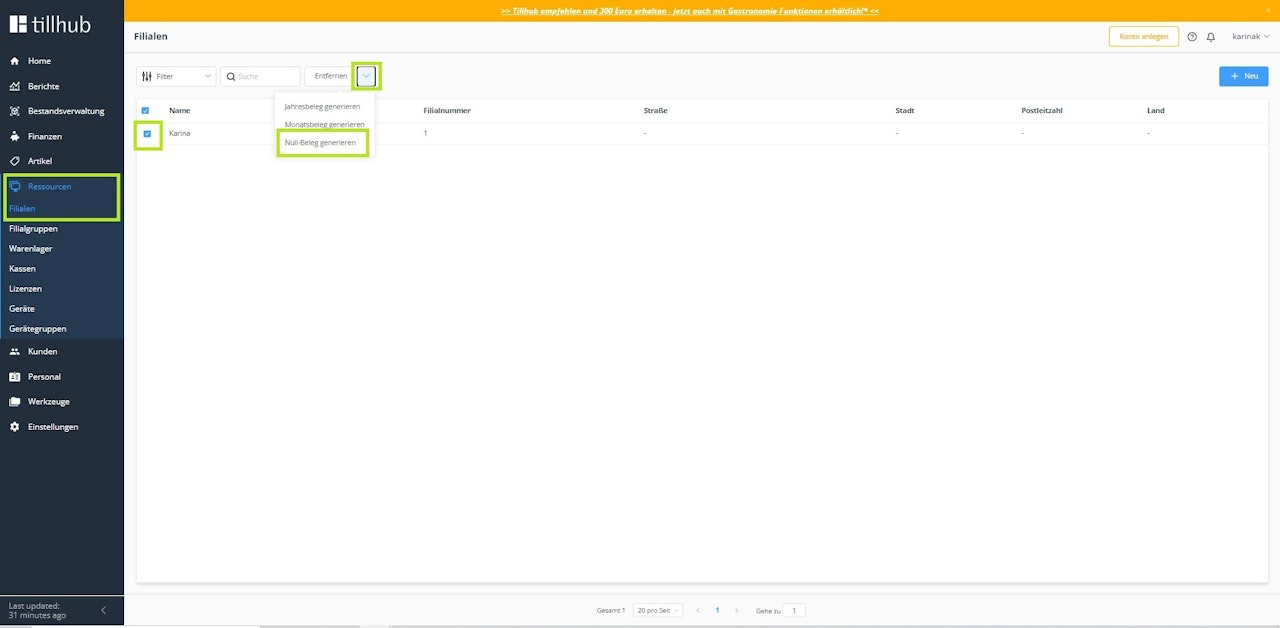
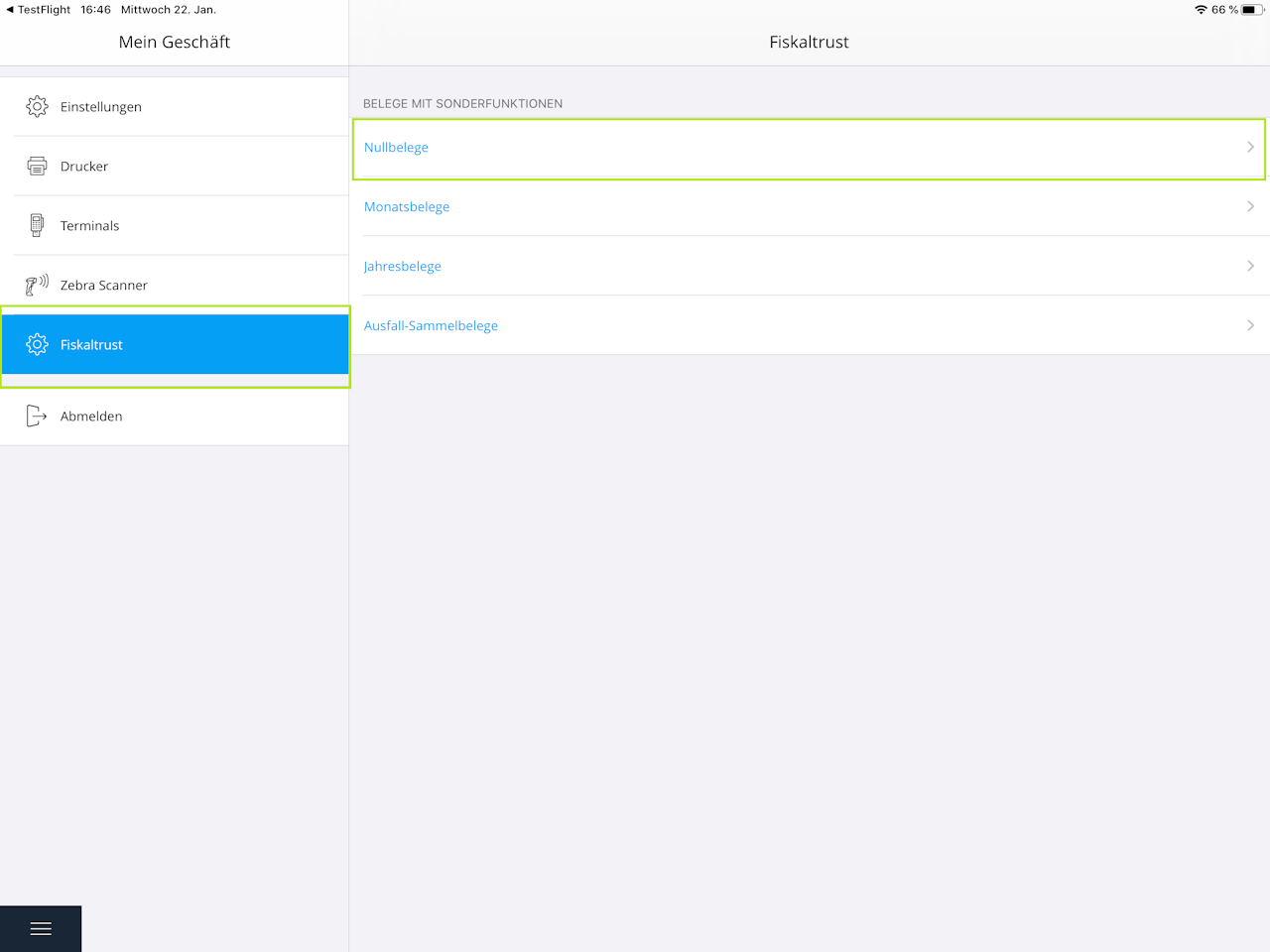
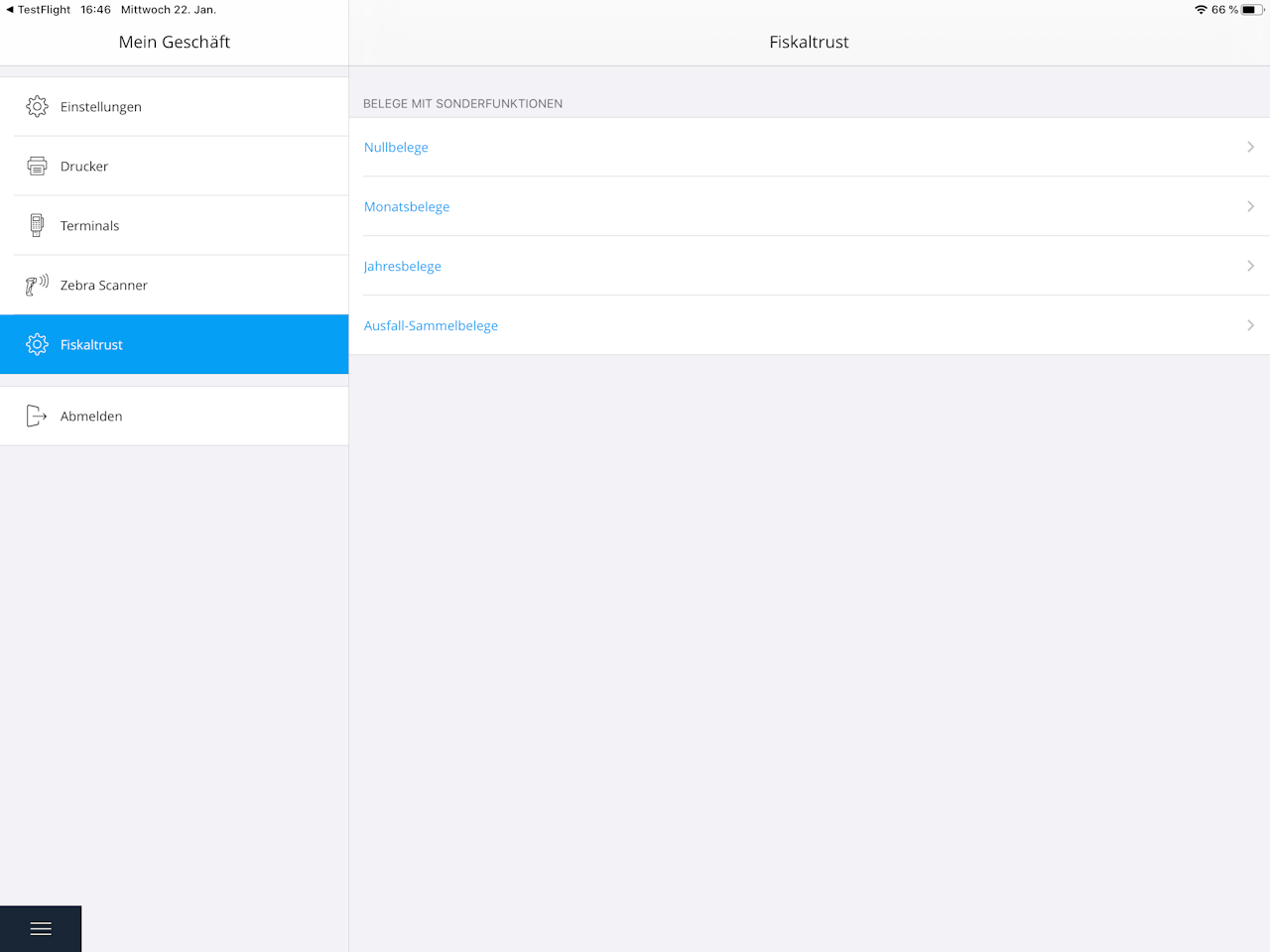
Step 2: Create zero receipt in the Tillhub app
Log in to the Tillhub App on your iPad
Tap "Settings"
Tap "fiskaltrust"
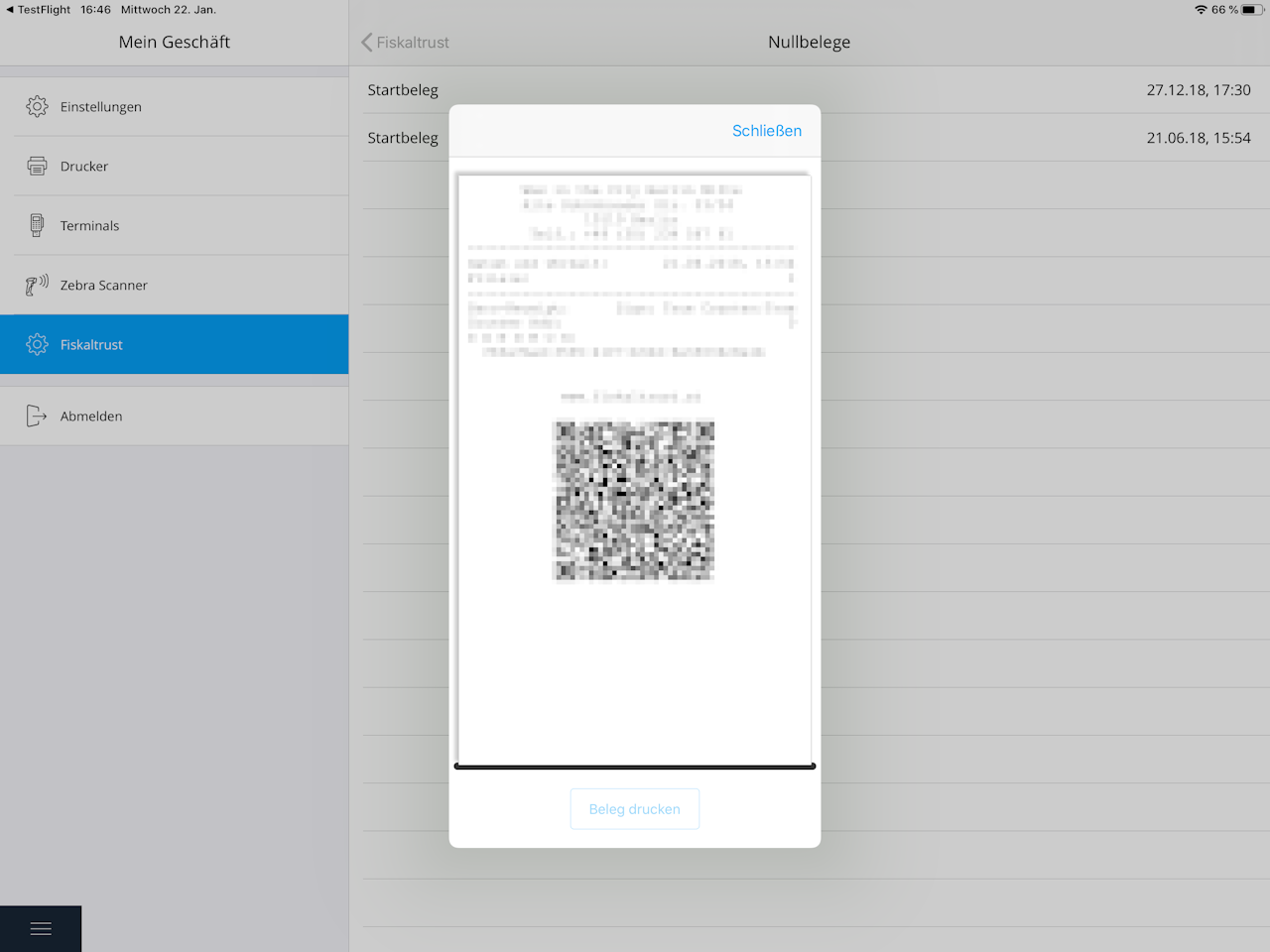
Tap "Zero receipts" then "Print zero receipt"
Step 3: Scan zero receipt with BMF app
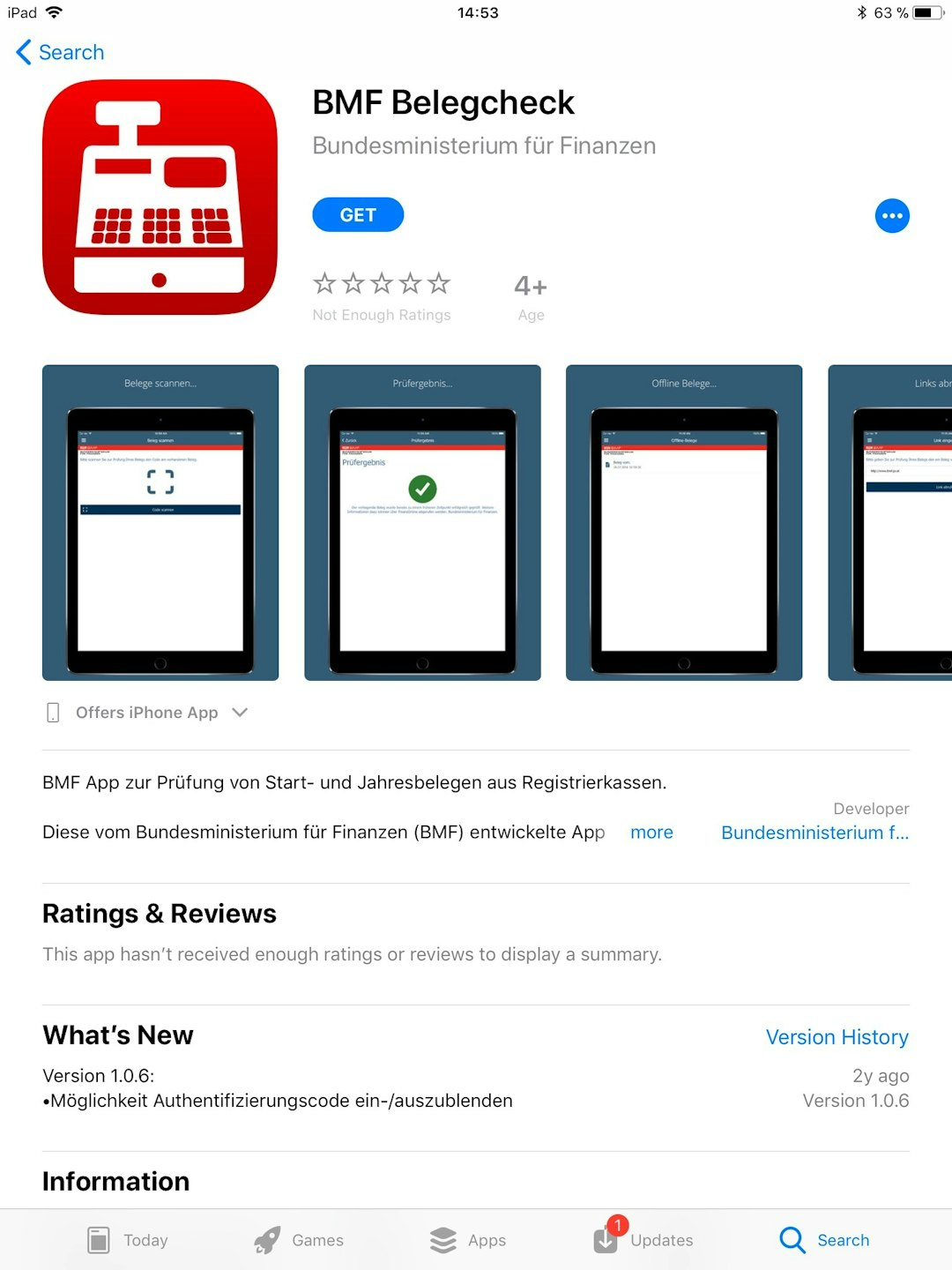
Open the App Store on your iPad
Search and install the BMF app
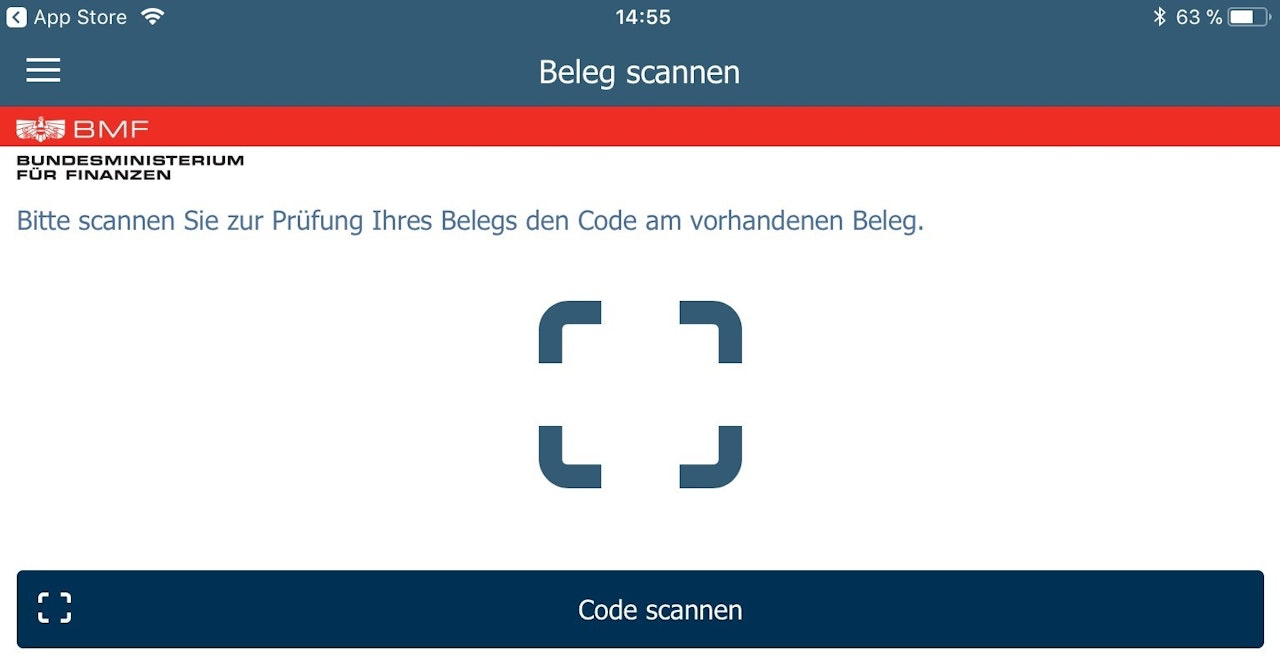
Open it and scan the QR code of your zero receipt
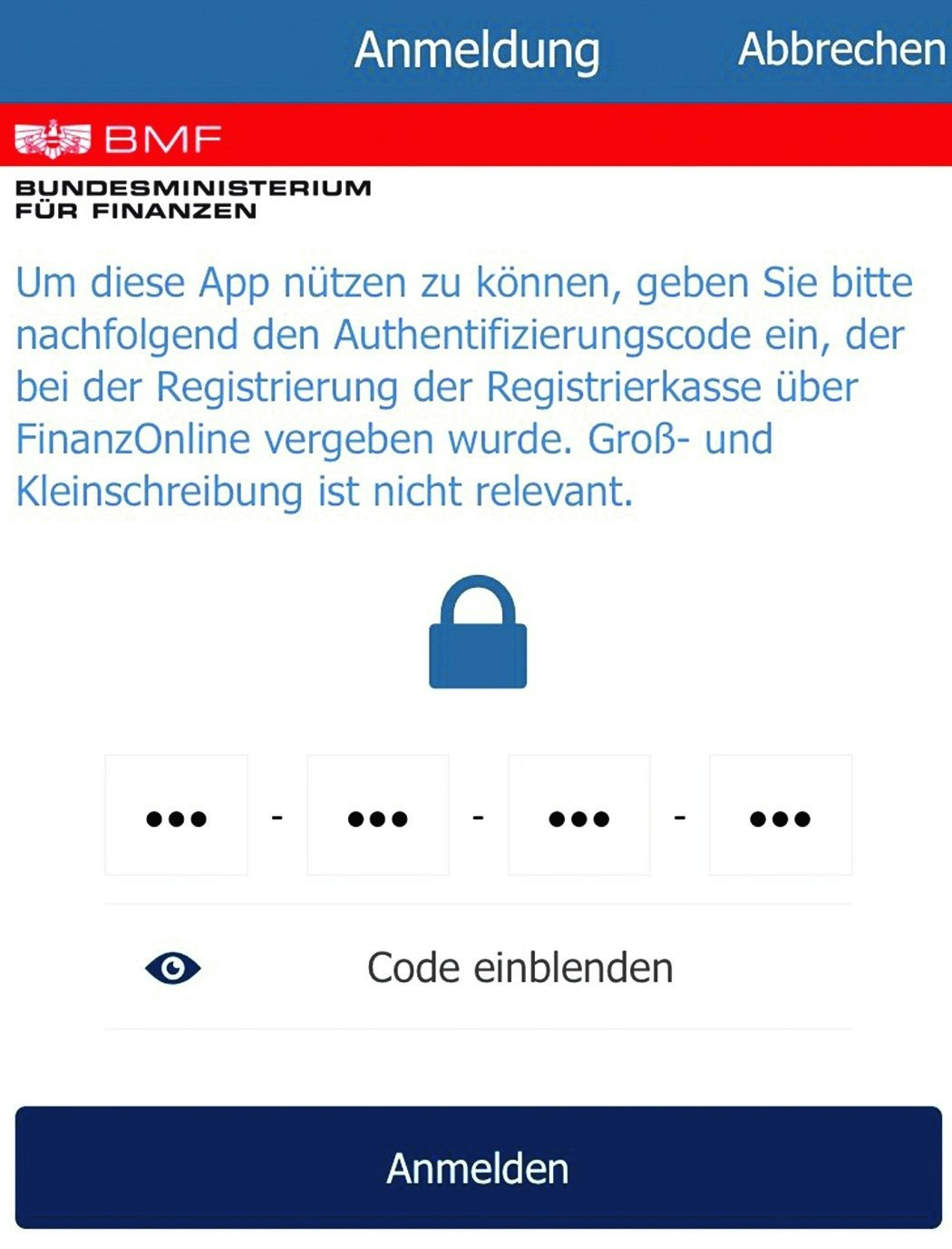
After successful scan, a window appears prompting you to enter the activation code from FinanzOnline
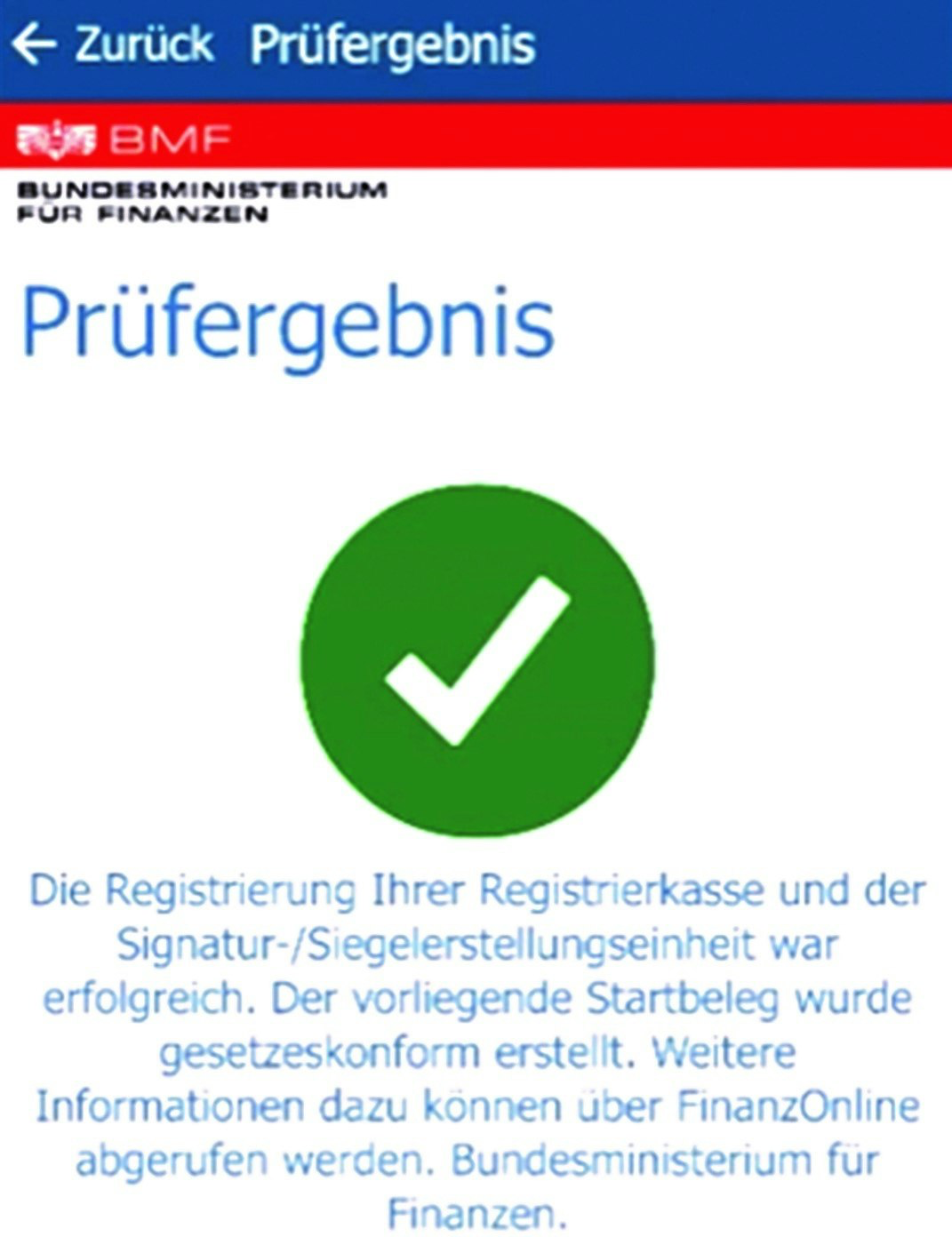
Check result
If everything was correct, a success message will appear.
Now the confirmed zero receipt must be confirmed in fiskaltrust.
Confirm zero receipt in fiskaltrust
Step 1: Confirm zero receipt in fiskaltrust portal
Log into https://portal.fiskaltrust.at/Account/Login?ReturnUrl=%2FHome%2FDashboard
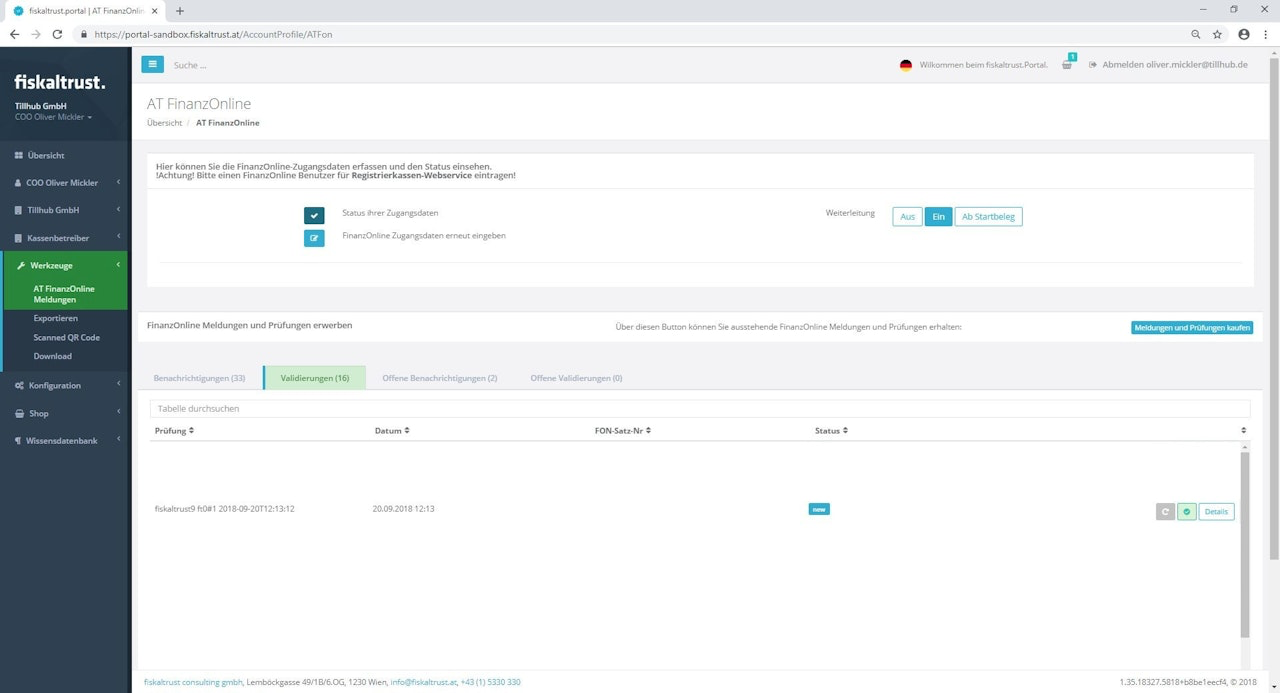
Click "Tools" in the main menu
Go to "ATFinanzOnline Meldungen"
Find the "Validations" column with "fiskaltrust_ft0#_"
Click the blue "✔"
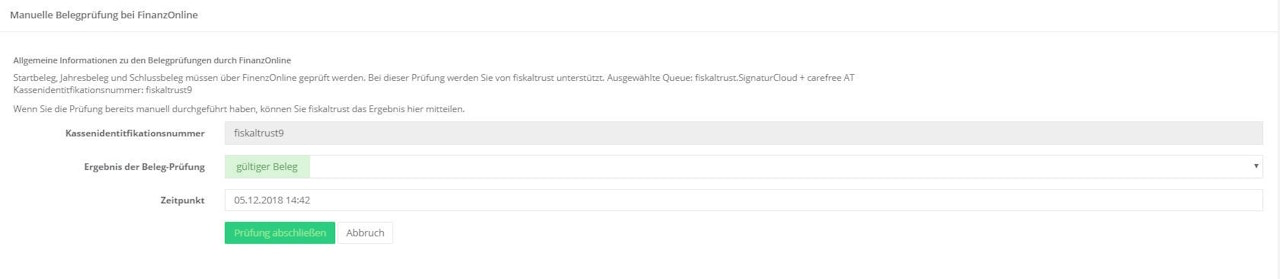
In the next window, select "Result of receipt check - valid receipt"
Click "Complete check"
RKSV data collection protocol
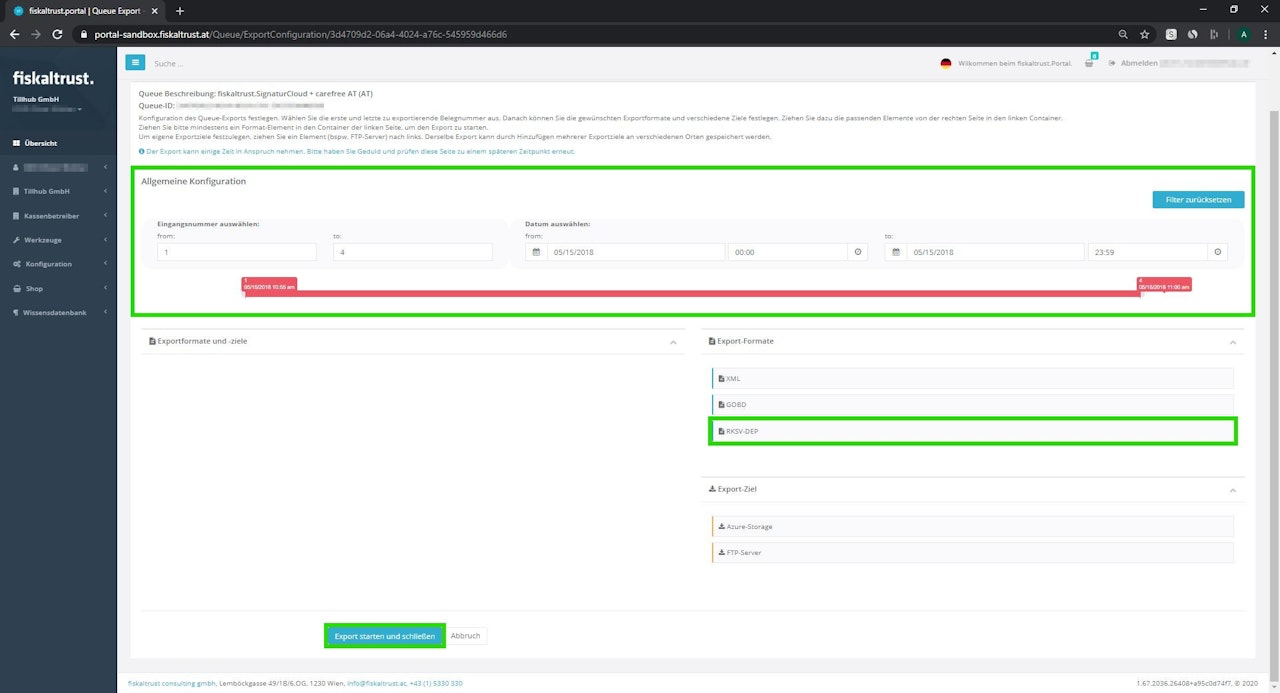
You can now also create an export of the RKSV data protocol (DEP-7) via the fiskaltrust portal.
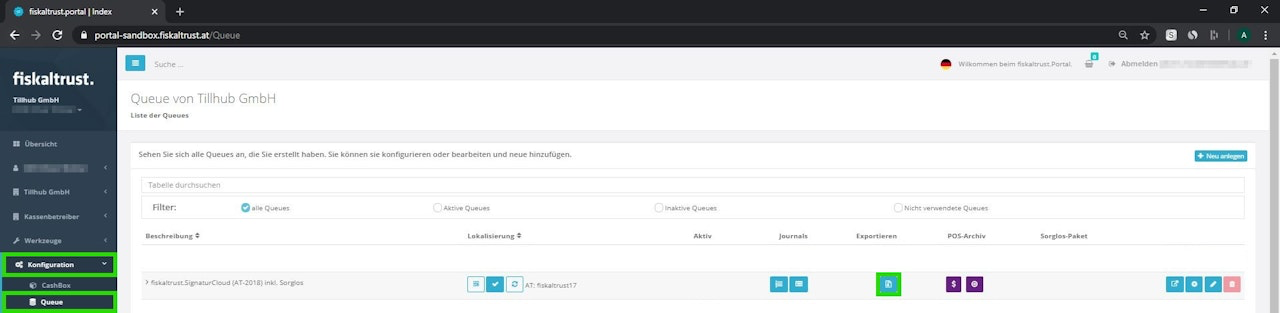
Log into the fiskaltrust portal and go to "Configuration - Queue"
Click the "Export" button for the relevant signature creation unit
A new section opens to set export range (input numbers or date range)
Drag the "RKSV-DEP" export format from right to left
Click "Start export and close"
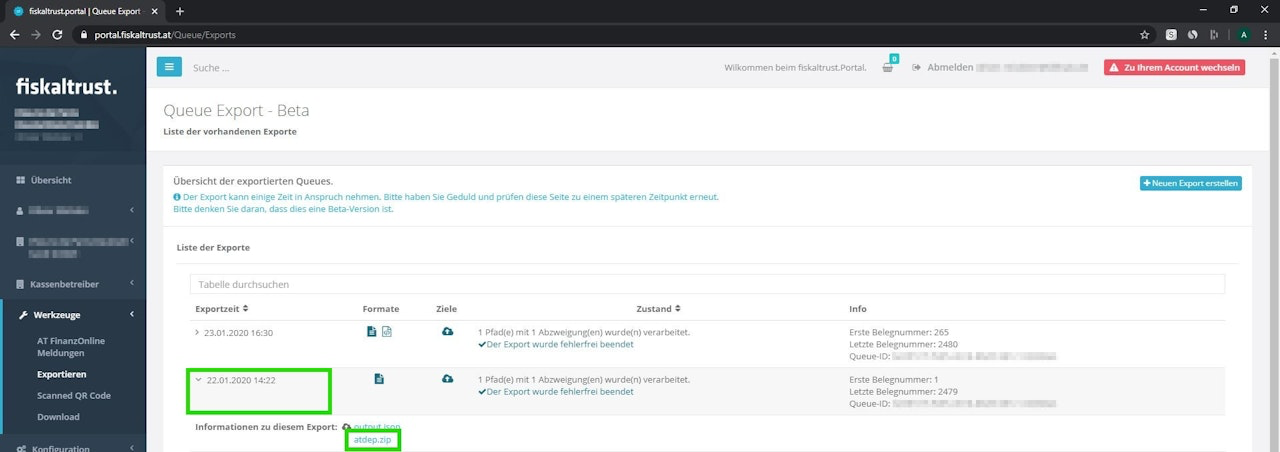
The file will be generated under "Tools - Export"
Completion time: 30 minutes to 48 hours depending on size
You'll receive an email when it’s ready
Return to the portal and go to "Tools - Export"
Click the ">" icon on the corresponding export
You can now download files named "atdep" (for DEP) and "gobd" (for GoBD) as .zip
Note: You won’t be able to open the file. The auditor will use the proper software.
Create monthly and yearly reports in the Tillhub Dashboard
At the end of each month, print a monthly receipt; at the end of the year, a yearly receipt. You can do this yourself or have your tax advisor do it.
To remain RKSV-compliant, your register must be online during settlement or connected to the internet at least every 48 hours. If offline, reconnect within 7 days to sync all invoices.
To create a report:
- Go to the Tillhub Dashboard > Resources > Branches
- Check the relevant branch
Note: Monthly reports must be created once after the last settlement of the month and once before starting the new month.
After creating the report in the dashboard, confirm it in the Tillhub App:
- Open the app > Settings > fiskaltrust
- The reports will be listed. Tap to display the receipt
- Scan the QR code with the BMF app to verify
Important:
The yearly receipt must be created by December 31 of the same year.
It must be verified by February 12 of the following year.
Non-compliance may lead to fines of up to €5,000
More info:
https://www.wko.at/service/steuern/pruefung-jahresbeleg-registrierkasse.html
https://www.deloittetax.at/2017/12/21/registrierkassenpflicht-erstellung-des-jahresbelegs-zu-jahresende/#.XykqRxMzbUI
Was this article helpful?
That’s Great!
Thank you for your feedback
Sorry! We couldn't be helpful
Thank you for your feedback
Feedback sent
We appreciate your effort and will try to fix the article
