Hardware and Online TSE (Germany)
Modified on Wed, 1 Apr at 1:15 PM
Hardware and Online TSE (Germany)
How to set up your cloud TSE from Fiskaly
Don't have a TSE yet?
Buy our cloud solution directly online with just a few clicks: Buy Cloud-TSE now
Do you have questions about fiscalization in Germany or want comprehensive information? Then feel free to download our free e-book on the Kassensicherungsverordnung: Download KassenSichV e-book
ATTENTION!
The TSE should only be set up in live operation. If you are a new customer and are currently still carrying out test bookings, you must not activate the TSE under any circumstances and should only set it up after the cash register goes live and switches to "real operation".
Setting up the Cloud TSE
With this article, we would like to explain step by step how to set up the cloud TSE from Fiskaly. To set up the cloud TSE, you must have your company's master data at hand and store it in our system.
Step 1: Enter company master data
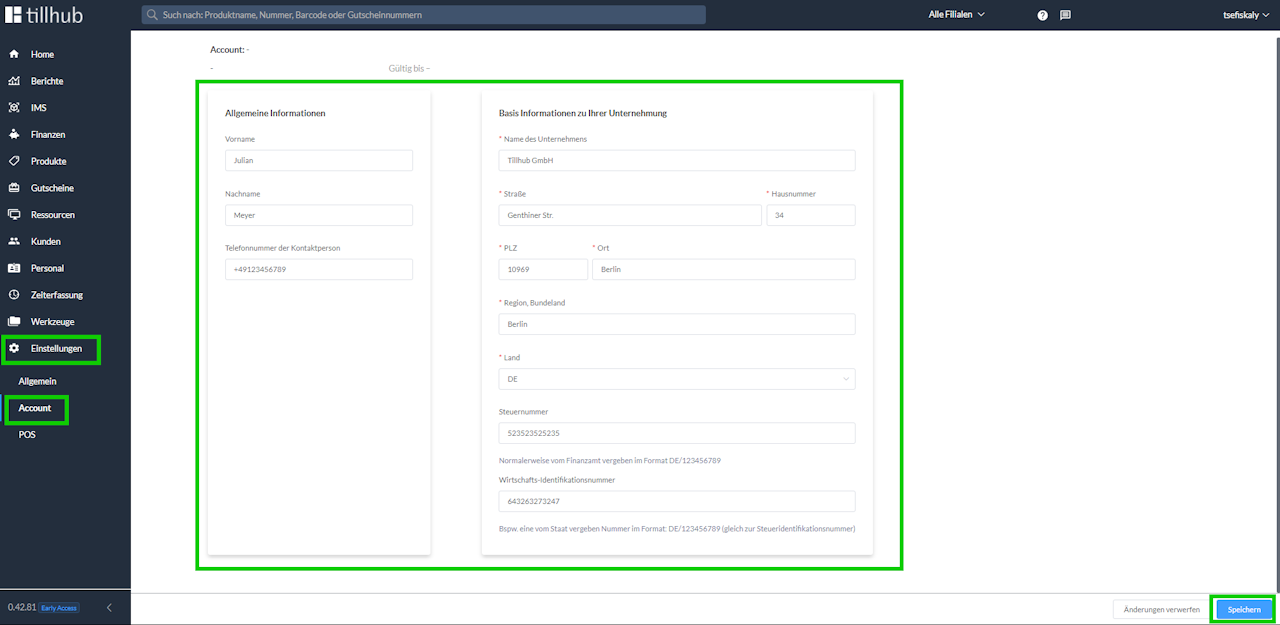
First, please log into our dashboard ( https://dashboard.tillhub.com/ ) with your account and go to the "Settings" -> "Account" menu.
In this area, you must fill in all fields marked with a red asterisk (*).
Once you have entered all the required information, you can save the data by clicking "Save" at the bottom right.
If a red error message appears when saving and the data is not saved, please contact our support at info@tillhub.de or call 030 346 496 43.
Step 2: Select desired POS system
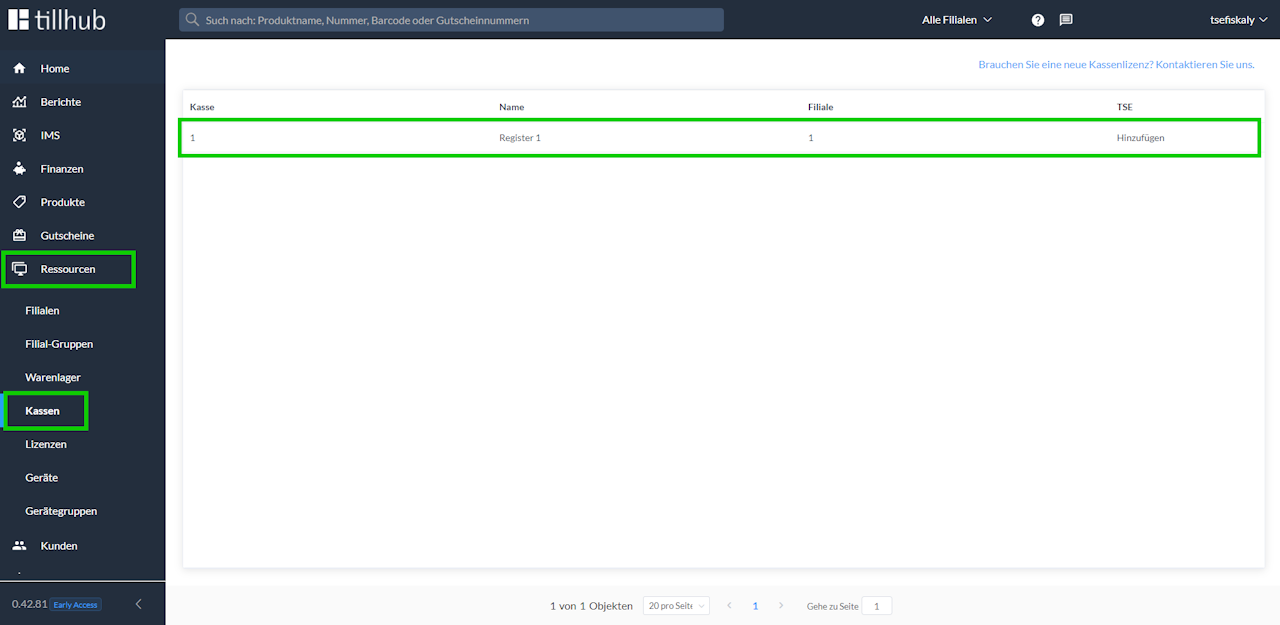
Now go to the menu "Resources" -> "POS systems" and click on the desired POS.
Step 3: Add TSE
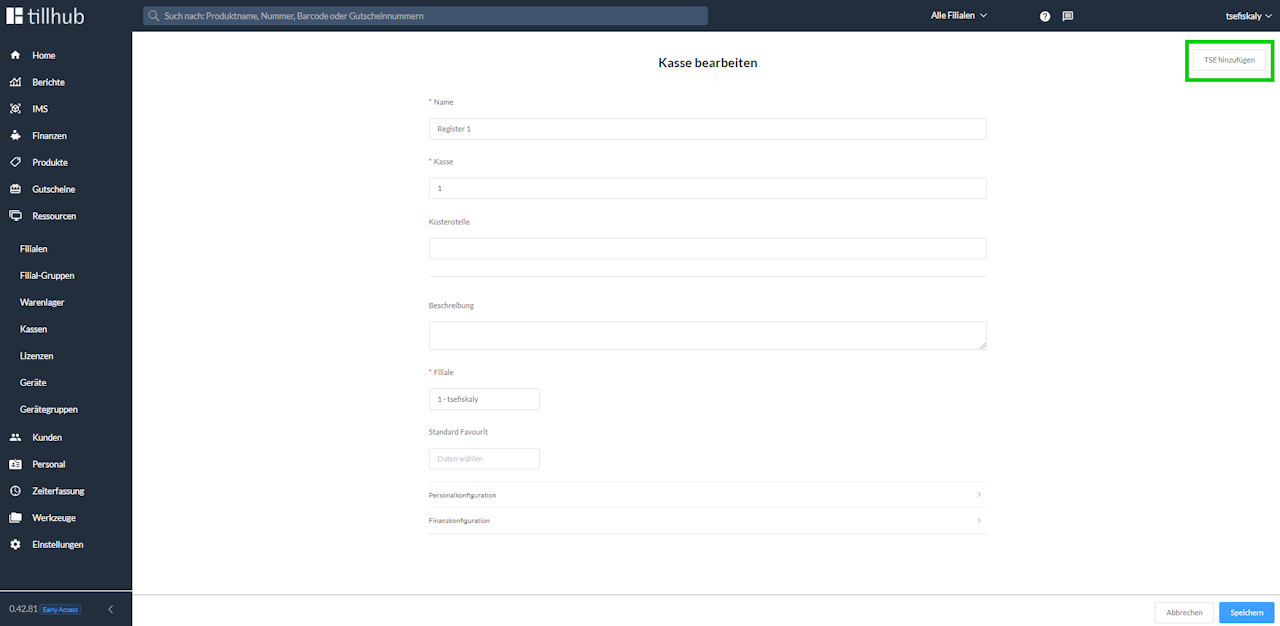
In the "Edit POS" window, click on "Add TSE" at the top right.
Step 4: Enter activation code
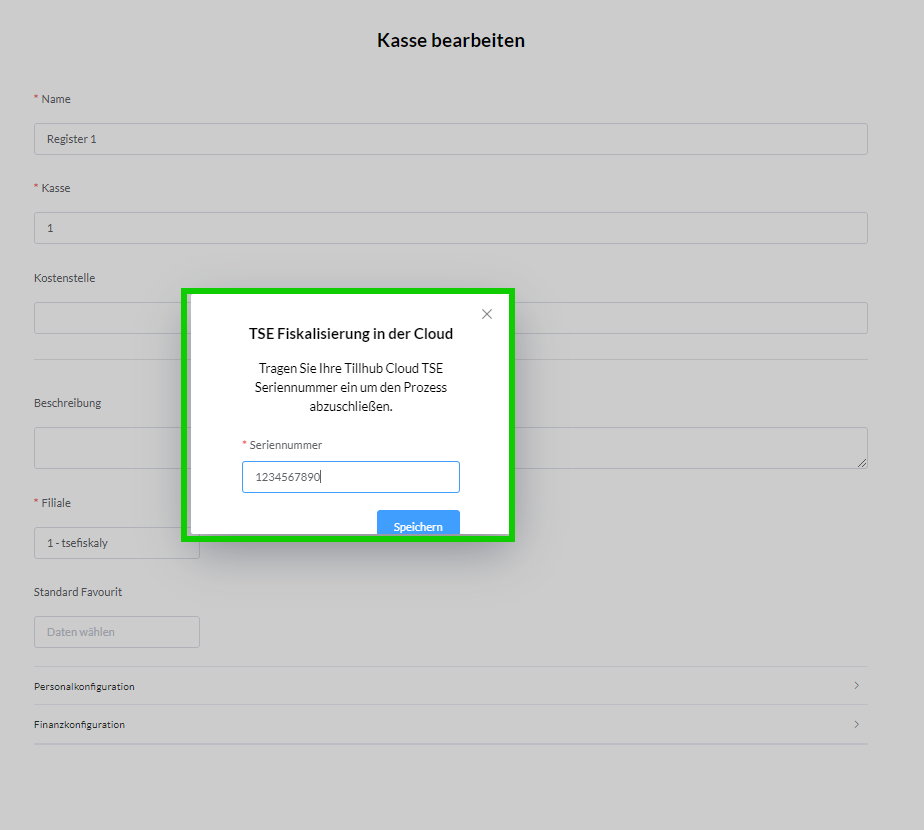
The following window will appear, where you can enter an activation code (=serial number). You can find this code on the delivery note sent to you by email. After entering the activation code, confirm it by clicking "Save".
Attention! The activation code you receive from us for TSE activation is not the serial number of the TSE that must be registered with the tax office. This TSE serial number is either sent to you directly by us or will be displayed in the dashboard in the future.
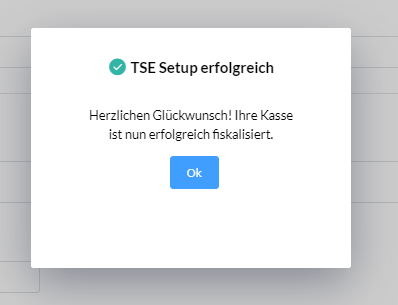
Step 5: Confirmation of successful activation
After successful activation, you should receive the following confirmation:
(Clicking "Save" in the "Edit POS" window is not necessary)
Step 6: Synchronize data in the Tillhub app
Now switch to our Tillhub app and go to the "Settings" menu, select "Synchronize data" on the right side, and confirm by tapping the blue "Synchronize" button.
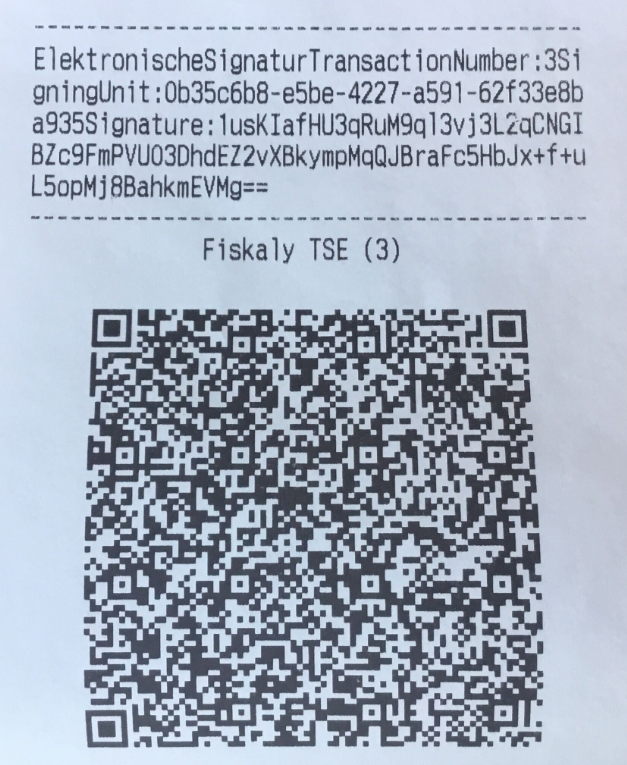
Your Cloud TSE with Fiskaly is now successfully set up, and you can carry out your first digitally signed sale.
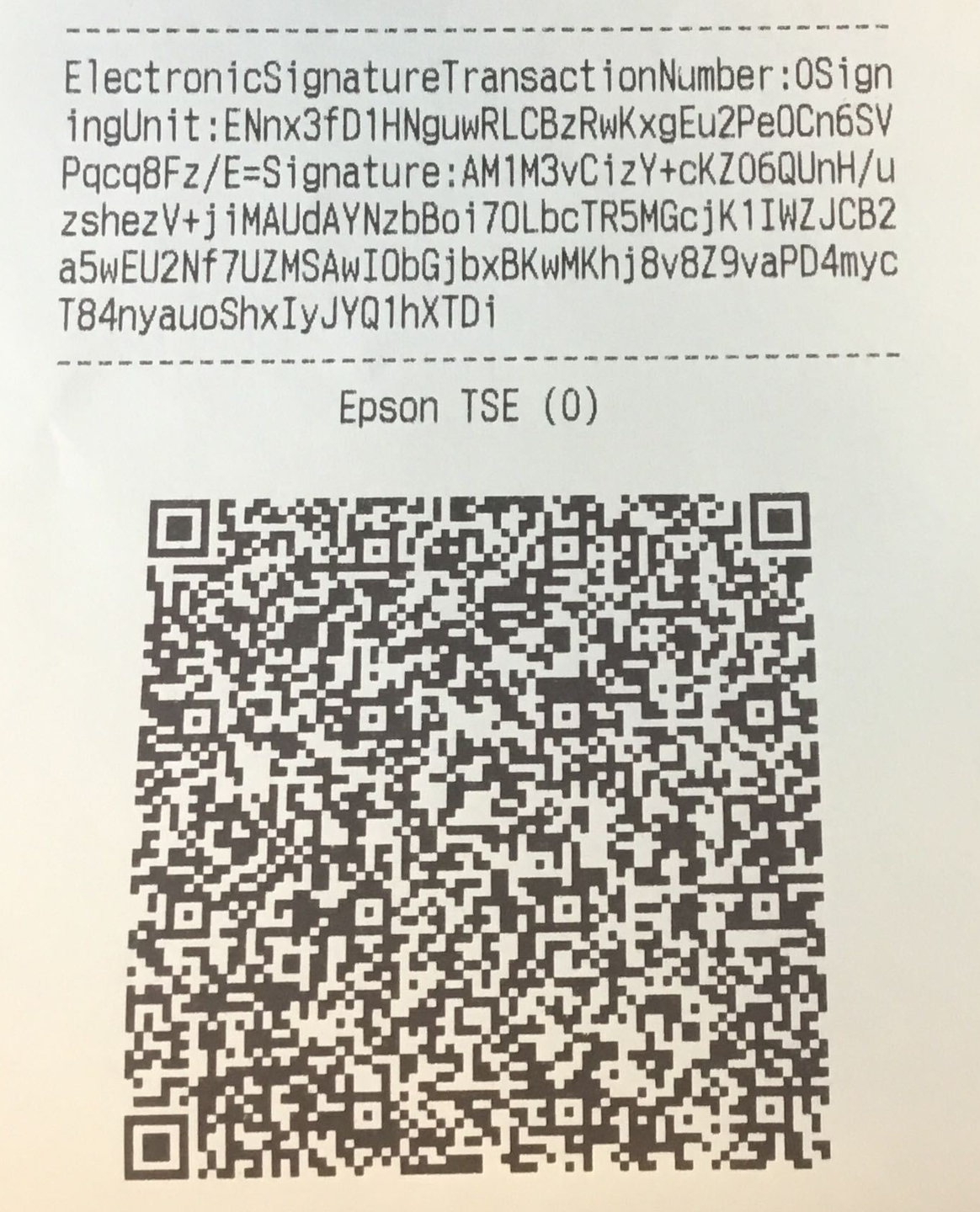
The printed receipt should now display the following signature at the bottom:
Attention!
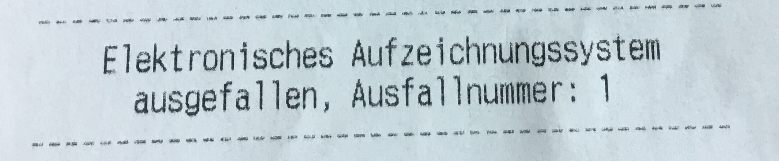
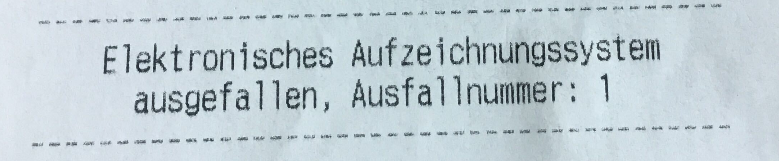
In individual cases, due to a missing internet connection or faulty communication with the Fiskaly cloud, the following message may appear on the receipt instead of the signature (image 2).
In this case, please check your internet connection. If the problem persists, contact us directly.
The sale with a failed recording system is not invalid and does not need to be re-booked.
The failure receipt is automatically printed twice, once for your customer and the other copy should be securely stored.
So richten Sie Ihre Hardware-TSE von Epson ein
Haben Sie noch keine TSE?
Dann kontaktieren Sie unseren Vertrieb unter +49 (30) 346 496 43
ODER
entscheiden Sie sich für unsere Cloud-Lösung, die Sie bequem mit wenigen Klicks online erwerben können: Jetzt Cloud-TSE kaufen
Haben Sie Fragen zu Fiskalisierung in Deutschland oder wollen Sie sich umfangreich informieren? Dann laden Sie gerne unser kostenloses E-Book zur Kassensicherungsverordnung herunter: KassenSichV E-Book herunterladen
Unter folgendem Link können Sie die Anleitung als PDF herunterladen und ggf. auch ausdrucken:
Epson TSE einrichten und initialisieren
Einrichtung der Hardware-TSE
ACHTUNG!
Die Einrichtung der TSE sollte erst im Live-Betrieb stattfinden. Sollten Sie ein neuer Kunde sein und aktuell noch Testbuchungen durchführen, so dürfen Sie die TSE keines Falls aktivieren und erst nach der Live-Schaltung der Kasse und dem Wechsel in den "Echt-Betrieb" die TSE einrichten.
Der gesamte Einrichtungsprozess kann bis zu 90 Minuten dauern. Planen Sie daher genug Zeit ein!
Bitte stellen Sie dazu sicher, dass die Kasse innerhalb dieser 90 Minuten nicht benötigt wird. Führen Sie diese Schritte im Zweifelsfall vor Öffnung Ihres Geschäfts oder nach Ladenschluss durch.
Wenn Sie die SD-Karte bereits eingesetzt haben und der Drucker ein gelbes Ausrufezeichen anzeigt, nehmen Sie die Karte wieder heraus.
Mit diesem Artikel möchten wir Ihnen Schritt für Schritt erklären, wie Sie die Hardware-TSE von Epson einrichten und installieren können. Für das Verbinden der TSE mit unserer Kasse ist ein Firmware-Update des Druckers nötig.
Für die Kompatibilität mit der Hardware-TSE benötigen Sie die neueste Version der Tillhub App.
Um die neueste Version im App Store angezeigt zu bekommen, müssen Sie dort nach Tillhub suchen und die App entsprechend einmal antippen. Danach sollte der "Aktualisieren"-Button erscheinen.
How to set up your Epson hardware TSE
Don't have a TSE yet?
Then contact our sales department at +49 (30) 346 496 43
OR
choose our cloud solution, which you can conveniently purchase online with just a few clicks: Buy Cloud-TSE now
Do you have questions about fiscalization in Germany or want comprehensive information? Then feel free to download our free e-book on the Kassensicherungsverordnung: Download KassenSichV e-book
You can download and print the instructions as a PDF using the following link:
Set up and initialize Epson TSE
Setting up the hardware TSE
ATTENTION!
The TSE should only be set up in live operation. If you are a new customer and are currently still carrying out test bookings, you must not activate the TSE under any circumstances and should only set it up after the cash register goes live and switches to "real operation".
The entire setup process can take up to 90 minutes. So make sure to allow enough time!
Please ensure that the POS system is not needed during this 90-minute period. If in doubt, carry out these steps before opening your store or after closing time.
If you have already inserted the SD card and the printer shows a yellow exclamation mark, remove the card again.
With this article, we would like to explain step by step how to set up and install the Epson hardware TSE. To connect the TSE with our POS, a firmware update of the printer is necessary.
To be compatible with the hardware TSE, you need the latest version of the Tillhub app.
To see the latest version in the App Store, search for Tillhub and tap the app once. The "Update" button should then appear.
Step 1: Set up and initialize the Epson TSE in the Tillhub app
In the following steps, we will go through the settings in the Tillhub app. Please switch to the Tillhub app and go to the "Settings" menu.
First, select the "Printer" menu item and click on "Delete printer" to remove the printer.
Now insert the supplied SD card into the corresponding slot located on the underside of the printer. Open the bottom flap to access the cabling and slots, where you will also find a small slot for the SD card. Insert the SD card.
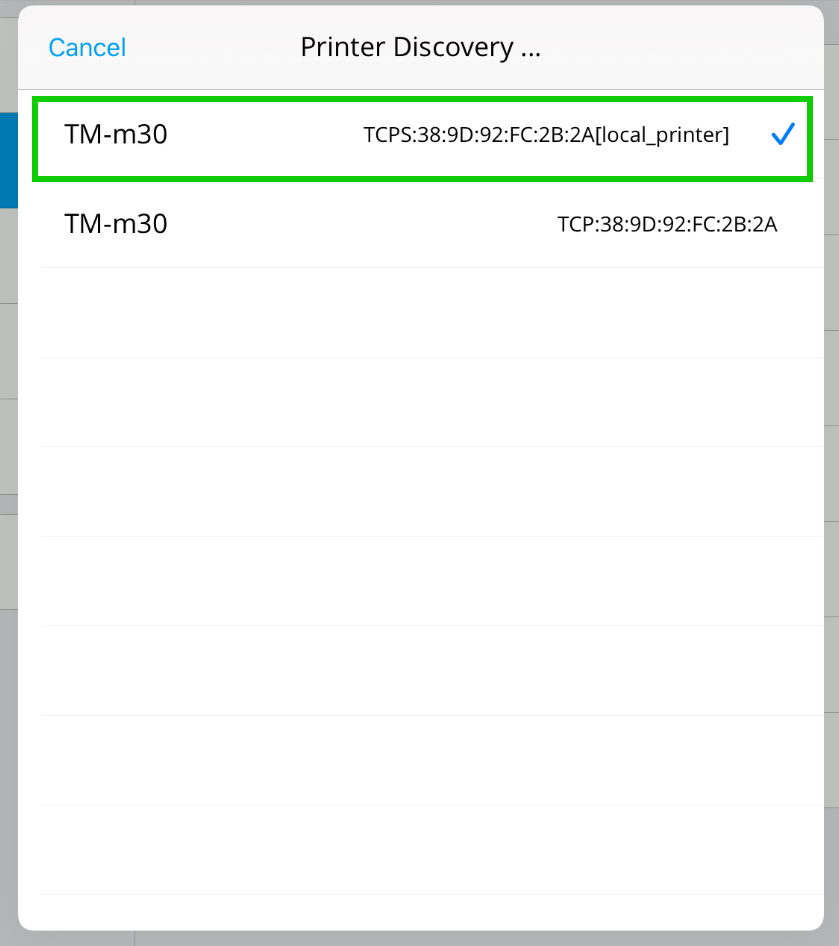
Then re-add the printer by tapping the "Add printer" button.
ATTENTION: Do not select the printer address that starts with "TCP:". You should either select the "BT:" address or the "TCPS:" address.
If you have connected the printer via LAN/WLAN, please select the printer that ends with [local_printer].
2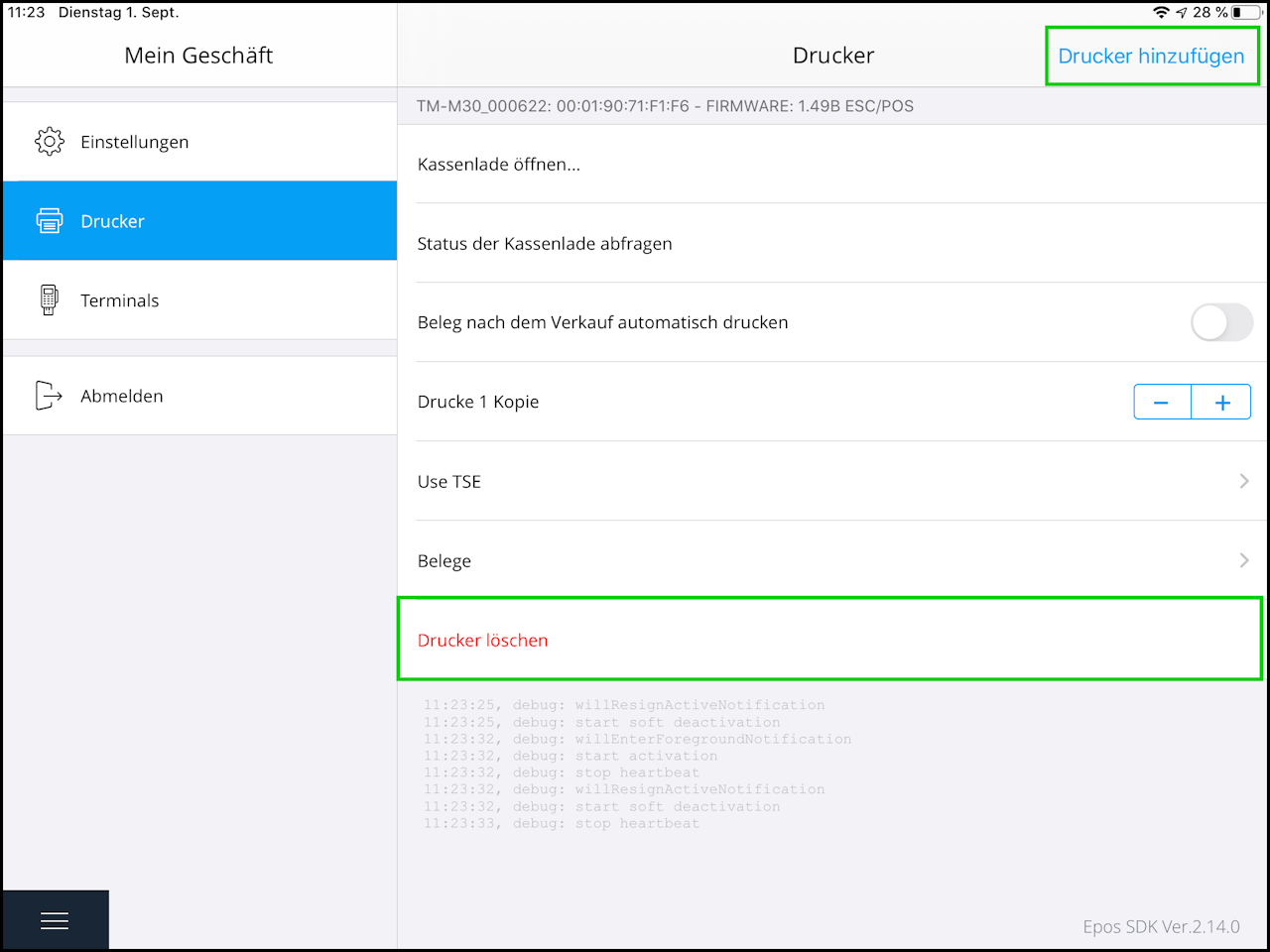
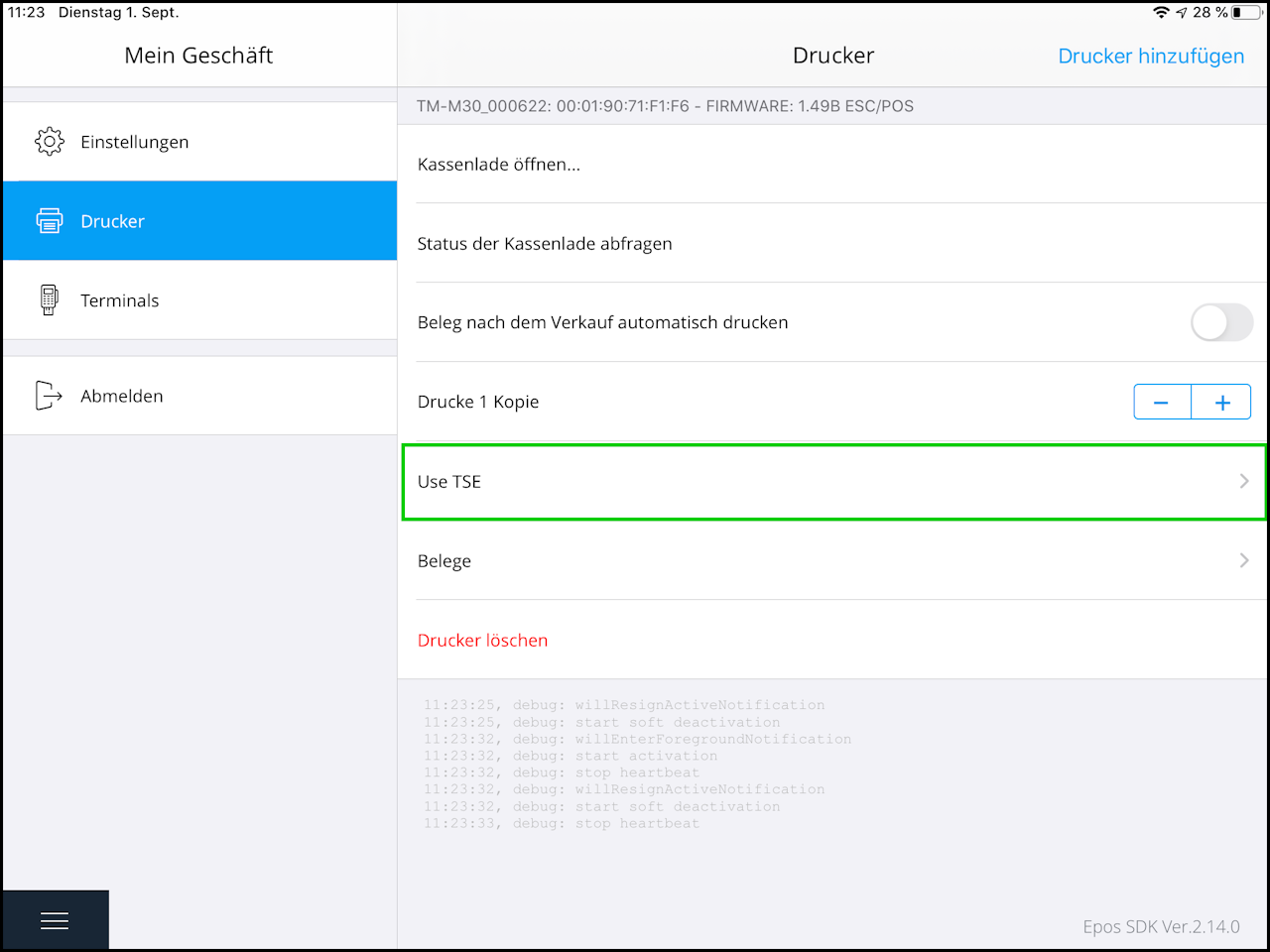
Step 2: Access TSE settings
After the printer has been re-added, click on the "TSE Settings" menu item to start setting up the TSE.
If the error OTHER_ERROR_NO_STORAGE_FOUND appears here, the supplied SD card has not yet been inserted.
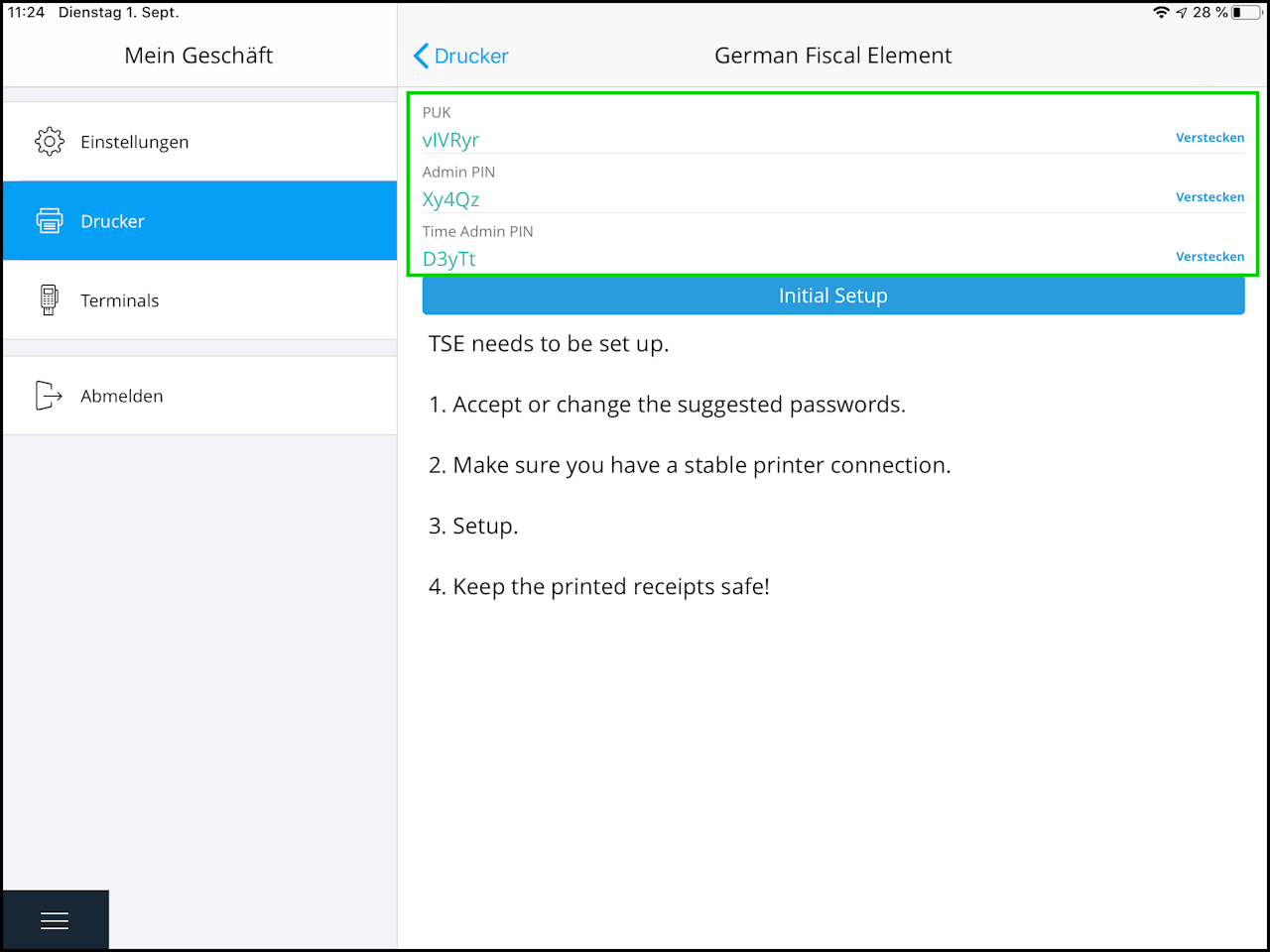
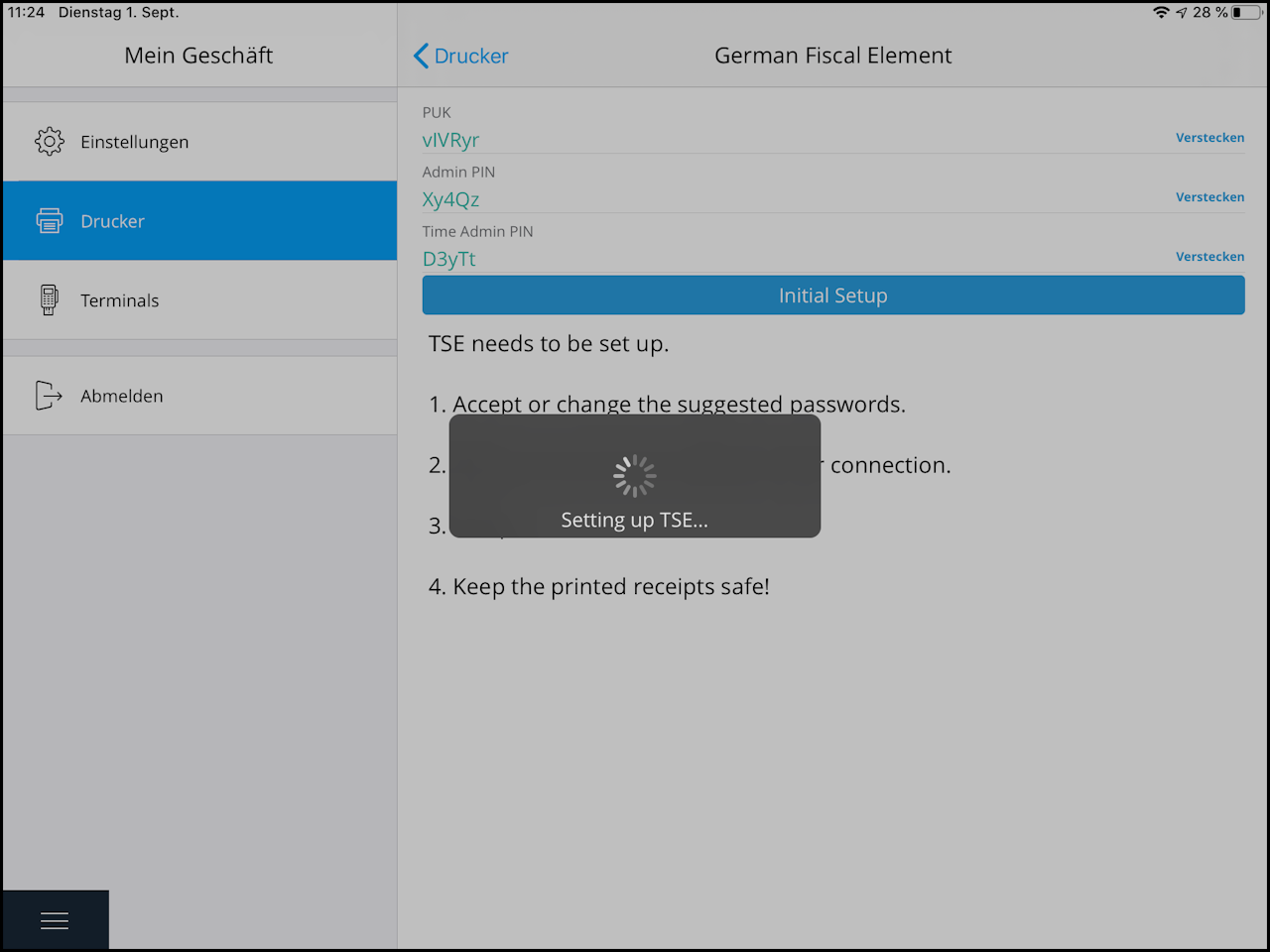
Step 3: Set TSE passwords
In this step, you can optionally customize the 6-digit PUK, as well as the 5-digit Admin PIN and Time Admin PIN, or keep the individually generated passwords from us.
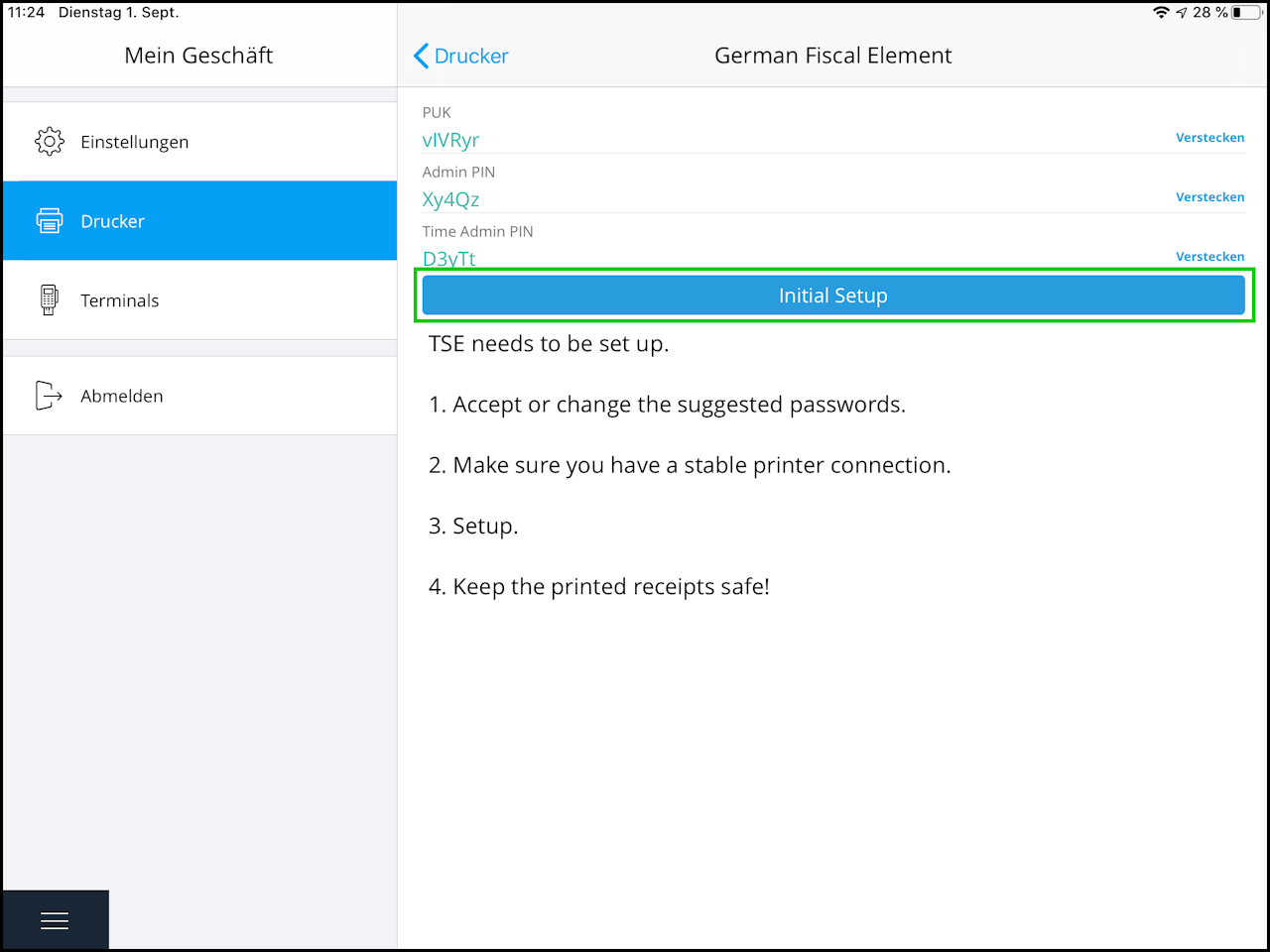
Step 4: Start TSE initialization
If you are satisfied with the password selection, you can now click on "Initial Setup".
ATTENTION! Initialization can take up to 90 seconds. Do not close the app or turn off the printer during this process.
Step 5: Complete initialization
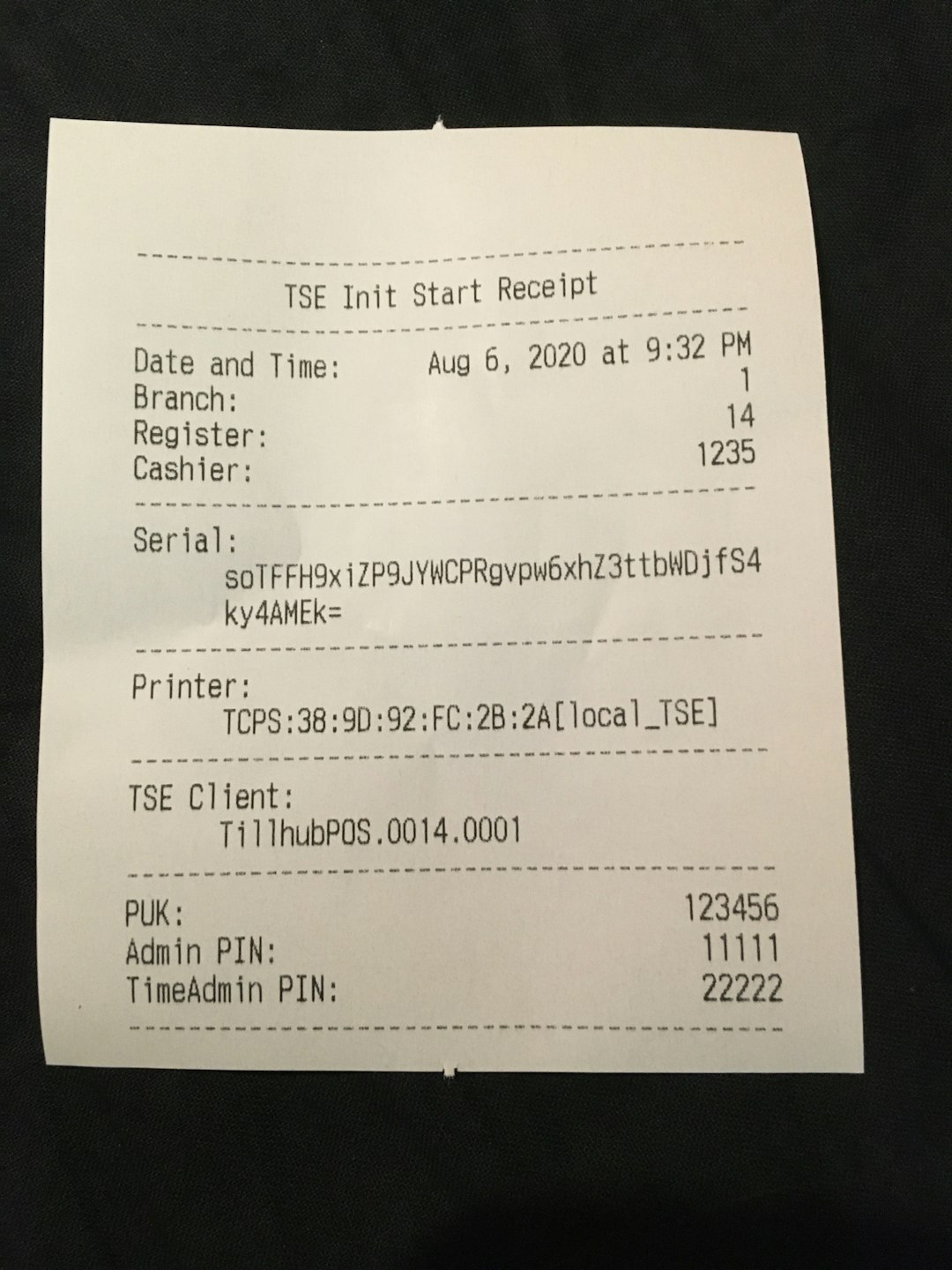
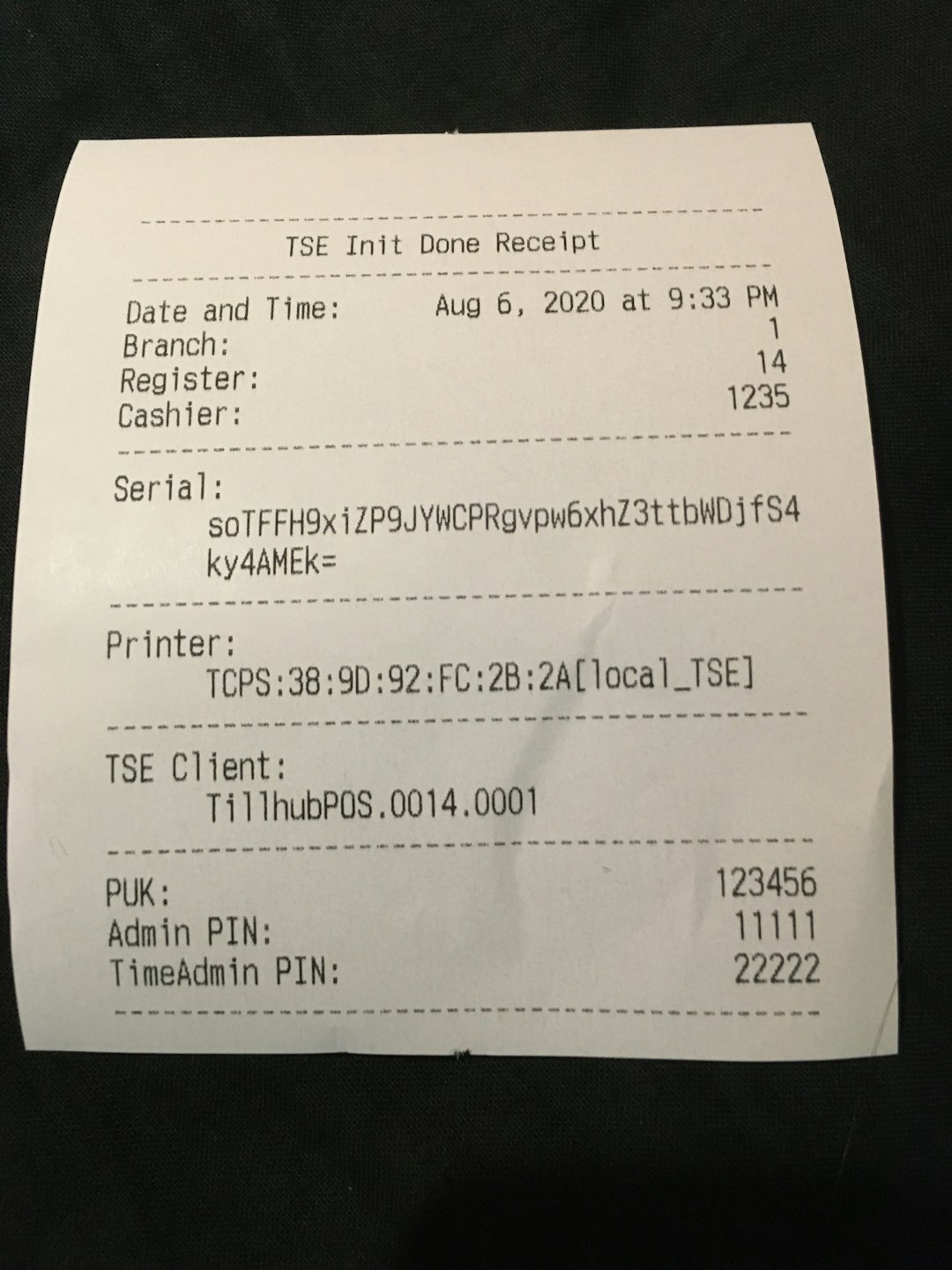
During the initialization process, two receipts with the set passwords and other TSE information will be printed.
You should definitely keep and securely archive these initialization receipts.
The initialization receipts also contain the serial number of the Epson TSE, which you must register with the tax office.
You can also request the serial number directly via info@tillhub.de after initialization so that you do not have to type it manually.
Step 6: Initialization successful
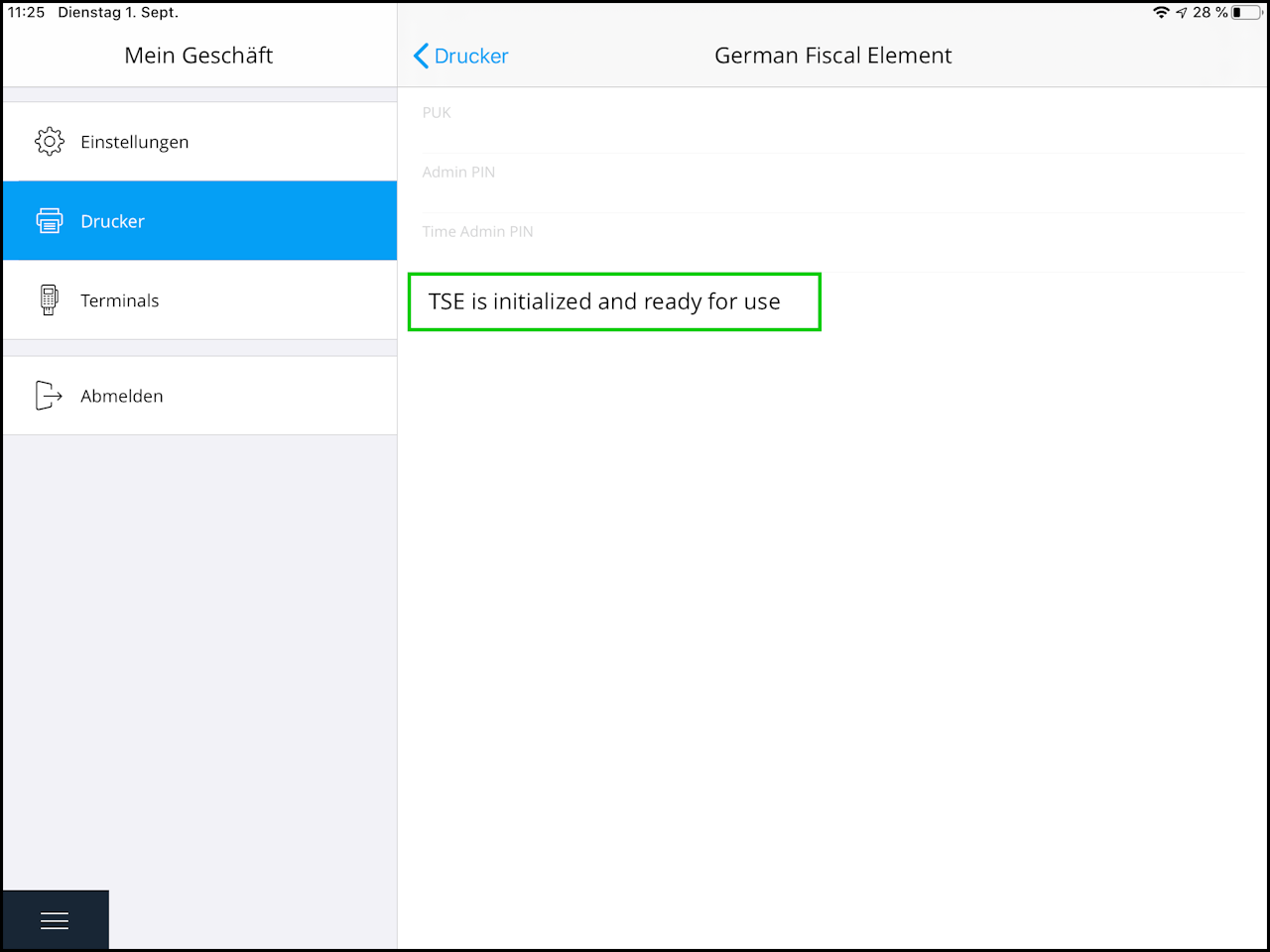
If initialization was successful, you will receive the following message in the Tillhub app.
After a few seconds, the "Self Test" button will appear. This is not needed and can be ignored.
Step 7: Check the signature
You can now return to the usual POS interface and perform your first sale with a configured and initialized TSE. When you print the receipt, the signature should appear at the bottom of the receipt as follows.
As soon as this signature appears on the printed receipt, the TSE has been successfully put into operation. If you have gone through all the steps individually and the printed receipt still does not show a signature, please restart the Tillhub app once. If no signature appears even then, please contact us by phone at +49 030 346 496 43.
Attention!
In individual cases, due to faulty communication between the printer and POS system, the following message may be printed on the receipt instead of the signature (image 2).
In this case, you may need to close/turn off the POS app and printer and restart them. The signature should then be automatically created with the next sale.
The previous sale with a failed recording system is not invalid and does not need to be re-booked.
The failure receipt is automatically printed twice, once for your customer and the other copy should be securely stored.
Fiskaly (TSE)
Since 2020, it has been mandatory in Germany to have a TSE in the POS system. It serves as protection against manipulation afterwards by recording and storing sales transactions. If you don't have a TSE yet, please contact us so we can set one up for you as quickly as possible.
It appears as a unique QR code at the bottom of the receipt. If you do not see this on your receipt, it means the TSE is not working.
You can view a status report from Fiskaly at the following link, which only shows a problem on the Fiskaly side and does not relate to your personal TSE.
Fiskaly status report: https://status.fiskaly.com/
General procedure in case of problems:
For an online TSE, first check your WLAN connection. You are also welcome to connect your device to a hotspot to see if your TSE works again.
If it still doesn't work, call us at 030 346 496 43 so we can take a look.
Here are the links again to connect the Cloud and Hardware TSE:
Cloud-TSE
Hardware TSE
Was this article helpful?
That’s Great!
Thank you for your feedback
Sorry! We couldn't be helpful
Thank you for your feedback
Feedback sent
We appreciate your effort and will try to fix the article
