Online Appointment Booking - Calendar Function at the POS (optional)
Modified on Fri, 6 Mar at 1:17 PM
TABLE OF CONTENTS
- What is this feature?
- Opening the Calendar & Logging In
- Calendar Views
- Viewing & Checking Out an Appointment
- Editing an Appointment
- Cancelling an Appointment
- Creating a New Appointment
- Adding Absence to the Calendar
- Online Bookings – Adding New Customers
- Quick Reference – Icons & Their Functions
What is this feature?
The calendar function is an optional feature in your POS system that lets you view, create, edit, and process appointments - all in one place. Online bookings made by customers appear here automatically.
Opening the Calendar & Logging In
Open the POS app. In the bottom left corner of the app, on the dark toolbar, you will find a calendar icon – tap it.
If a location selection appears, choose your location and log in with your credentials. Have your login details ready in case you are prompted.
Tip: If you only want to view the calendar – for example on an additional iPad – you don't need to use the POS app at all. Simply open the Dashboard and access the calendar from there.
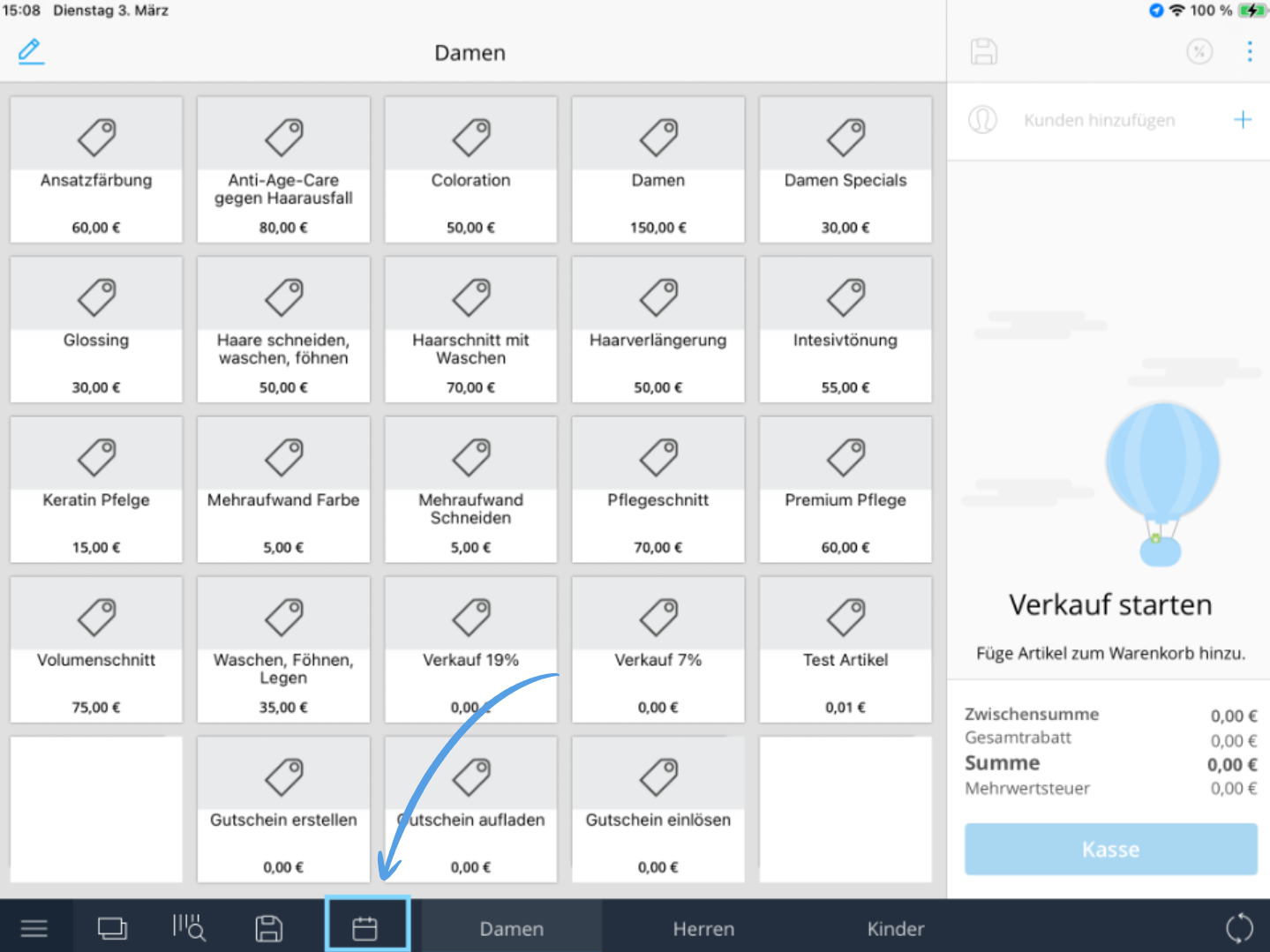
Calendar Views
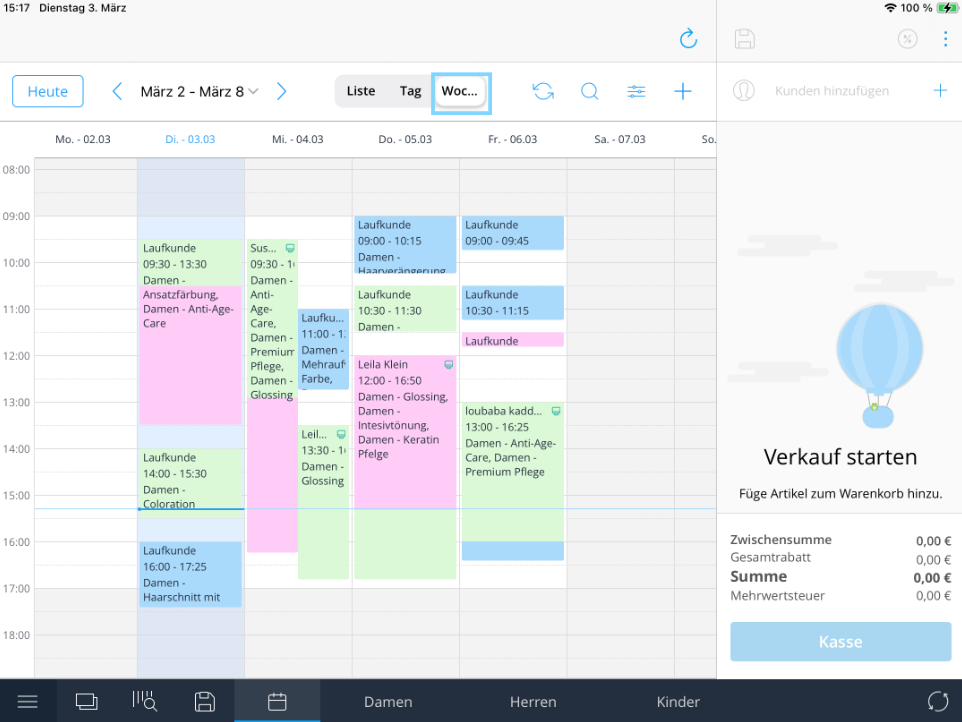
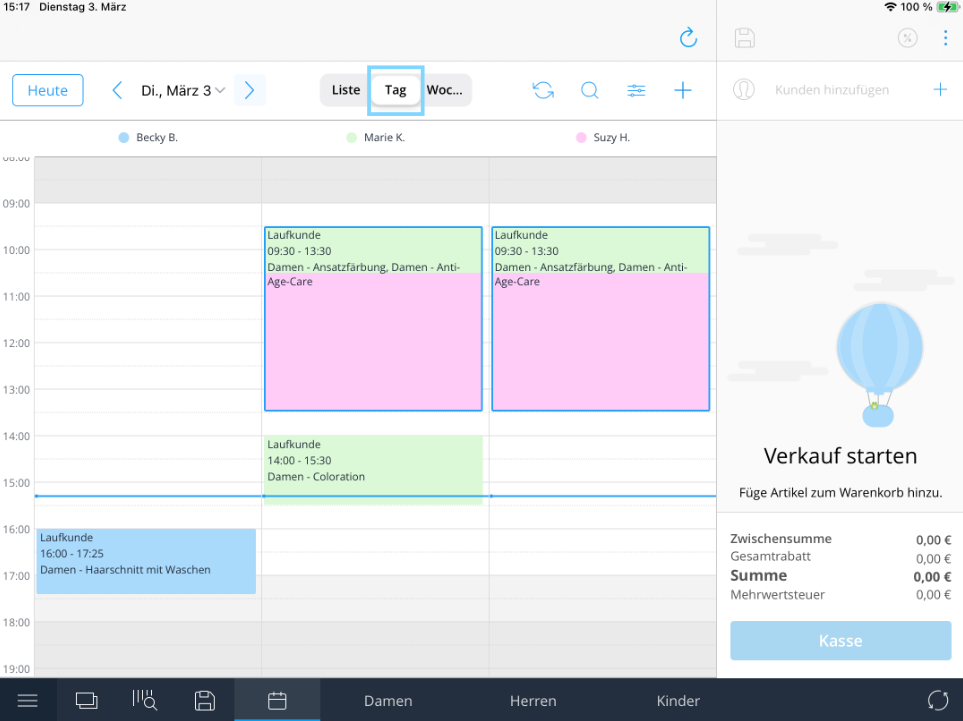
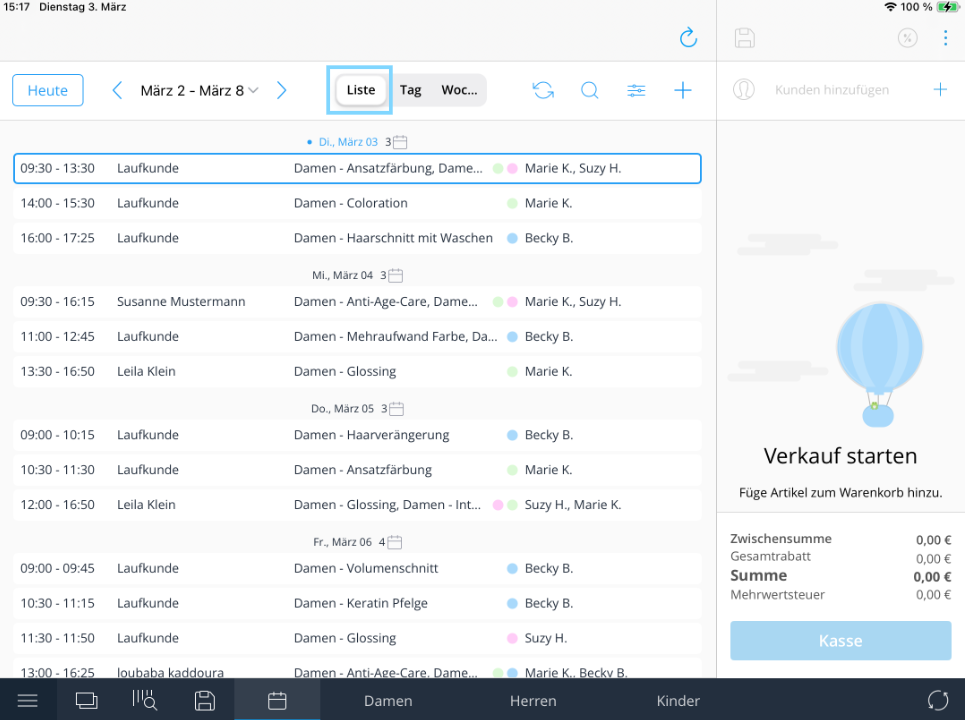
Once logged in, you will see the calendar with all appointments – both online bookings and manually created ones. At the top center you can switch between three views:
- Week (default view): All days of the week with time slots. Different colored blocks represent different staff members.
- Day: A single day split into columns – each column represents one staff member.
- List: All appointments listed chronologically with the key details at a glance.
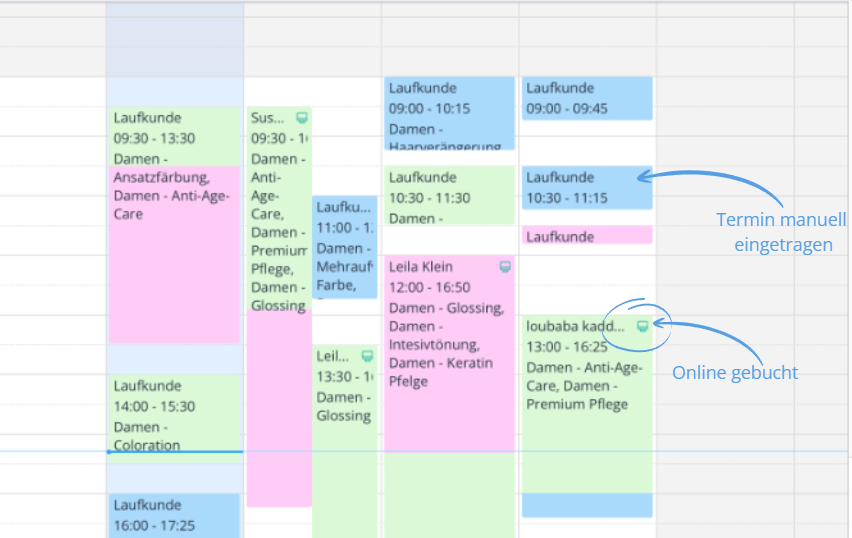
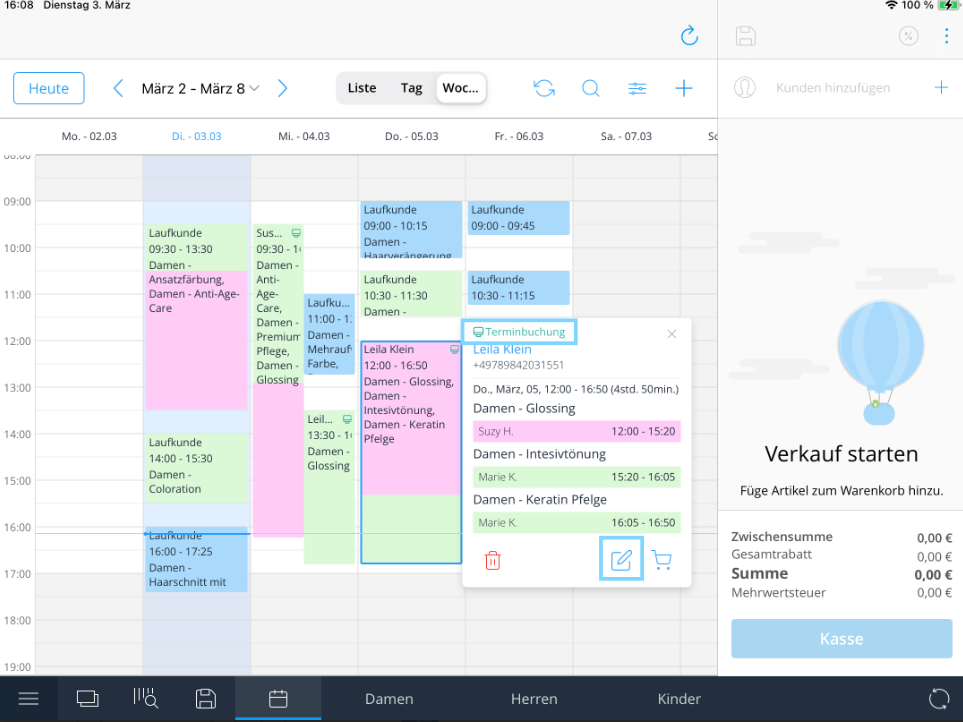
Recognizing online bookings: If an appointment was booked online, you will see a small computer icon in the top right corner of the appointment block. If this icon is missing, the appointment was created manually.
Viewing & Checking Out an Appointment
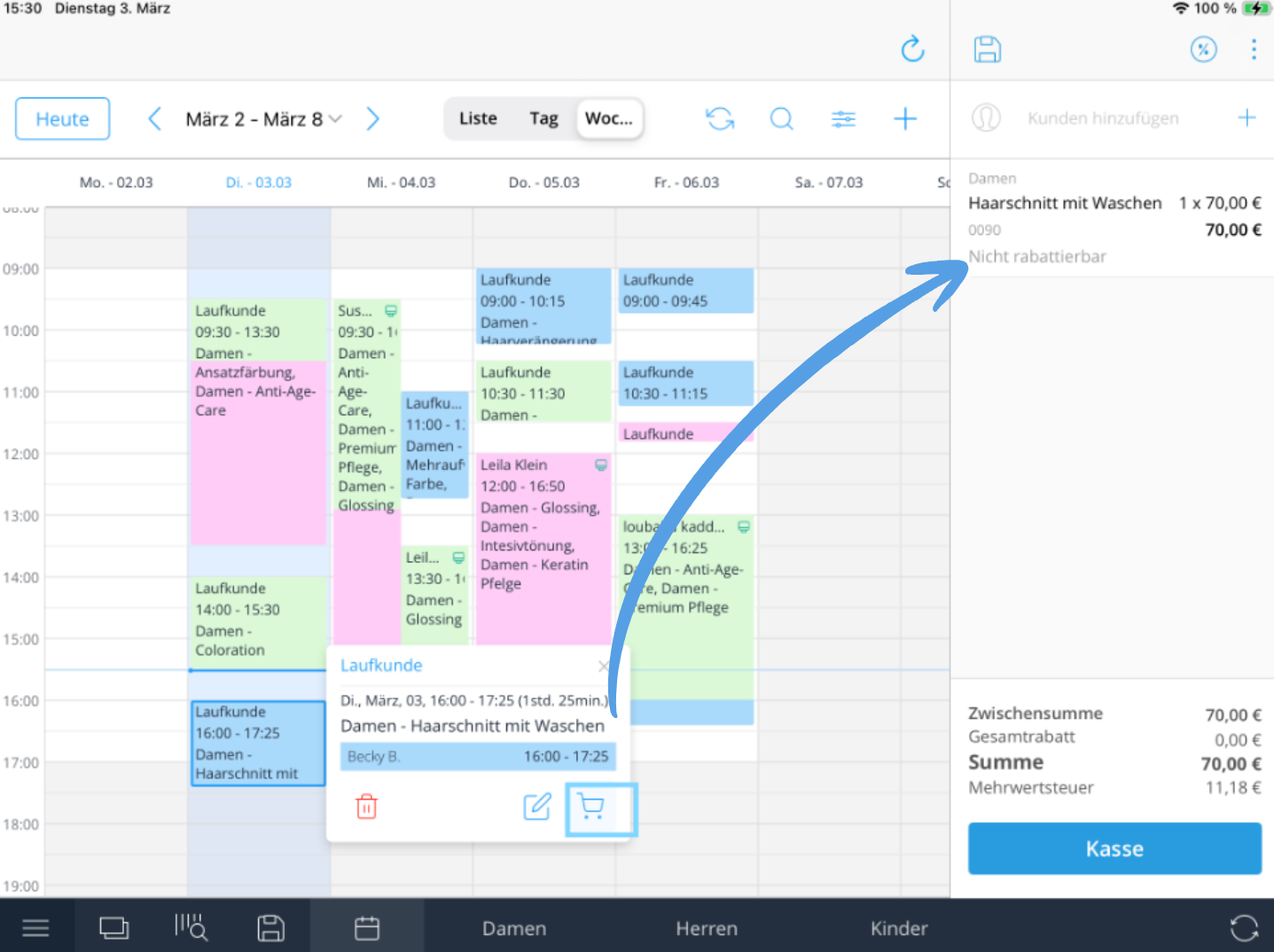
Click on any appointment to open the detail view. Here you can see: customer name, service, date, time, duration, and assigned staff member.
To check out an appointment:
- Tap the appointment in the calendar.
- Tap the shopping cart icon in the bottom right corner.
- The appointment is automatically added to the cart.
- Optional: Select a category at the bottom (e.g. "Ladies"), find an additional service, and add it to the cart.
- Complete the payment as usual.
Editing an Appointment
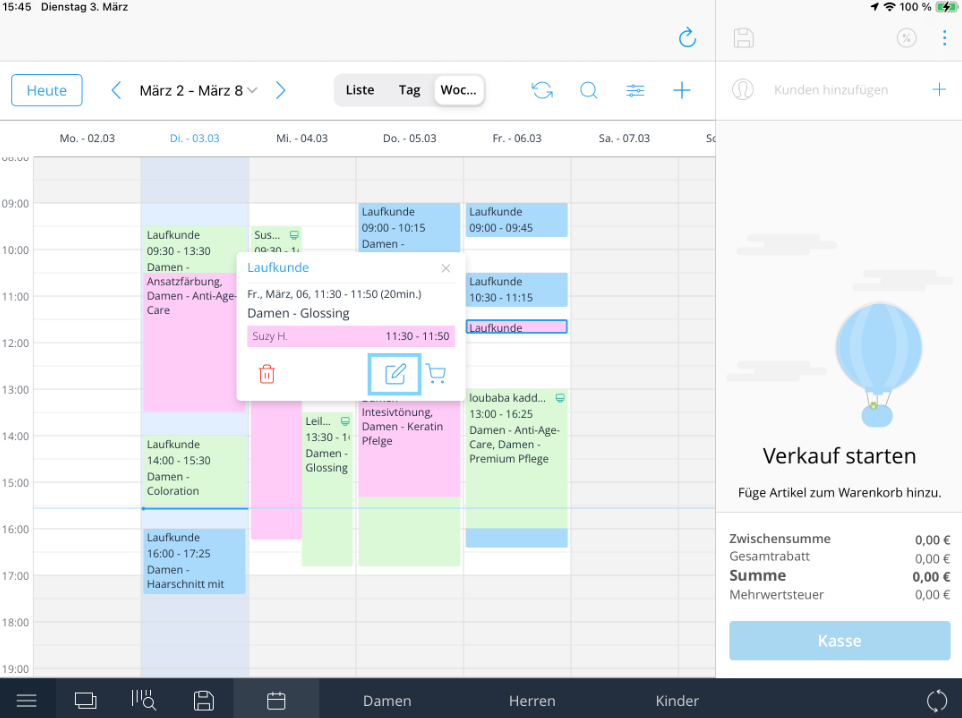
- Tap the appointment in the calendar.
- Tap the pencil icon in the detail view.
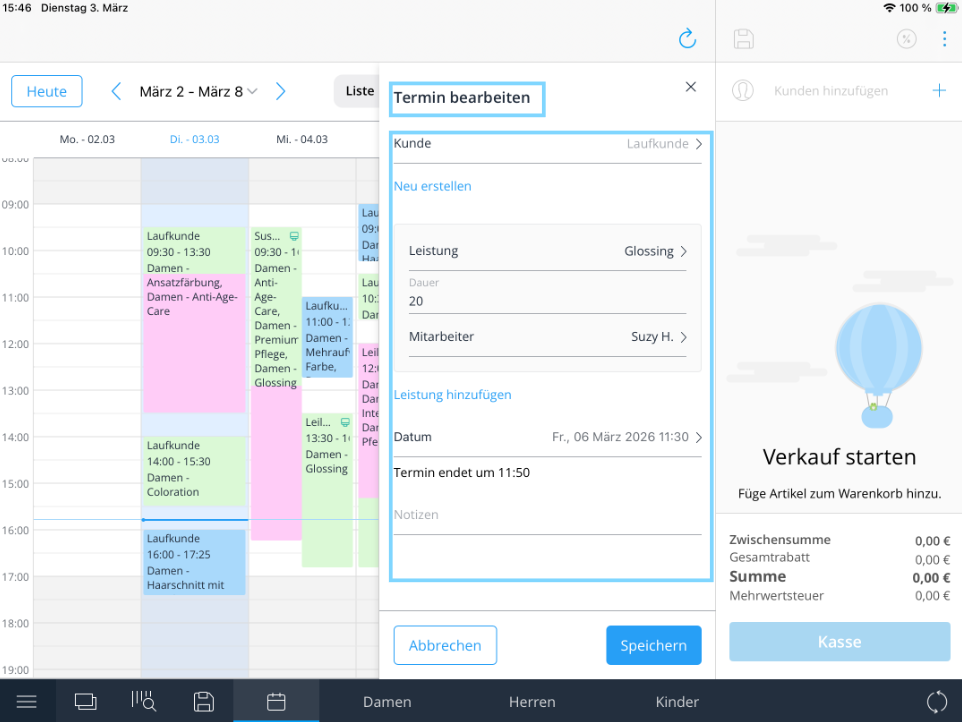
- Make your changes – for example, adjust the date, time, or staff member.
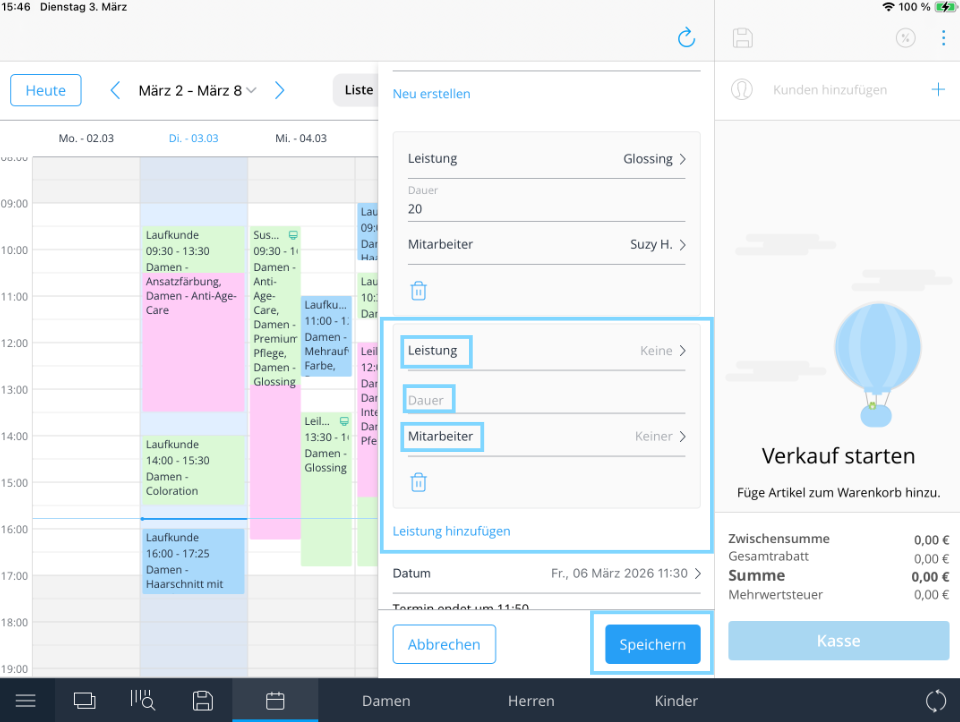
- To add another service, tap "Add service", select the service, and assign a staff member.
- Optional: Enter notes in the lower section of the window, e.g. special customer requests.
- Tap "Save" to apply all changes.
Important: Always remember to save – otherwise your changes will be lost.
Cancelling an Appointment
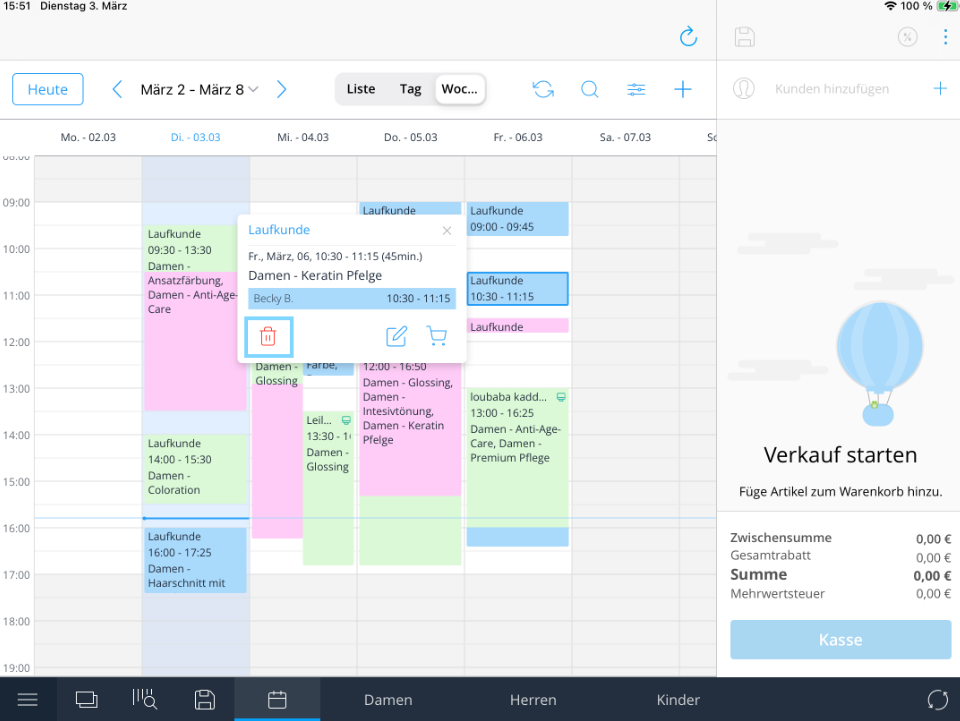
- Tap the appointment in the calendar.
- Tap the trash icon in the detail view.
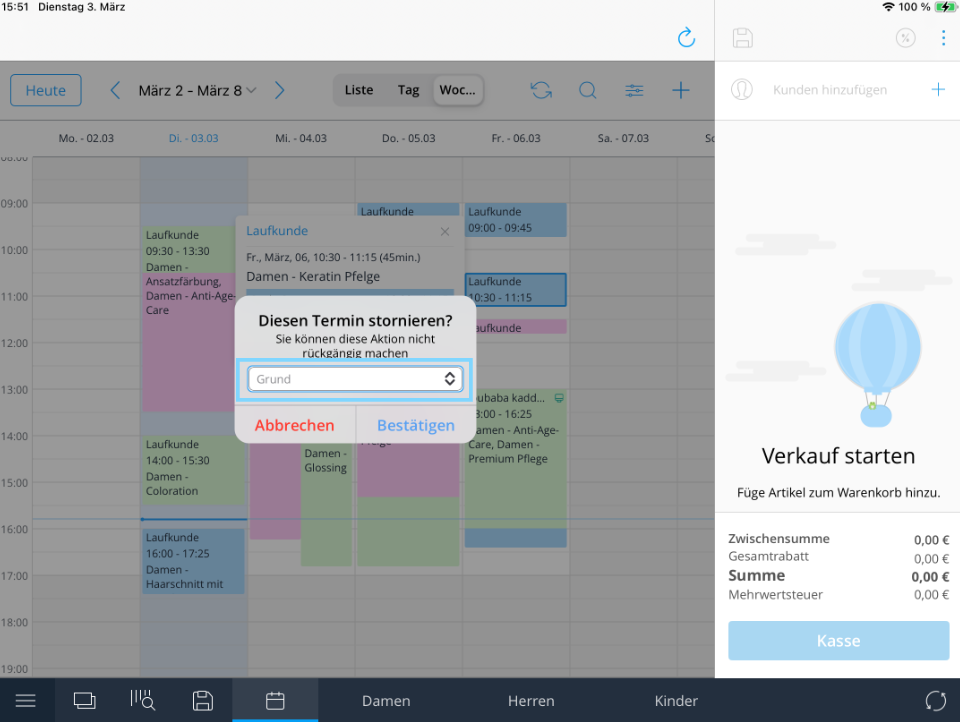
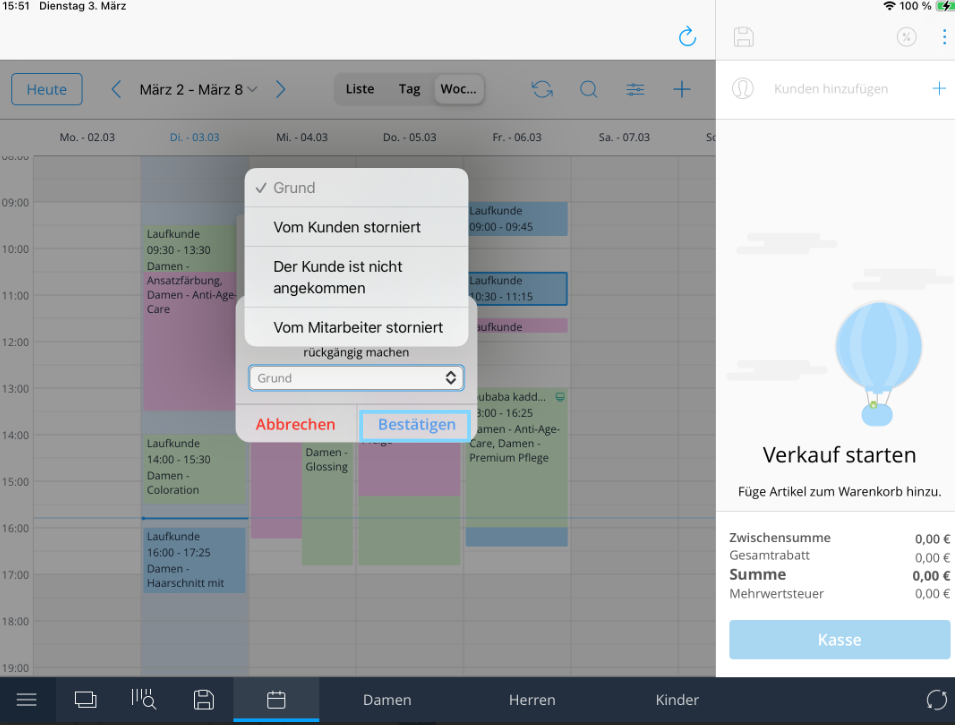
- Select the appropriate cancellation reason, e.g. "Customer did not show up."
- Confirm – the appointment is immediately removed from the calendar.
Creating a New Appointment
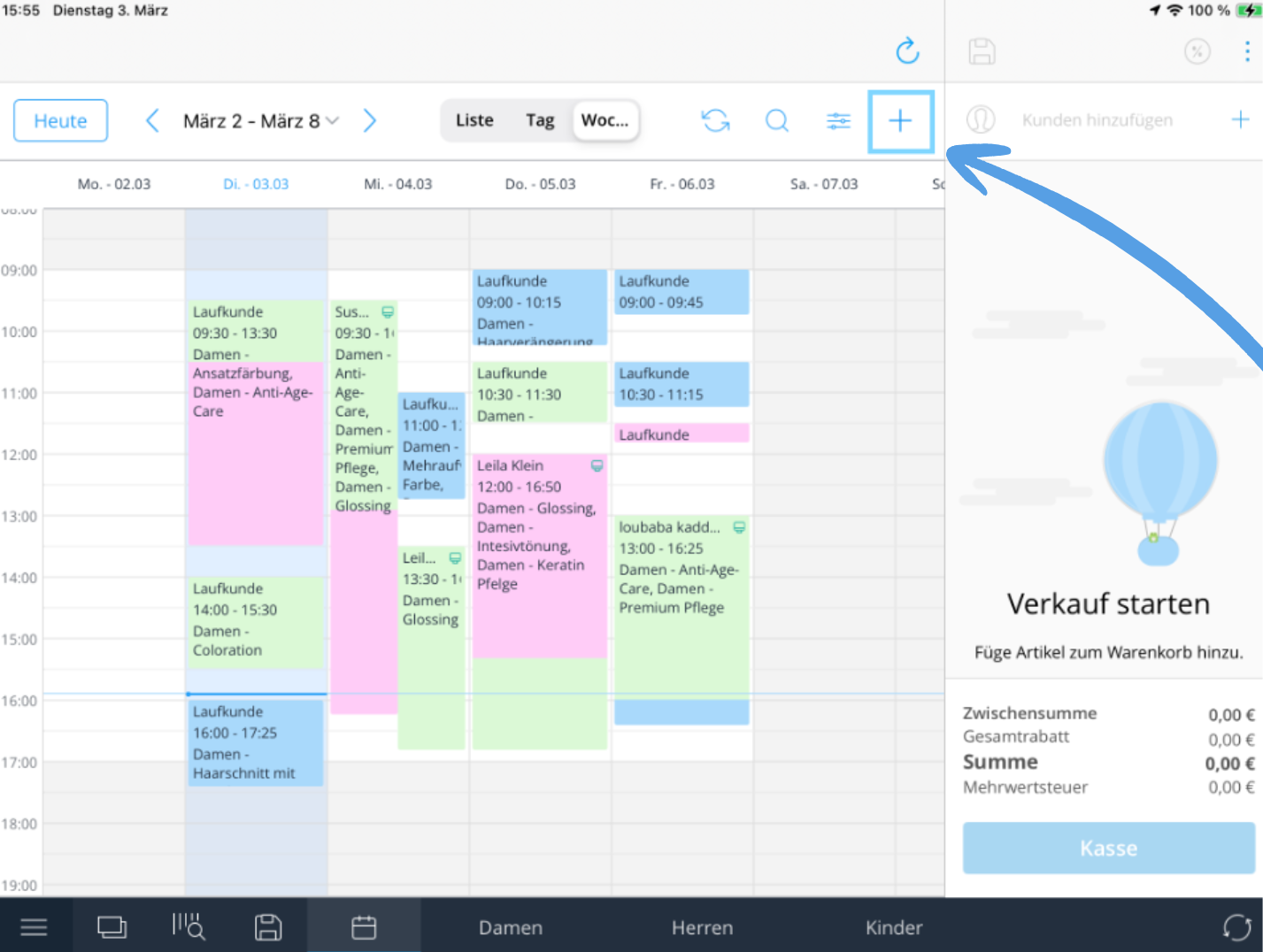
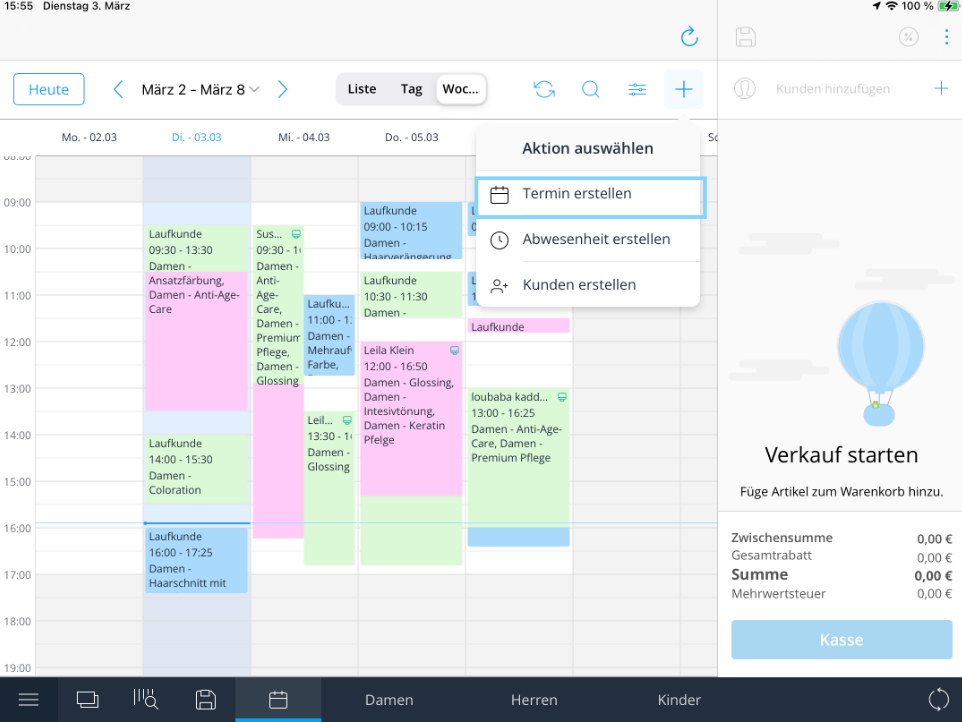
- Tap the plus icon (+) in the top right corner and select "Create appointment."
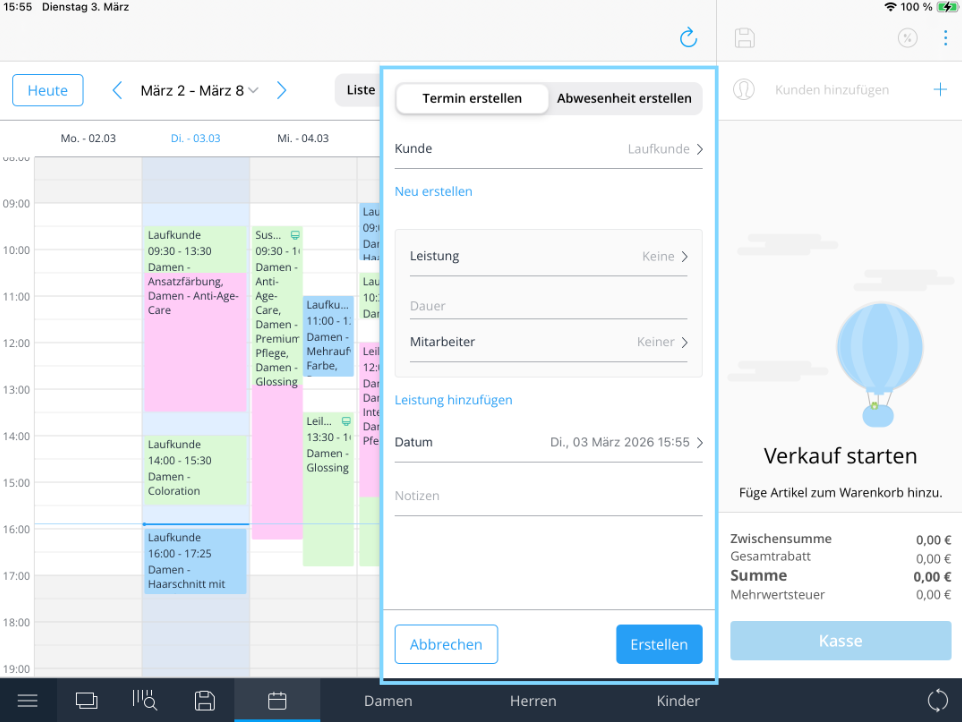
- Either select an existing customer from the list – or tap "Create new" and fill in the required fields.
- Tap "Service" and select the desired service.
- Tap "Staff" and assign the staff member who will carry out the appointment.
- Set the date and time.
- Optional: Add notes, e.g. special customer wishes.
- Tap "Create" to save the appointment.
Note: An appointment can only be created once a customer has been selected. The "Create" button will not be available without a customer assigned.
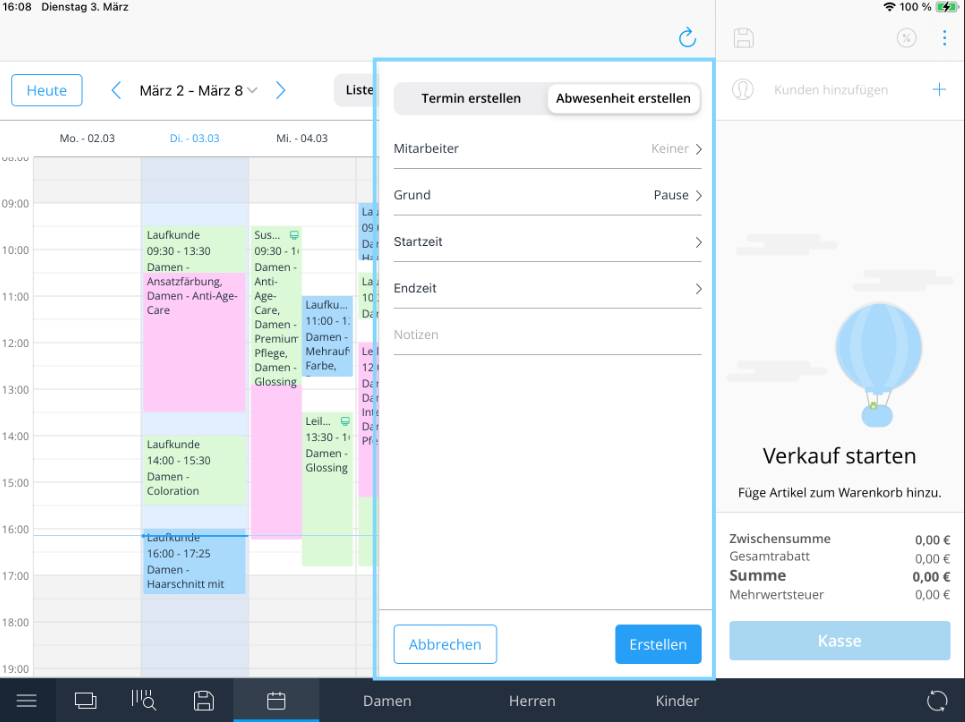
Adding Absence to the Calendar
Absences can be added to the calendar in the same way as appointments.
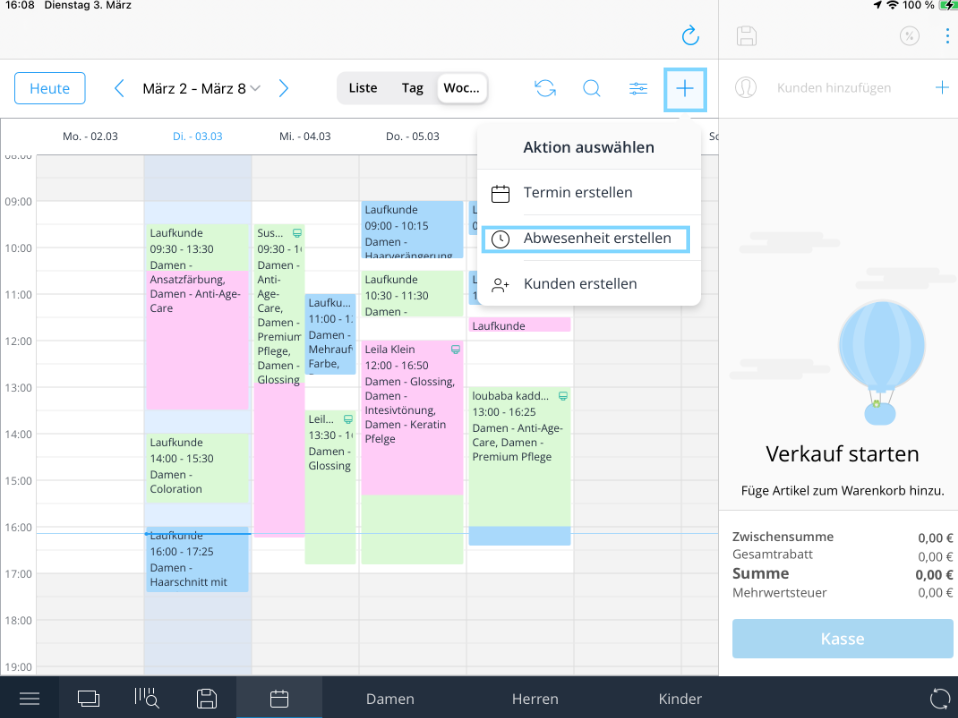
- Tap the plus icon (+) in the top right corner and select "Add absence."
- Search for and select the relevant staff member.
- Enter the start and end date of the absence.
- Enter the reason for the absence.
The absence will then appear in the calendar and that staff member will be marked as unavailable for the selected period.
Online Bookings – Adding New Customers
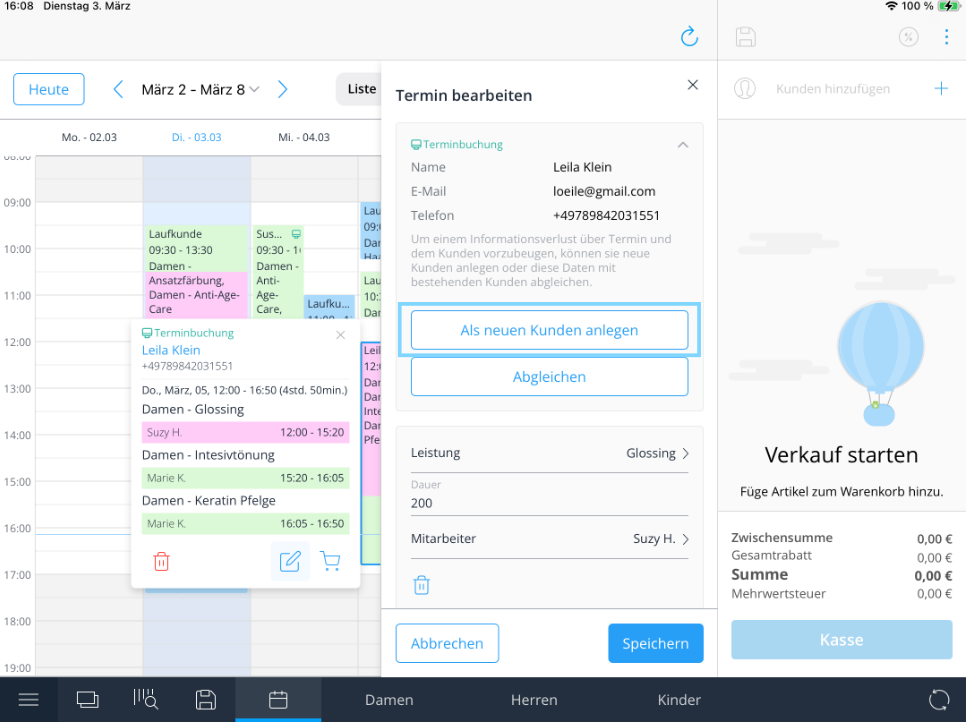
Online bookings appear in the calendar automatically. If the customer is not yet in your system, you can add them directly from the appointment:
- Tap the online booking – the customer's details will be shown at the top.
- Tap "Add as new customer" – the customer is automatically saved to the system.
- Alternatively, open the appointment via the pencil icon – the option to add the customer appears there as well.
Quick Reference – Icons & Their Functions
| Icon | Function |
|---|---|
| ? Calendar icon (bottom left toolbar) | Open the calendar / return to calendar |
| ? Shopping cart | Check out an appointment |
| ✏️ Pencil | Edit an appointment |
| ?️ Trash | Cancel an appointment |
| ➕ Plus (top right) | Create a new appointment or new customer |
| ? Computer icon on appointment block | Appointment was booked online |
Was this article helpful?
That’s Great!
Thank you for your feedback
Sorry! We couldn't be helpful
Thank you for your feedback
Feedback sent
We appreciate your effort and will try to fix the article
