Set up a register in the Merkur Portal
Modified on Mon, 16 Feb at 10:12 AM
As a customer in the Fleurop network, you can work with a variety of voucher functions. This article shows how to use these functions in the Tillhub POS. If you have already completed this step, the article “Connect Tillhub with the Merkur Portal” explains how to connect the created register to the Tillhub app.
Step 1: Sign in to the Merkur Portal
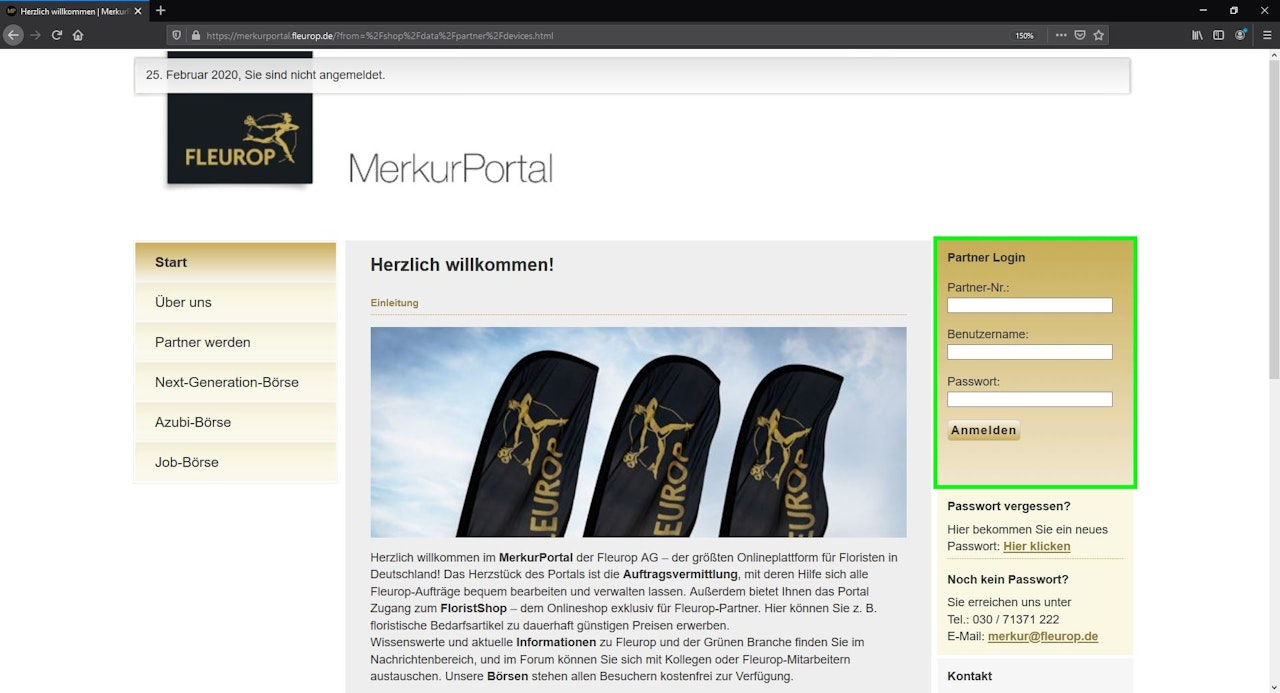
- First, open the Merkur Portal and have your specific merchant login details ready to sign in via the highlighted area of the screenshot (Image 1).
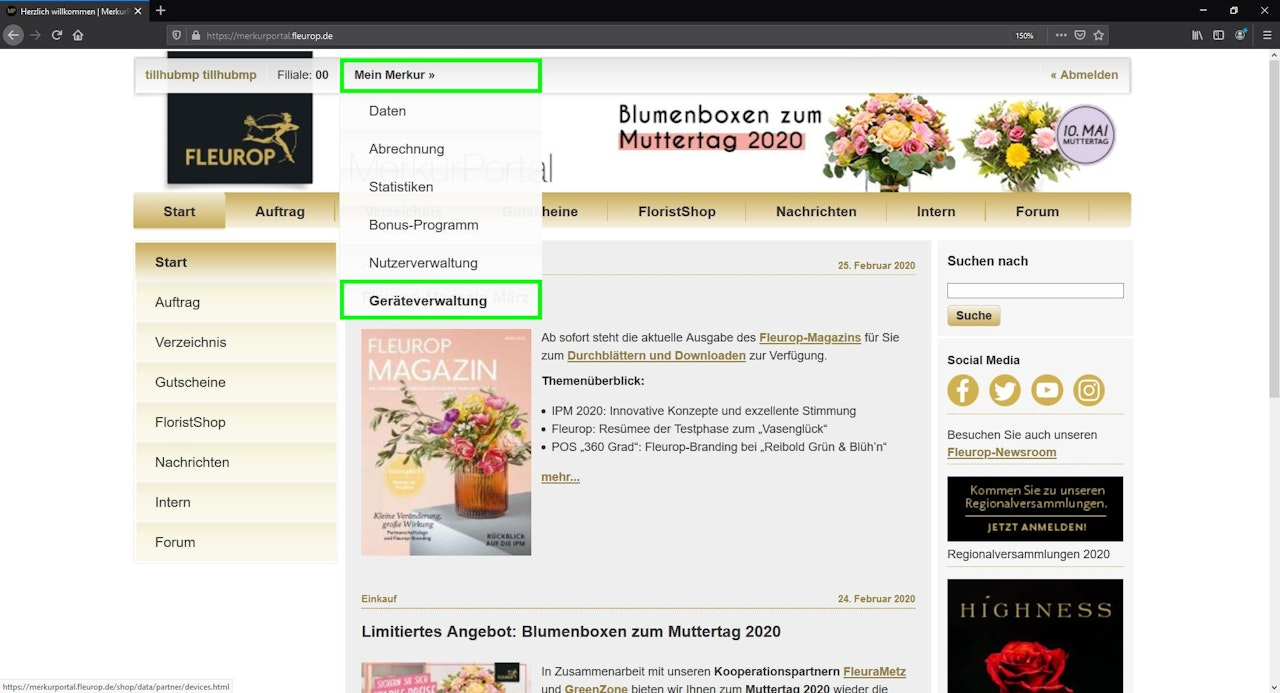
- After logging in, hover over “Mein Merkur” at the top and then click “Geräteverwaltung” (Device management) (Image 2).
Step 2: Create a device
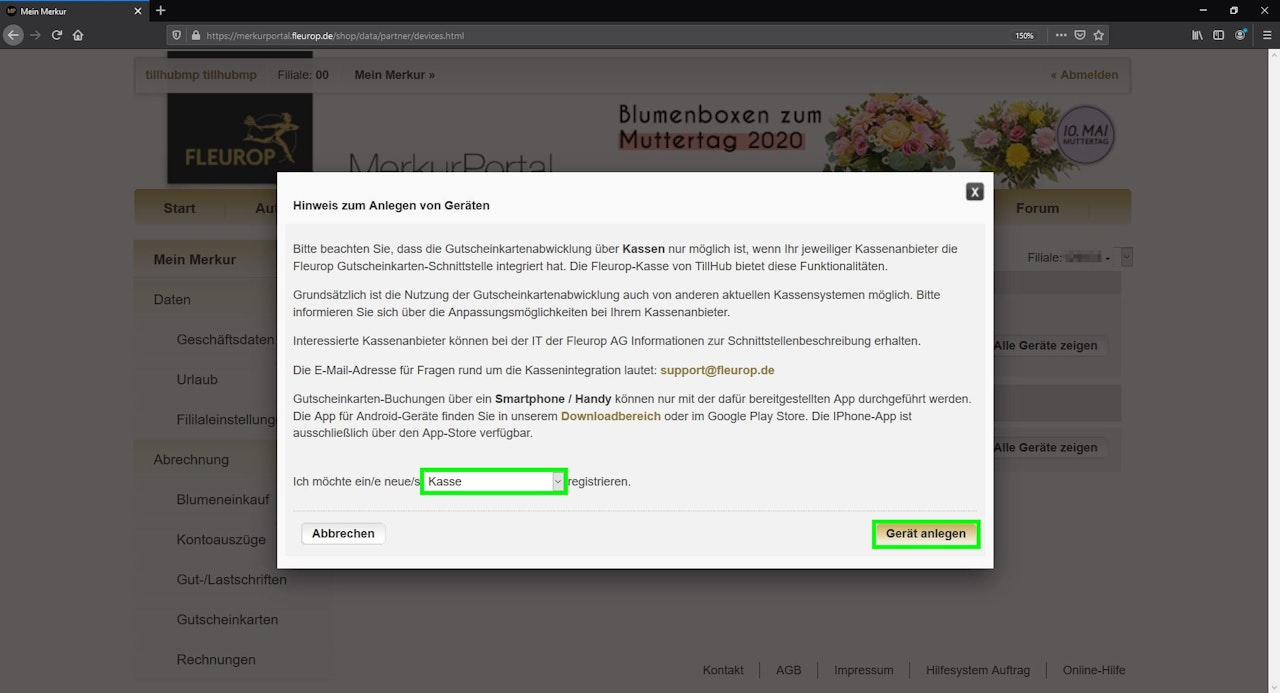
- A pop-up opens asking which type of device you want to create. Select “I want to register a new register” and click “Create device” to continue.
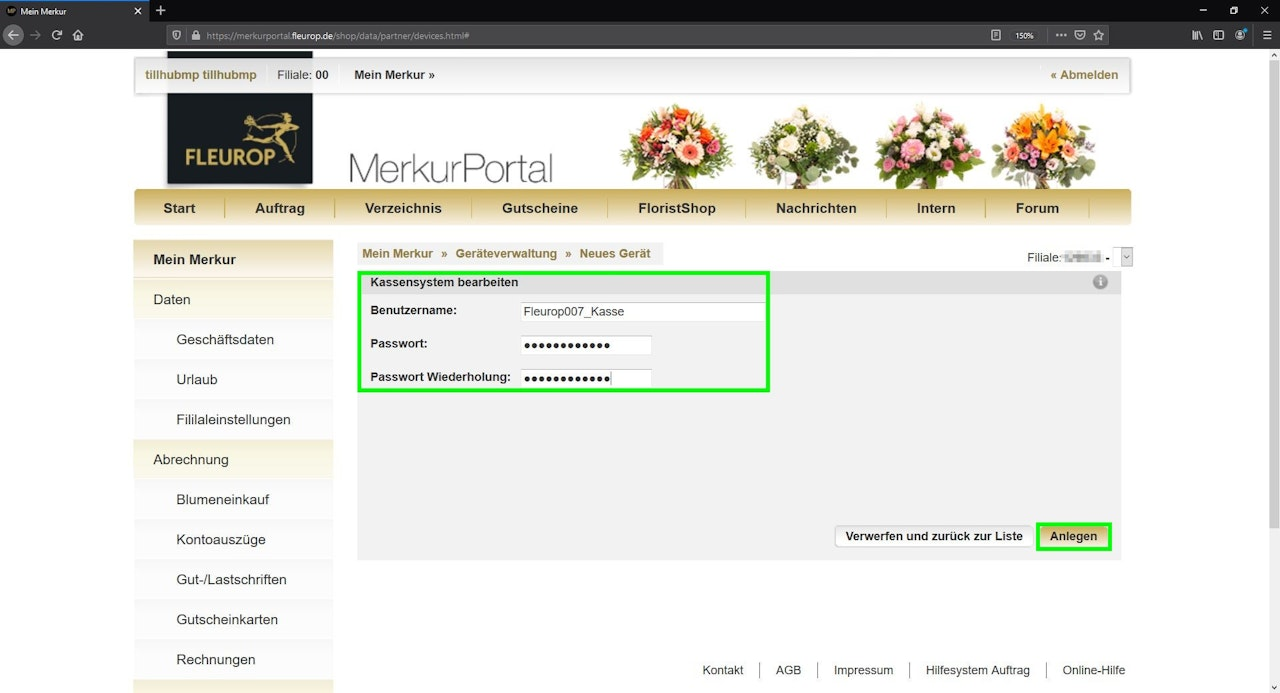
- You will then set the username and the corresponding password for the register.
Note:
Make sure these credentials are different from your Merkur Portal login. Do not use spaces. For special characters, “!” and “#” work; “+” does not.
- After entering your data, click “Create” to save.
If everything was successful, you will see a yellow message: “Changes saved.”
Step 3: Delete/change password
- The prerequisites for processing voucher cards (selling and redeeming) via a POS are now met. On the POS, you can log in via a login dialog using your partner number, username, and password.
- To block access for a registered POS, simply delete the device in the Merkur Portal or change its password.
Warning:
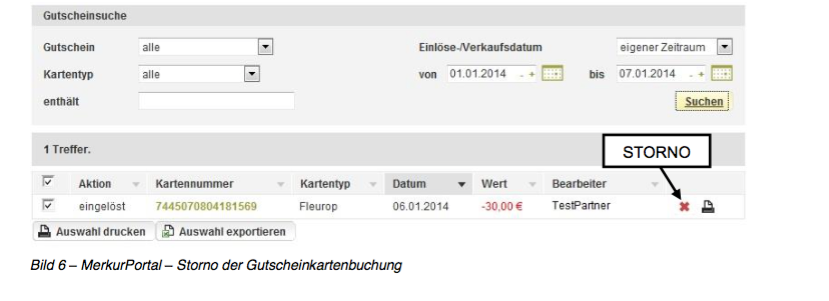
For security reasons, reversals can only be performed via the Merkur Portal. If you want to cancel a sale or redemption of a Fleurop card, log in to the Merkur Portal and perform a reversal. Third‑party cards cannot be reversed.
Step 4: Enable the Fleurop function in the app
The Fleurop function is located under “My Business.” Enter the respective item numbers in the fields below the Device ID. The item numbers are taken from the Dashboard.
Also enter:
- Fleurop partner number
- Username of the newly created device in the Merkur Portal
- Password of the newly created device in the Merkur Portal

Finish by tapping Save. A confirmation will appear as a green banner.
Was this article helpful?
That’s Great!
Thank you for your feedback
Sorry! We couldn't be helpful
Thank you for your feedback
Feedback sent
We appreciate your effort and will try to fix the article
