Item Numbers
Modified on Tue, 17 Feb at 2:16 PM
In this article
- Enable article number generator
- Create item variants
- Define attributes
- Define attribute values
- Define attribute variants
Enable article number generator
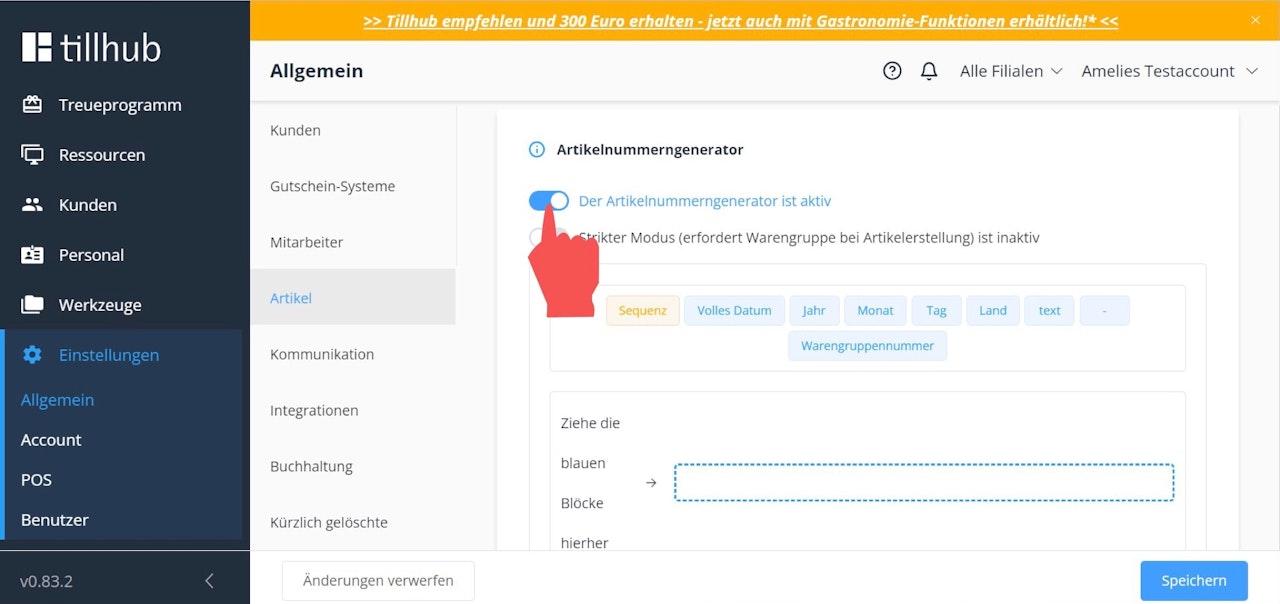
To avoid having to manually enter article numbers each time, activate the "Article Number Generator." To do this, click on "Settings" in the main menu of the dashboard. Then navigate to "Items" in the submenu and activate the toggle at the top right of the screen: "The article number generator is activated."
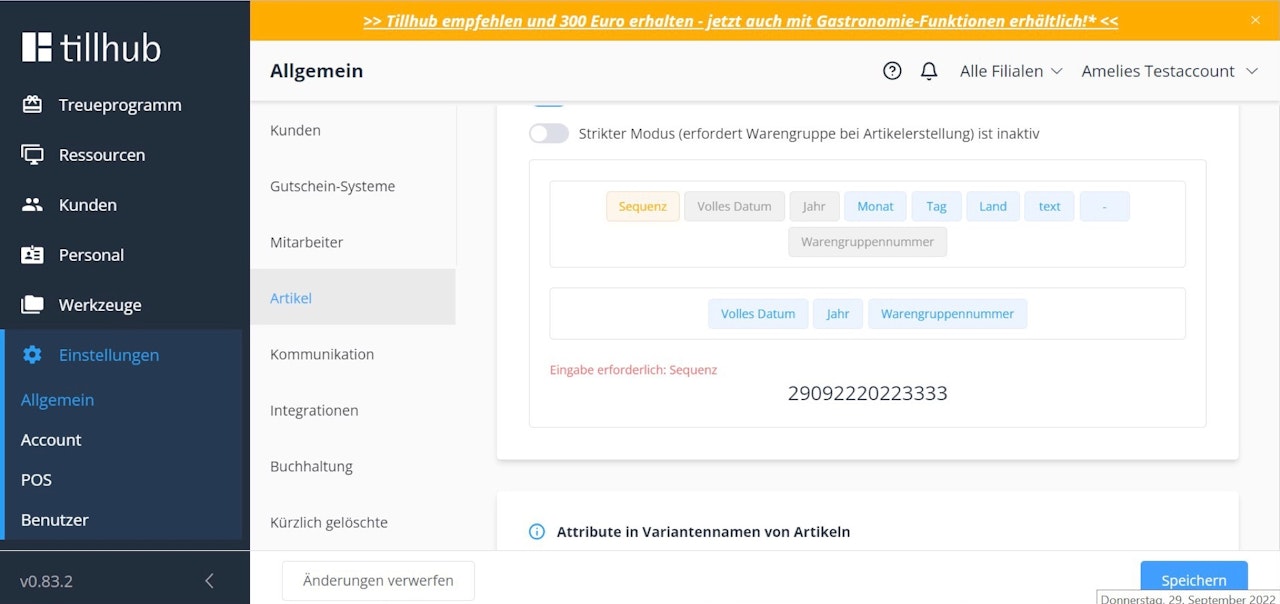
Next, decide which components your article numbers should consist of by dragging the blue blocks with the desired values into the blue-bordered field.
For example, if you want your article numbers to consist of a sequential number and always display the corresponding product group number, drag the blocks "Sequence" and "Product Group" into the blue-bordered field..
Create item variants
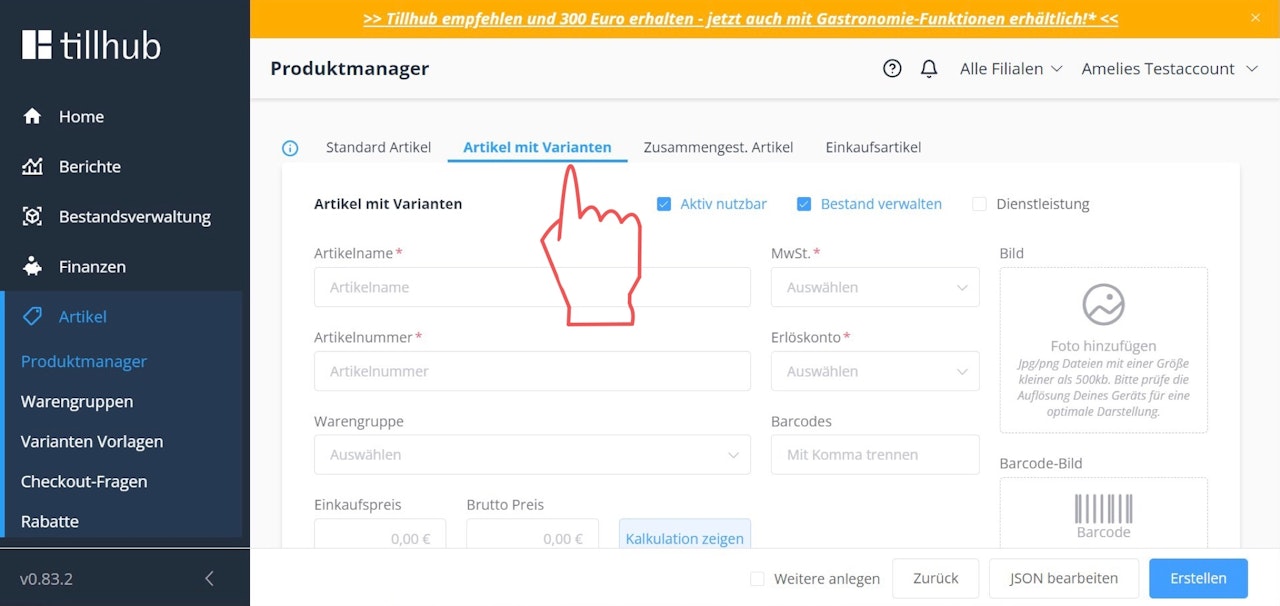
If you have chosen the item type "Item with Variants," you now have the option to create the item variants under the metadata section.
Define attributes
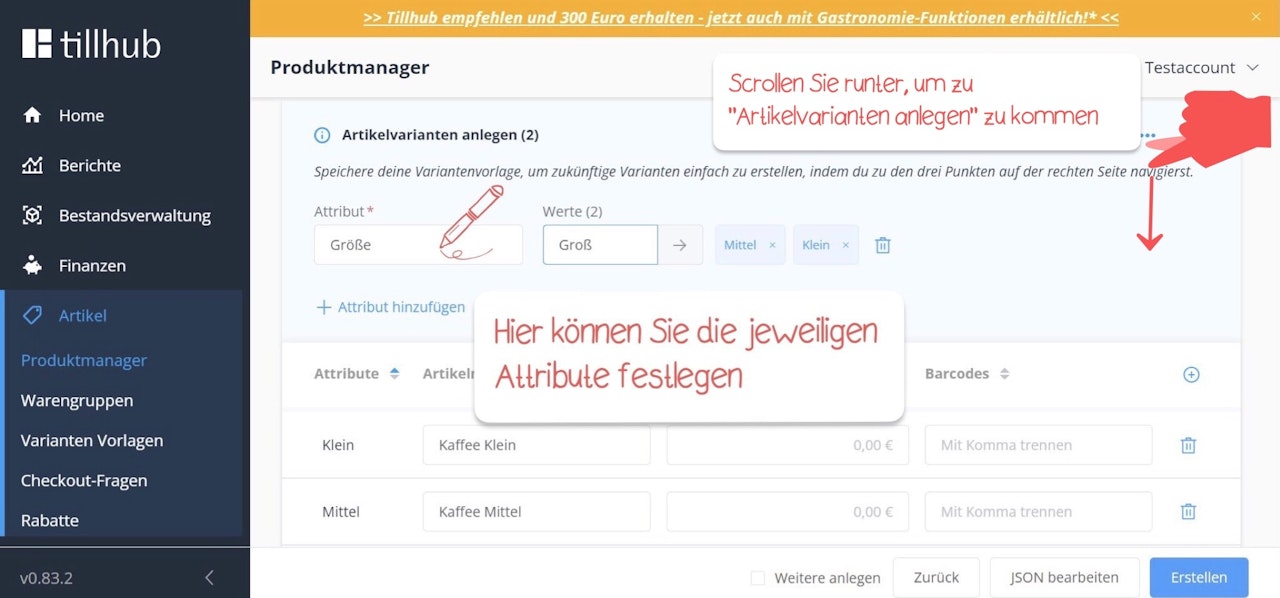
First, you should define the relevant attributes of your "item with variants."
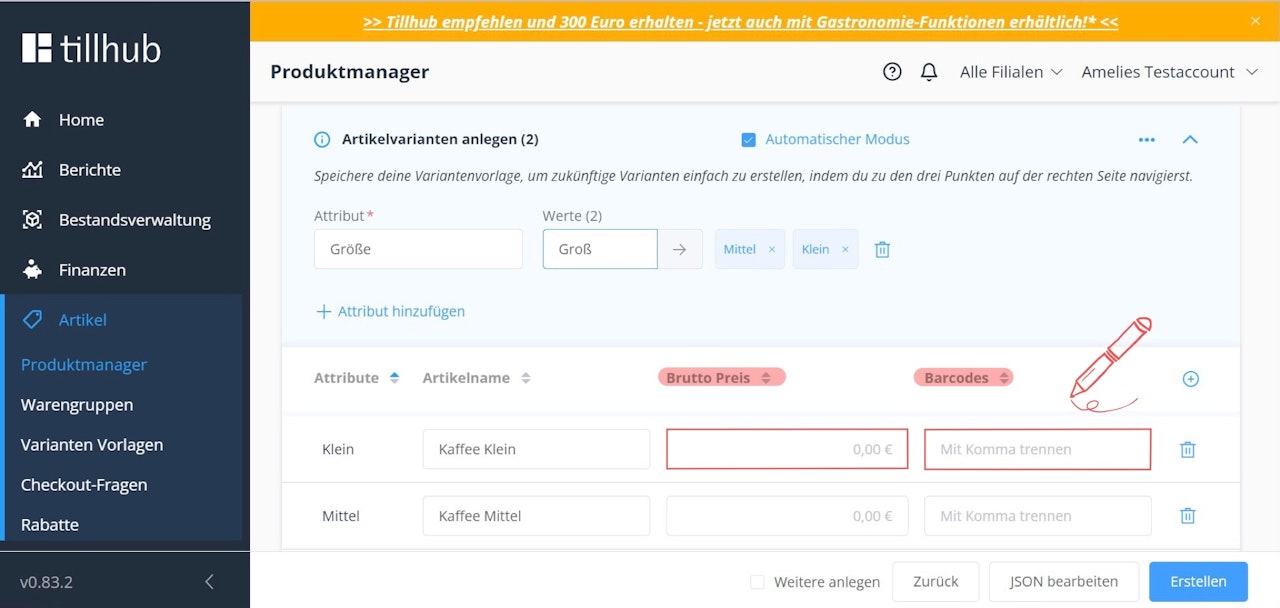
An "attribute" refers to the varying property of your item, such as size or color. Define the different attributes of your item by entering the corresponding properties into the fields labeled "Attribute."
To add multiple attribute names, click "Add Attribute."
Define attribute values
Next, specify the attribute values, such as XS, S, M, L, XL, etc.
Enter each attribute value individually in the small field to the right of the attribute name, confirming each entry by clicking the small arrow next to it.
Define attribute variants
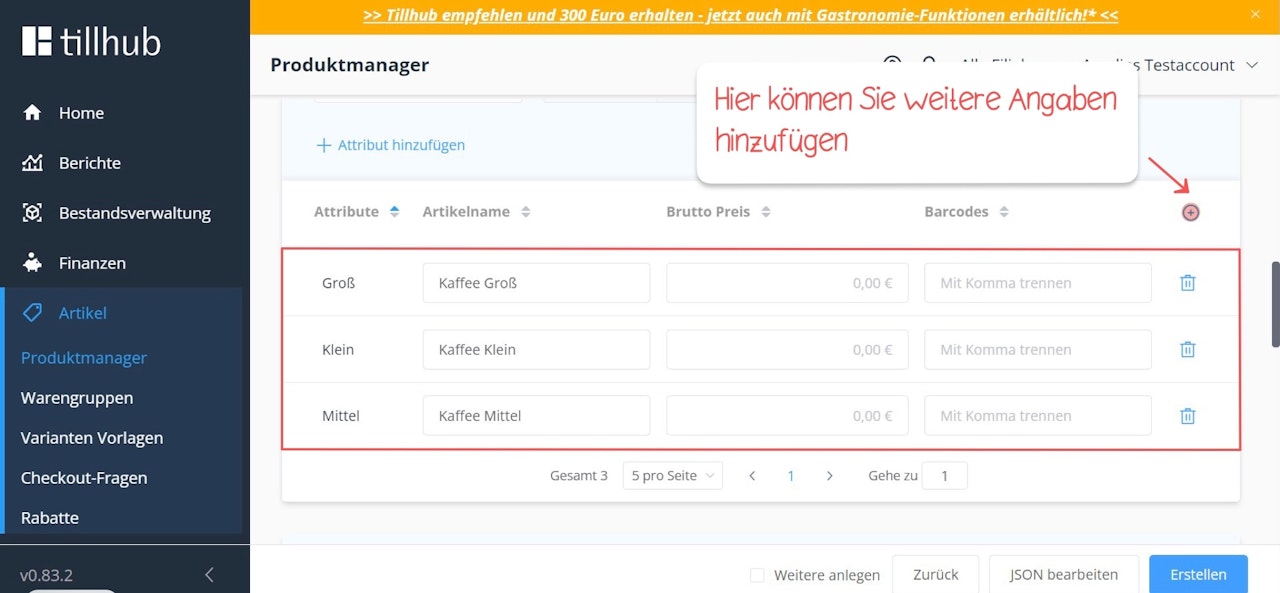
Once you have confirmed your attribute values, your various item variants will be generated.
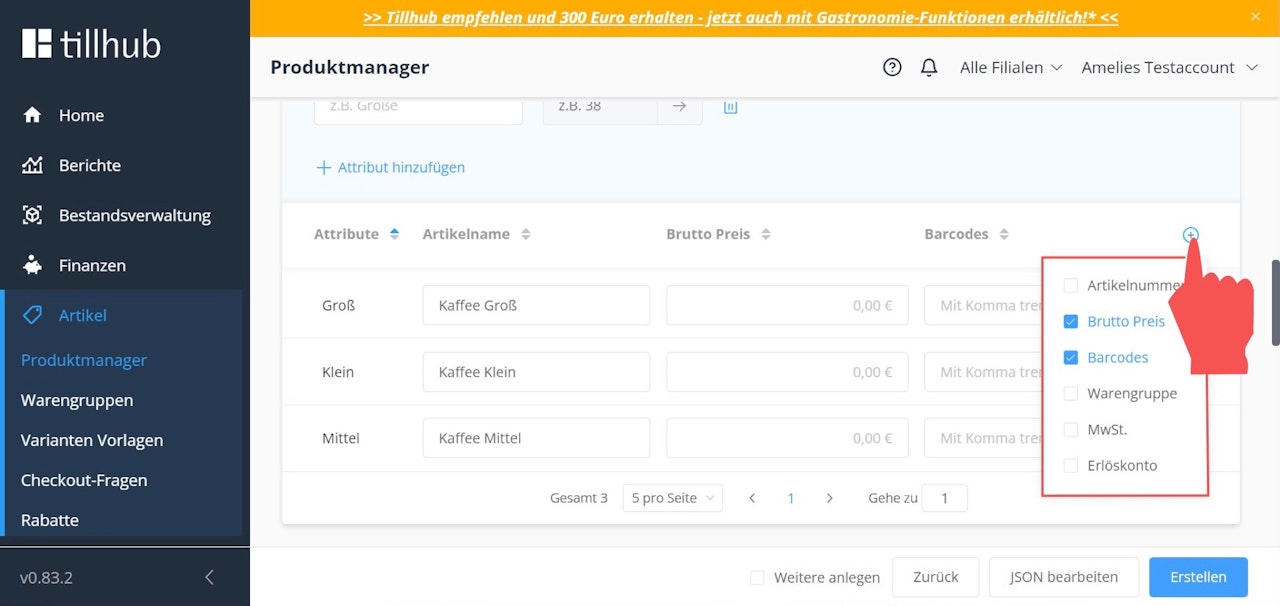
You now have the option to define the price, barcode, and initial stock for each individual item variant.
If you want to add more information to each item variant, click the blue "+".
Save your entries by clicking the blue "Create" button at the bottom right.

Was this article helpful?
That’s Great!
Thank you for your feedback
Sorry! We couldn't be helpful
Thank you for your feedback
Feedback sent
We appreciate your effort and will try to fix the article