Datev header data (optional)
Modified on Tue, 17 Feb at 2:16 PM
In this article
- Datev header data (optional)
- Create internal transit account (transit account)
- Where can I enter the account number for the internal transit account?
- Create accounts for expenses and deposits
- Cash deposit account (account no.: 1360)
- How do I change account numbers?
Datev header data (optional)
If you have added the DATEV option, you can read in the following chapter where to enter the DATEV header data and how to generate a DATEV export at the end of the month for your tax advisor: “DATEV/Tax Advisor.”
Create internal transit account (transit account)
The booking logic of the Tillhub POS system follows the current guidelines of the German Tax Advisors Association: The various revenue accounts are first posted to an internal transit account (transit account), while the internal transit account is posted to the cash register and non-cash payment methods (receivables accounts). This means that the export is a list of all sales per cash register closing: once per VAT rate and once per payment method. This also enables a clear separation of all sales per payment method in accordance with GoBD, especially for transactions where multiple payment methods were used. In addition, all cash register postings are listed against a deposit and expenditure account—including any difference posting that may have occurred in the cash register closing account.
It is therefore essential that you enter a non-income-affecting account for the internal transit account, such as 1371 for SKR03.
Where can I enter the account number for the internal transit account?
Navigate to “Settings” in the menu on the left and then to ‘Accounting’ in the submenu. In the empty field at the top right titled “Transit account,” you can enter your non-income-affecting account for the internal transit account of the Tillhub POS system.
Create accounts for expenses and deposits
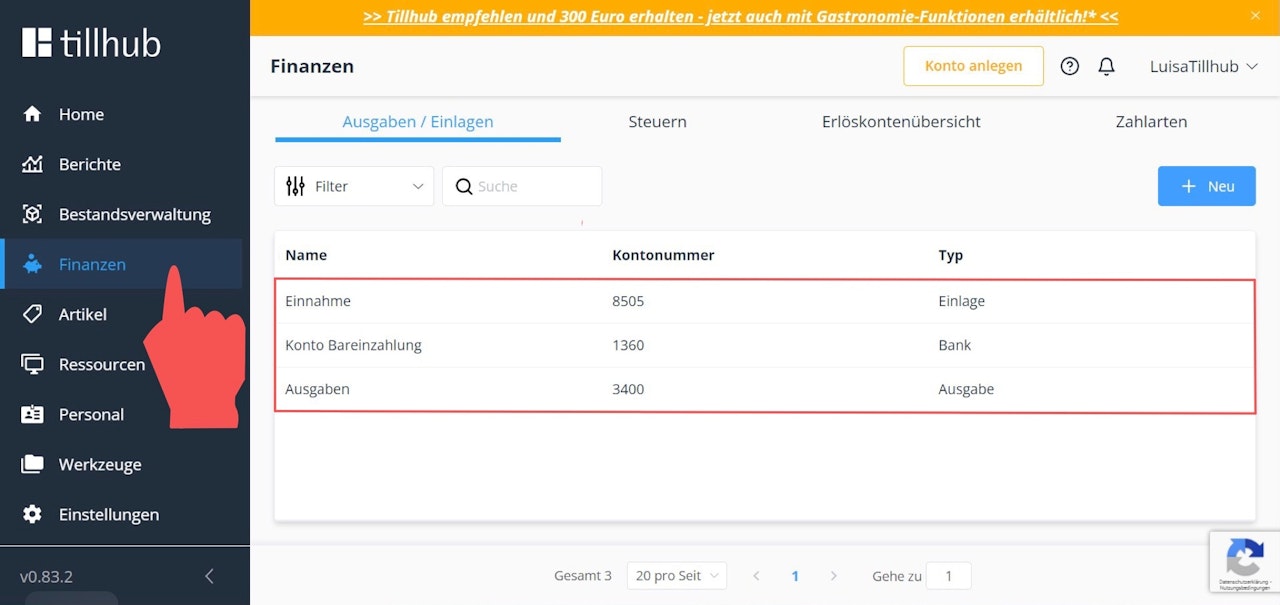
Once you have navigated to the main menu item “Finances” in the dashboard, click on the tab “Expenses/Deposits” on the right-hand side of the screen, where the following accounts are set as default:
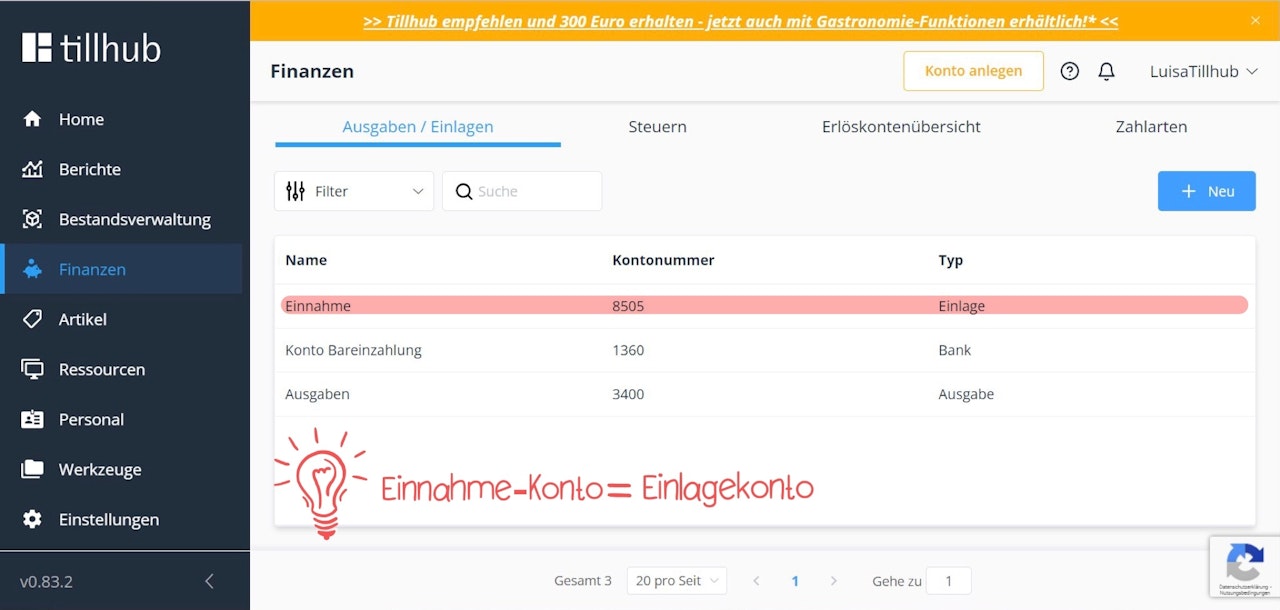
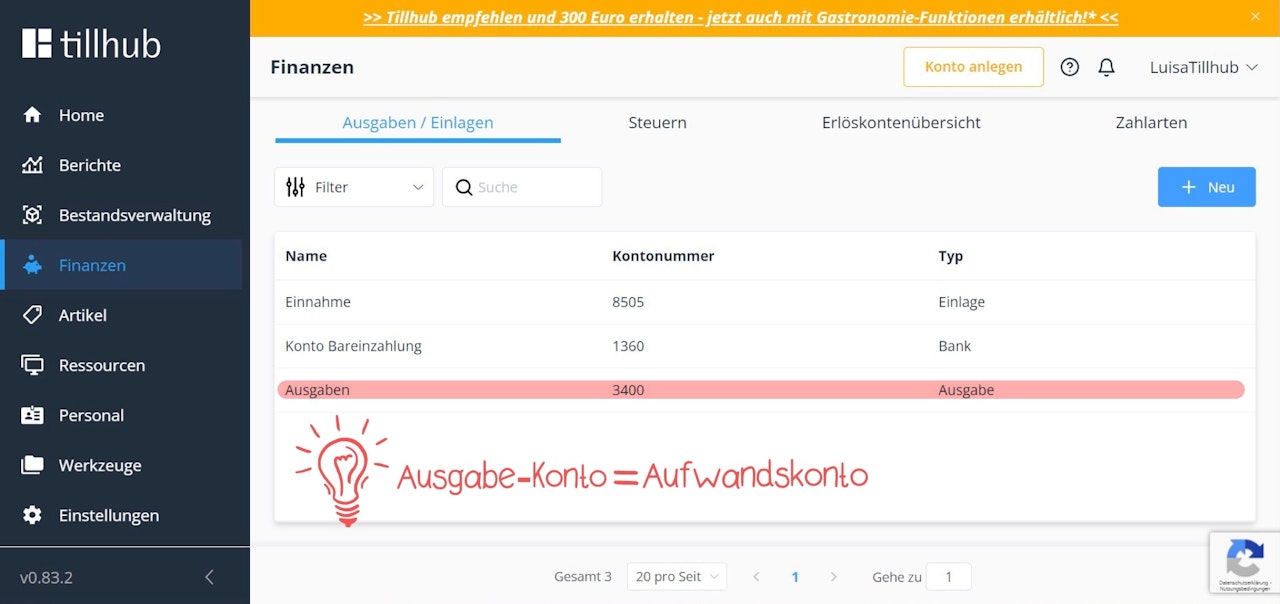
Income (account no.: 8505) & Expenses (account no.: 3400)
These two accounts play a role in your extraordinary transactions and are therefore not linked to any VAT accounts.
For example, you post the opening balance that you place in your cash register at the beginning of the day to the income account.
The expenditure account is an expense account, i.e., you post amounts of money that you take out of your cash register to this account, for example, to pay the postage bill for your company.
We show you how to post an amount to the income and expenditure accounts in the Tillhub app in the chapter: “Change balance & extraordinary transactions.”
Cash deposit account (account no.: 1360)
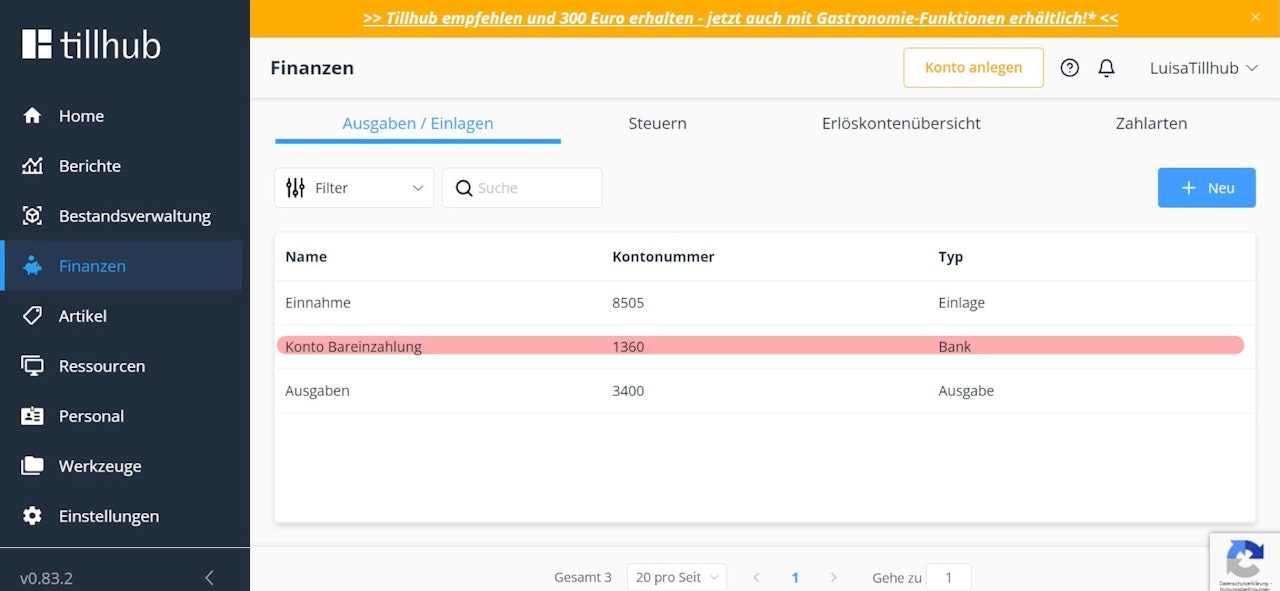
The amount that you take out of the cash register and bring to the bank before closing the cash register is posted to this account (i.e., “Cash transit account cash register - bank”). We will show you how to close the cash register in the app in the following chapter: “Closing the cash register.”
How do I change account numbers?
Since our system uses SKR03 by default, you may need to change the account numbers of the above-mentioned accounts—especially if your tax advisor uses SKR04.
To change an account number, click on the relevant account. A pop-up window will open where you can change not only the account number but also the account name, if needed.
After making your changes, click the blue "Save" button.
If you are unable to change the account numbers due to technical reasons, go to:
Settings > Account > Accounting and uncheck the checkbox "Strict Mode".
Was this article helpful?
That’s Great!
Thank you for your feedback
Sorry! We couldn't be helpful
Thank you for your feedback
Feedback sent
We appreciate your effort and will try to fix the article