Safe Management (optional)
Modified on Tue, 17 Feb at 2:16 PM
If you’re interested in using our free Safe Management feature, please contact our support team or your Onboarding representative to have the feature activated for your account.
Once activated, a new tab called "Safe Management" will appear next to the "Payment Method" tab under "Finance"in the dashboard.
How do I create a safe account in the dashboard?
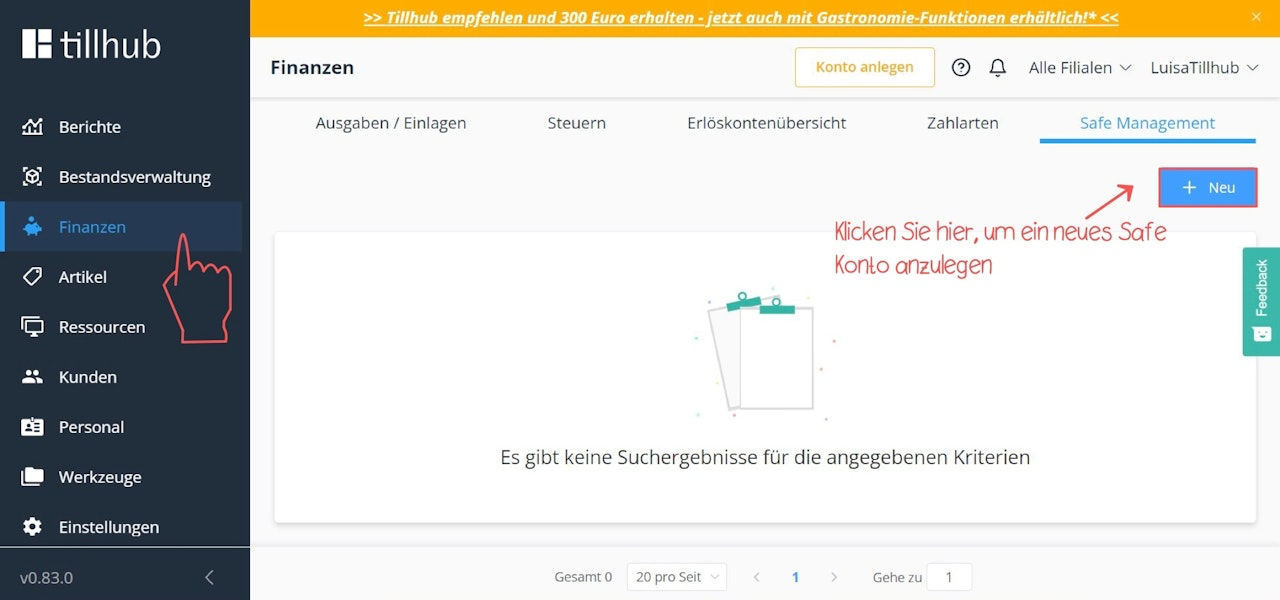
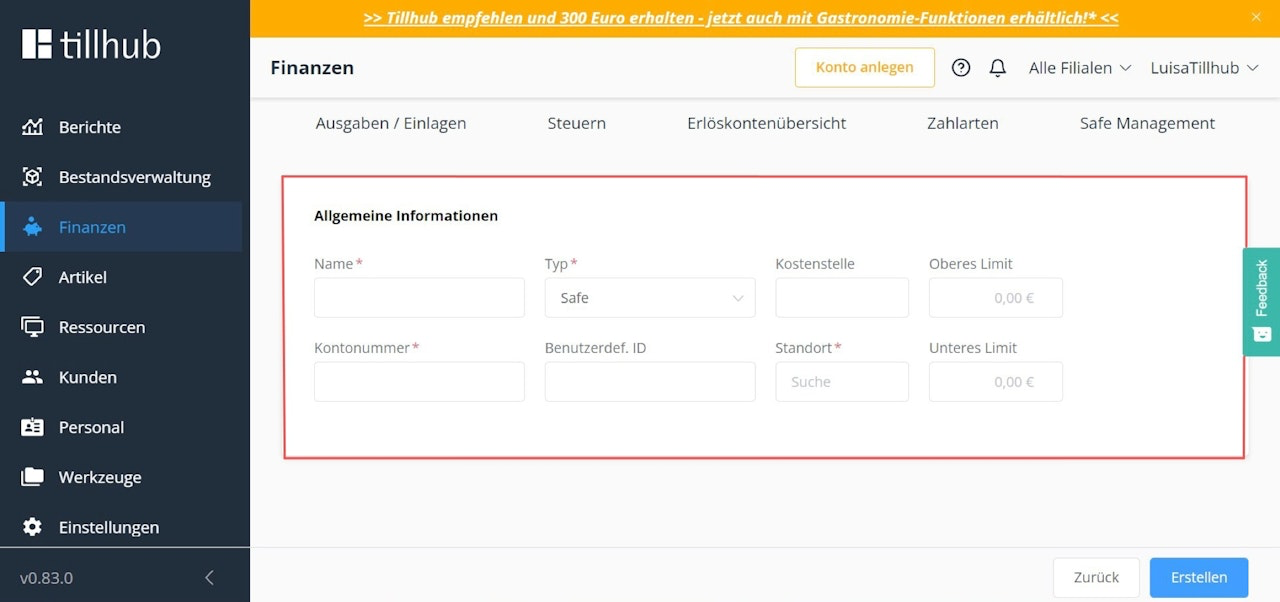
Under the "Safe Management" tab, you can create a safe for each of your locations and assign a specific account number to it.
Your tax advisor can advise you on which account number is most appropriate for this purpose.
Click the blue "+New" button to create a new safe account.
After entering the relevant data, click the blue "Create" button to save the safe.
How do I use the Safe feature in the app?
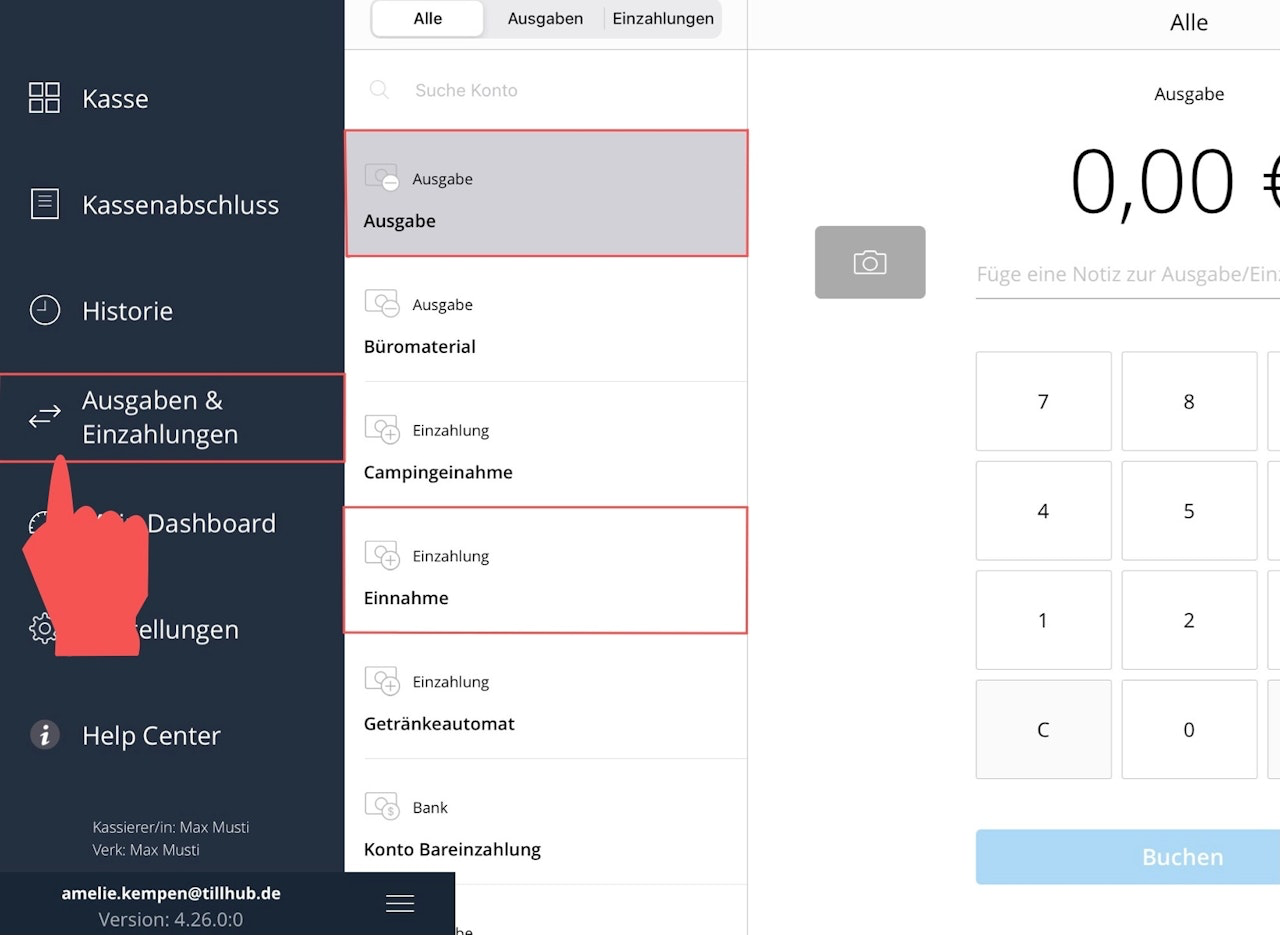
Once Safe Management has been activated, a new expense account and deposit account for the safe will appear in the app under the "Expenses/Deposits" menu.
Use the expense account when you take cash out of the register and place it into the safe.
This allows you to book the transaction as "To Safe" instead of "To Bank" before performing a cash register closing.Use the deposit account when you take cash out of the safe—for example, to use it as the opening cash balancein your register.
How can I transfer money from the safe to the bank or use it for expenses?
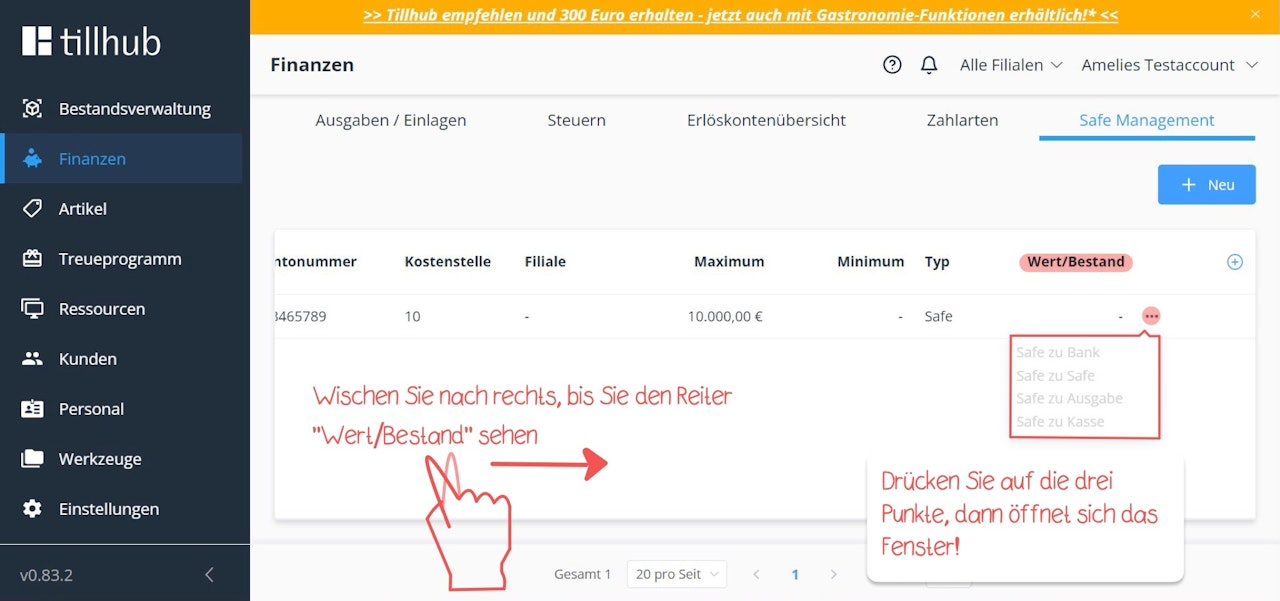
If you want to transfer the cash stored in the safe—for example, at the end of the week—to the bank, you can manage your safe balance directly in the dashboard.
To do this, navigate to your safe account in the dashboard. Click the three dots to the right of the safe balance. A small drop-down menu will appear, giving you the following options:
Transfer from Safe to Bank
Transfer from Safe to another Safe
Transfer from Safe to Expense
Transfer from Safe to Register
If you want to book a safe transaction as an expense, you must first activate the toggle "Accepts bookings from a safe" in the corresponding expense account under the "Expenses/Deposits" tab.

Was this article helpful?
That’s Great!
Thank you for your feedback
Sorry! We couldn't be helpful
Thank you for your feedback
Feedback sent
We appreciate your effort and will try to fix the article