How can I perform safe transactions?
Modified on Mon, 16 Feb at 10:12 AM
If you are interested in using our free Safe Management feature, please send an email to info@tillhub.de so that we can activate this function for you. Once activated, an additional tab called “Safe Management” will appear next to the “Payment Methods” tab.
Creating a safe account
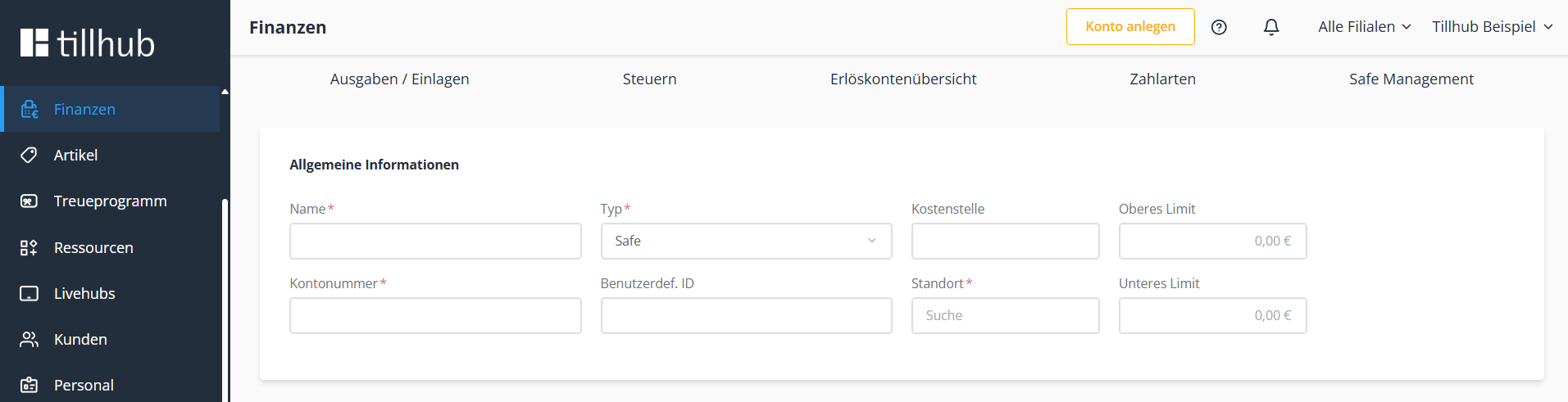
In this step, we show you how to create a safe account:
• Click on Safe Management
• Click on New
• Click on the Name field and enter the name of the safe account
• Click on the Account field and enter the posting account for the safe
• Click on Create
Posting money from the safe to the bank
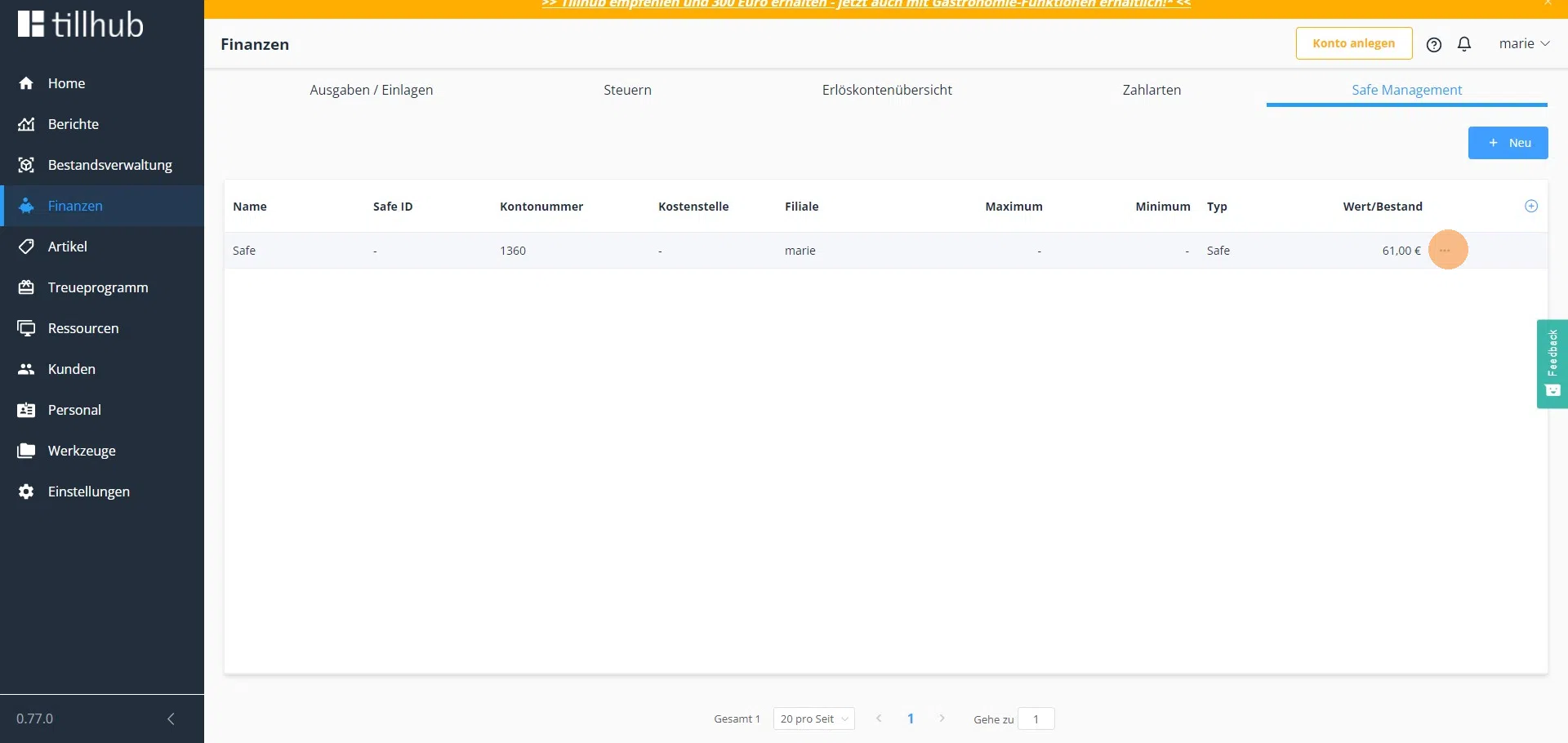
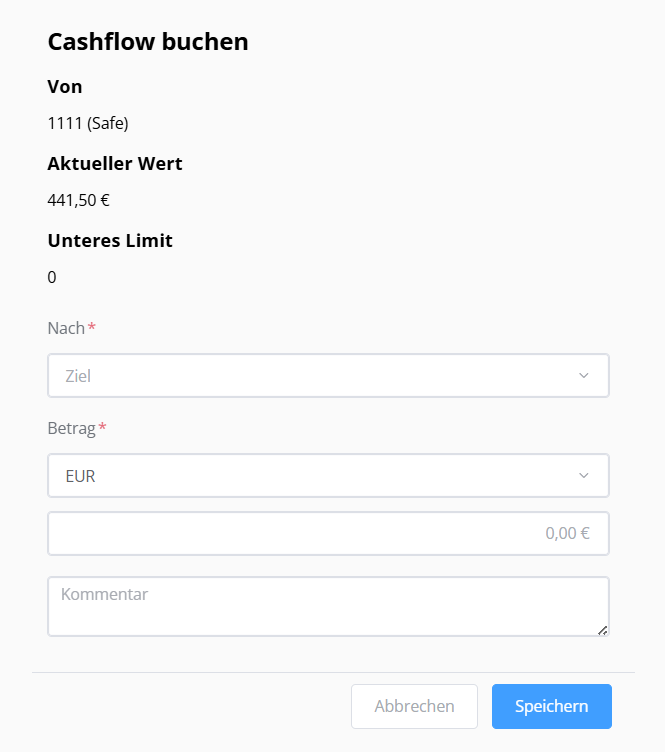
In this step, we show you how to post money from the safe to the bank:
• Click on the three-dot menu
• Click on Safe to Bank
• Click on the To field
• Select Cash Deposit Account
• Click on the Amount field and enter the amount
• Click on Save
Enabling safe payments as an expense
If you want to post a safe transaction as an expense, you must first enable the expense account:
• Click on Expenses / Deposits
• Click on Expenses
• Activate the toggle “Accepts postings from the safe”
• Click on Save
Posting a safe transaction as an expense
To post a safe transaction as an expense, proceed as follows:
• Click on the three-dot menu
• Click on Safe to Expense
• Click on the To field
• Select 5400 (Expenses)
• Click on the Amount field and enter the amount
• Click on Save
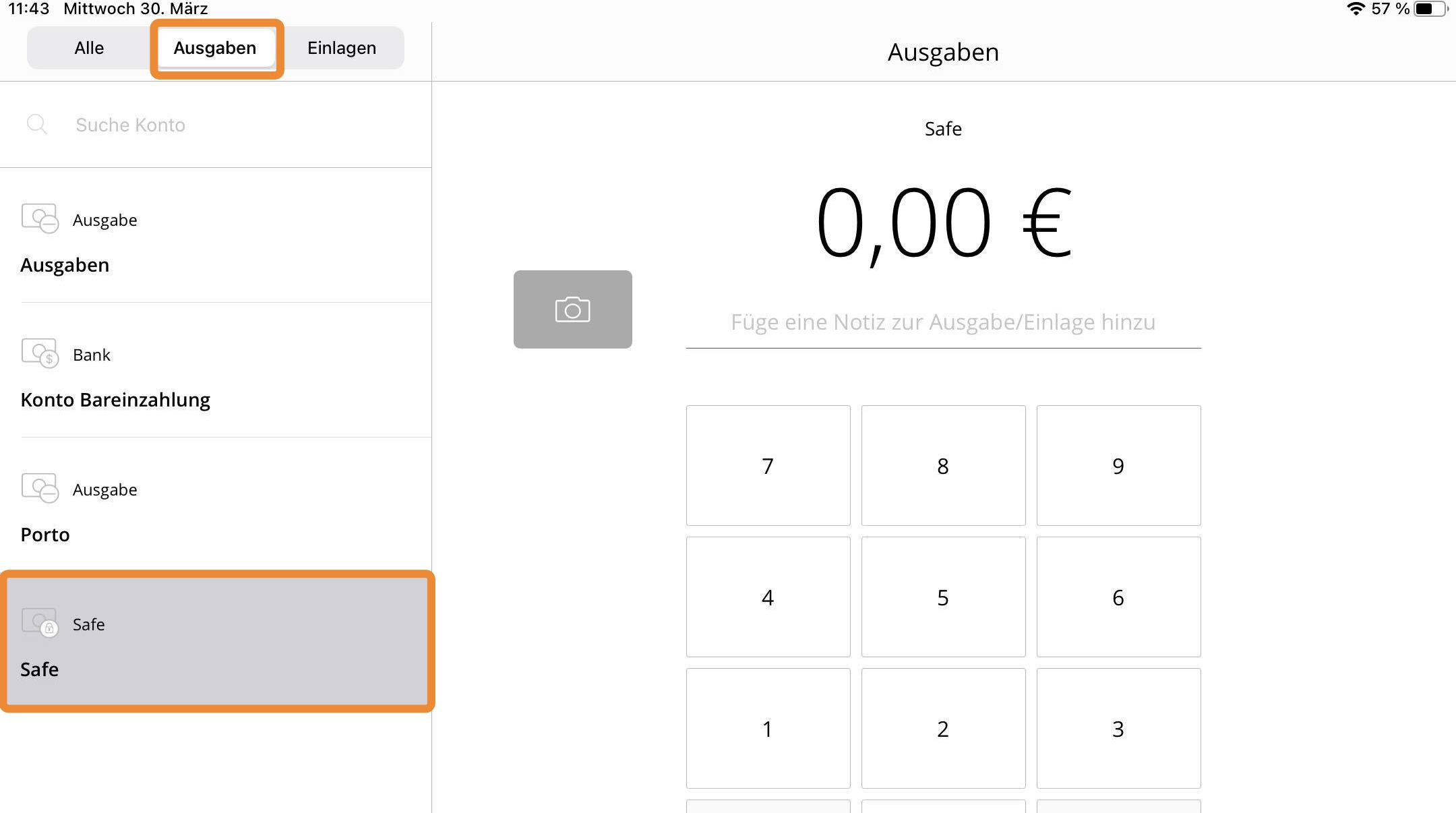
Safe accounts in the app
After Safe Management has been activated, a new expense account and a new deposit account for the safe will appear in the app under Expenses / Deposits.
The expense account in the app is used when you take cash out of the register and place it into the safe. This allows you to post the money to the safe instead of to the bank before performing a cash closing.
The deposit account in the app is used when you take cash out of the safe, for example to place it into the register as the opening balance.
Was this article helpful?
That’s Great!
Thank you for your feedback
Sorry! We couldn't be helpful
Thank you for your feedback
Feedback sent
We appreciate your effort and will try to fix the article
