POS Go - Settings for Tillhub Go
Modified on Tue, 10 Feb at 4:01 PM
In this tutorial, we would like to show you which configuration must be set on your card reader CCV PAX A920 - POS Go so that you can successfully process card payments via the Tillhub Go app.
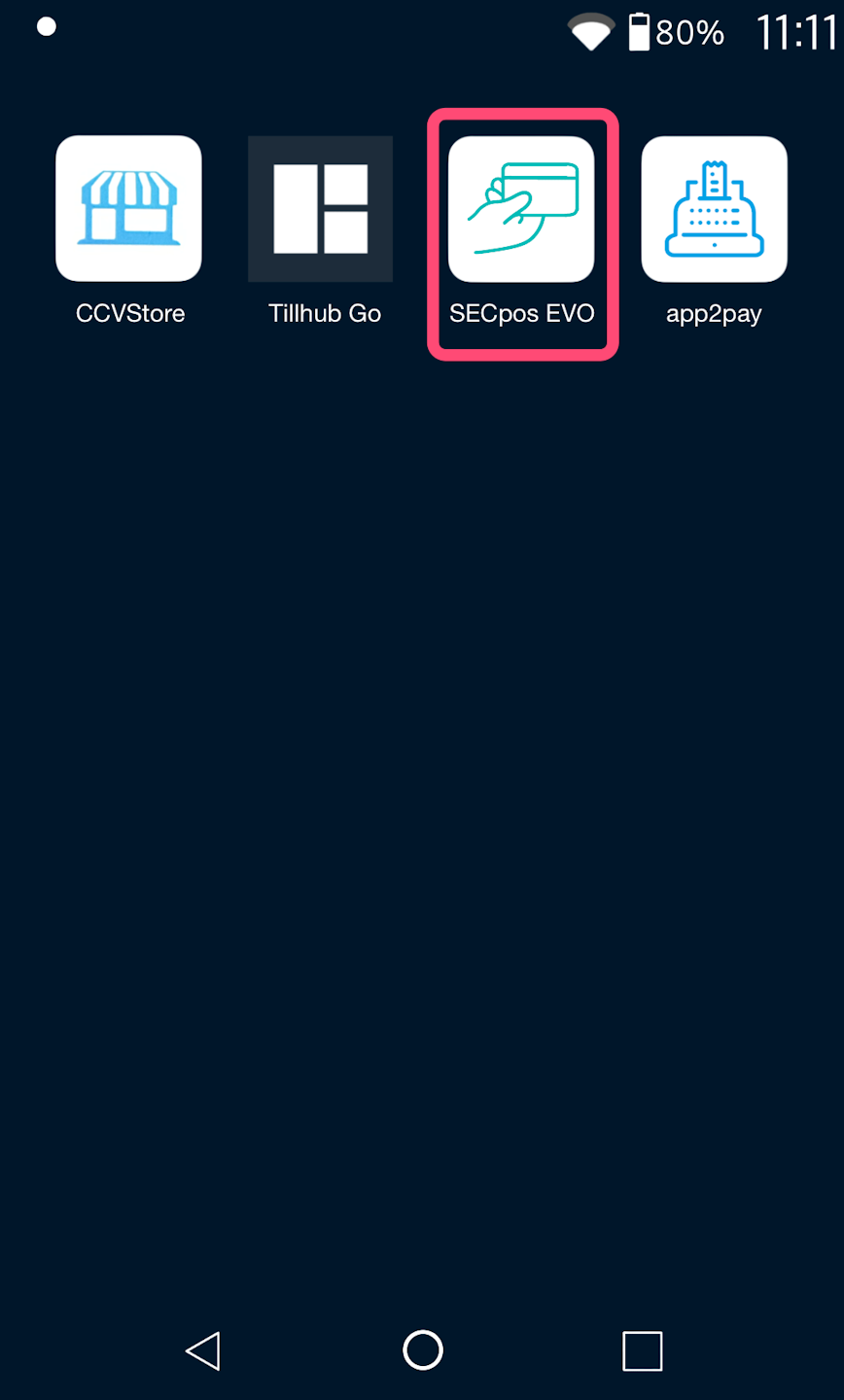
Open SECpos EVO
In the first step, please open the SECpos EVO app.
Since you have a touch display, please make each selection by tapping.
Terminal Ready
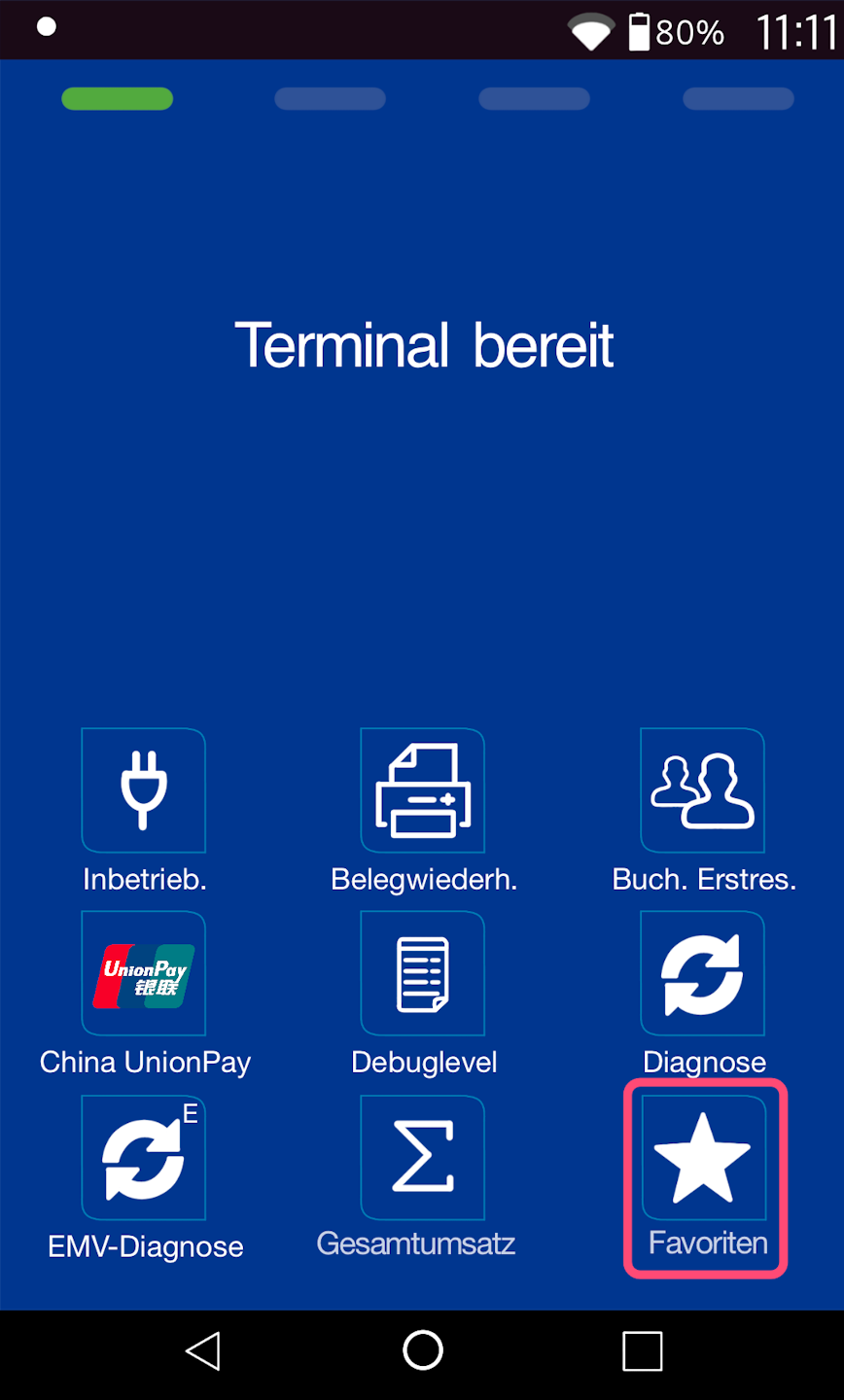
You will now see the main display of the payment app.
Fig. 1 - Please select Favorites at the bottom right.
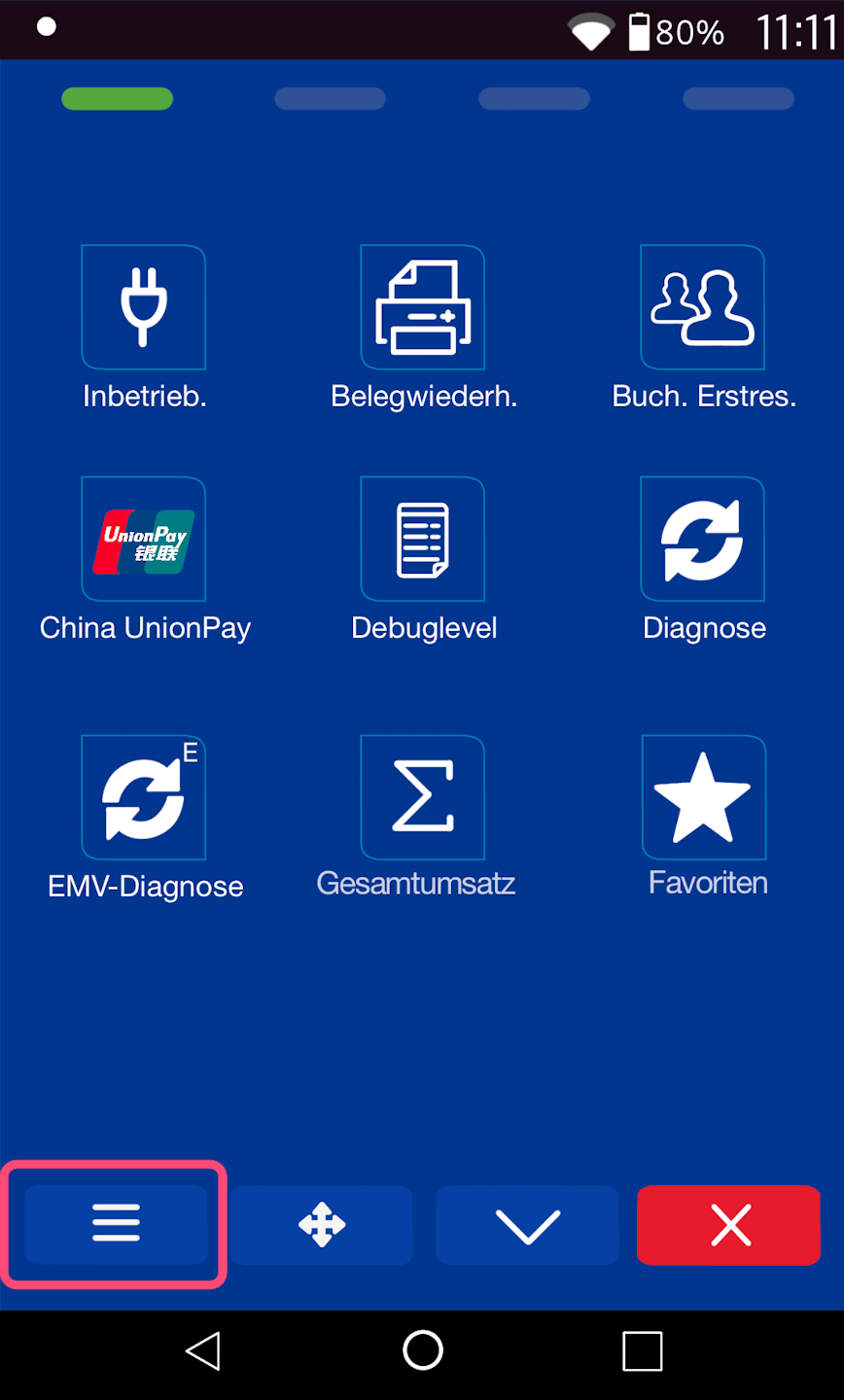
Fig. 2 - Then please select the three horizontal bars at the bottom left.
Menu PIN
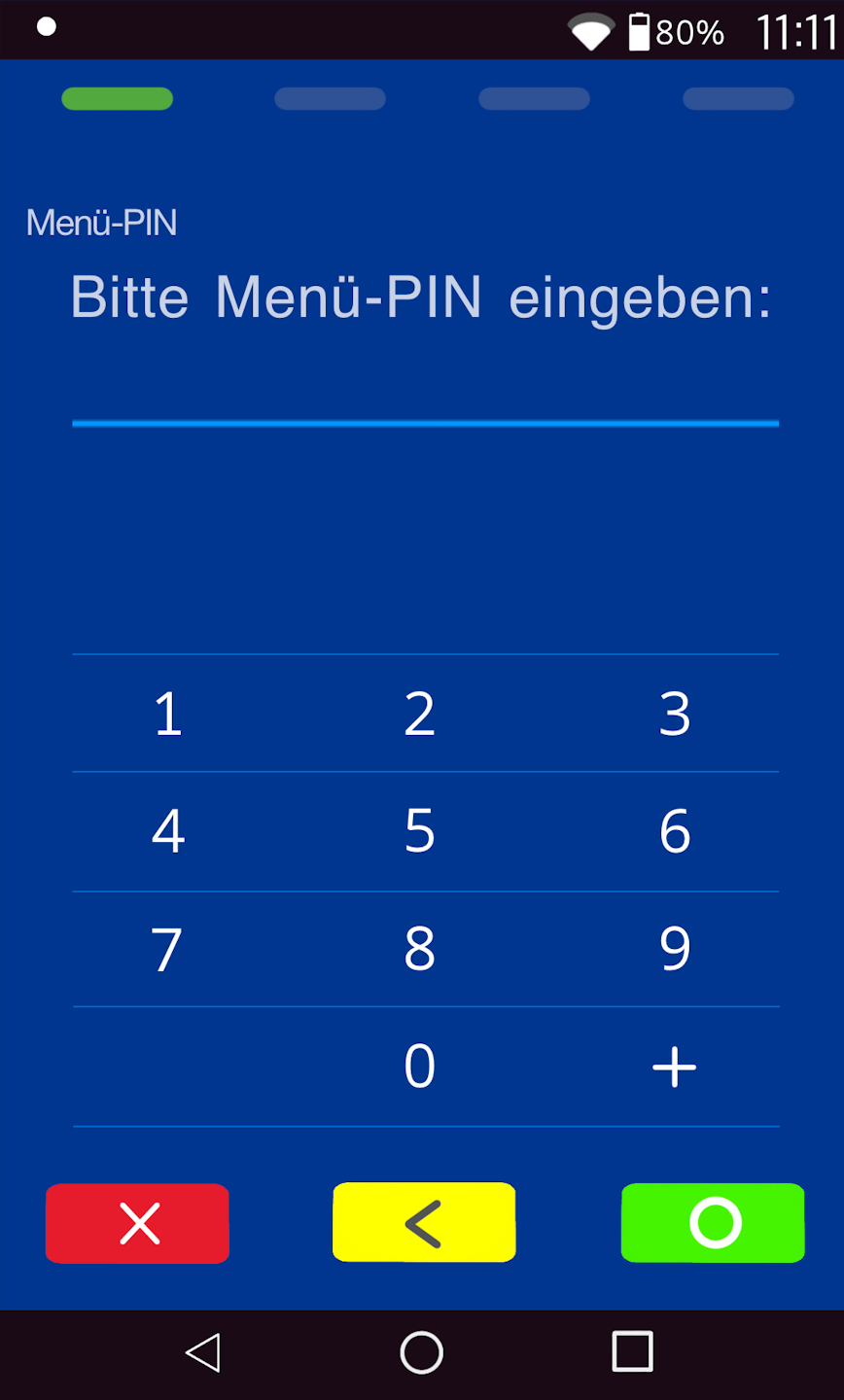
Please now enter your merchant PIN.
You will find the terminal ID on your merchant receipts or on the cash register summary.
Terminal IDs starting with 68xxxxxx: 111111
Terminal IDs starting with 526xxxxx: 0123
Please confirm the entry with the green OK key.
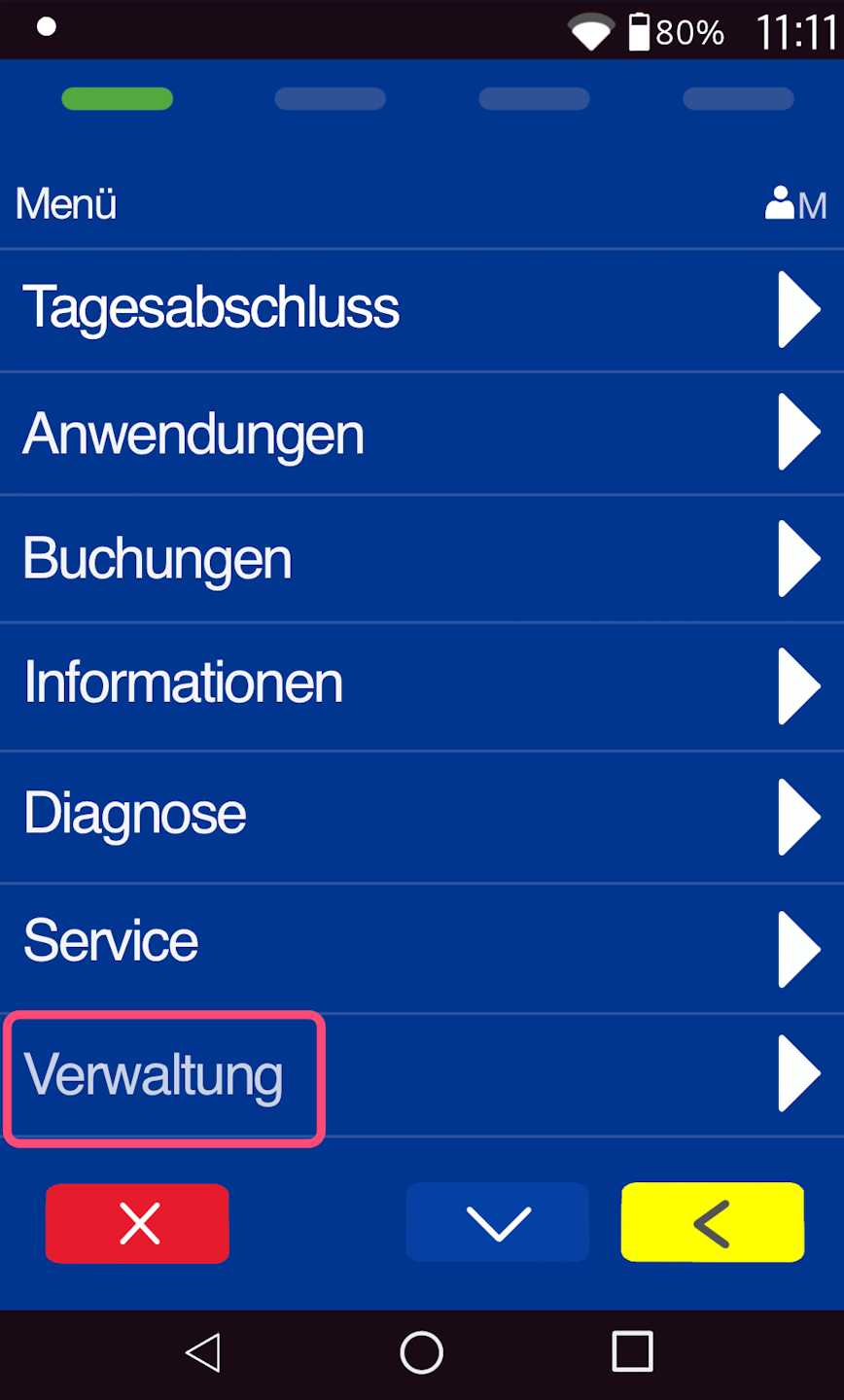
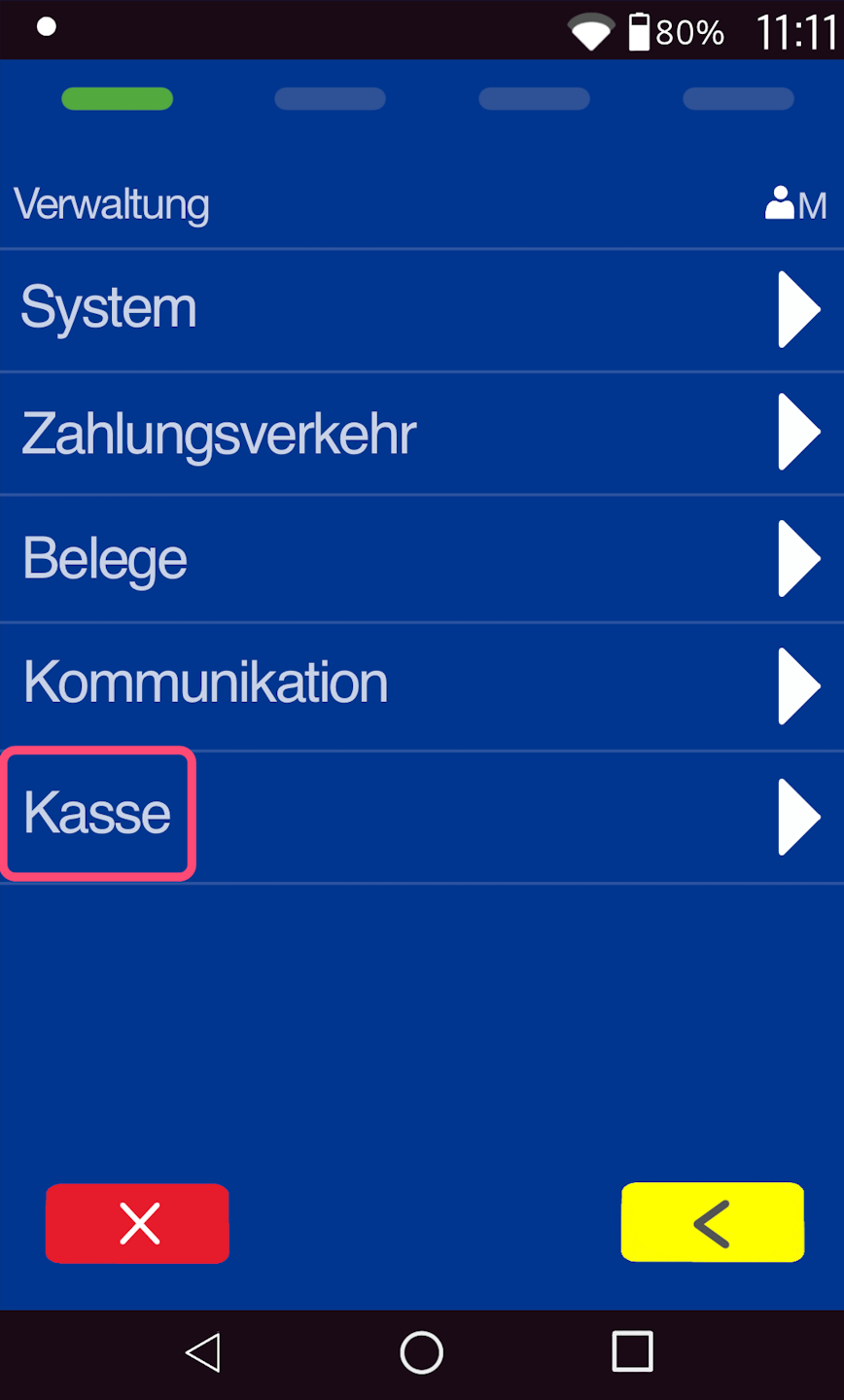
Menu Management
Fig. 1 - Please navigate to the menu item Management.
Fig. 2 - Please select Cash Register here.
Set Settings
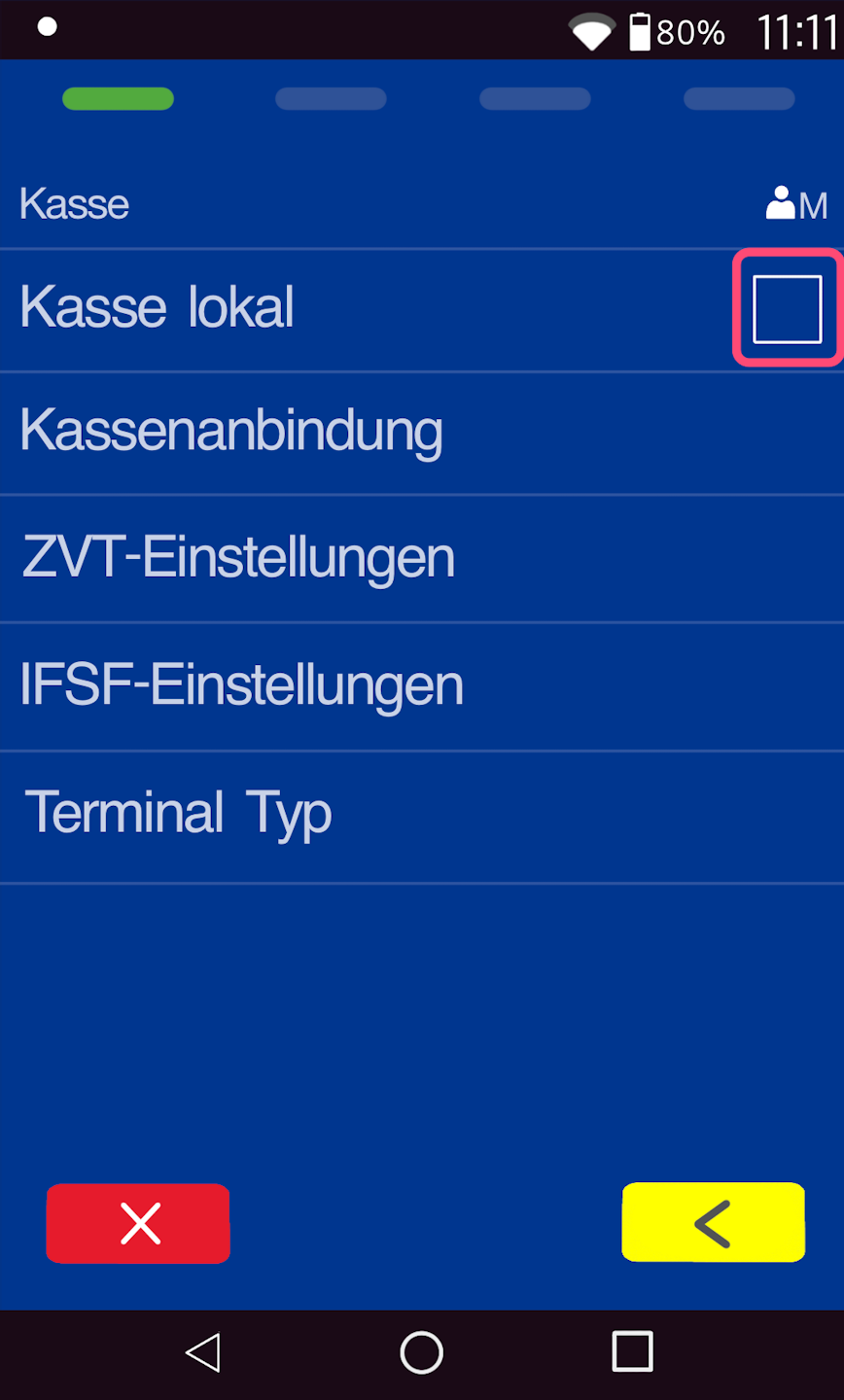
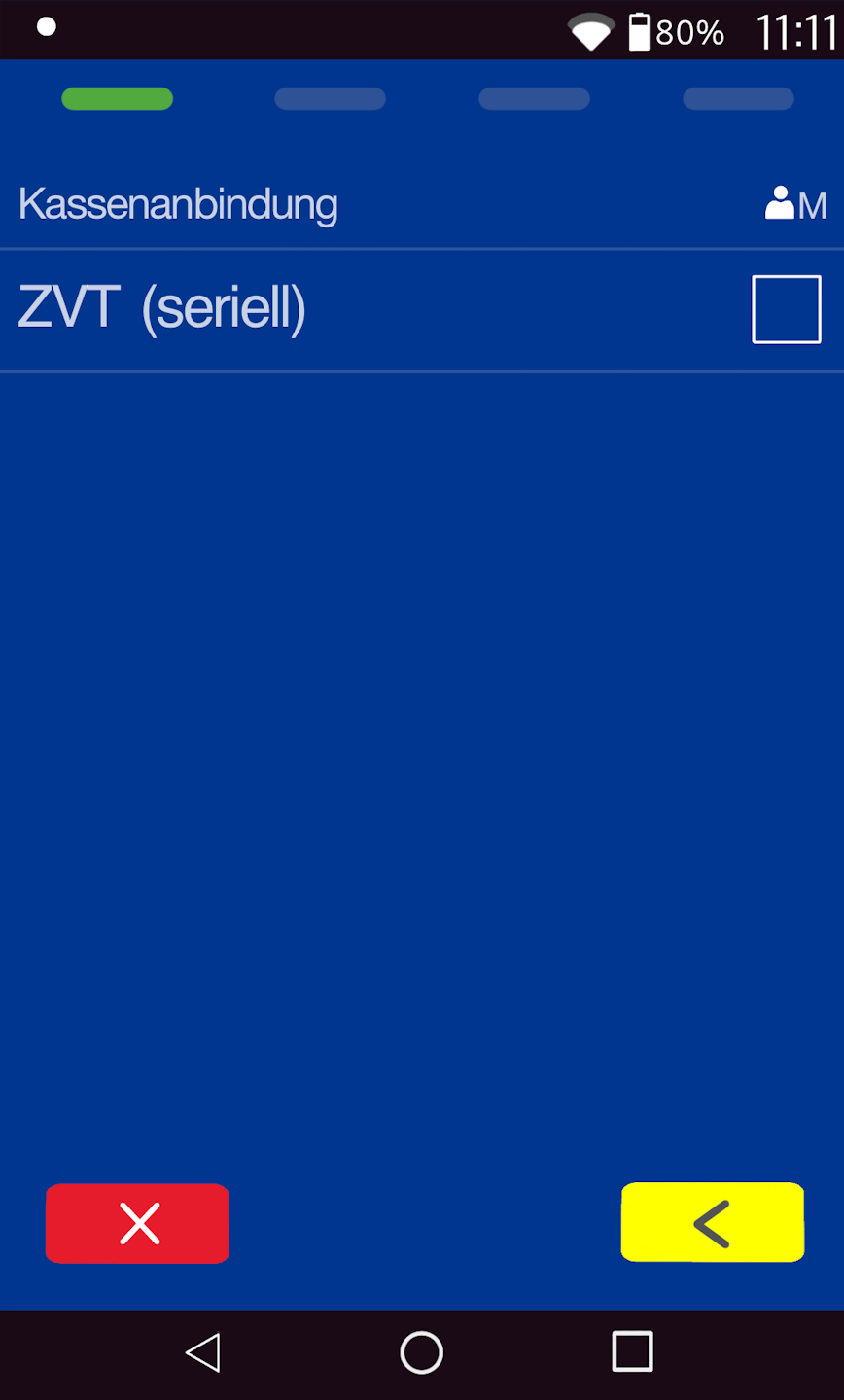
Now set all necessary configurations.
Fig. 1 - Please deactivate the checkbox for Cash register local. Then please select the menu item Cash register connection.
Fig. 2 - There, ZVT serial must also be deactivated. The next menu item is ZVT Settings.
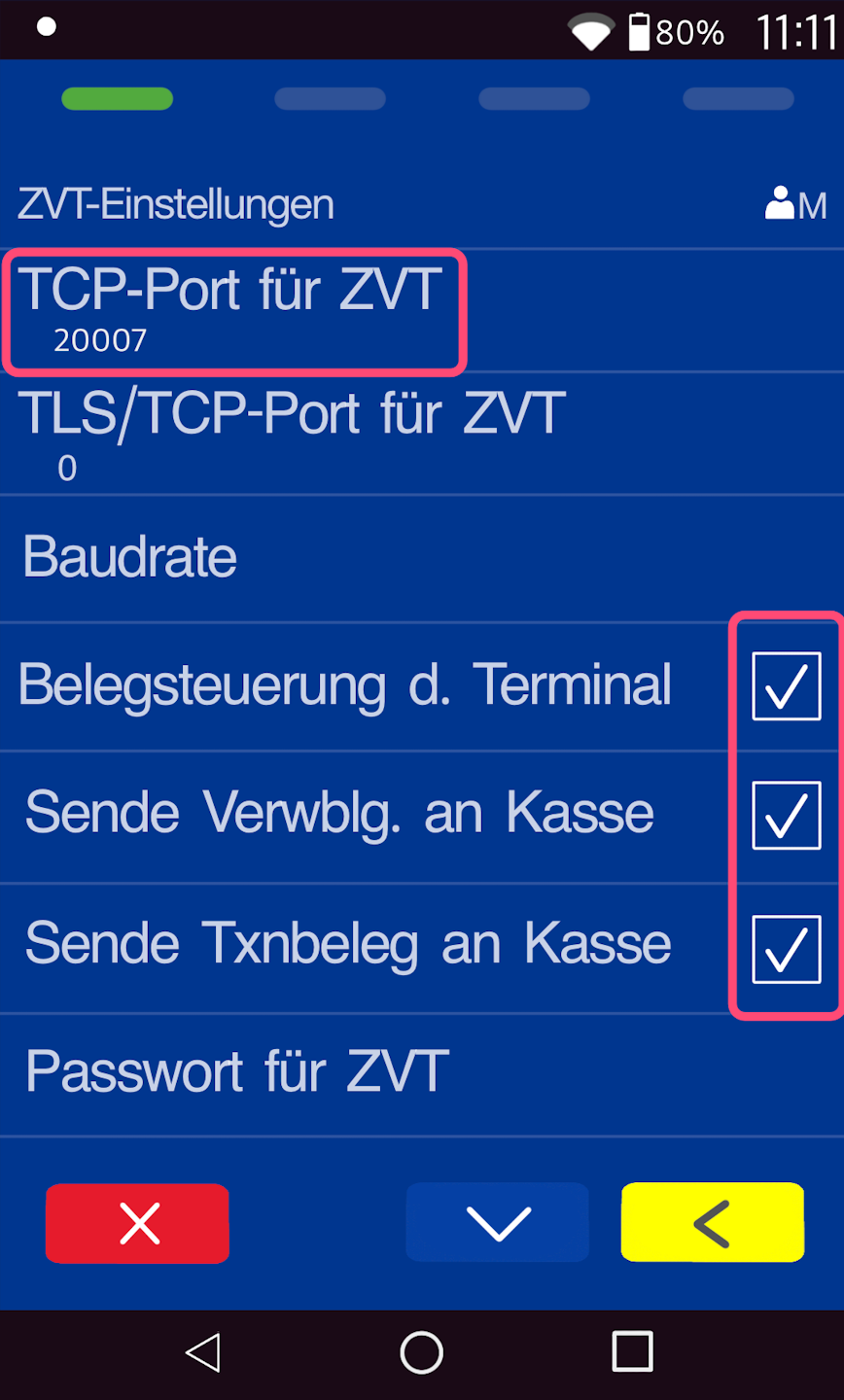
Fig. 3 - The TCP port must be set to 20007. Please activate all checkboxes in this menu item.
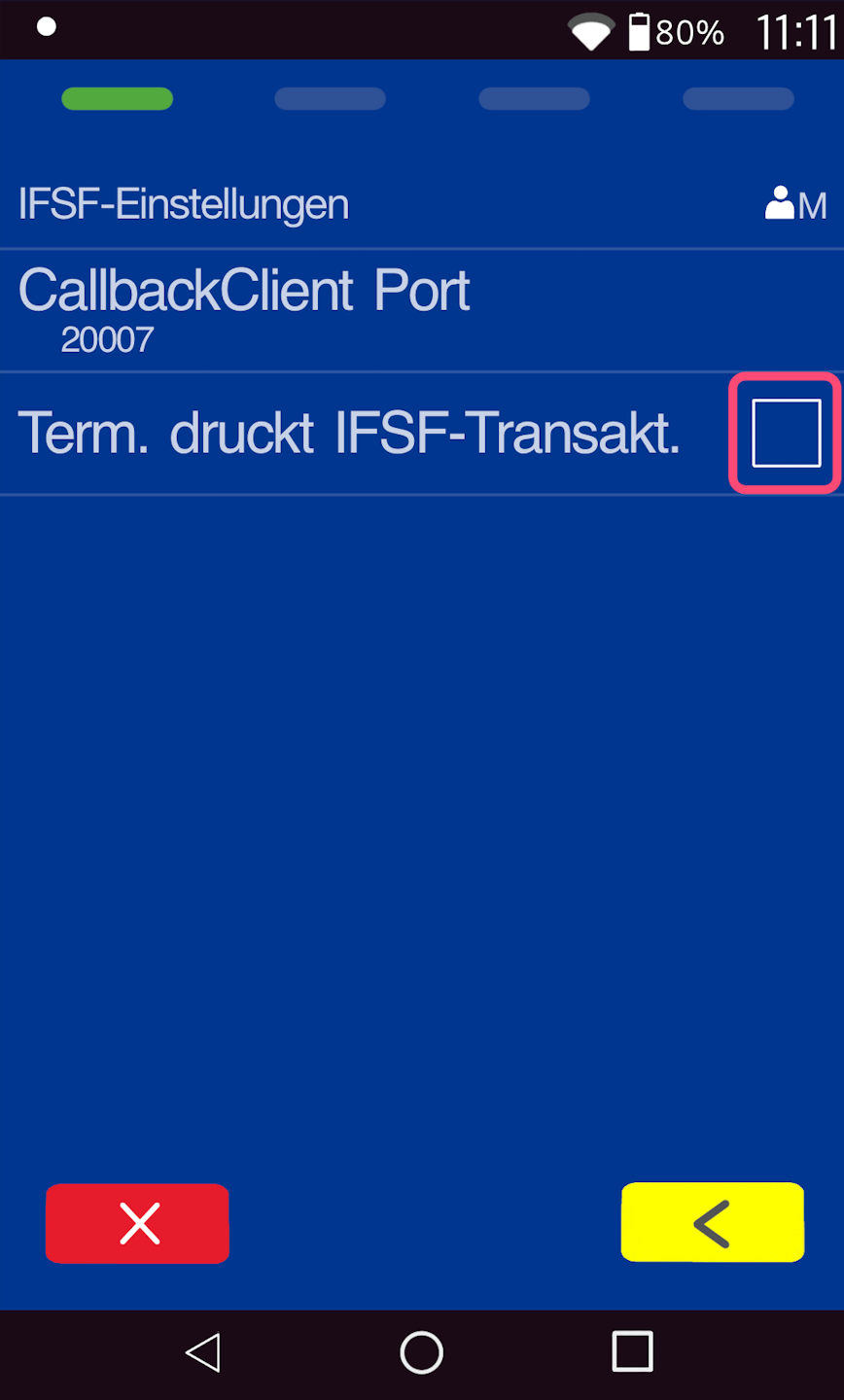
Please select the menu item IFSF Settings.
Set Settings & Completion
Fig. 1 - Please deactivate the checkbox. Do not make any changes to the port.
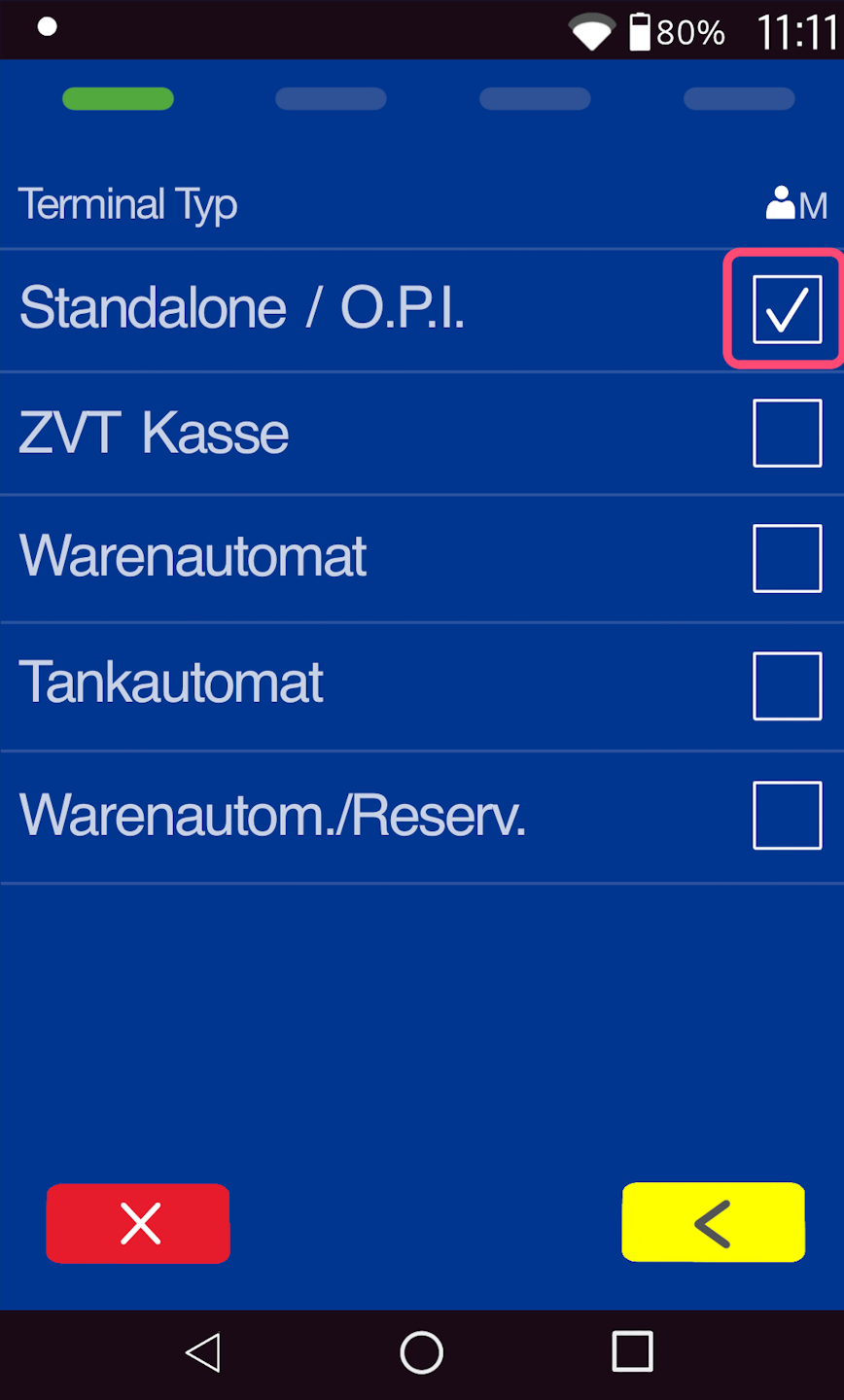
As the last menu item, please select Terminal Type.
Fig. 2 - Here, the checkbox Standalone / O.P.I must be activated.
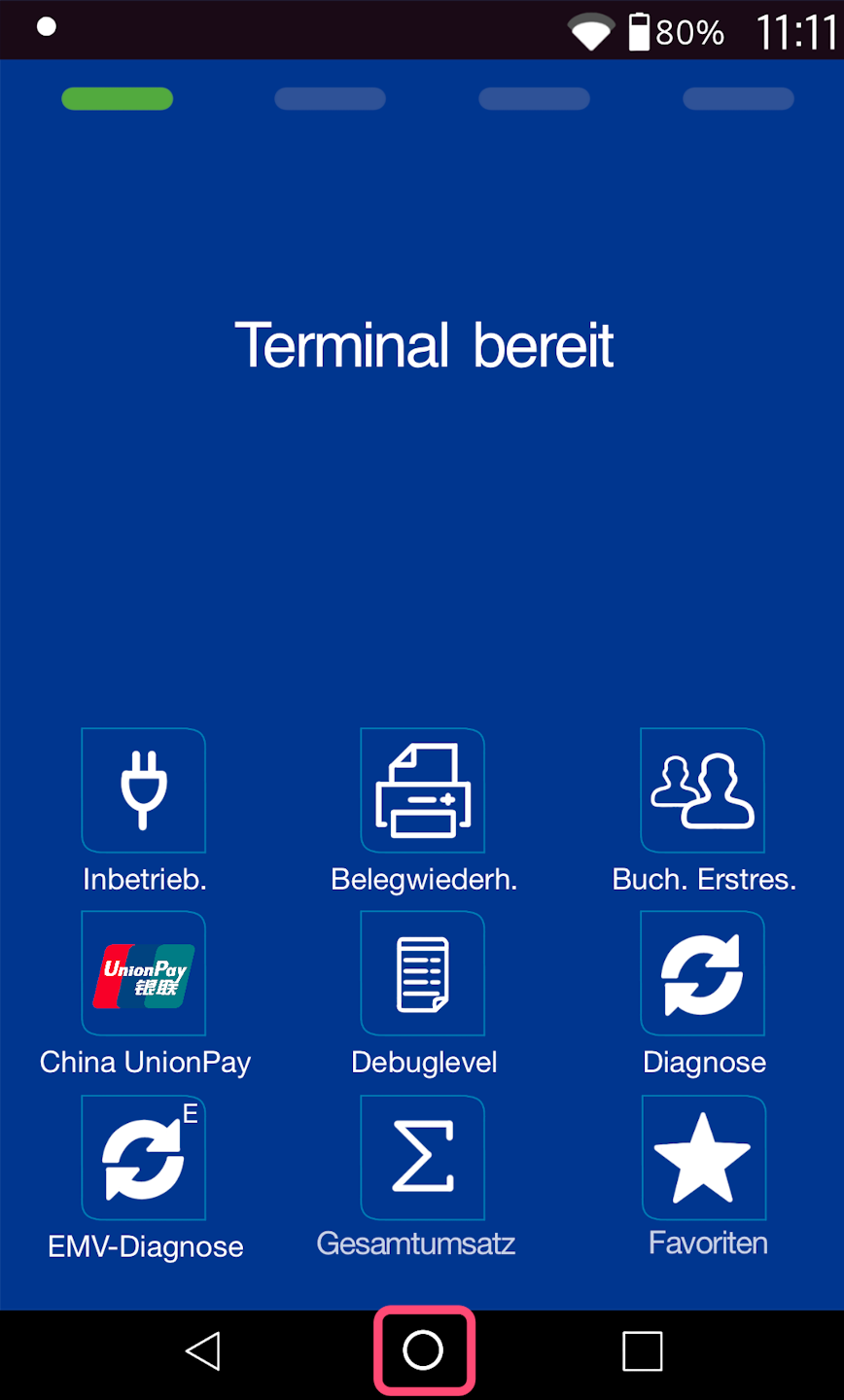
Once all settings are configured, you can return to the home display using the yellow CLEAR key (Fig. 3).
Please use the center circle to return to your app view.
Your card reader is now correctly configured for the Tillhub Go app.
Was this article helpful?
That’s Great!
Thank you for your feedback
Sorry! We couldn't be helpful
Thank you for your feedback
Feedback sent
We appreciate your effort and will try to fix the article
