POS Go - Perform Diagnoses
Modified on Tue, 10 Feb at 4:01 PM
Entering Diagnoses
The diagnoses contain all necessary information for handling payment processing.
Contents of the Diagnoses
Payment methods
Card acceptance
Payment authorizations
Sometimes it is necessary to manually import the diagnosis after changes. We will show you here how to import the diagnoses.
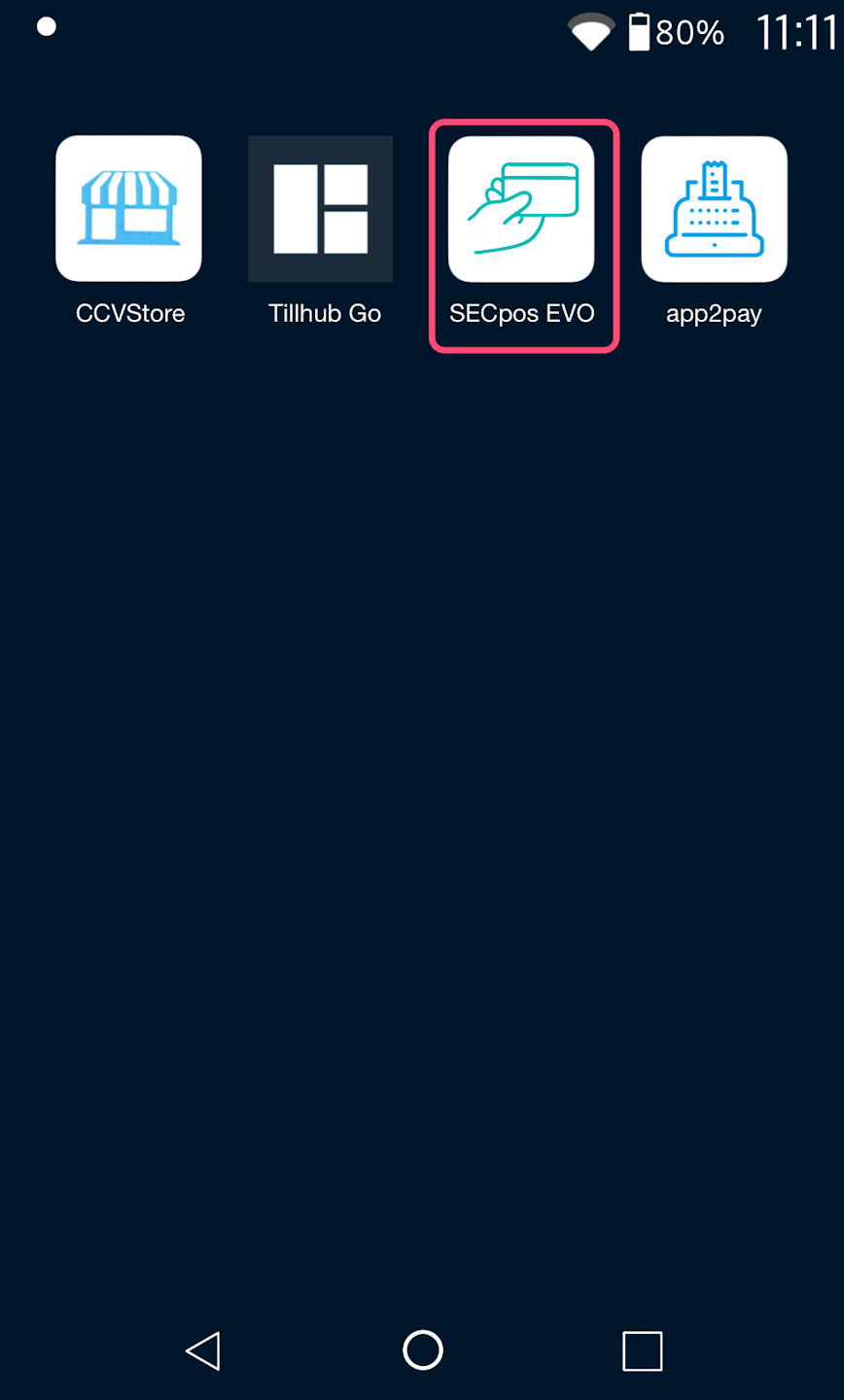
SECpos EVO Selection
Here you see the main display of your card reader.
Please select the SECpos EVO app
Diagnosis
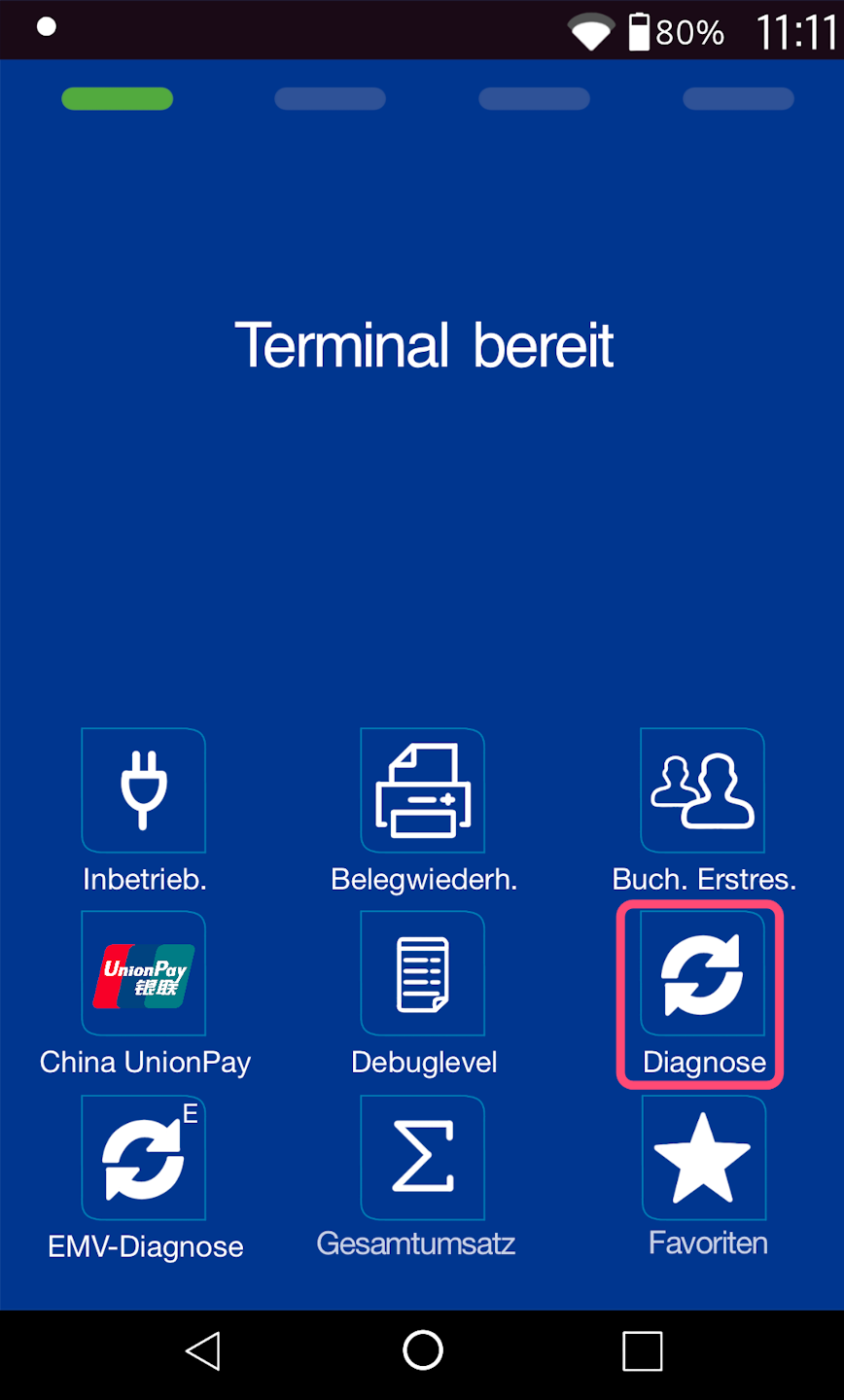
Sometimes it is necessary to manually import the diagnosis after changes. The order here is quite important.
Diagnosis
Configuration Diagnosis
EMV Config Diagnosis
This way, all changes for the card reader are entered.
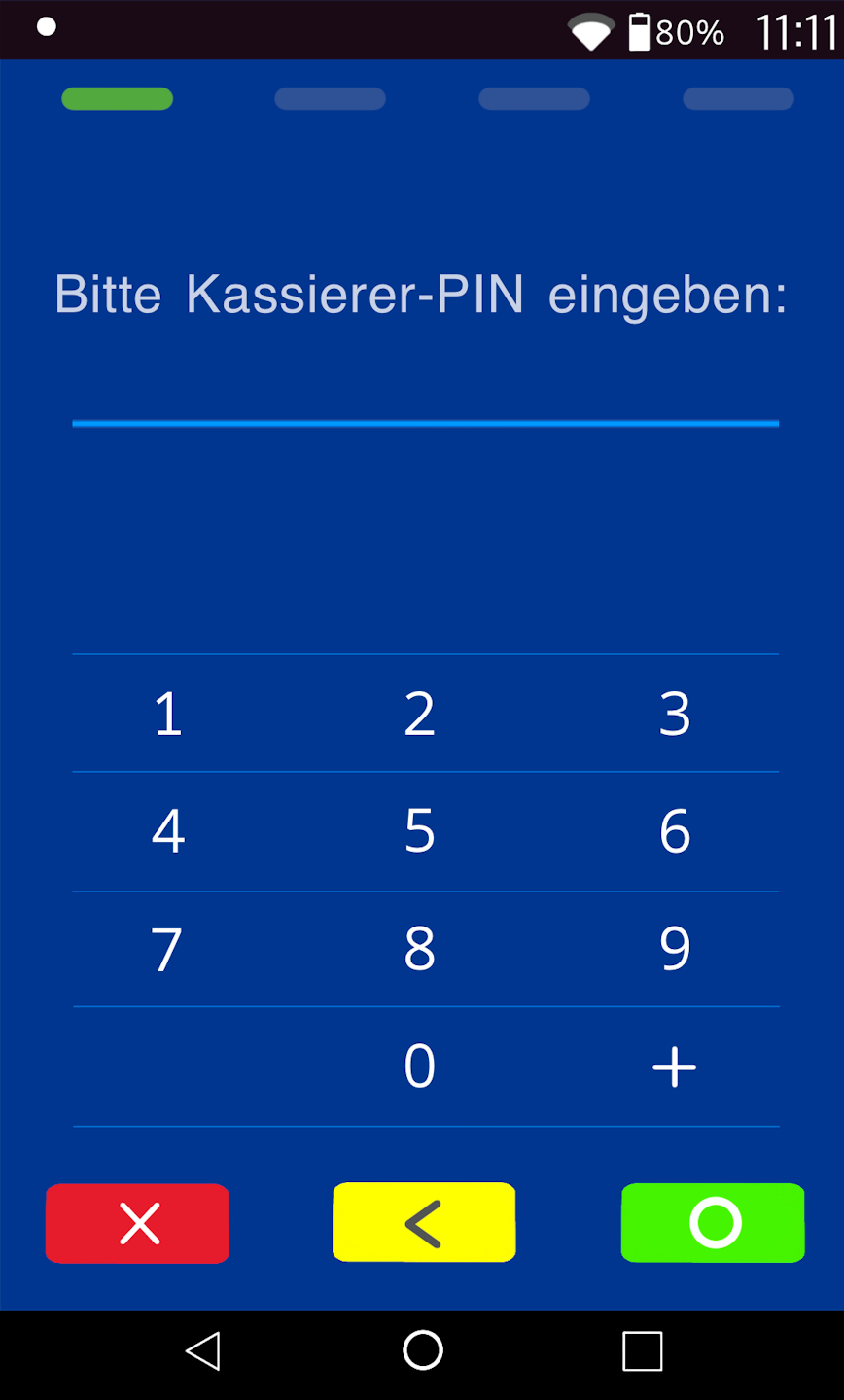
Please select the diagnosis on the display here and enter your 6-digit cashier PIN (Fig. 2).
Terminal IDs starting with 68xxxxxx: 111111
Terminal IDs starting with 526xxxxx: 0123
Config Diagnosis
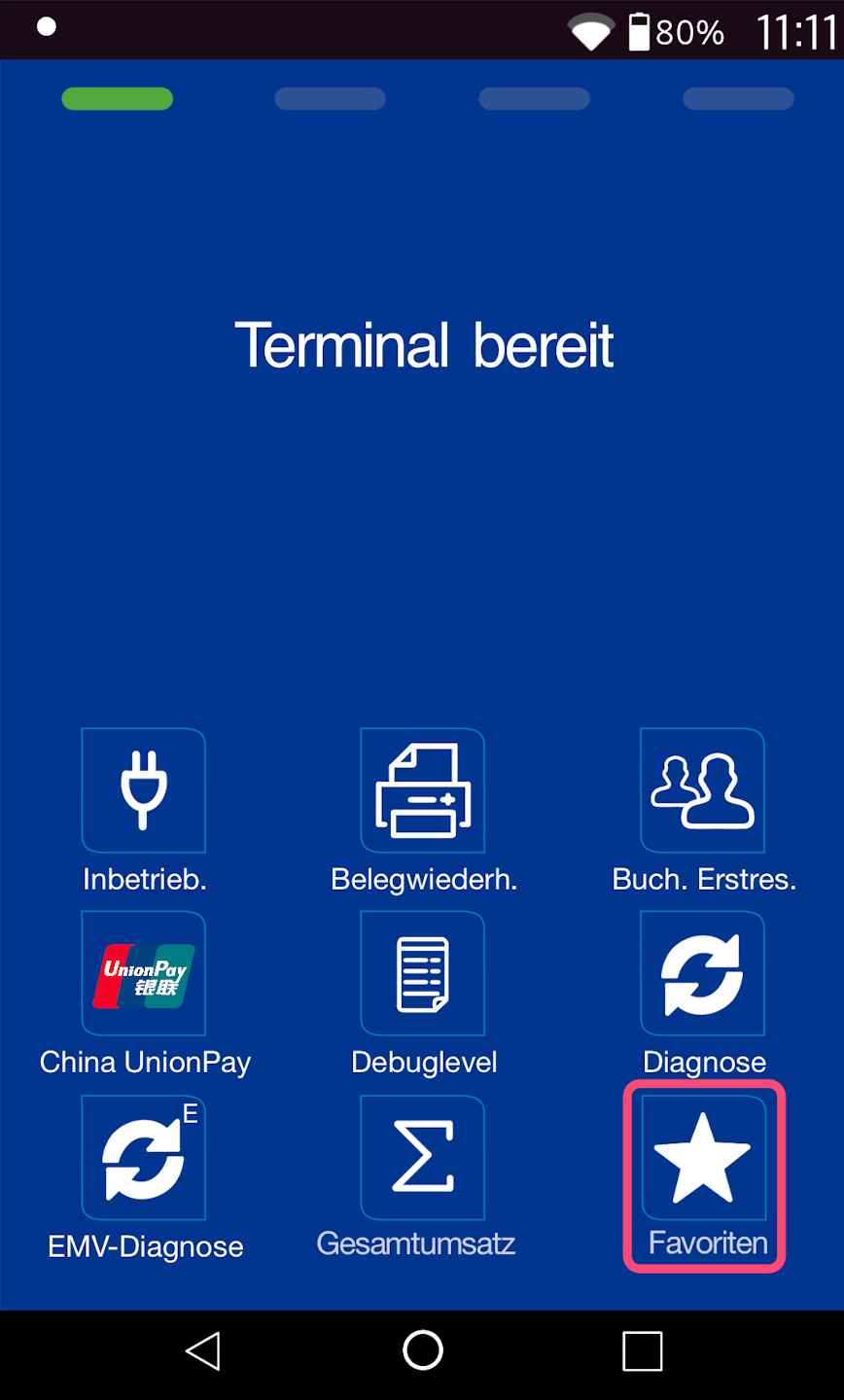
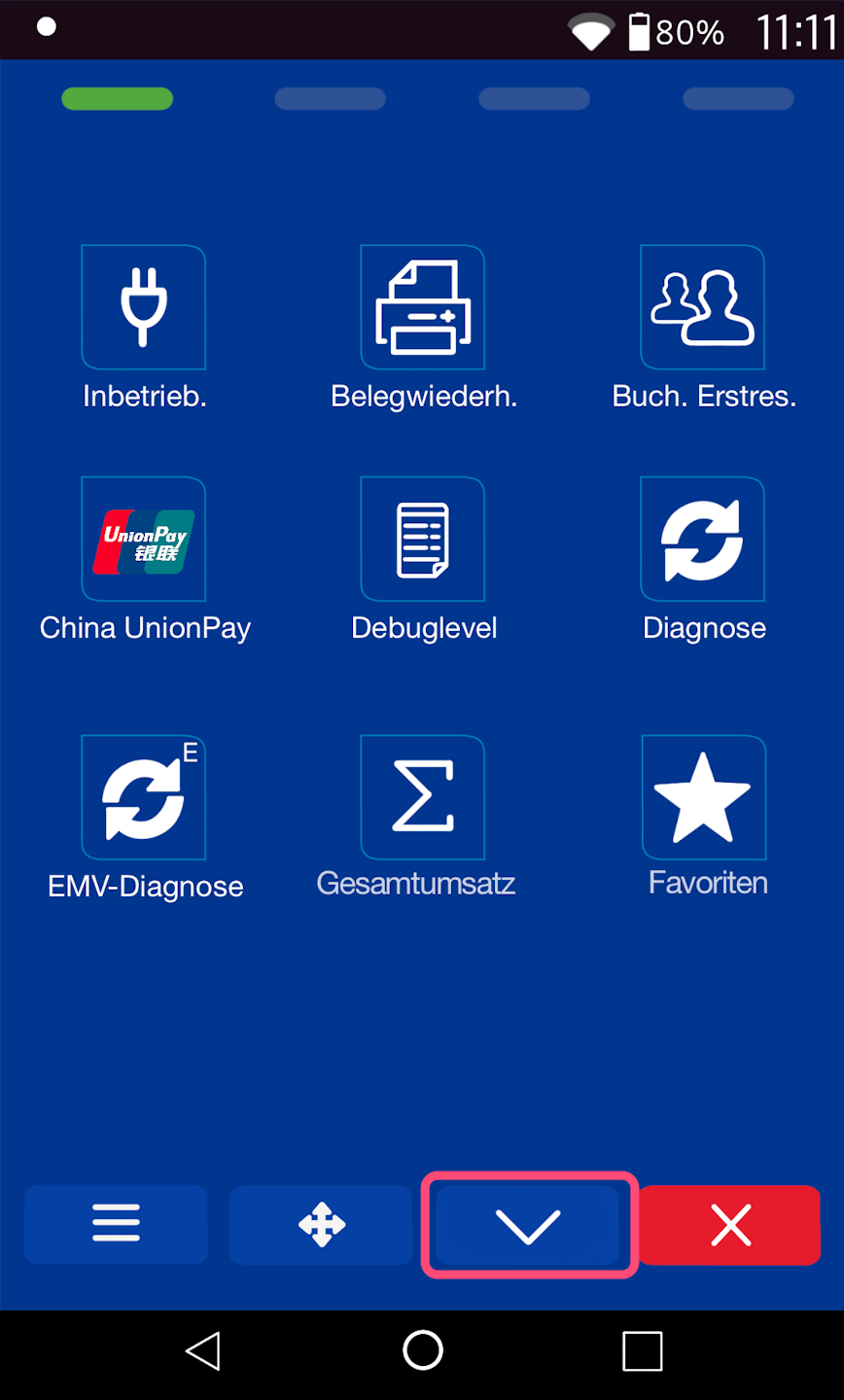
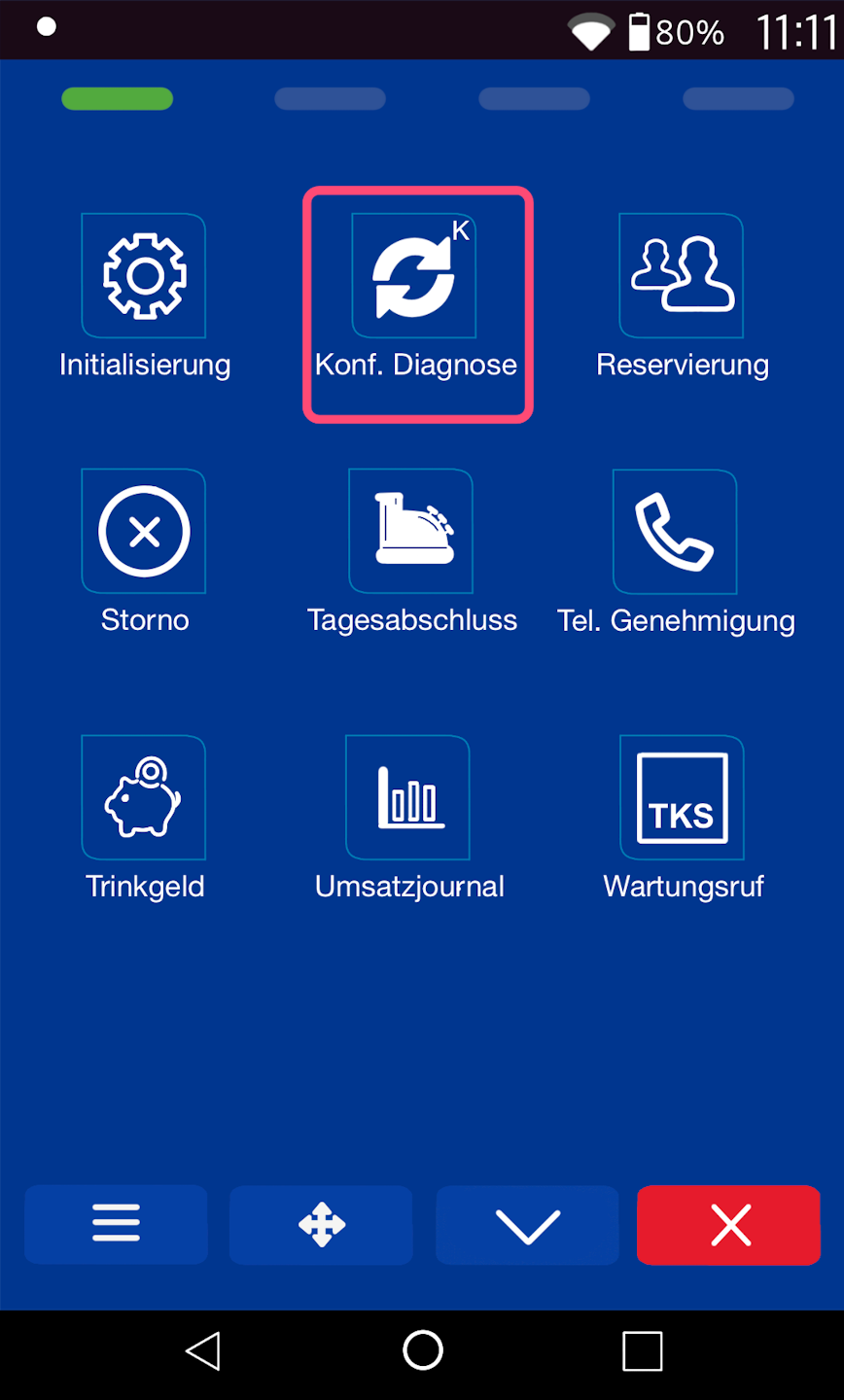
Please select the favorites again (Fig. 1). Please navigate with the arrow down to the 2nd page of the buttons (Fig. 2).
Fig. 3 - Now select the Config Diagnosis.
Again, please enter your 6-digit cashier PIN.
EMV Diagnosis
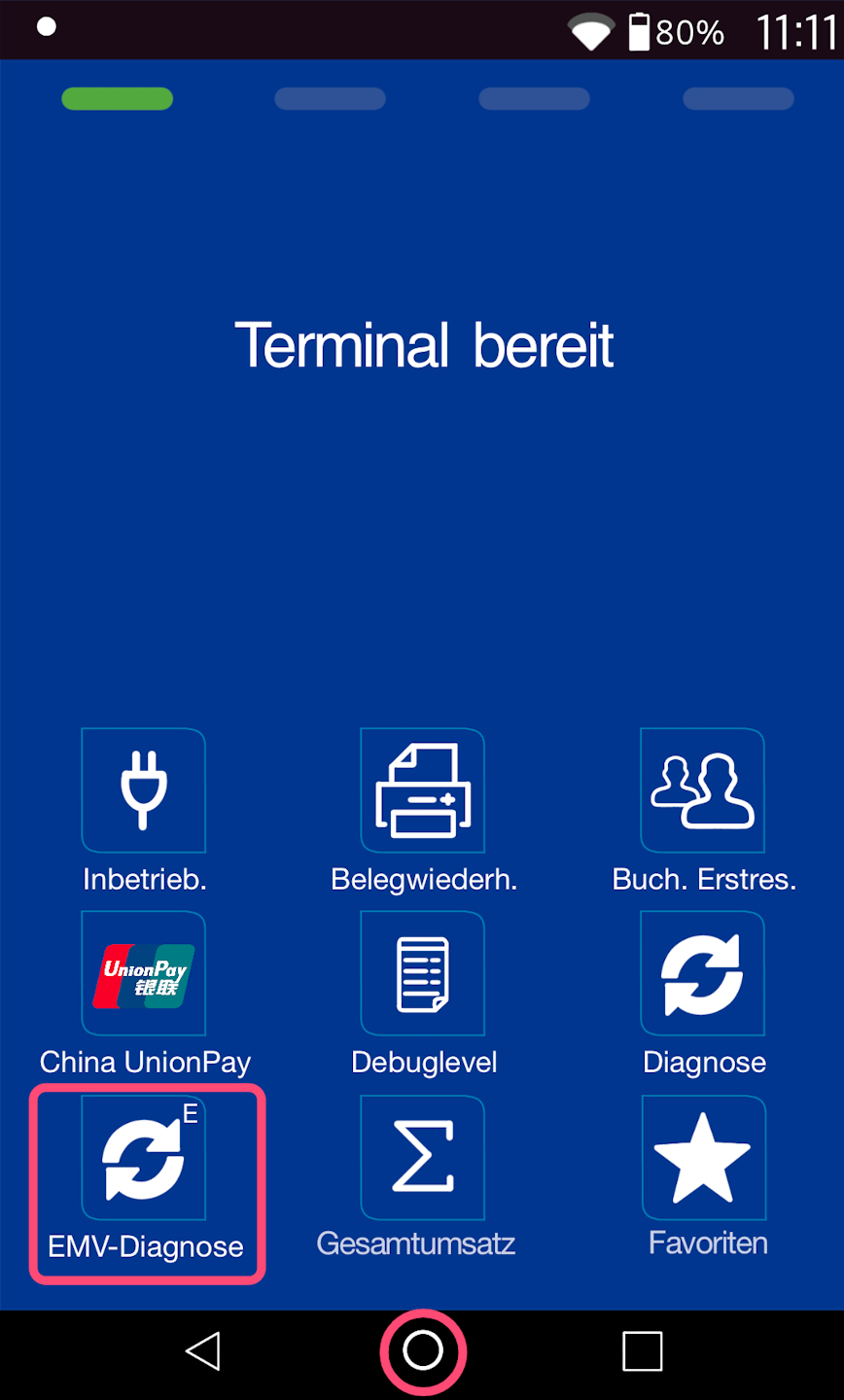
The final diagnosis is again located in the home display.
Please select the EMV Diagnosis and enter your 6-digit cashier PIN.
Once all diagnoses have been entered, the card reader now has all current information on the following topics:
Contents of the Diagnoses
Payment methods
Card acceptance
Payment authorizations
Via the center circle, you return to your app overview.
Was this article helpful?
That’s Great!
Thank you for your feedback
Sorry! We couldn't be helpful
Thank you for your feedback
Feedback sent
We appreciate your effort and will try to fix the article
