POS Go - Check Connection
Modified on Tue, 10 Feb at 4:01 PM
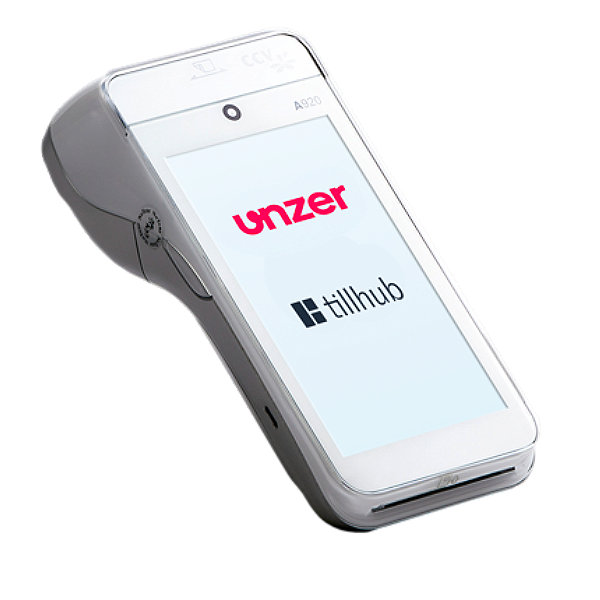
n this step-by-step tutorial, we will show you how to perform a connection test to the authorization systems using your POS Go card reader.
Have you already set up your connection?
Are the connection symbols active?
Here we offer you the tutorials for this.
- Setting up your connection
- Explanation of the connection symbols
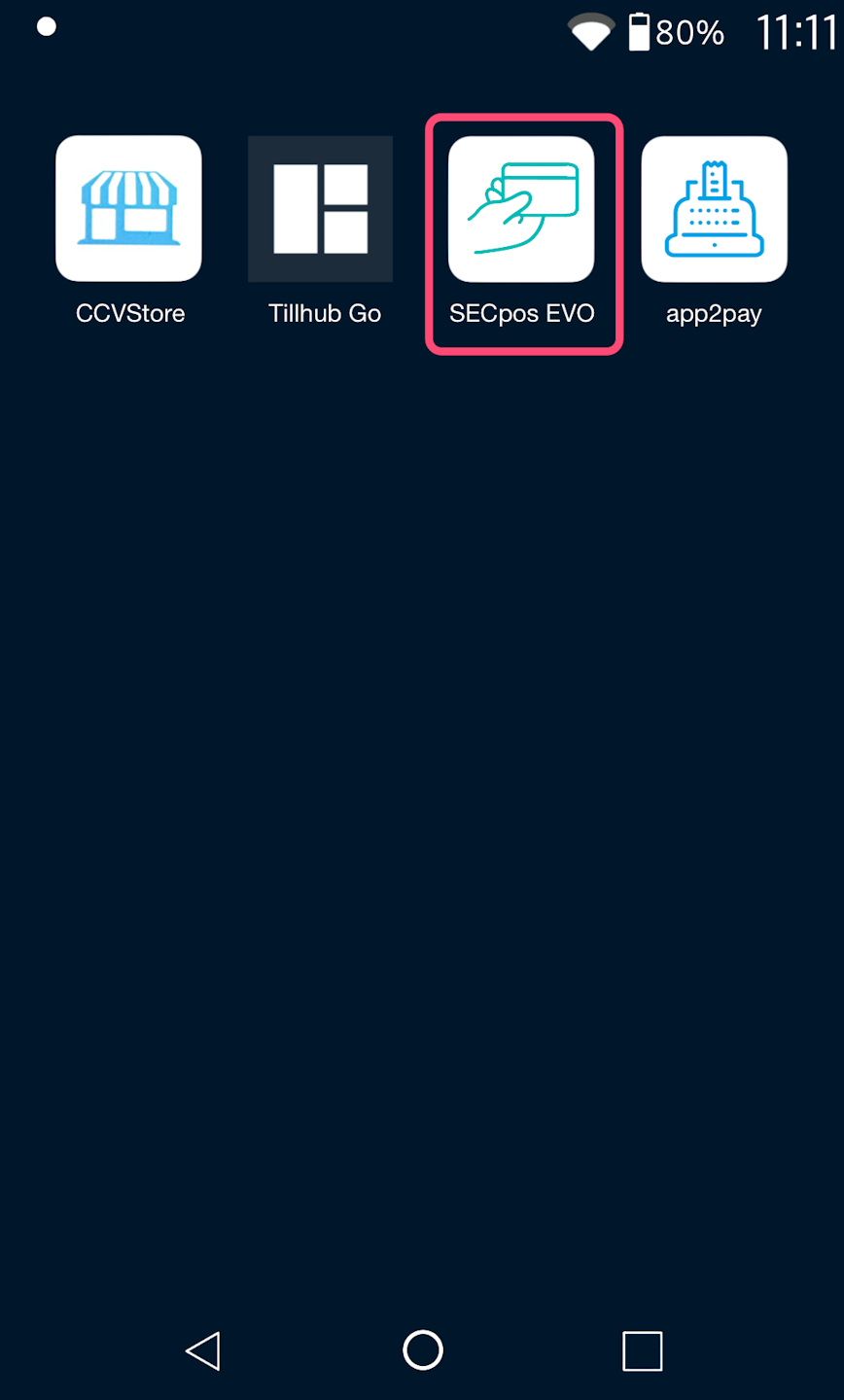
SECpos EVO
Please select the SECpos EVO app. The display will now change.
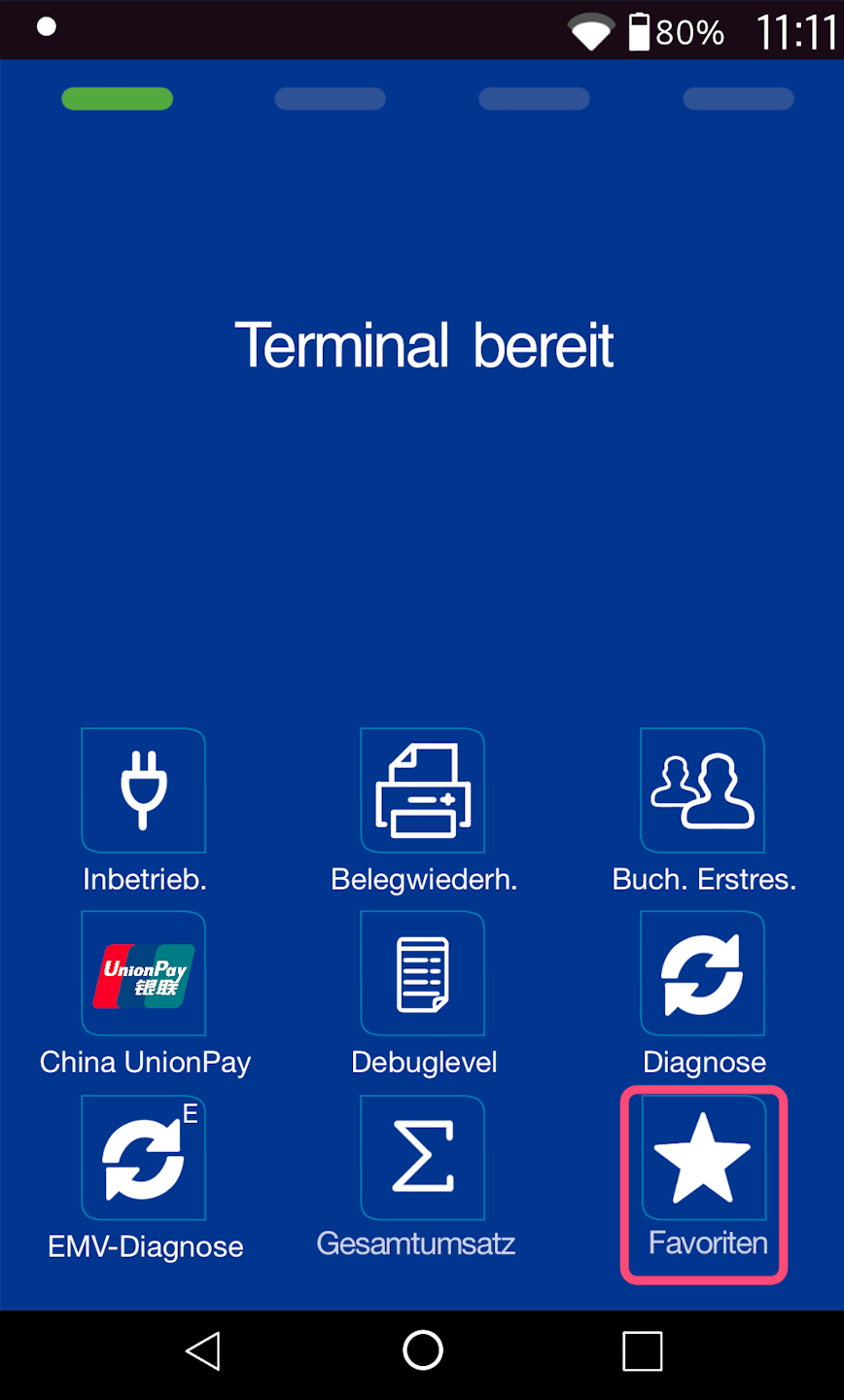
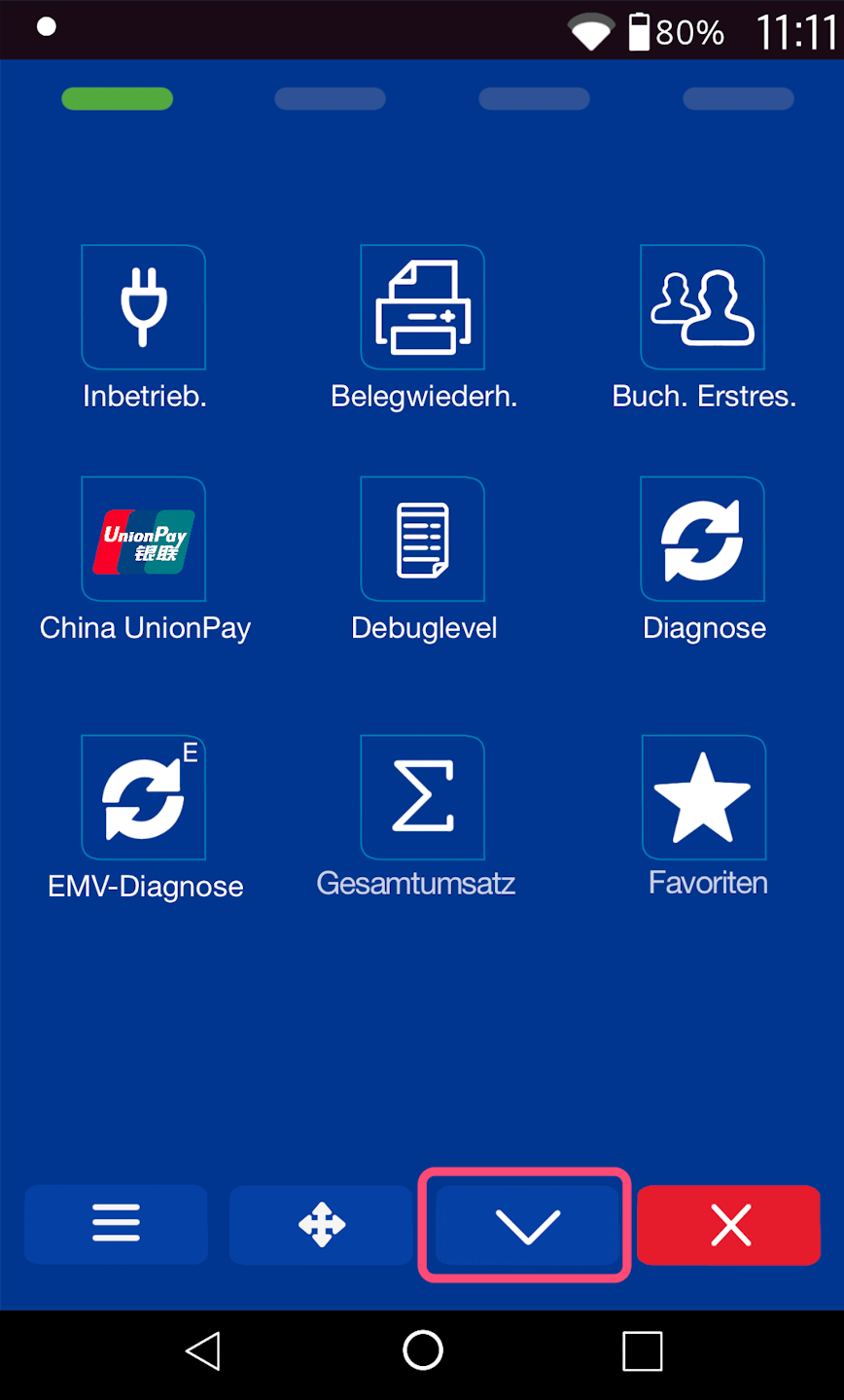
Selection
Fig. 1 - Please select the Favorites button at the bottom right.
Fig. 2 - Please use the down arrow to navigate to the next page.
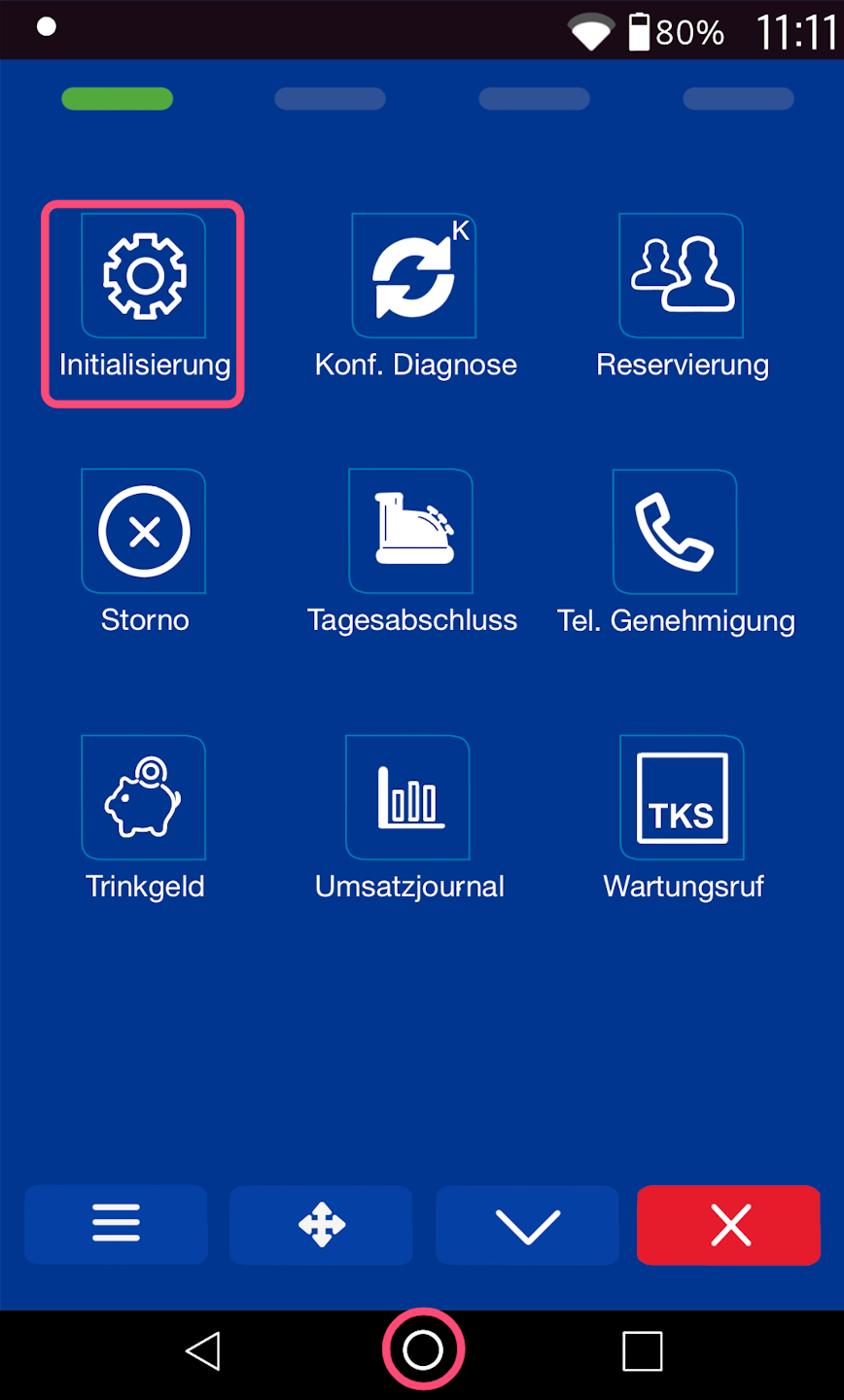
Initialization
The initialization checks whether a connection to our authorizer exists. In addition, the terminal ID is verified for consistency.
Fig. 1 - Please select Initialization here.
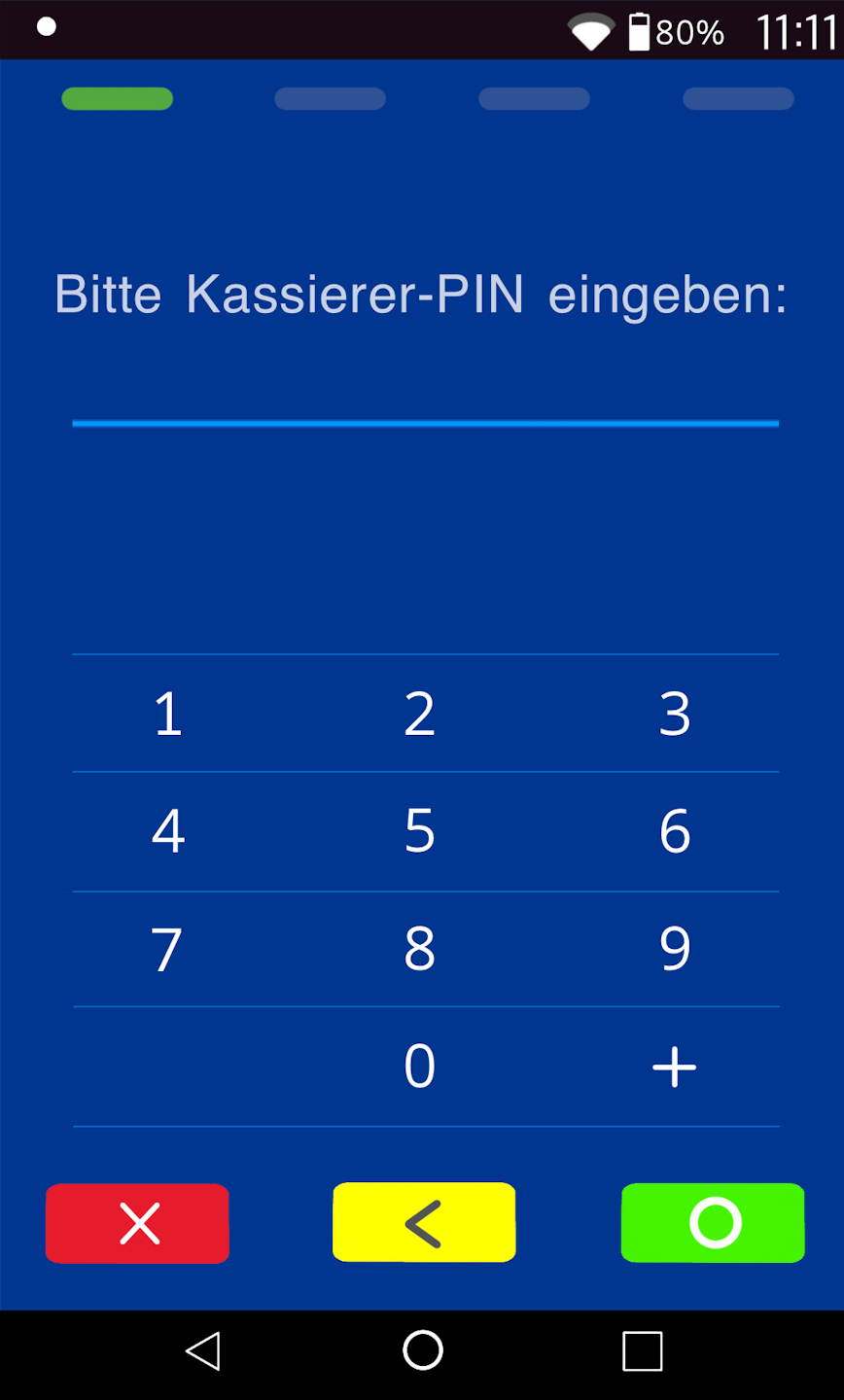
Fig. 2 - Please enter your cashier PIN here.
Success will be confirmed with a printout stating Successfully Completed. This is followed by a diagnosis with an additional printout.
If you receive an error message (e.g., FEP 82), please contact our technical service hotline or use our contact form.
To return to the amount entry screen, please use the red X key.
Was this article helpful?
That’s Great!
Thank you for your feedback
Sorry! We couldn't be helpful
Thank you for your feedback
Feedback sent
We appreciate your effort and will try to fix the article
