1. Add items to the shopping cart
Modified on Fri, 6 Mar at 1:17 PM
TABLE OF CONTENTS
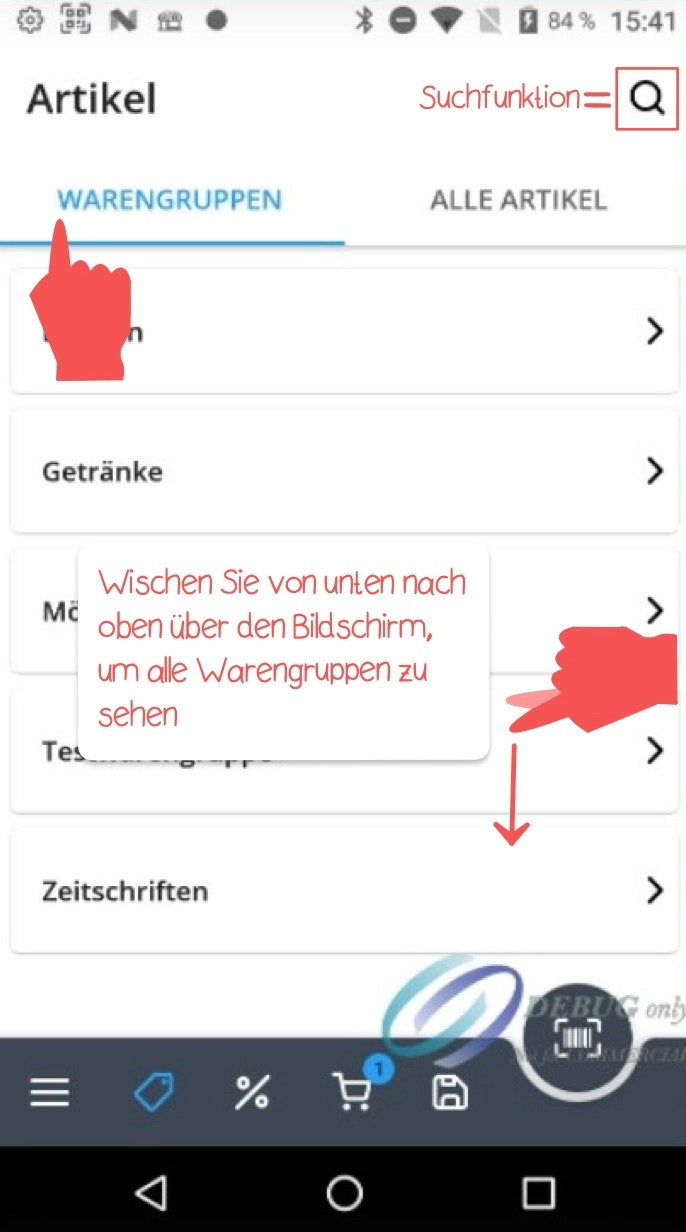
To open the library containing the items and product groups you have created in your POS Go, tap the flag icon in the bottom menu bar. You now have the following two views available: “Product Groups” and “All Items.”
Product group view
When you tap the “Product Groups” tab, all product groups will be displayed. To search for a specific product group, you can either scroll up and down the screen or use the search field at the top right. To do so, tap the magnifying glass icon and enter the name of the product group you’re looking for.
As soon as you tap on a product group, all related items will be displayed. To add an item to the shopping cart, simply tap on it.
Item view
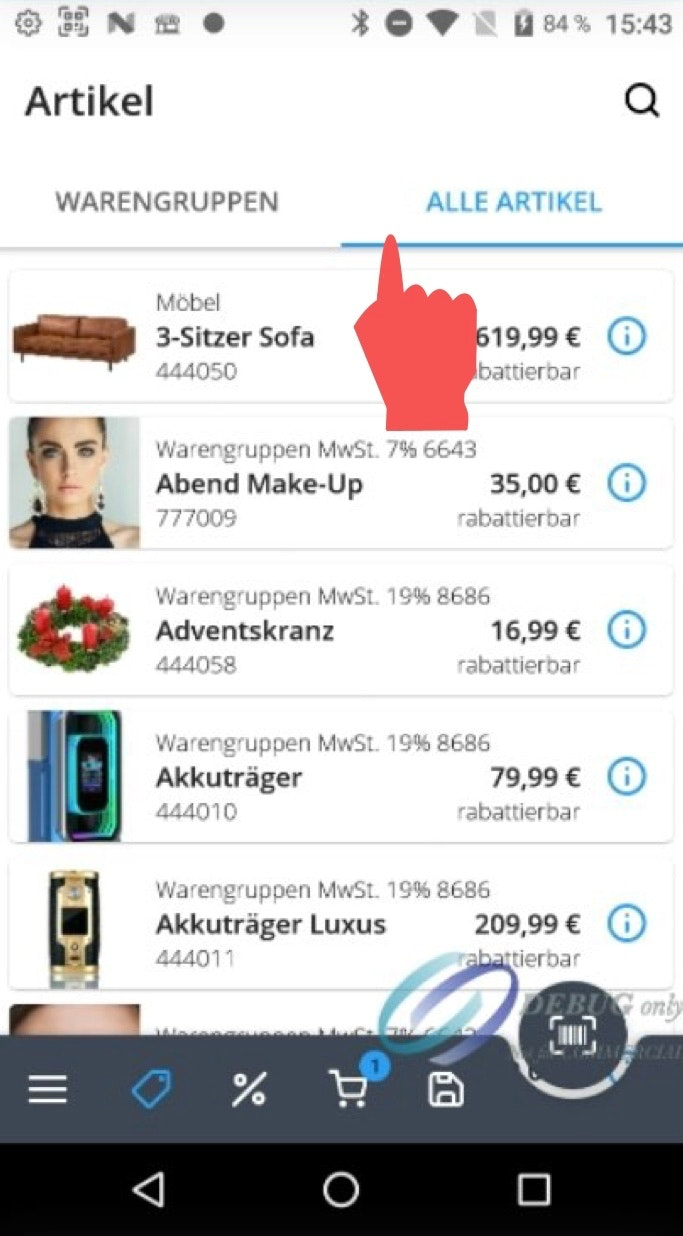
When you tap the “All Items” tab, all items will be displayed.
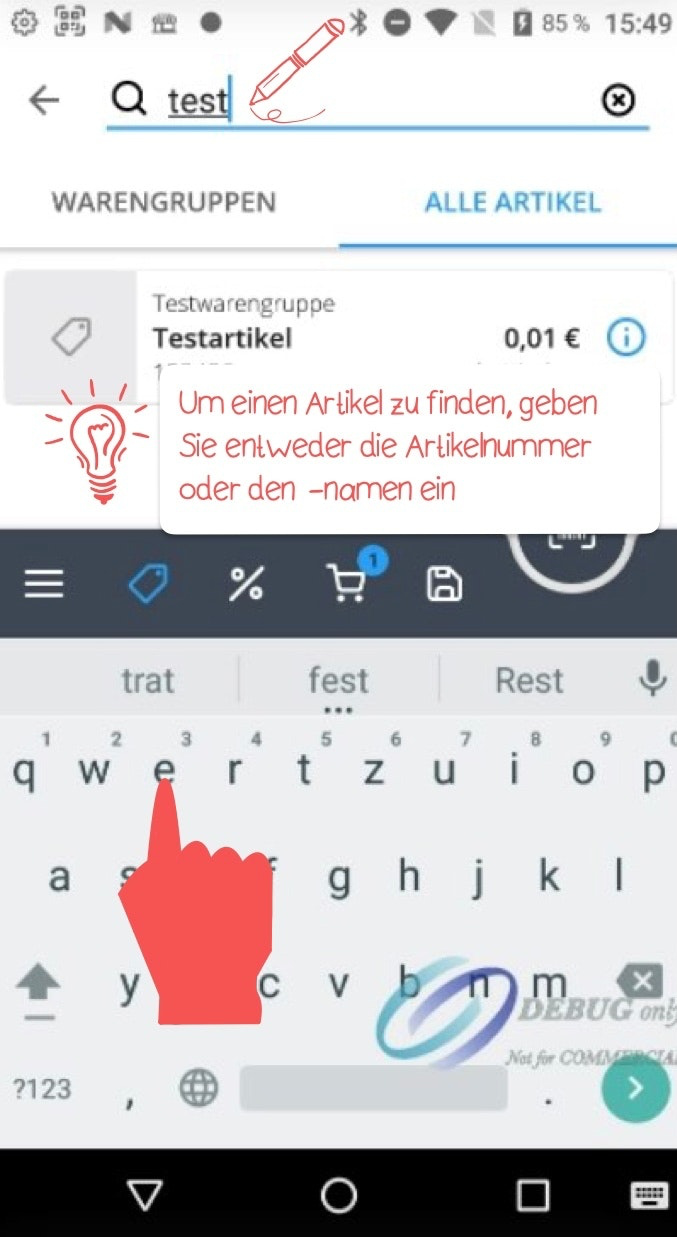
To search for a specific item, you can either scroll up and down the screen or use the search field at the top right. To do this, tap the magnifying glass icon and enter either the item number or the item name. Once you have found the desired item, simply tap it to add it to the shopping cart.
Scanner function
The fastest way to add an item to the shopping cart is by using the integrated scanner function. Tap the scanner icon at the bottom right and hold the barcode of your item under the activated camera to start the scanning process.
Note: The scanner function only works if the barcodes for the individual items have been stored in the dashboard. Only then can the barcodes be used correctly at the register.
Test Item
For testing all functions at the register, you should always use the test item only. All test transactions should be carried out exclusively with this test item. This way, you can safely try out functions such as sales, applying discounts, or cancellations without affecting any real data.
Was this article helpful?
That’s Great!
Thank you for your feedback
Sorry! We couldn't be helpful
Thank you for your feedback
Feedback sent
We appreciate your effort and will try to fix the article
