2. Adding Multiple Items to the Cart
Modified on Fri, 6 Mar at 1:17 PM
If you want to add an item to the cart more than once, you have two methods available:
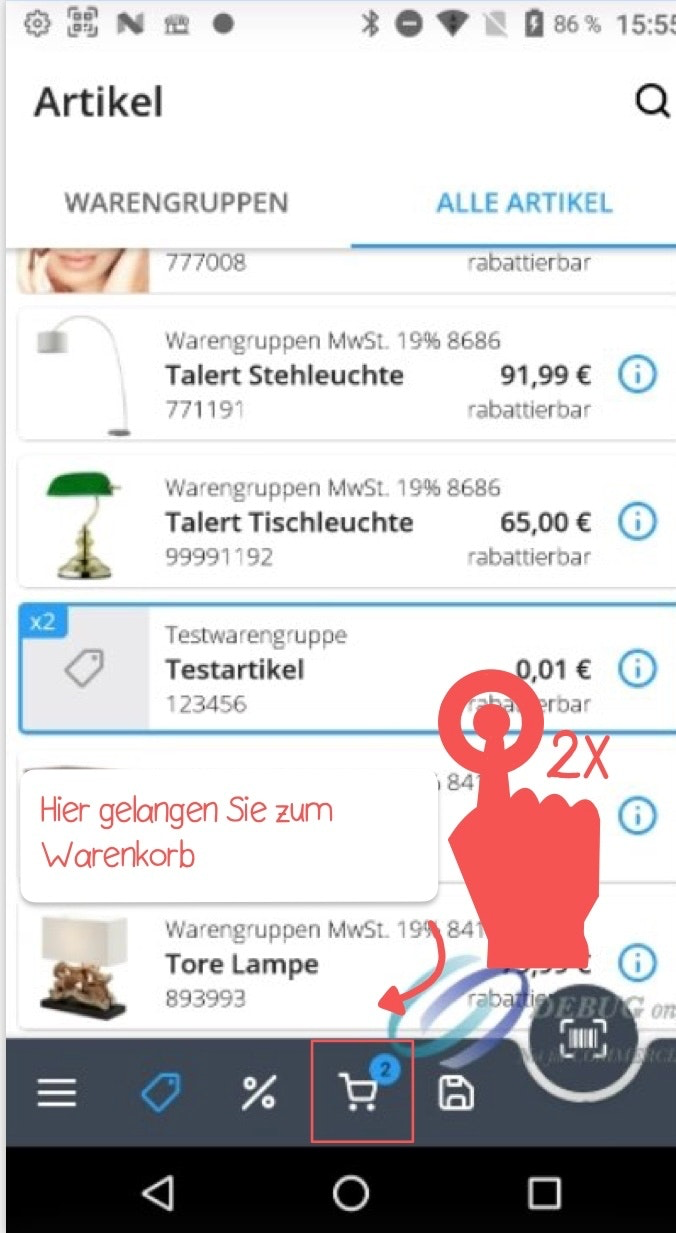
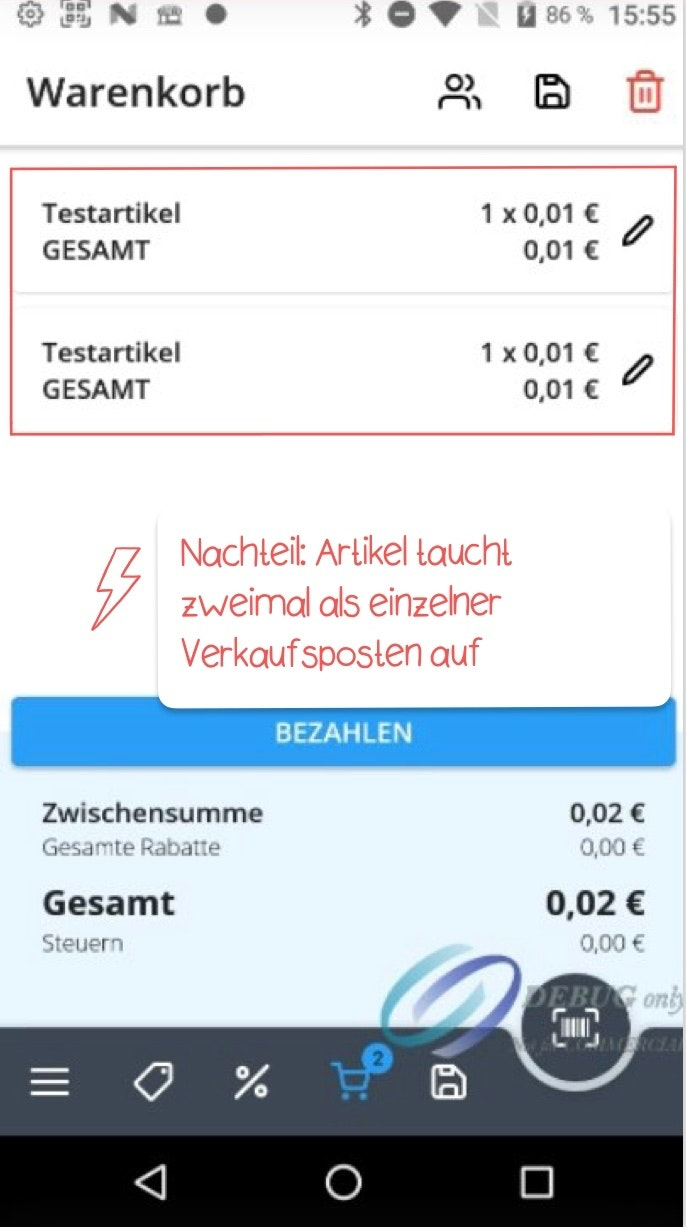
Option 1: Tap the Item Multiple Times
Simply tap the desired item as many times as you need it. Each tap adds one unit of the item to the cart.
Option 2: Adjust the Quantity Directly in the Cart
This method is more convenient and keeps your screen tidy. Add the item to the cart once, then adjust the quantity directly within the cart.
- Tap the cart icon in the bottom menu bar to open the cart.
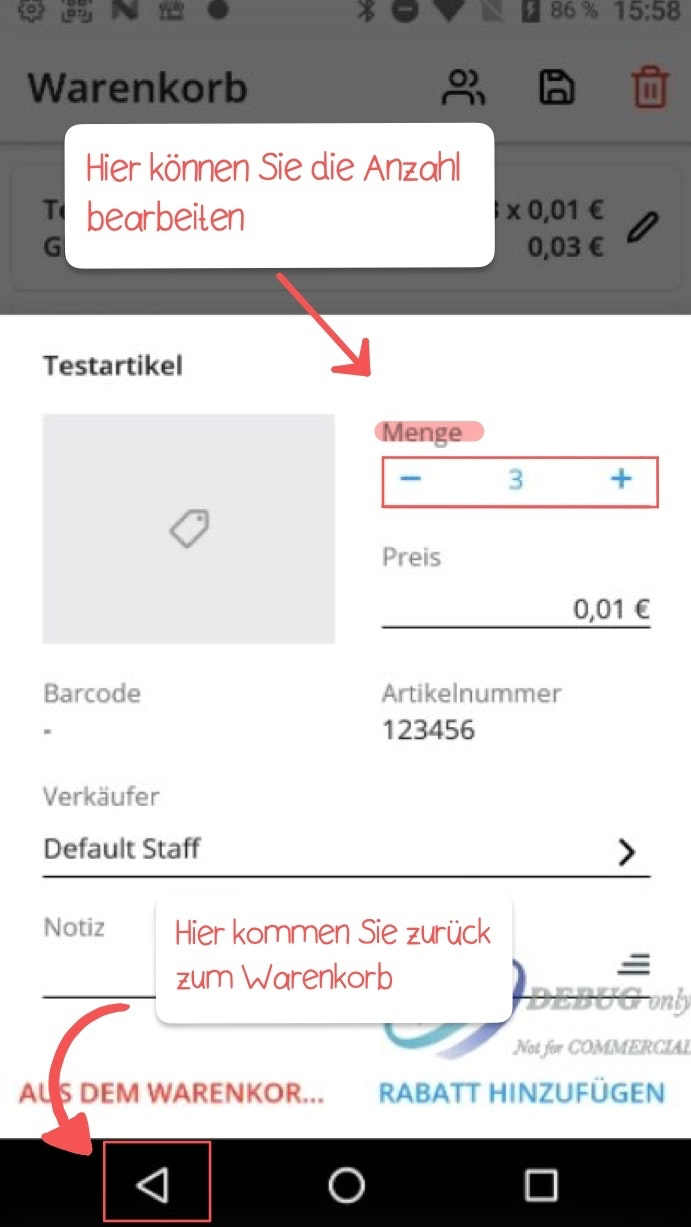
- Find the item you want to edit and tap the pencil icon to edit it.
- Use the plus or minus symbol to adjust the quantity as needed.
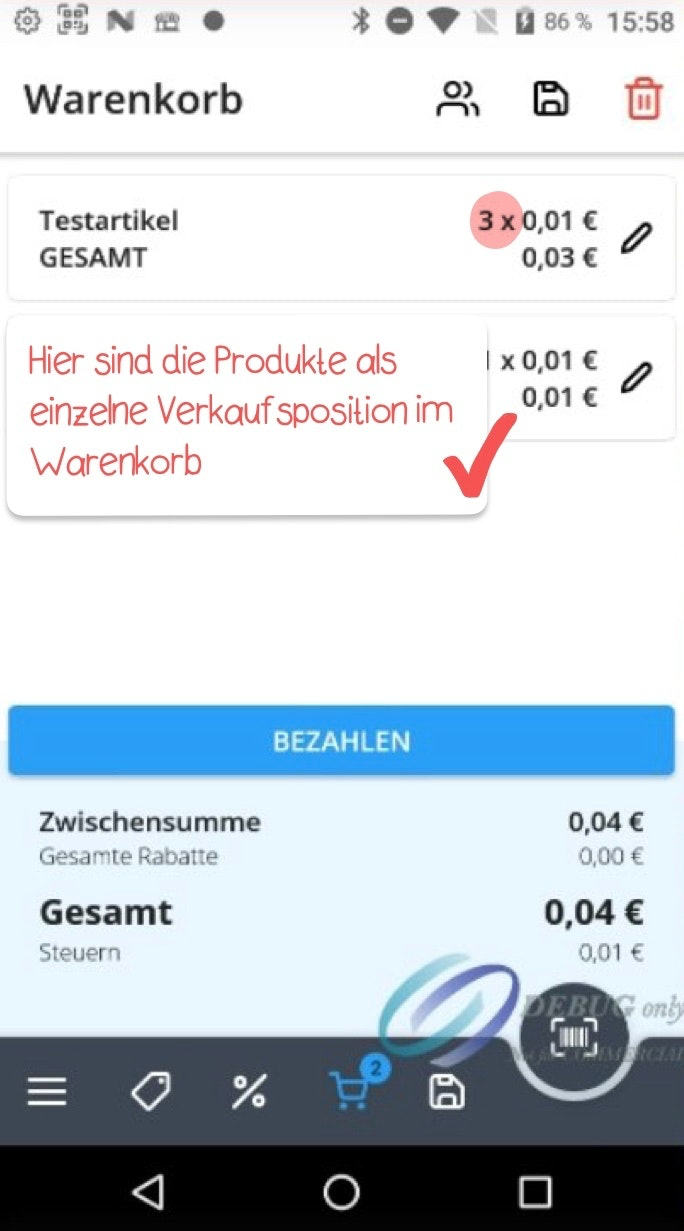
- Tap the arrow in the bottom left to save your changes and return to the cart.
The updated quantity will now be displayed as a single combined line item in the cart.
Note: In this edit view, you have the option to manually adjust the price — for example, if an incorrect amount was entered during a price prompt. Additionally, you can add a note to the item in the lower section, which will then be printed on the receipt.
Was this article helpful?
That’s Great!
Thank you for your feedback
Sorry! We couldn't be helpful
Thank you for your feedback
Feedback sent
We appreciate your effort and will try to fix the article
