Waiter Cash
Modified on Wed, 25 Feb at 12:29 PM
Waiter cash accounts are subdivided credit wallets for waiters that help you better manage your waiters’ revenue. This feature can be activated for your system by our support team.
In the following step-by-step guide, you will learn how to use Waiter Cash in your Tillhub Gastro App.
Contact us by email at info@tillhub.de or by phone at +49 30 346 496 43 to activate Waiter Cash in your system. Our support team will be happy to assist you.
Pre-settings for Waiter Cash
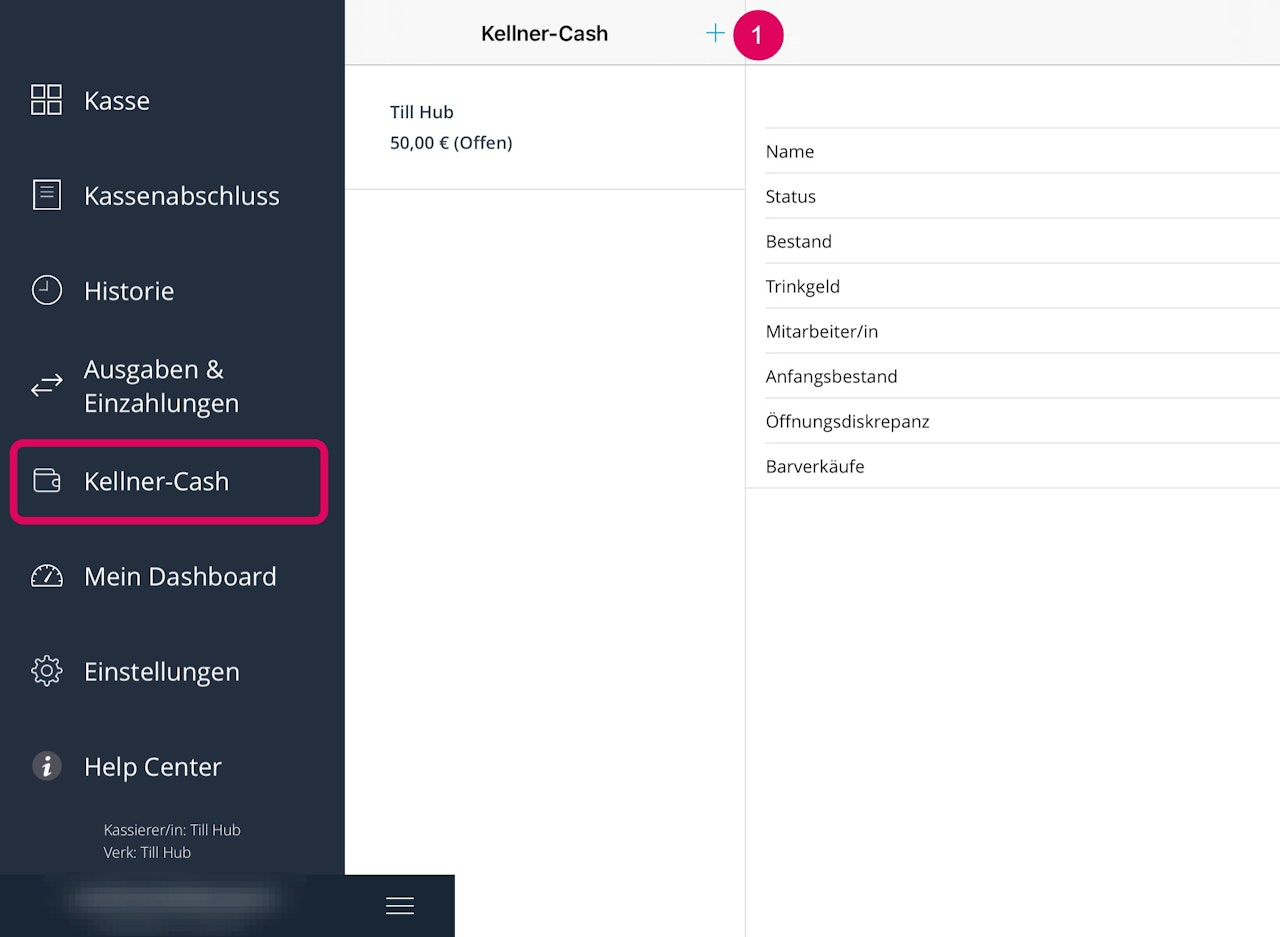
Open the Tillhub Gastro App and select "Waiter Cash" in the menu.
Add waiters
- Click the plus symbol (+) in the left column to add a new waiter.
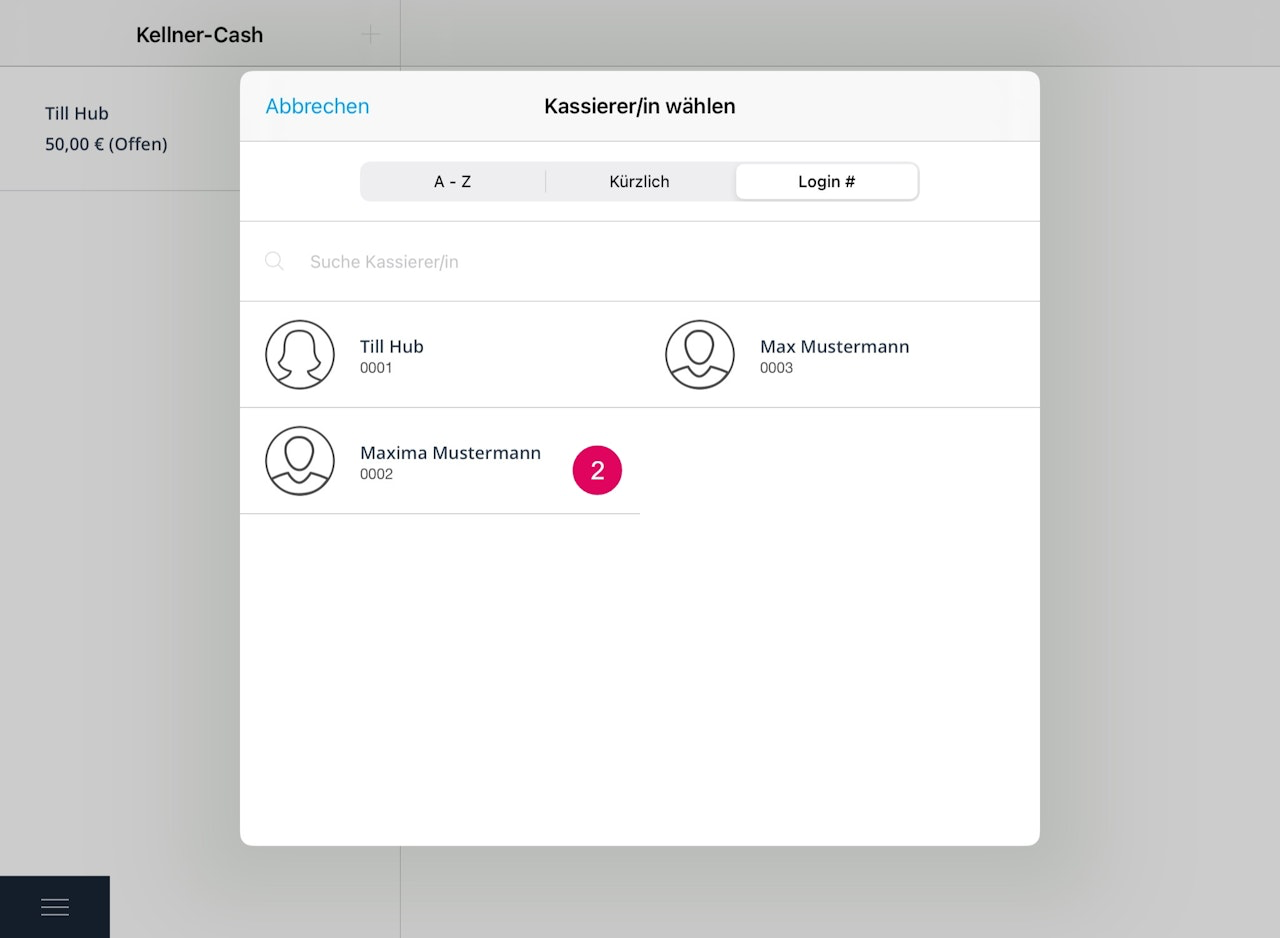
- Select the waiter who should use the Waiter Cash function.
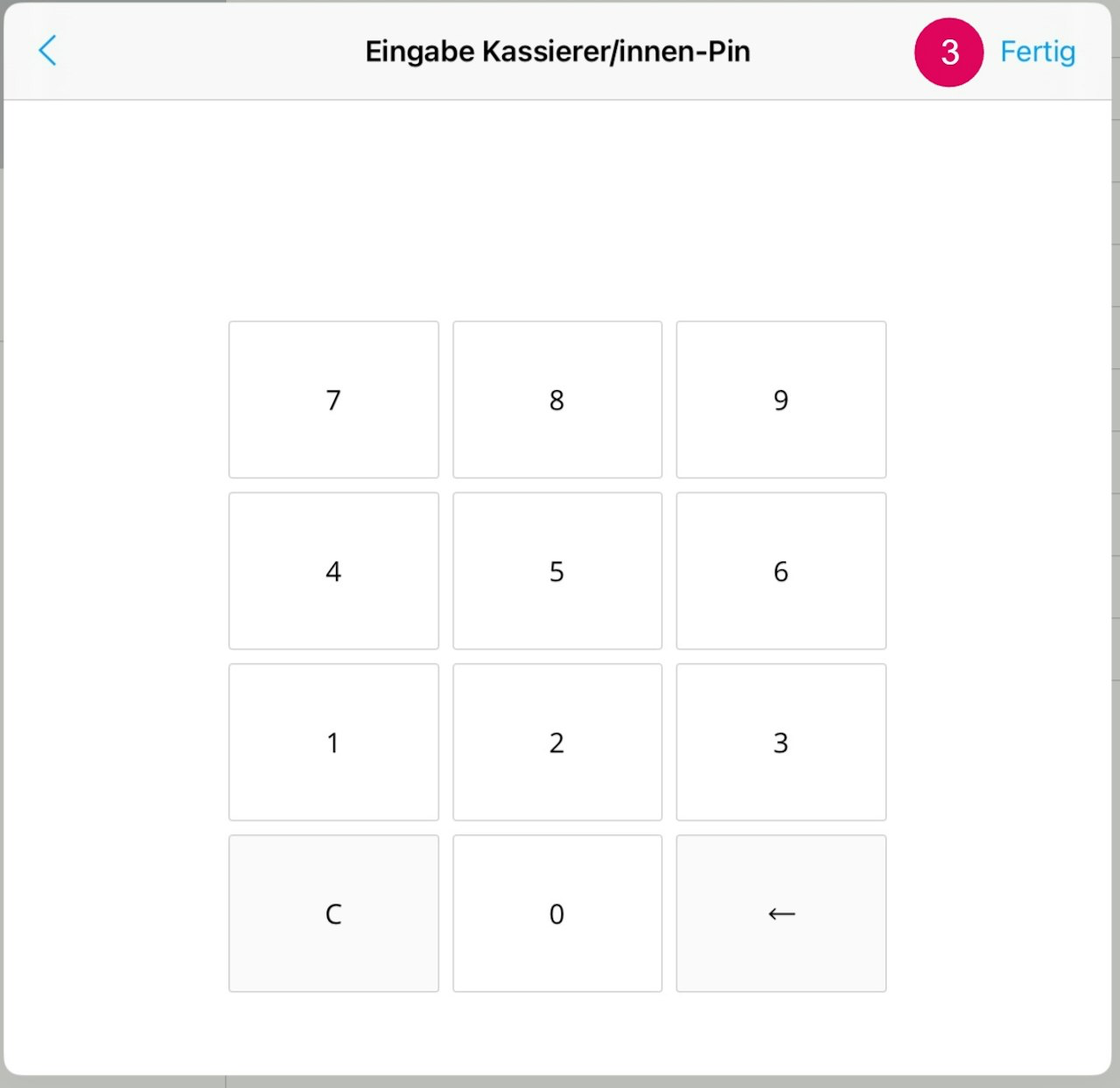
- Enter the personal PIN of the selected waiter.
- Repeat this process for all additional waiters you want to add. Click on the desired waiters to view their details. The most important information for each waiter will now appear on the right side of the screen.
Start a waiter shift with an opening balance
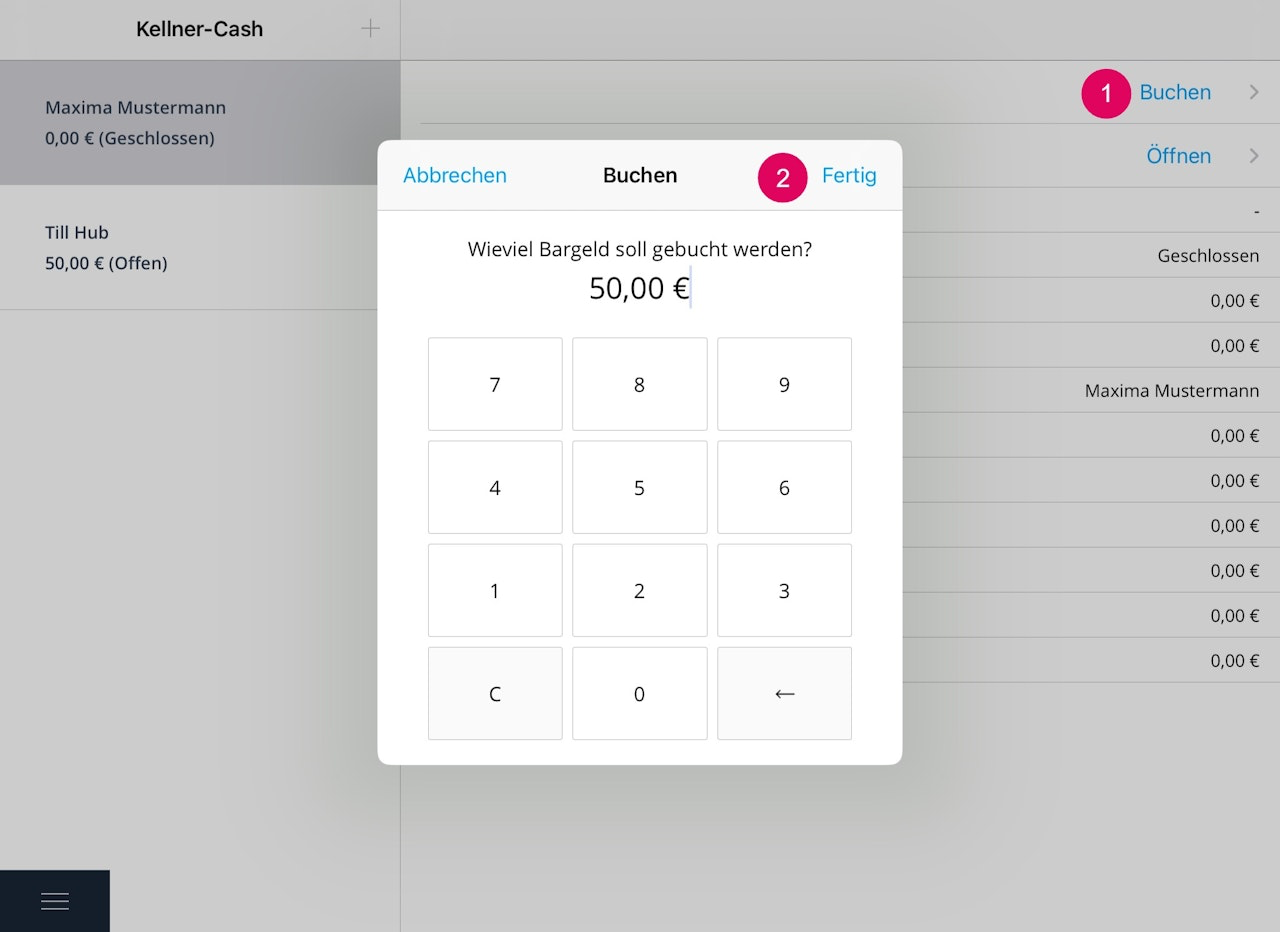
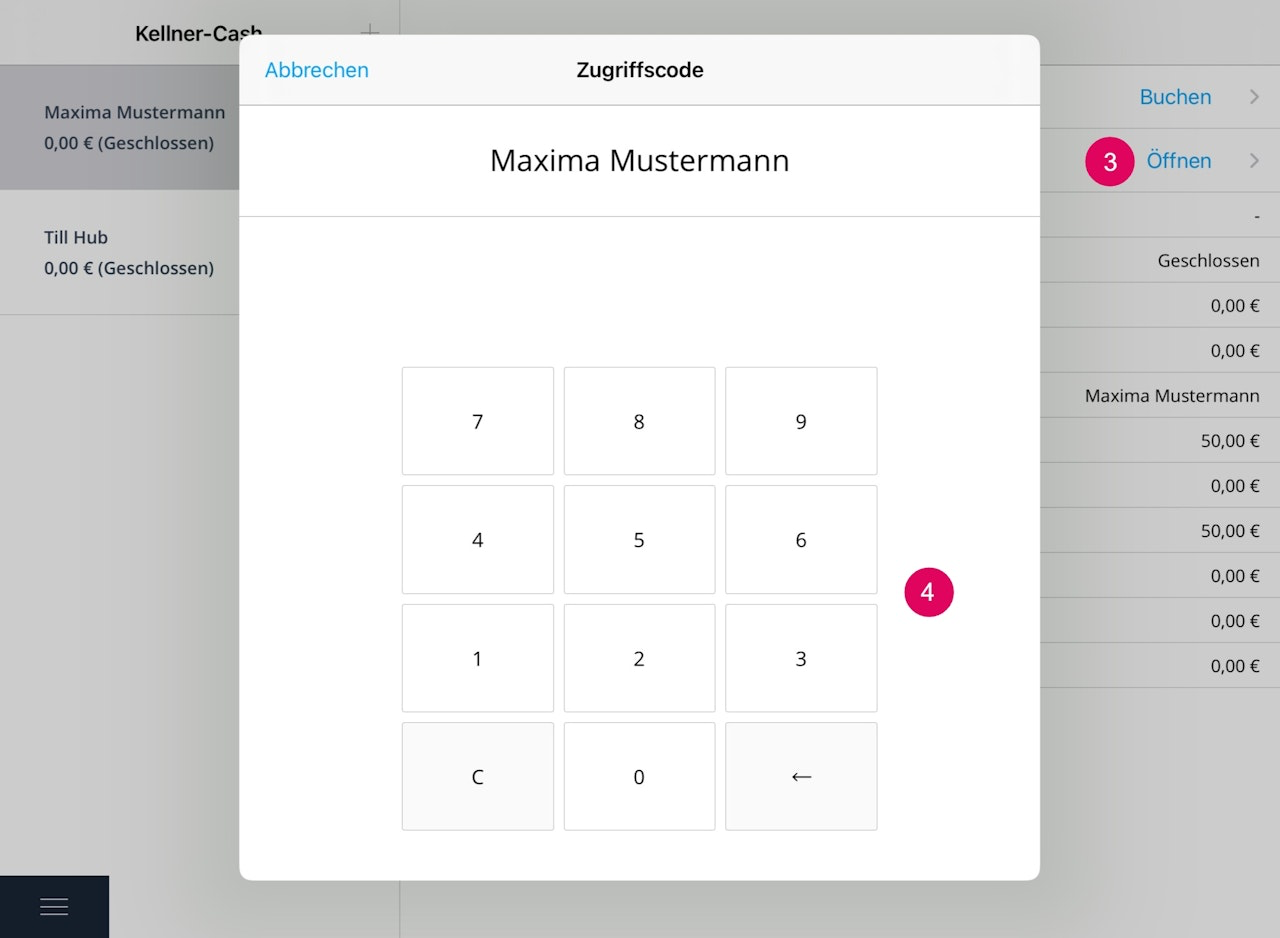
- Select a waiter cash account and click "Post" at the top right of the screen.
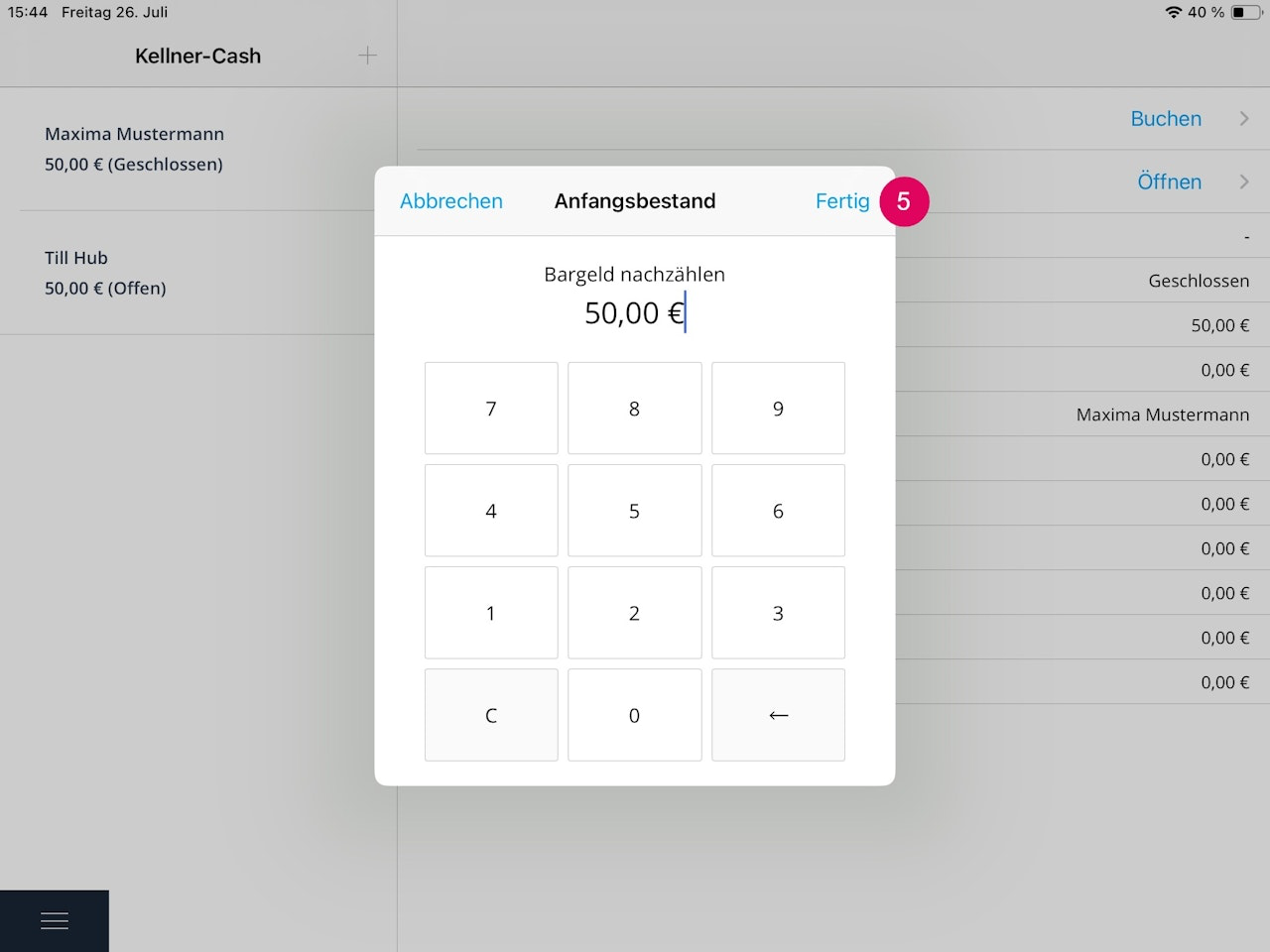
- Enter the "Opening balance" with which the waiters start their working day.
- Then click "Open" at the top right.
- Log in with a personal PIN.
- You can now enter the opening balance of a waiter cash account.
- Next to the waiter's name it now says "Open". The waiters log into the register and can now take orders and accept payments as usual.
End waiter shift and perform end-of-day closing
Ending the waiter shift:
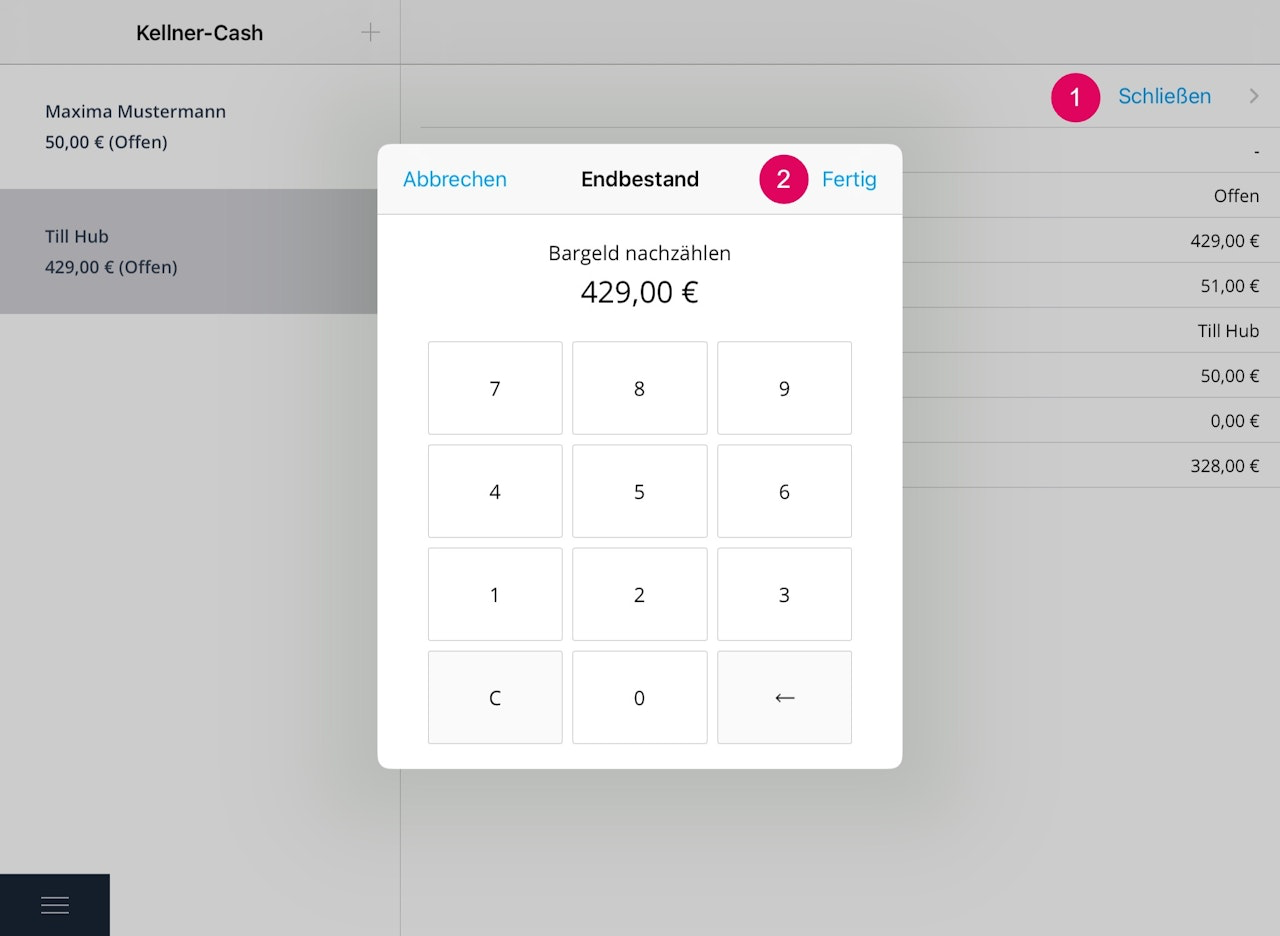
- Select the waiter cash account and select "Close".
- Enter the closing balance of the waiter cash account.
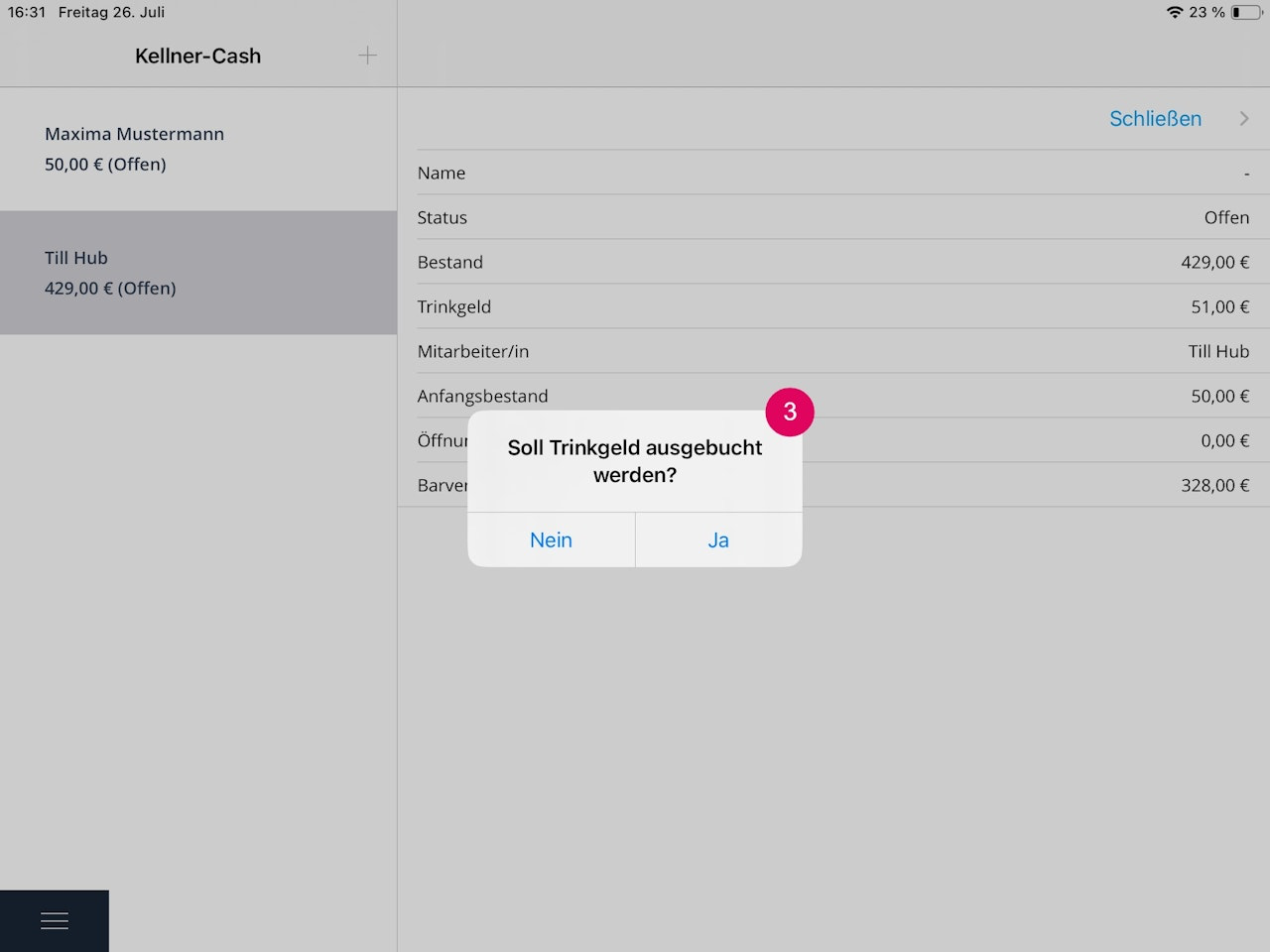
- You can then post the tips out of the waiter cash account.
Main register end-of-day closing
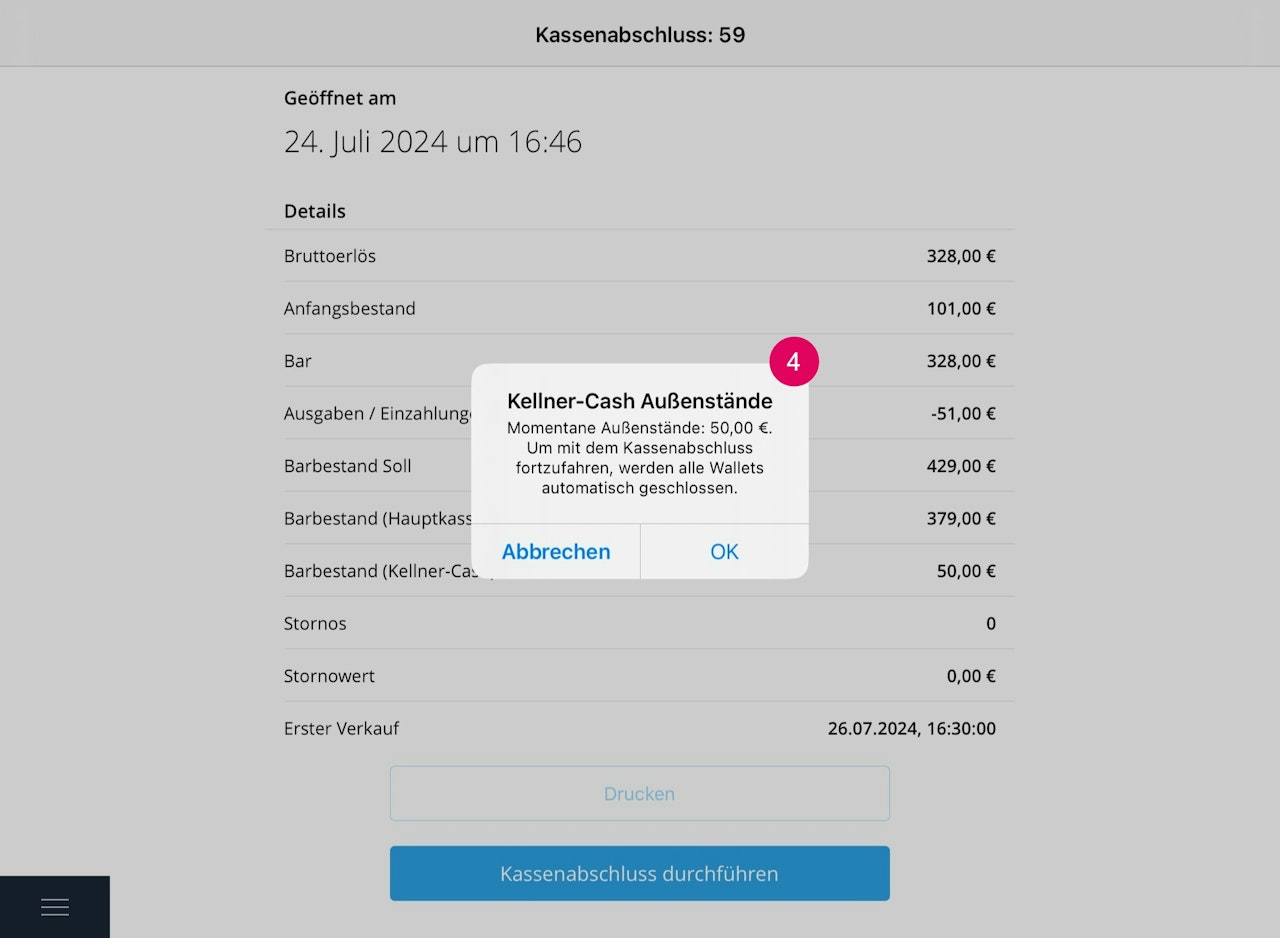
- Once all waiter cash accounts have been closed, perform a regular end-of-day closing. If a waiter cash account is still "open", you have the option to close it during this step.
- Use our step-by-step guide to activate the tipping function: Click here to go to the guide.
Was this article helpful?
That’s Great!
Thank you for your feedback
Sorry! We couldn't be helpful
Thank you for your feedback
Feedback sent
We appreciate your effort and will try to fix the article
