Online Table Reservation
Modified on Fri, 6 Mar at 1:17 PM
TABLE OF CONTENTS
- Understanding the Table Overview
- Opening an Occupied Table & Managing Orders
- Adding Another Guest to an Occupied Table
- Further options via the three dots
- Opening the Reservation Overview
- Calendar View
- Creating a New Reservation
- Editing a Reservation
- Reserved Table is Still Occupied
Understanding the Table Overview
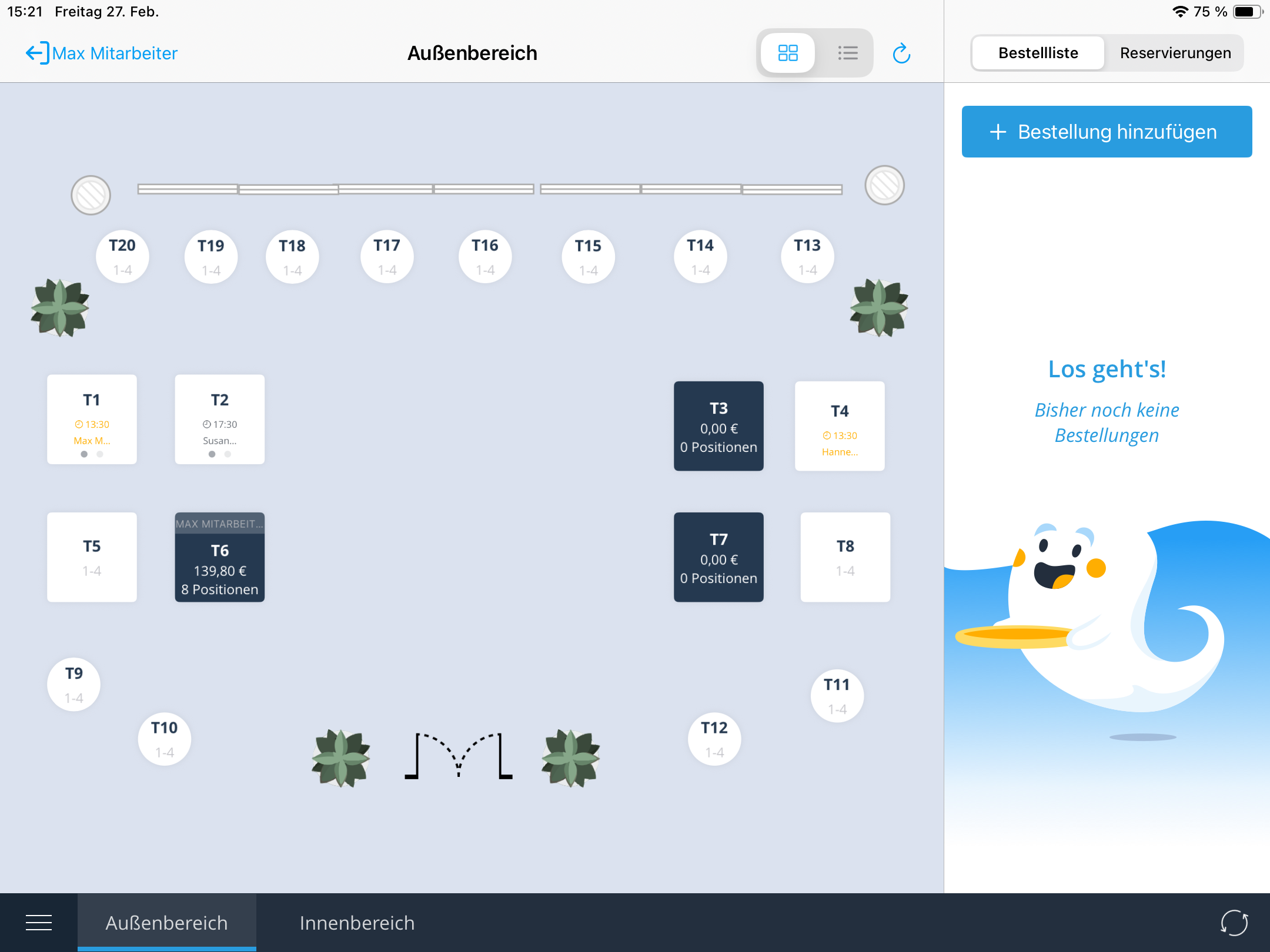
In the cash register view, you can see all tables at a glance. Blue tables are occupied, white tables are free. At the bottom of the screen, you can switch between different areas (e.g. indoor area, outdoor area, terrace).
For free tables, the time and name of the next reservation are displayed. If there are multiple reservations, this will also be shown.
For occupied tables, you can see the responsible staff member, the current revenue, the number of items ordered, and a timer showing how long the reservation is valid. If the next reservation for this table is already scheduled, that will be displayed as well.
On the right side of the screen, you can take additional orders without a table assignment – ideal for takeaway orders or spontaneous sales.
Opening an Occupied Table & Managing Orders
Tap on an occupied table to open the table view. There you can see all people assigned to this table – e.g. four people for a reservation for four guests.
Taking an order for a person:
- Tap on the desired person.
- Tap "Add new order" to select items.
- Go back – the order is now saved for this person.
To see what a person has already ordered, tap "Open order".
Adding Another Guest to an Occupied Table
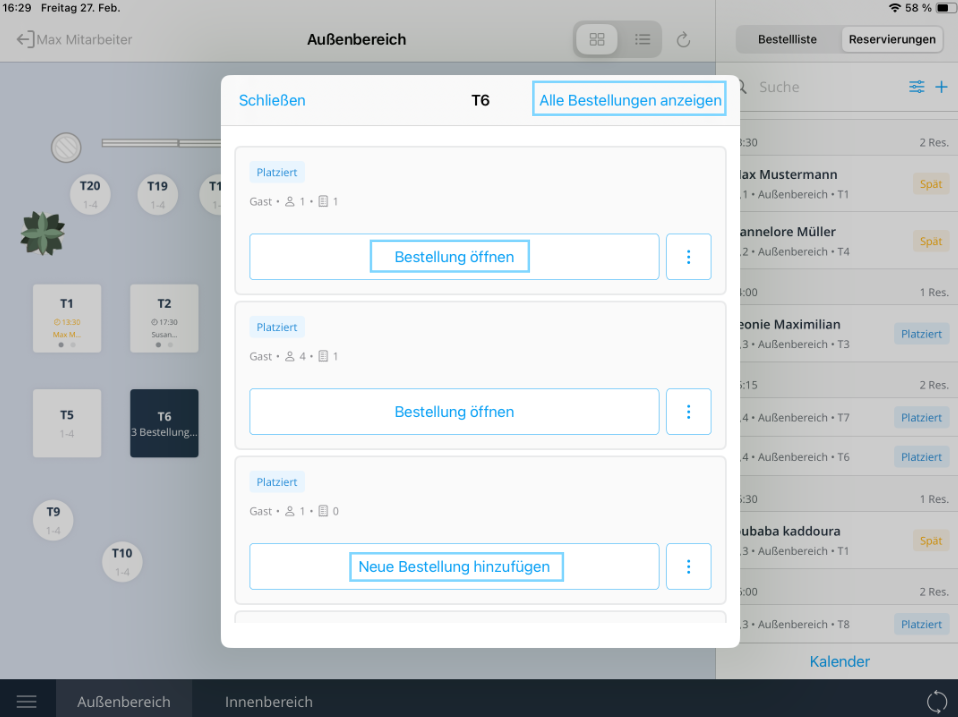
- Tap on the occupied table in the table overview.
- Scroll down in the window that opens to "Place new walk-in".
- Select the number of guests and set the length of stay.
- Tap "Place walk-in".
Further options via the three dots
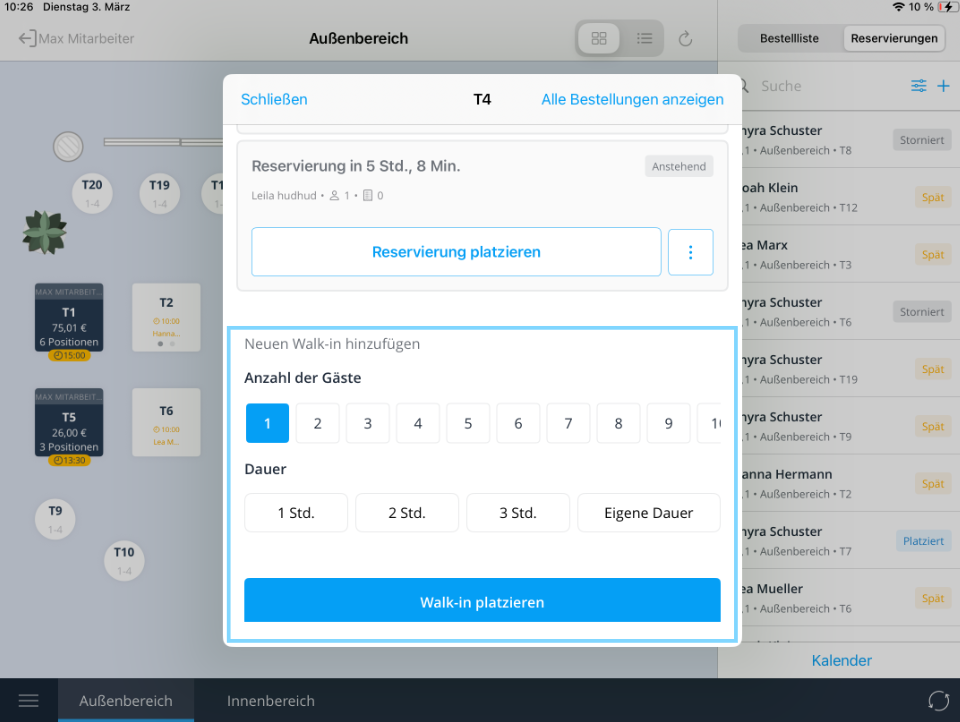
Next to "Open order" you will find the three dots (options menu). There you can switch tables or add a new order.
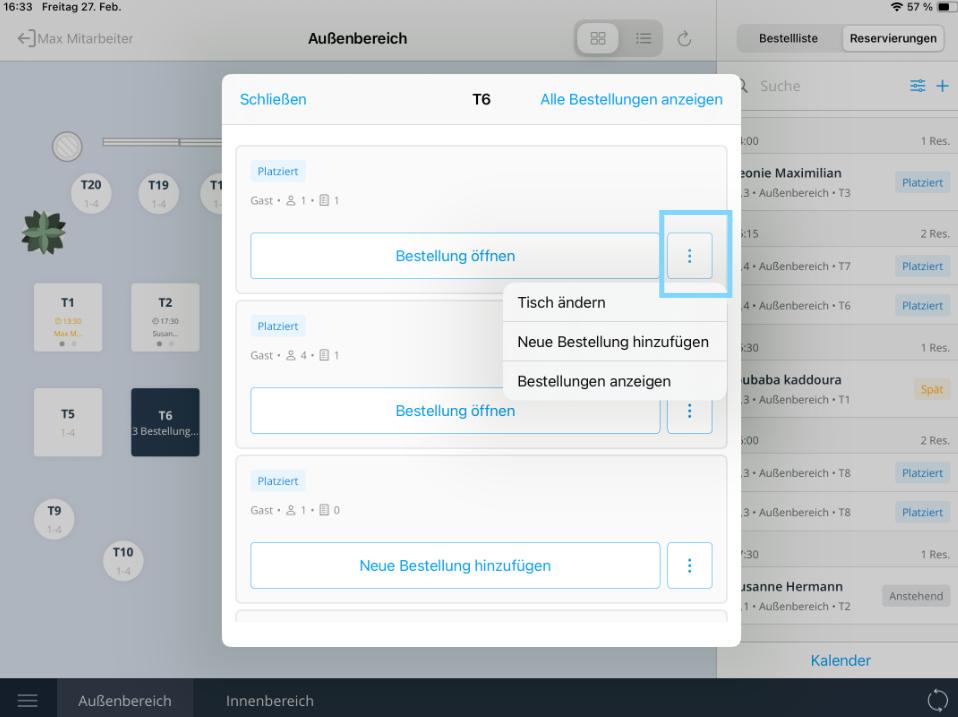
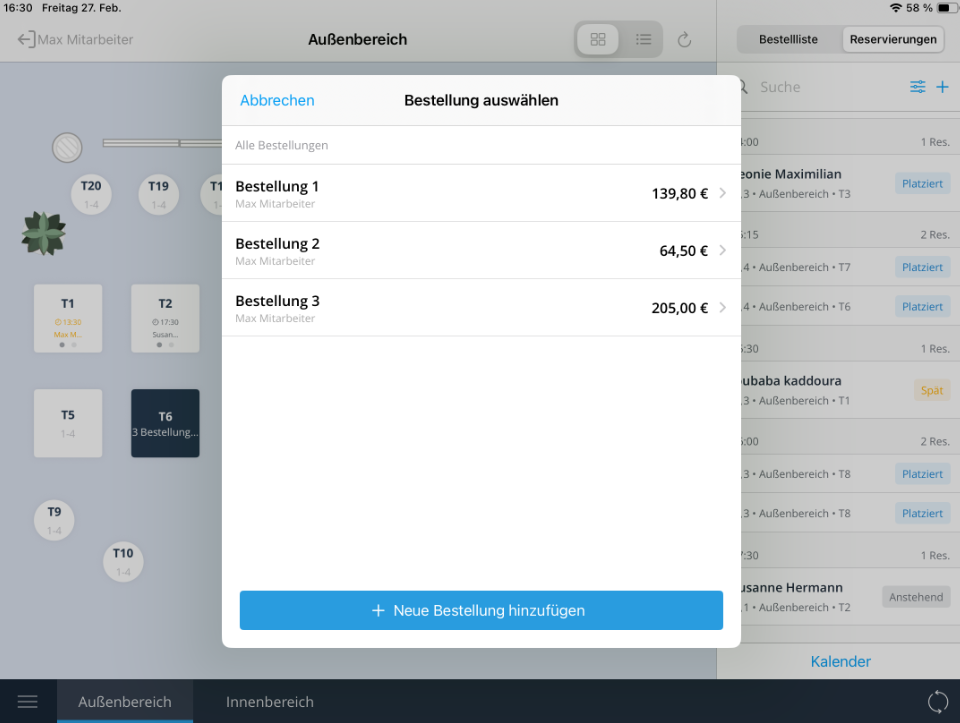
All orders at a glance: Tap in the upper right to view all orders taken. Each order is displayed with the total amount. Tap on an order to see the items ordered – directly below, the person who took the order is also shown. At the bottom of the screen, you can add another order at any time.
Note: If orders appear directly when opening a table, simply go back and tap the table again to see the person view.
Opening the Reservation Overview
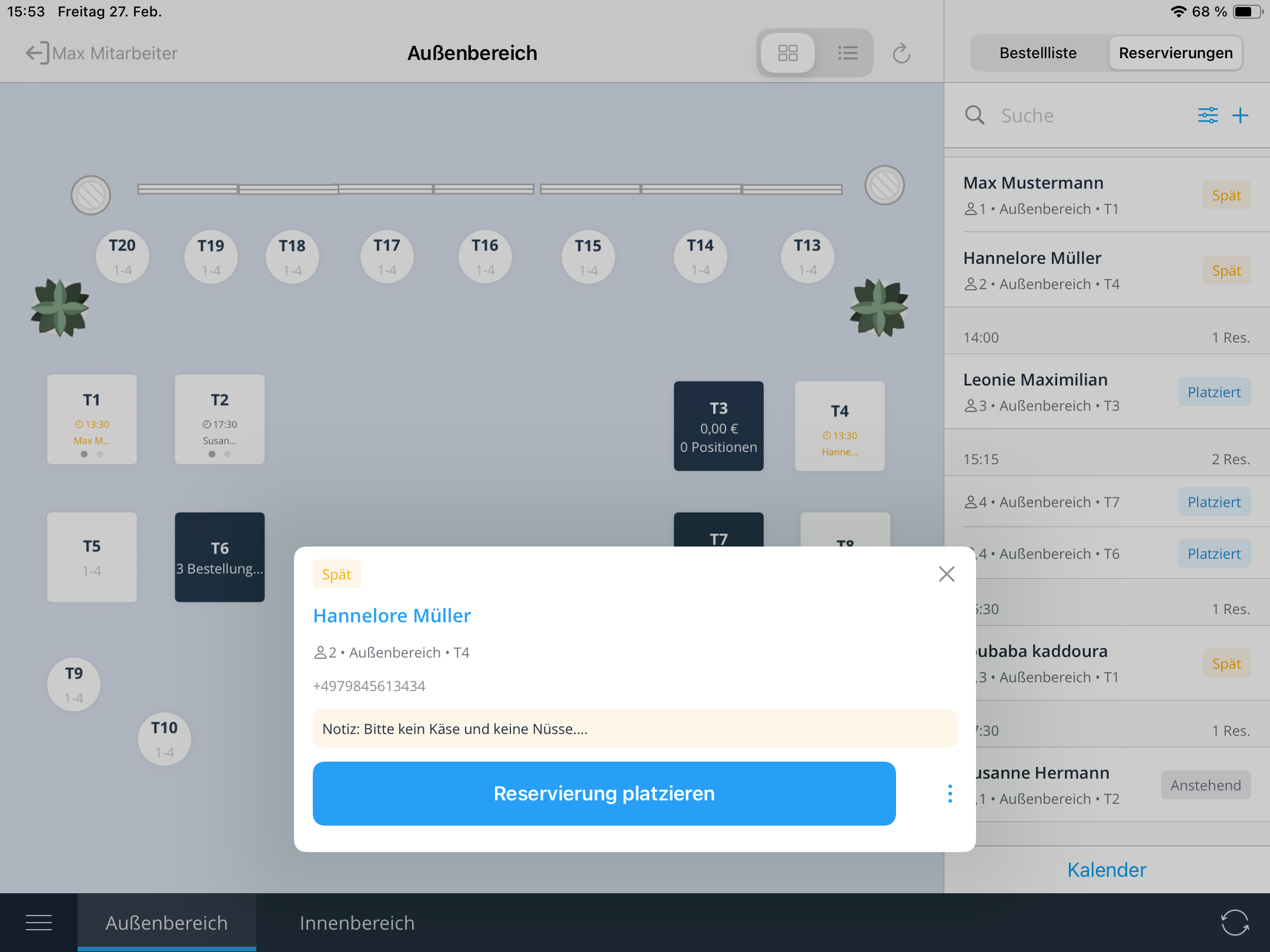
Tap "Reservations" in the upper right to open an overview of all bookings. You will see:
- Guest name
- Number of people
- Room and assigned tables
- Reservation status (e.g. guest late, checked in, cancelled)
Tap on a reservation to open the detail view. There you will find all further information as well as notes on special requests or internal comments.

Calendar View
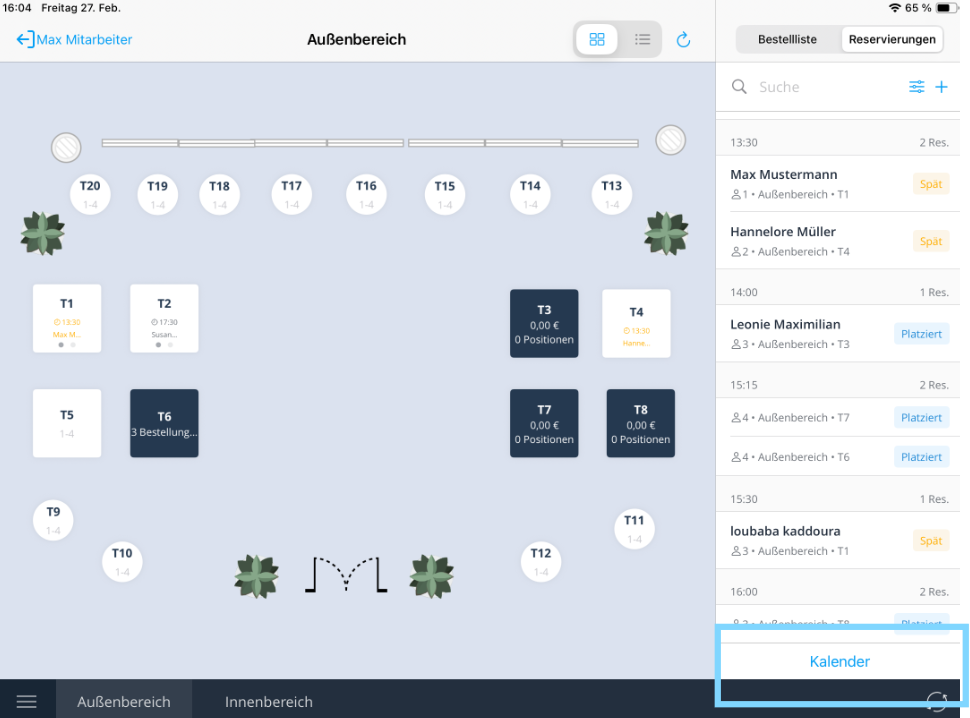
To open the calendar, tap "Calendar" in the lower right of the reservation view. The calendar opens and shows today's date by default.
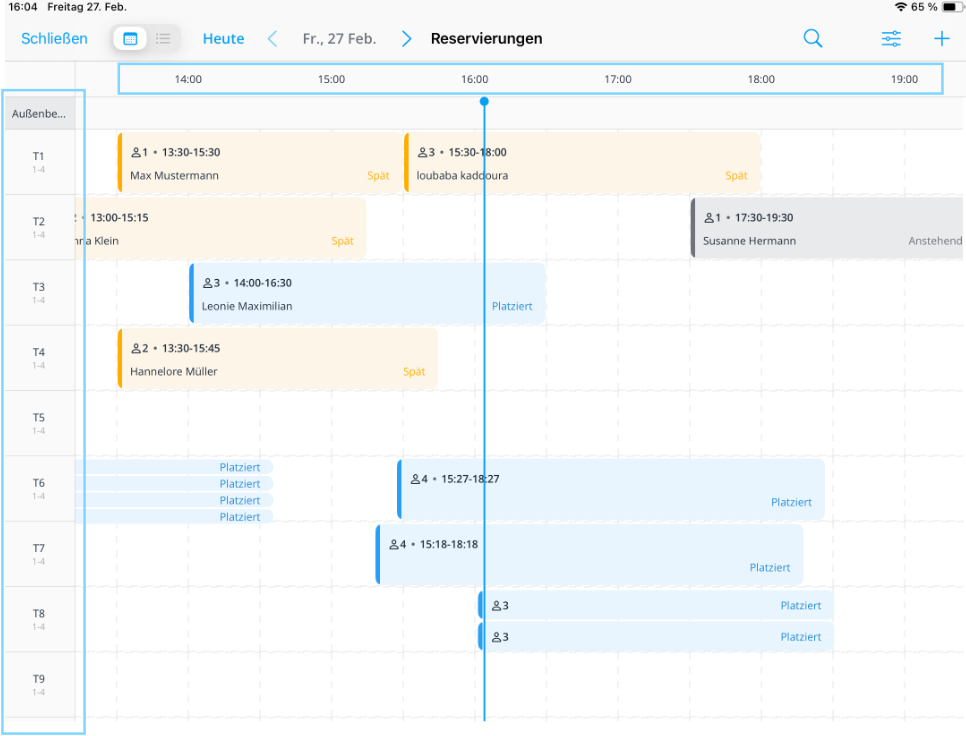
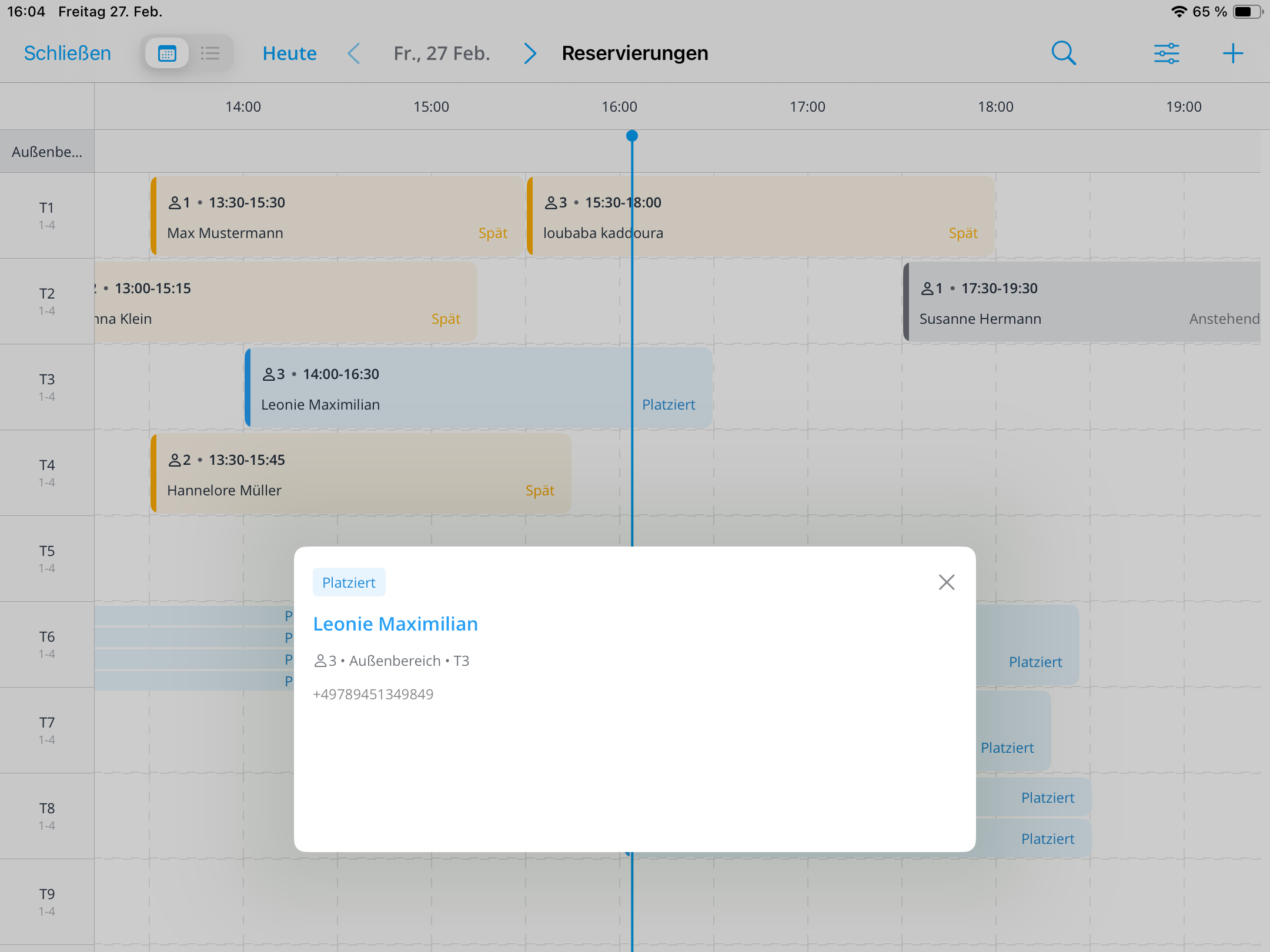
In the calendar view, the individual tables are listed on the left side, while the times are displayed at the top. This gives you a clear overview of all reservations per table and time.
For each reservation, you can see directly in the calendar:
- The customer's name
- The number of people (above the name)
- The time of the reservation
Using the filter in the upper left, you can filter the displayed reservations by status, for example by Reserved, Placed, Cancelled, and other options.
Note: Narrower blocks without a customer name represent walk-in customers - guests who were seated on-site without a prior booking.
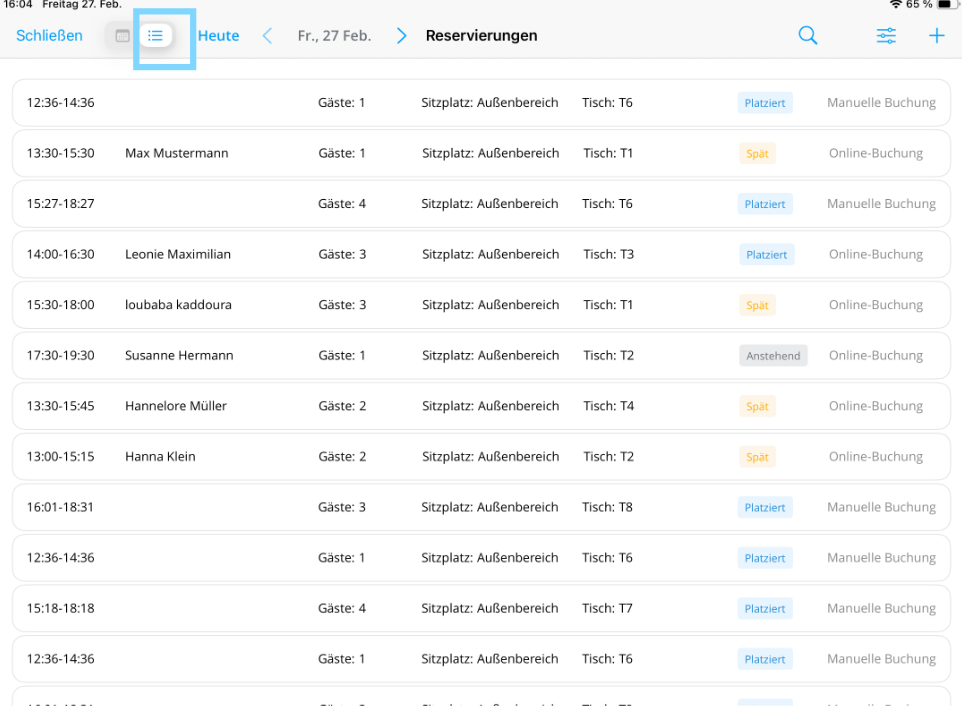
Our table reservation tool offers two views: the calendar view and the list view. You can switch between both at any time - tap the list icon in the upper left and select the view that works best for you.
In the list view, all appointments are displayed one below the other. Tap on an appointment to view further details about the respective reservation.
Creating a New Reservation
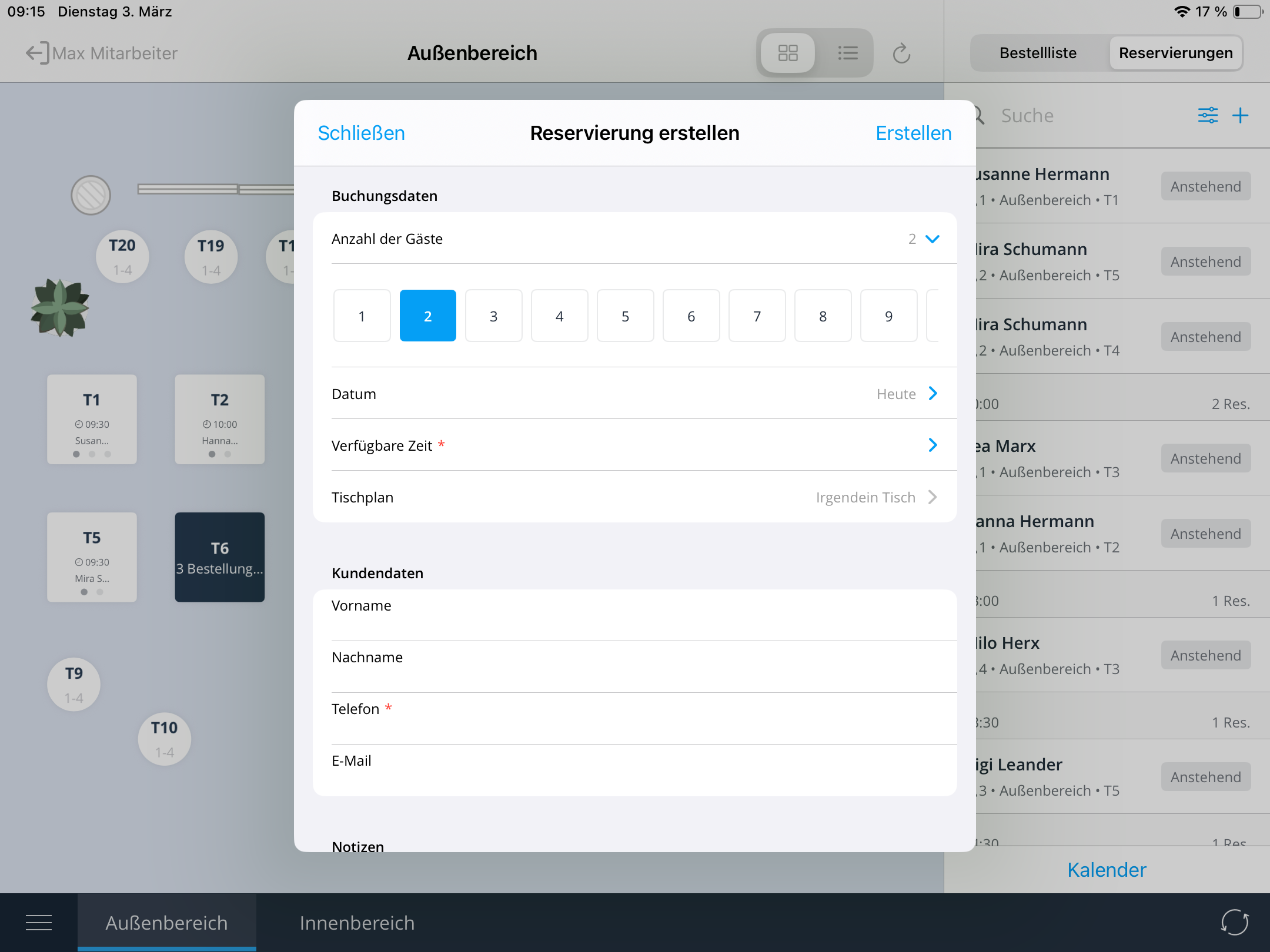
A new reservation can be created from three views: the reservation view, the calendar view, and the list view. Tap the plus icon in the upper right in any of these views.
- Tap the plus icon in the upper right.
- Enter all required information: number of guests, date, time, and customer details. A phone number must be stored in the customer details. You can also add a note if needed.
- Optional: Activate the email reminder for the customer at the bottom. For this, an email address must also be stored in the customer details.
- Tap "Create" at the top to save the reservation.
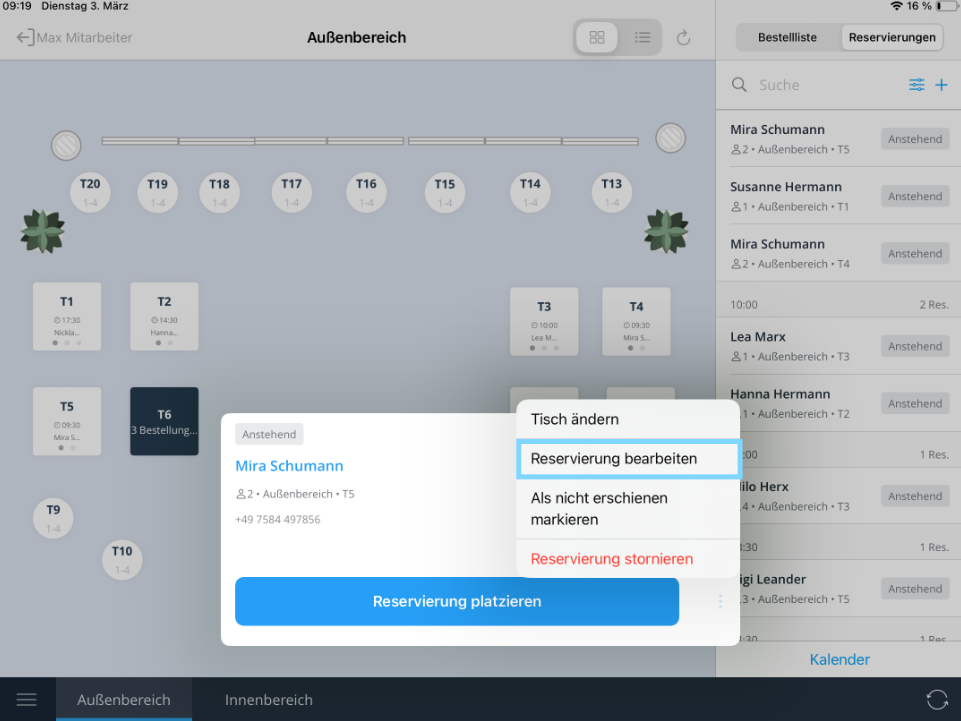
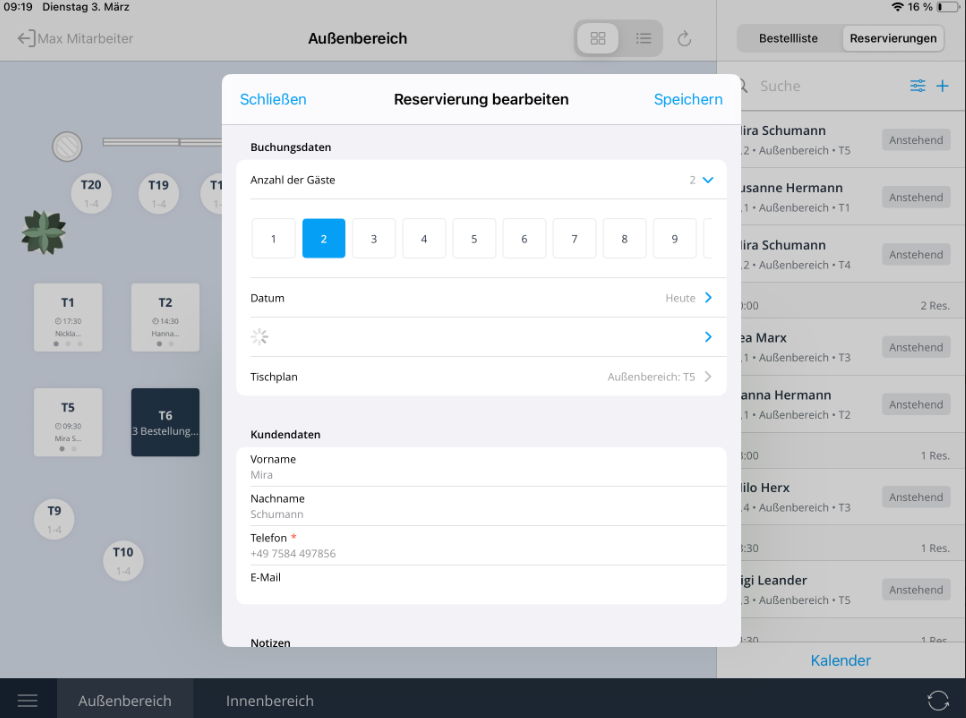
Editing a Reservation
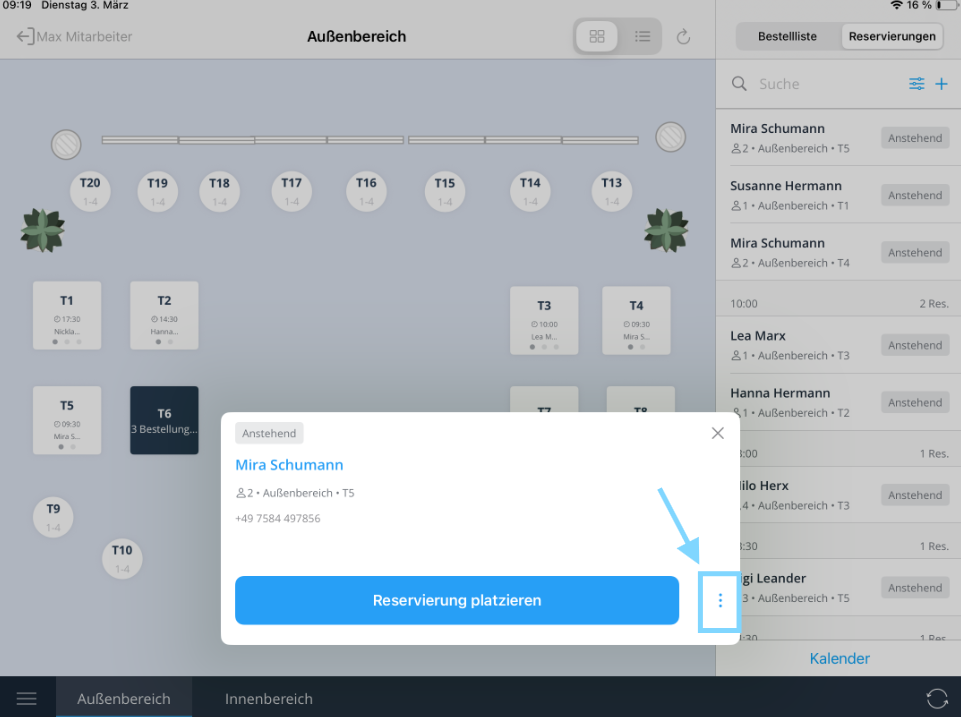
- Tap on the desired reservation.
- Select the three dots (options menu).
- Tap "Edit reservation".
- Adjust the desired details and save the changes.
Reserved Table is Still Occupied
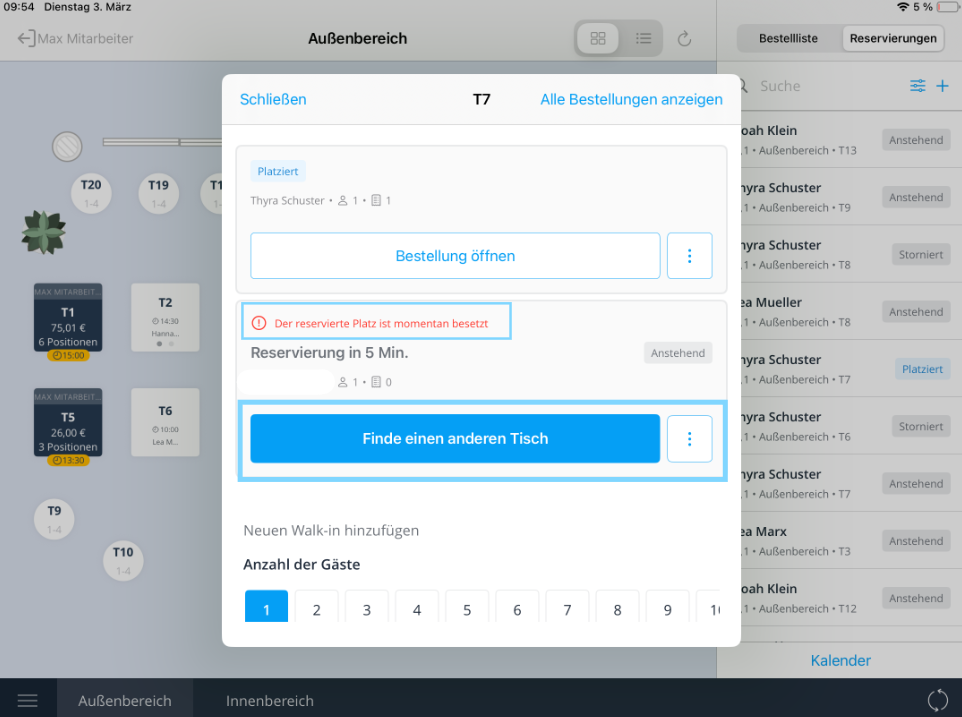
If a reserved table is still occupied when the guest arrives, proceed as follows:
- Tap on the relevant reservation.
- The system will indicate that the table is still occupied.
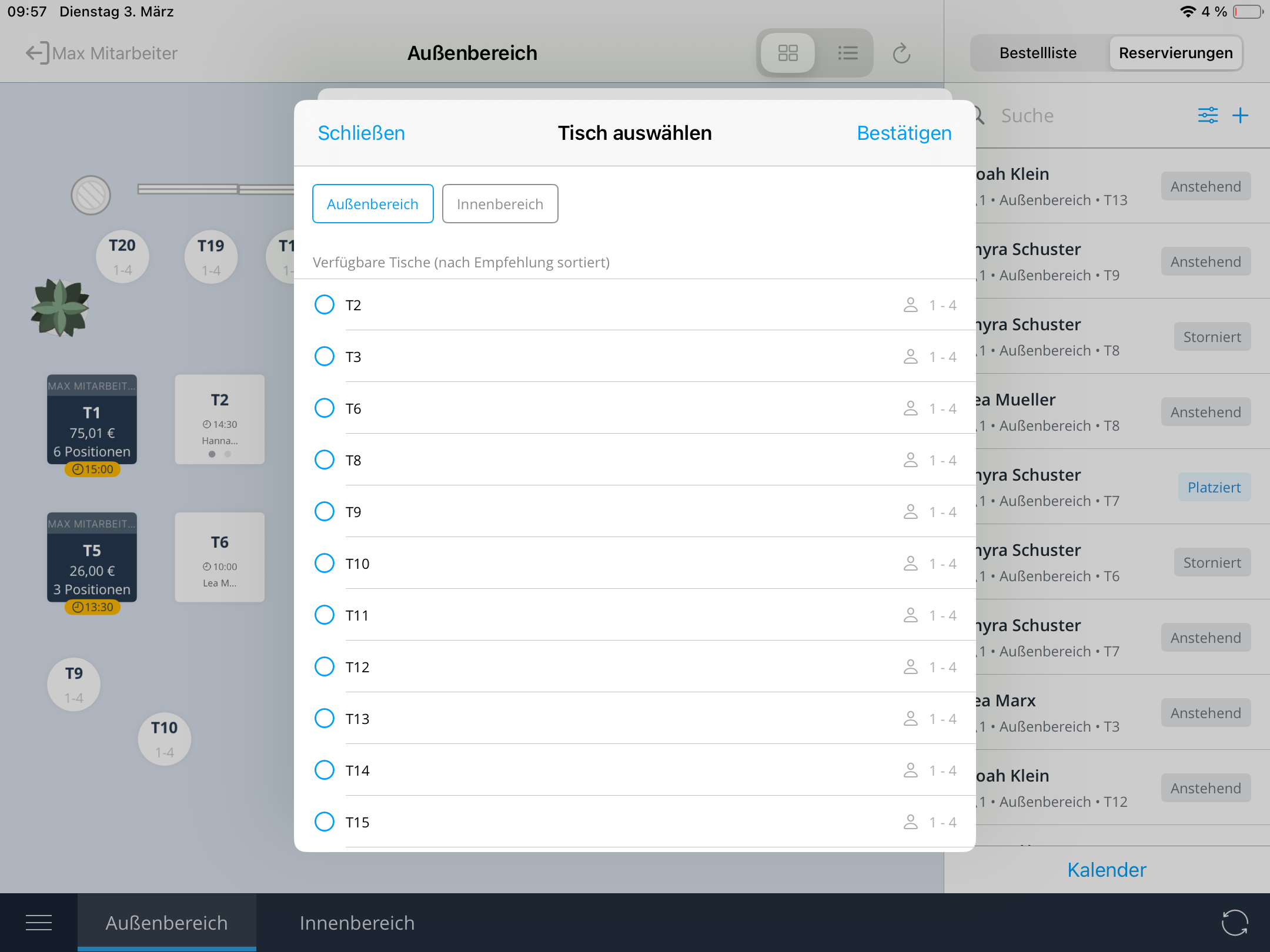
- Tap "Find another table" to select one or more free tables and relocate the guest.
Was this article helpful?
That’s Great!
Thank you for your feedback
Sorry! We couldn't be helpful
Thank you for your feedback
Feedback sent
We appreciate your effort and will try to fix the article
