CCV - Power Management
Modified on Wed, 4 Feb at 9:50 AM
You can configure the power management settings on your CCV Mobile Premium card reader to suit your needs and conserve battery life.
In this tutorial, we will show you where to make these adjustments.
Main Menu
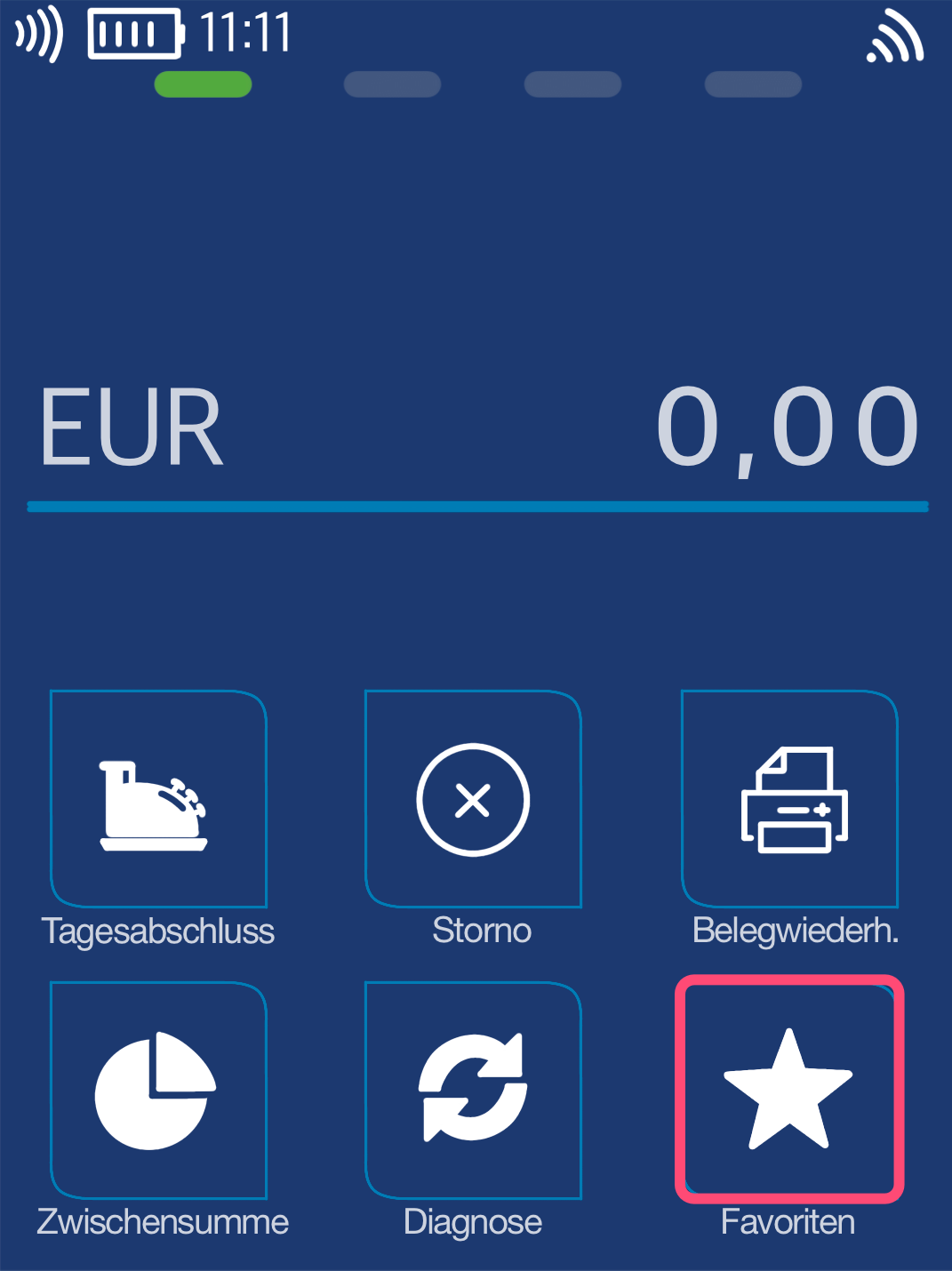
You will see your start display. Please select the Favorites button.
Select by tapping the touchscreen.
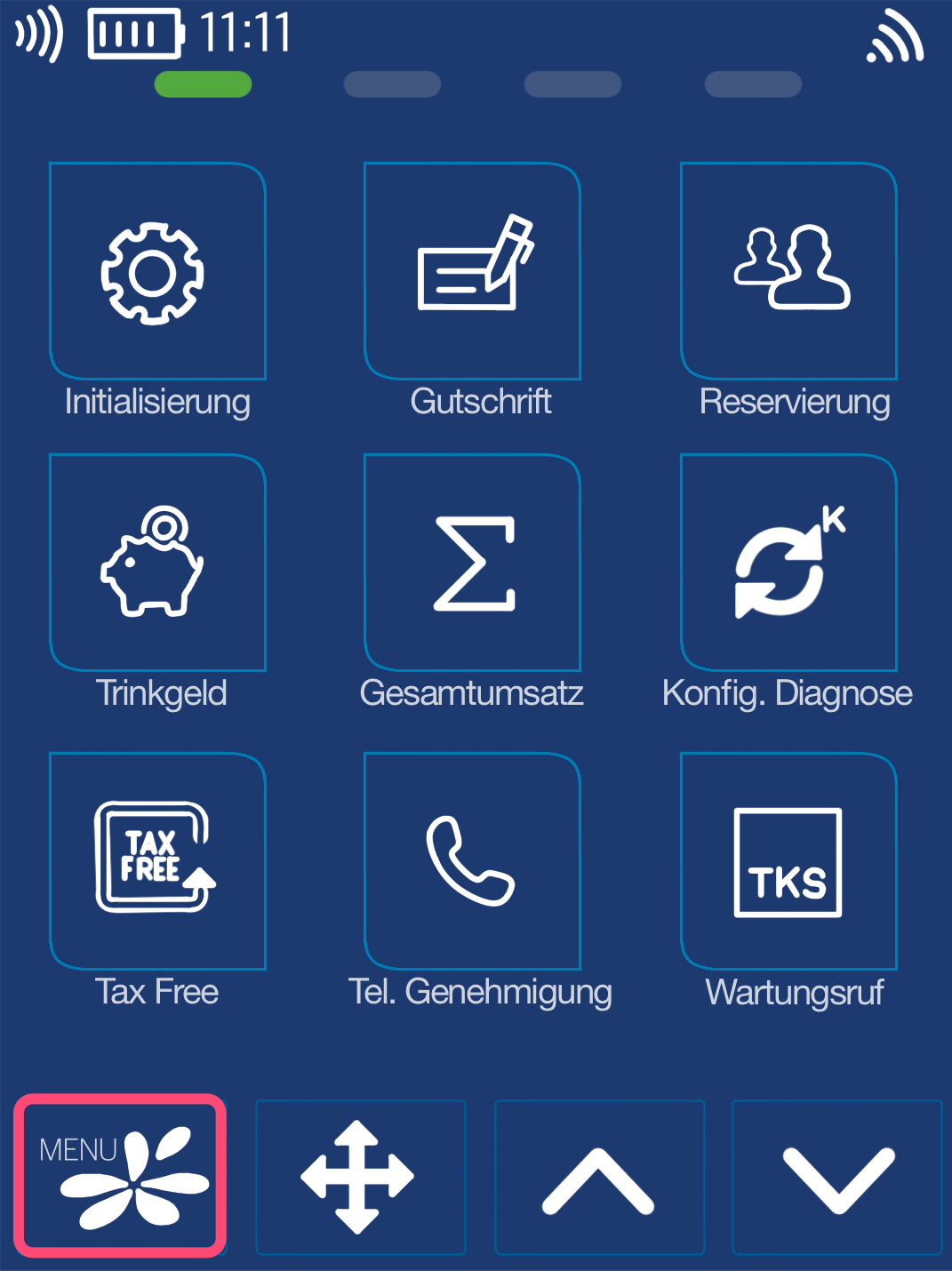
Fig. 2 – Now please select the Menu button.
PIN Entry
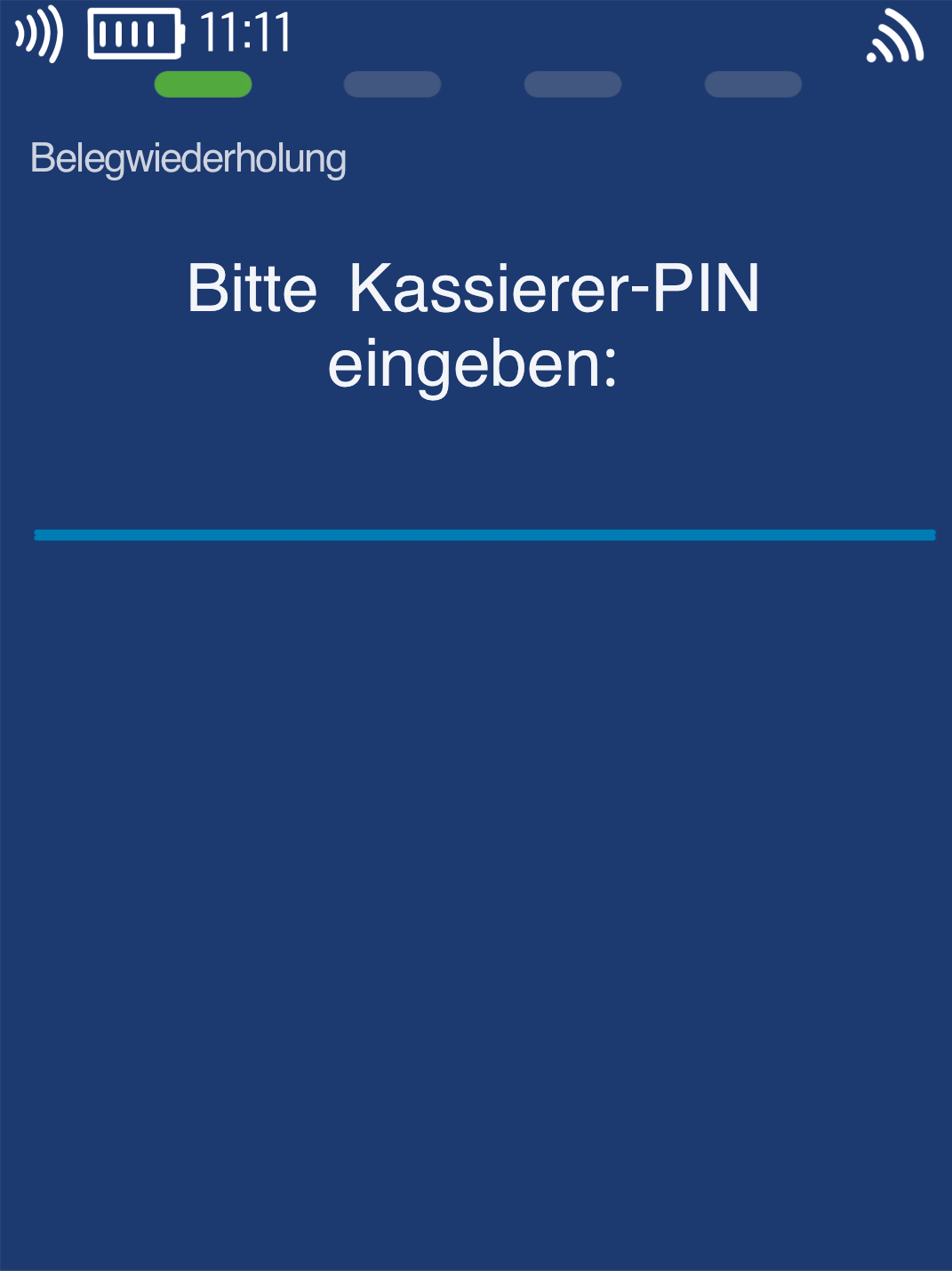
Please now enter your merchant PIN.
You can find the Terminal ID on your merchant receipts or on the end-of-day report.
Terminal IDs starting with 61xxxxxx: 111111
Terminal IDs starting with 68xxxxxx: 111111
Terminal IDs starting with 526xxxxx: 0123
Please confirm the entry by pressing the green OK button.
Menu Structure
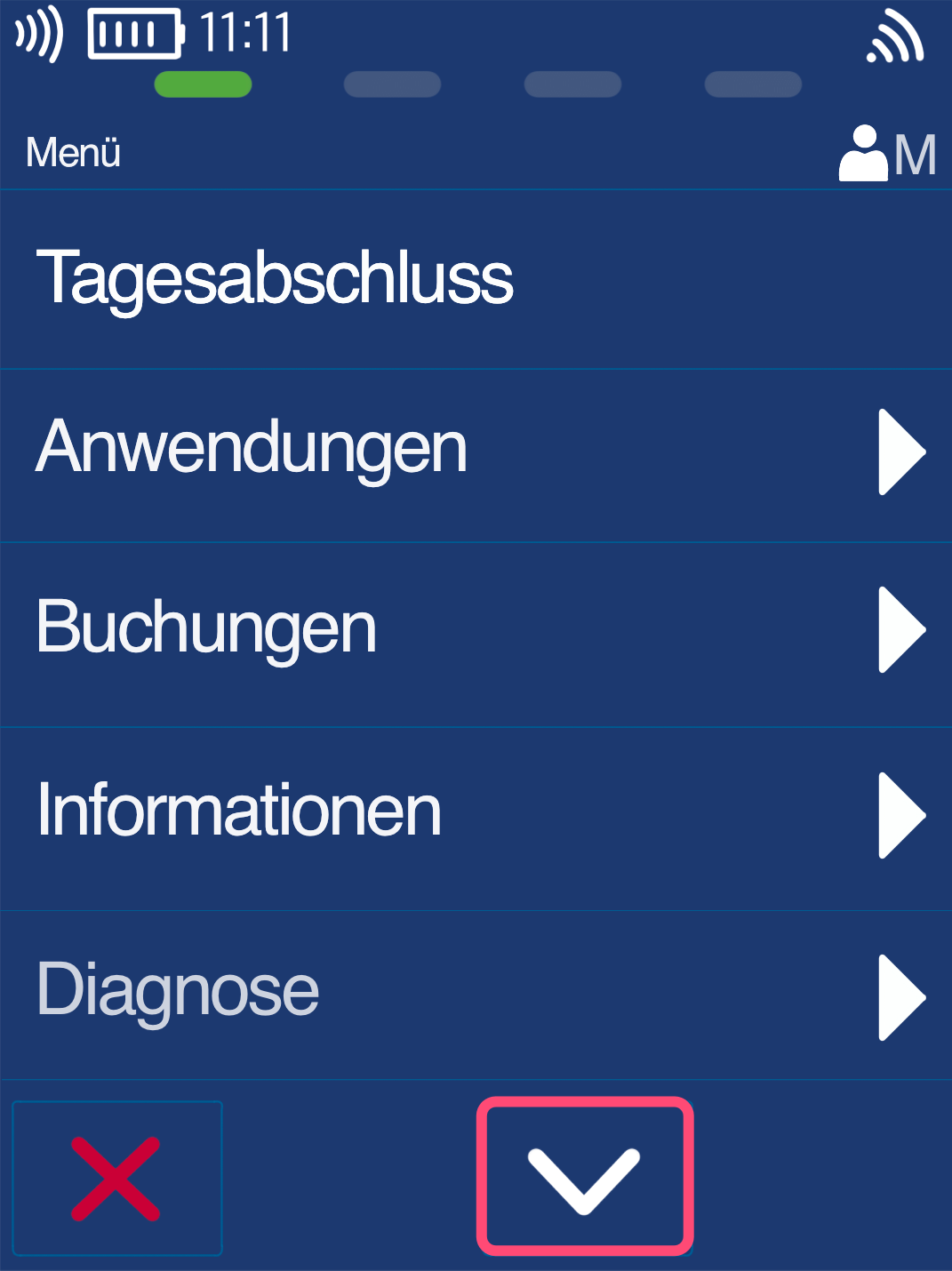
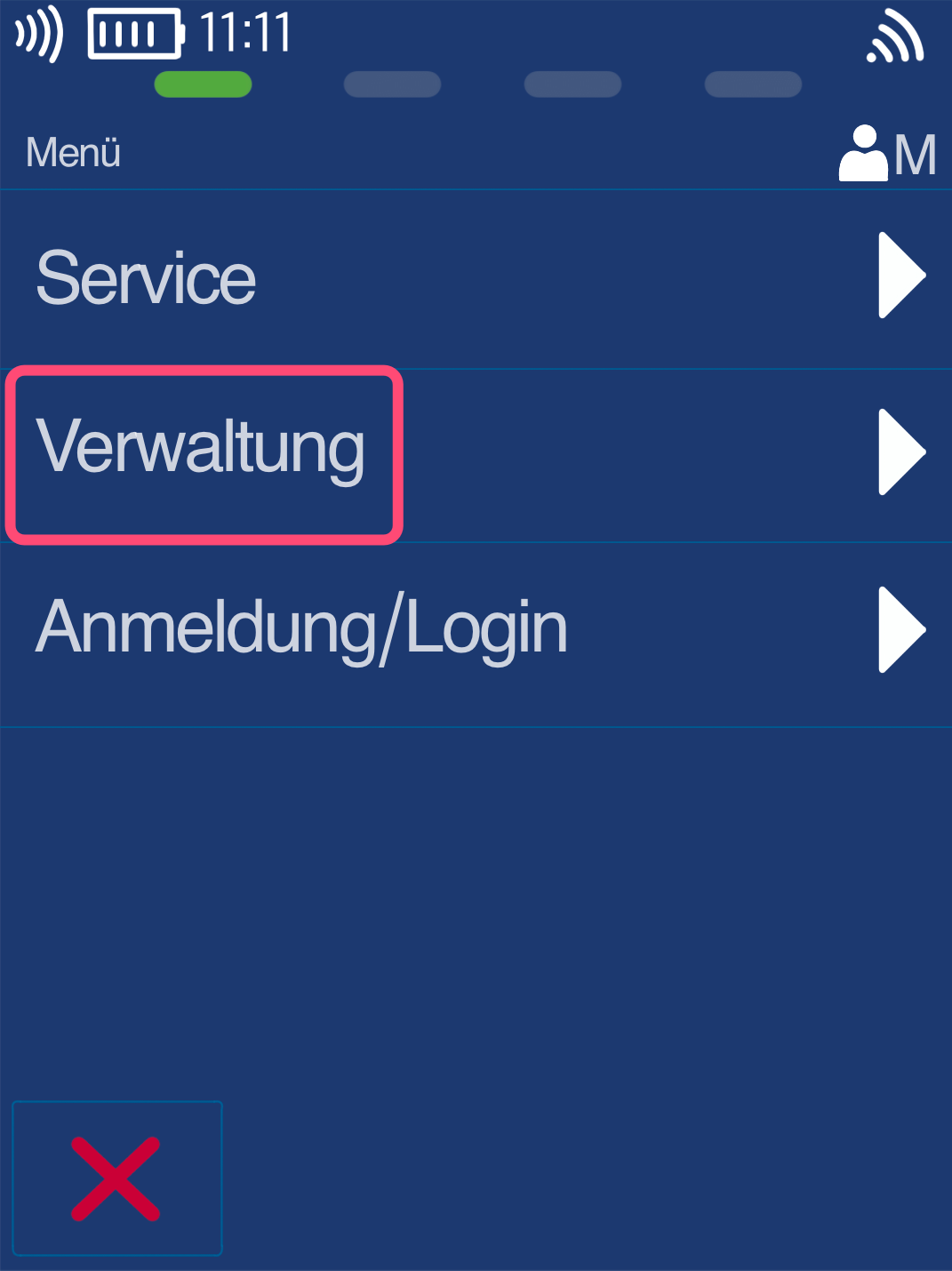
Please use the down arrow key to navigate to the Administration menu item (Fig. 2).
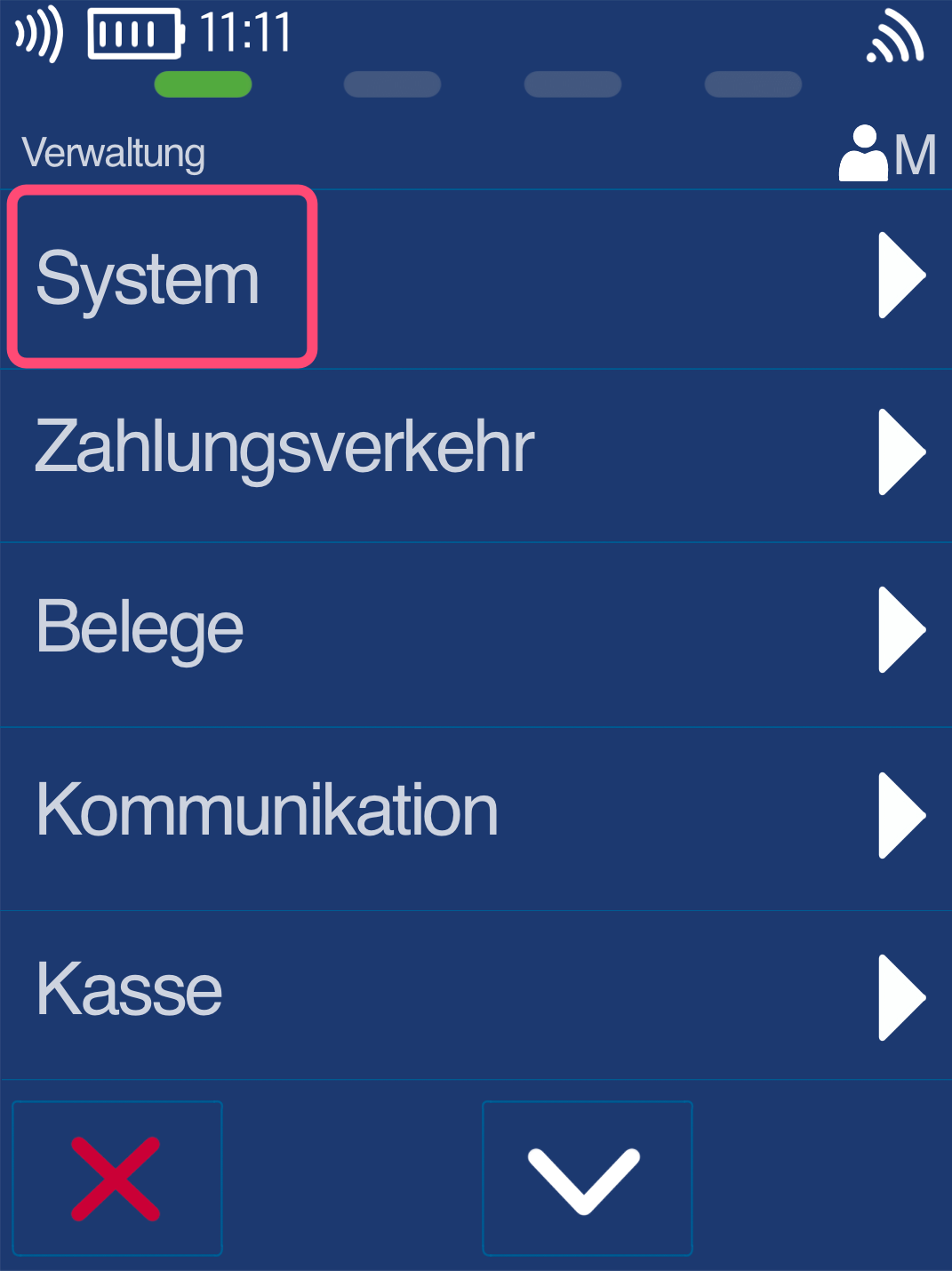
Fig. 3 – Here, please select the menu item System.
Adjusting Power Management and Completion
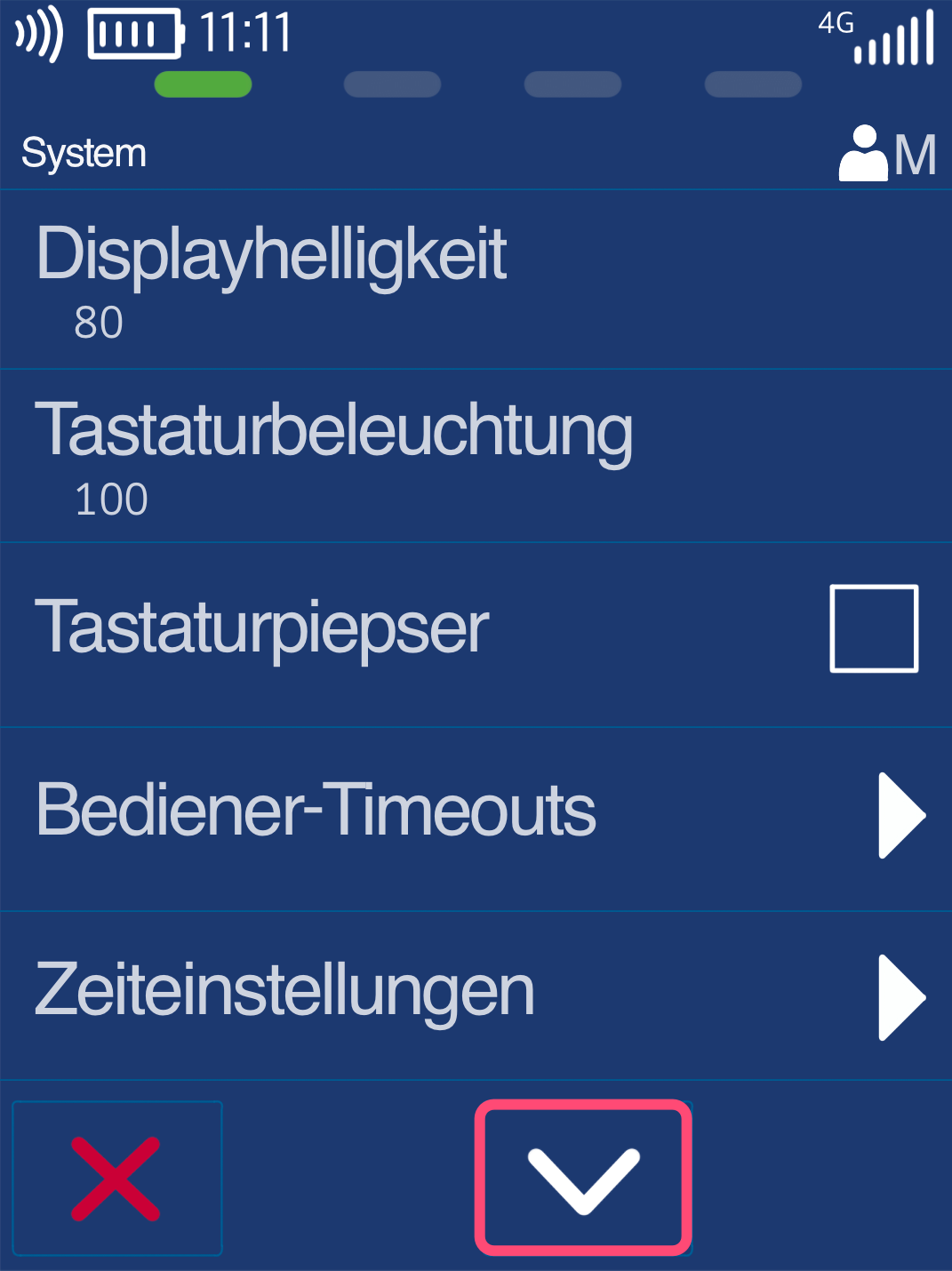
Fig. 1 – Please navigate downward using the arrow key to display more menu options.
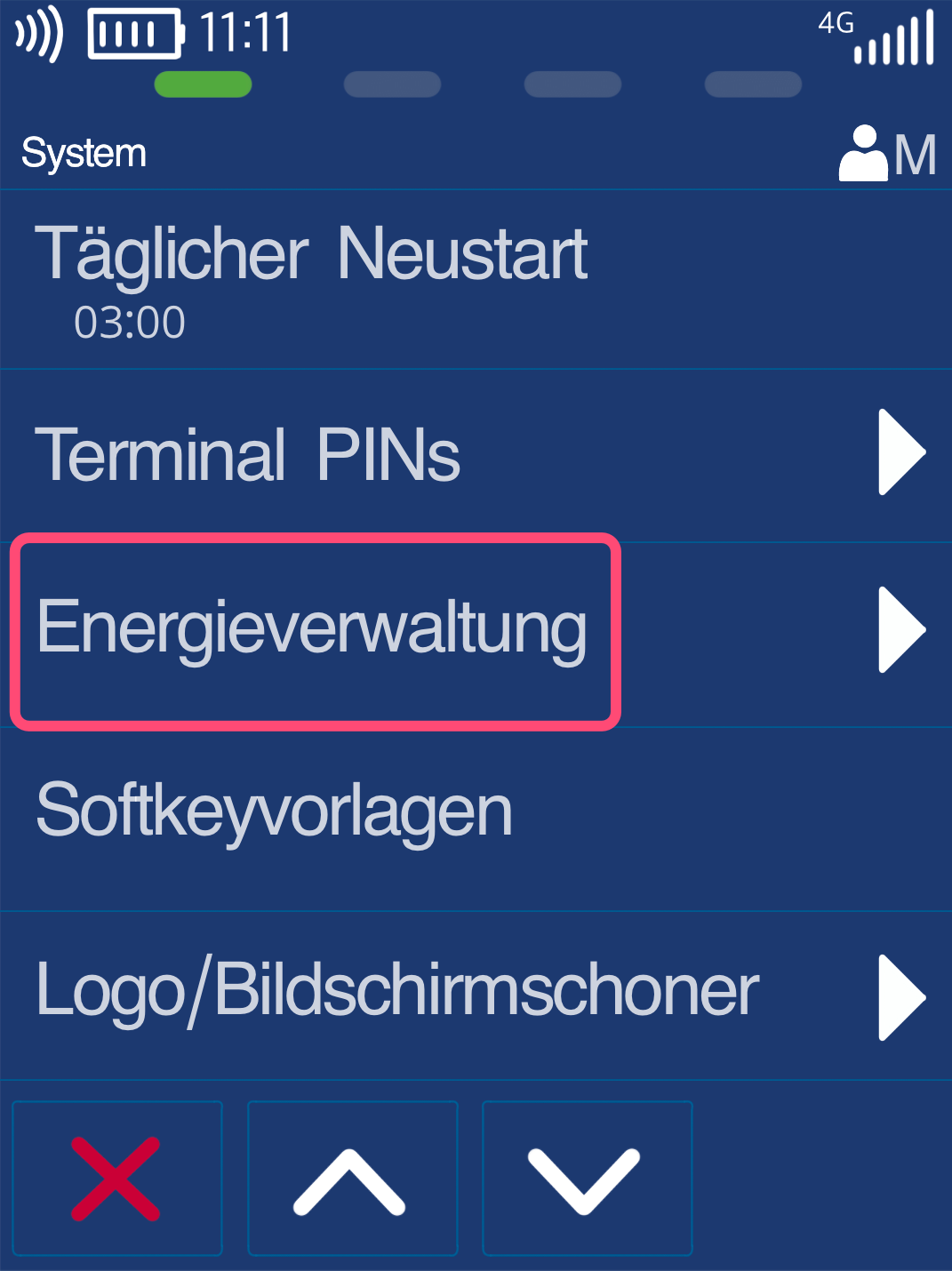
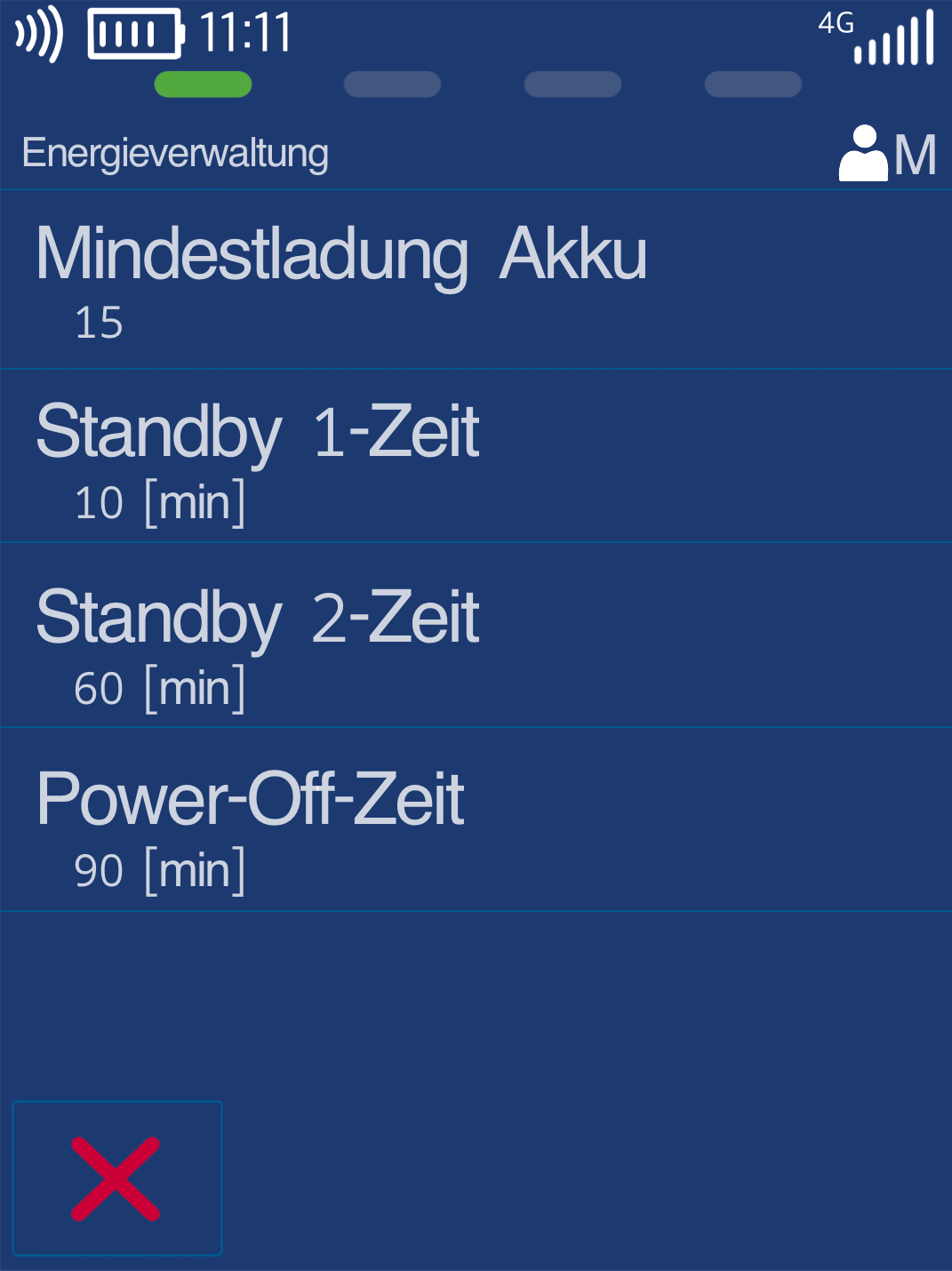
Fig. 2 – Please select Power Management.
Fig. 3 – You can now edit each individual item and enter your desired time value (select by tapping).
Time values are in seconds.
Minimum battery charge means your card reader will only process payments when at least X% battery is charged.
Power Off refers to shutting down the device.
Once you have entered all desired time values, press the red Stop button to return to your start display.
The configuration is now complete.
Was this article helpful?
That’s Great!
Thank you for your feedback
Sorry! We couldn't be helpful
Thank you for your feedback
Feedback sent
We appreciate your effort and will try to fix the article
