Histrory: Refund & Cancel Sales
Modified on Wed, 18 Feb at 3:56 PM
In the following articles, you will find more detailed information in visual and written form.
TABLE OF CONTENTS
View sales history
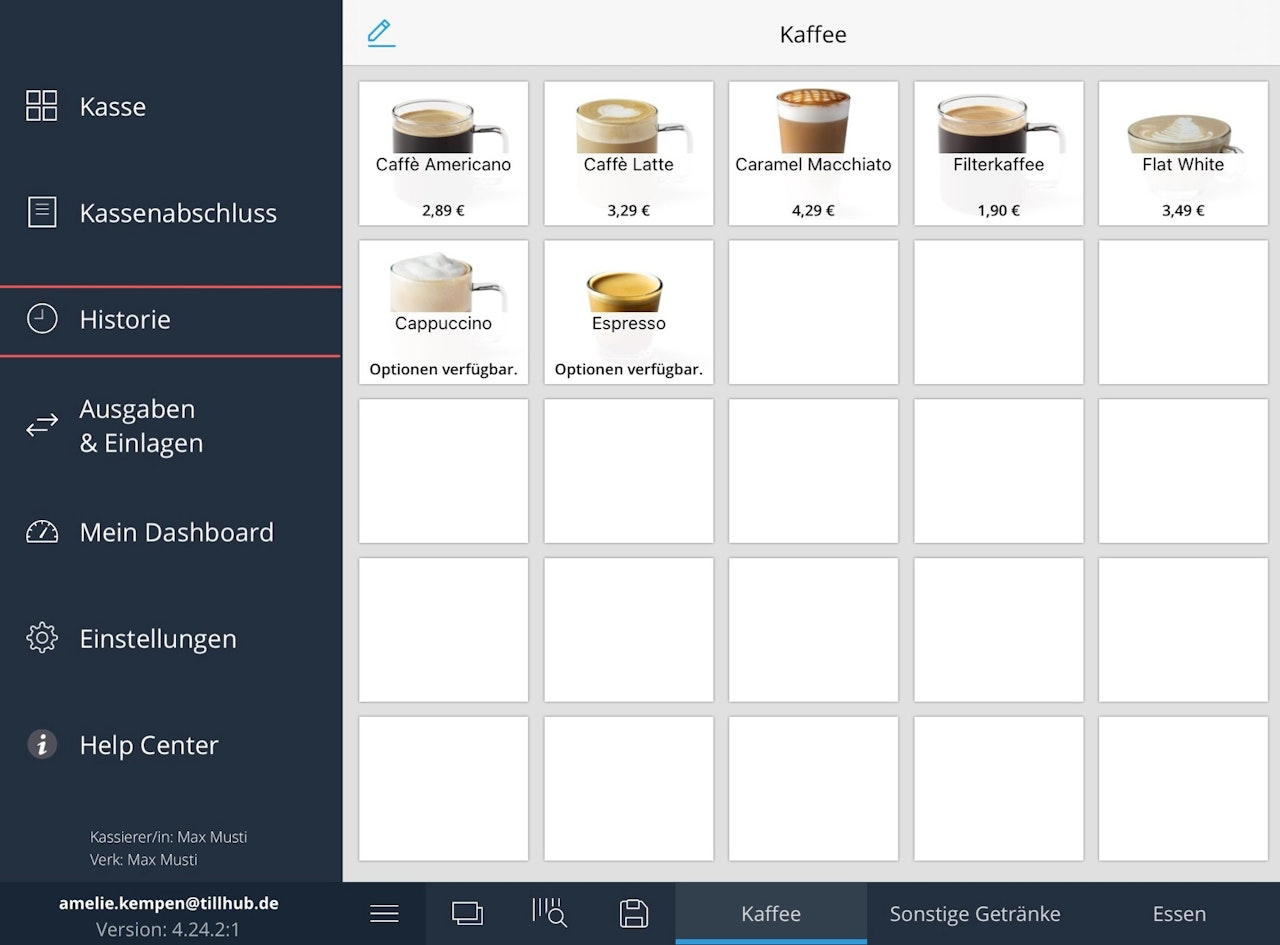
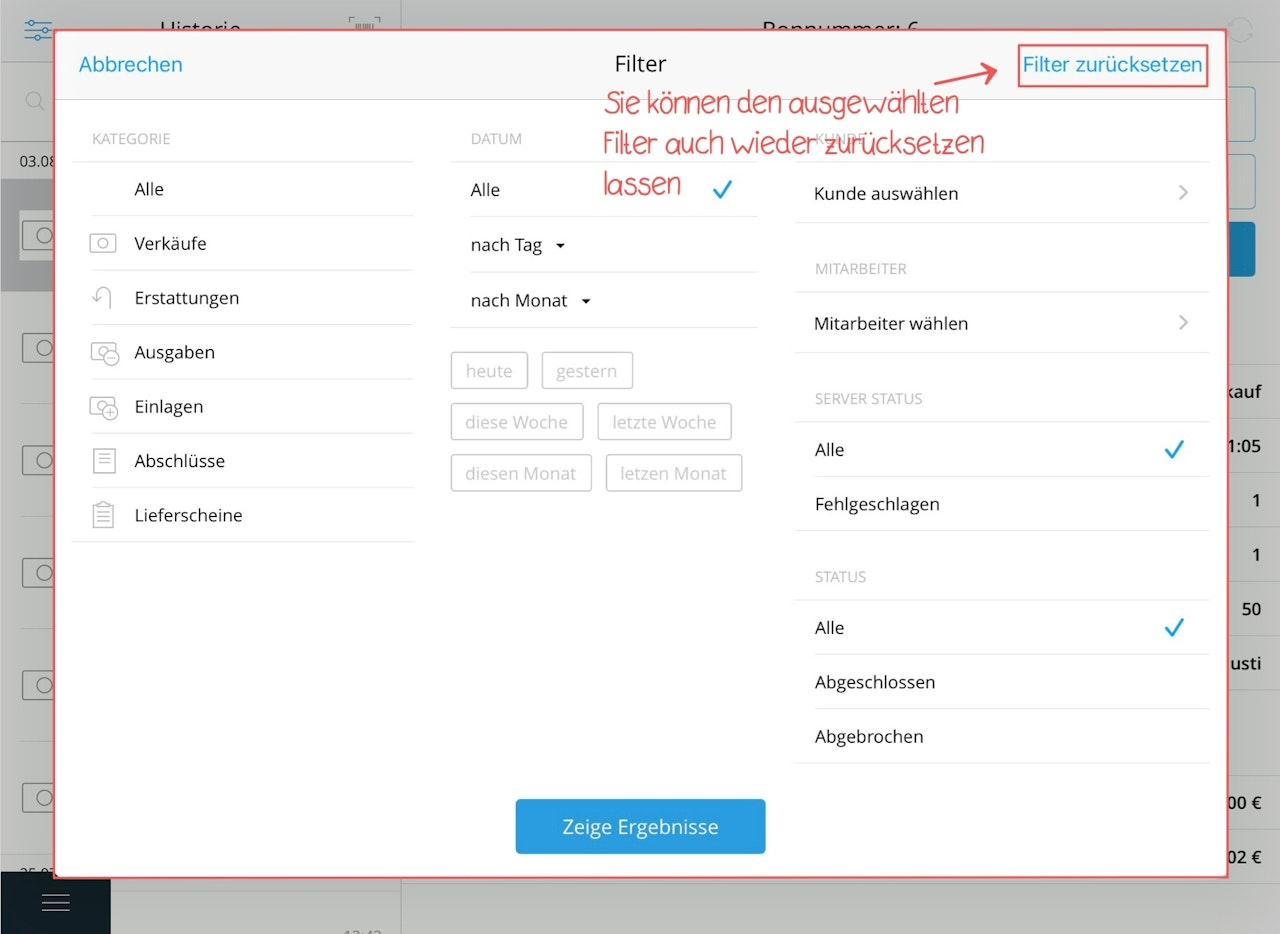
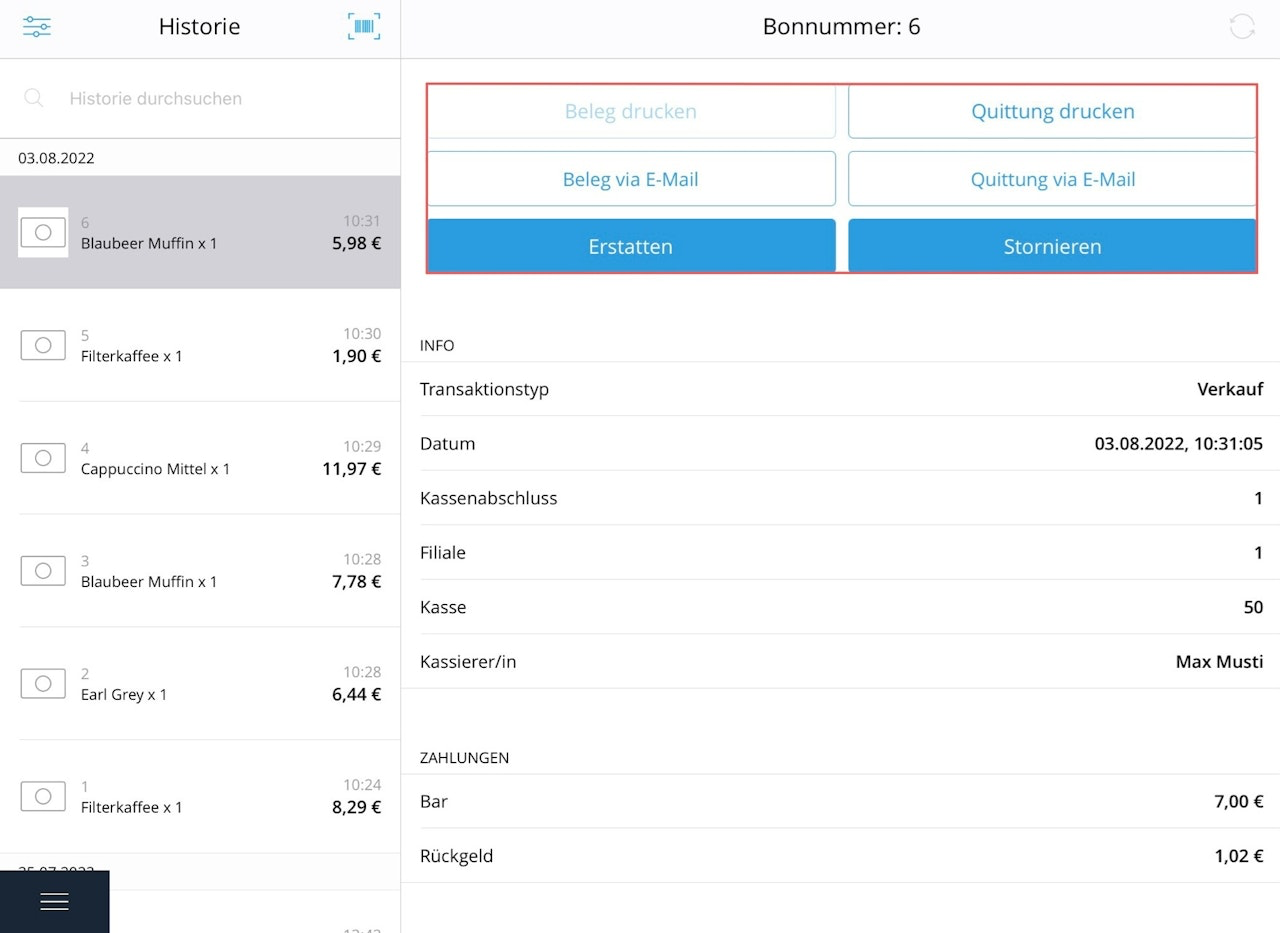
In this article, we introduce you to the history of your receipts and show you how to find and use the filter function. Navigate to the main menu of your app and tap on the menu item "History". Here you will find an overview of all completed sales, credit notes, etc. The symbol in the top left takes you to the filter menu. You can filter by category, date, customer, and status. Once you have selected all desired settings, tap "Show results": you will now see a list of your filtered results. If you want to reset the filters, open the filter menu again using the symbol and tap "Reset filters". Confirm again with "Show results":Now all transactions will be displayed again.
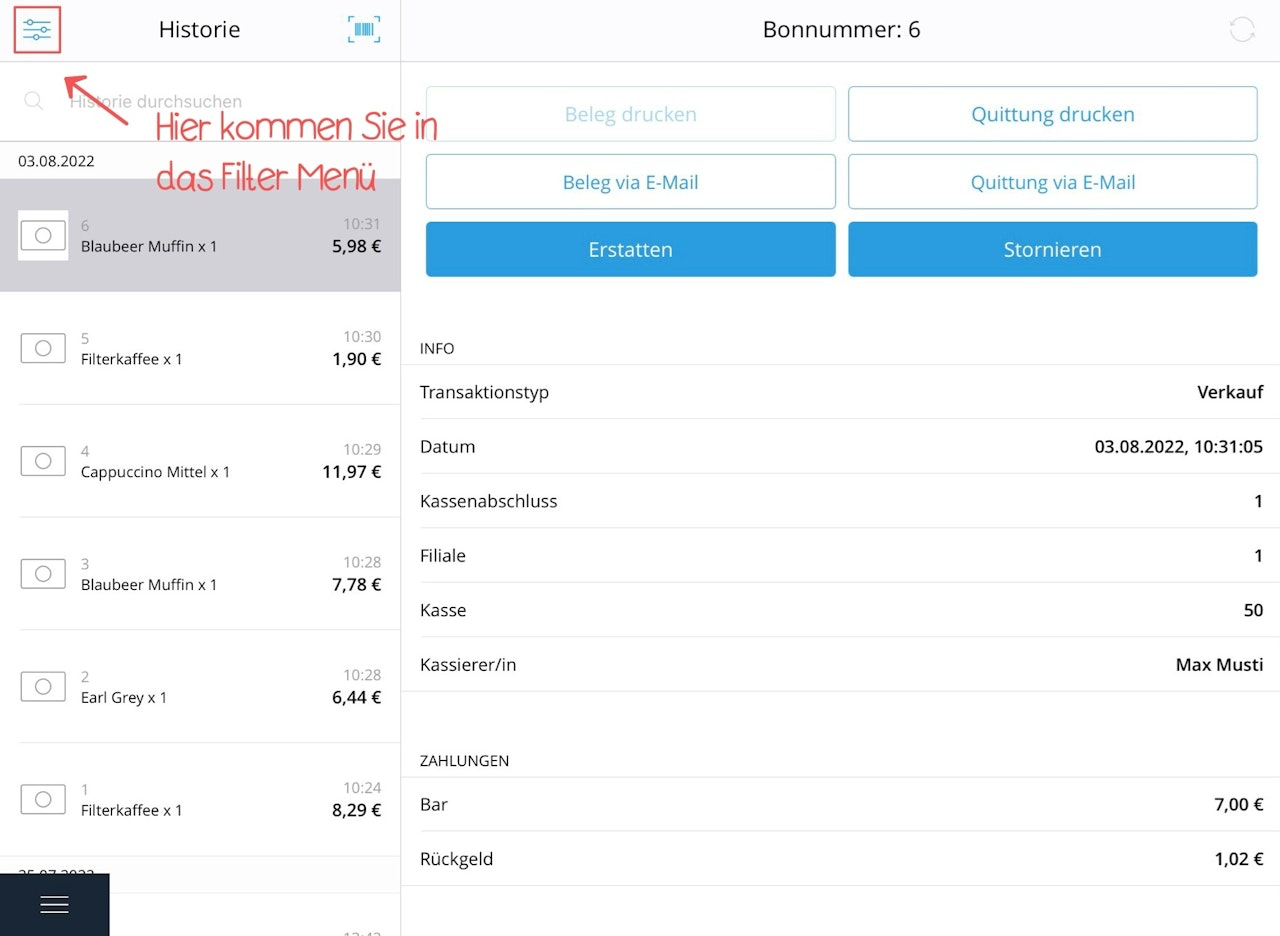
In addition, you have the following options to search through the history: You can search the history by entering the receipt number. You can scan the barcode of the receipt using an externally connected scanner to find the corresponding sale in the history.
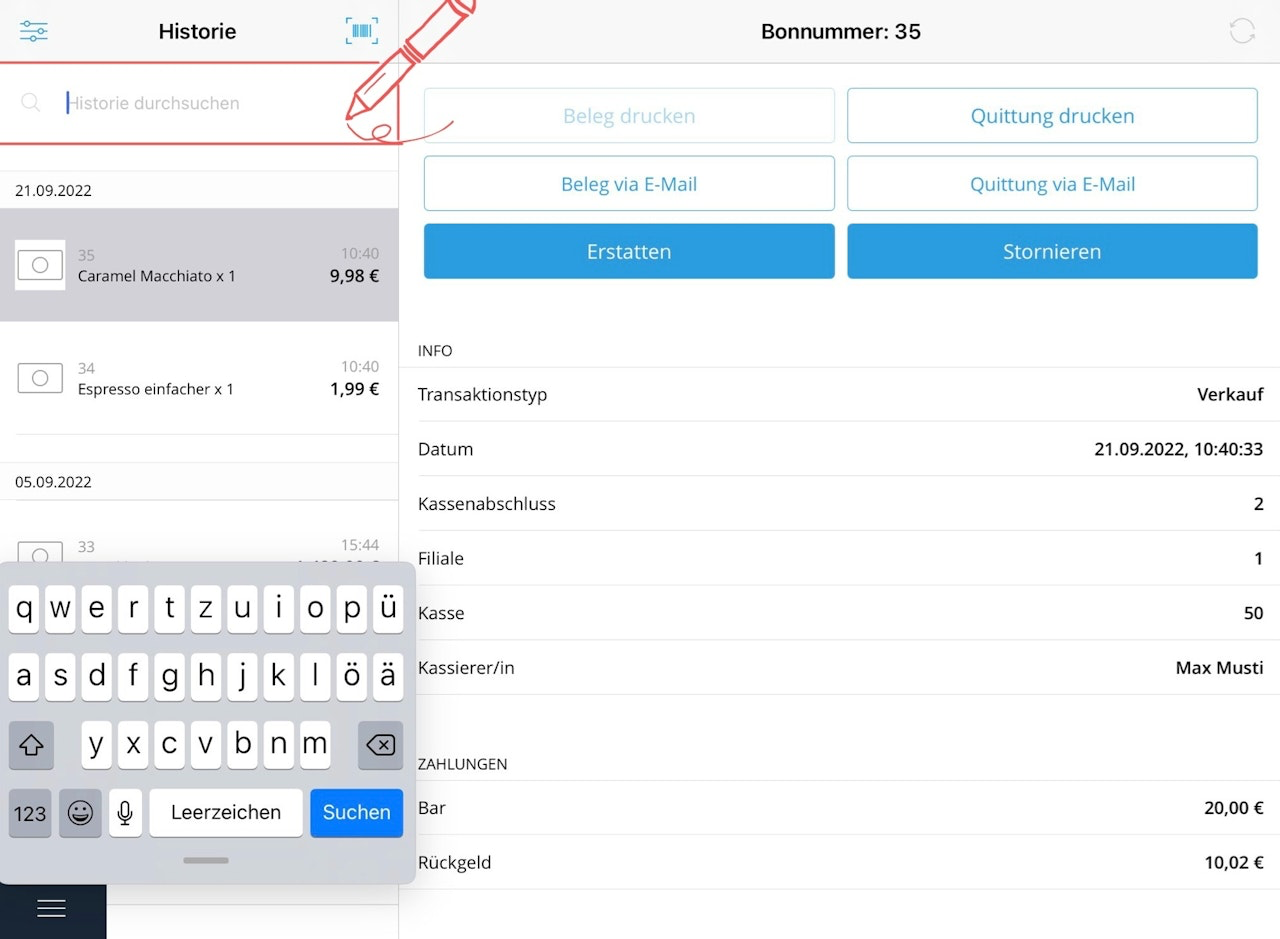
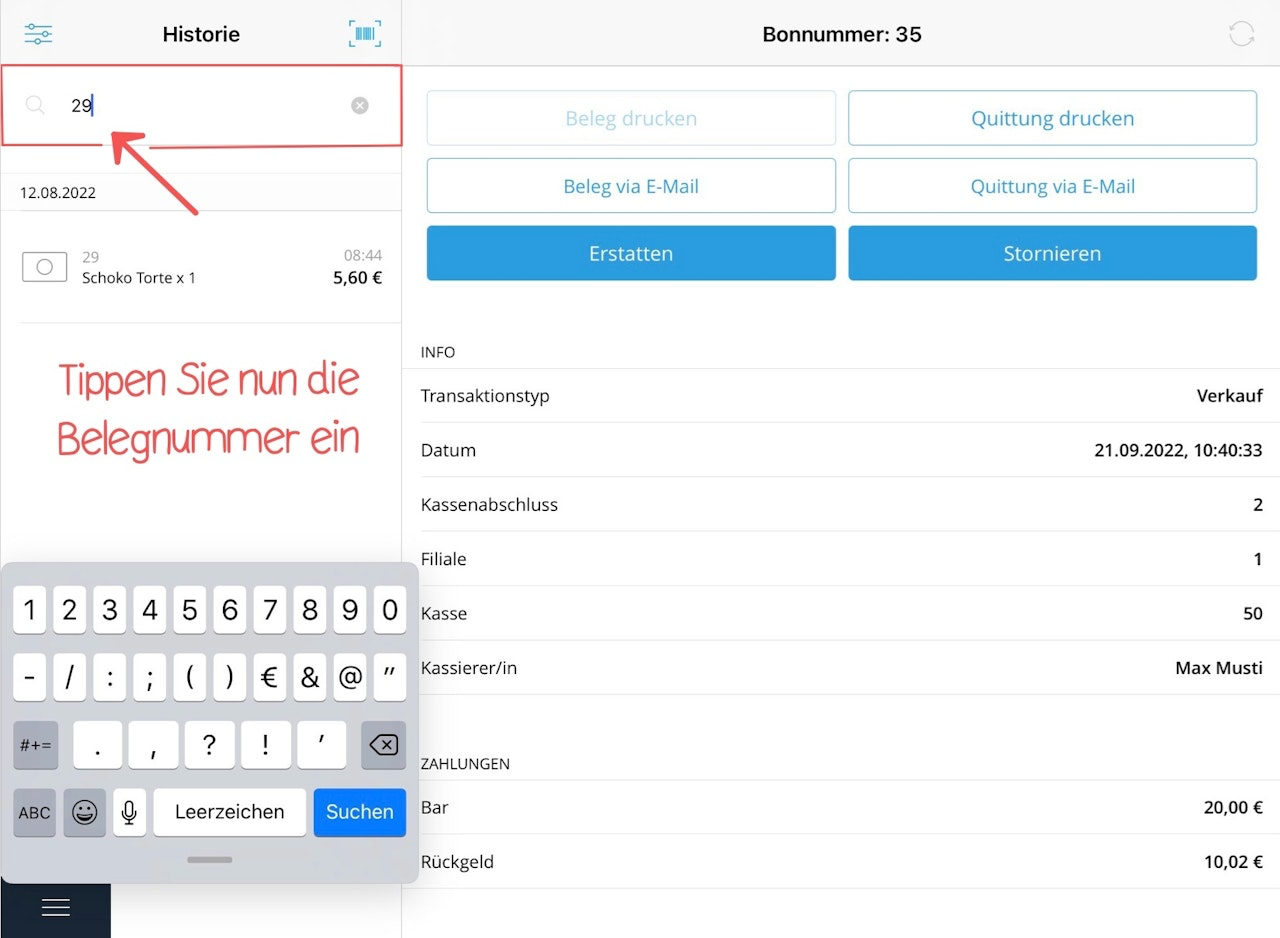
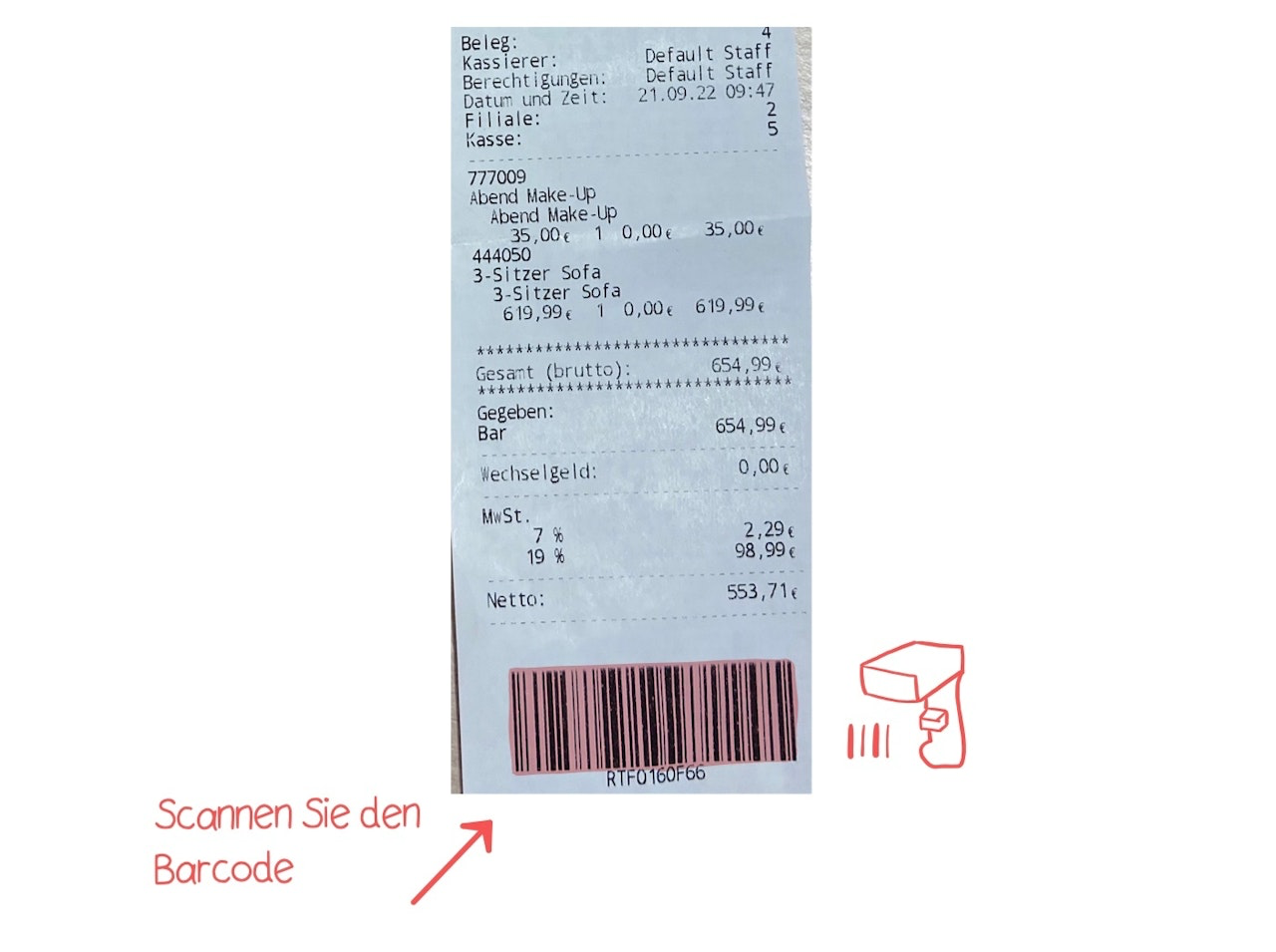
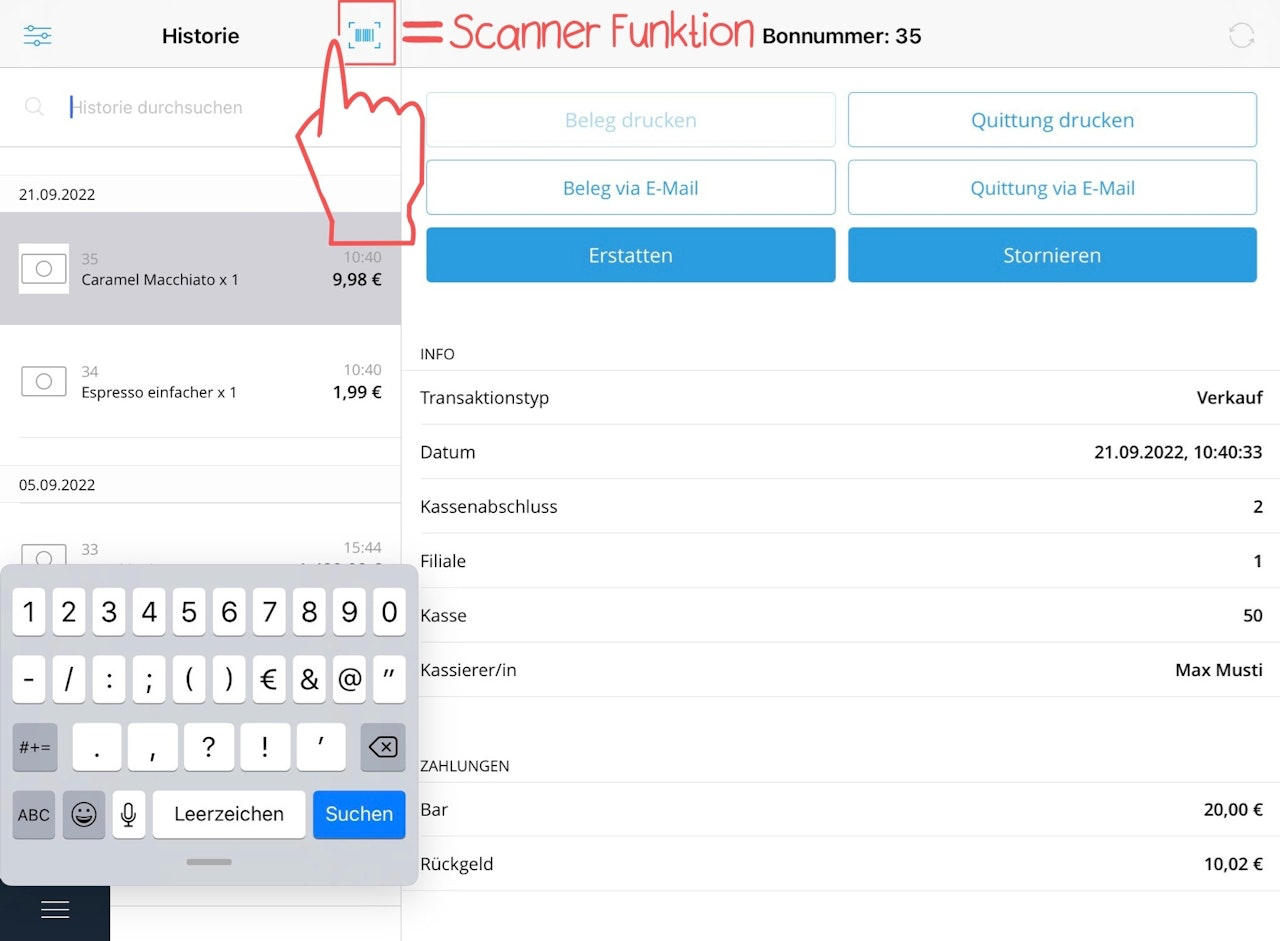
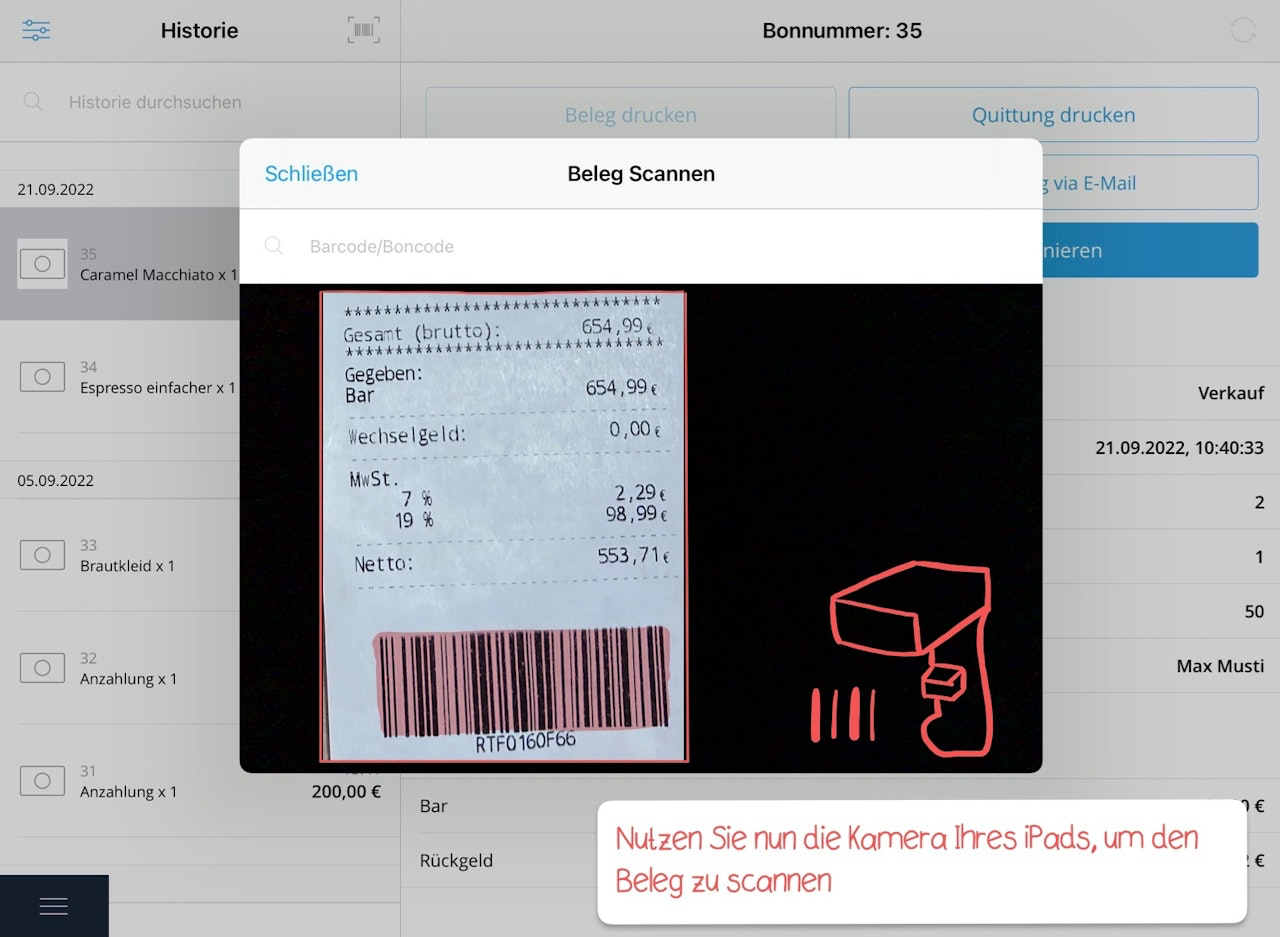
You can use the scanner function by tapping the barcode icon at the top right. This will automatically open the integrated iPad camera, with which you can scan the receipt. Once you have selected a transaction, you will receive an overview of all recorded data and a selection of available actions.
Cancel Sale
Note: A sale can only be cancelled if no register closing has been performed after the sale.
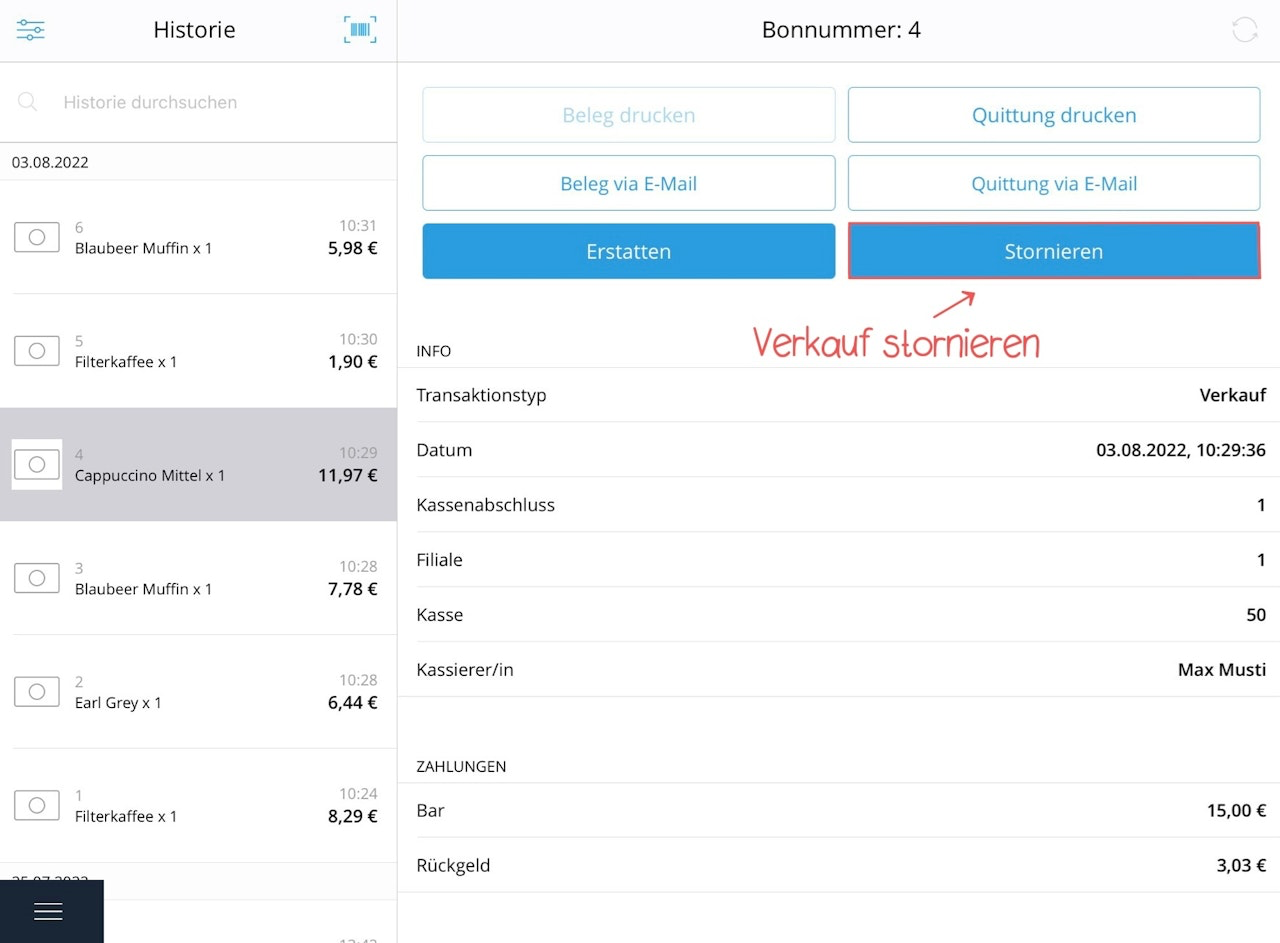
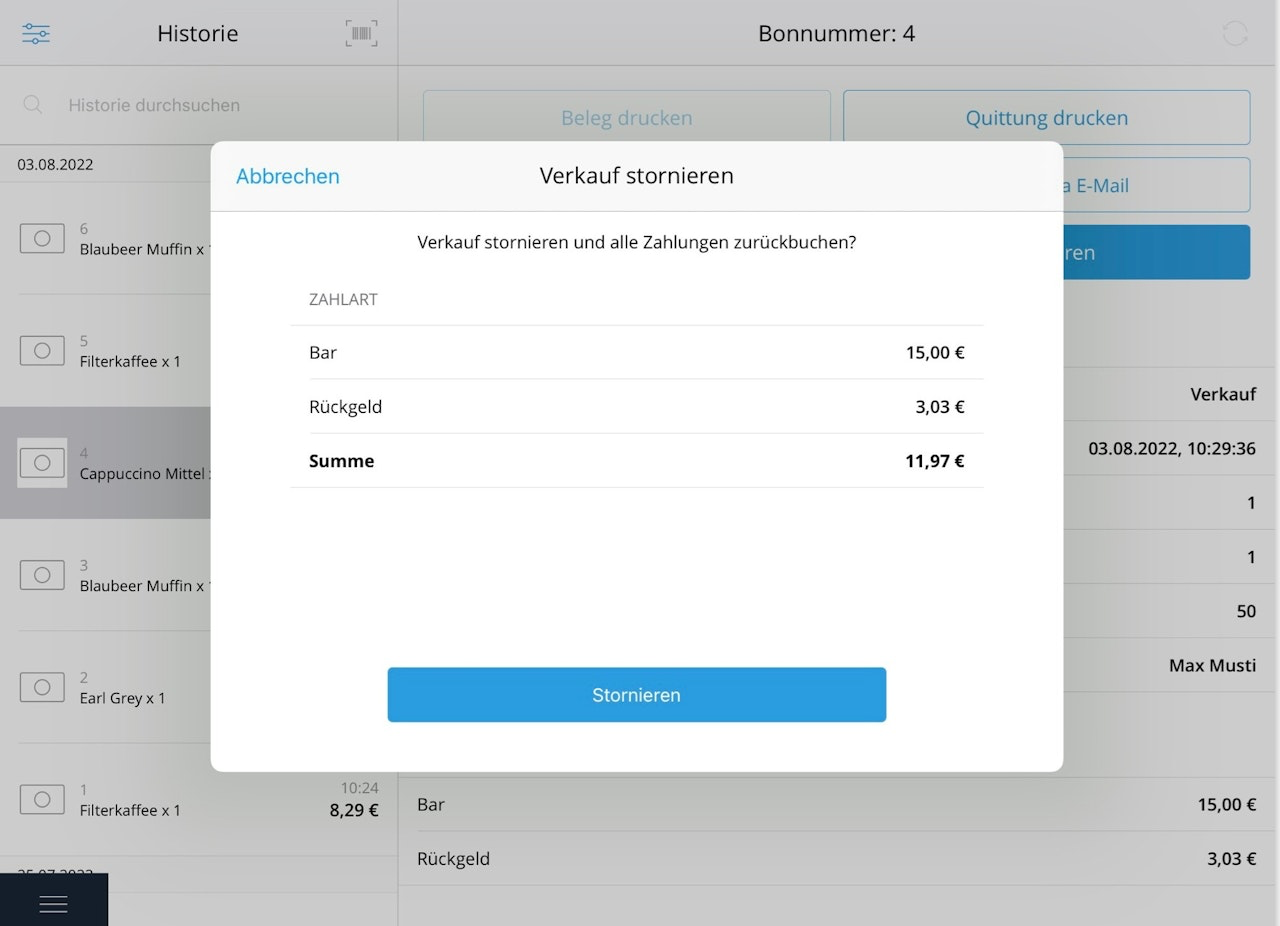
A cancellation always refers to the entire receipt! If you only want to refund individual items to your customer, you must refund the sale, not cancel it. Unlike the refund process, a cancellation prevents card payments from being debited from the cardholder's account. Tap first on the main menu and then on the "History" field. Select the blue "Cancel" field. In the new window, tap "Cancel" to reverse all payments. The refund will always suggest only the payment method that was used in the original sale.
Note: You can cancel the process at any time using the blue "Cancel" button at the top left.
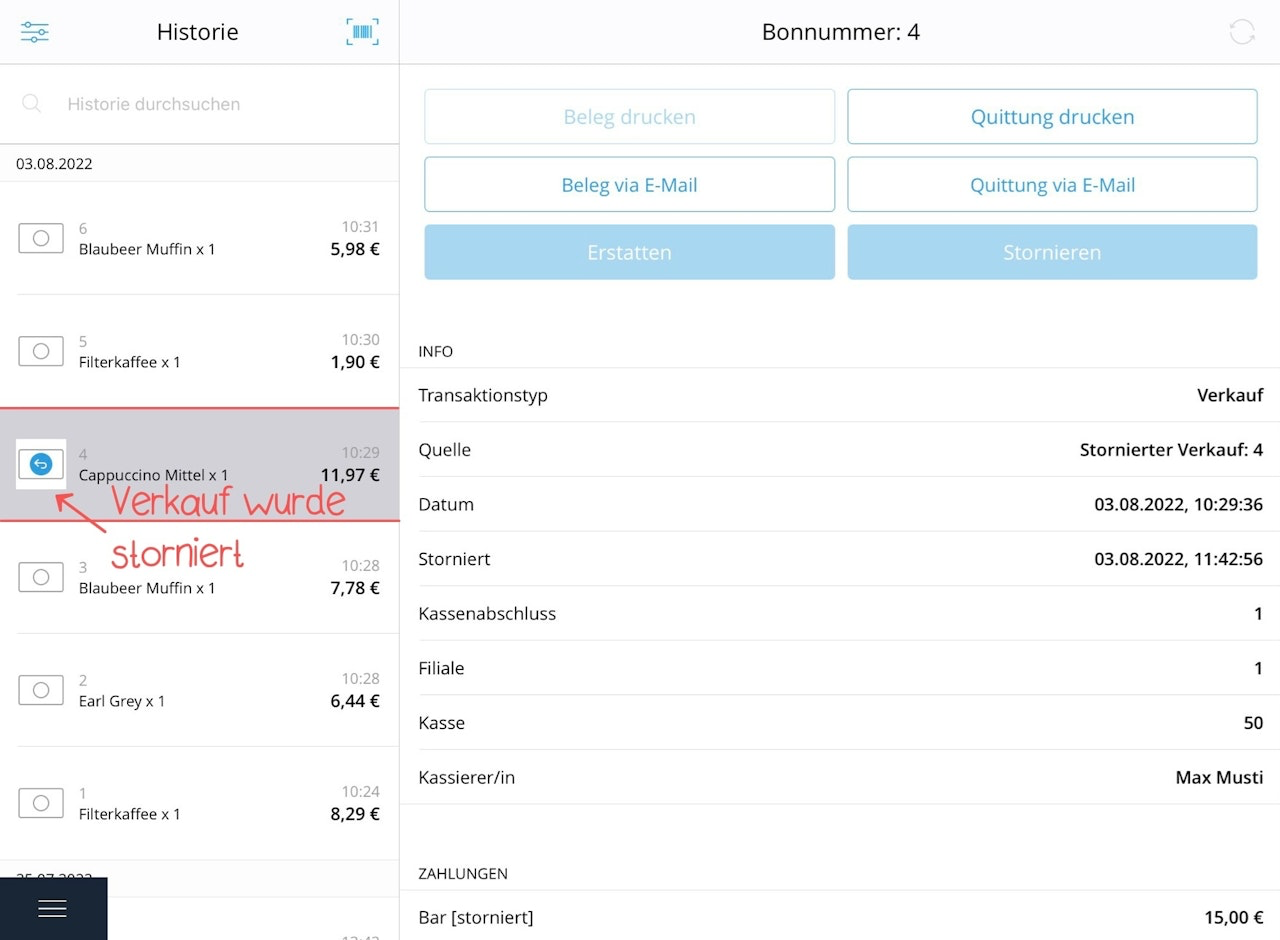
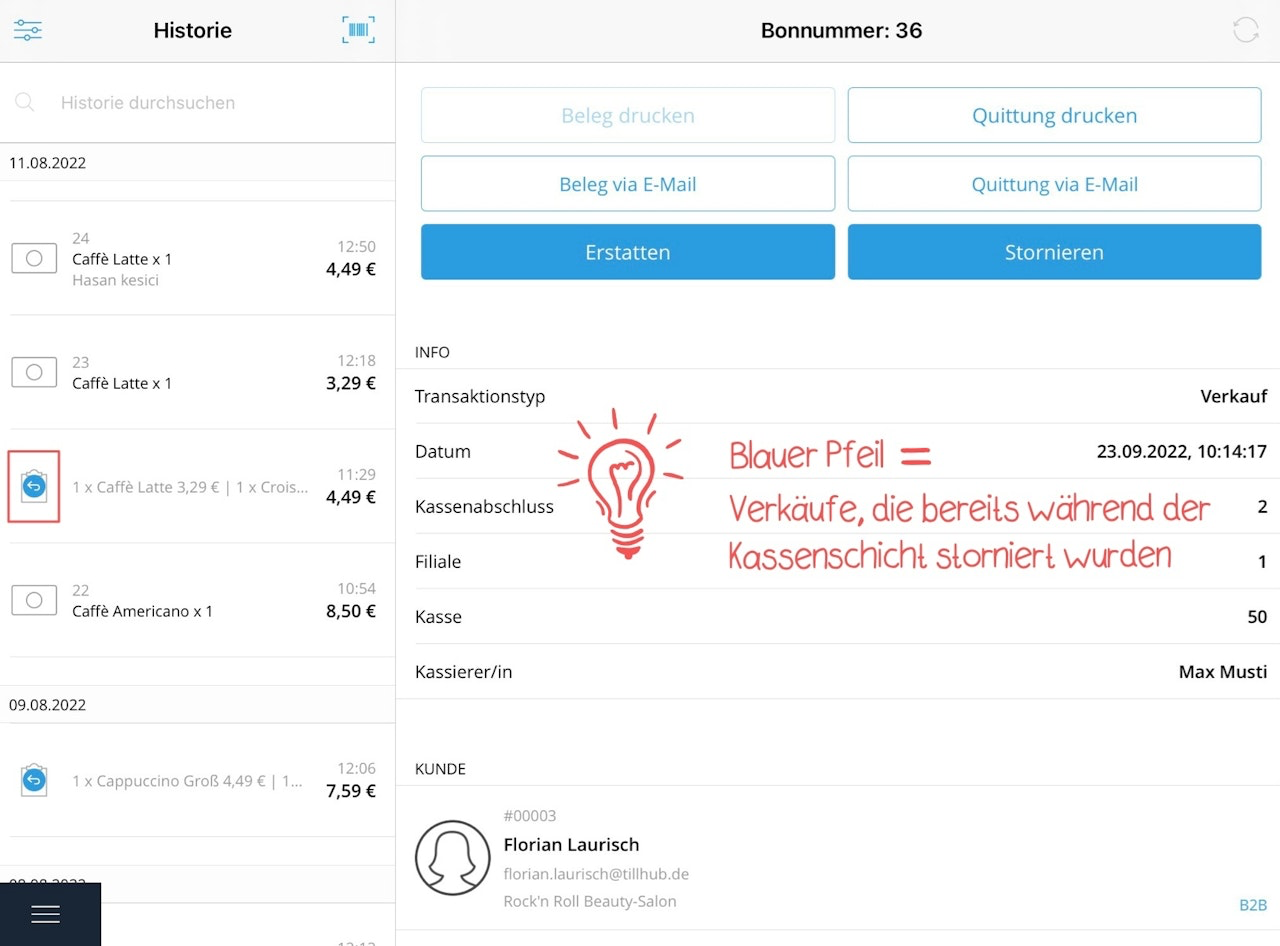
Done! You have cancelled the sale. The cancelled sale is now marked in the history with an arrow.
Refund sale
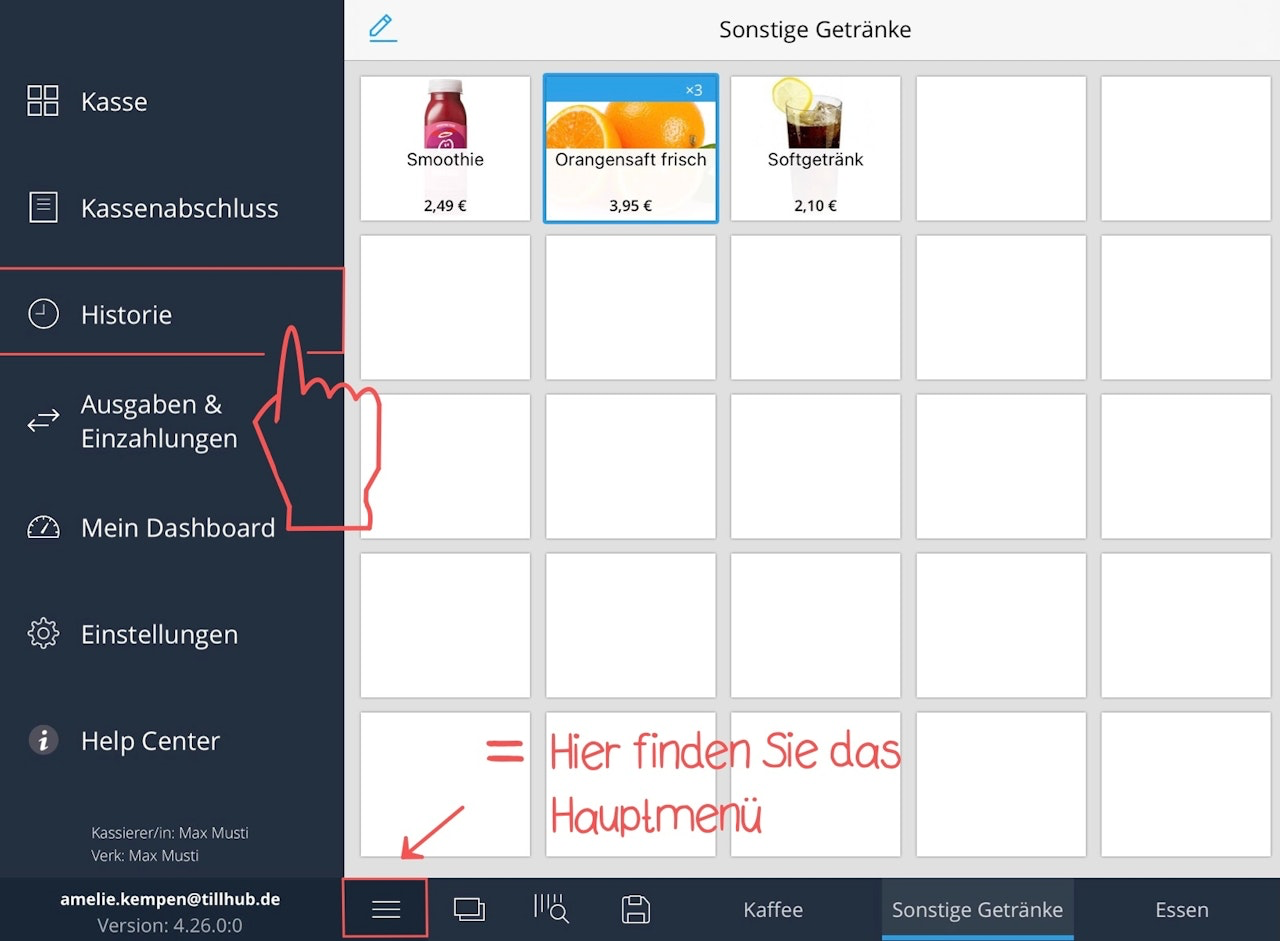
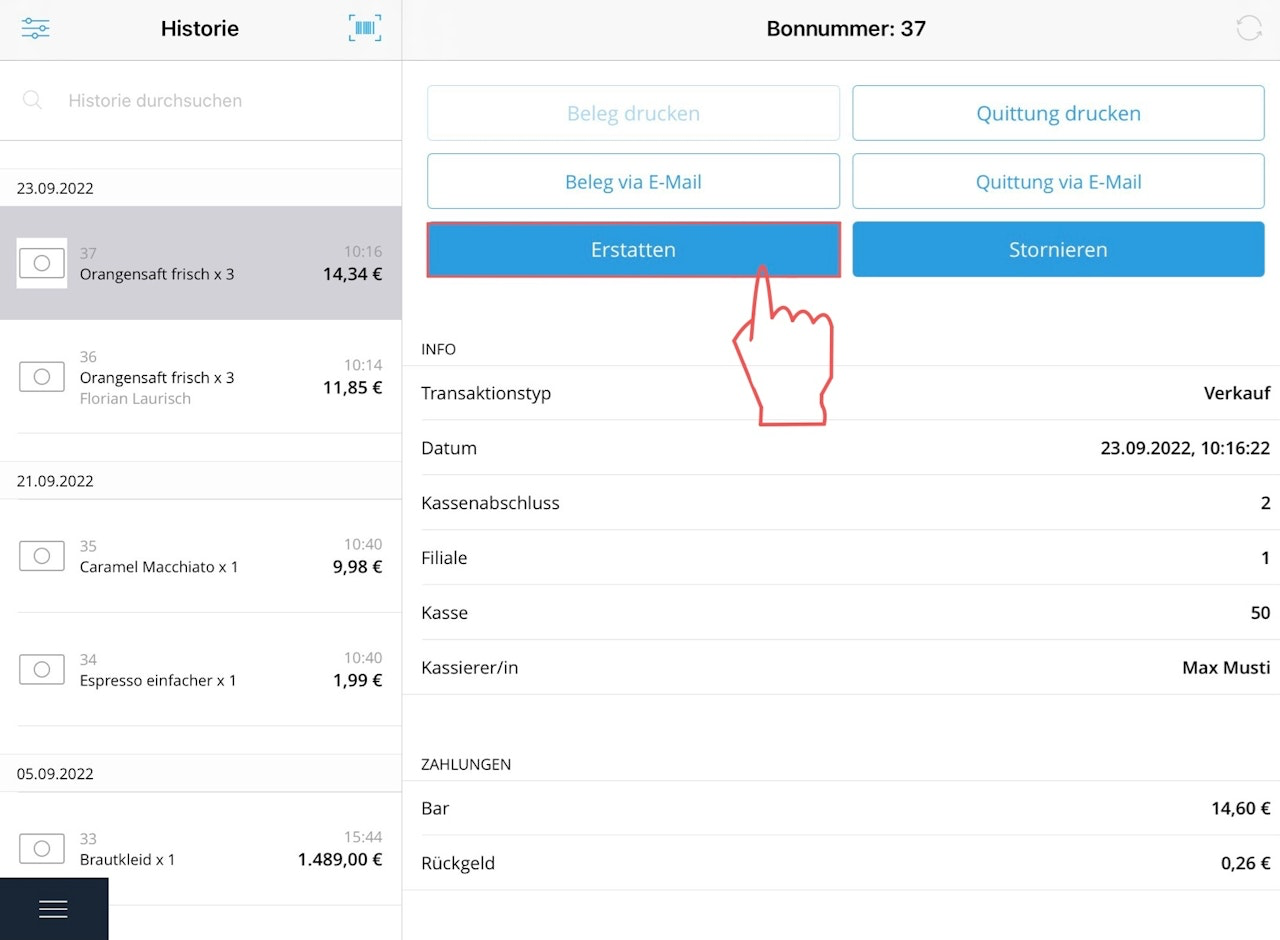
Note: Sales can be refunded both before and after a register closing. Unlike a cancellation, the refund process can also be performed for individual items on a receipt. Tap first on the main menu at the bottom left and then on the "History" field. All sales that were not cancelled during the register shift (marked with a small blue arrow) are eligible for a refund and can be selected.
If you cannot find your receipt right away, the following options are available:
- You can search the history by entering the receipt number.
- You can scan the barcode of the receipt using an externally connected scanner to find the sale in the history.
- You can use the scanner function by tapping the barcode icon at the top right. This will automatically open the integrated iPad camera, with which you can scan the receipt.
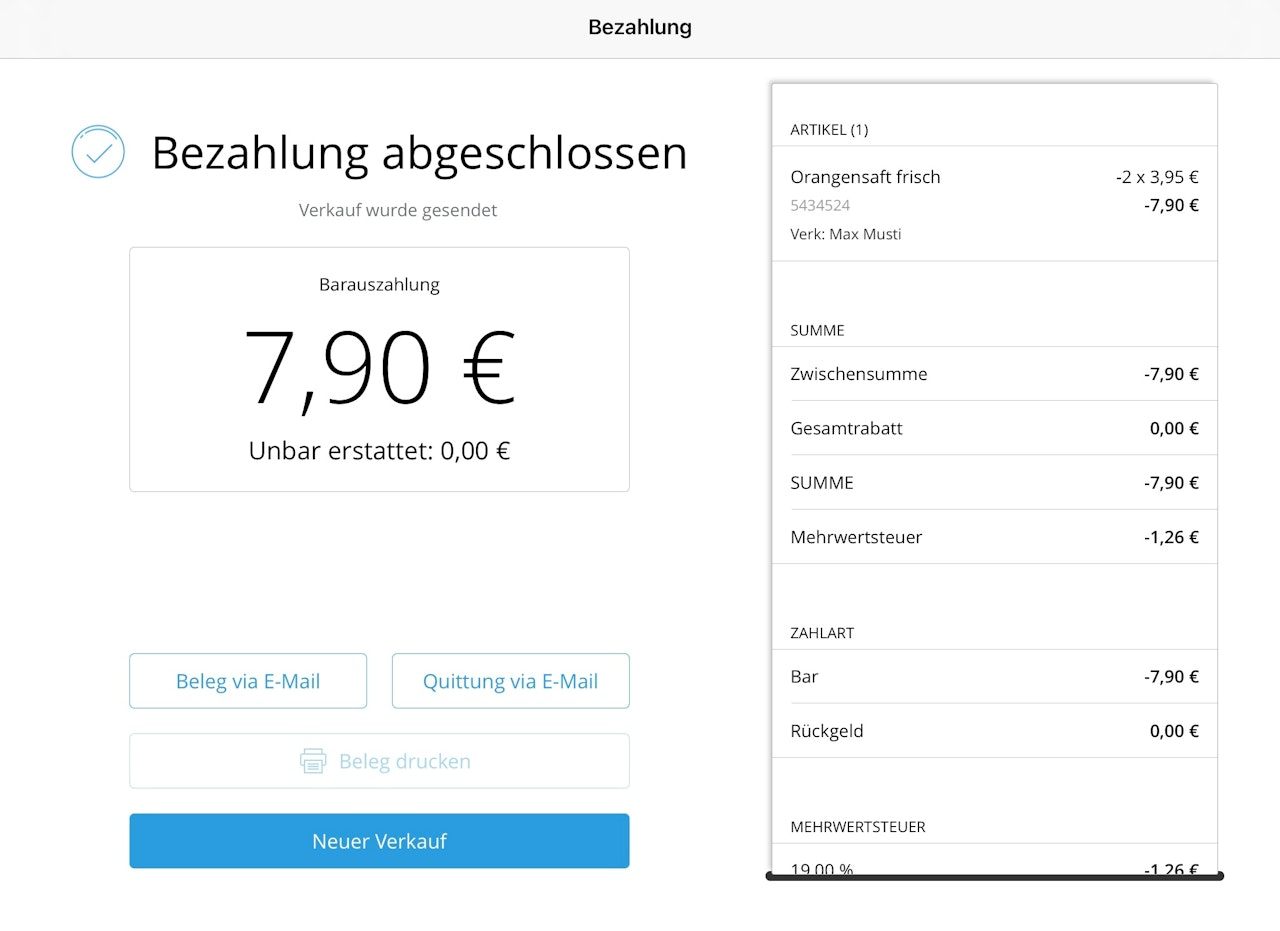
Once you have selected the correct receipt, tap the "Refund" button. A new pop-up window will open with all sales items. You can either select all items at once by tapping "Select all". Or you can select individual sales items. Your selection will be confirmed by a blue checkmark on the right edge. Using the plus and minus signs, you can specify the quantity you want to refund. For example, if you sold 3 x "Fresh orange juice" but want to refund only 2 of them, you increase the quantity using the plus sign by 2.
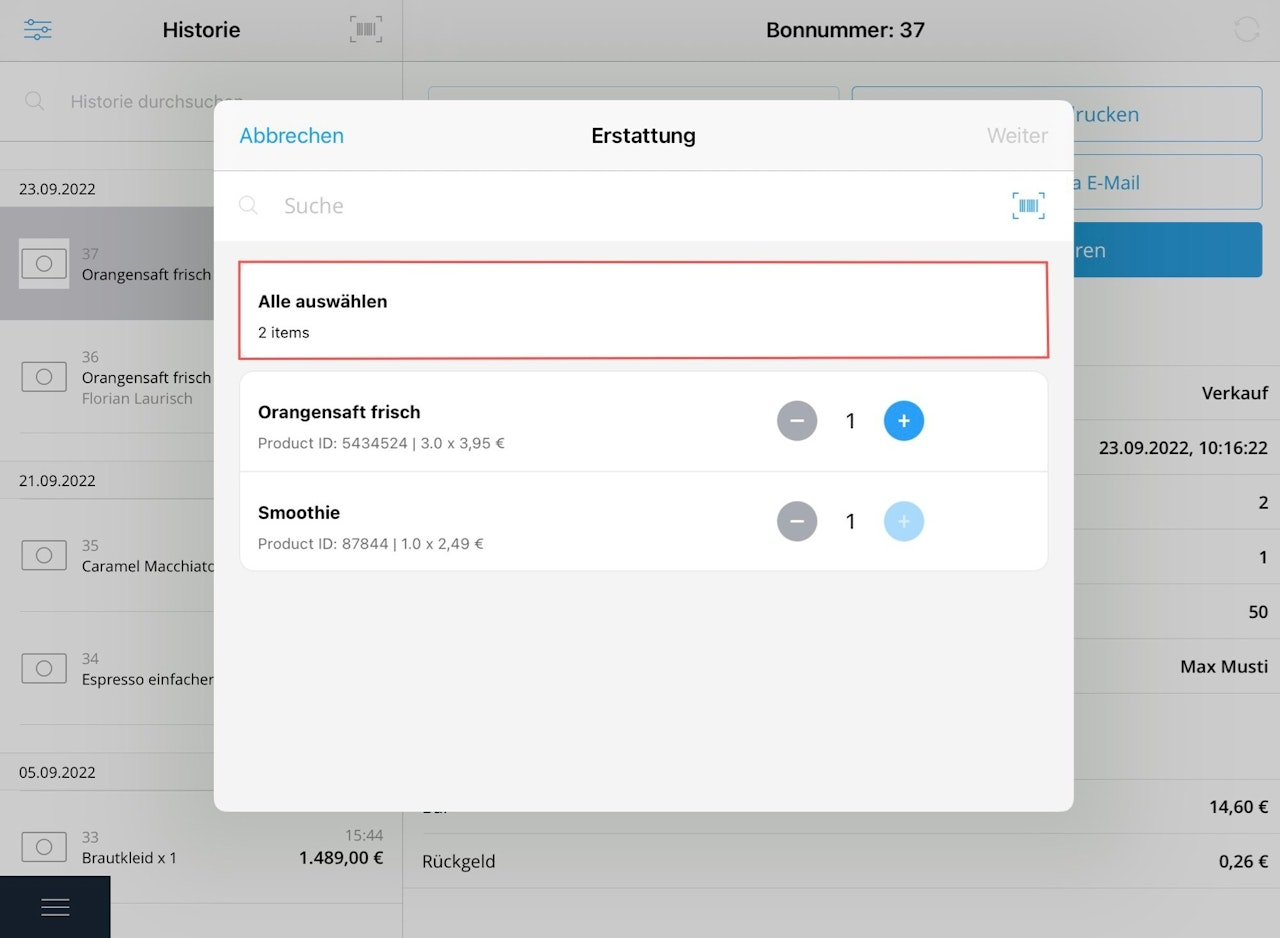
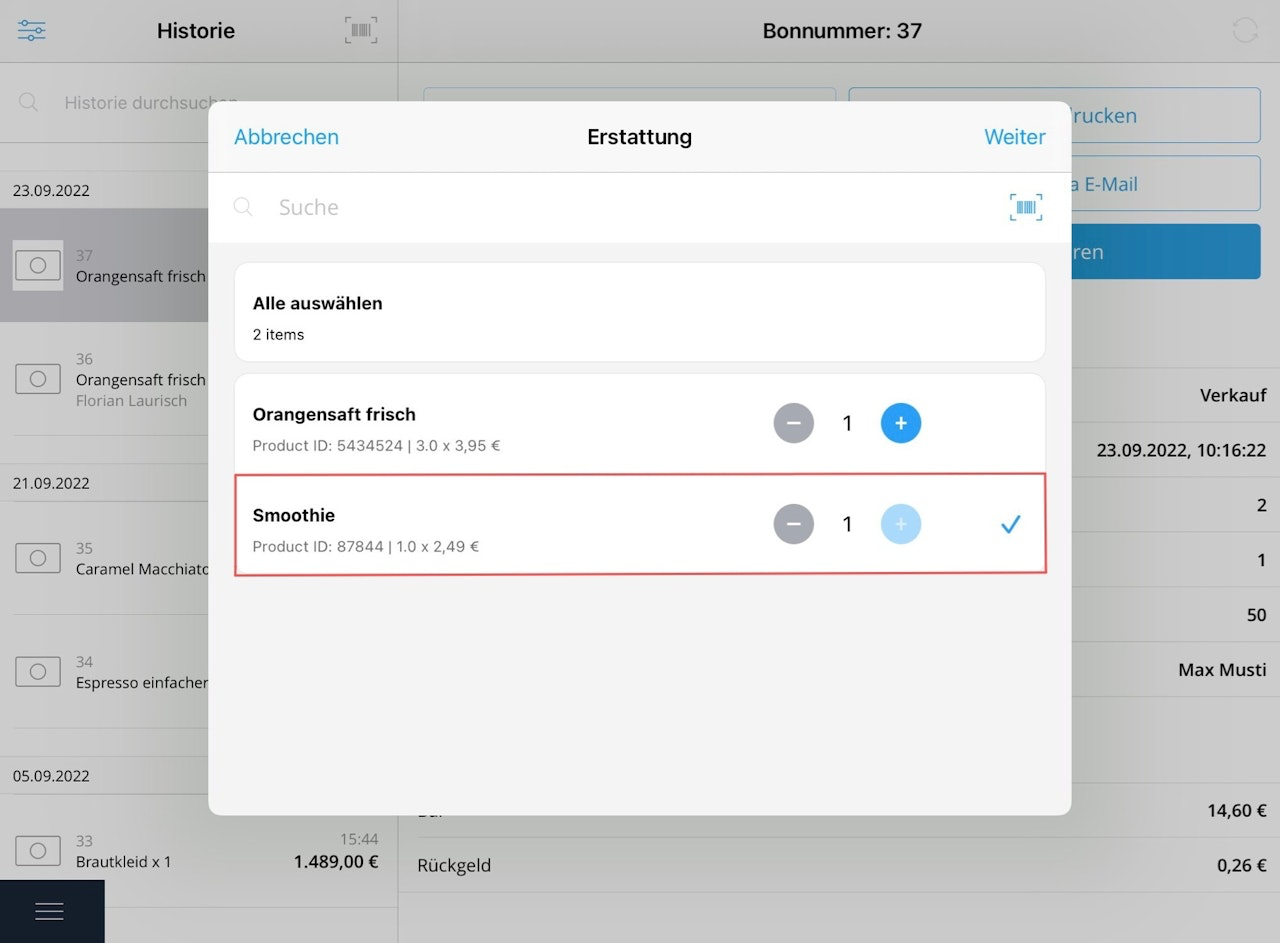
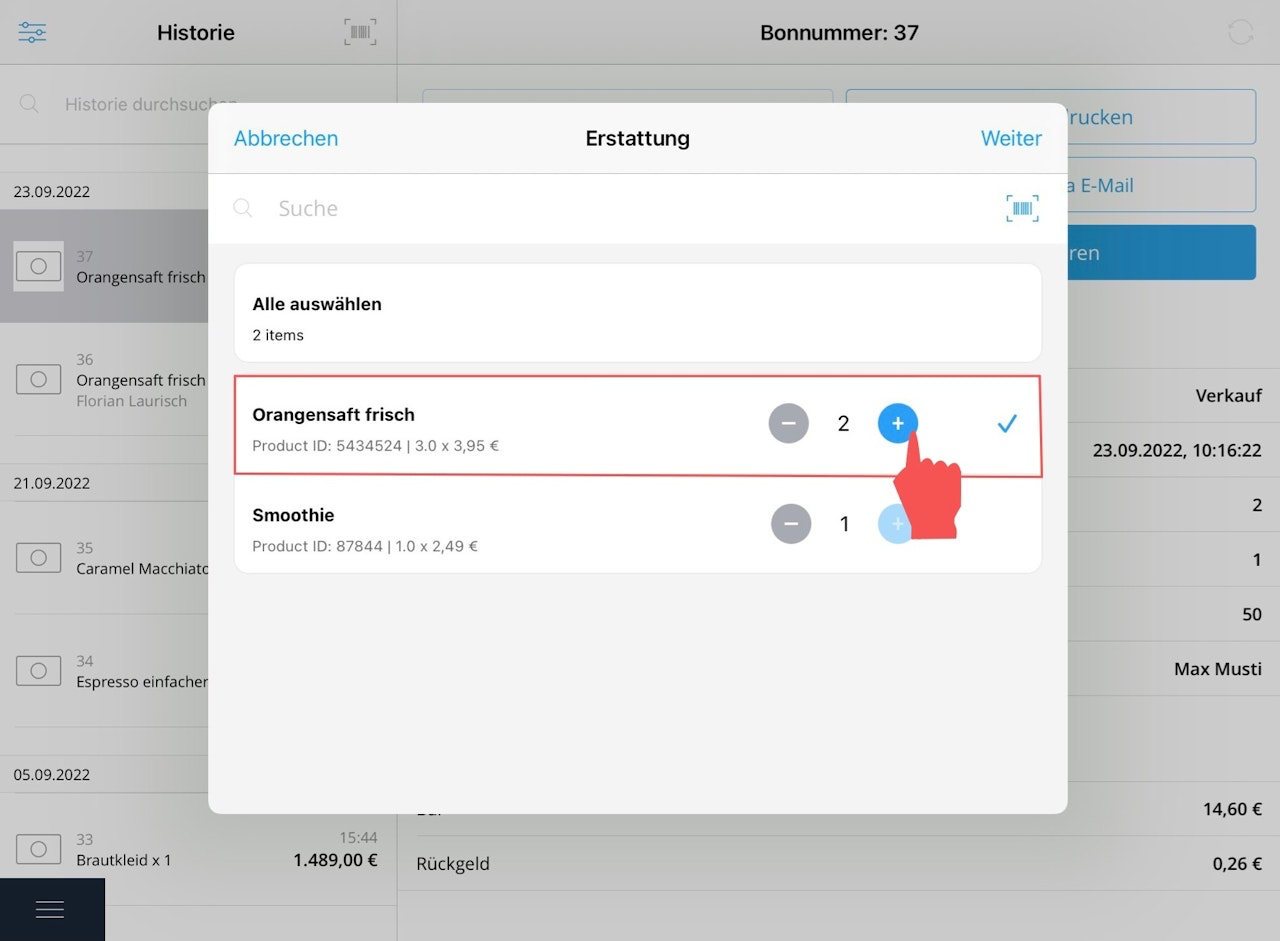
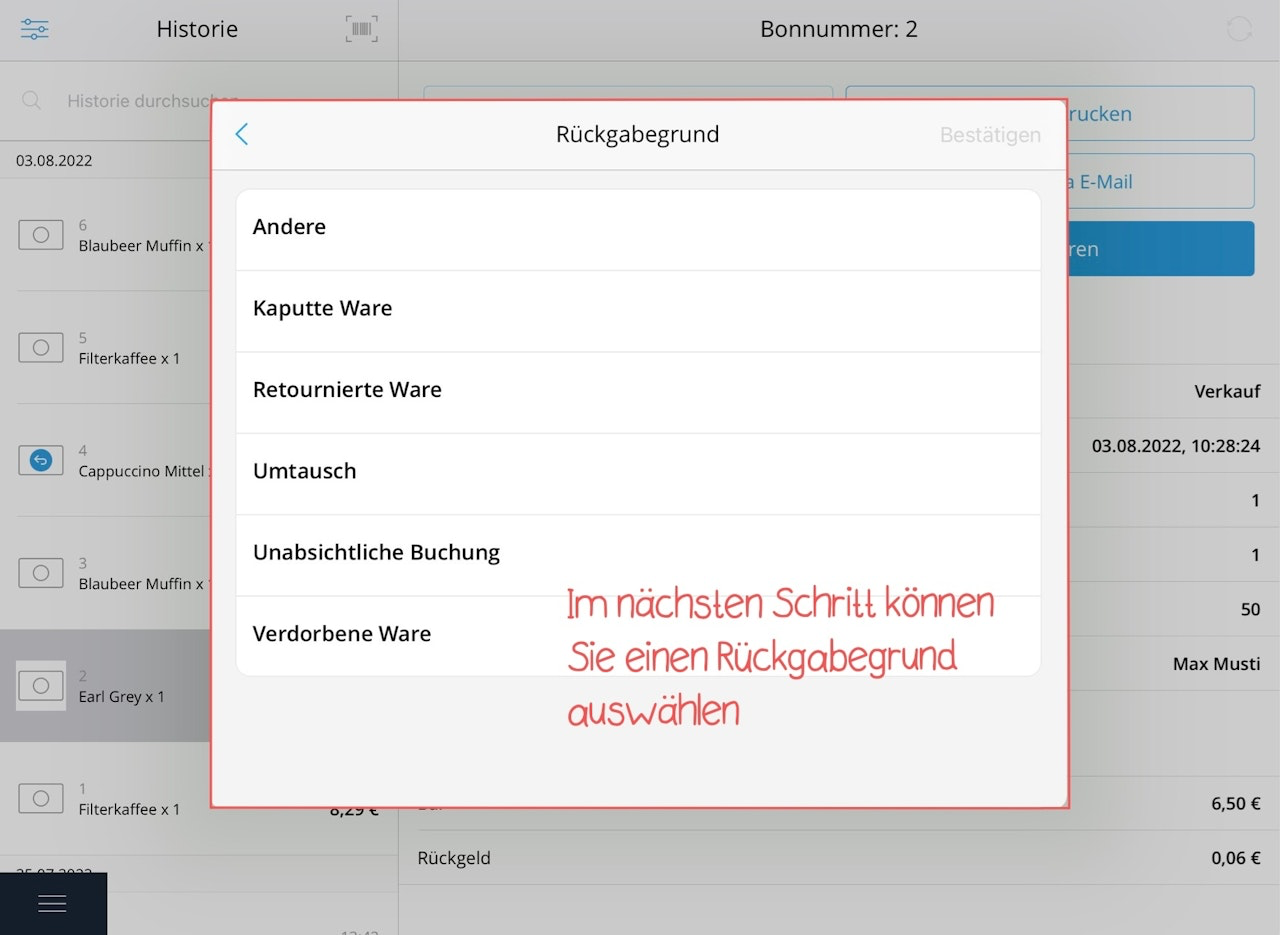
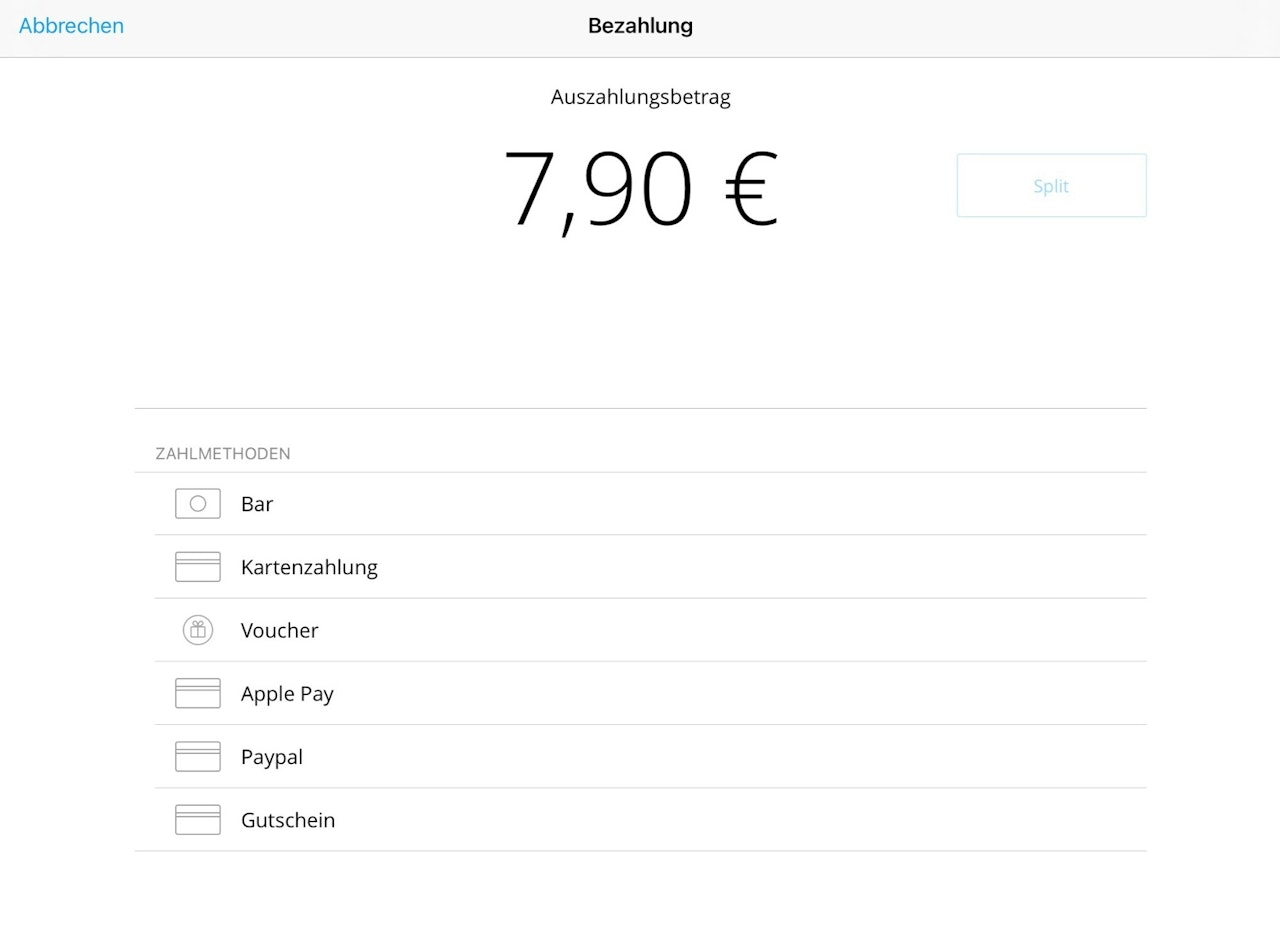
Once you have confirmed the quantity to be refunded via the "Next" button at the top right, another window with different return reasons will appear. Select a reason and optionally add a comment. In the next window, you can choose the payment method for the refund. Unlike a cancellation, the refund process allows you to choose freely between different payment methods. Done! You have refunded the sale.
Send receipt by email
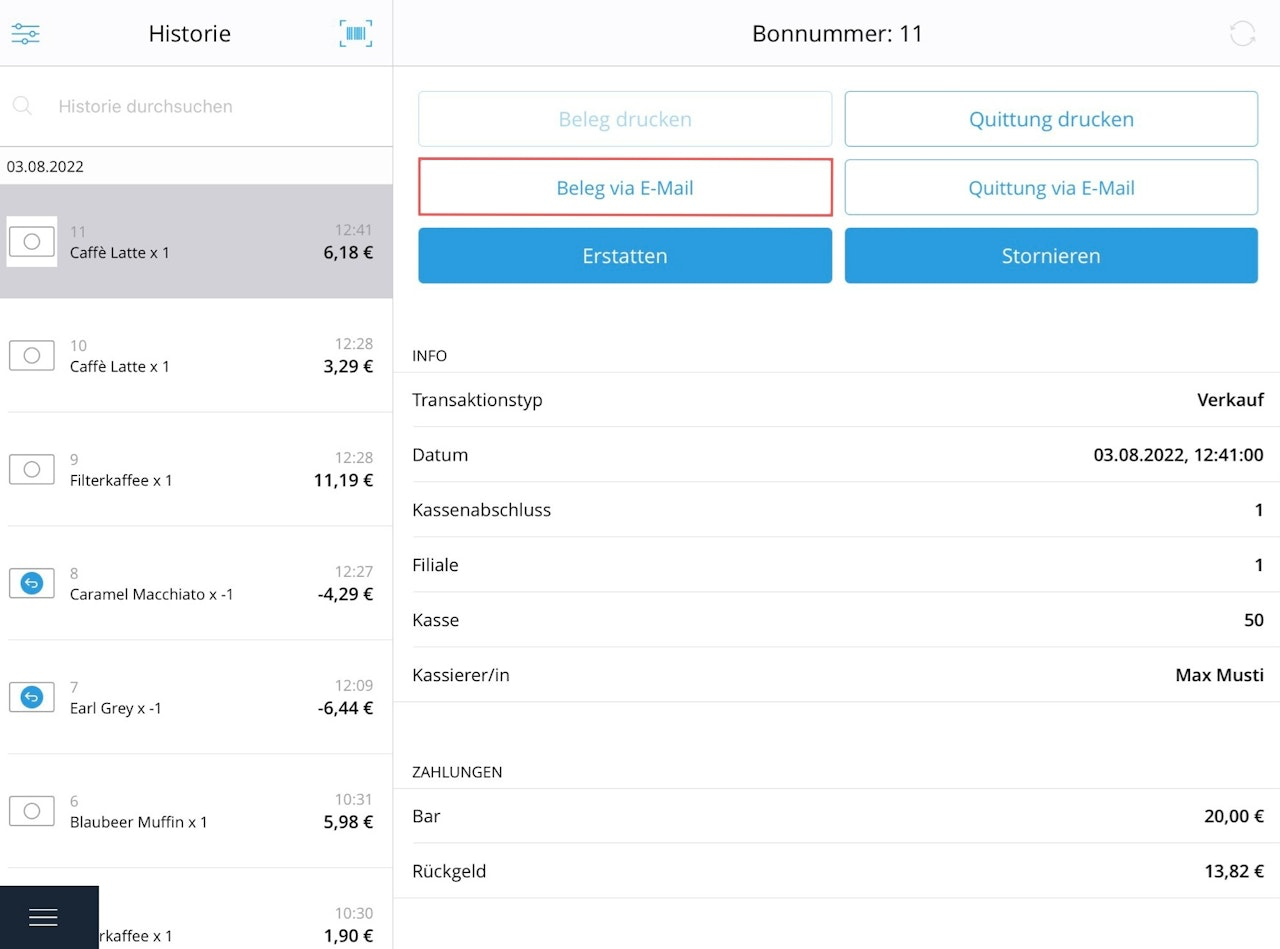
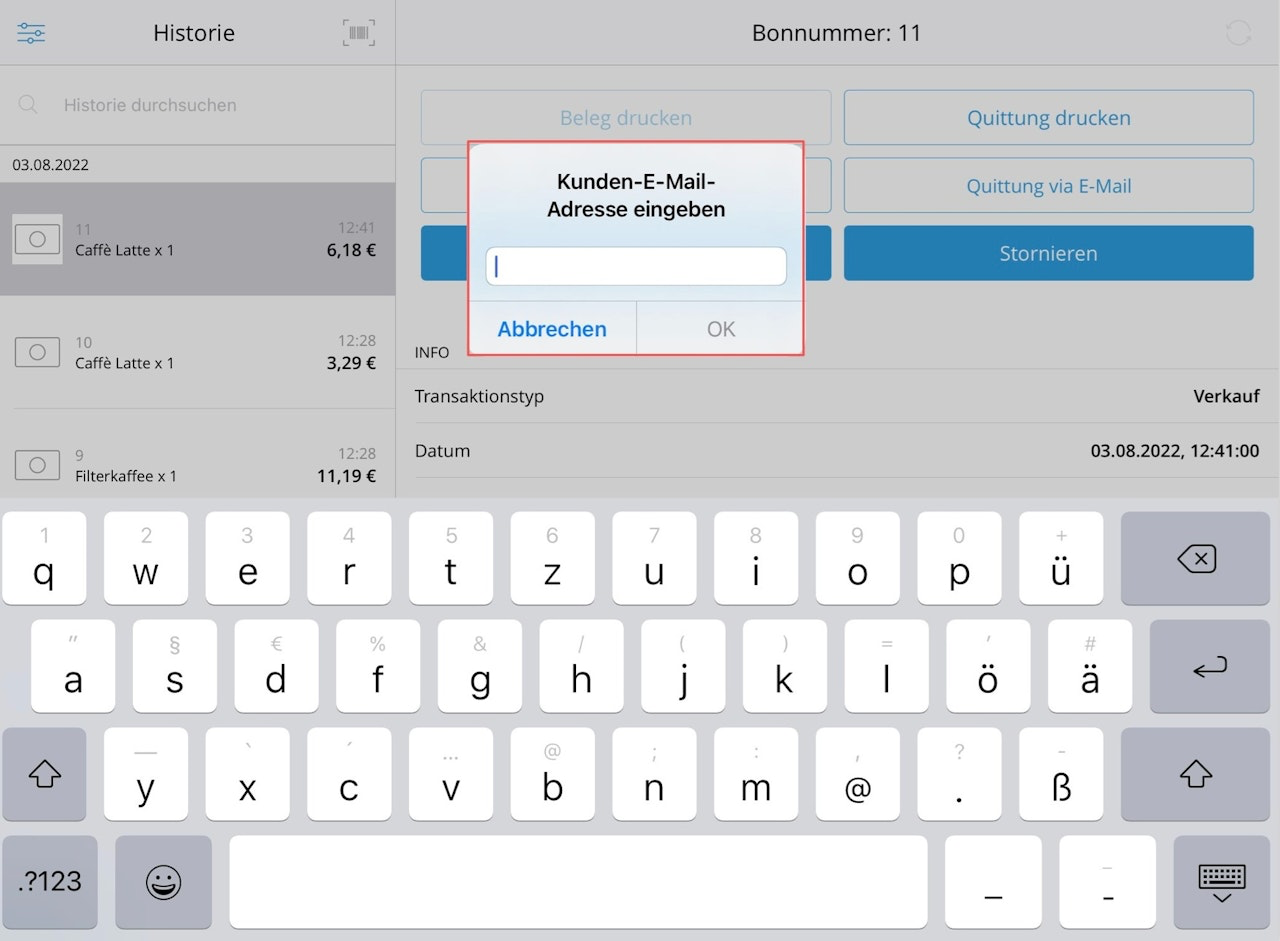
After each completed sale, you can print the receipt or send it to the customer via email. If you want to send a receipt by email at a later time, follow these steps: Tap on the main menu at the bottom left and select "History". Select a sale from the list on the left. You can also search for specific terms. The selected sale will be displayed on the right side of the screen. Then select the field "Send receipt via email". Now enter the customer's email address in the window and send the receipt by tapping "OK". Done! You have sent your receipt by email.
Print receipt
Note: To print a receipt, you must first connect your register to the printer from the hardware box.
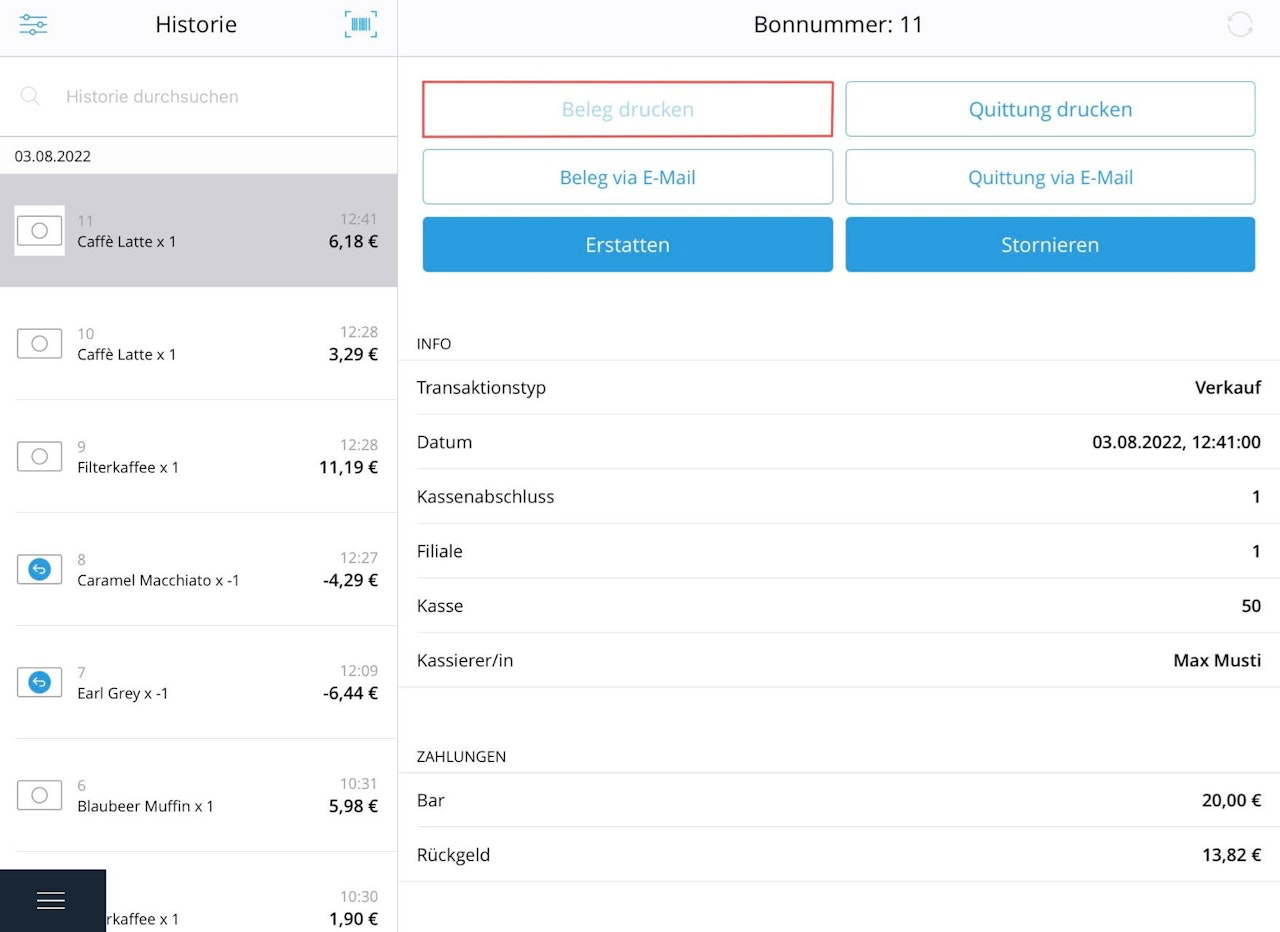
After each completed sale, you can print the receipt or send it to the customer by email. If you want to print the receipt at a later time, follow these steps: Tap on the main menu at the bottom left and select "History". Select a sale from the list on the left. You can also use "Search history" to look for sales. The details of the selected sale will be displayed in the main field. Then select "Print receipt". Done! You have printed your receipt.
Was this article helpful?
That’s Great!
Thank you for your feedback
Sorry! We couldn't be helpful
Thank you for your feedback
Feedback sent
We appreciate your effort and will try to fix the article
