Standard Article
Modified on Mon, 16 Feb at 10:12 AM
TABLE OF CONTENTS
Creating a Standard Item
In the following guide, we will show you how to create products in your dashboard. Choose this item type if you want to offer a product in a standard version with no variations.
Metadata
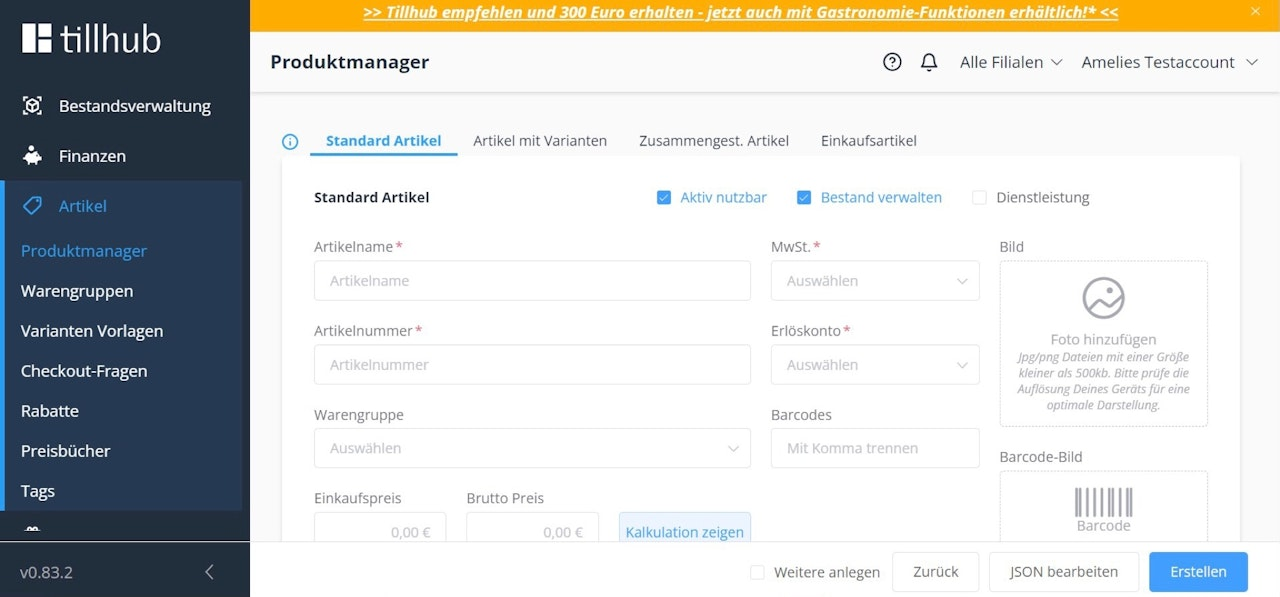
Regardless of which item type you choose, you should always start by entering the metadata. This includes the item name, item number, product group, VAT, revenue account, as well as the purchase price and gross price.
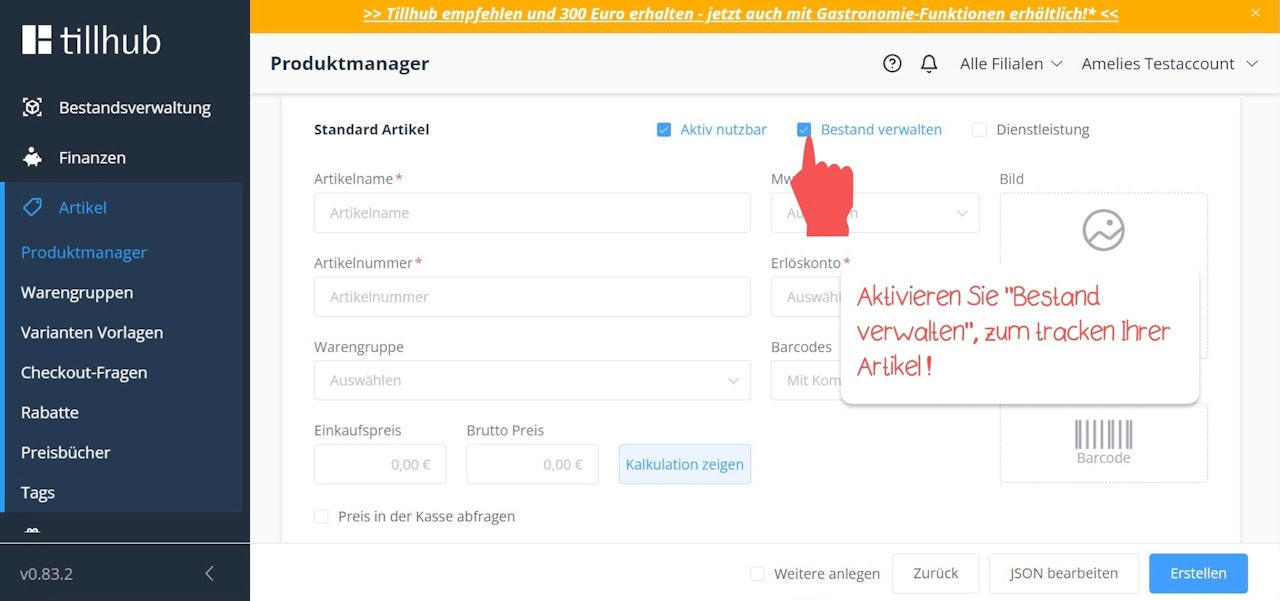
If you select an already created product group in the item creation form, the Revenue Account and VAT fields will be filled automatically. These fields are marked with an asterisk (*). Under Barcodes, you can also enter, for example, the EAN number of your product.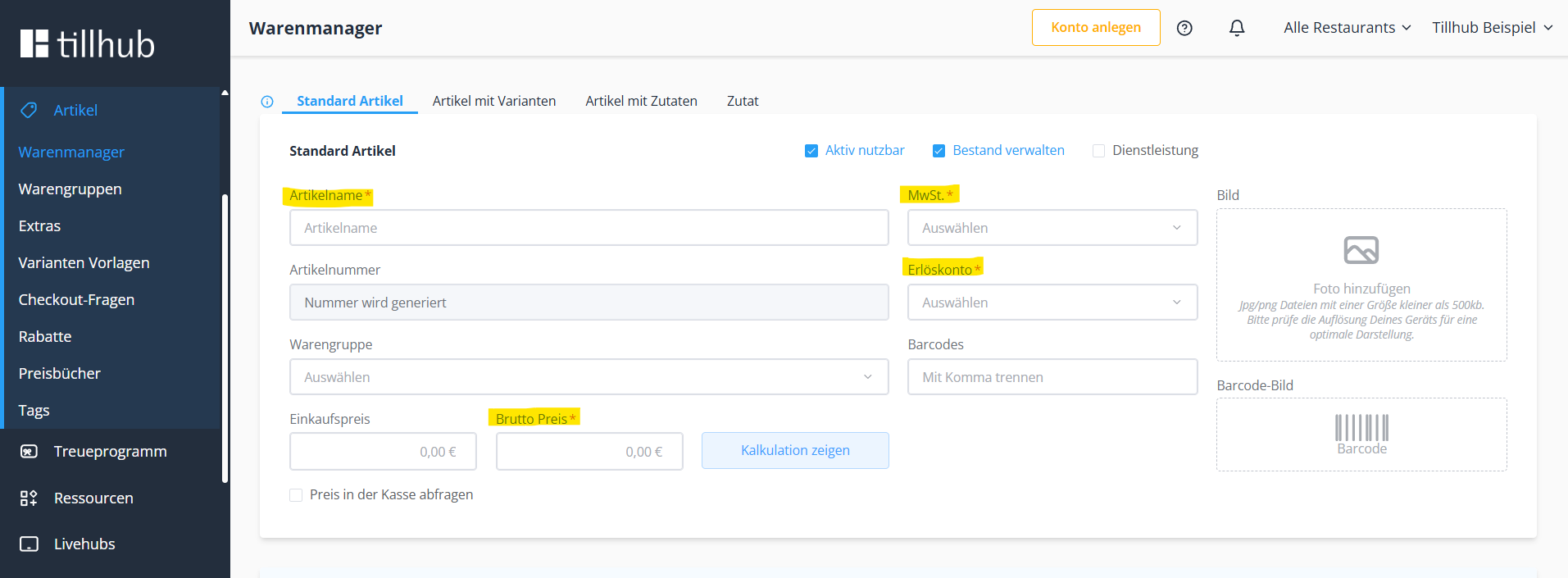 If you want to track your stock, enable the checkbox “Manage Stock”.
 If you want to create an item that allows for manual price entry at checkout, enable the checkbox “Ask Price at Checkout” and set the gross price to 0. Each time you select this item later in the iPad POS, you will be prompted to enter the price manually.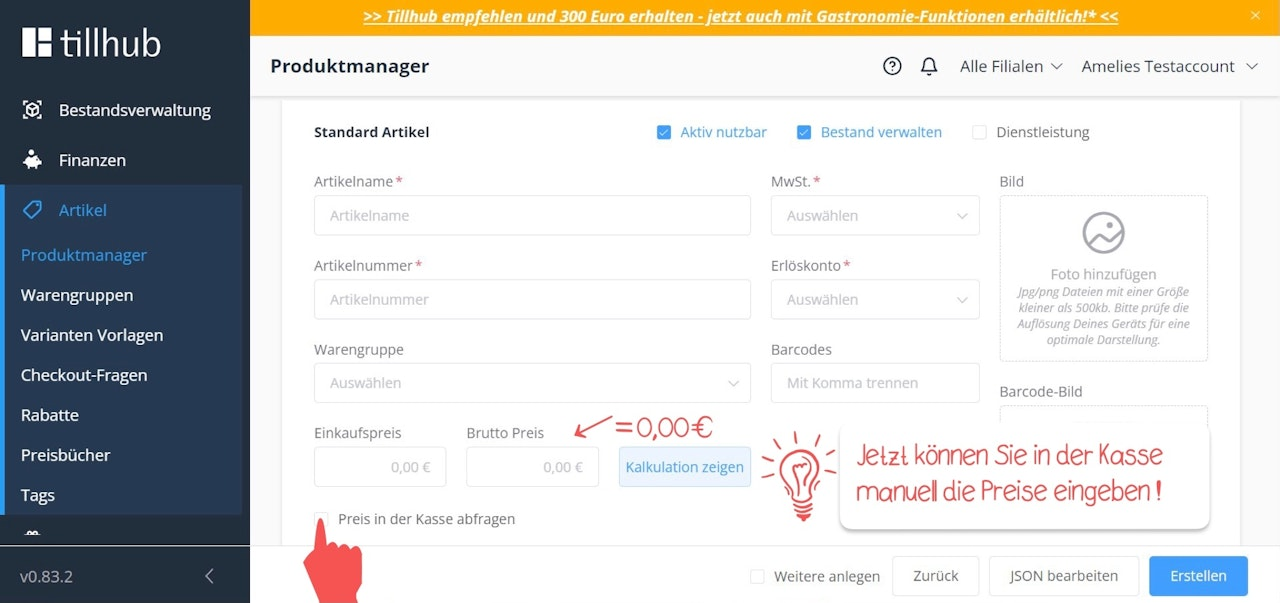
Stock
If you have enabled “Manage Stock” in the metadata, you can now enter the stock for your product under Stock. Open the drop-down menu to see your different branches and warehouses.
Click the cube icon to enter stock for the selected branch.
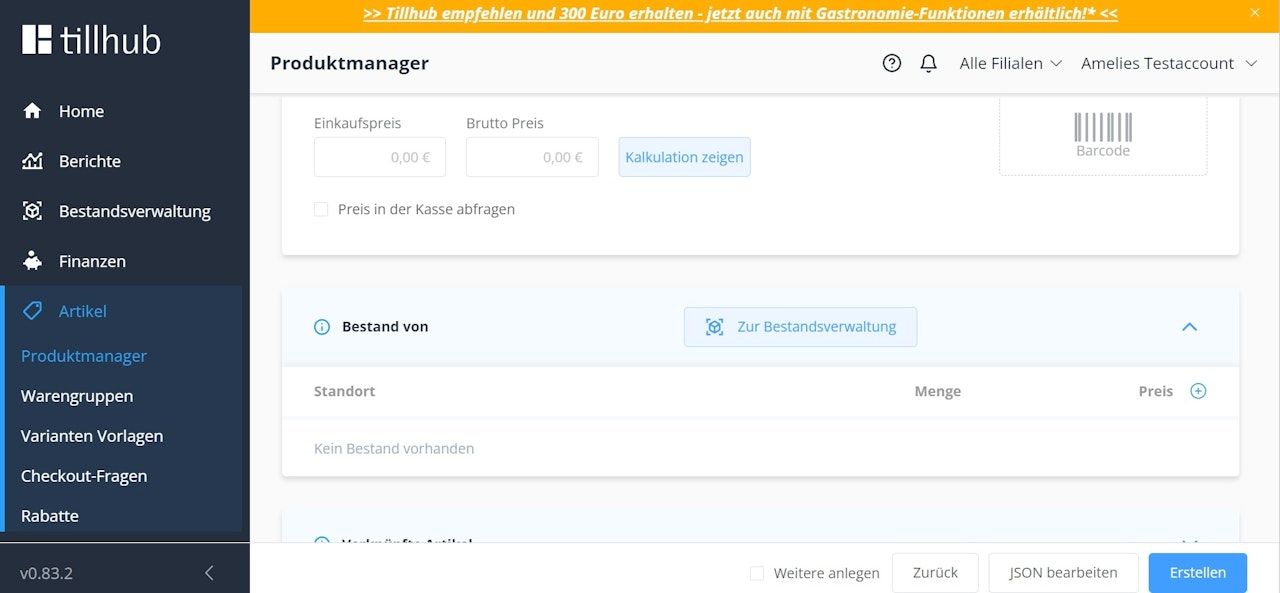
A new window will open. Use the Item field to search for the product for which you want to enter stock.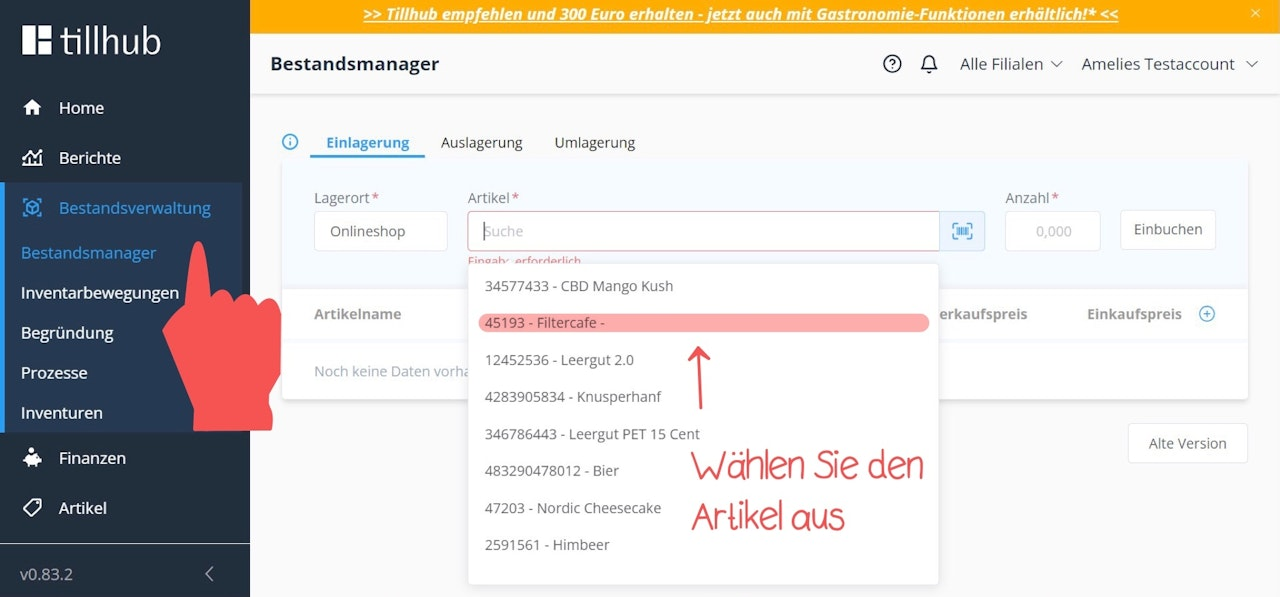
Next, enter the stock quantity in the Quantity field and click Post to save.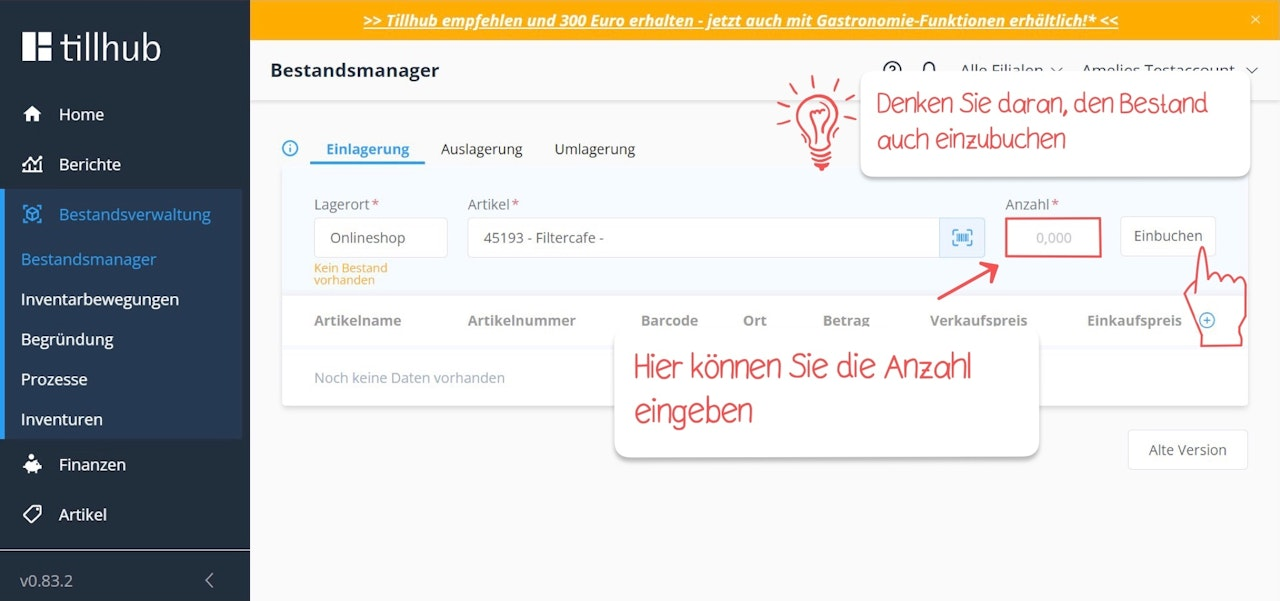
Advanced Information
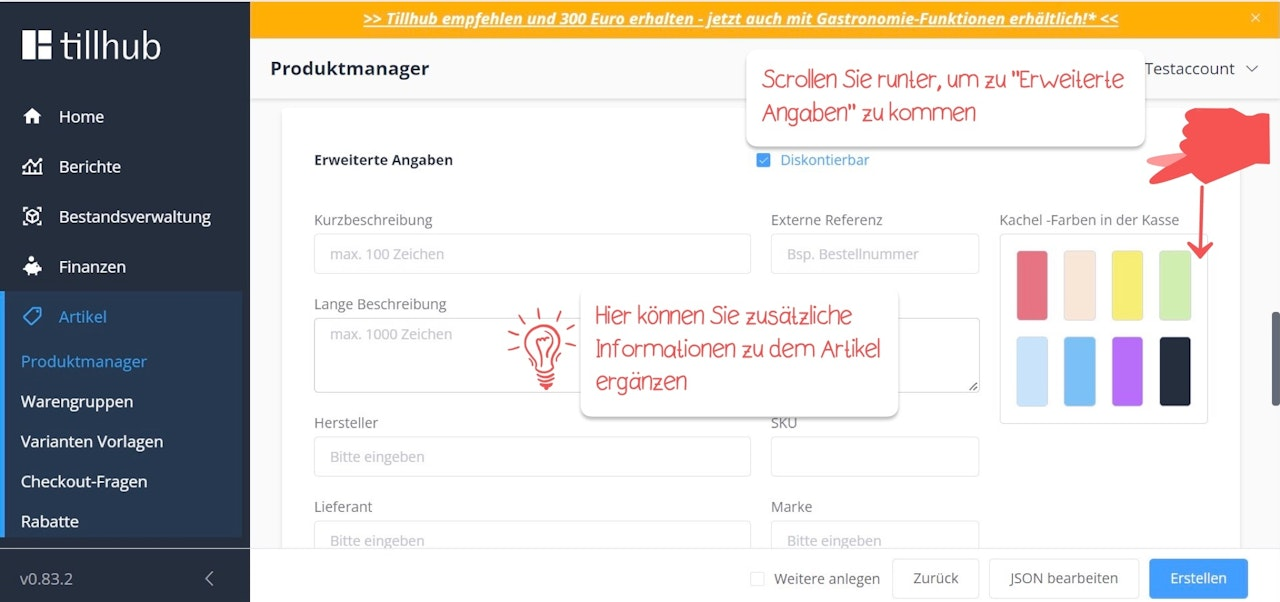
Under Advanced Information, you can enter additional details about the product, such as the manufacturer, supplier, SKU, and brand. You can also select the tile color for your product.
Only fill out the fields that you consider necessary.
Here you can also enter a short and long description. For example, if your product is displayed on a website with many other products, the short description will be visible in the overview. When a customer clicks on the product, the long description will be displayed.
Under Location, you can specify in which branch the item is available for sale. By default, the field is set to “Everywhere”.
If you do not want the item to be available in all branches, click the field and select the specific branch or warehouse.
Pricing
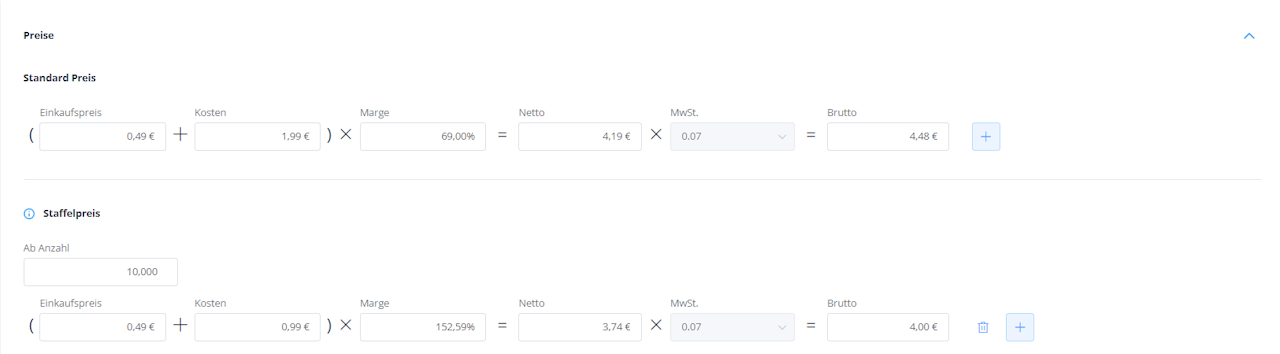
Under Prices, you can manage both standard prices and tiered pricing for your products.
You can manage standard prices in detail by entering values for Purchase Price, Cost, and Margin, or alternatively, enter the Gross Price to automatically calculate the margin.
For tiered pricing, you can set different prices depending on the quantity sold. For example, if you want the price to drop from €4.48 to €4.00 per unit starting from a quantity of 10, you can configure this here.
Finally, click the blue “Create” button at the bottom right to save the item.
Was this article helpful?
That’s Great!
Thank you for your feedback
Sorry! We couldn't be helpful
Thank you for your feedback
Feedback sent
We appreciate your effort and will try to fix the article
