3) What is a cash float?
Modified on Mon, 16 Feb at 10:12 AM
In this article, we explain how to enter the cash float before opening the register. By cash float, we mean the amount of cash you want to have in the drawer when you start the day. In our POS system, you can adjust the cash float at any time, or you can program a fixed float preset.
We also explain how to record income or expenses as extraordinary transactions affecting the register’s cash balance.
Fixed float preset
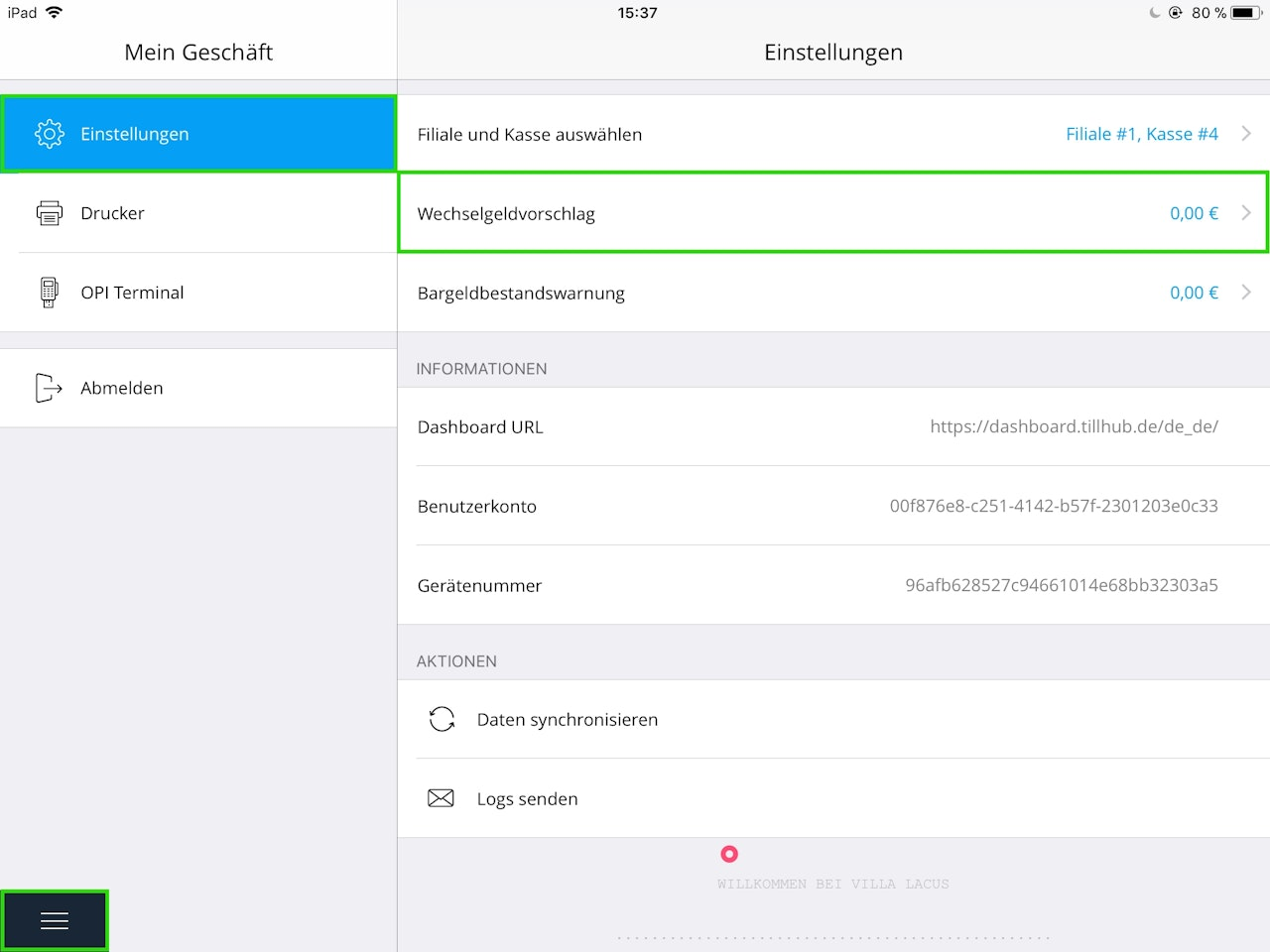
If you want to start each day with a fixed cash float, you can set this via the Float preset.
- In the Tillhub app’s main menu, go to Settings and tap Float preset on the right.
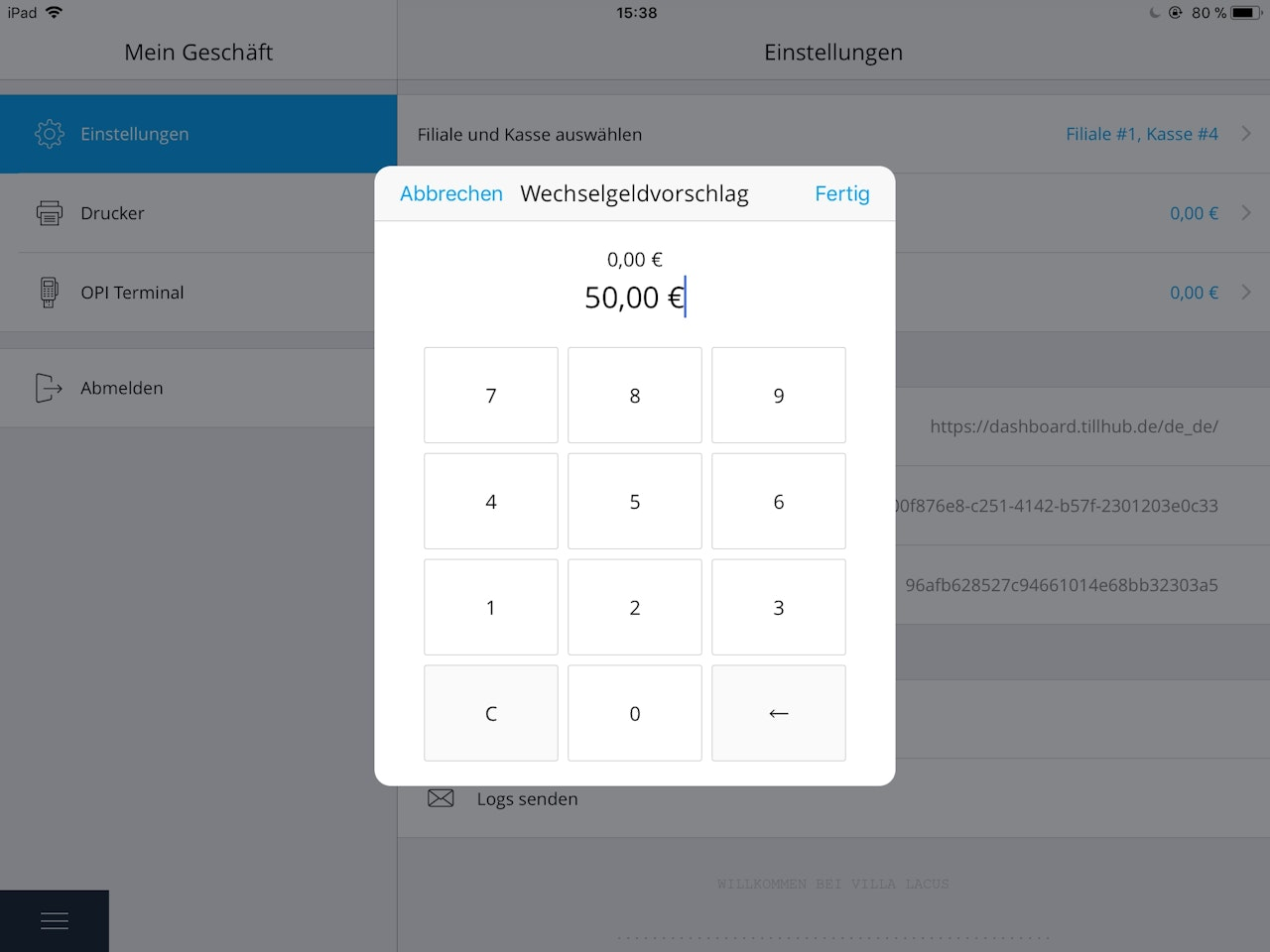
- Enter the desired amount that should remain in the register as a fixed float (even after an end-of-day closing), then confirm with Done.
- During the end-of-day closing, when asked whether you want to deposit money to the bank, the suggested payout will no longer be the entire cash balance in the register, but the current cash balance minus the float preset you defined.
Note: If you always start the day with the same float, this setting can save you time during end-of-day closing. You can still change the amount you want to deposit during the closing, so you remain fully flexible.
Post the float preset as an income
Setting a fixed float preset in Settings does not automatically create an income entry. This is done in a separate step, either at the time of opening the register or later during the day.
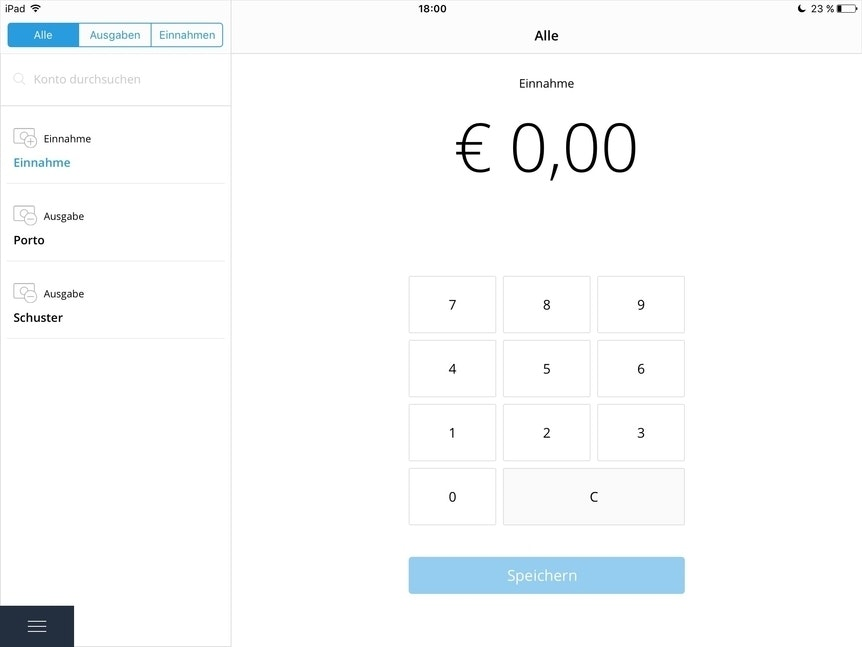
- Tap the main menu icon at the bottom left and go to Expenses & Deposits.
- A window opens listing your expense and deposit accounts for extraordinary transactions on the left.
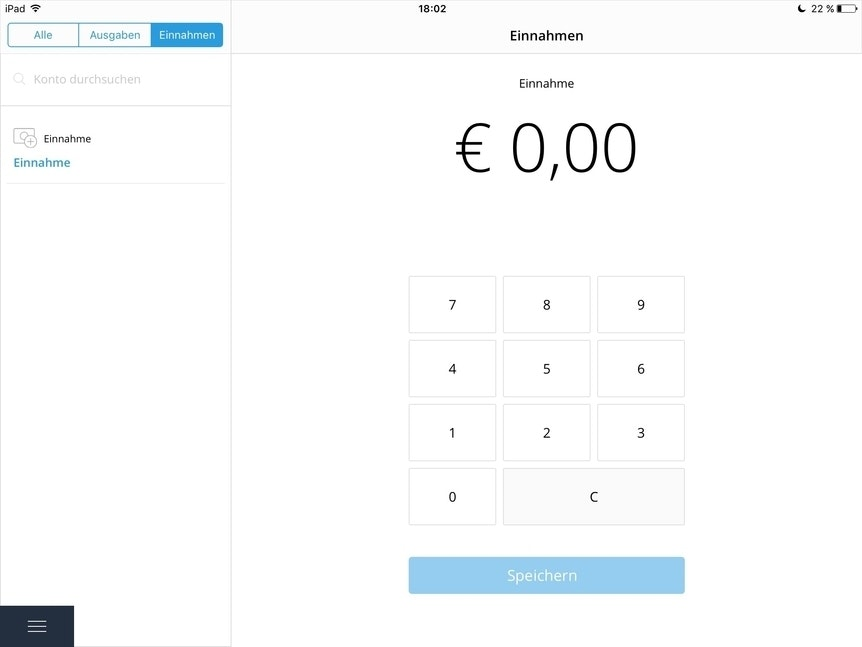
- To show only income accounts, select the Income tab.
- If you cannot find the desired account, use the Search account field and type the account name.
- After selecting the desired account, use the keypad on the right to enter the float amount to be posted.
- If needed, correct with C, or finish by tapping the blue Save button.
Flexible cash float
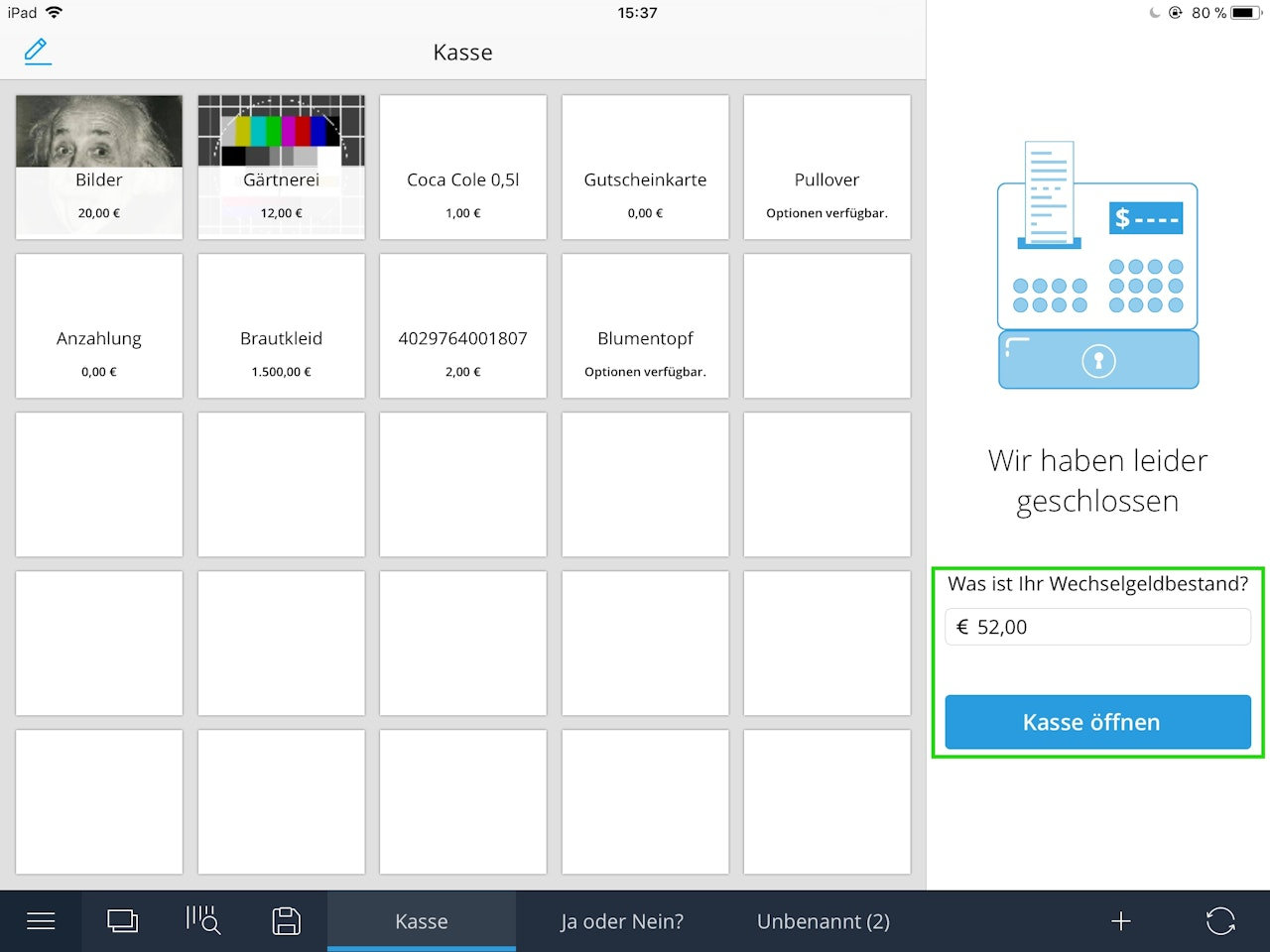
When you open the register after an end-of-day closing and you are in the tile view, you will see a field at the bottom right labeled “What is your cash float?”
- The starting amount suggested there when opening the register equals the ending cash balance from the last end-of-day closing. If you are using the register for the first time (no closings yet) or if you deposited all cash after a closing, the amount shown will be 0.00.
- You can also enter a different cash float manually. Tap the field and enter the amount.
- If you enter a lower cash float than the expected post-closing balance, the difference will automatically be posted as an expense. The app will take you to Expenses & Deposits to select one of your expense accounts.
- If you enter a higher cash float than the expected post-closing balance, the excess will automatically be posted as income. You will be taken to Expenses & Deposits to select the appropriate income account.
Record a cash withdrawal
If you want to record a cash withdrawal independently of the float entry (for example, to pay a postage invoice), proceed as follows:
- Tap the main menu icon at the bottom left and go to Expenses & Deposits.
- A window opens listing your expense and deposit accounts for extraordinary transactions on the left.
- To show only expense accounts, select the Expenses tab. If you cannot find the desired account, use the Search account field and type the account name.
- After selecting the desired account, use the keypad on the right to enter the amount to be posted. If needed, correct with C, or finish by tapping the blue Save button.
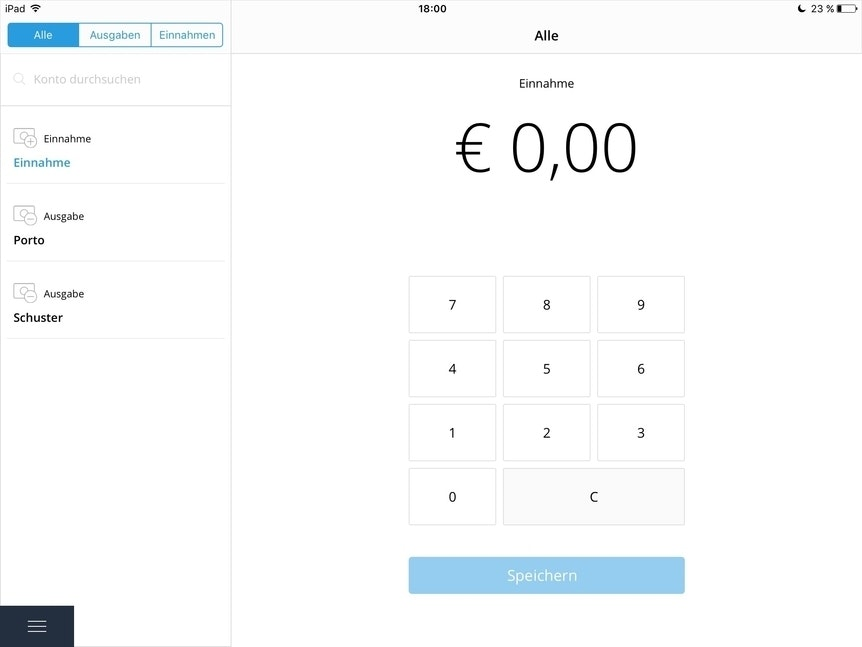
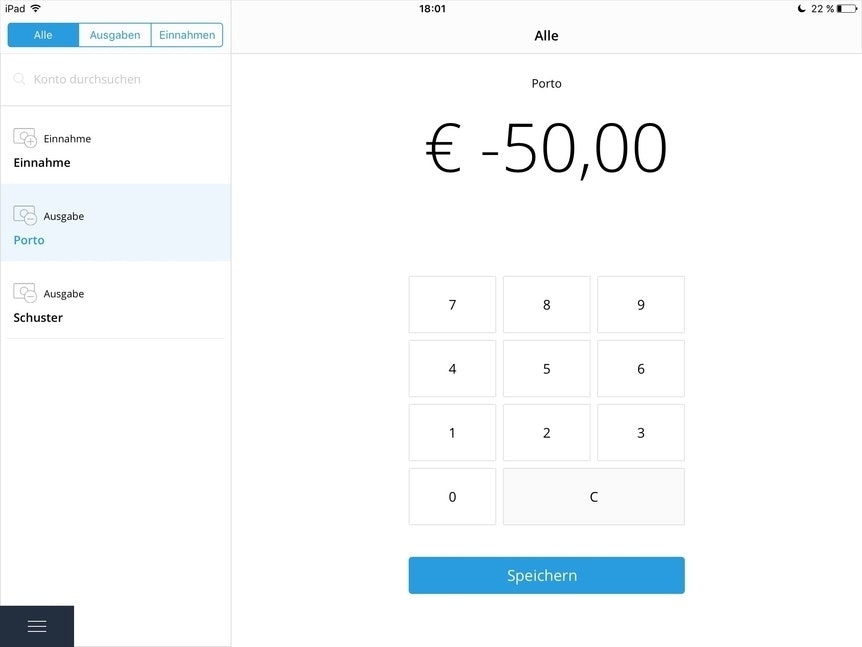
Photo feature for cash withdrawals
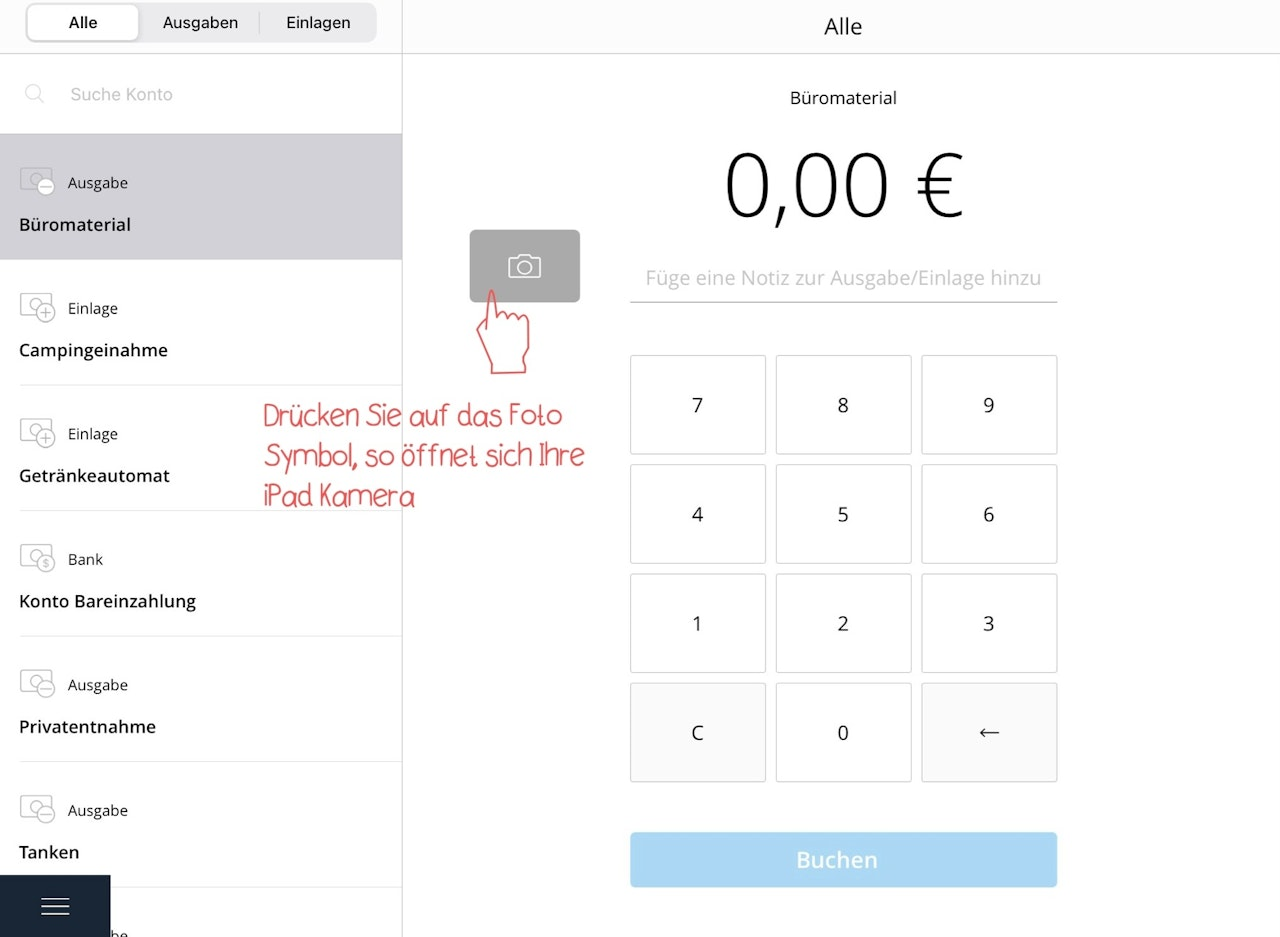
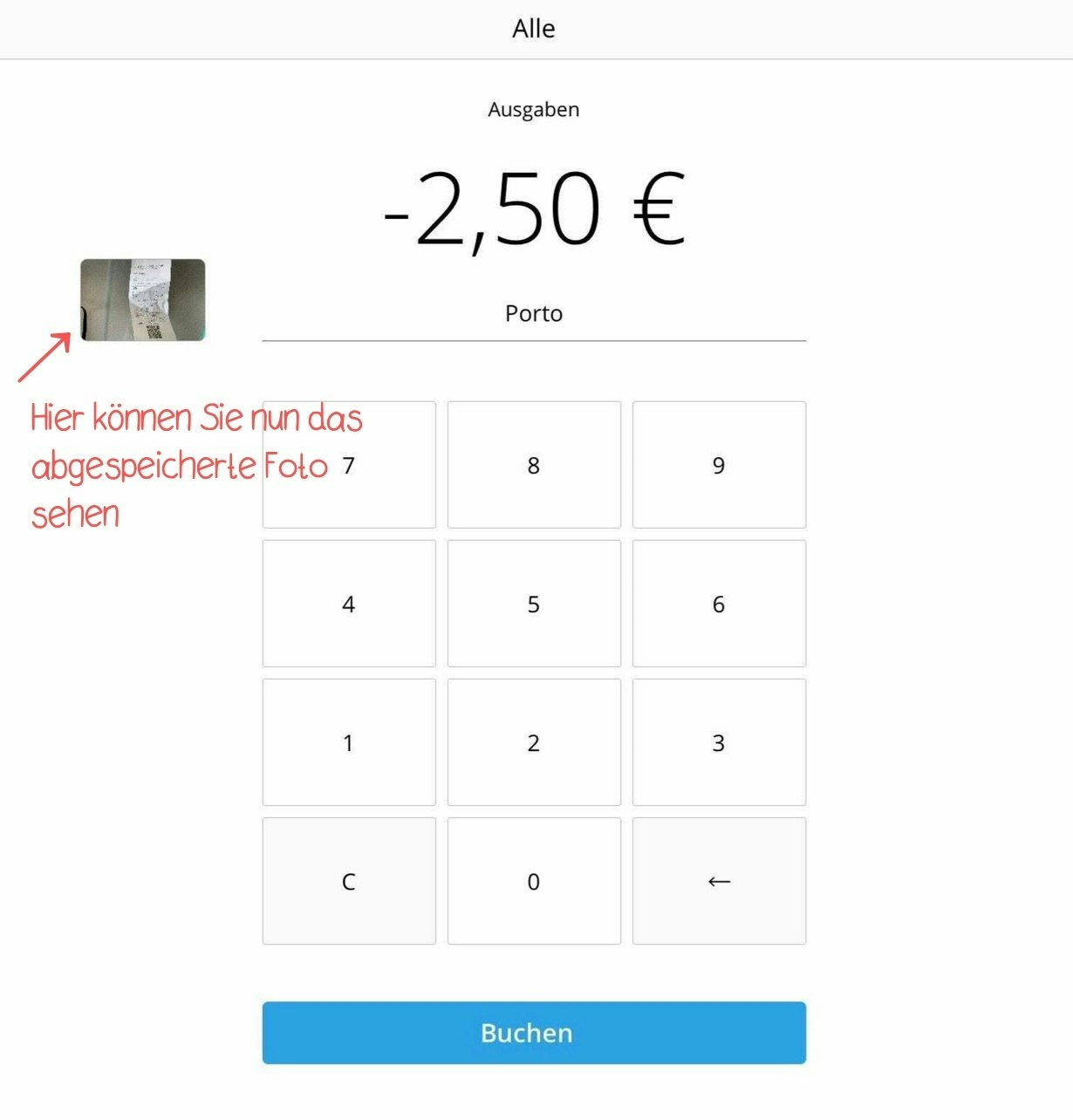
If the photo feature has been enabled for you, you will see a camera icon in the iPad under Deposits/Expenses (to the left of the amount you entered).
- Tap the camera to open the iPad camera. You can now photograph the receipt for which you are making the expense.
- After taking the photo, tap Use Photo at the bottom right. The photo is saved, which you can tell because the camera icon is replaced by the saved image.
- As a final step, tap Post.
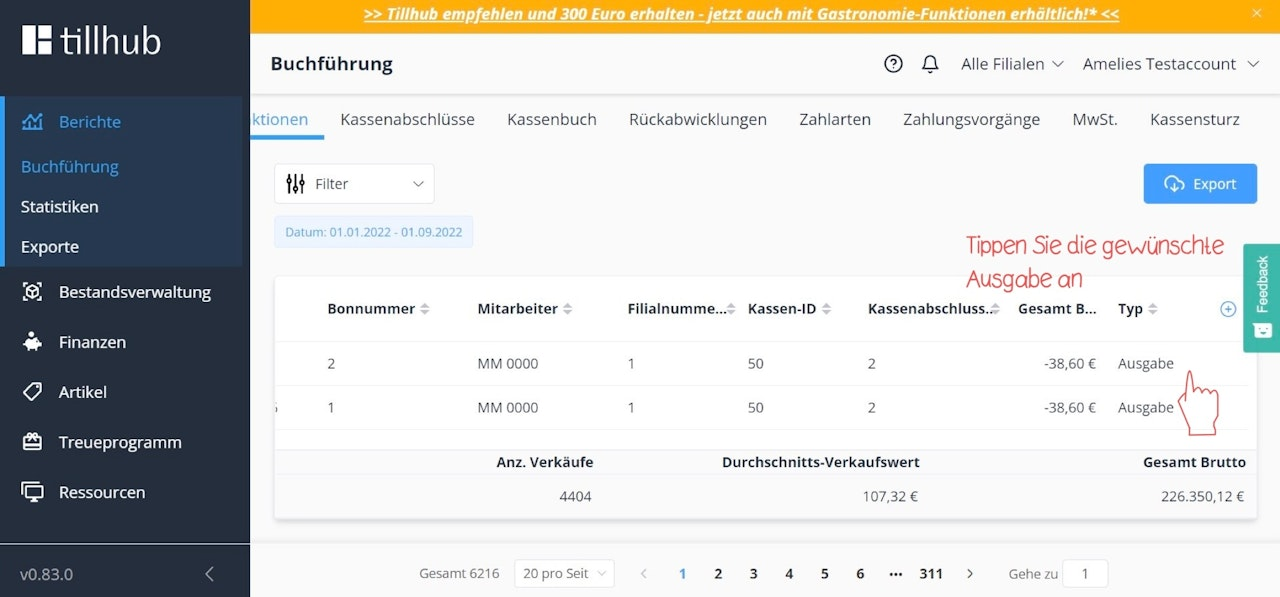
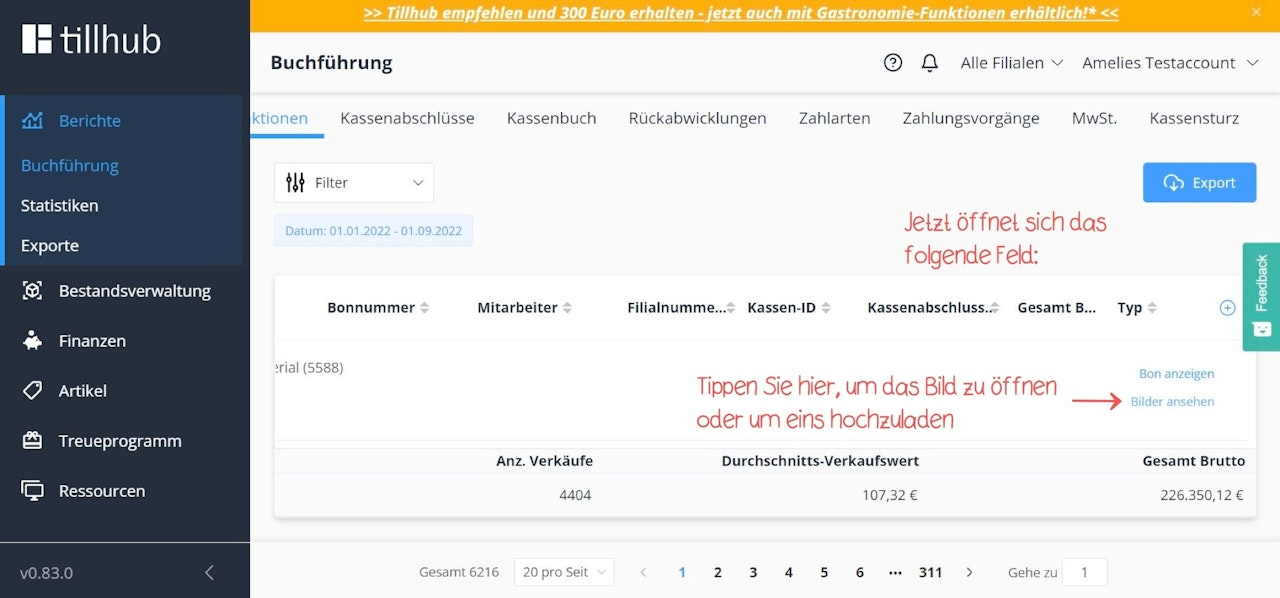
- The photo is saved in the dashboard together with the expense receipt. You can find it under Reports > Accounting > Transactions. To open the photo, click View images on the right.
Note: We still recommend storing the original paper receipts separately together with the expense vouchers.
Was this article helpful?
That’s Great!
Thank you for your feedback
Sorry! We couldn't be helpful
Thank you for your feedback
Feedback sent
We appreciate your effort and will try to fix the article
