Install the SYMBOL / ZEBRA scanner
Modified on Mon, 16 Feb at 10:11 AM
A PDF for printing and scanning is available at the following link:
Anleitung_ZEBRA Scanner
CS3000 Series scanner instructions
Note: If scanning the codes from the screen does not work, please print them out. This usually resolves the issue.
How to connect the scanner to your iPad:
- Open Settings on your iPad and select Bluetooth on the left.
- Make sure Bluetooth is enabled.
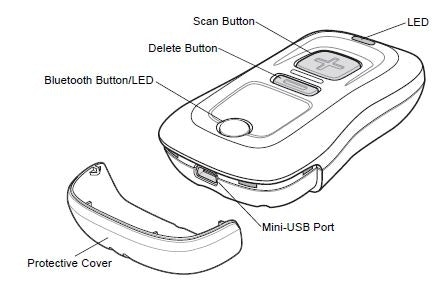
- Turn on the scanner by briefly pressing the scan button (+). The indicator will flash blue.
- Press and hold the Bluetooth button for about 10 seconds. Once you hear an audible signal, the connection to the iPad will be initiated.
- In Settings (Other Devices), select the scanner “CS3070:…”.
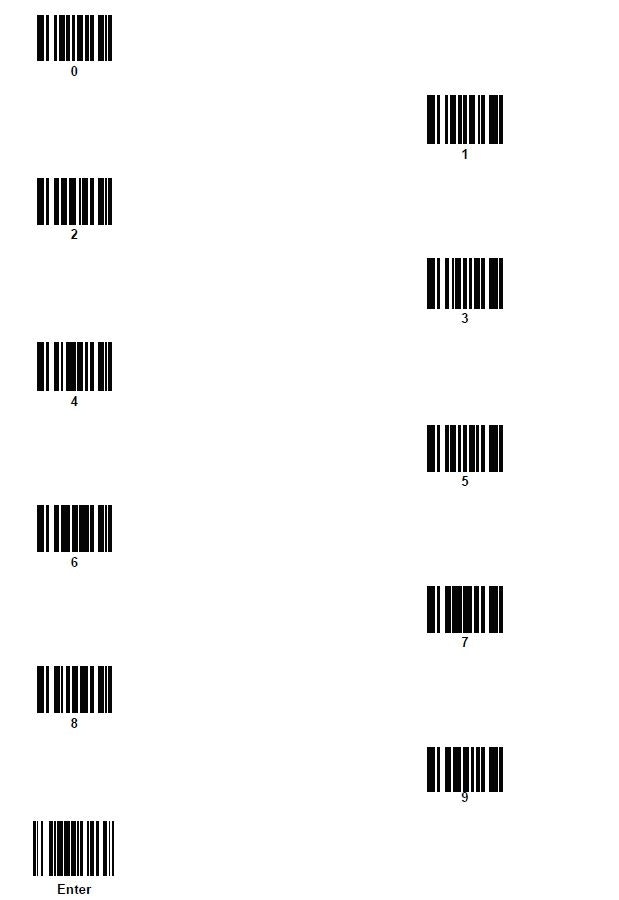
- You will be prompted to enter a four-digit code. Do this by scanning the barcodes provided below.
- Complete the entry by scanning the Enter barcode.
Done! Your scanner is now connected.
Was this article helpful?
That’s Great!
Thank you for your feedback
Sorry! We couldn't be helpful
Thank you for your feedback
Feedback sent
We appreciate your effort and will try to fix the article
