Connect the ZEBRA METAPACE scanner to the app
Modified on Mon, 16 Feb at 10:11 AM
This article helps you connect the scanner to the app.
Connecting the scanner
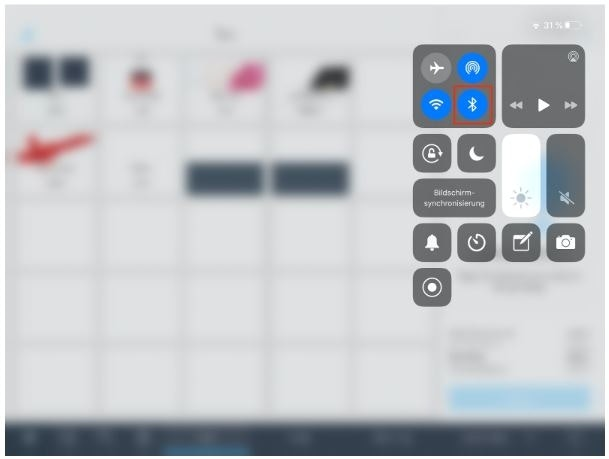
- Before you can connect the scanner to the iPad, make sure Bluetooth is enabled. Open Control Center by swiping down from the top-right corner of the screen (near the battery icon) and ensure the Bluetooth icon is highlighted.
- Plug the scanner’s USB cable into the supplied power adapter and then into a power outlet.
Pair the scanner with the iPad
- Turn on the scanner by holding the scan button.
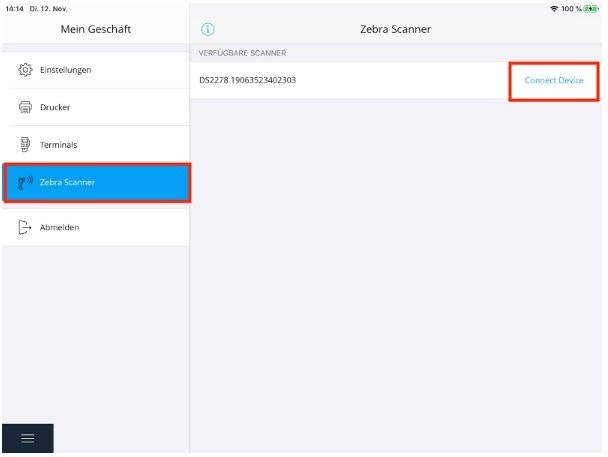
- In the app, open the menu by tapping the three lines at the bottom left.
- Select Settings.
- Select Zebra Scanner.
- Tap Connect Device.
Done! The scanner is now connected and ready to use.
If you encounter issues connecting the scanner, tap the blue “i” and follow the on-screen steps.
Was this article helpful?
That’s Great!
Thank you for your feedback
Sorry! We couldn't be helpful
Thank you for your feedback
Feedback sent
We appreciate your effort and will try to fix the article
