Creating Services as Items in the Product Catalog
Modified on Tue, 17 Feb at 2:16 PM
In this section, we explain how to enter the services you want to offer for appointment booking as items in the product catalog.
The product catalog is used to manage your services internally by entering important information such as names, prices, VAT, and other details.
Note: Before adding services to the “Product Catalog,” first create your product groups.
Example:
- Product Group: Haircut
- Services: Women’s Haircut / Men’s Haircut / Children’s Haircut
How do I create product groups in the dashboard?
To do this, log in to your Unzer Dashboard at the following link: dashboard.unzer.com
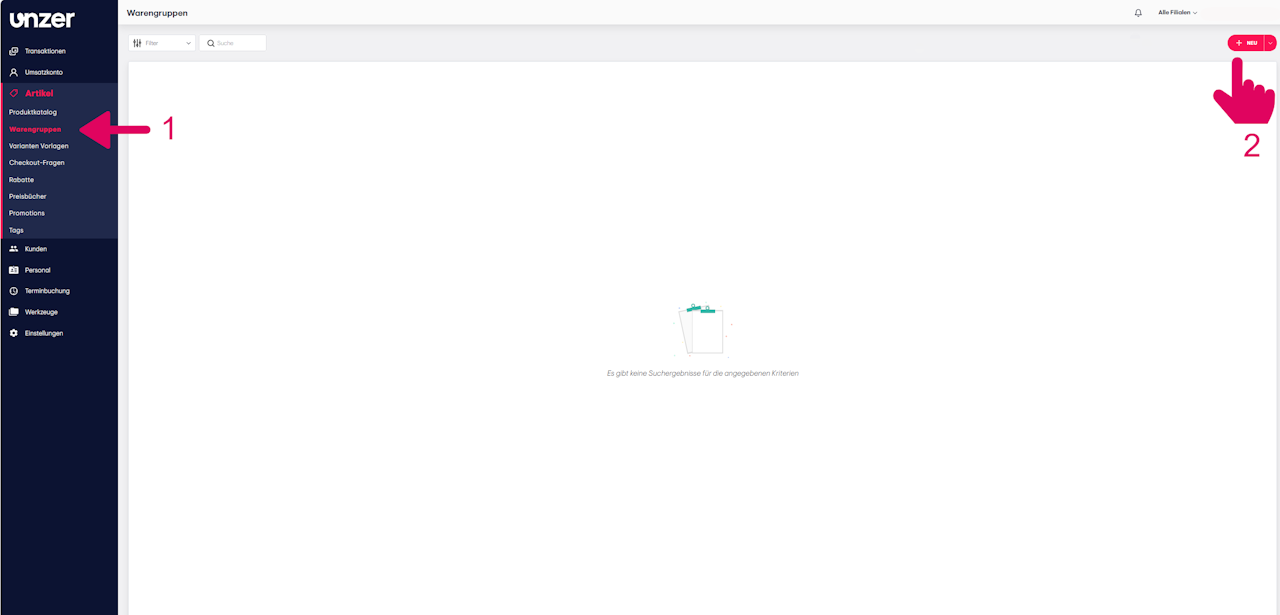
- In the main menu on the left side, navigate to “Items.”
- Then select the submenu “Product Groups” and click the “+New” button in the top right corner to create a new product group.
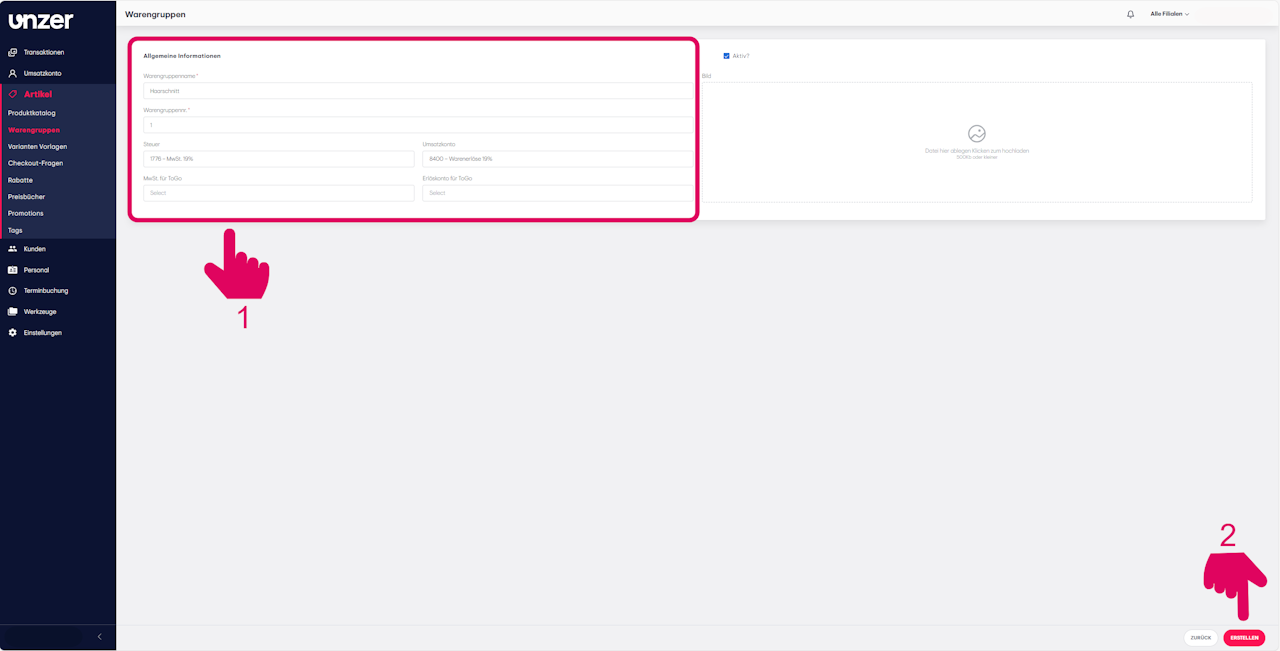
An input form will open, where you can enter all the required information for your product group, such as the product group name, product group number, tax account, and revenue account.
- Finally, click the “Create” button at the bottom right to save your entries.
How do I create services in the dashboard?
- Make sure you have created your product groups.
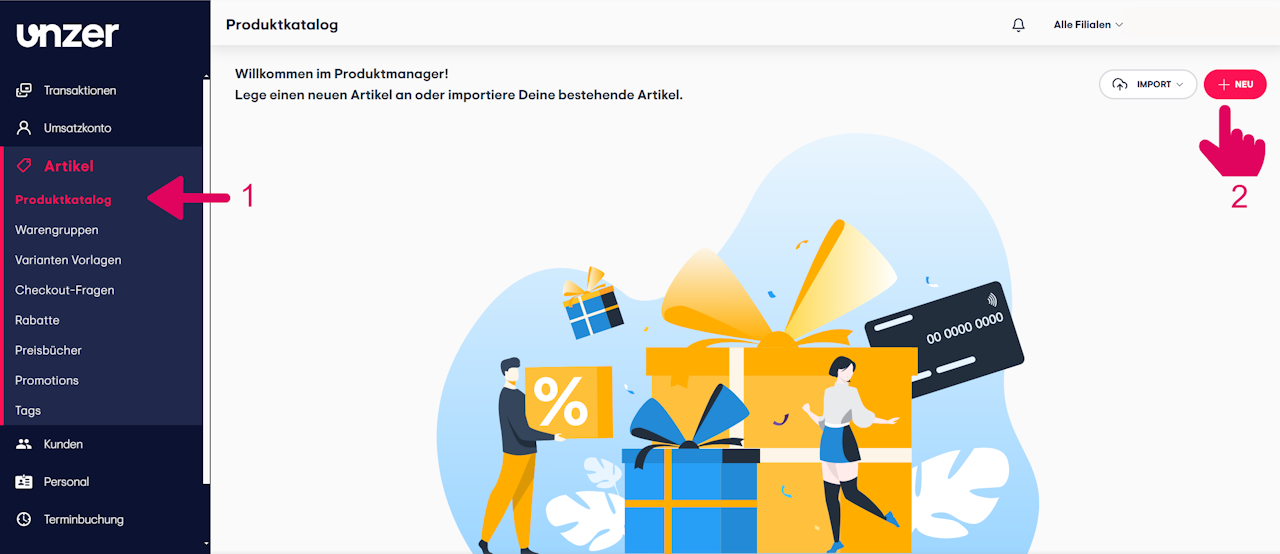
- In the main menu on the left side, navigate to “Items.”
- Select the submenu “Product Catalog.”
- Click the “+New” button in the top right corner.
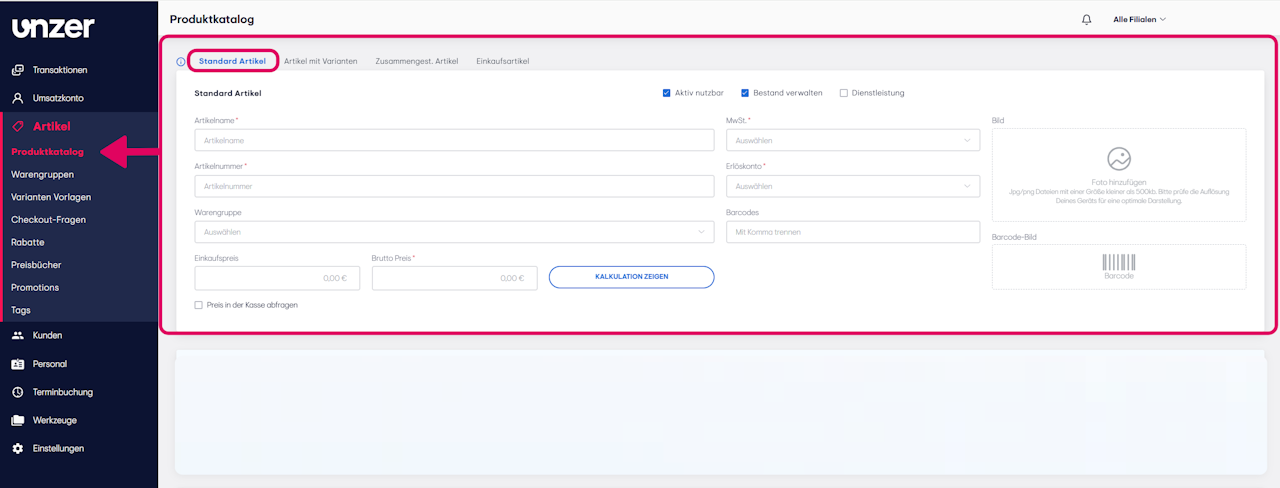
An input window will open with different tabs offering various service types to choose from:
- Standard Item: These include offerings with a single variation, such as a classic manicure.
- Item with Variants: These are offerings with different versions, such as haircuts in short, medium, or long.
Standard Item
Note: Select this service type if you want to provide a standardized offering without variation options.
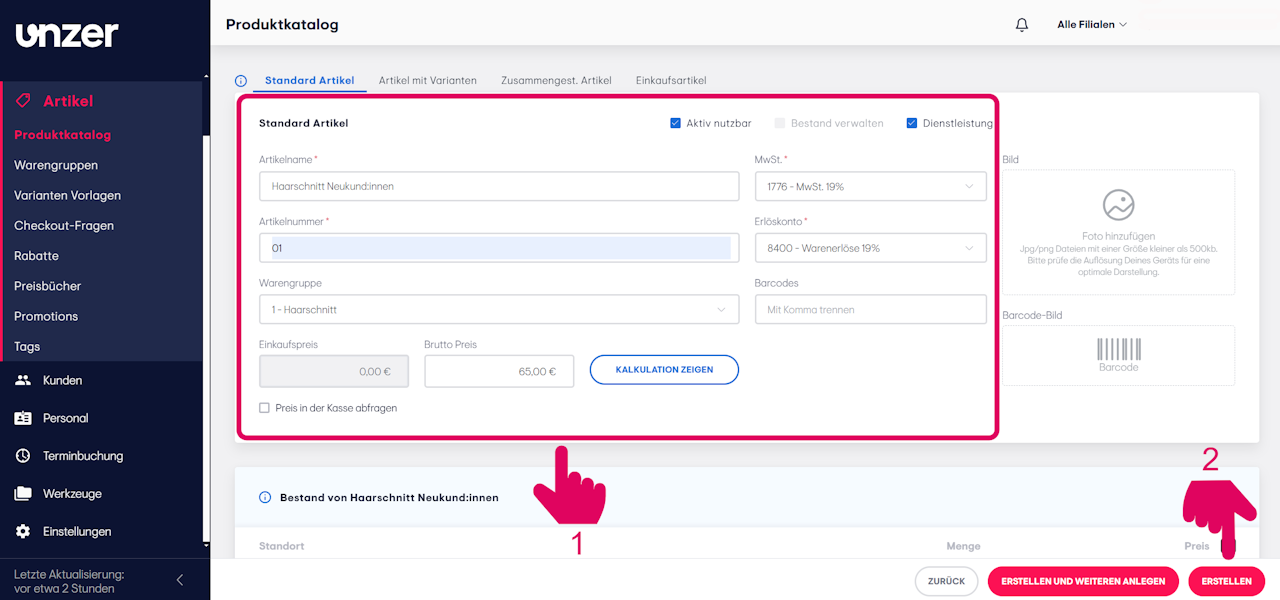
- Please fill in all required fields, the so-called metadata, which provide additional information about each service.
- This includes details such as item name, item number, product group, VAT, gross price, and other relevant information that characterizes the product or service.
- If you select an already created product group in the input form when creating a service, the fields “Revenue Account” and “VAT” will be filled in automatically.
Note: Required fields are marked with a red asterisk (*).
- Finally, click “Create” to save your entries.
Item with Variants
Note: Select this item type if you want to offer a service in different versions.
To provide services with variants in your salon, such as “Haircut for Women / Men / Children” with options like “Wash, Cut, Blow-dry”, you will need an item with corresponding variants.
This structure gives your customers a clear overview of the available services and makes it easier for them to select their preferred options.
Entering Metadata for Your Services with Variants
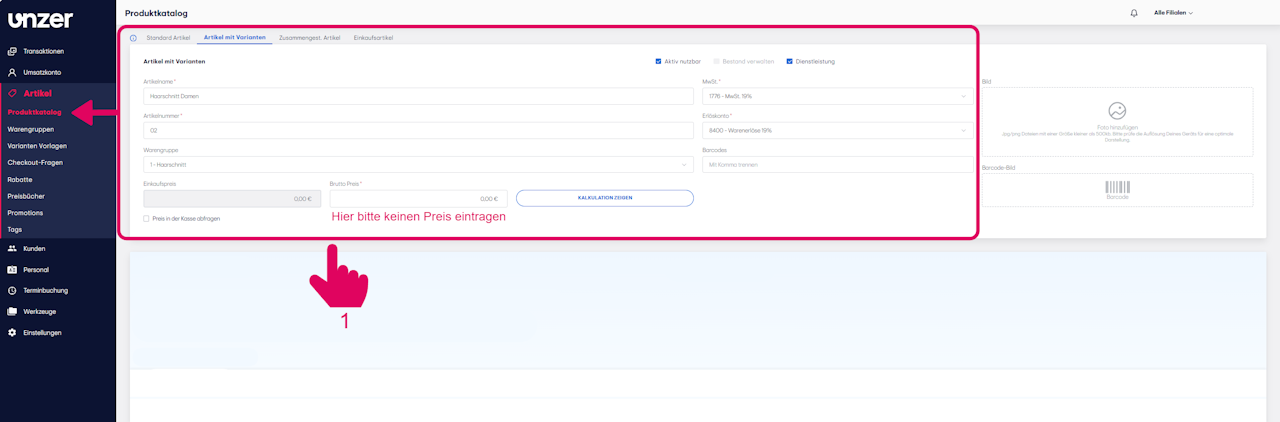
- First, fill in all required fields, the so-called metadata, which provide additional information about each service.
- This includes details such as item name, item number, product group, VAT, and other relevant information that characterizes the product or service.
Important: For items with variants, do not enter a gross price under the general information (this only applies to standard items).
- For items with variants, you define the price individually for each variant. We will show you how to do this in the next step.
- If you select an already created product group in the input form when creating a service, the fields “Revenue Account” and “VAT” will be filled in automatically.
Creating Variants
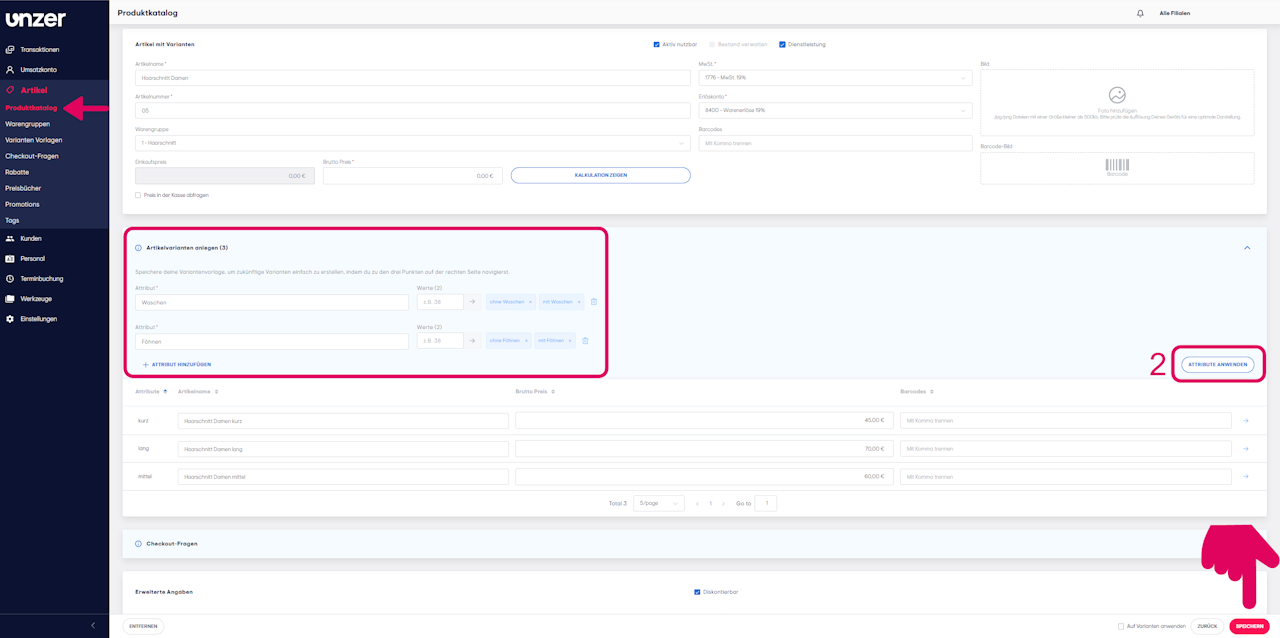
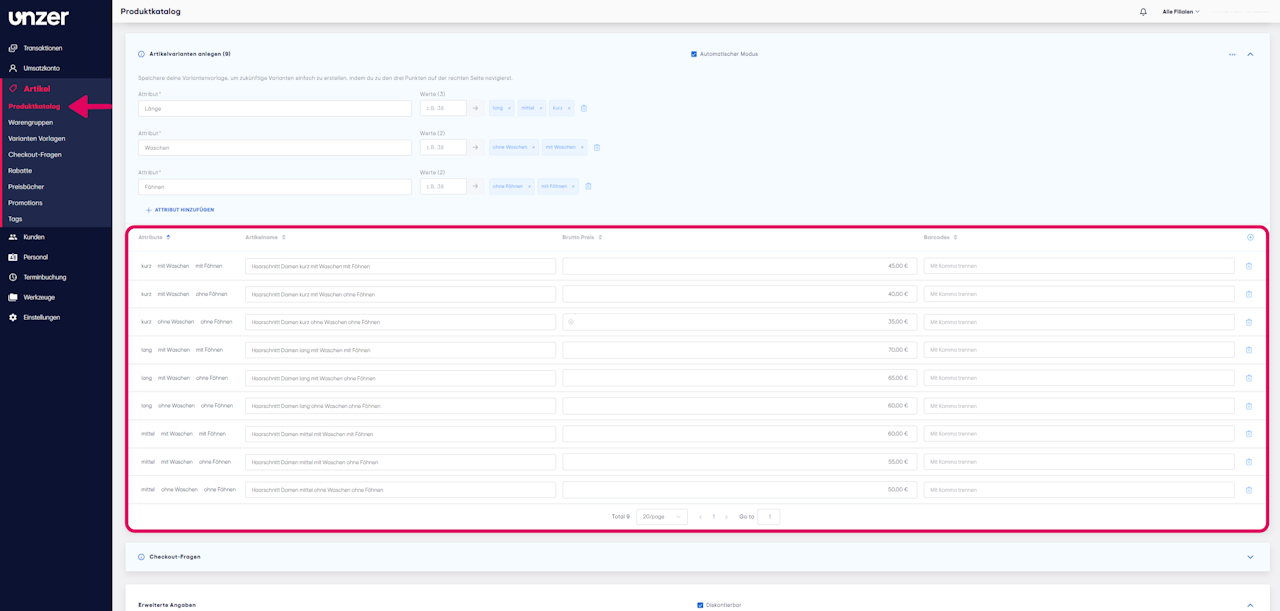
Scroll down to the section “Create Item Variants.” In the “Attribute” field, enter a suitable property for your service, e.g. “Length” or “Duration.”
In the field to the right, you can enter the individual variations of this property. Press Enter after each entry or click the arrow on the right to add the next variant.
Example:
Service: Women’s Haircut
Attribute: Length
Variants: short, medium, long
- Simply enter the price for each variant individually here.
Finally, click “Create” at the bottom right to save your entries.
Adding Additional Attributes
In addition, you can add further attributes, such as “Washing” or “Blow-dry” with variants like “with” or “without”:
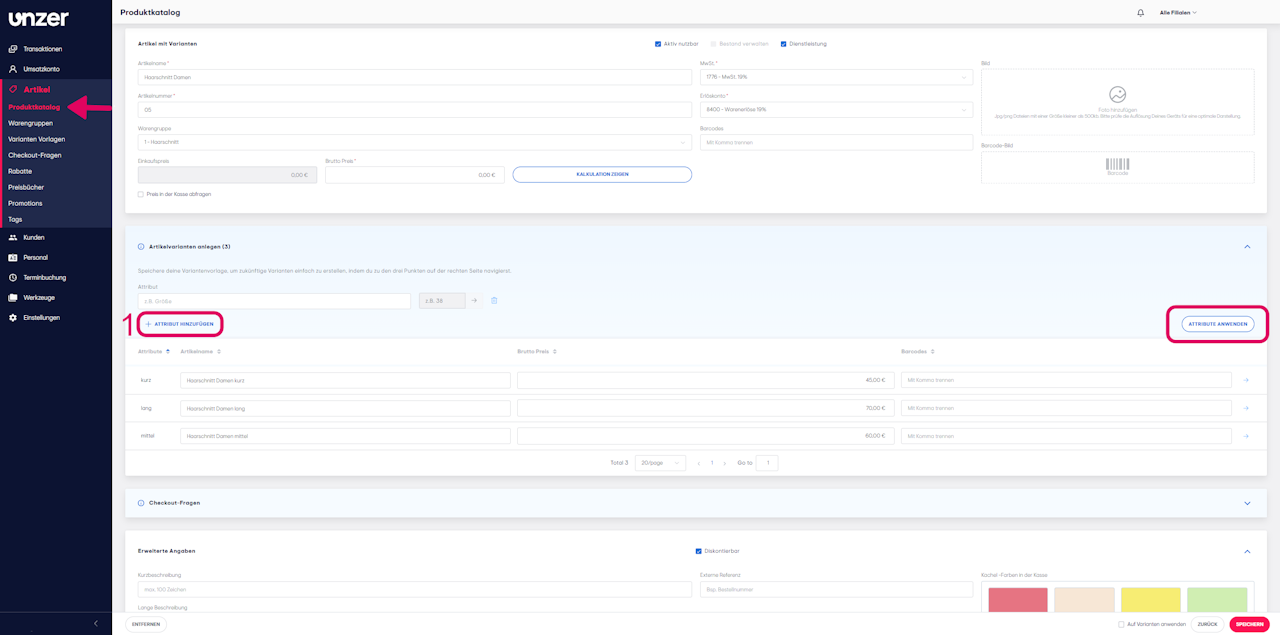
- Click “Add Attribute” to create additional variations of the defined service.
- Then click “Apply Attributes.”
The system will automatically combine all possible variants to cover every version.
- If you don’t need certain variants, you can simply delete them in that section.
- Finally, click “Save” at the bottom right to store your entries.
How to Activate the Item Number Generator
To have item numbers generated automatically, you can activate the item number generator. This saves you from manual entry.
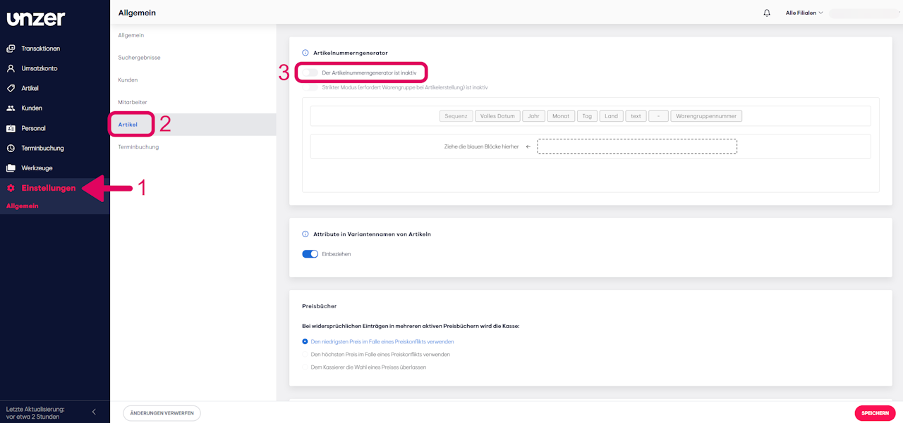
- In the dashboard, open the main menu and click on “Settings.”
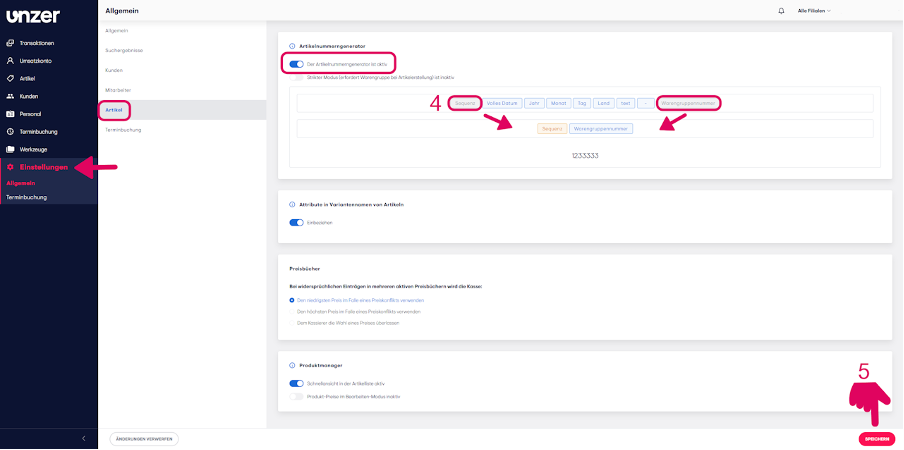
- In the submenu, go to “Items” and activate the switch “Item Number Generator.”
- Decide which components your item numbers should consist of. To do this, drag the blue blocks with the desired details into the blue-framed field.
Example: If your item numbers should contain a sequential number and display the product group number, drag the blocks “Sequence” and “Product Group” into the field.
- Finally, click “Save” at the bottom right.
Your item numbers will now be generated automatically.
Was this article helpful?
That’s Great!
Thank you for your feedback
Sorry! We couldn't be helpful
Thank you for your feedback
Feedback sent
We appreciate your effort and will try to fix the article