Cancellation & refund (credit note)
Modified on Tue, 17 Feb at 2:16 PM
In this article
Cancellation
Step 1
Note: A sale can only be canceled if no cash register closure has been performed after the sale. A cancellation always applies to the entire receipt. If you only want to refund individual items to your customer, you must process a refund instead of a cancellation. Sales made by Giro card can generally only be refunded. In such cases, the refund to the customer is made in cash.
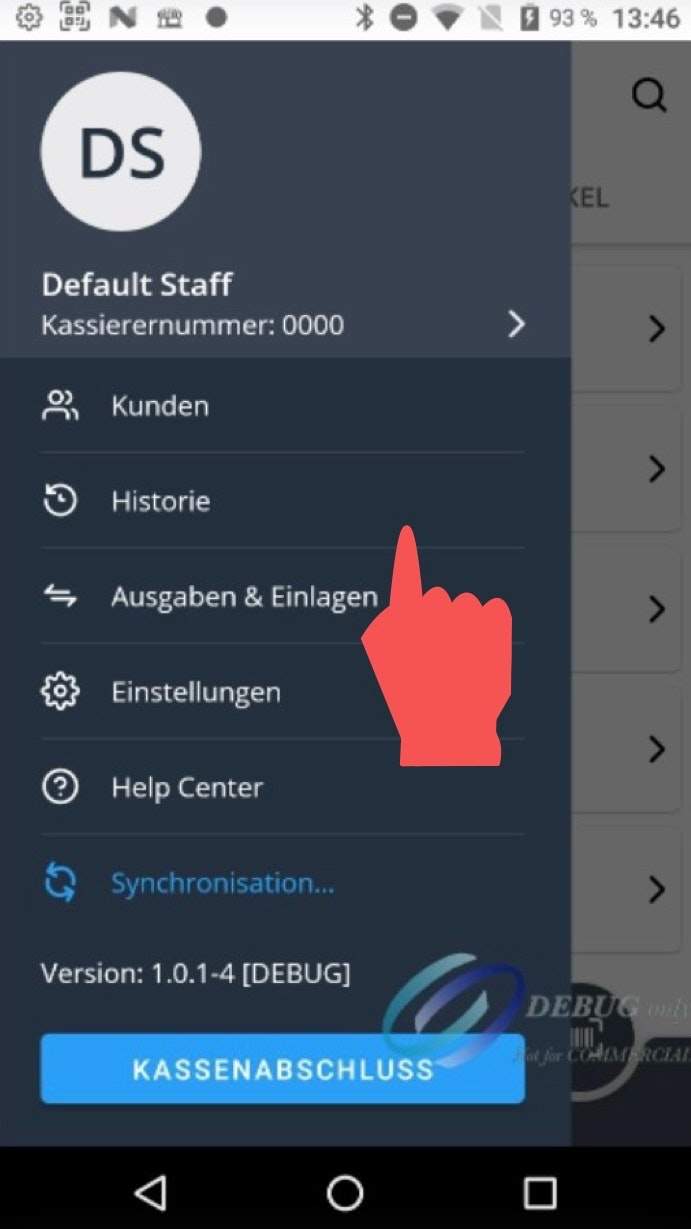
Open the main menu and navigate to “History.”
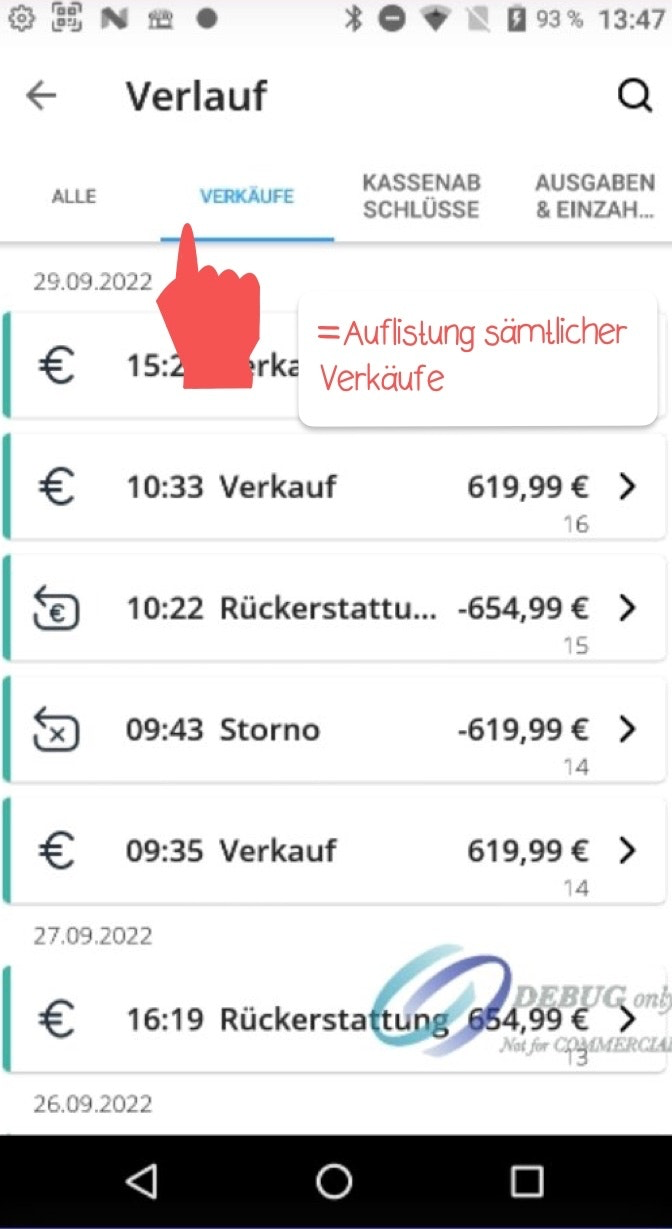
Tap the “Sales” tab to view a list of all your sales.
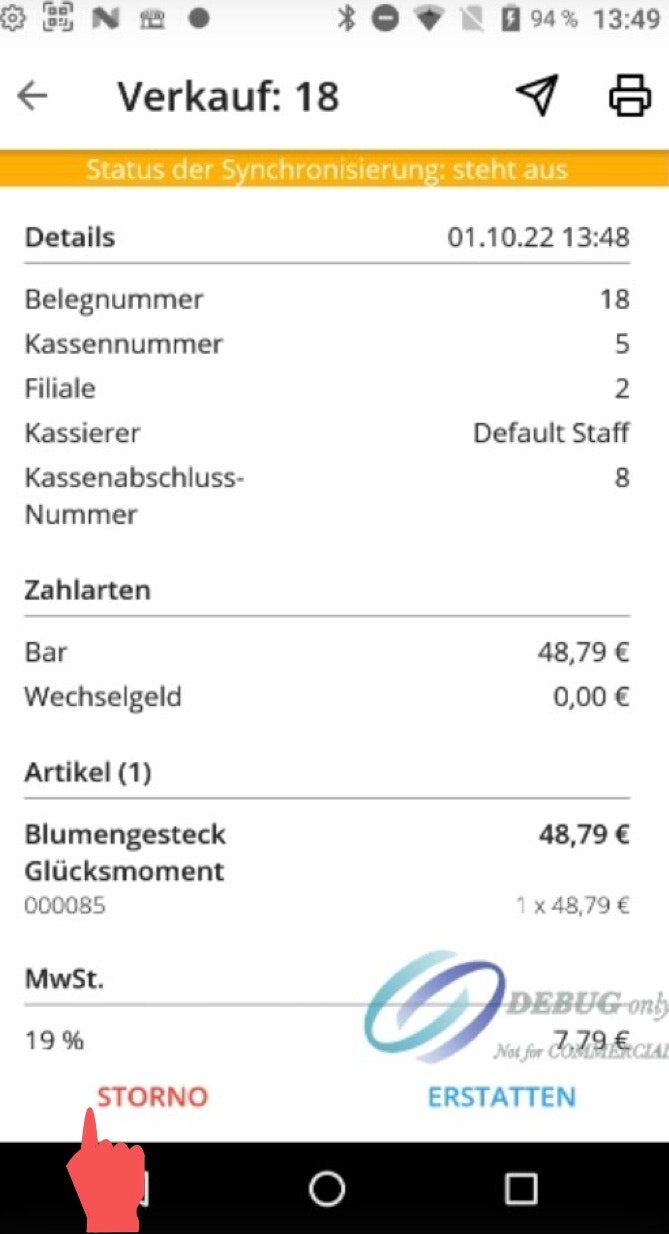
Select the corresponding sale and tap the “Cancel” button at the bottom left.
Step 2
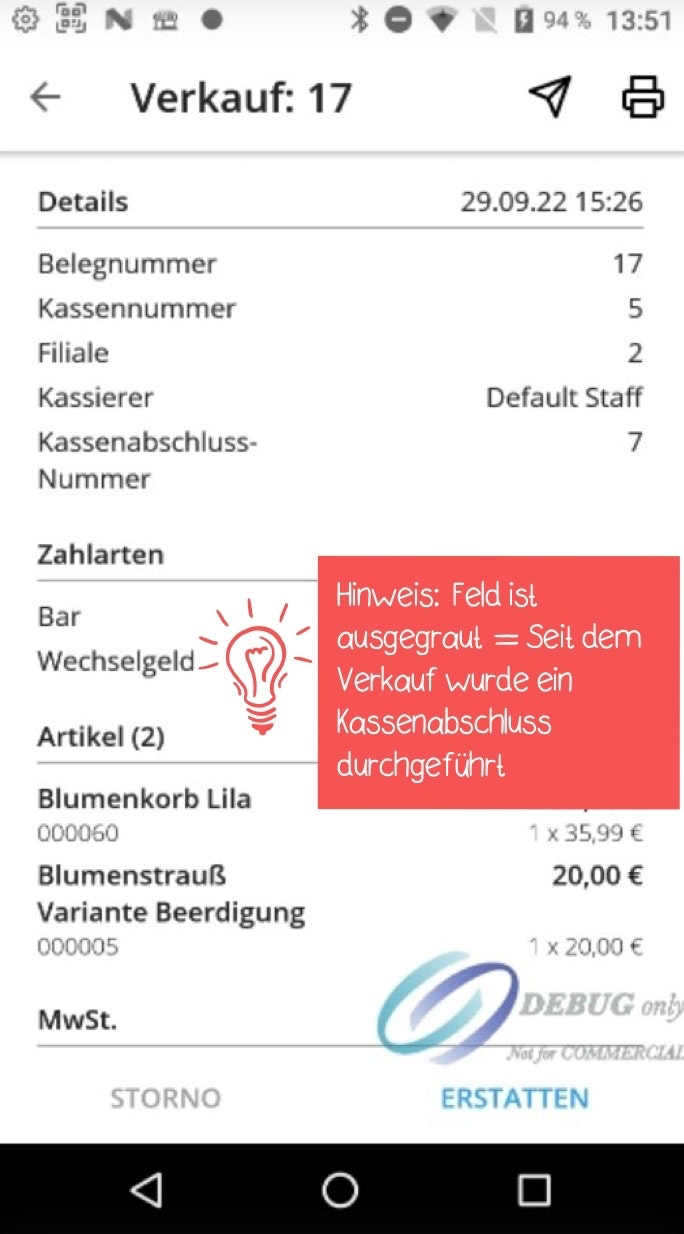
If the cancel button is grayed out, this means that a cash register closure has been performed since the sale, and you can only issue a refund instead.
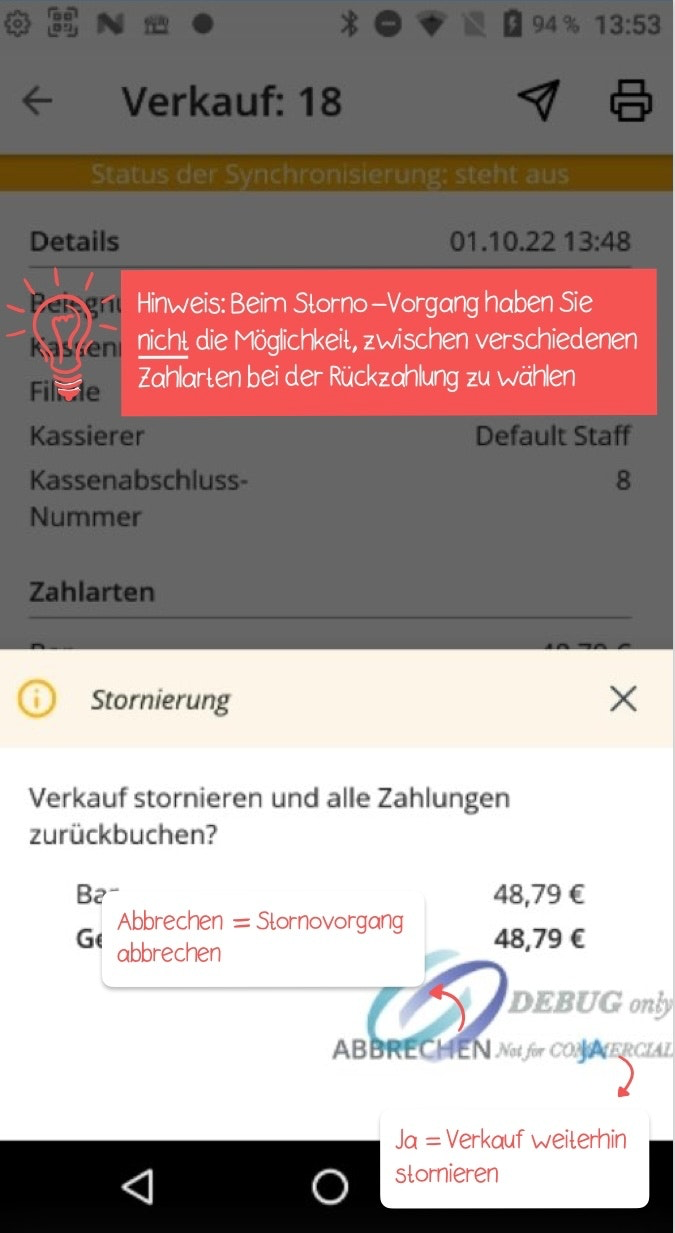
Once you press the red “Cancel” button, a pop-up window will appear with the question: “Cancel sale and reverse all payments?” Confirm with “Yes” if you want to proceed with the cancellation. Otherwise, press “Cancel” to abort the cancellation process. During the cancellation process, you cannot choose a different payment method for the refund — you can only use the same payment method that was used for the original sale.
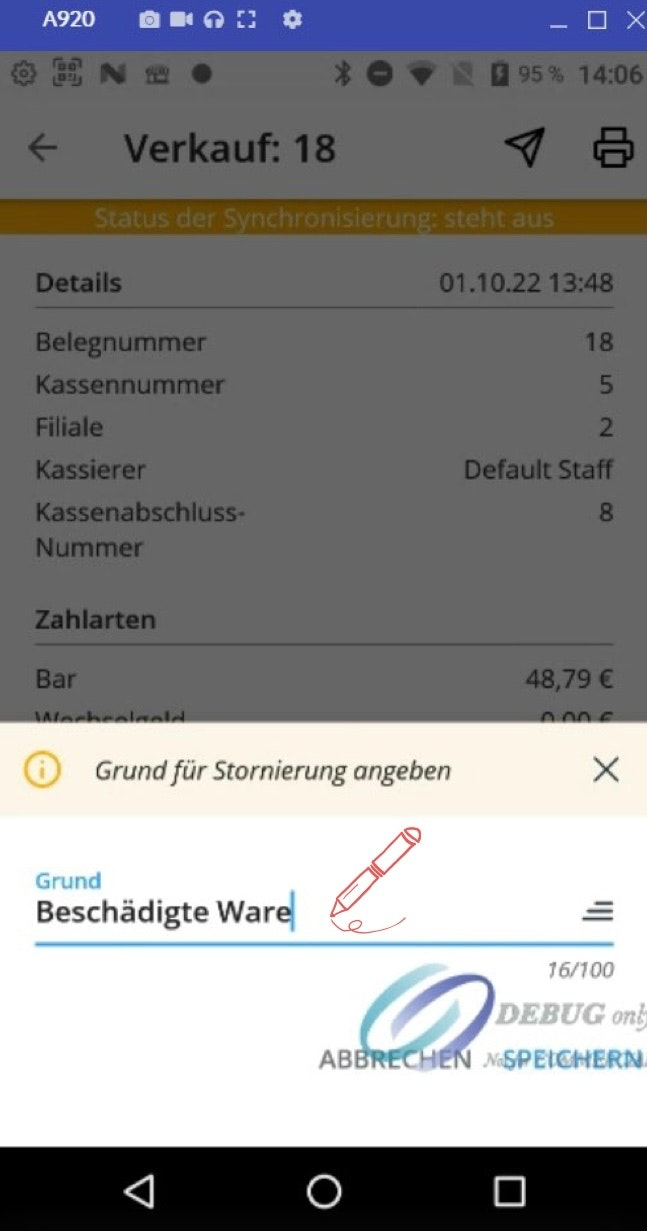
After confirming with “Yes,” another pop-up window will appear, allowing you to enter the reason for your cancellation. Confirm your entry by tapping “Save.”
To ensure transparent accounting, we generally recommend providing a reason for every cancellation or refund. Confirm your entry with “Save” to complete the cancellation process.
Refund (credit note)
Step 1:
Note: Sales can be refunded both before and after a cash register closure. Unlike a cancellation, the refund process can also be applied to individual items on a receipt.
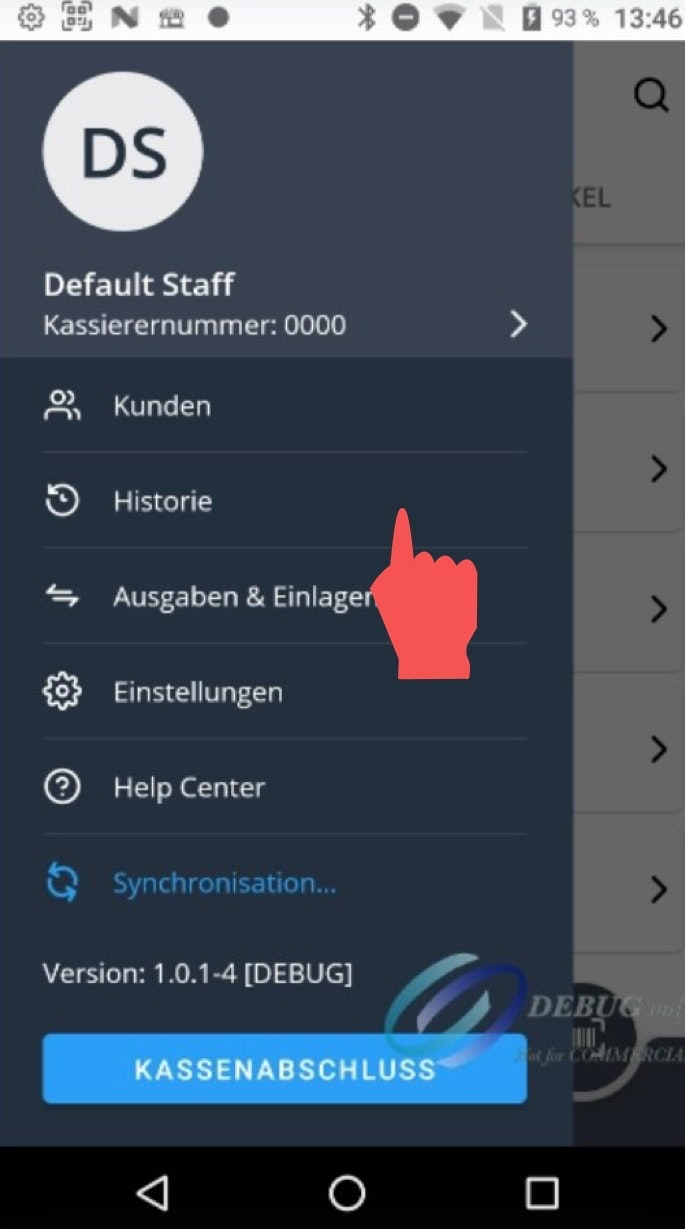
Open the main menu and navigate to “History.”
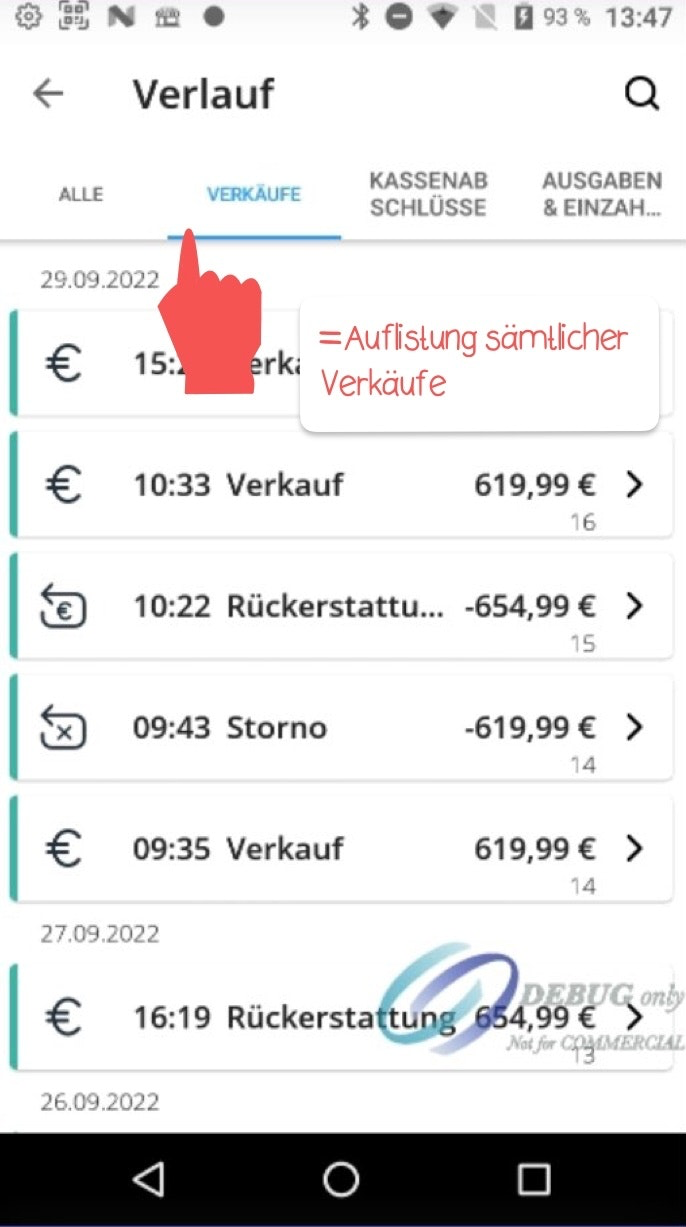
Tap the “Sales” tab to view a list of all your sales.
Select the corresponding sale and tap the “Refund” button at the bottom right.
Step 2:
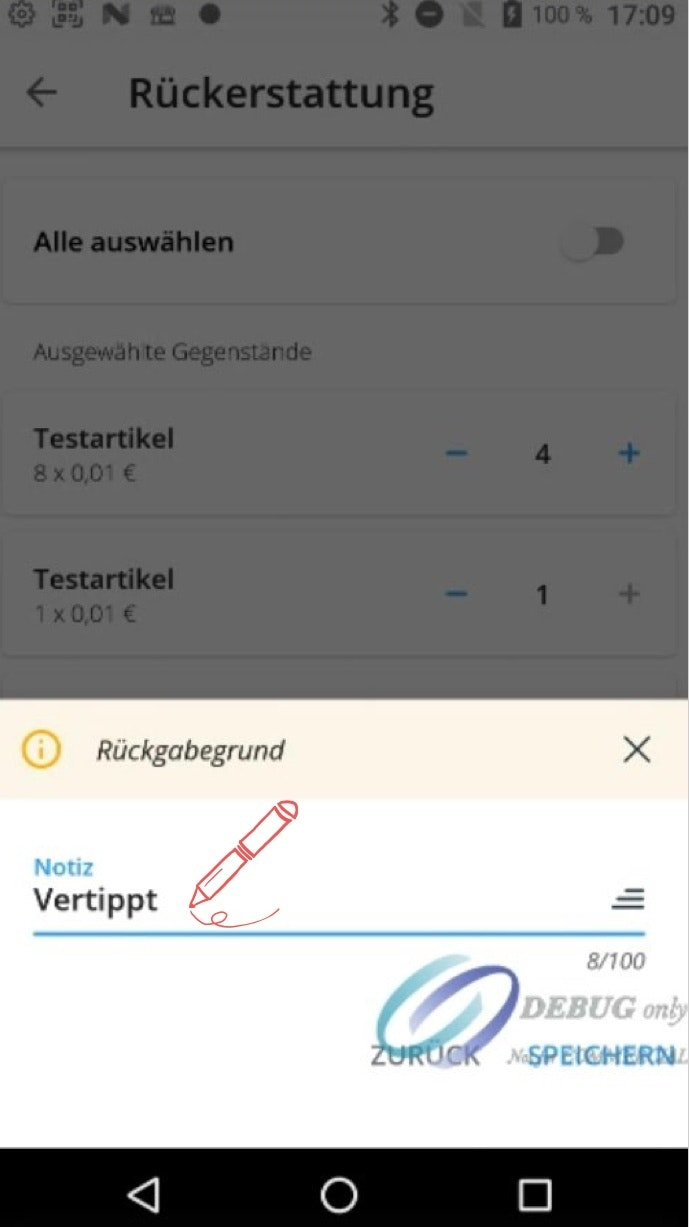
A list will now appear showing all the items on your receipt. You can use the toggle in the top right corner to select all items at once. Alternatively, you can select individual sale items using the plus symbols. If a sale item includes multiple units, you can adjust the quantity you wish to refund using the plus and minus symbols. Finally, confirm your selection by tapping “Confirm.”
Select one of the return reasons.
Another pop-up window will appear, allowing you to further specify your return reason in a free text field. Confirm your entry by tapping “Save.”
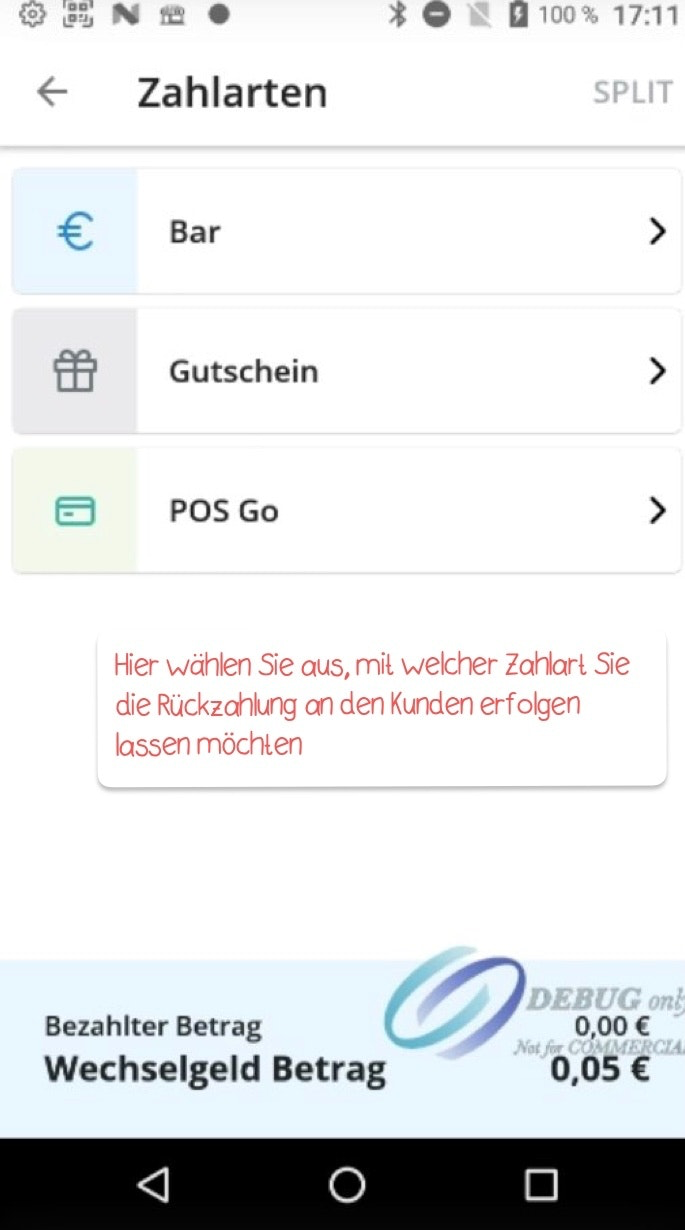
In the next step, you can choose one of your configured payment methods through which you want to issue the refund to the customer.
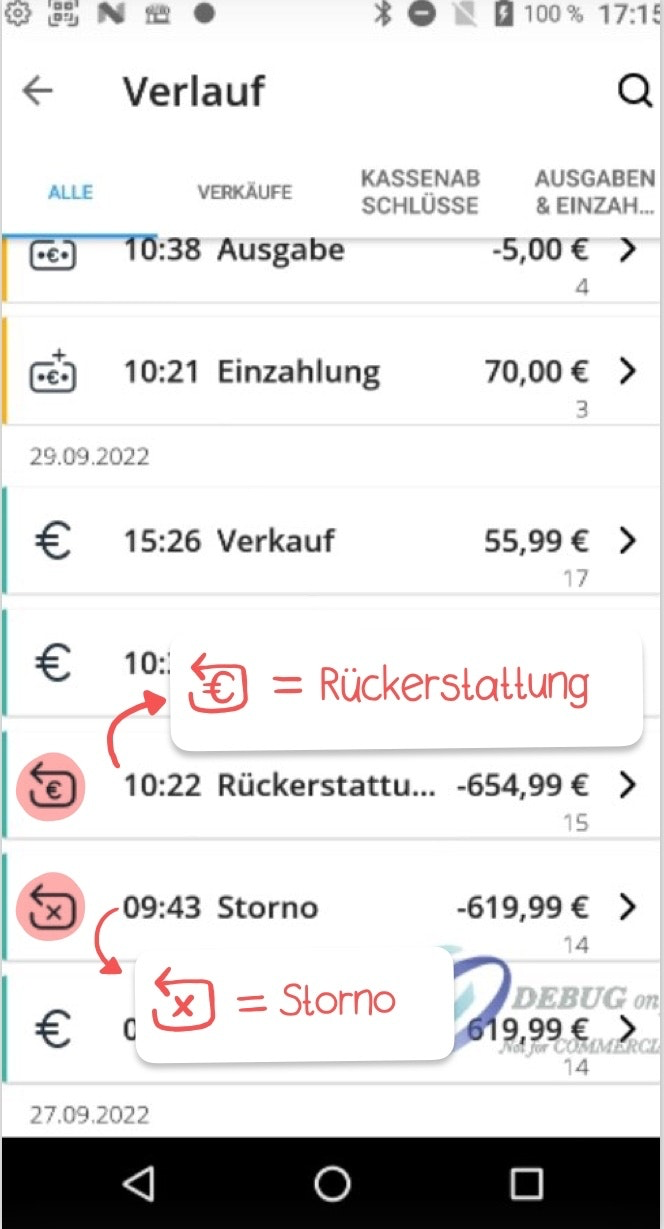
In the history section, refunded or canceled receipts are marked accordingly.

Was this article helpful?
That’s Great!
Thank you for your feedback
Sorry! We couldn't be helpful
Thank you for your feedback
Feedback sent
We appreciate your effort and will try to fix the article