Recording cash withdrawals (expenses)
Modified on Tue, 17 Feb at 2:16 PM
When you withdraw cash from the register, for example to pay a postage invoice for your business, you must record this cash withdrawal as an “Expense.”
Record expenses – 1
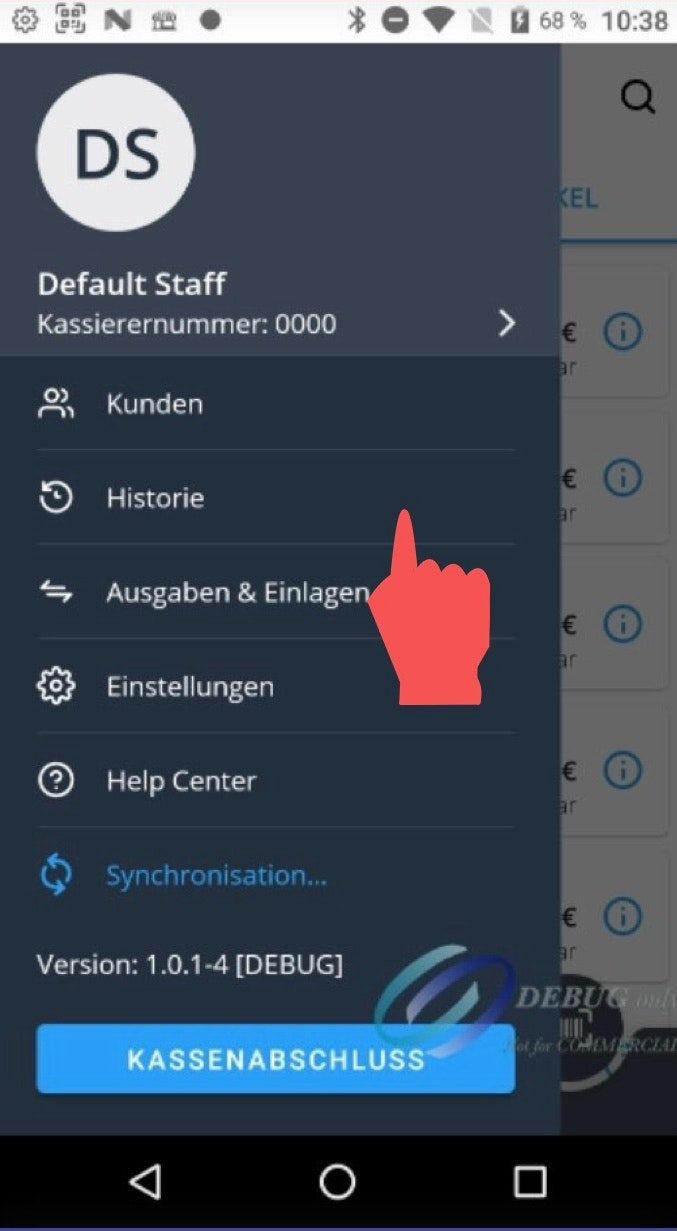
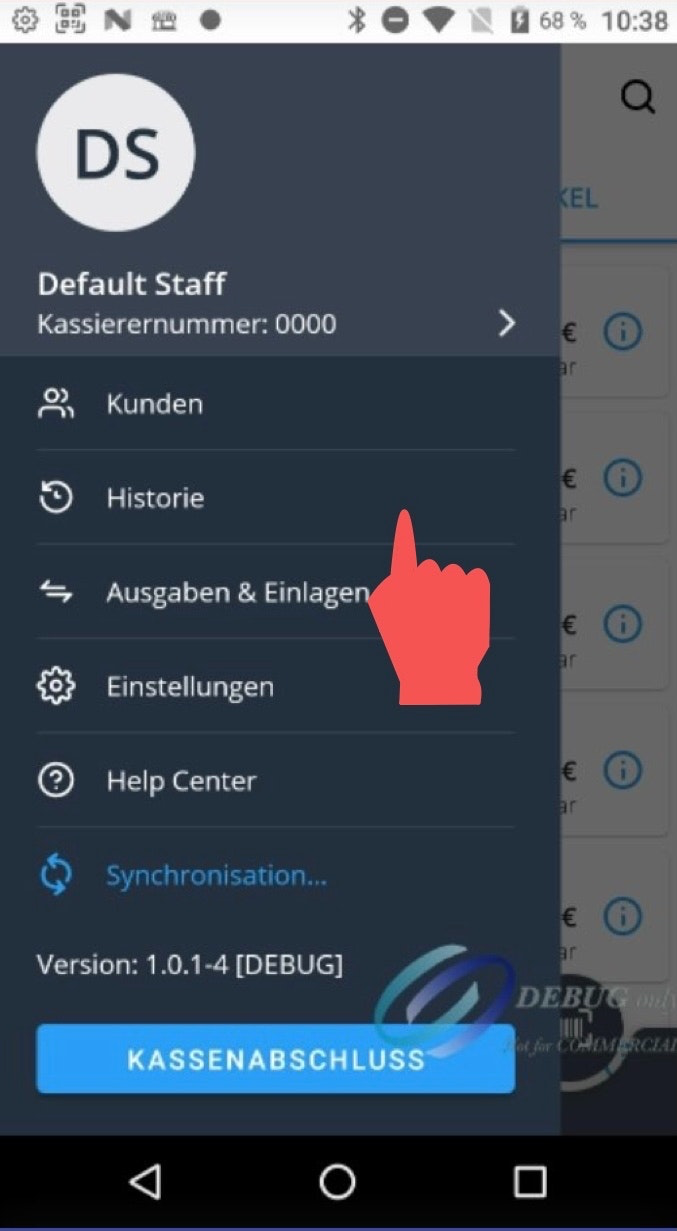
To do this, tap the main menu icon at the bottom left and then navigate to the “Expenses & Deposits” menu item.
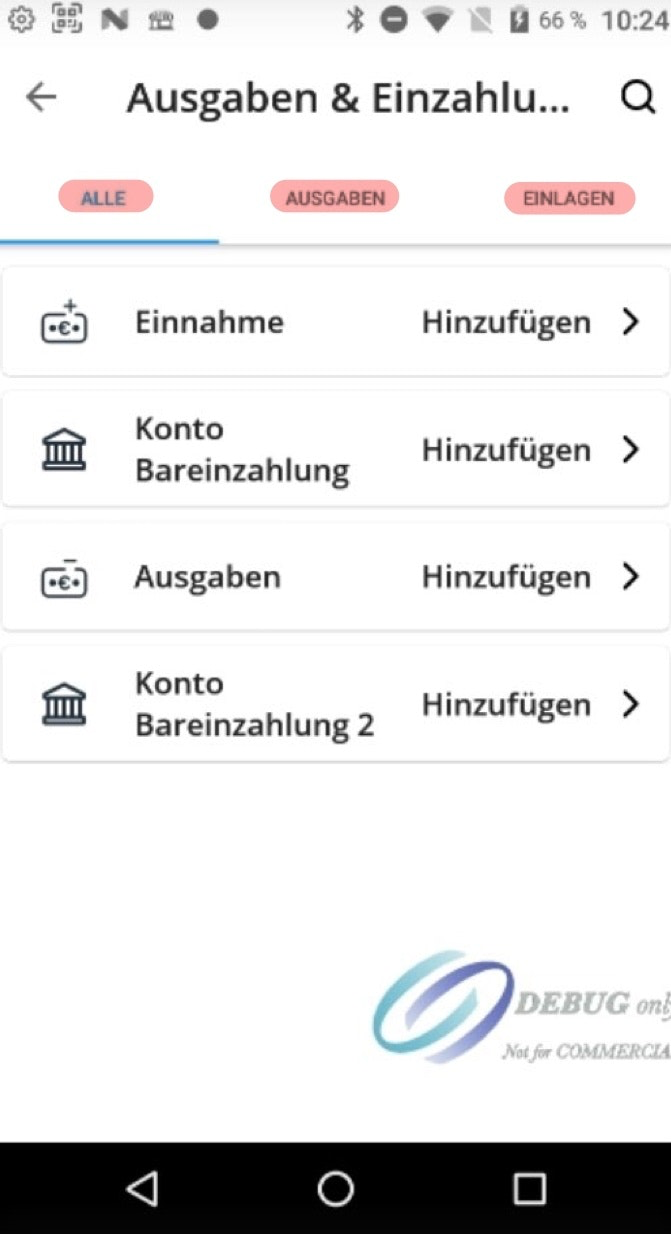
A new window will open with the following tabs: “All,” “Expenses,” and “Deposits.”
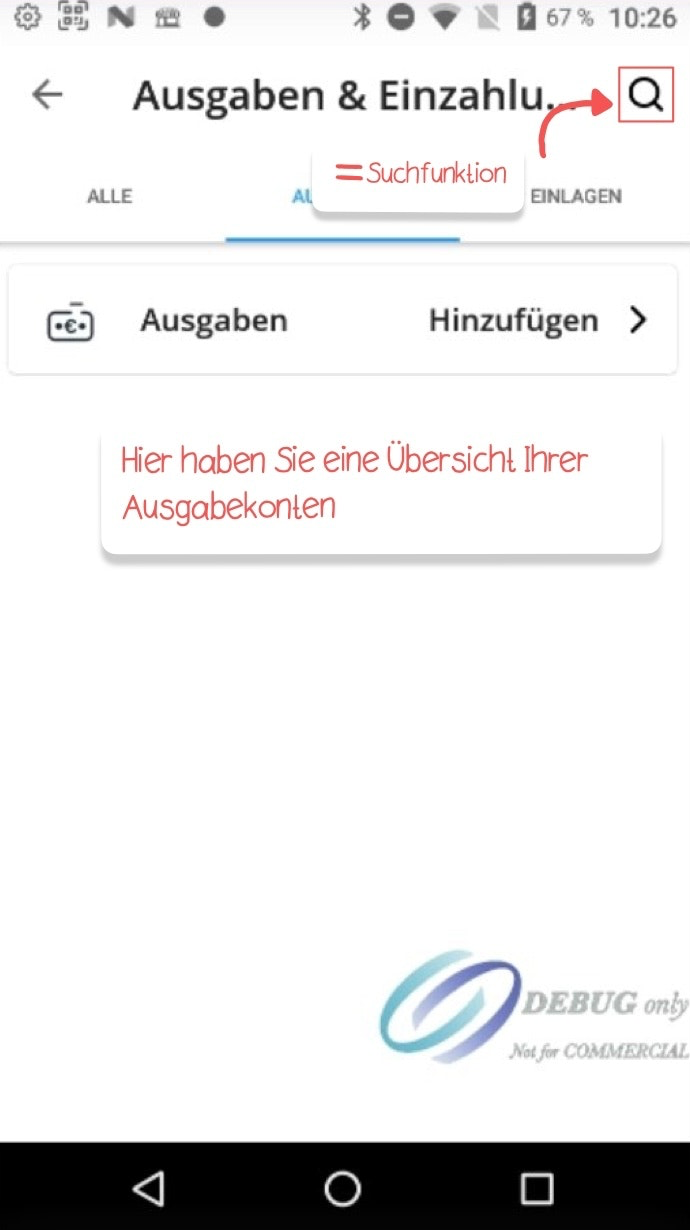
If you only want to display your expense accounts, select the “Expenses” tab. If you have multiple expense accounts and cannot immediately find the desired one, use the search function at the top right to look for the account.
Record expenses – 2
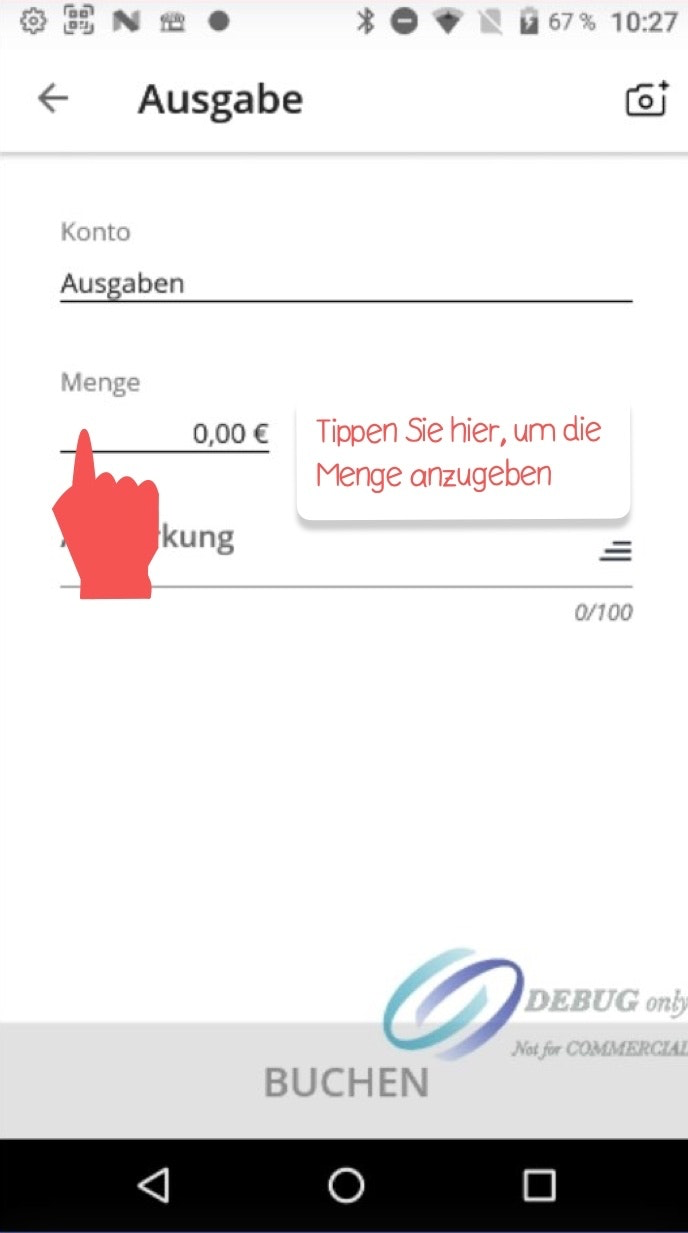
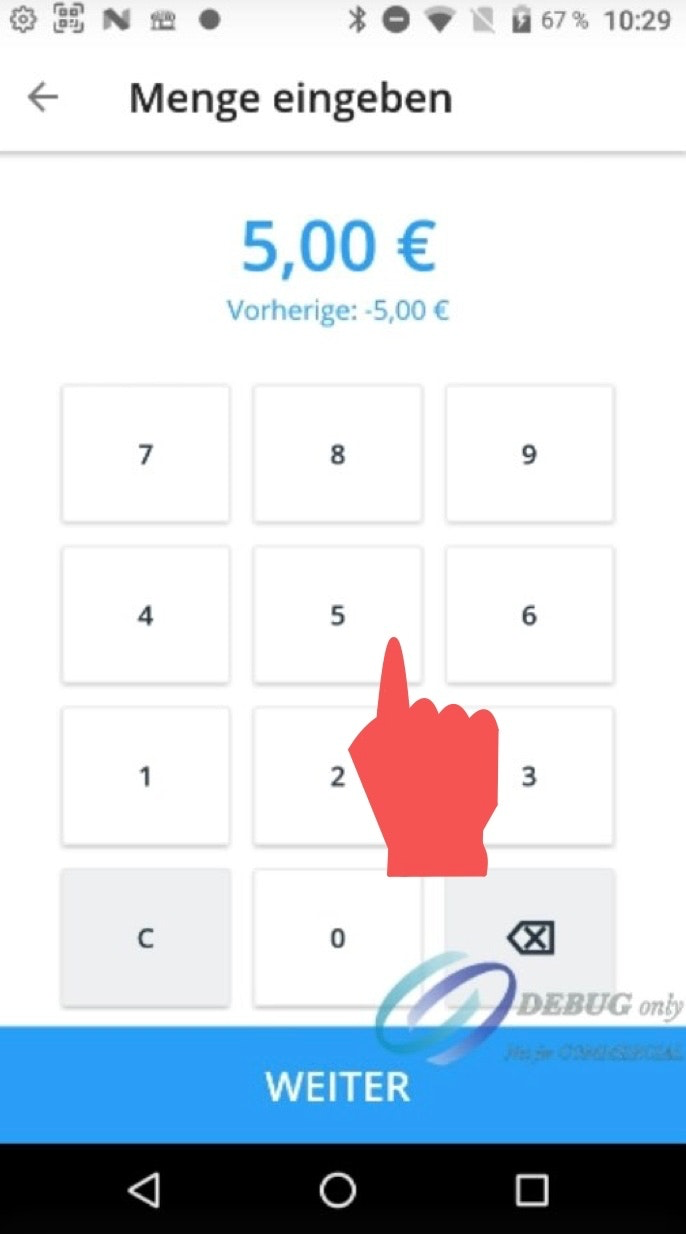
Tap “Amount” and use the number pad to enter the amount you want to record for the bank. Confirm your entry by tapping “Next.”
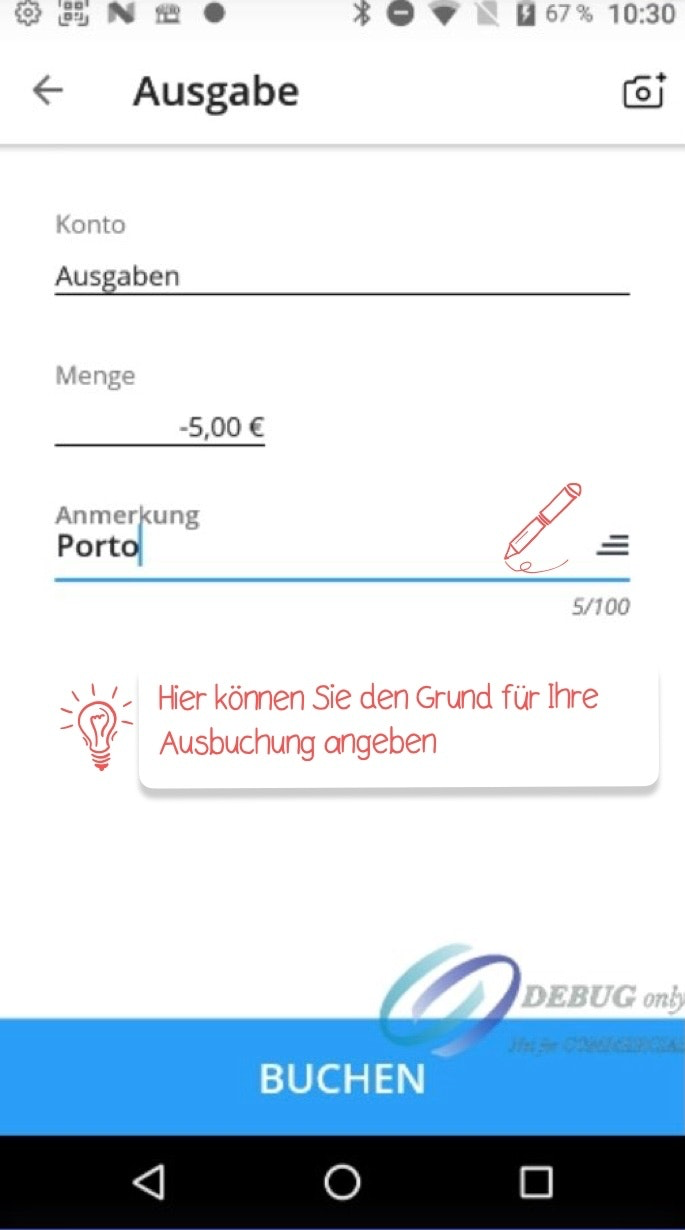
Enter the reason for your transaction in the comment field, for example “Postage invoice.” Finally, click “Post” in the next window.
Attach a photo of the invoice
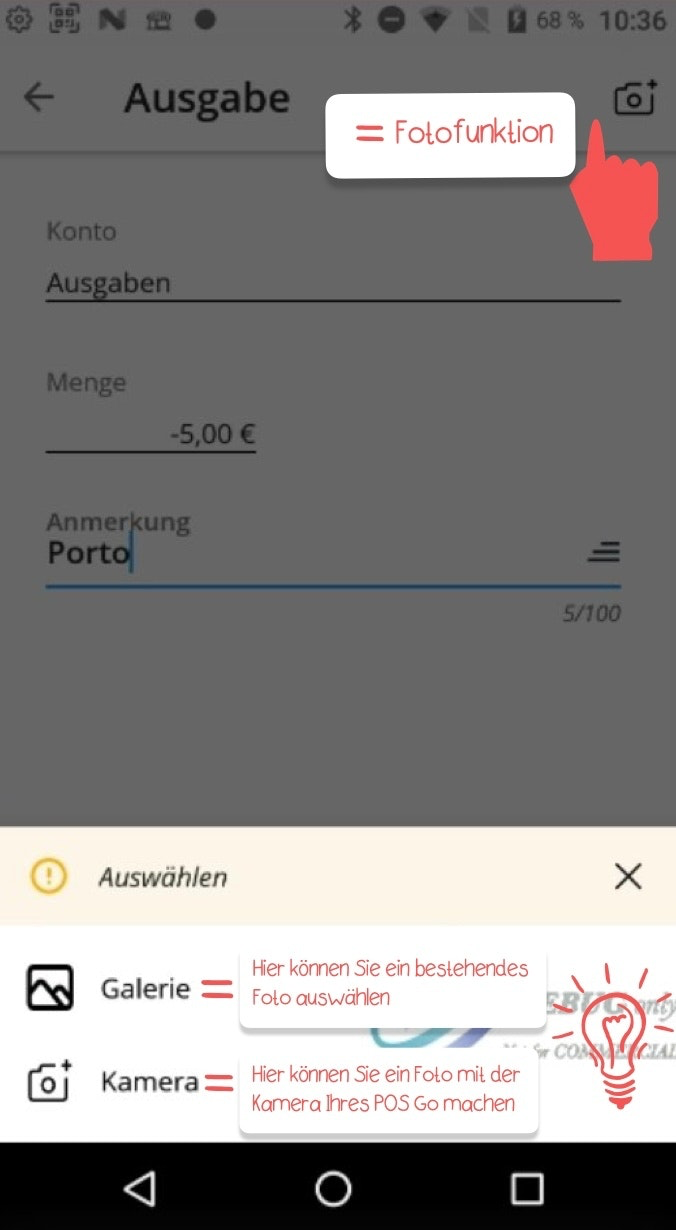
If you would like to digitally store a photo of the invoice together with your expense record in the dashboard, use our photo function. To do this, tap the camera icon at the top right.
You then have two options: you can either select “Camera” to take a photo of the receipt with your POS Go camera or tap “Gallery” to choose an existing photo from your image gallery.
Note: We still recommend that you also keep the original receipts filed separately together with the expense records!
Reprint or view expense receipt afterward
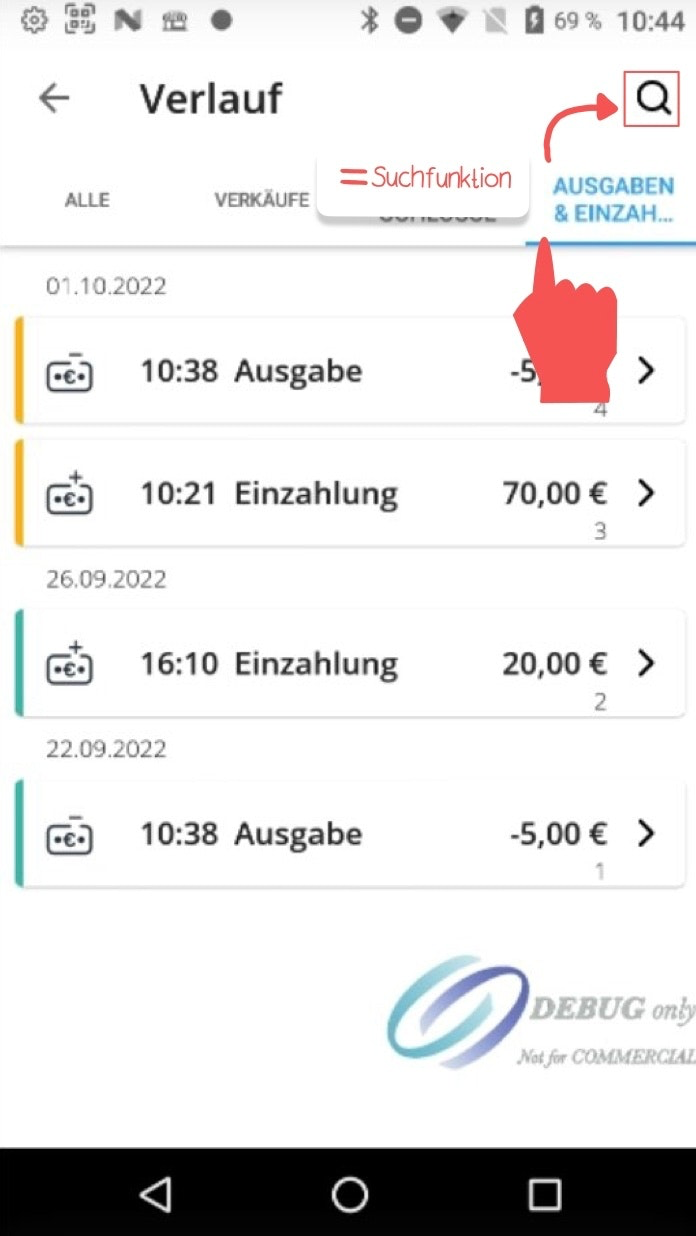
If you would like to view or print your expense receipts again later, open the main menu and navigate to “History” (Image 1).
Tap the “Expenses & Deposits” tab to display a list of all your expenses and deposits (Image 2).
If you cannot find the expense receipt right away, use the search function at the top right by entering the expense receipt number.
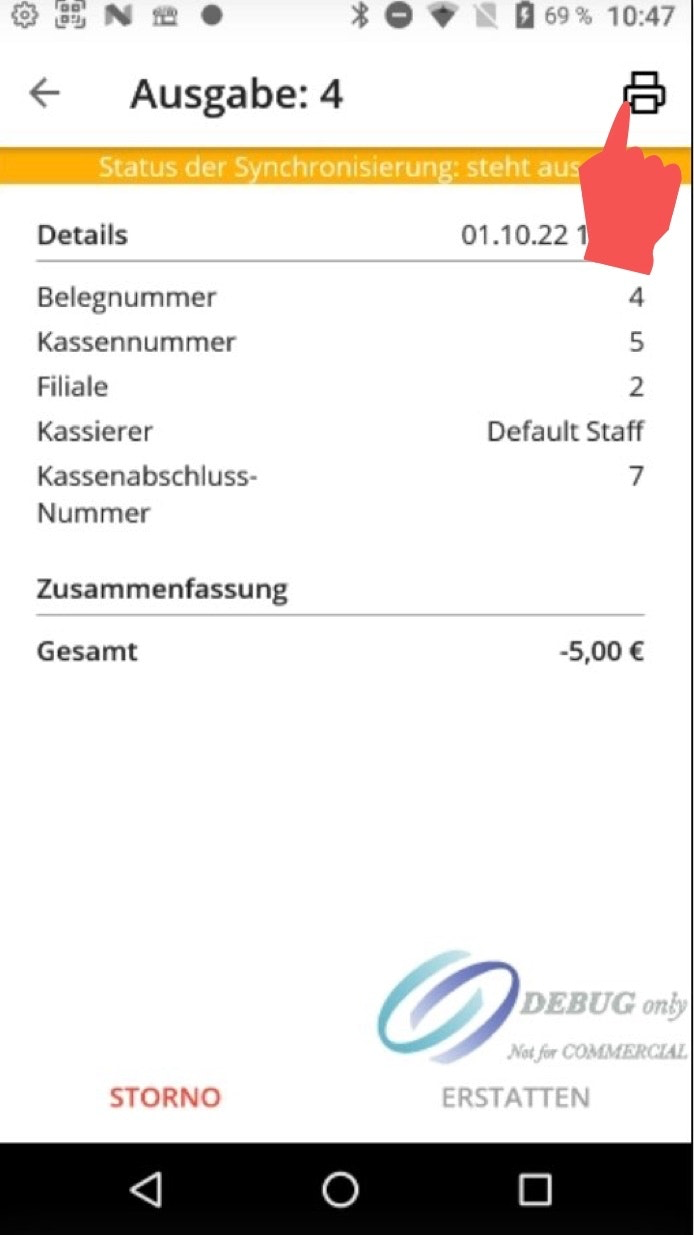
Select the corresponding expense receipt and tap the printer icon at the top right to print it again (Image 3).

Was this article helpful?
That’s Great!
Thank you for your feedback
Sorry! We couldn't be helpful
Thank you for your feedback
Feedback sent
We appreciate your effort and will try to fix the article