Logging in
Modified on Tue, 17 Feb at 2:16 PM
In the following steps, we will show you how to log in and log out of the POS Go (Tillhub Go) app and how to link your app with your cash register license in the dashboard.
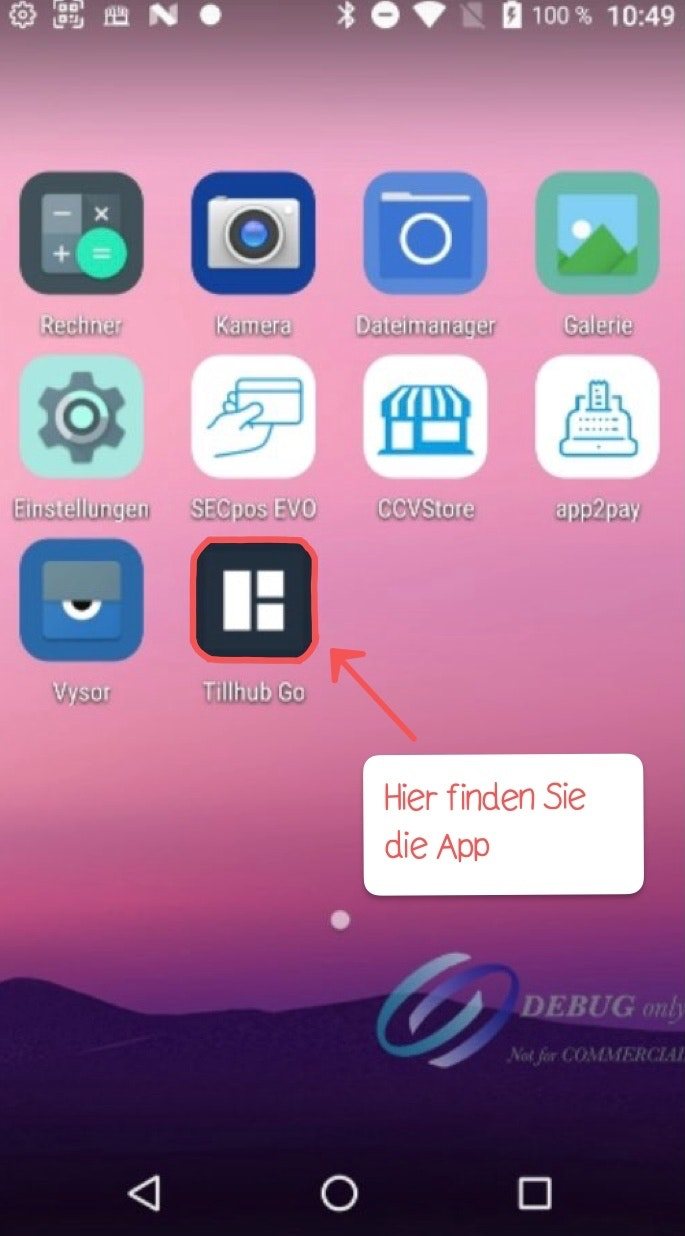
Step 1: Open the app
Tap the Tillhub Go app.
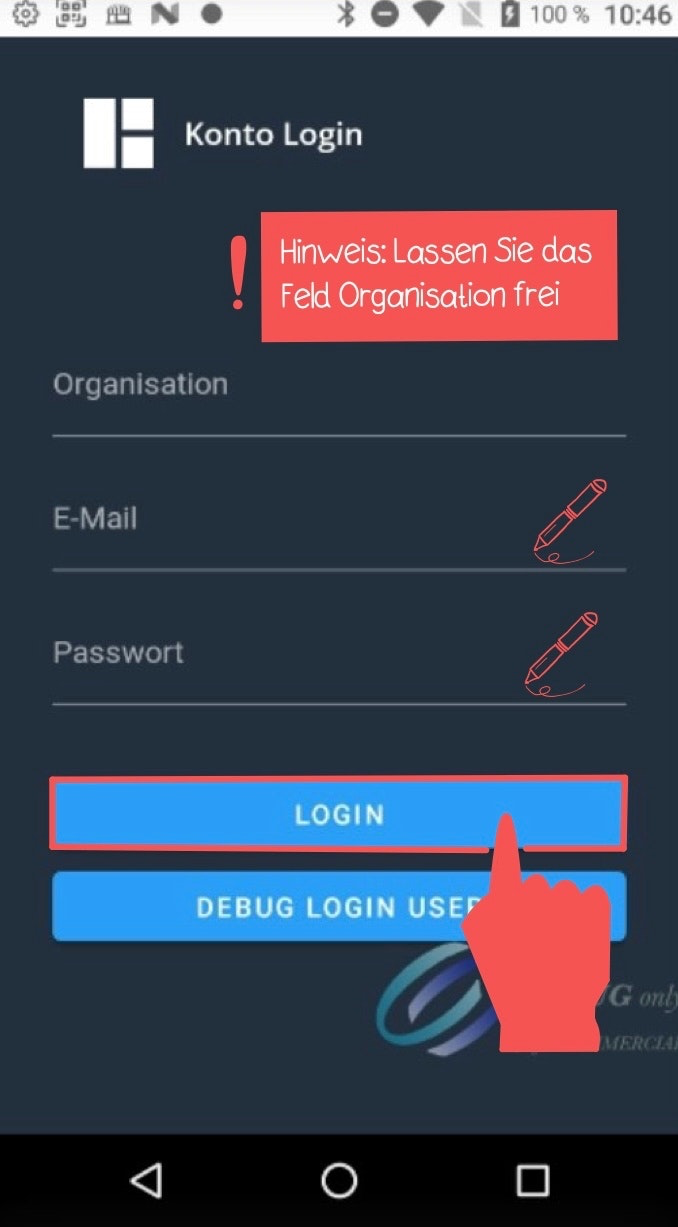
Step 2: Log in
Leave the “Organization” field empty.
Enter the credentials we sent you by email in the “Email” and “Password” fields. Then tap “Login.”
Step 3: Activate scanner function
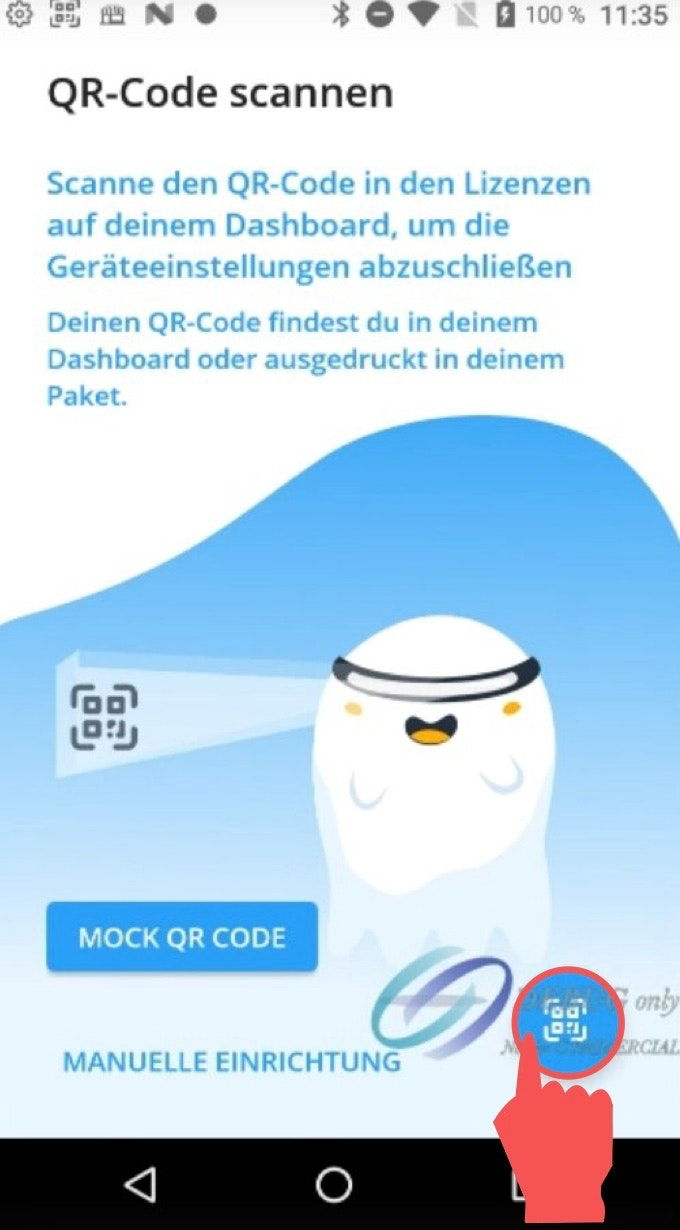
When logging in for the first time, you will be prompted in the next window to activate the scanner function of your POS Go.
To do this, tap the QR code at the bottom right.
Step 4: Open the internet browser
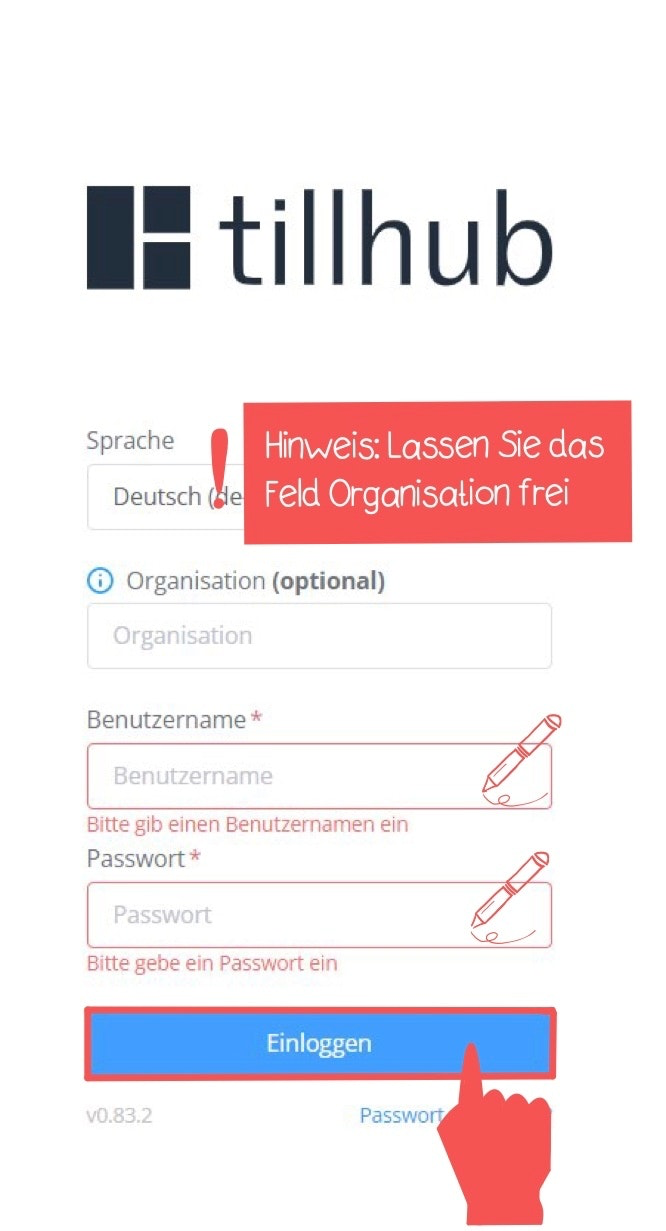
On your computer, open your internet browser and log in to your Tillhub dashboard: https://dashboard.tillhub.com/login
Leave the “Organization” field empty and enter the same credentials you used for your POS Go (Tillhub Go) app in the remaining fields.
Step 5: Select the cash register license
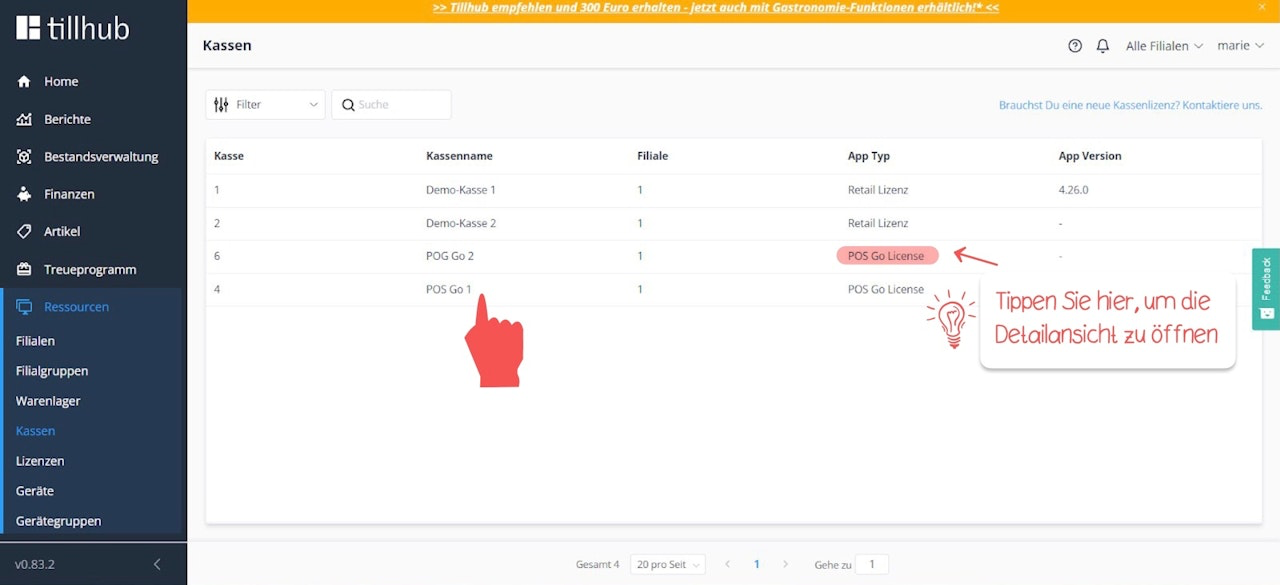
In the dashboard, navigate to Resources > Cash Registers.
On the right side of the screen, select your POS Go cash register license. If you have multiple cash register licenses and are unsure which one is your POS Go license, look for “POS Go License” in the “App Type” column. Tap the license to open the detail view.
Step 6: Link the cash register license
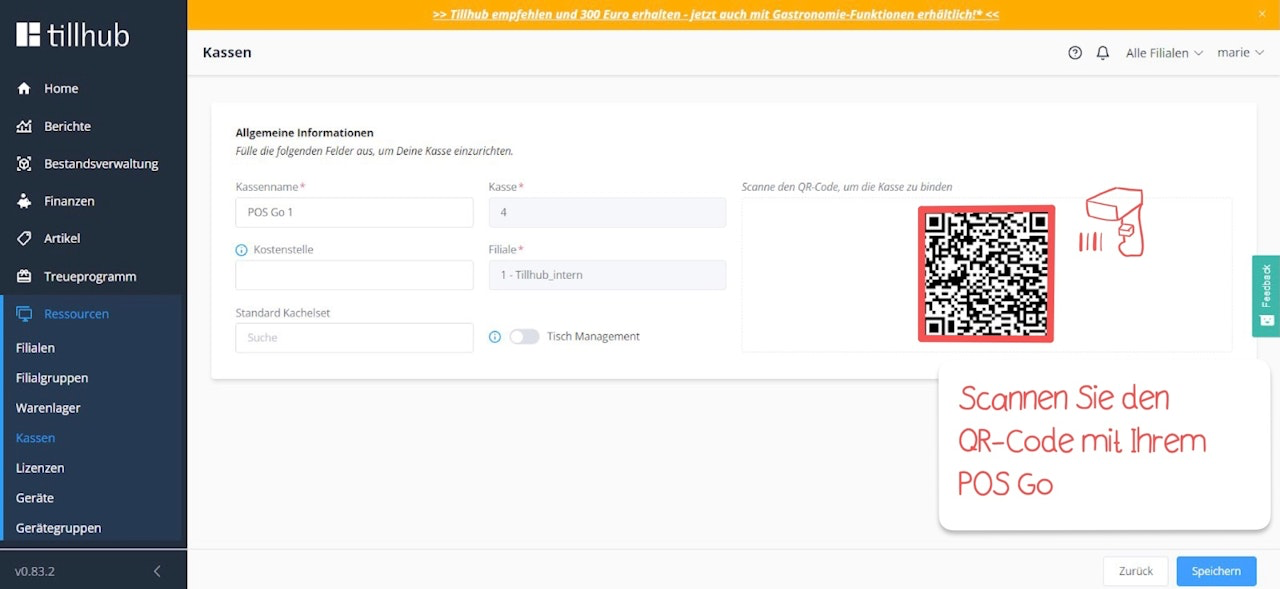
In the detail view, you will now see a QR code that you need to scan with your POS Go device to link the cash register license with your device and synchronize the data.
As long as you do not wish to link your POS Go device to another cash register license, you do not need to repeat this process when logging in again.

Was this article helpful?
That’s Great!
Thank you for your feedback
Sorry! We couldn't be helpful
Thank you for your feedback
Feedback sent
We appreciate your effort and will try to fix the article