Configure receipt
Modified on Tue, 17 Feb at 2:16 PM
In this article
- Step 1: Select resources
- Step 2: Select branch
- Step 3: Select currency
- Step 4: Enter address
- Step 5: Configure receipt
- Step 6: Advanced settings
- Step 7a: Print advanced information – salesperson settings
- Step 7b: Print advanced information – cashier settings
- Step 8: Additional information
- Step 9: Save
Step 1: Select resources
In this section, we explain how to configure your receipt and add additional branches to your dashboard account.
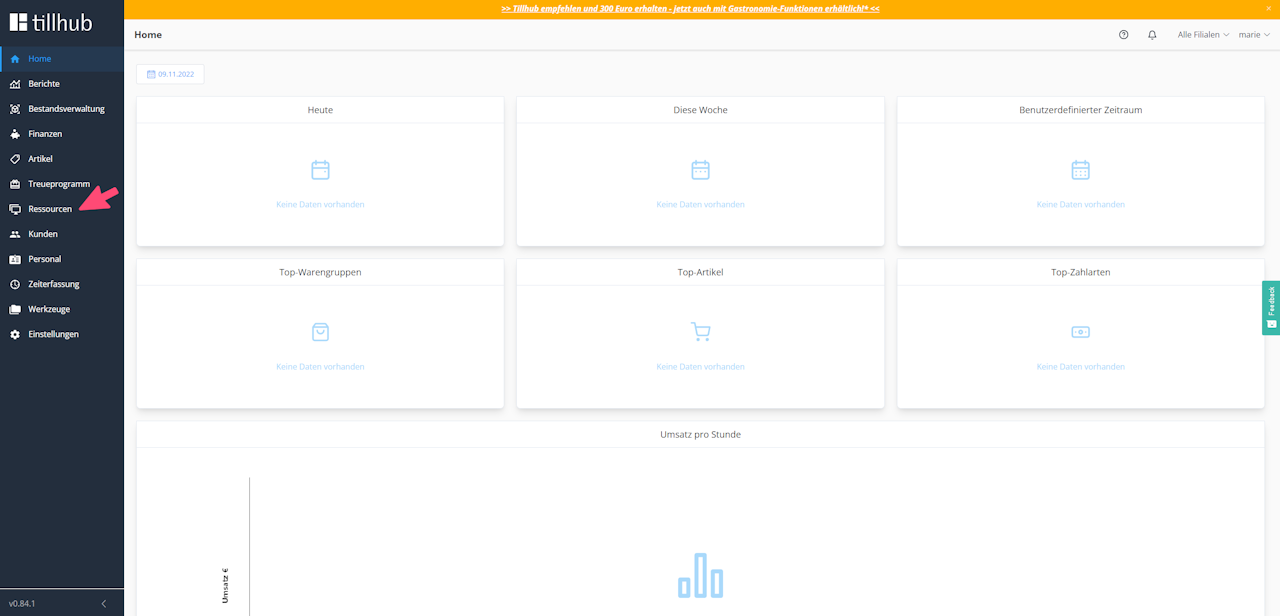
First, navigate to the Tillhub Dashboard https://dashboard.tillhub.com/home and click on the “Resources” button.
Step 2: Select branch
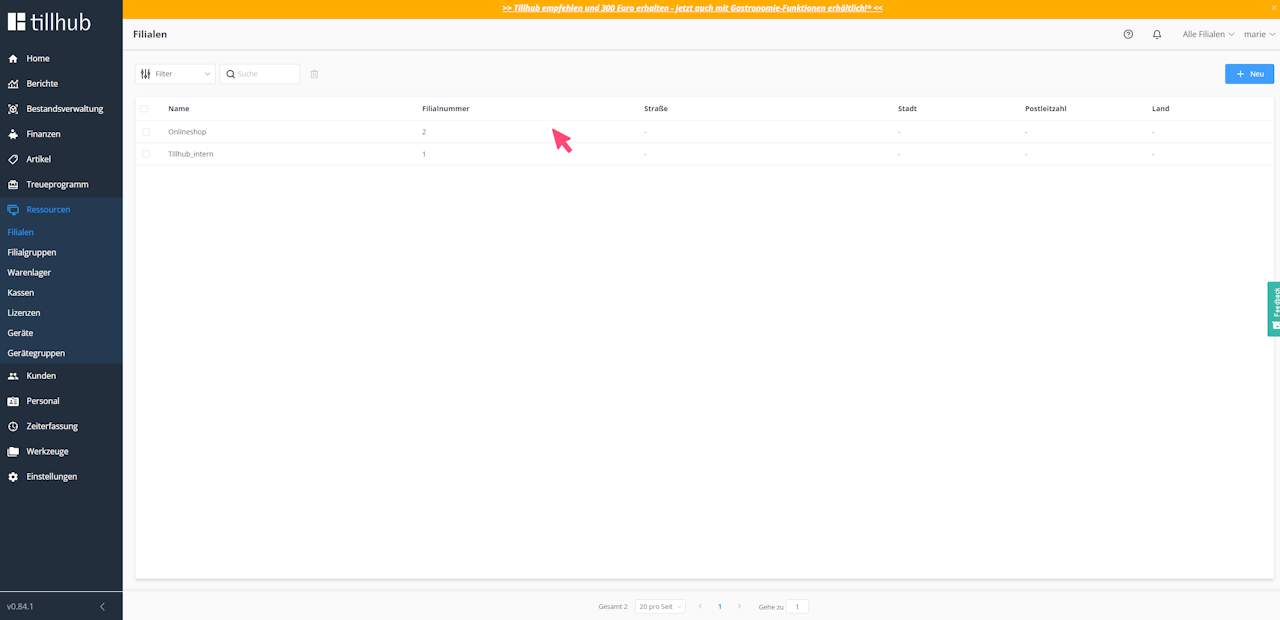
Click on the created branch (on the row itself, not on the checkbox on the left edge).
Step 3: Select currency
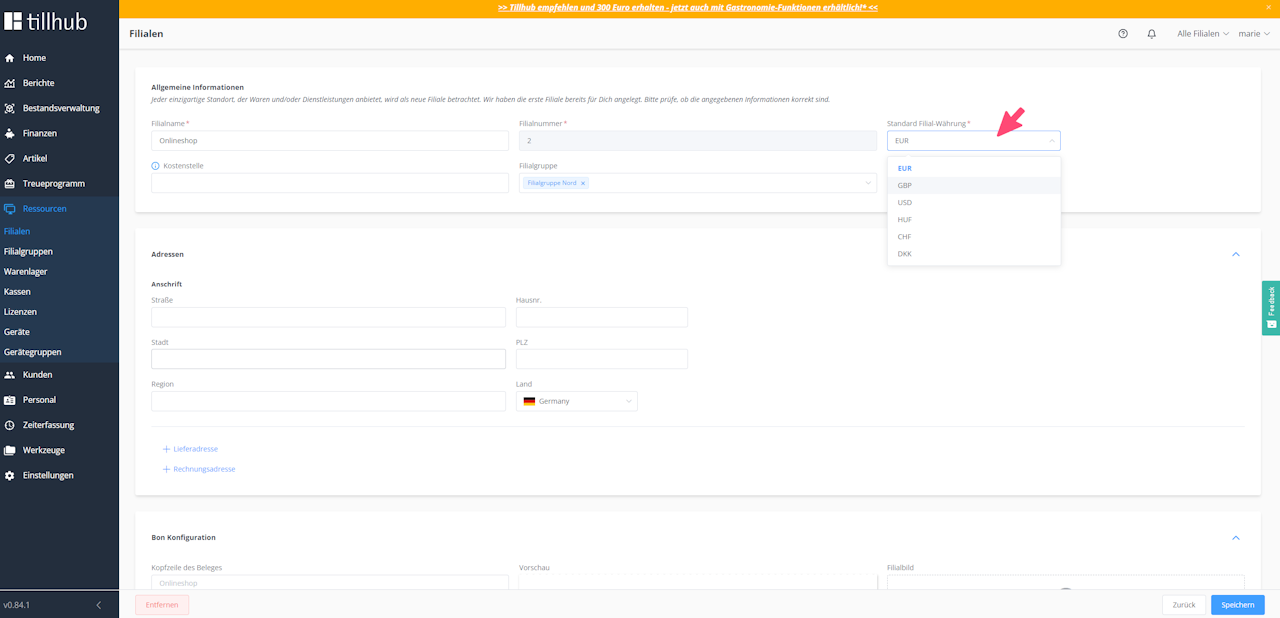
In the “General Information” menu section, click on the “Default Branch Currency” text field and select the desired currency.
Step 4: Enter address
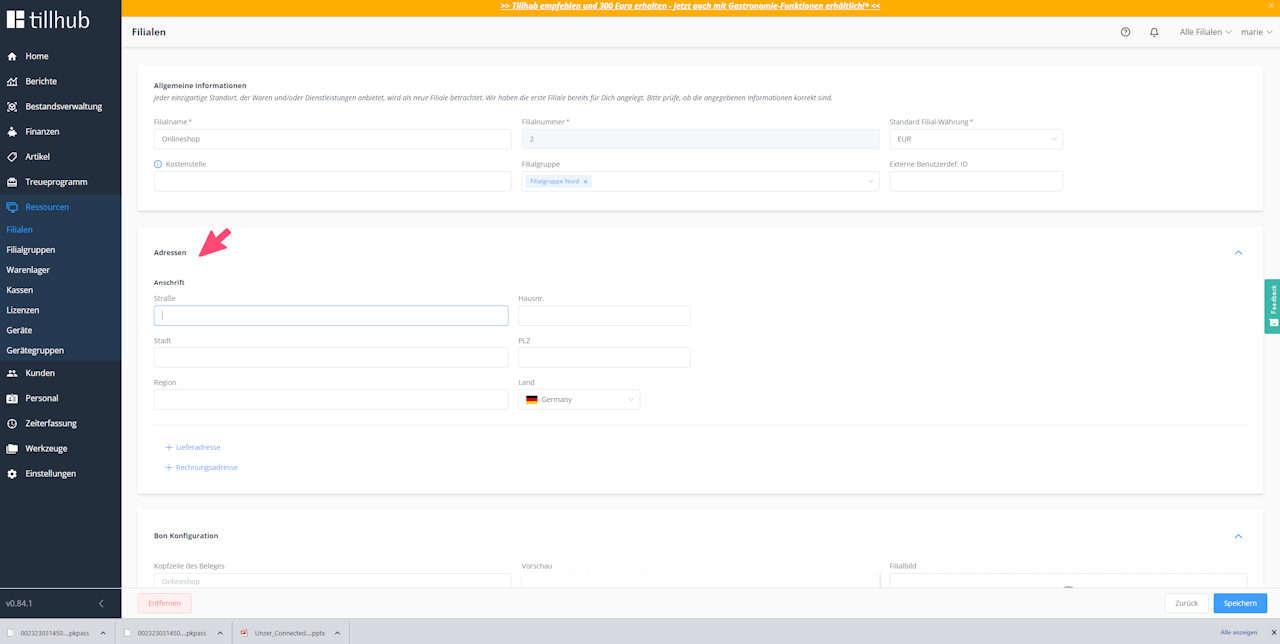
Enter your address details in the corresponding fields.
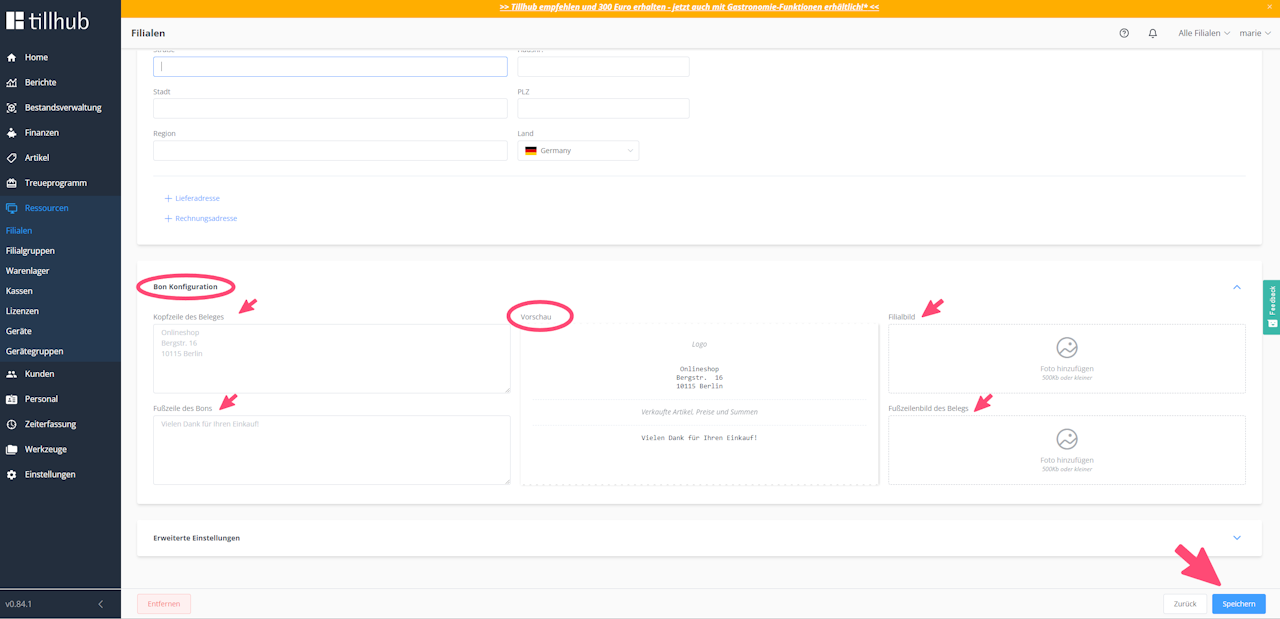
Step 5: Configure receipt
- Click on the “Receipt Header” text field and enter your company name and address.
- Click on the “Receipt Footer” text field and enter your VAT ID number.
- Click on the “Branch Image” field and, if desired, upload your company logo (the image must not exceed 500 KB).
- Then click “Save.”
You may also choose to include additional information, such as your opening hours in the header or a farewell message in the footer.
Step 6: Advanced settings
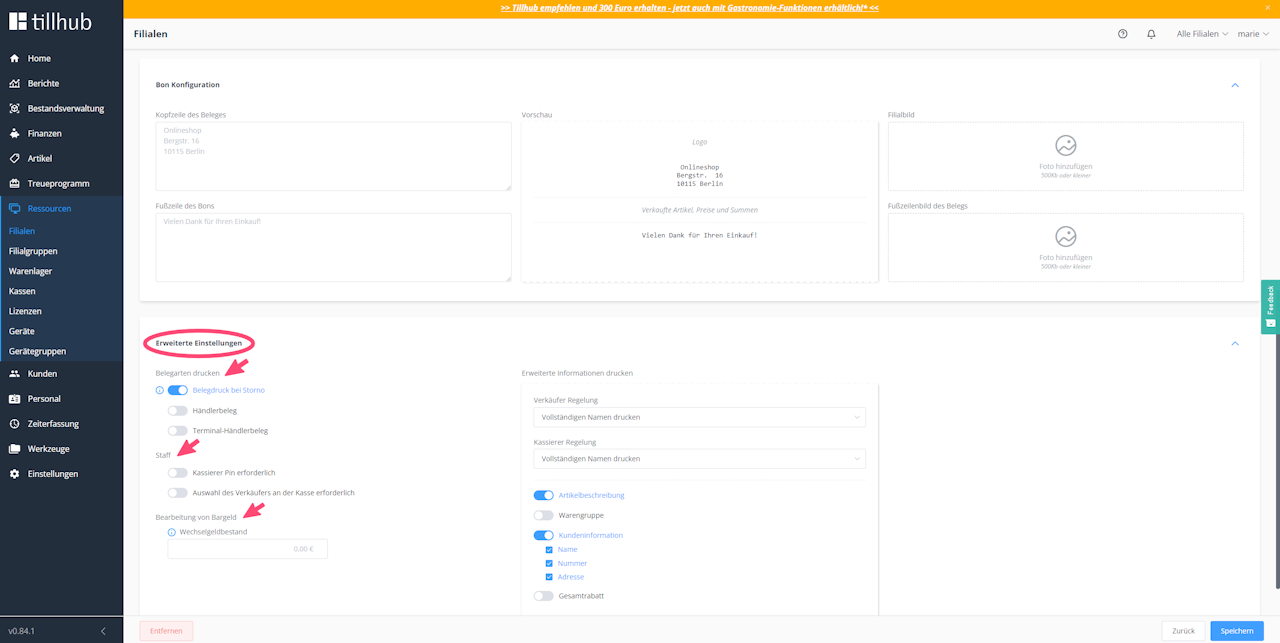
In the “Advanced Settings” menu section, you can specify on the left side:
- which types of receipts should be printed
(receipt printout for cancellation, merchant receipt, terminal merchant receipt) - which measures should be taken at checkout on the employee level
(mandatory cashier PIN entry, mandatory selection of salesperson) - whether a fixed change suggestion should be displayed
Step 7a: Print advanced information – salesperson settings
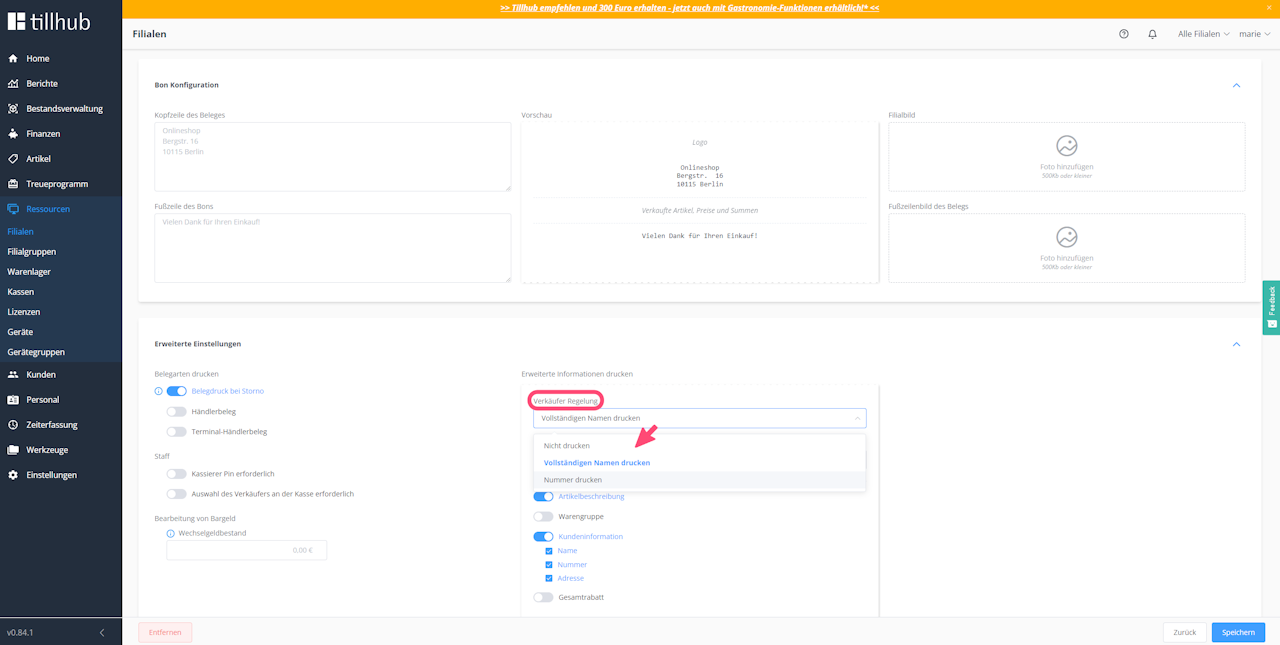
In the “Advanced Settings” menu section, on the right side under “Salesperson Settings,” you can decide which information about the salesperson should be printed on the receipt:
- none
- first and last name
- employee number only
Step 7b: Print advanced information – cashier settings
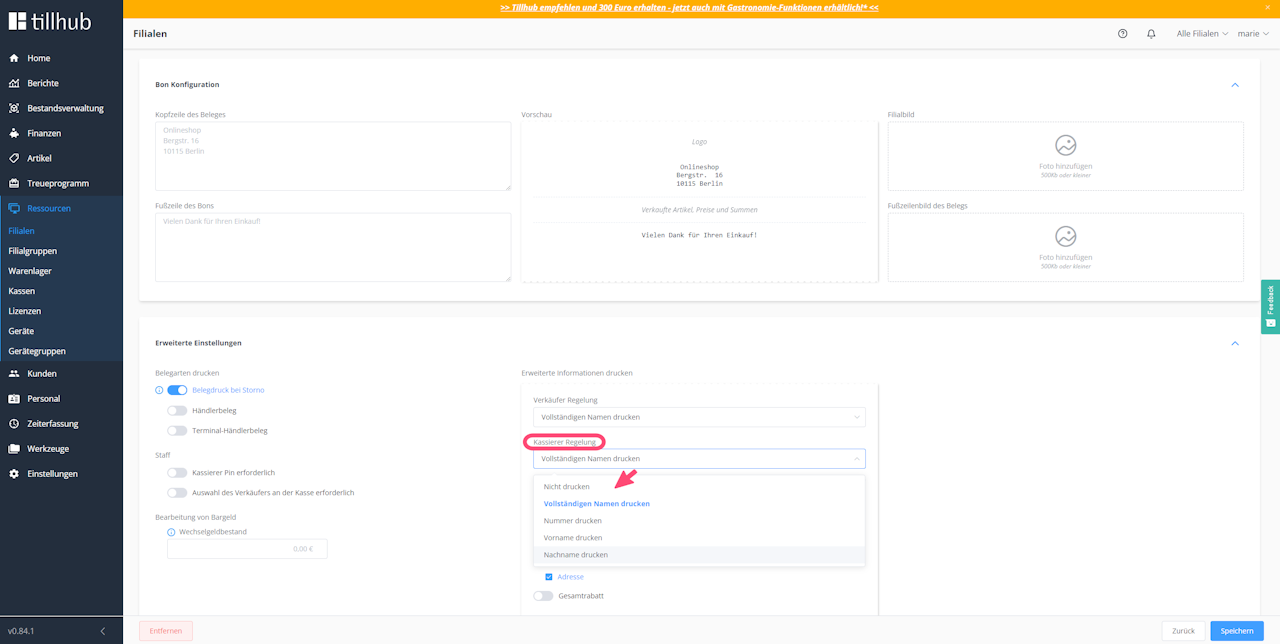
In the “Advanced Settings” menu section, on the right side under “Cashier Settings,” you can decide which information about the cashier should be printed on the receipt:
- none
- full name
- employee number
- first name only
- last name only
Step 8: Additional information
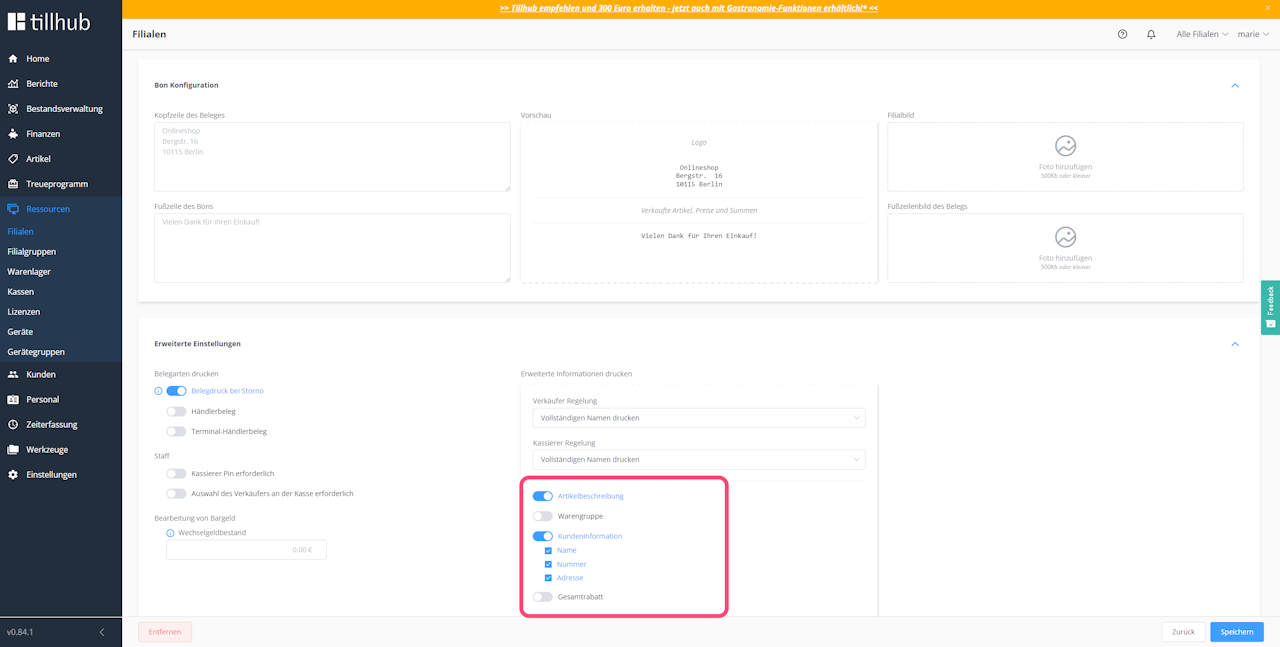
Furthermore, in the “Advanced Settings” menu section, you can decide which additional information should be printed on the receipt regarding your sold items (item description, product group name), the customer, and the total discount.
Step 9: Save
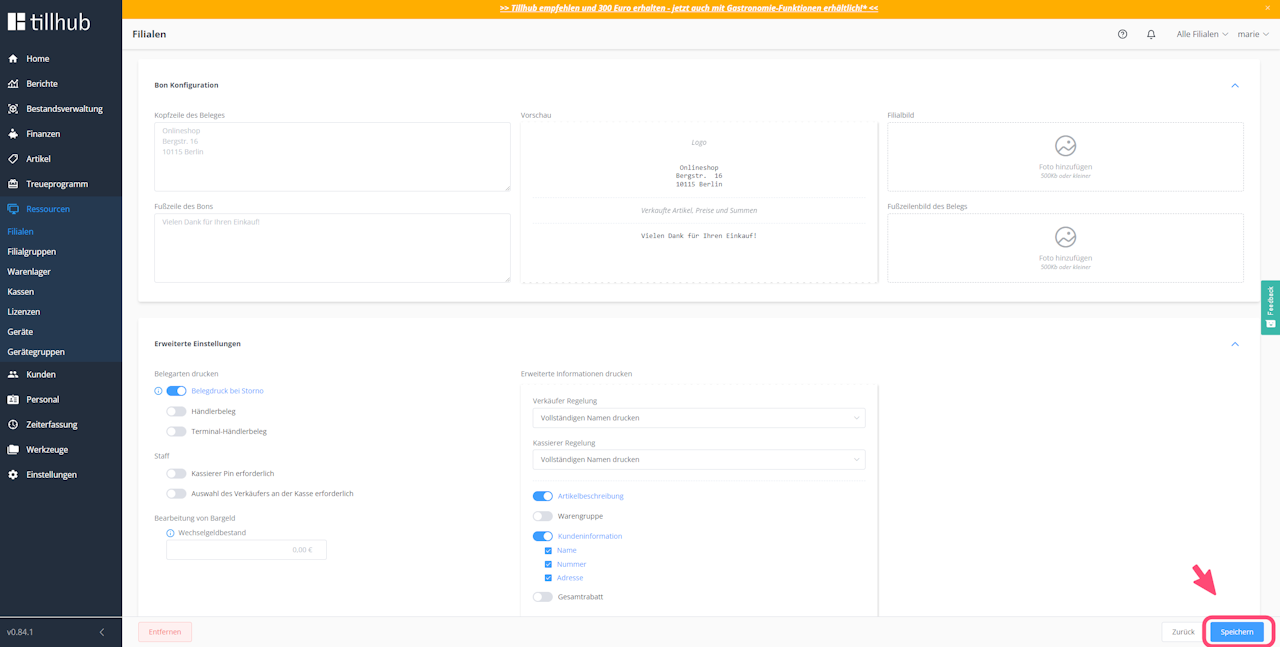
Finally, click “Save.”

Was this article helpful?
That’s Great!
Thank you for your feedback
Sorry! We couldn't be helpful
Thank you for your feedback
Feedback sent
We appreciate your effort and will try to fix the article