Change item quantity
Modified on Tue, 17 Feb at 2:16 PM
If you want to add an item to the shopping cart multiple times, you have the following two options:
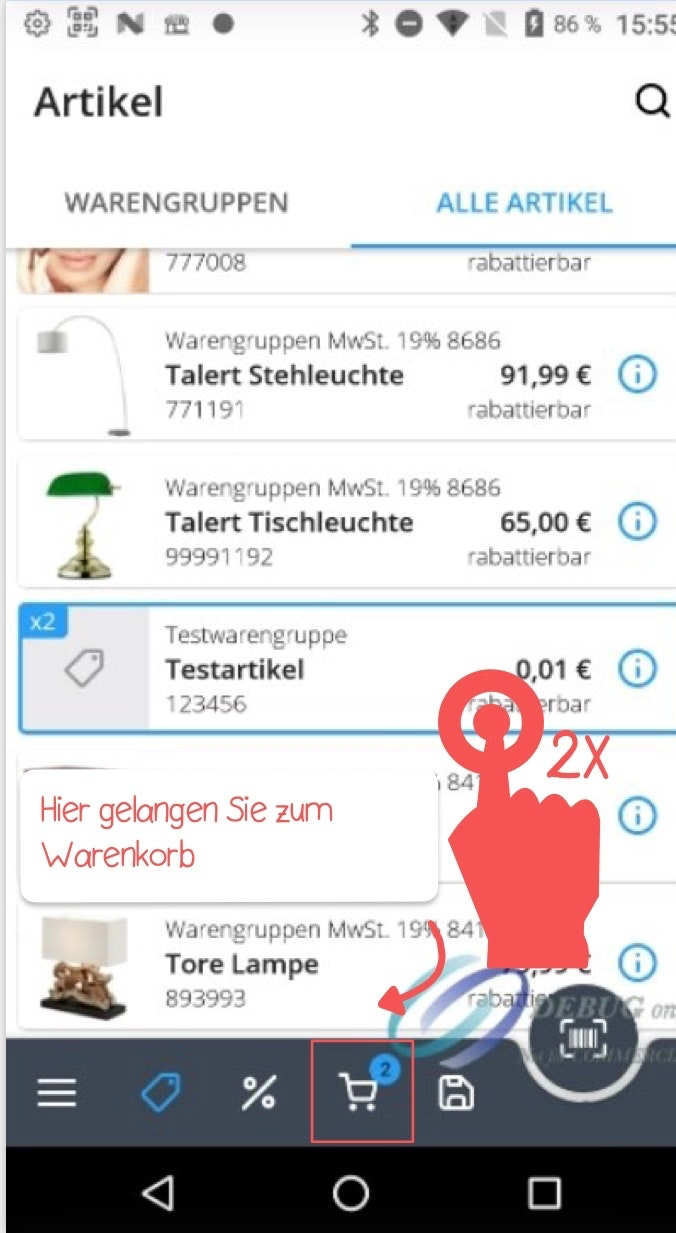
Option 1: Tap the item multiple times
Tap the item as many times as needed to reach the desired quantity.
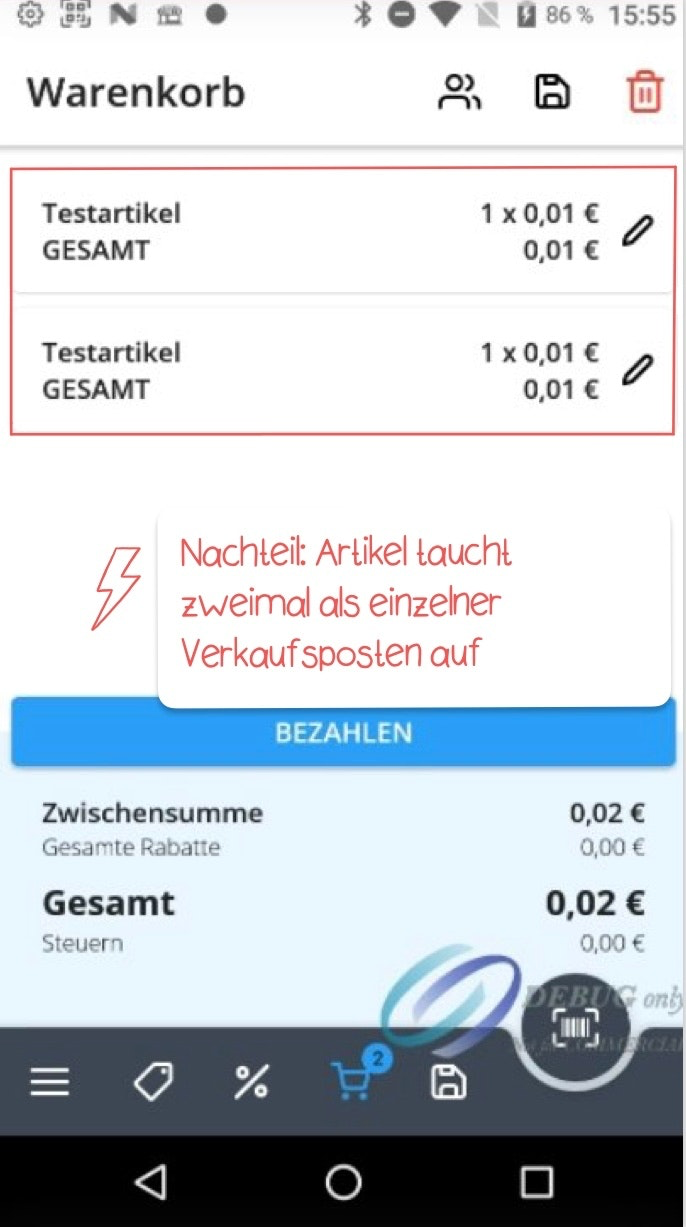
The disadvantage of this method is that each tap adds the item as a separate sales entry in the shopping cart.
Option 2: Modify item in the shopping cart
The second, more space-efficient method is to change the quantity of an item after it has already been added to the shopping cart.
To open the shopping cart, tap the shopping cart icon located in the bottom menu bar.
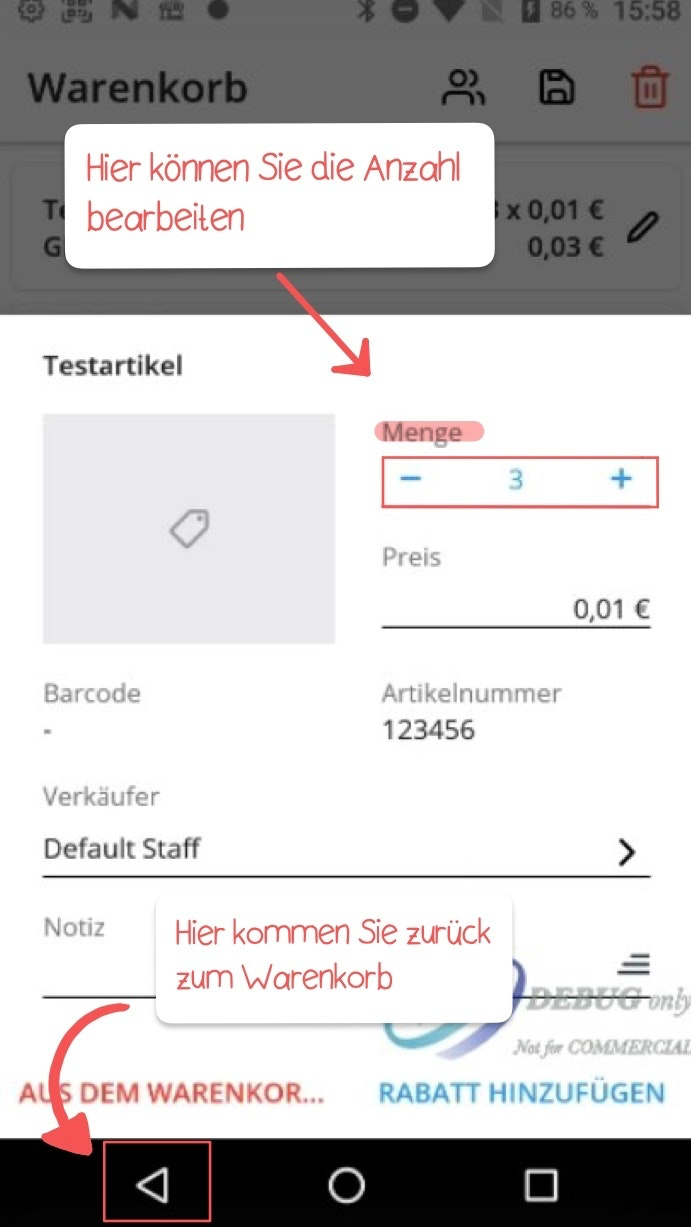
Once you’ve found the sales item you want to edit, tap the pencil icon.
Adjust the item quantity using the plus and minus symbols.
Tap the arrow at the bottom left to save your changes and return to the shopping cart.
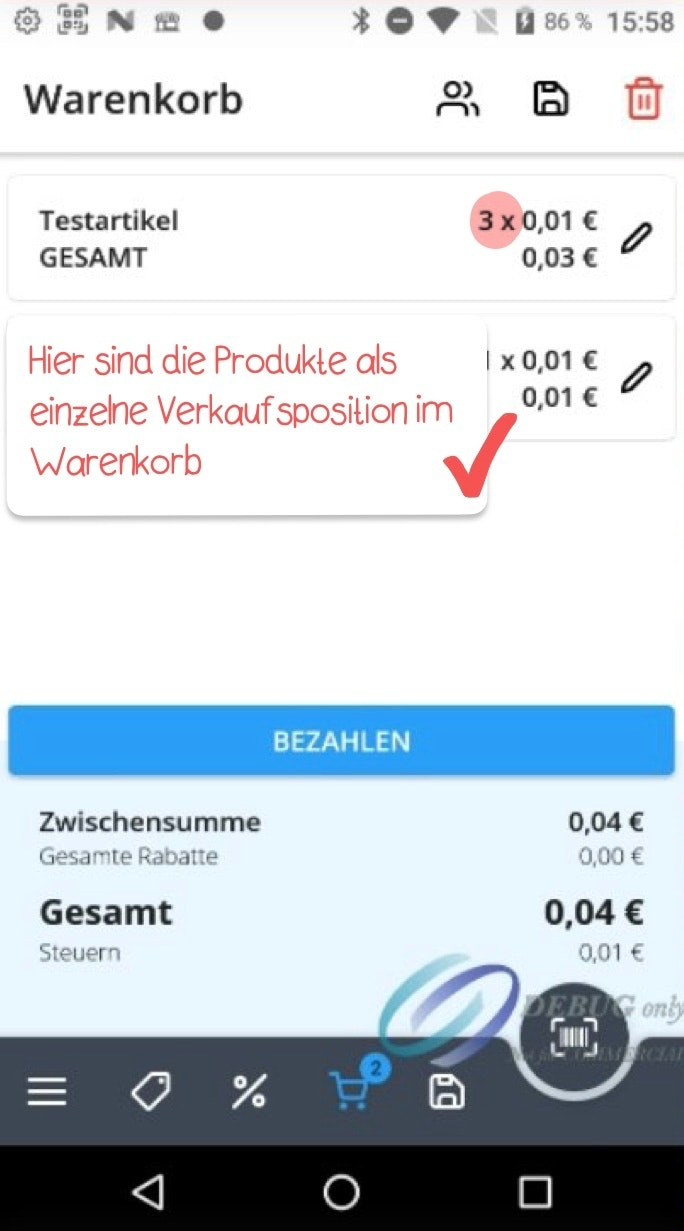
In the cart view, you can now see that your three items are combined into a single sales entry.

Was this article helpful?
That’s Great!
Thank you for your feedback
Sorry! We couldn't be helpful
Thank you for your feedback
Feedback sent
We appreciate your effort and will try to fix the article