Payment process (checkout)
Modified on Tue, 17 Feb at 2:16 PM
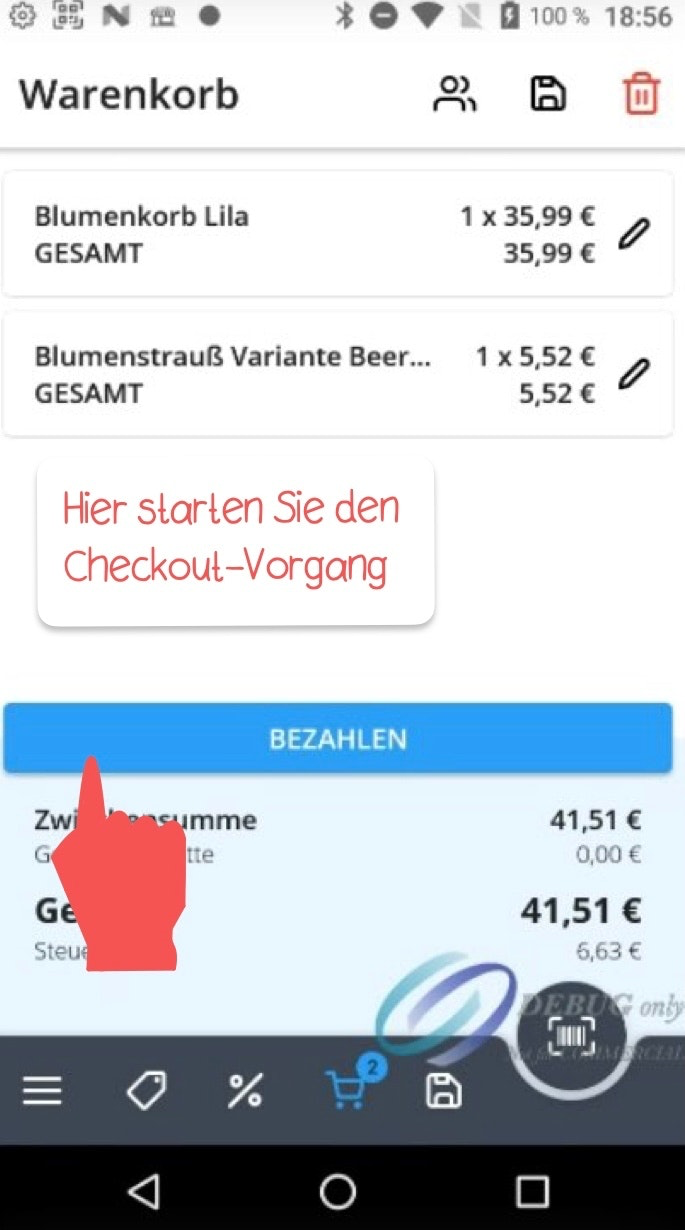
When you are in the shopping cart view, you can start the checkout process by tapping the blue “Pay” button.
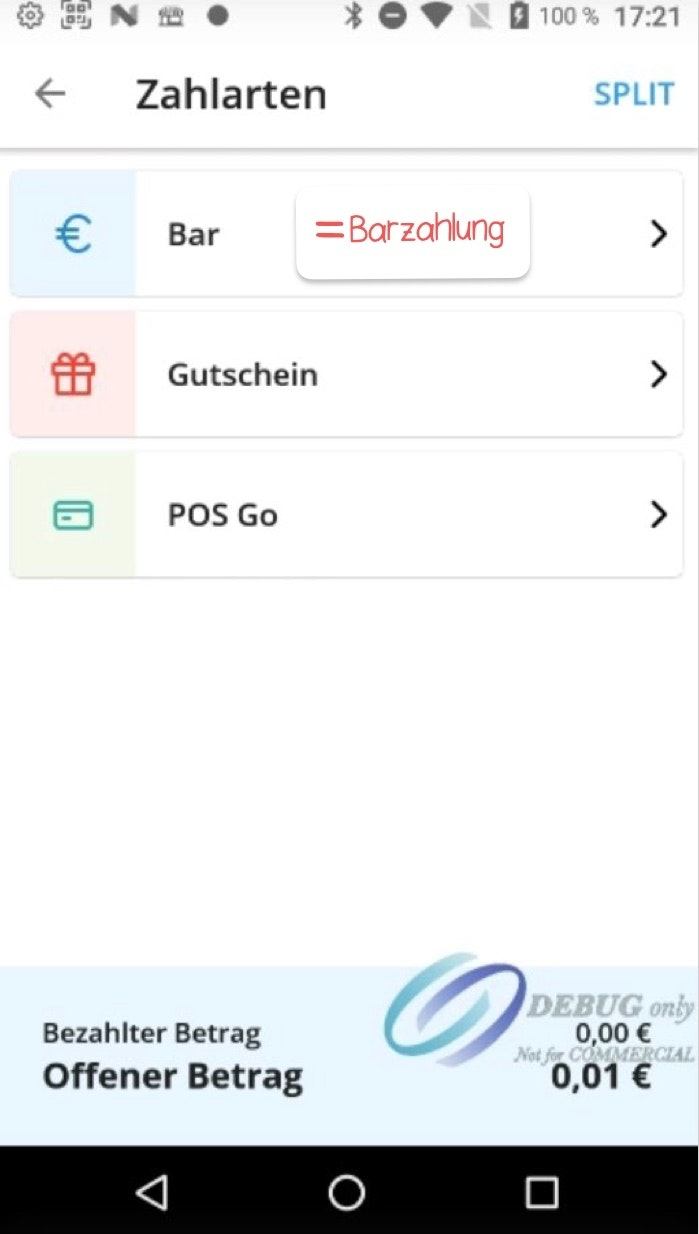
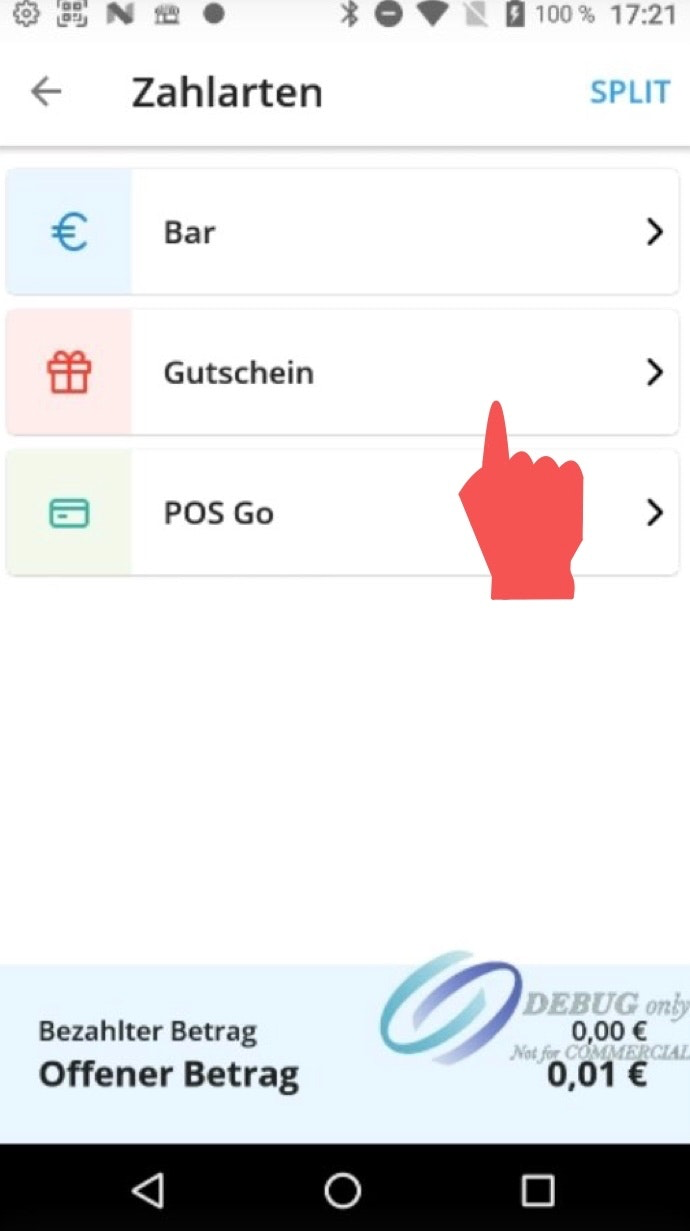
In the next window, all your available payment methods that you have previously set up in your dashboard will be displayed.
Cash payment
If you want to process a cash payment, select the “Cash” button.
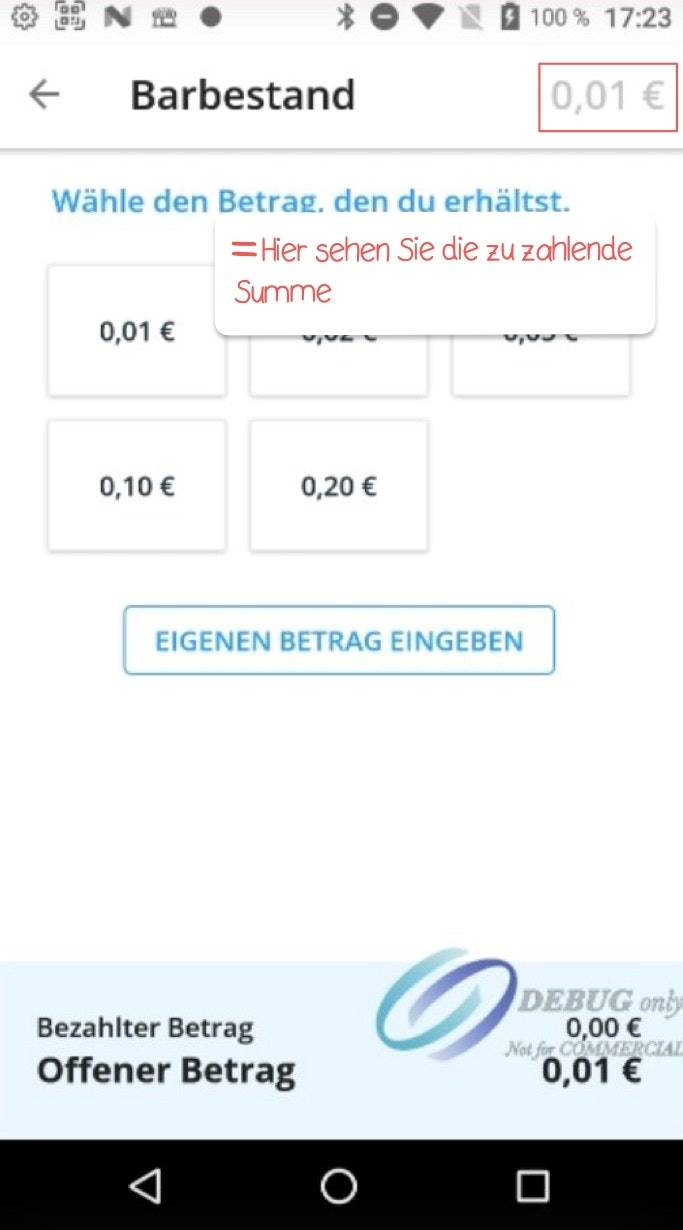
Choose one of the suggested amounts or enter a different amount. The total amount due will be displayed at the top right. Confirm your entry by tapping “Pay.”
Card payment
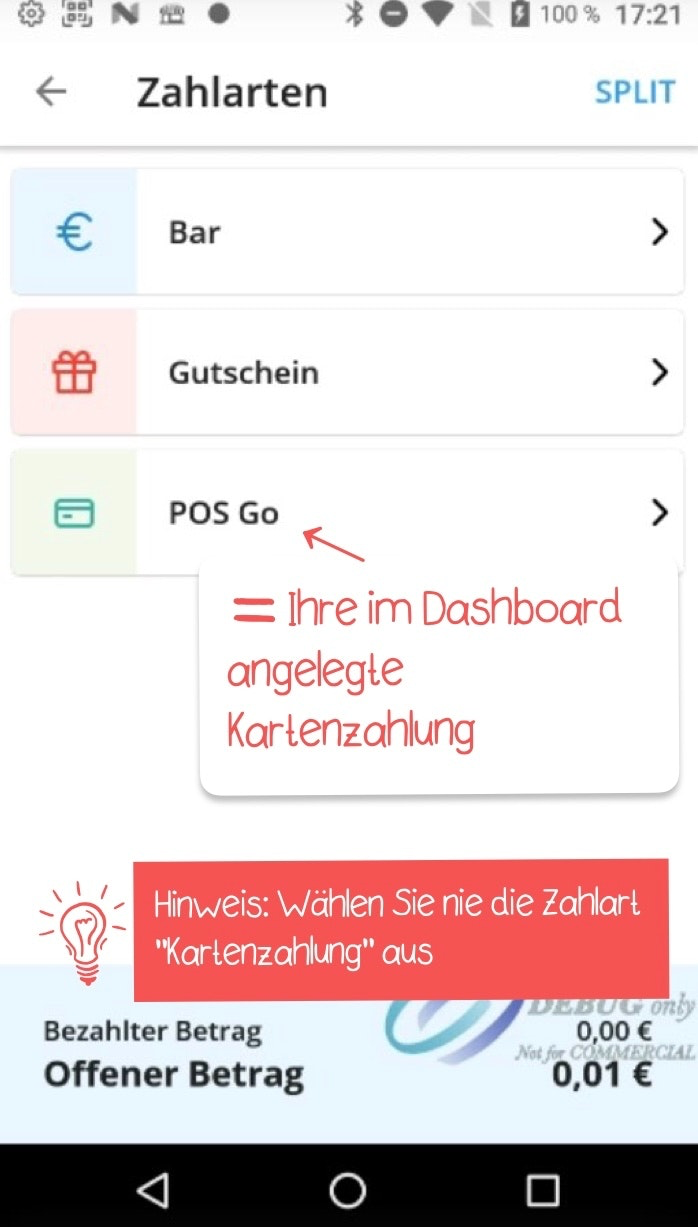
If you want to process a card payment, select the card payment method (POS Go) — the payment type you created during the initial setup of your dashboard for your POS Go.
Once you have tapped the “Pay” button, simply follow the on-screen instructions to complete the payment process.
Voucher
If you have set up a voucher system on your POS Go, you can also select the “Voucher” payment method.
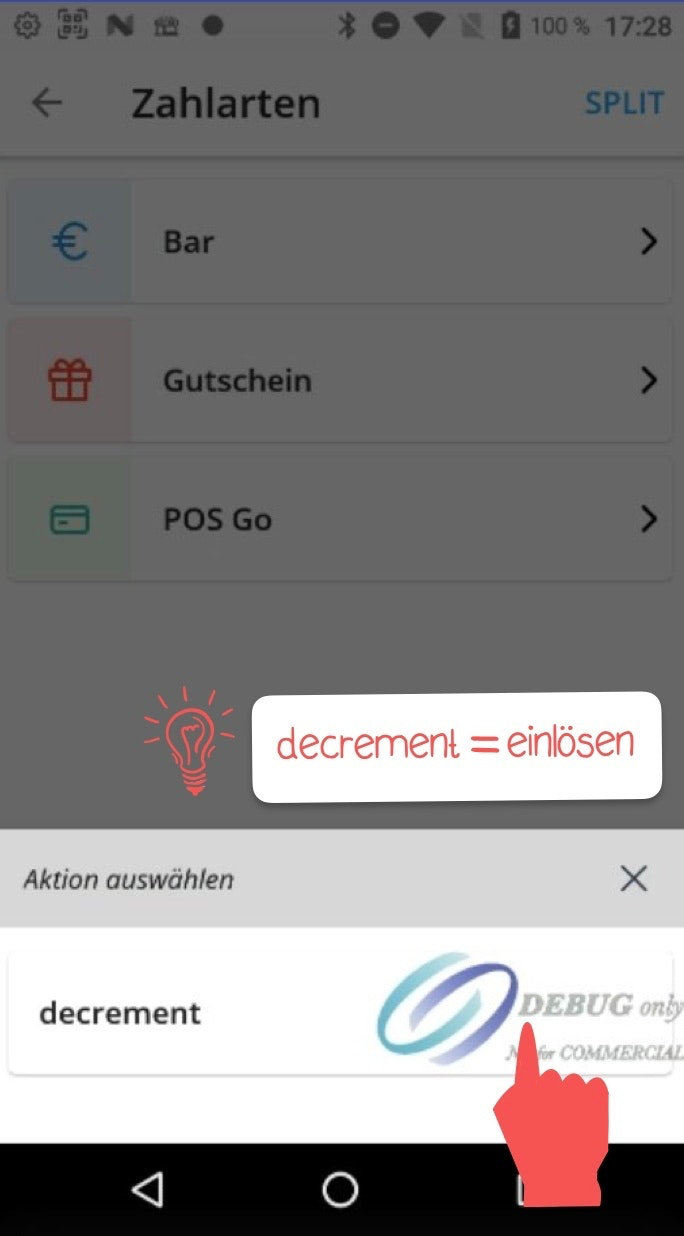
Choose the action “decrement” (redeem).
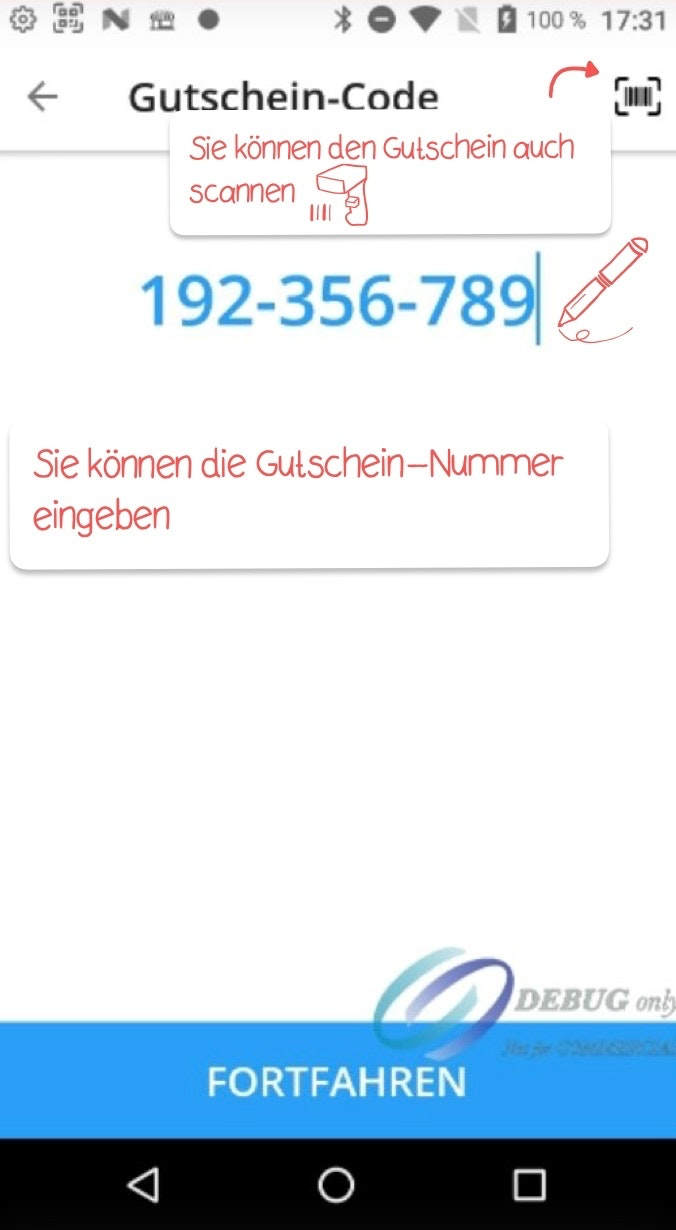
Scan or enter the voucher number. You can also scan the voucher’s barcode using the icon at the top right. Finally, tap the “Continue” button to complete the payment process.
Split payment
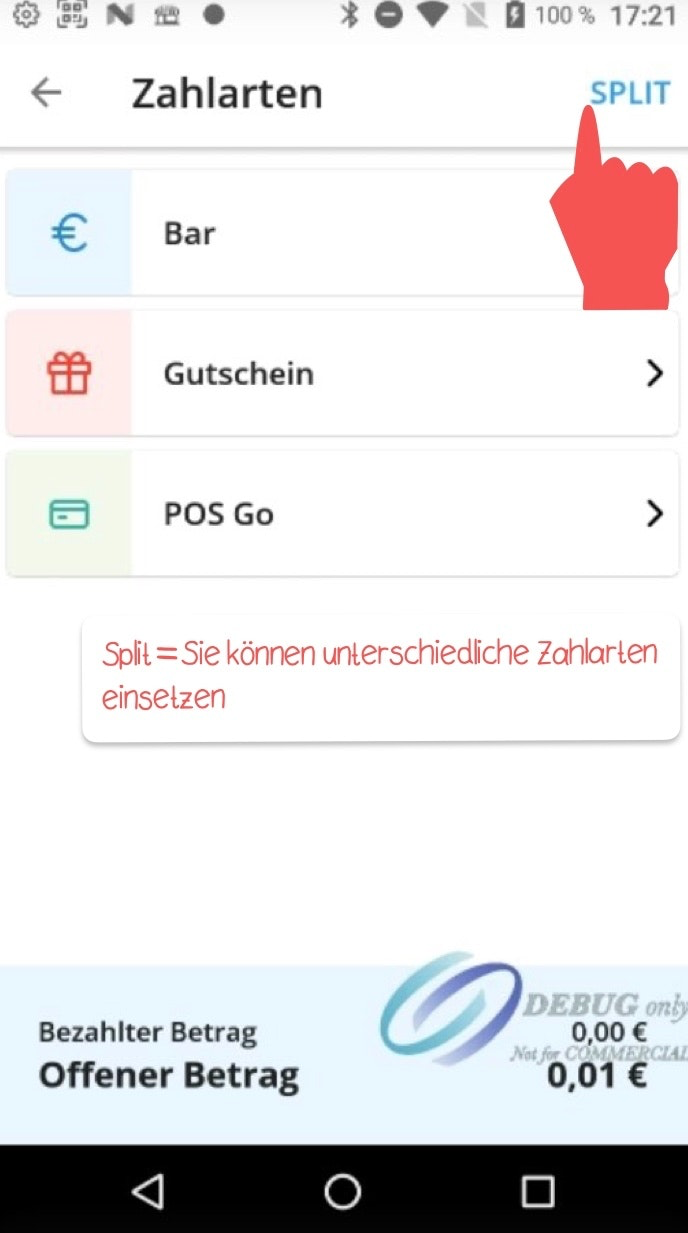
You also have the option to split the payment into multiple transactions using the same or different payment methods.
To do this, tap “Split” at the top right.
Select the payment method you want to use for the first transaction.
Use the number pad to enter the amount you want to pay with this method. The remaining balance will be displayed at the top right for your reference.
After tapping “Pay,” you will be taken back to the payment methods view. Now select the second payment method to process the next split payment. Proceed as you did for the first transaction. You can repeat this process as many times as needed until the full amount has been paid.

Was this article helpful?
That’s Great!
Thank you for your feedback
Sorry! We couldn't be helpful
Thank you for your feedback
Feedback sent
We appreciate your effort and will try to fix the article