CCV PAX A920 - Performing Diagnostics
Modified on Tue, 3 Feb at 9:45 AM
The diagnostics contain all the necessary information for handling payment processing.
Contents of the diagnostics:
- Receipt text
- Payment methods
- Card acceptance
- Payment authorizations
Sometimes it is necessary to manually apply the diagnostics after changes. Here, we show you how to apply the diagnostics.
Types of diagnostics:
- Extended diagnosis
- Configuration diagnosis
- EMV config diagnosis
Output display
1) 2)
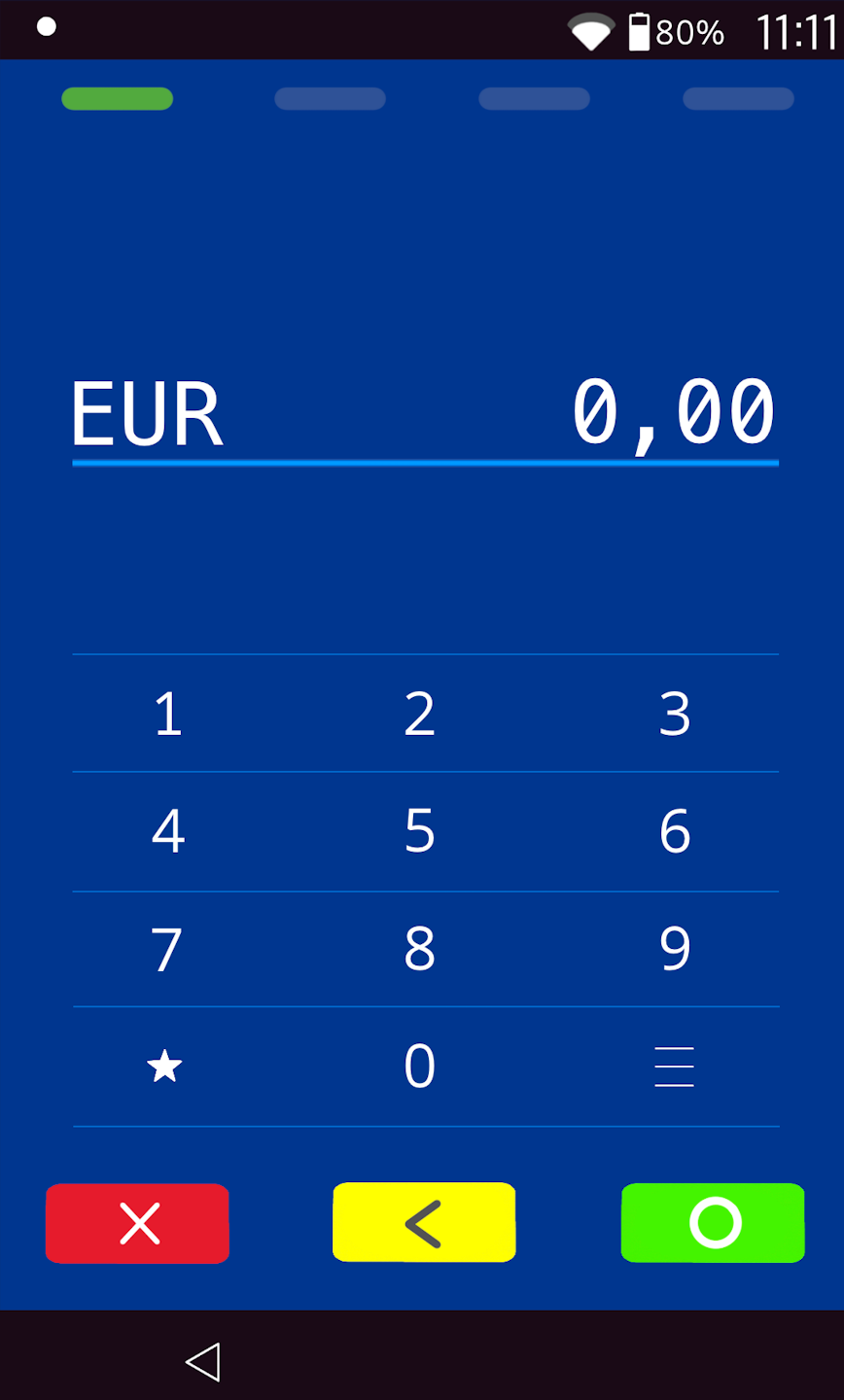
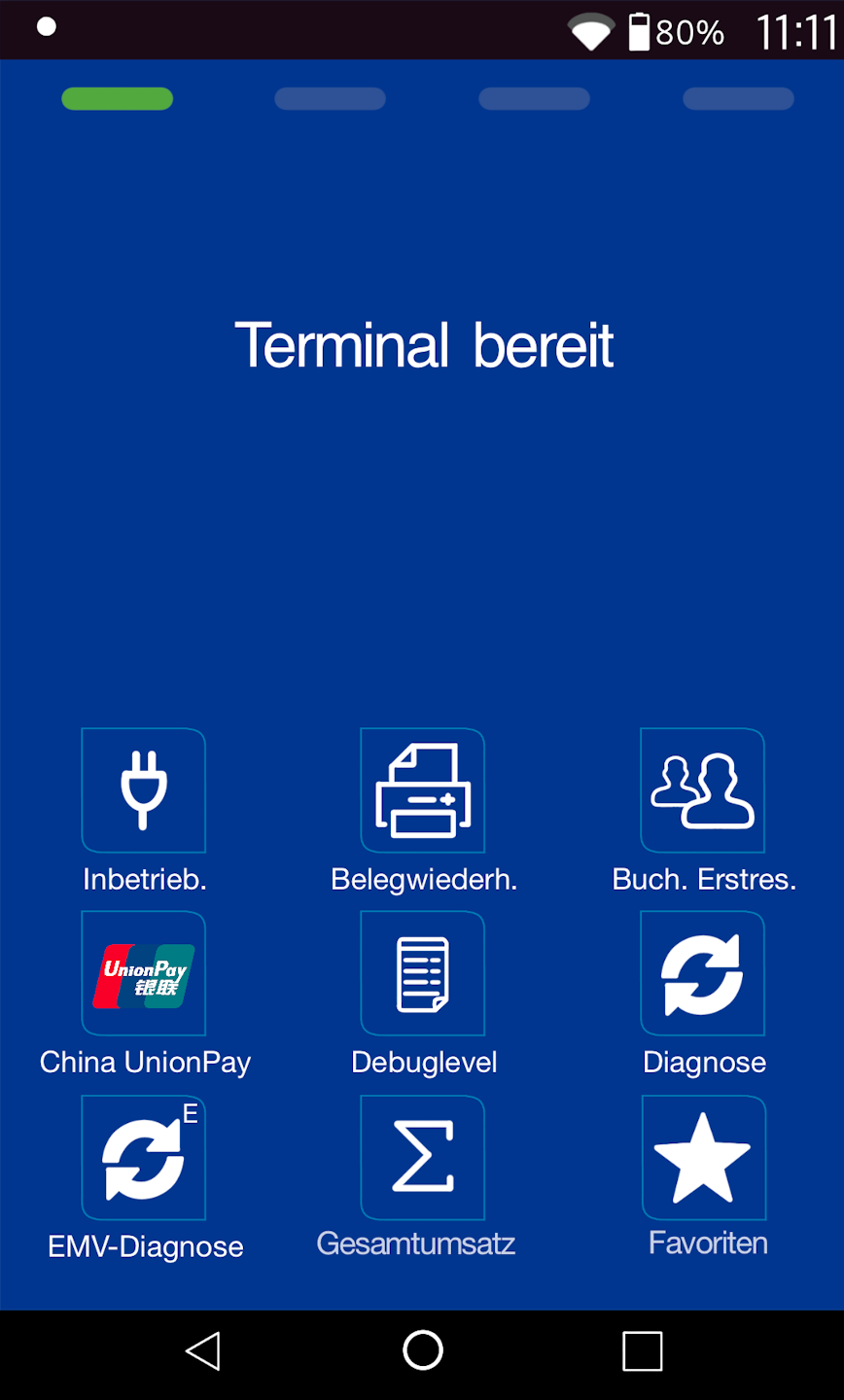
If you see display 1)
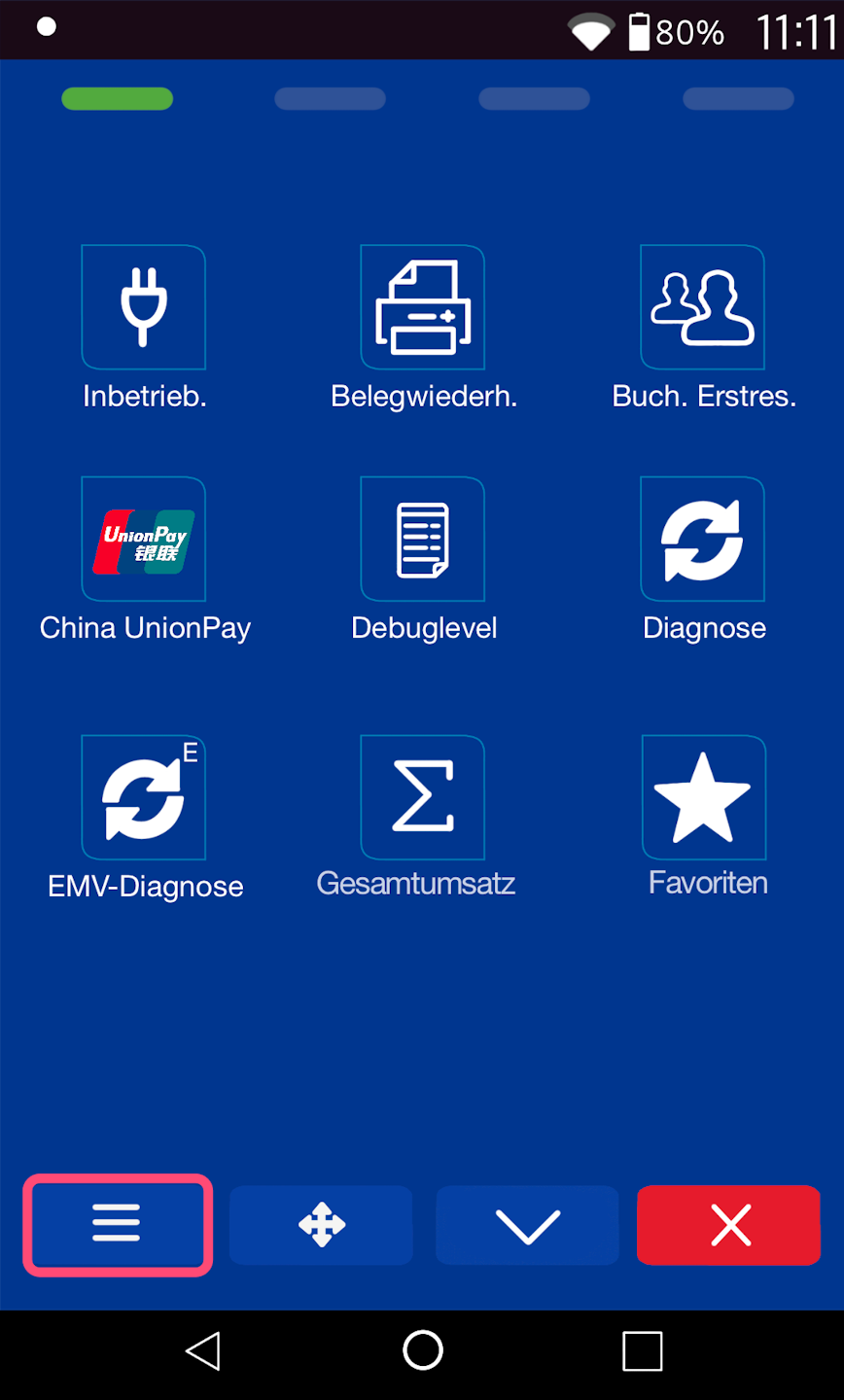
Menu button: please select the three horizontal lines at the bottom right to access the main menu, and continue to PIN Entry.
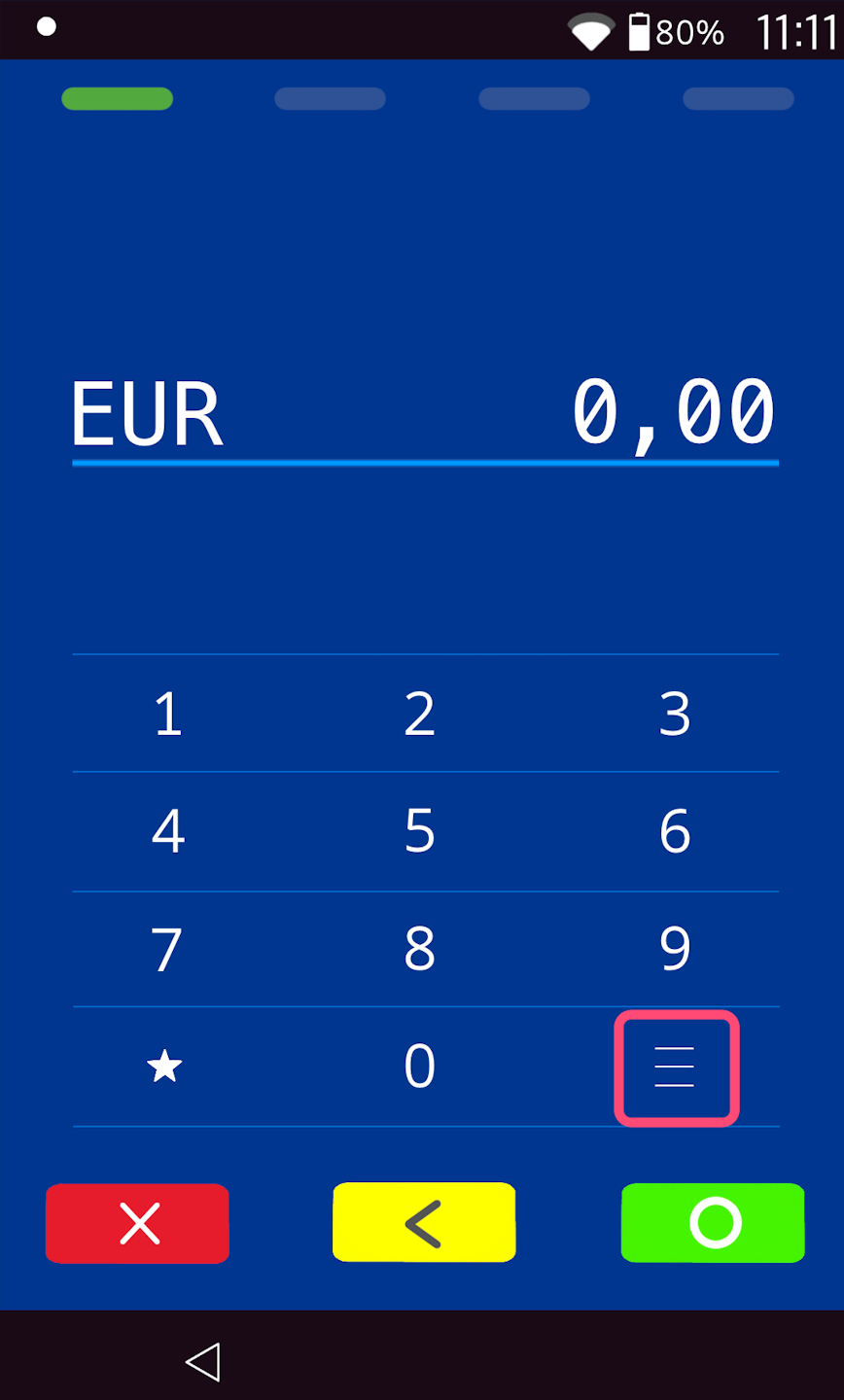
If you see display 2)
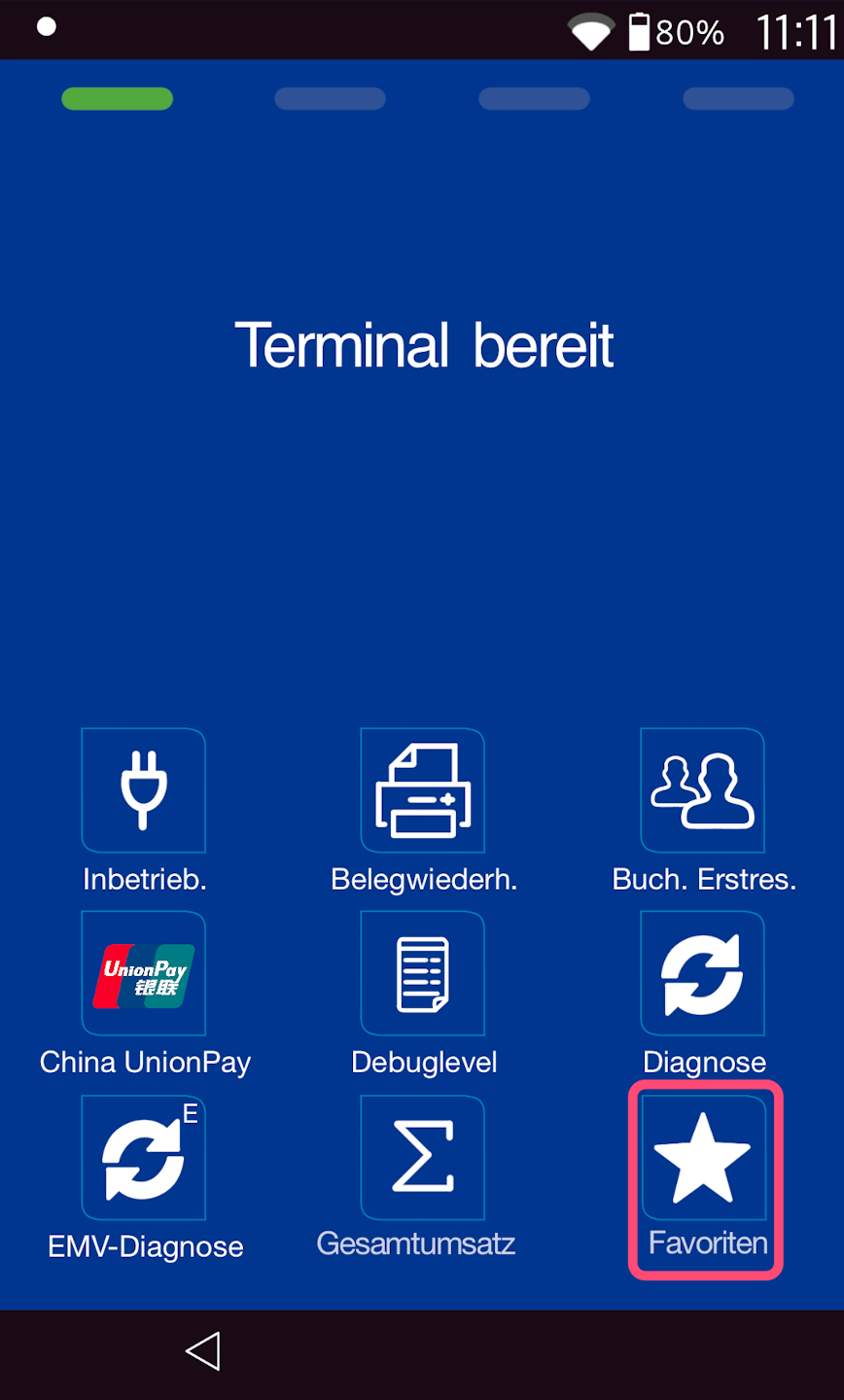
Favorites button
In Fig. 1 you can see your output display.
Please select the "Favorites" menu item.
Then, as shown in Fig. 2, select the main menu button.
PIN entry
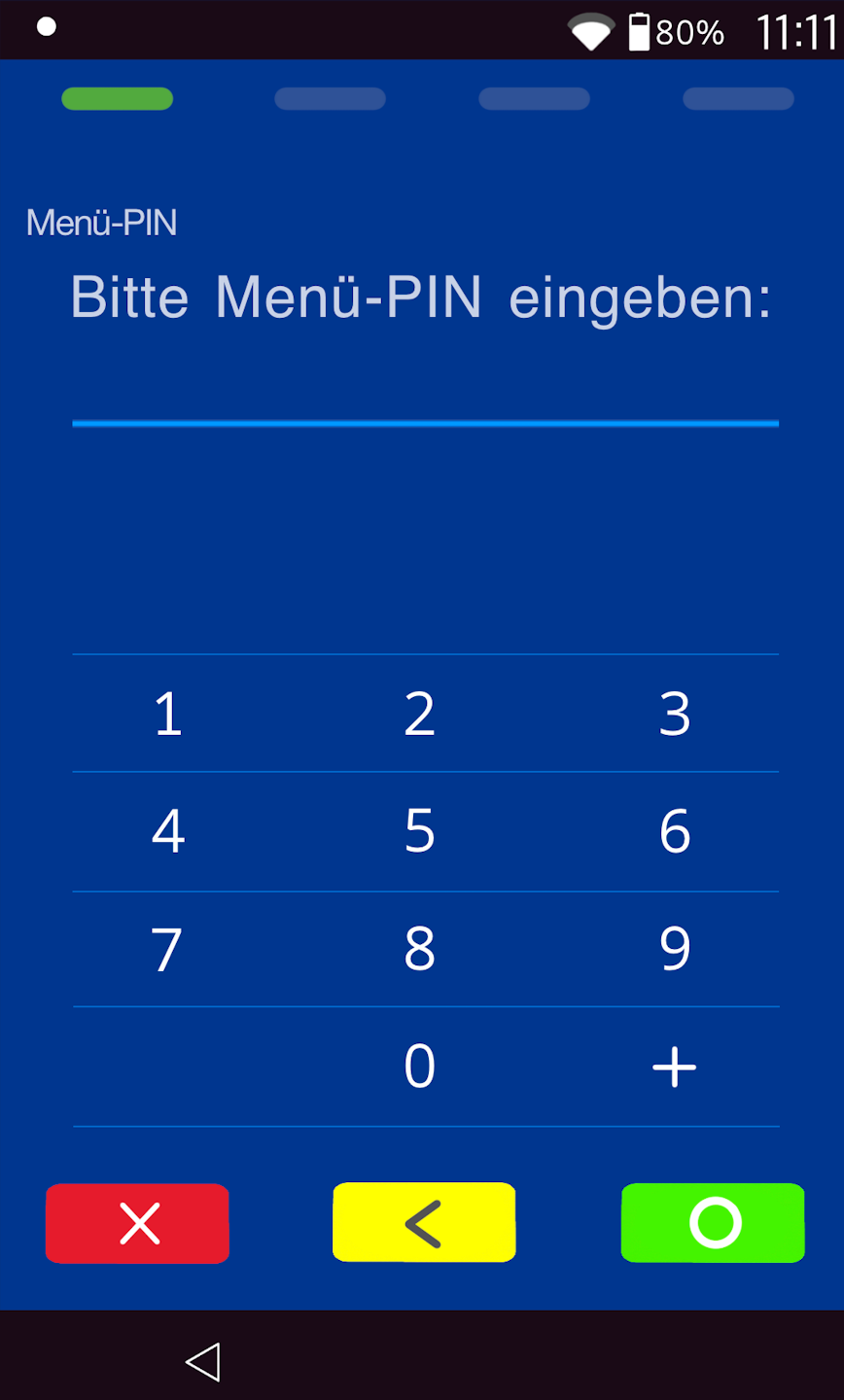
Please now enter your merchant PIN.
You can find the terminal ID on your merchant receipts or on the POS interface.
- Terminal IDs starting with 68xxxxxx: 111111
- Terminal IDs starting with 526xxxxx: 0123
Please confirm the entry by pressing the green OK button.
Information
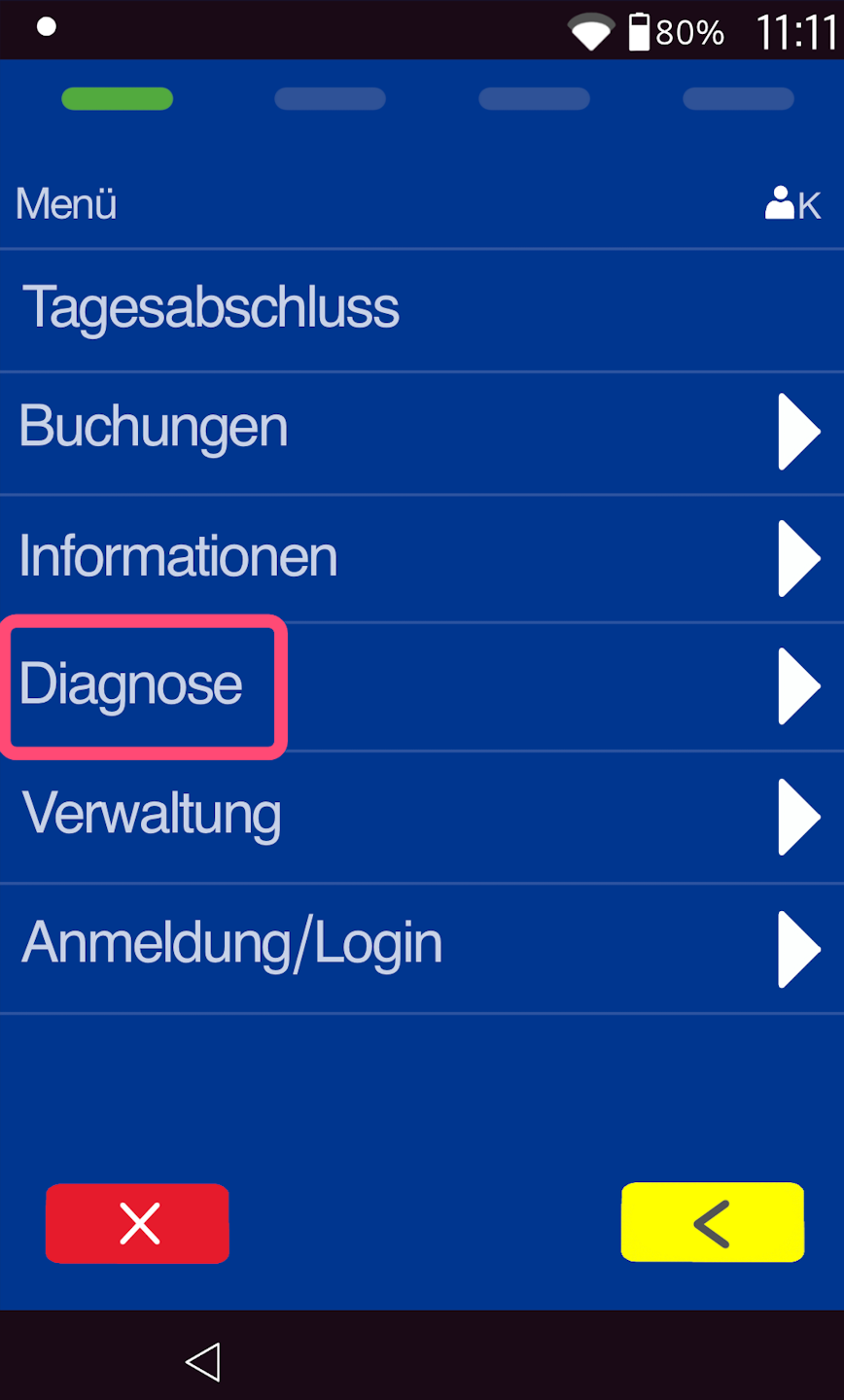
Please select the "Diagnostics" menu item.
Diagnosis
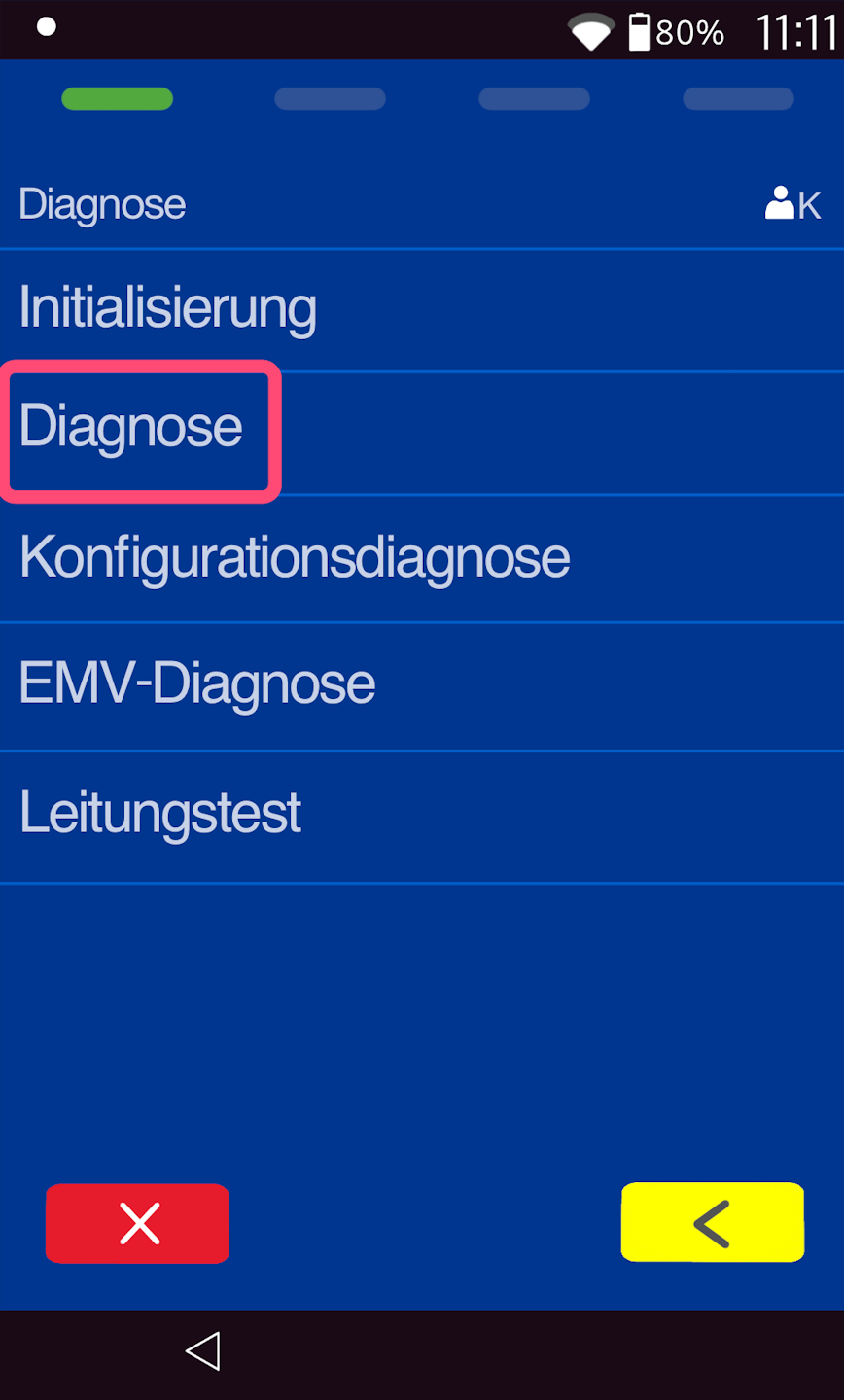
The first diagnosis is the standard diagnosis. Please tap on it.
A printout will be generated.
Configuration diagnosis
After successful completion, you will return to the "Diagnostics" menu.
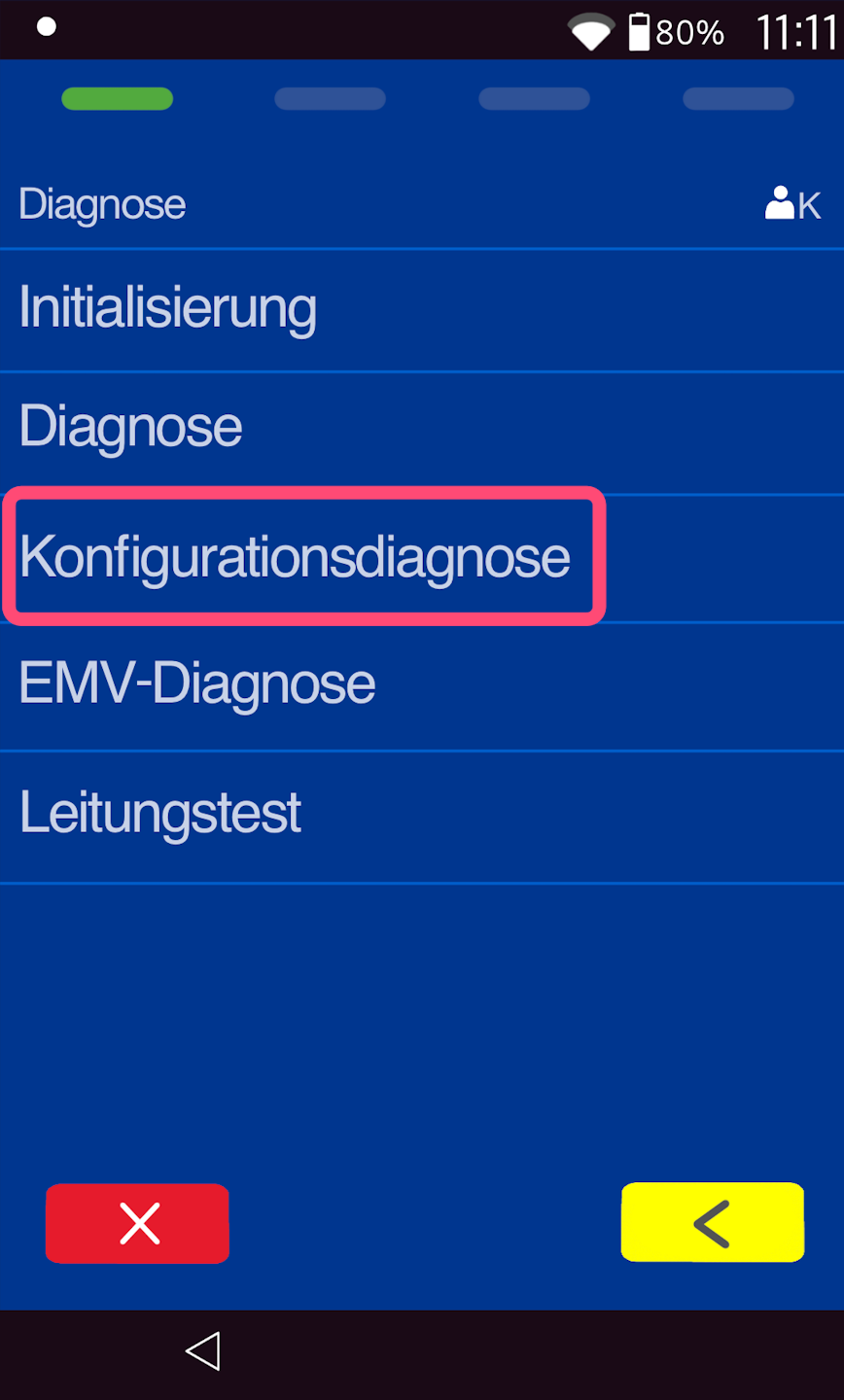
Now please select the "Configuration Diagnosis."
A printout will be generated.
EMV diagnosis
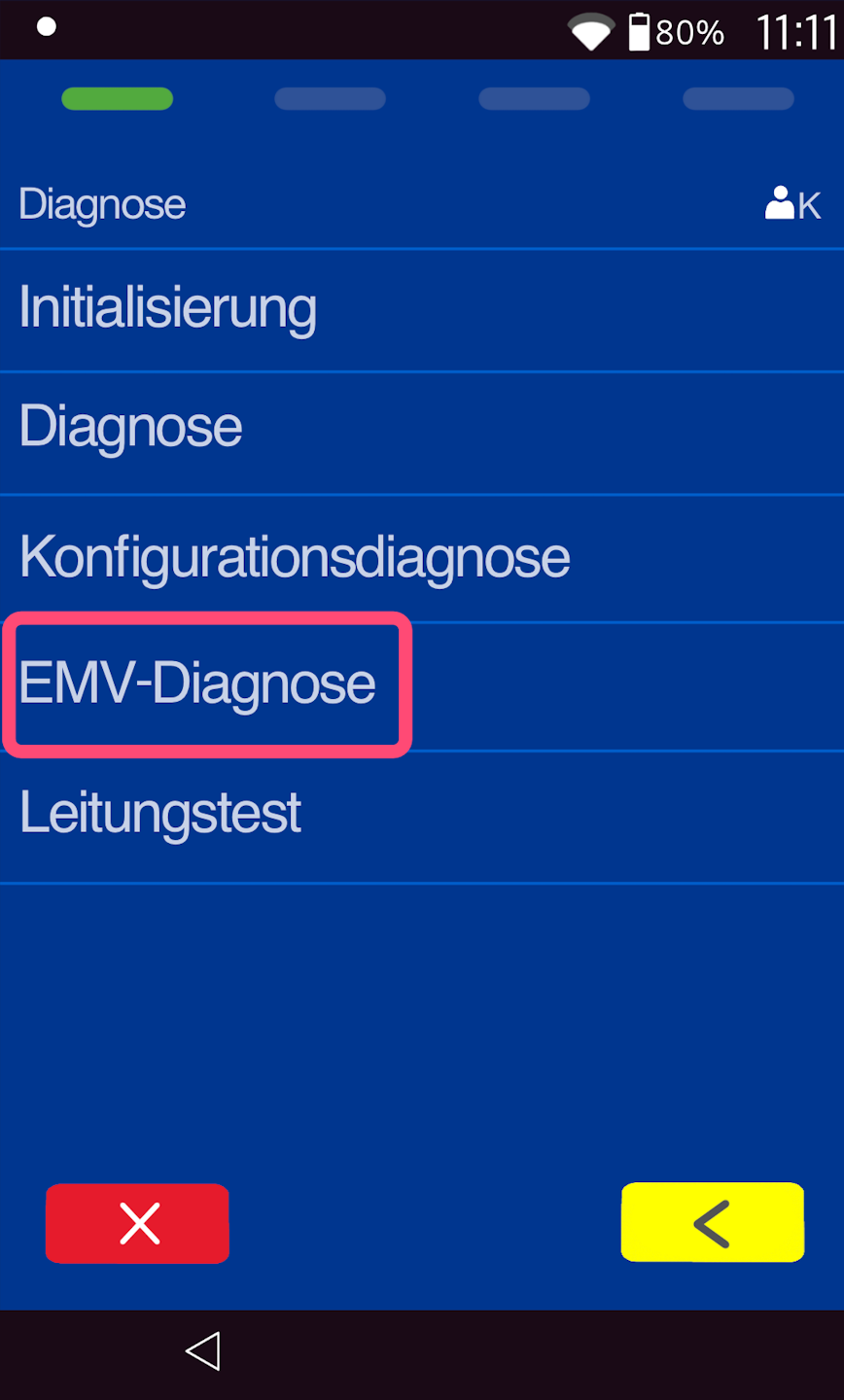
In the final step, please select the "EMV Diagnosis."
The profile of your card terminal has now been successfully updated.
Press the red X to return to the amount entry screen.
Was this article helpful?
That’s Great!
Thank you for your feedback
Sorry! We couldn't be helpful
Thank you for your feedback
Feedback sent
We appreciate your effort and will try to fix the article
