CCV PAX A920 - Read Out IP Address Data on Your Card Terminal
Modified on Wed, 4 Feb at 9:09 AM
In this step-by-step instruction, we show you how to read the assigned IP address on the CCV PAX A920 card terminal.
The card terminal must be connected to the Wi-Fi network and have an active connection.
Android Menu
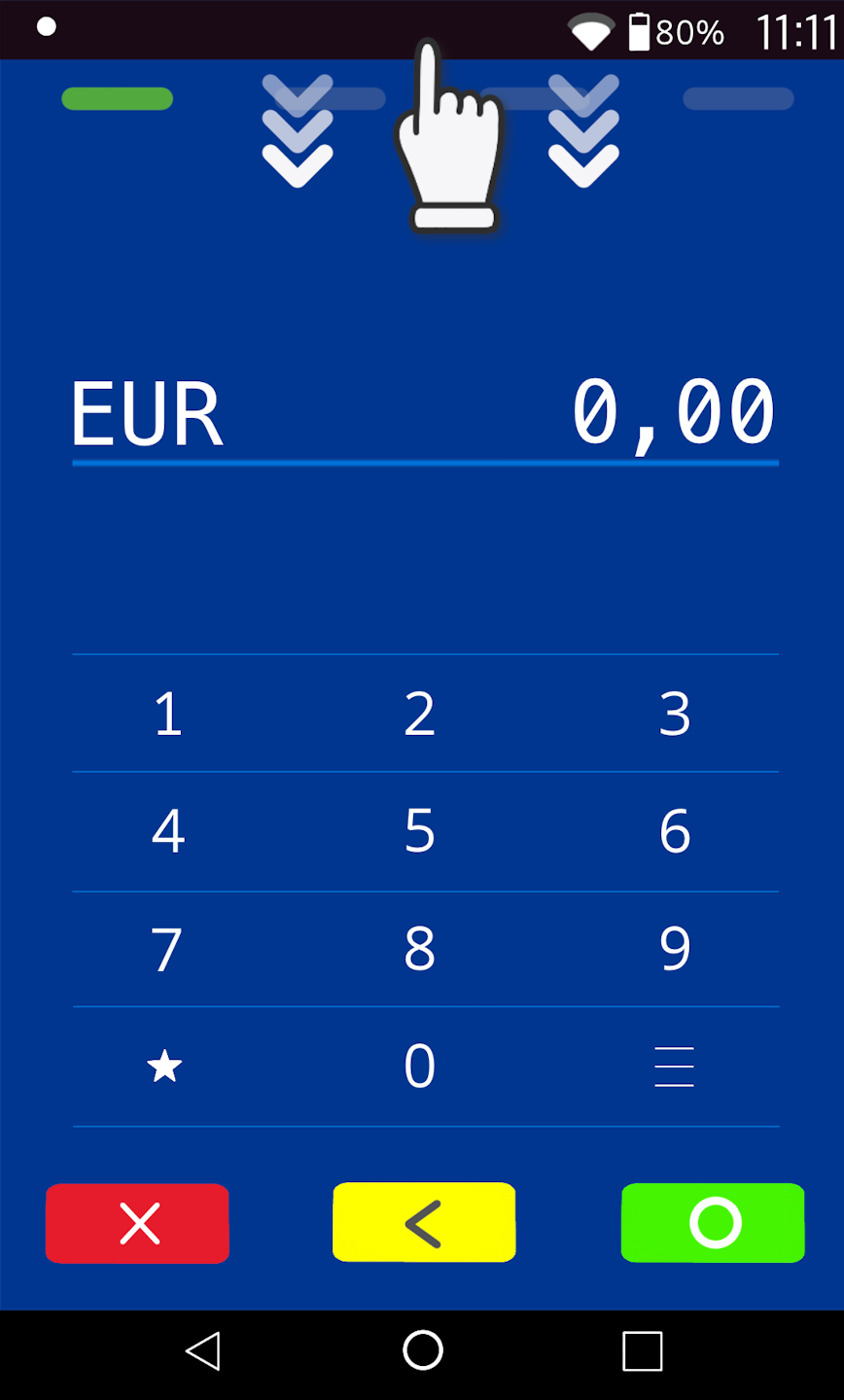
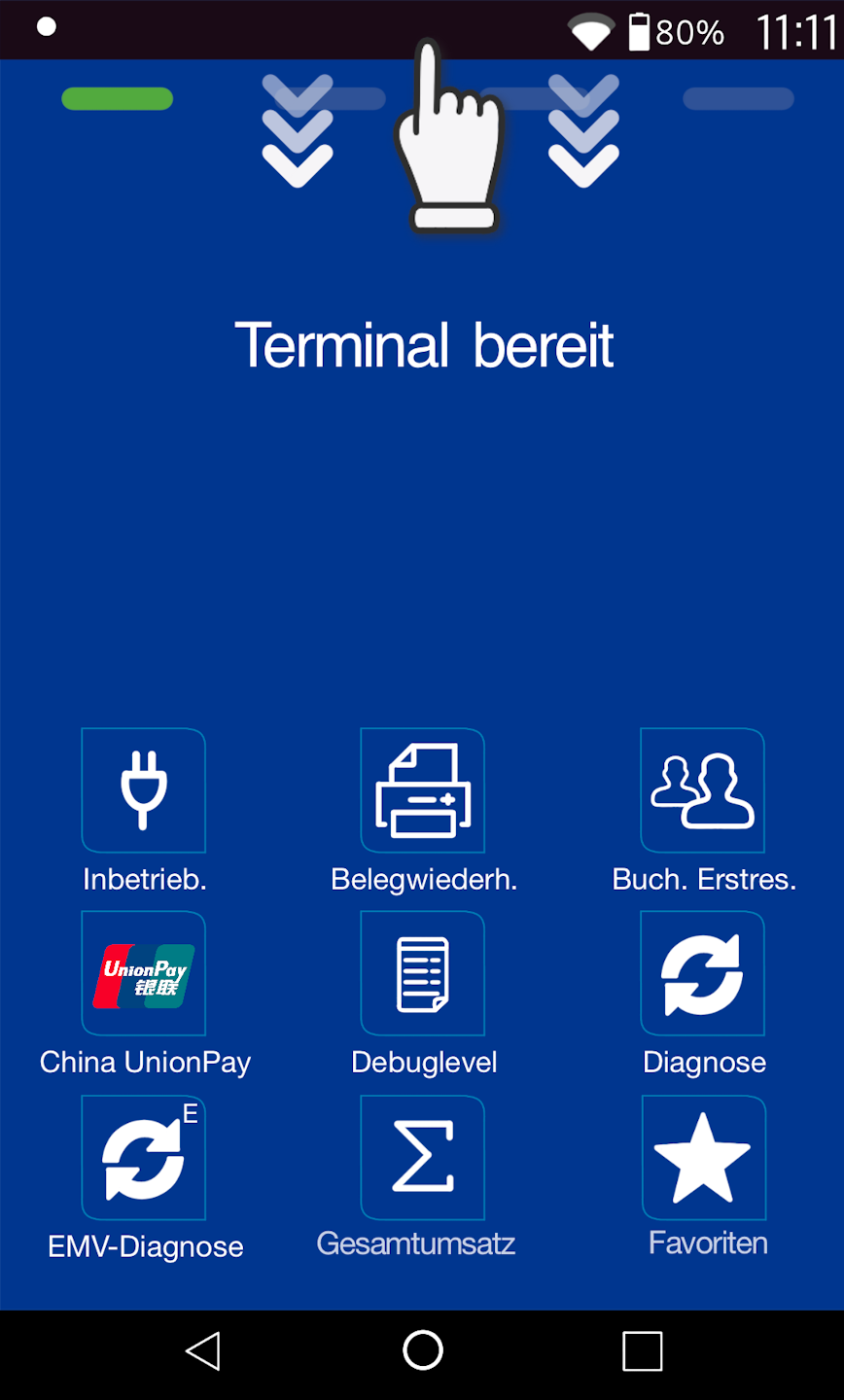
Please swipe down from the top edge of the display to access the Android settings.
WLAN Selection
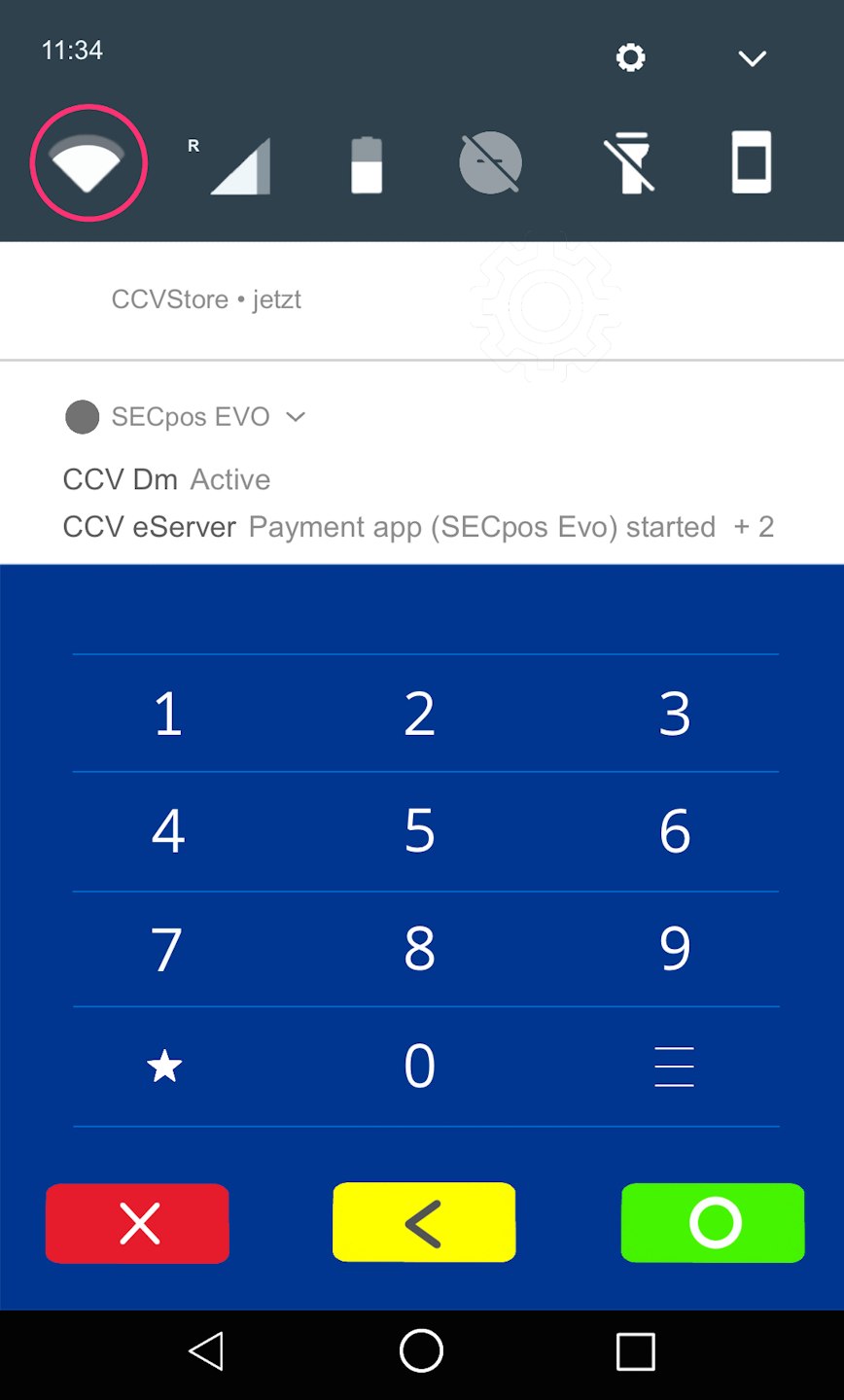
Please press and hold the WLAN icon for a moment. A new menu window will open.
WLAN Setting
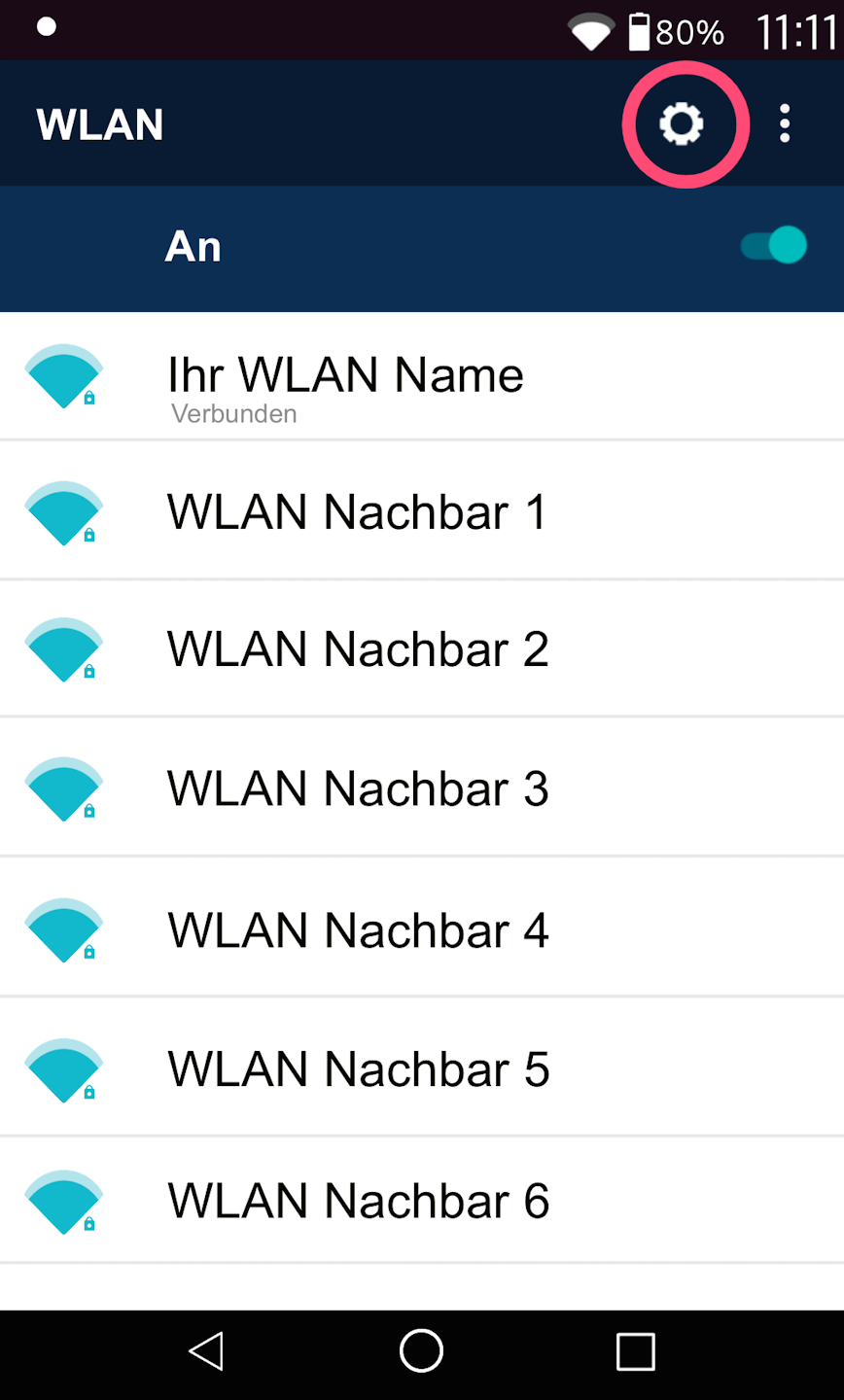
Please tap the small gear icon at the top right of the display.
IP Data and Completion
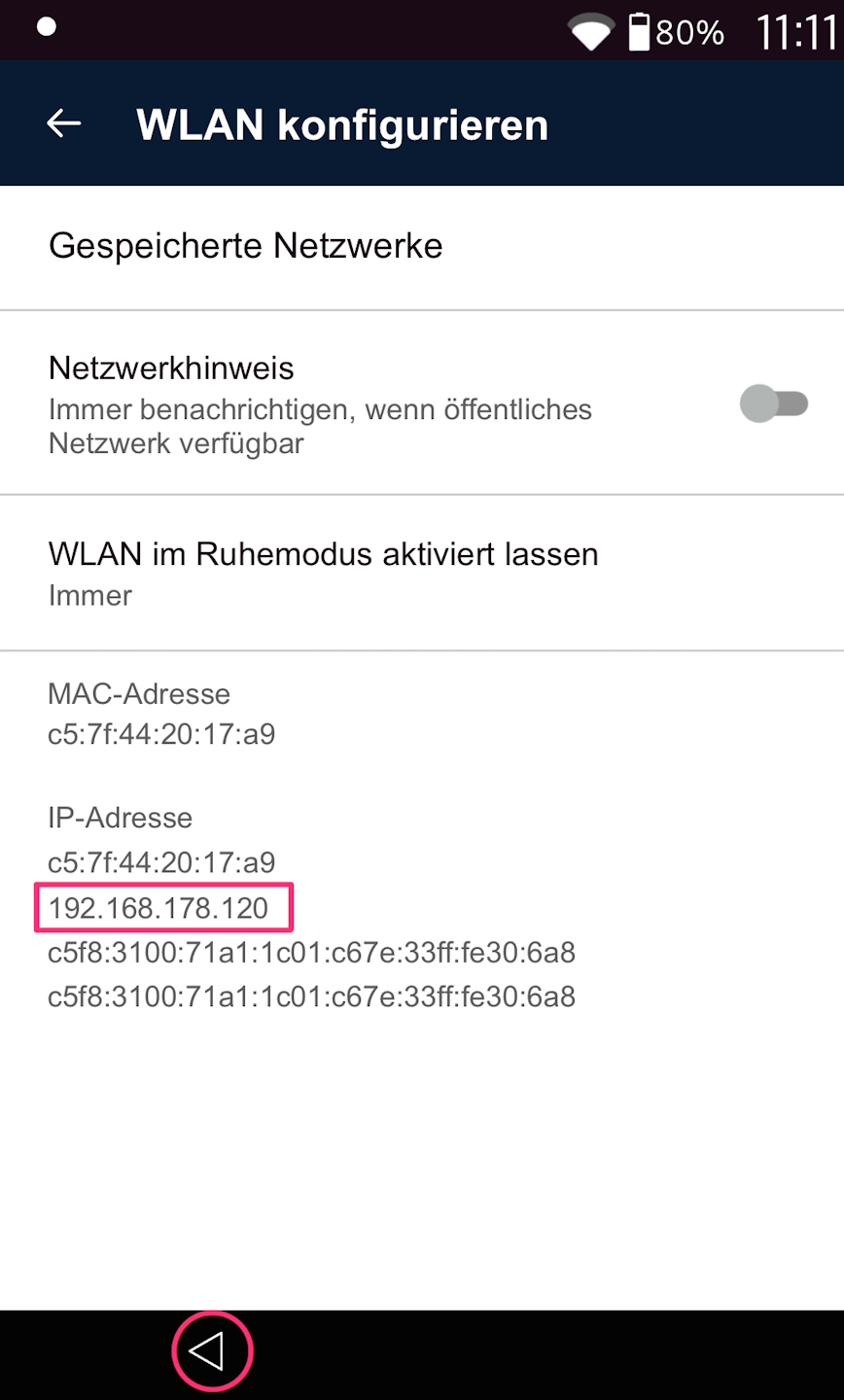
You will now see some IP data displayed.
Your currently assigned IP address (via DHCP) will now be shown.
If you would like to find out your static IP address, please use the instruction for setting up your static IP address.
To return to your starting screen/payment app, please tap the small arrow in the bottom left corner several times.
Was this article helpful?
That’s Great!
Thank you for your feedback
Sorry! We couldn't be helpful
Thank you for your feedback
Feedback sent
We appreciate your effort and will try to fix the article
