CCV PAX A920 – Wait Time Until Receipt Printing
Modified on Wed, 4 Feb at 9:10 AM
In the standard configuration of your CCV PAX A920 card reader, the merchant receipt is printed automatically as a mandatory receipt after a transaction, followed by the customer receipt.
If the wait time for the customer receipt seems too long or too short, this guide will show you how to adjust the print delay.
The merchant receipt is mandatory and cannot be disabled.
The customer receipt can be deselected or will be printed automatically if the prompt is not confirmed – this prompt cannot be deactivated.
Are you using digital receipt management? In that case, the merchant receipt is archived for you, and only the customer receipt prompt will appear.
Output display
1) 2)
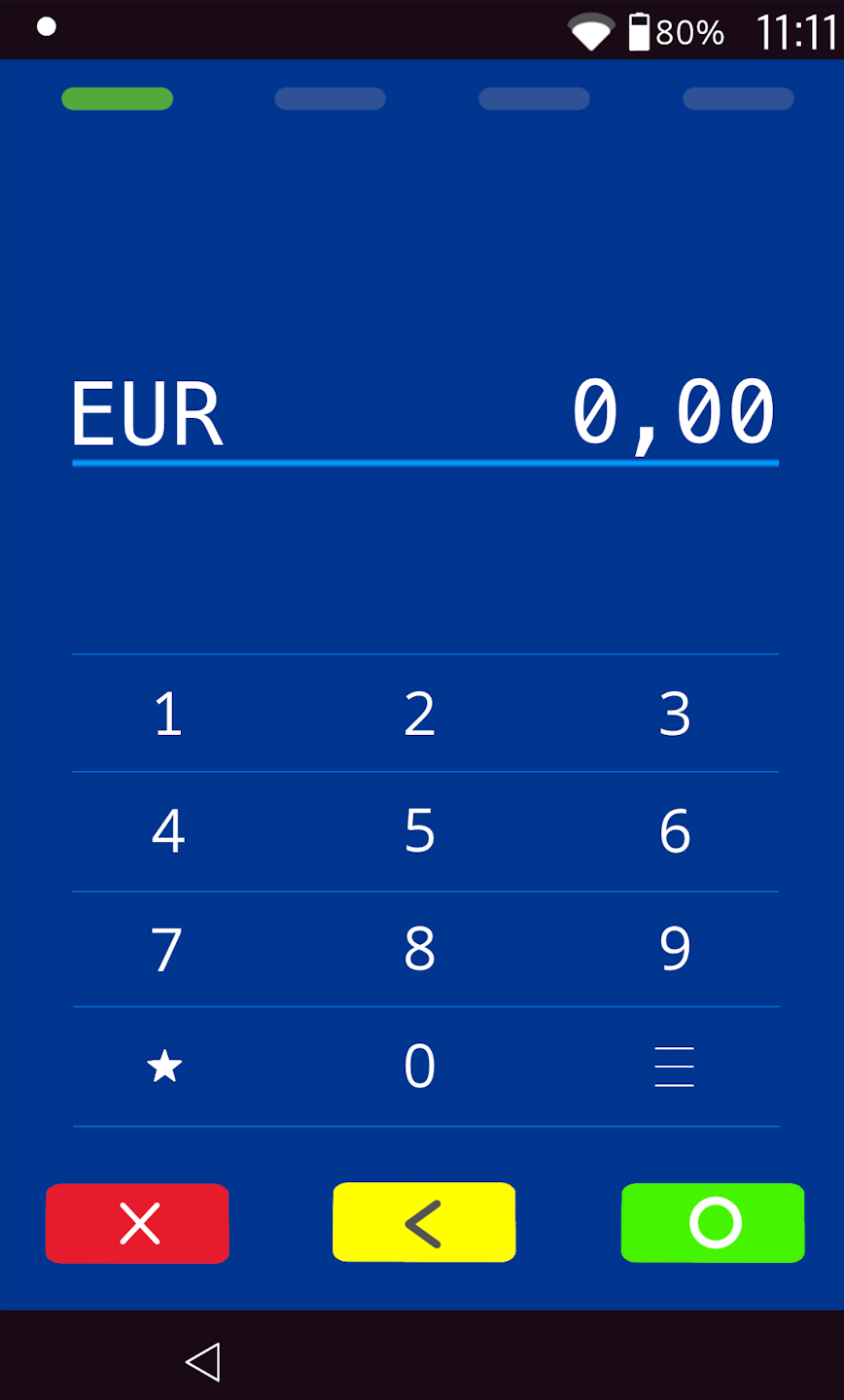
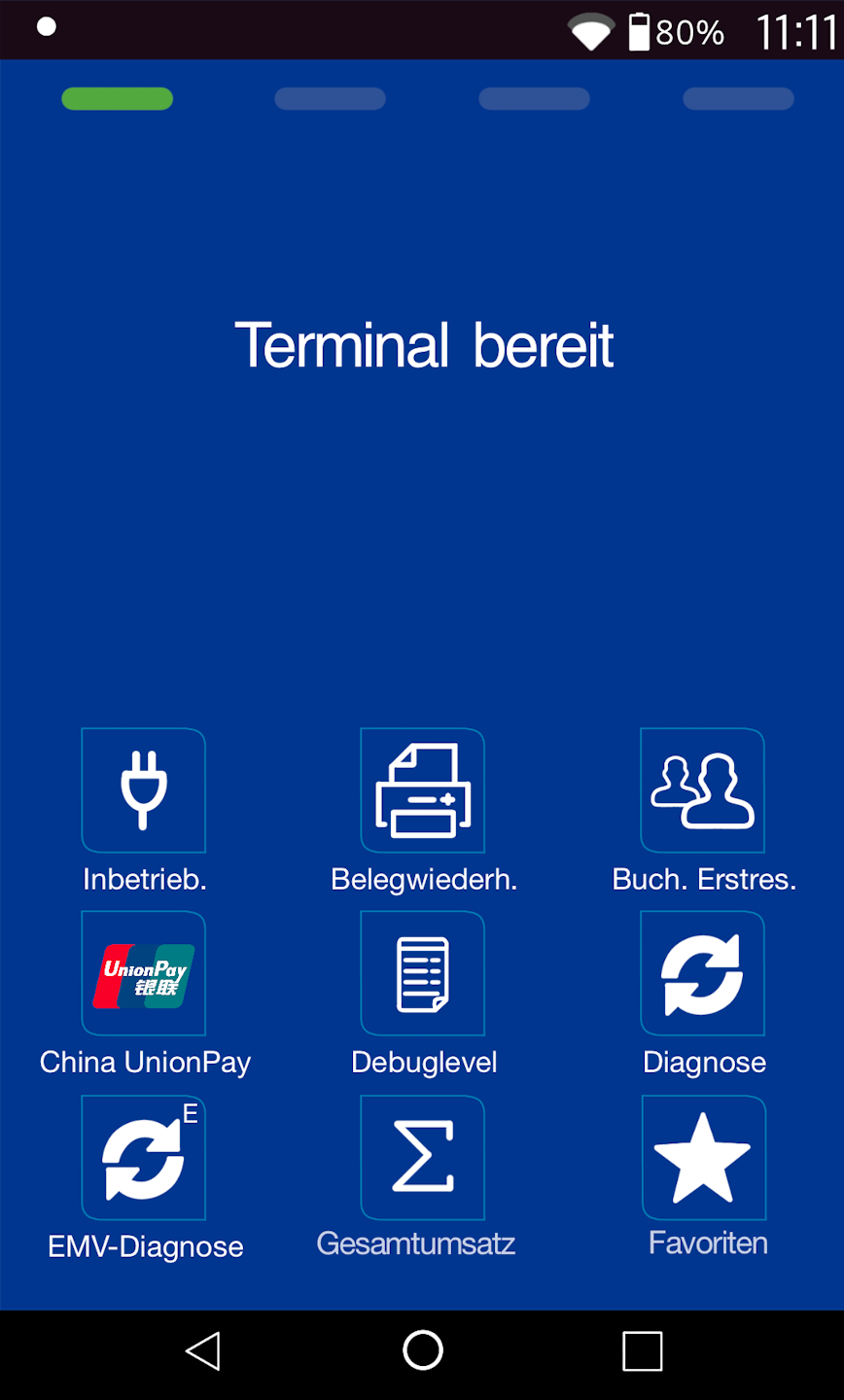
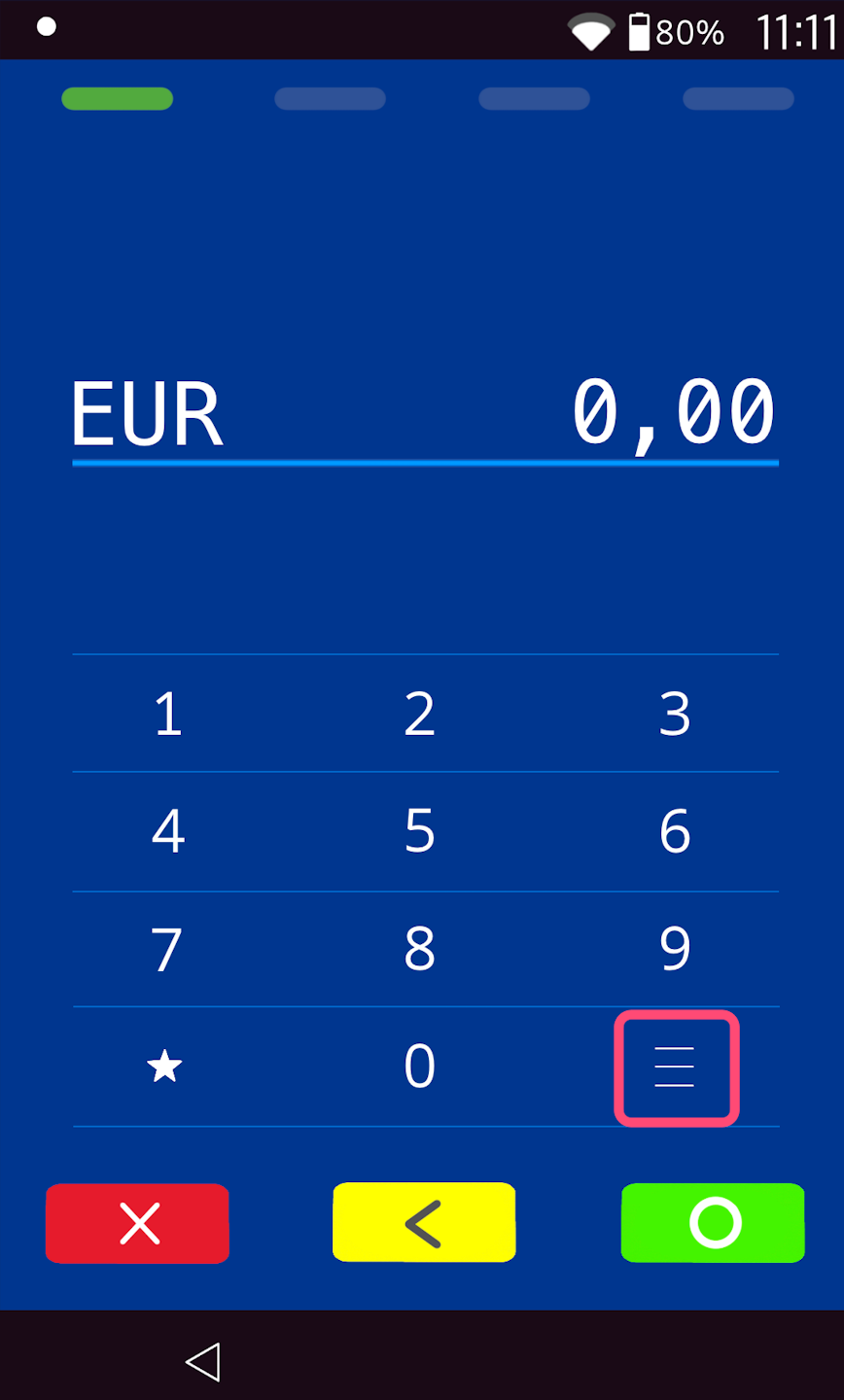
If you see display 1)
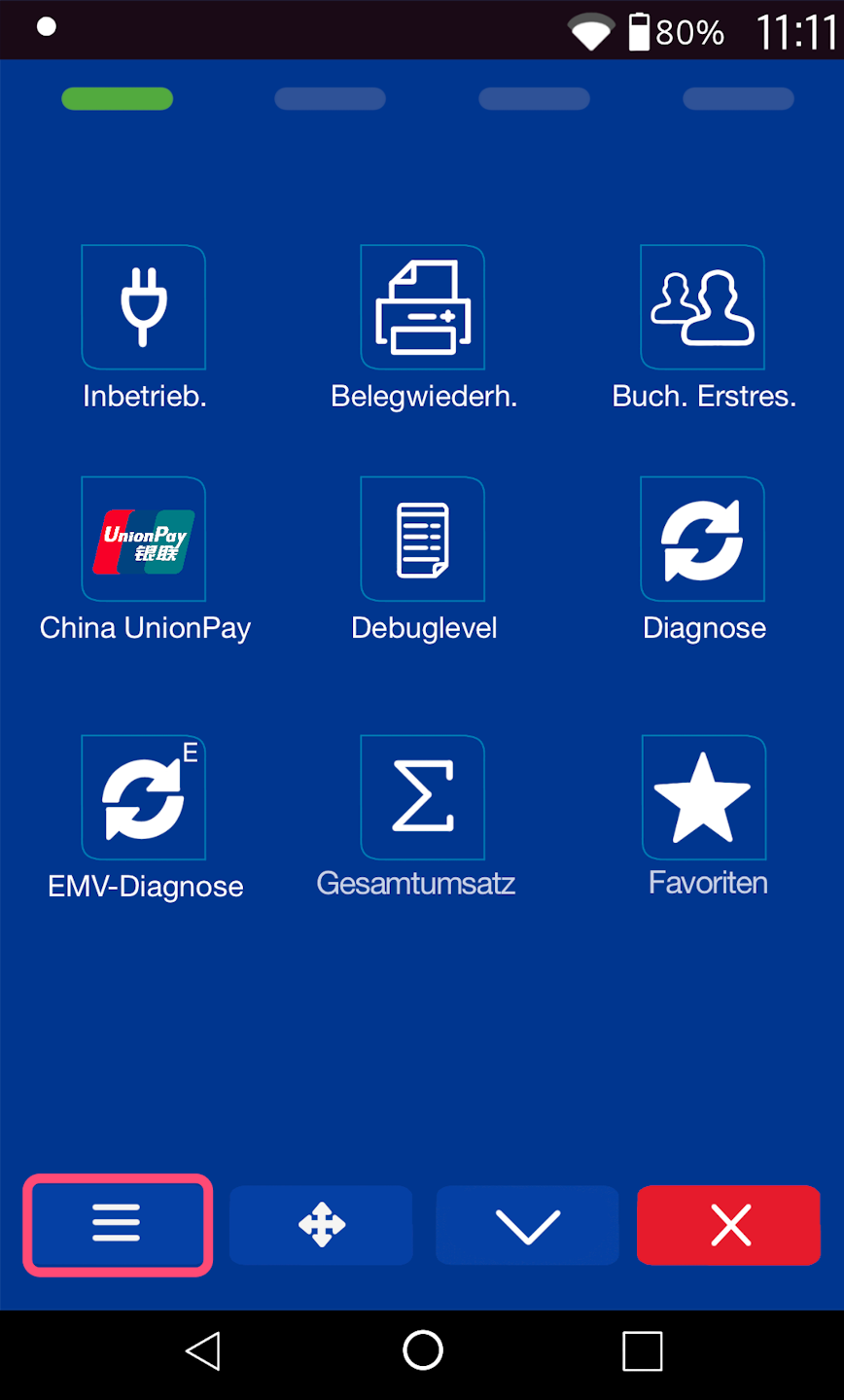
Menu button: please select the three horizontal lines at the bottom right to access the main menu, and continue to PIN Entry.
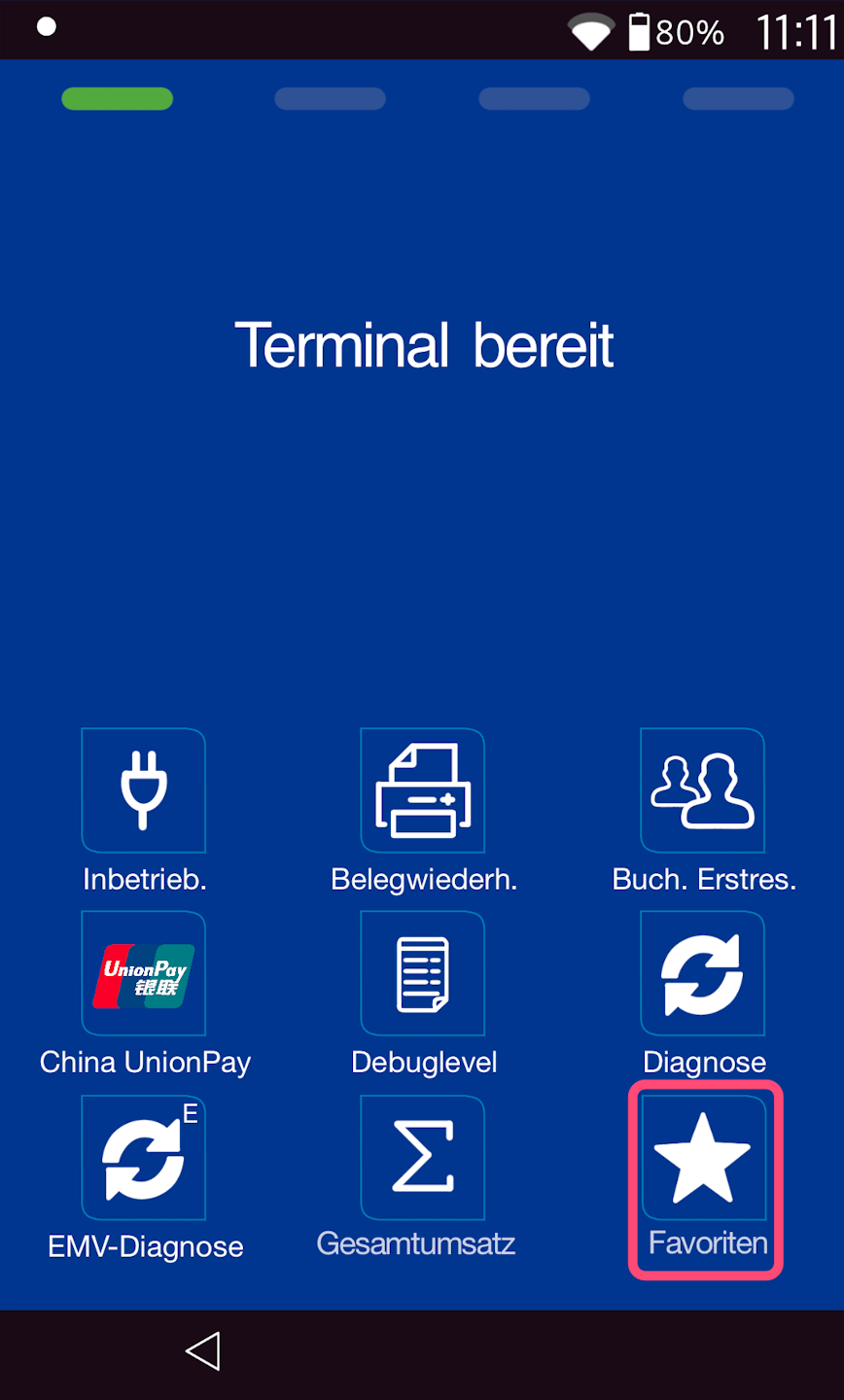
If you see display 2)
Favorites button
In Fig. 1 you can see your output display.
Please select the "Favorites" menu item.
Then, as shown in Fig. 2, select the main menu button.
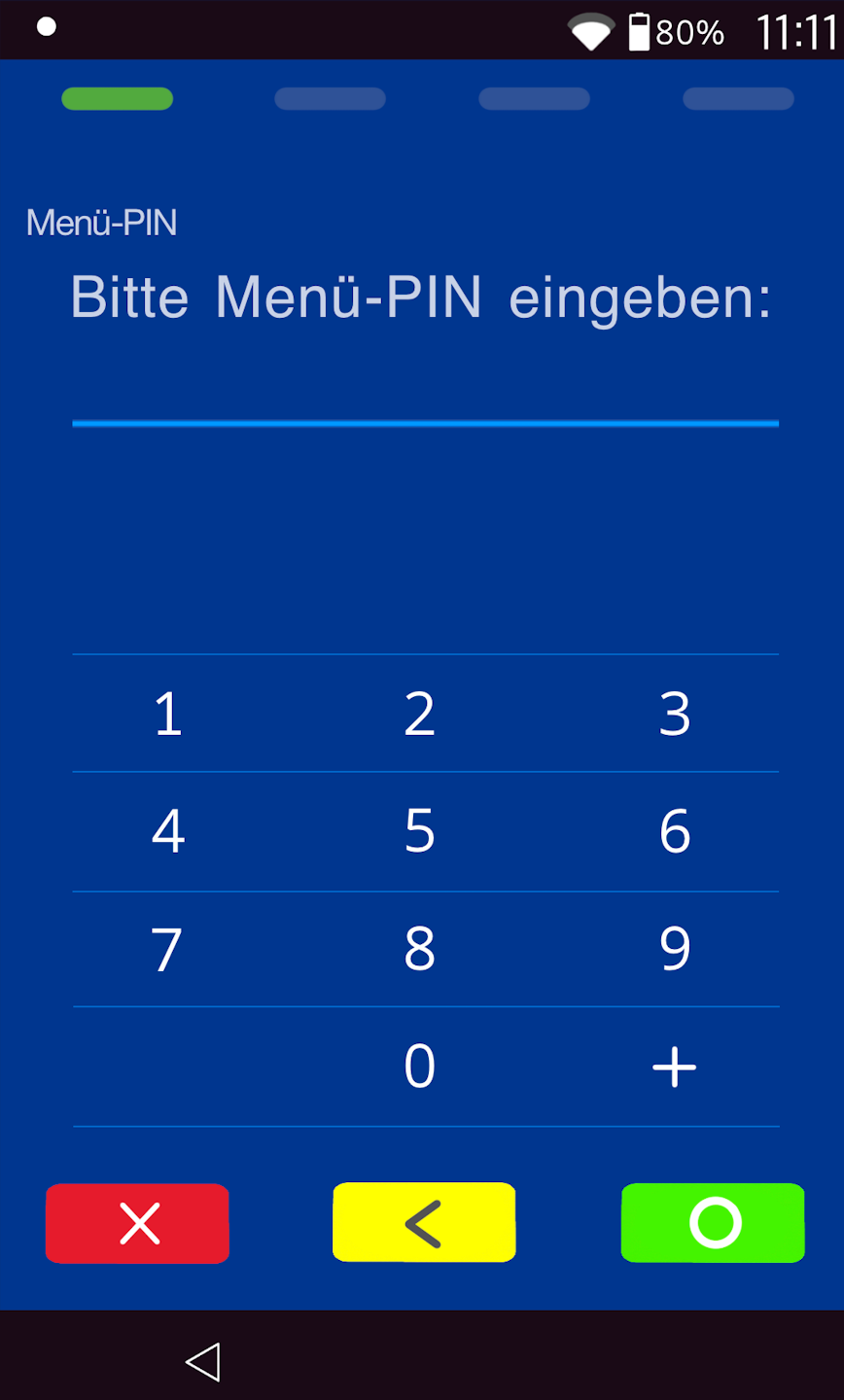
PIN entry
Please now enter your merchant PIN.
You can find the terminal ID on your merchant receipts or on the POS interface.
- Terminal IDs starting with 68xxxxxx: 111111
- Terminal IDs starting with 526xxxxx: 0123
Please confirm the entry by pressing the green OK button.
Menu
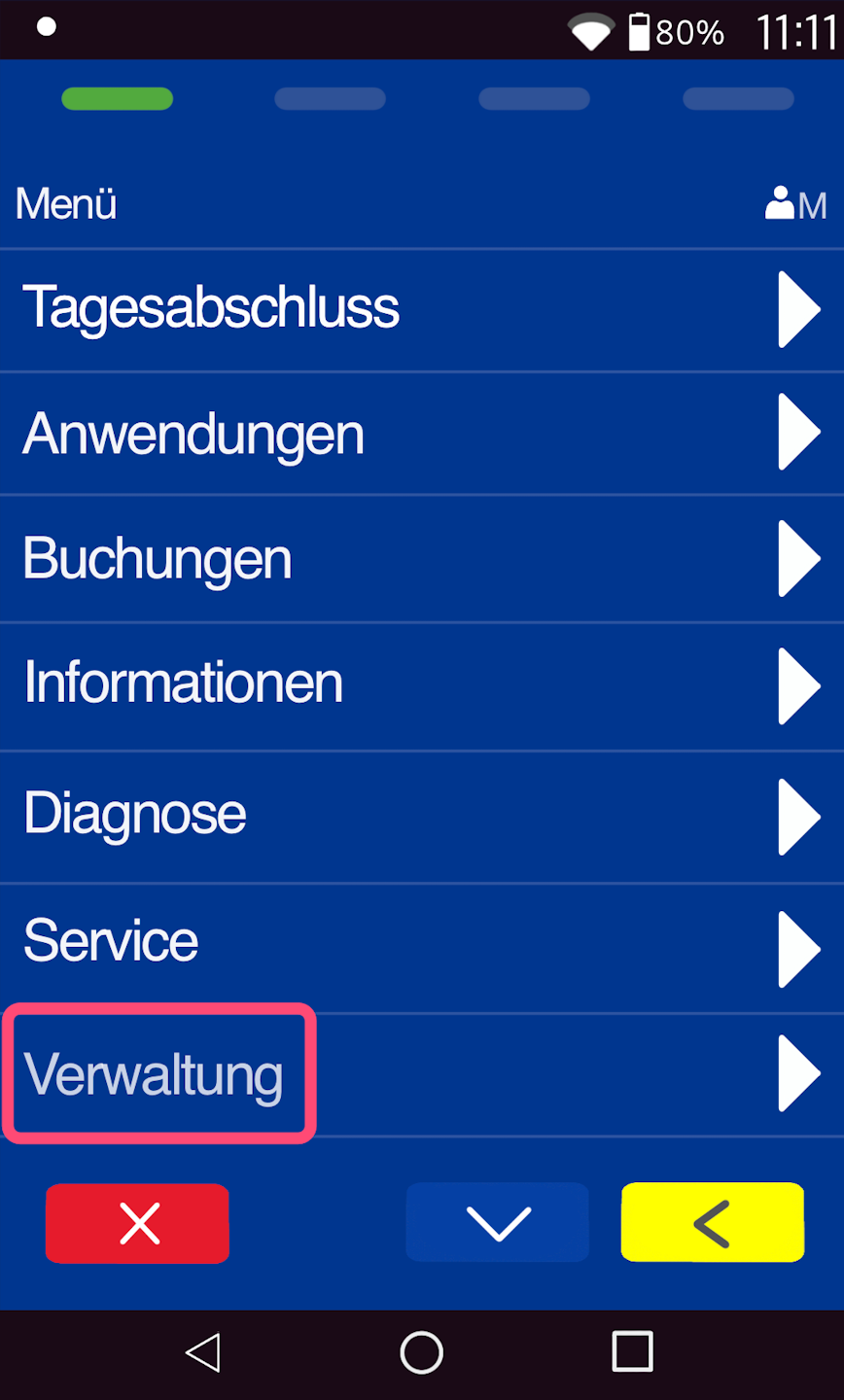
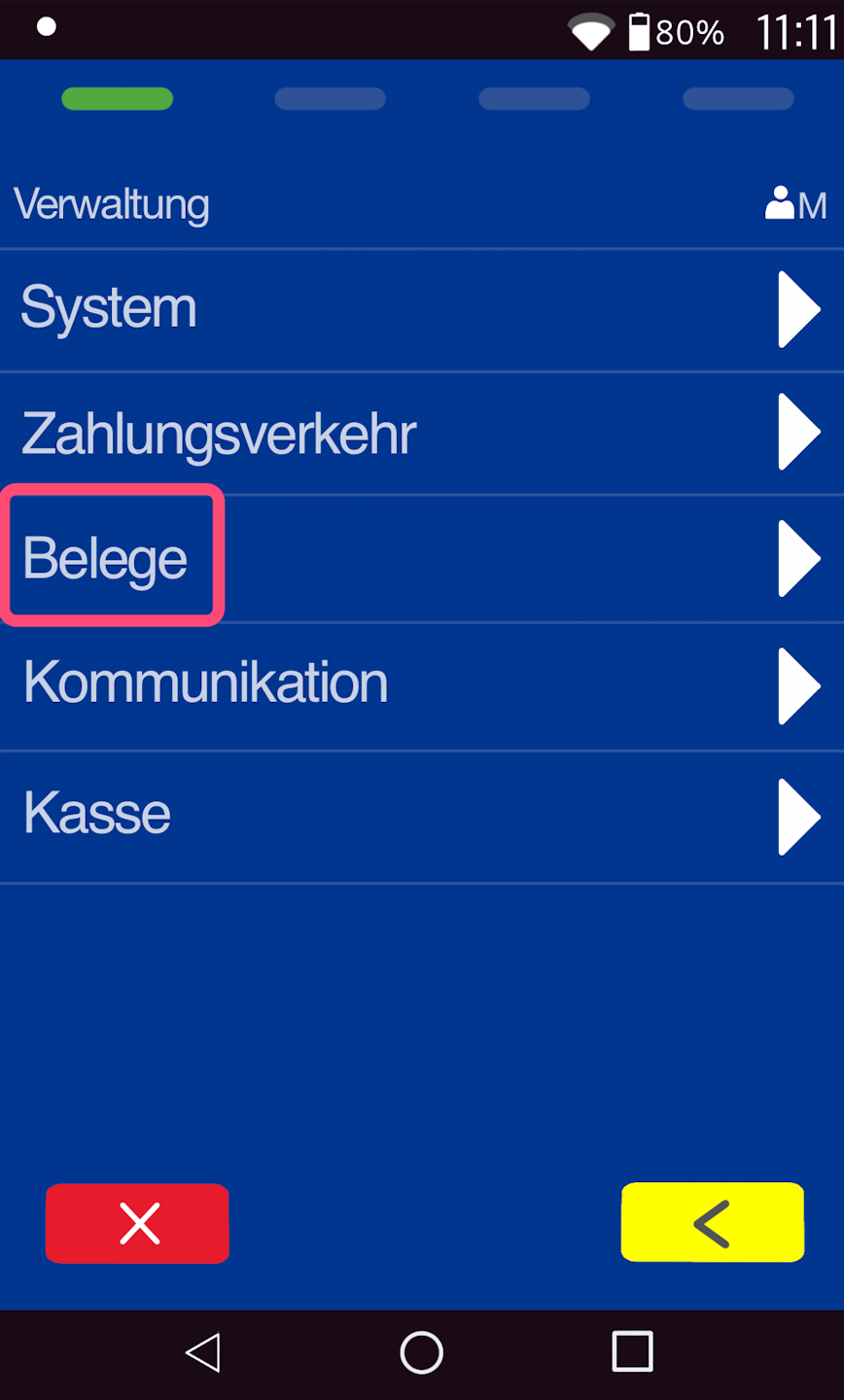
As shown in Fig. 1, please navigate to the menu item Administration, and then to the menu item Receipts (Fig. 2).
Setting the Wait Time
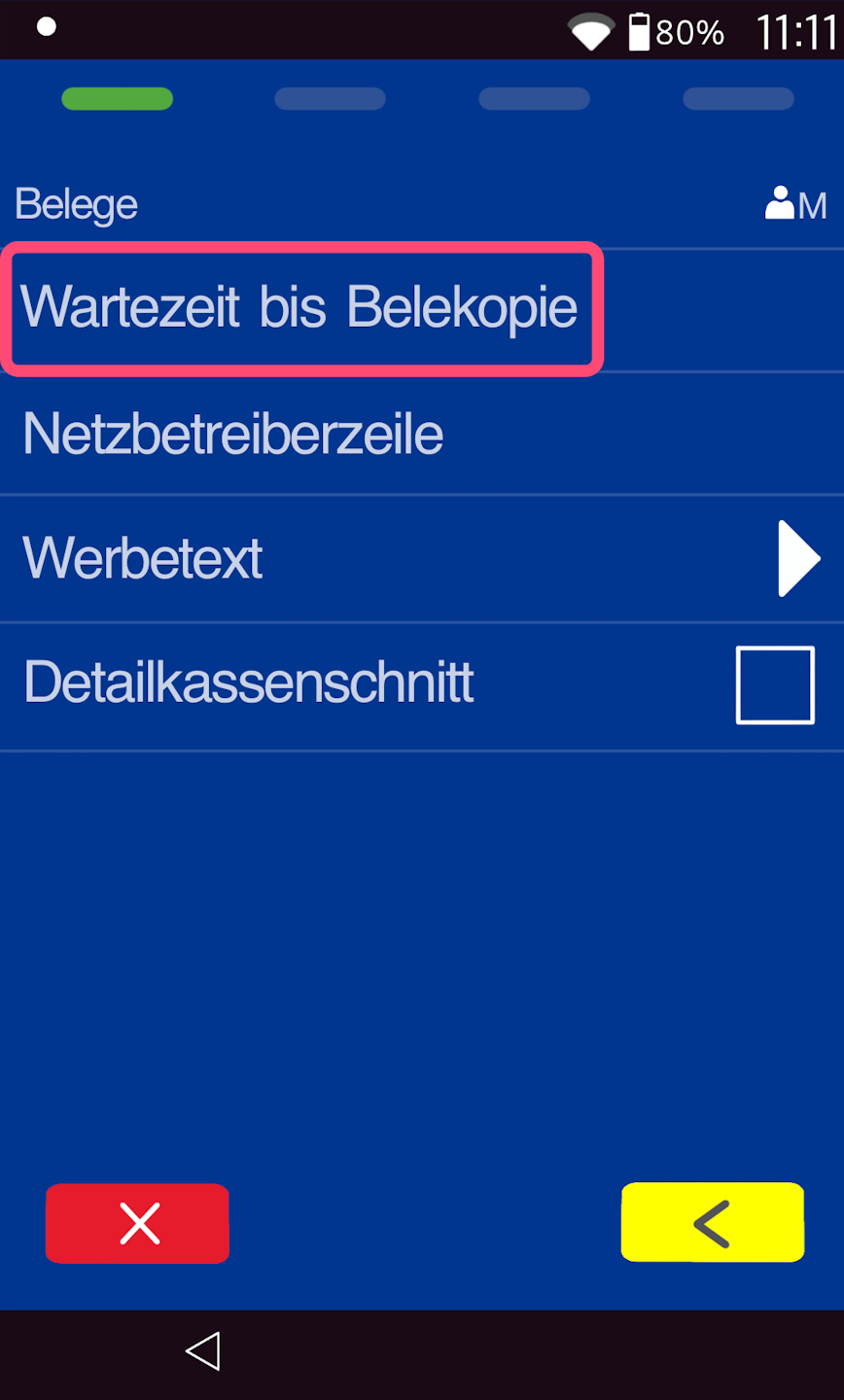
As shown in Fig. 1, please select the menu item Wait Time Until Receipt Copy.
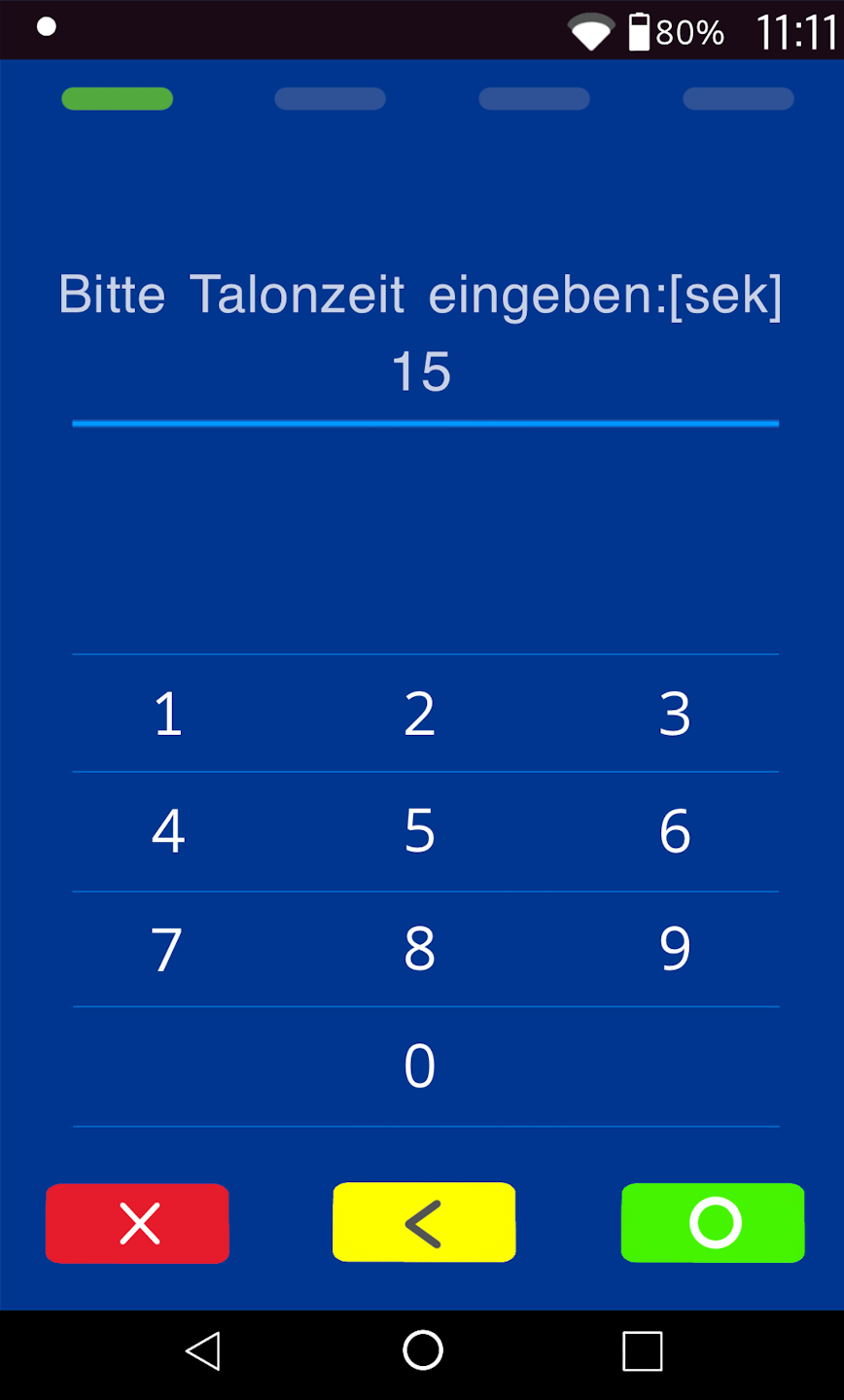
In Fig. 2, enter the number of seconds.
After this time has elapsed, the customer receipt will be printed automatically. Within this period, you can choose to cancel the customer receipt.
The setup is now complete.
Was this article helpful?
That’s Great!
Thank you for your feedback
Sorry! We couldn't be helpful
Thank you for your feedback
Feedback sent
We appreciate your effort and will try to fix the article
