CCV PAX A920 - Card Reader Update
Modified on Wed, 4 Feb at 9:10 AM
Update for Your Card Reader
In this step-by-step tutorial, we will show you how to perform an update on your CCV PAX A920 card reader.
To ensure the update is not blocked by a firewall, the following internet router configurations must be ensured:
IP address whitelisting: 80.72.137.22 (TCP/IP) - Port: 1260
If you have any questions regarding the configuration of your firewall or internet router, please contact your IT service provider or technician.
The update process will take approximately 15 minutes, during which no card payments can be made. When using the mobile connection (SIM card), it may take up to 30 minutes.
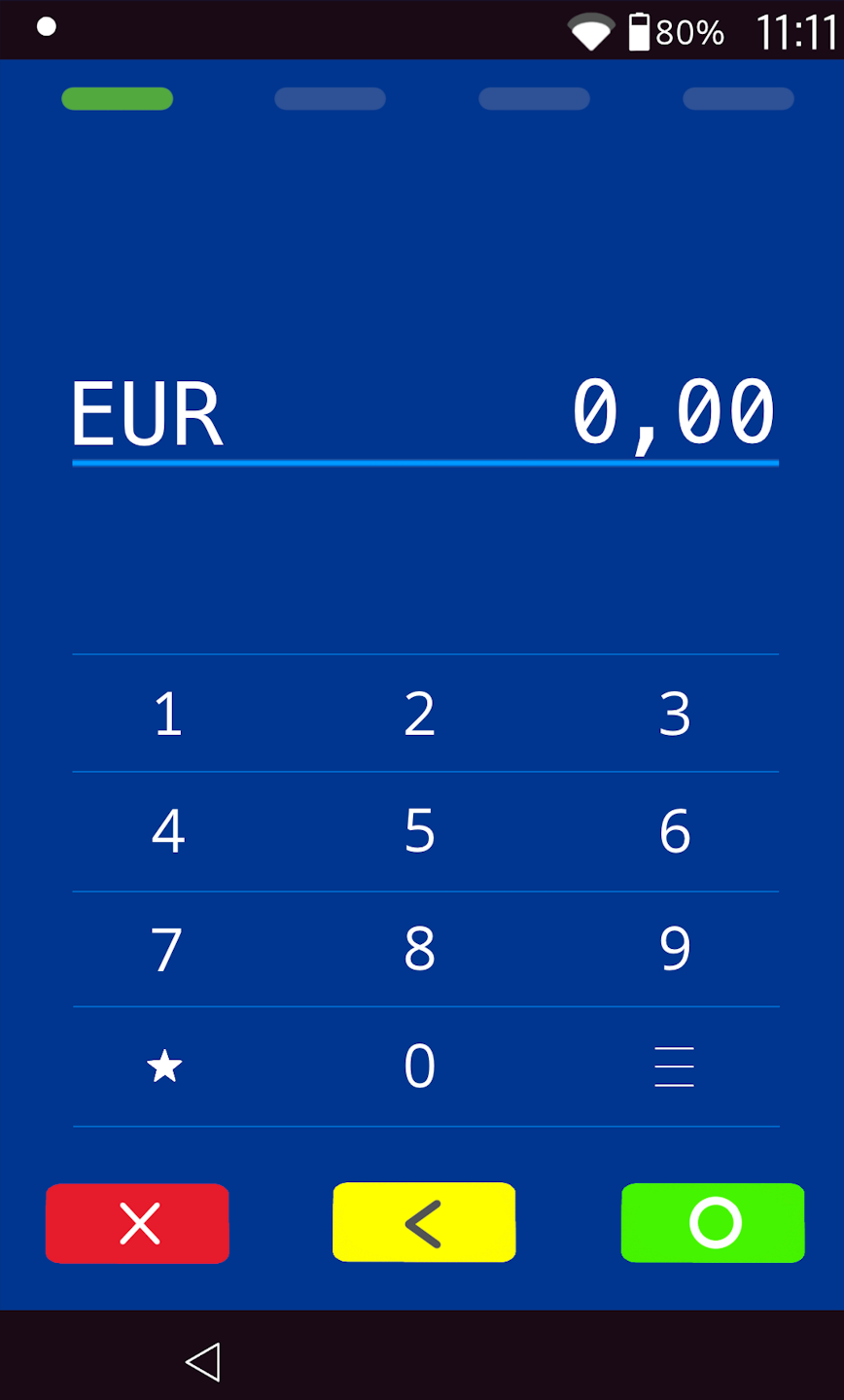
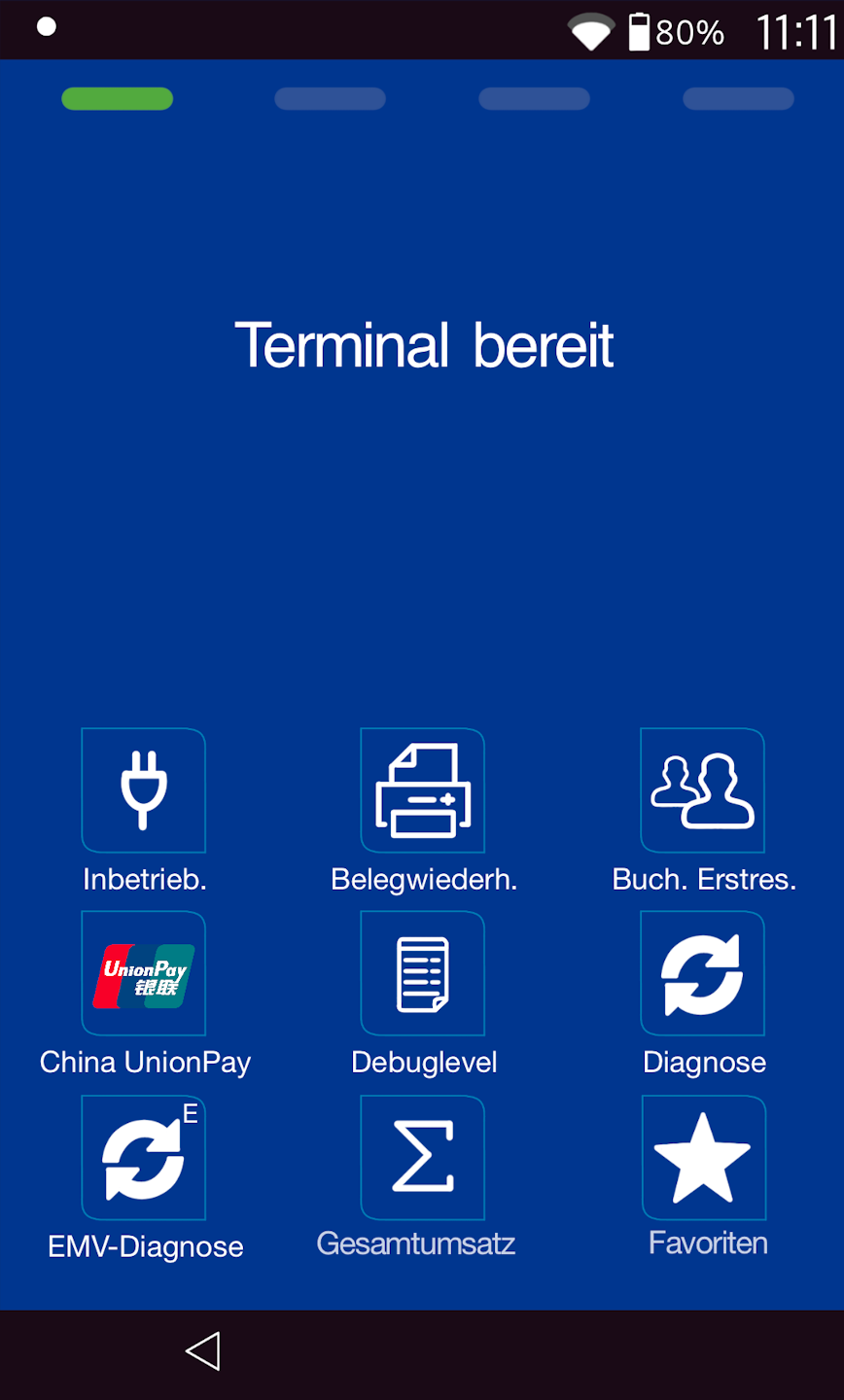
I see Fig. 1
Menu Button
Important Note:
Please connect the card reader to a power source and keep it plugged in until the update is successfully completed.
Do not use the card reader from the start of the update until it is fully and successfully completed.
Please tap the button with the three horizontal lines at the bottom right.
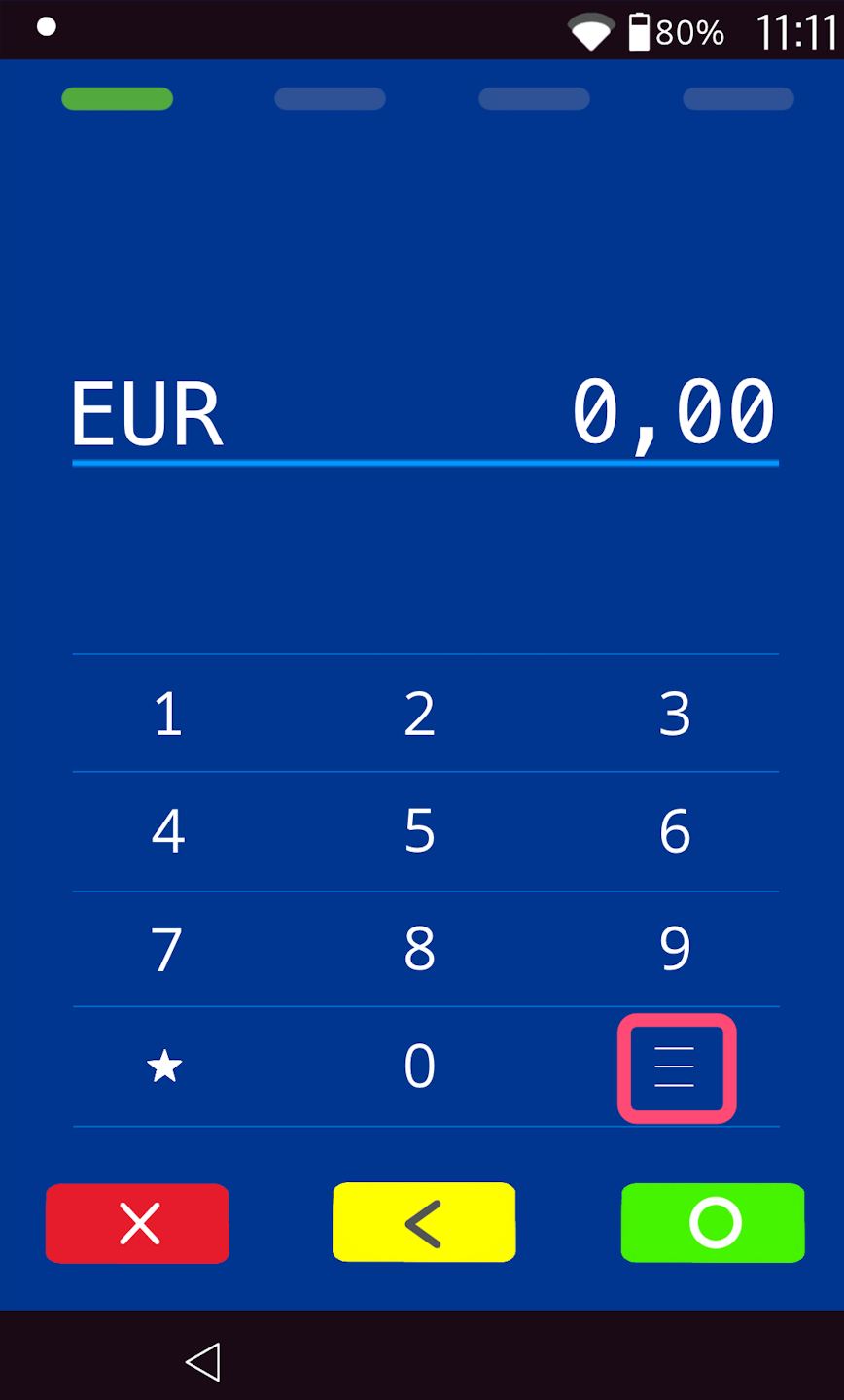
I see Fig. 2
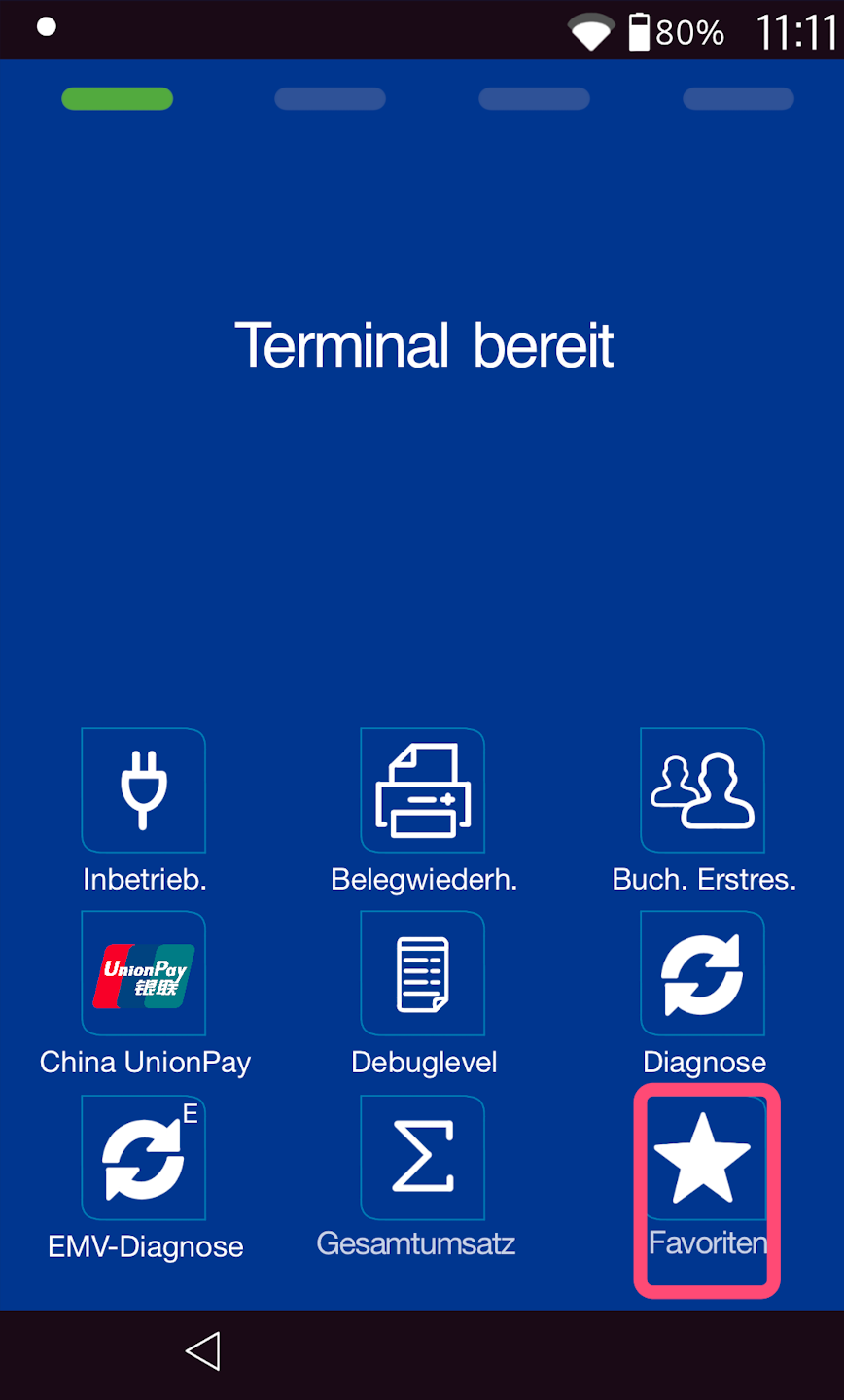
Favorites Button
You will see your main display. Please select the Favorites button.
Select by tapping.
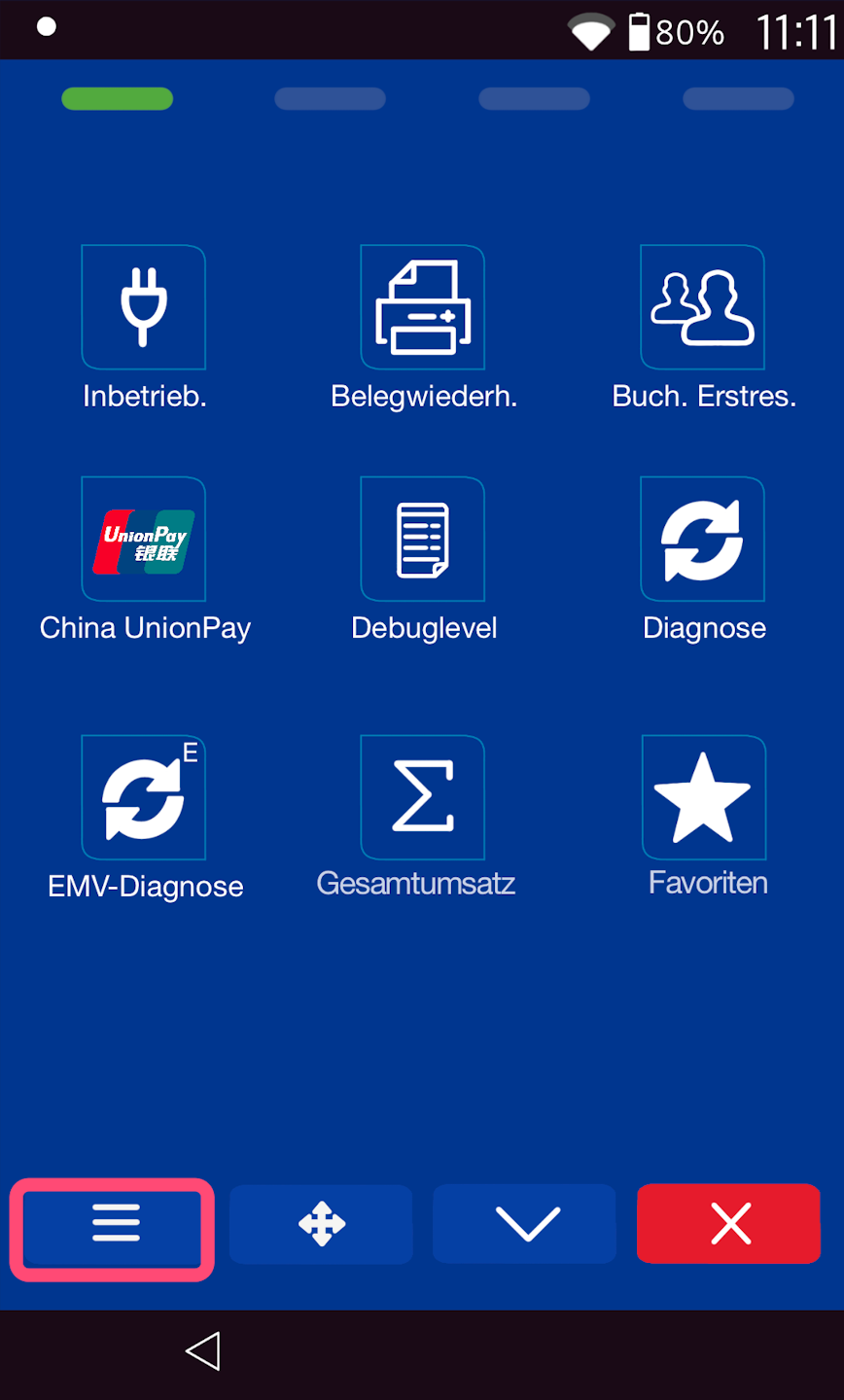
Menu Button
Please select the three horizontal lines at the bottom left.
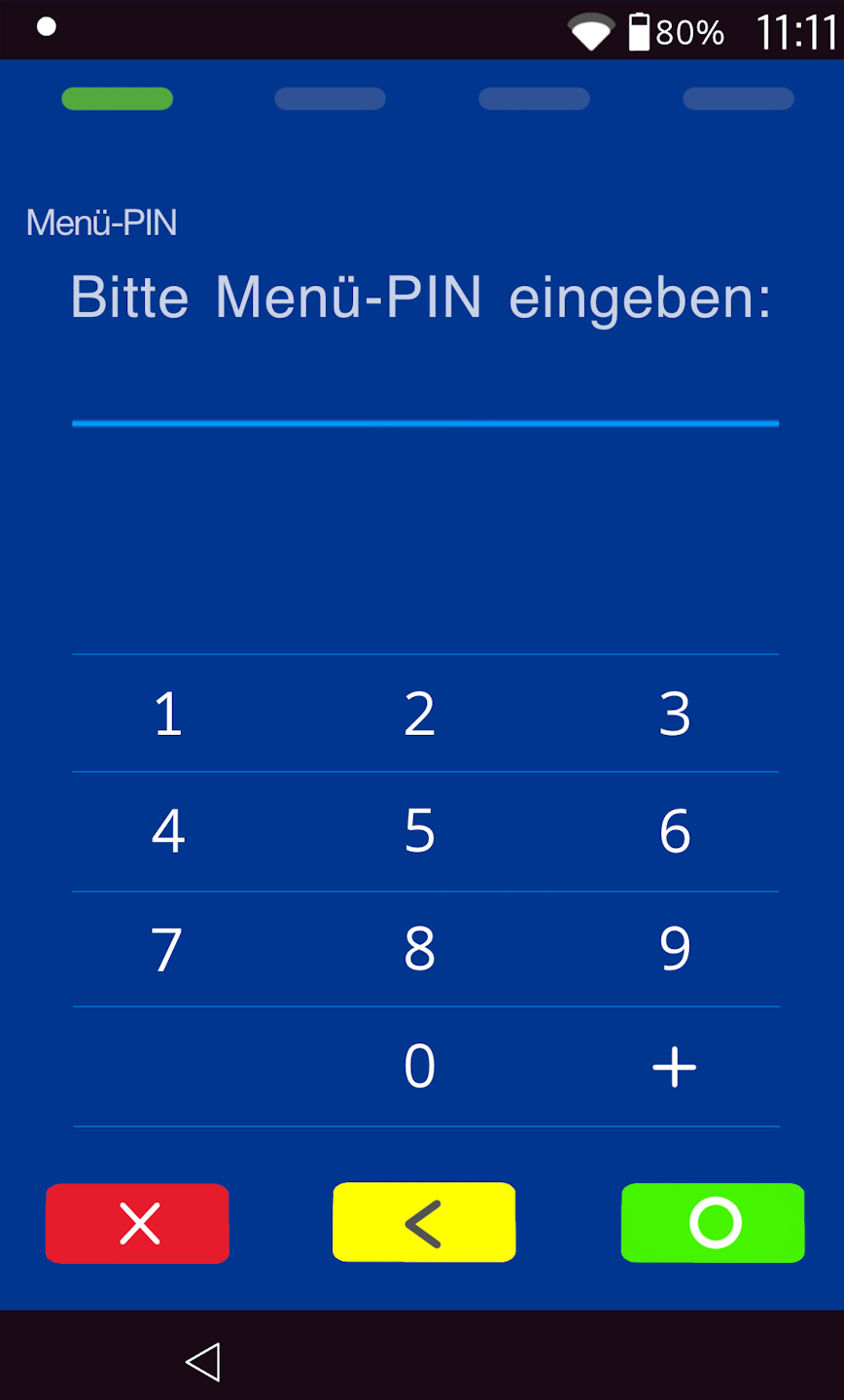
PIN Entry
Please now enter your merchant PIN.
You can find the terminal ID on your merchant receipt or your cash register report.
Terminal IDs starting with 68xxxxxx: 111111
Terminal IDs starting with 526xxxxx: 0123
Please confirm the entry with the green OK key.
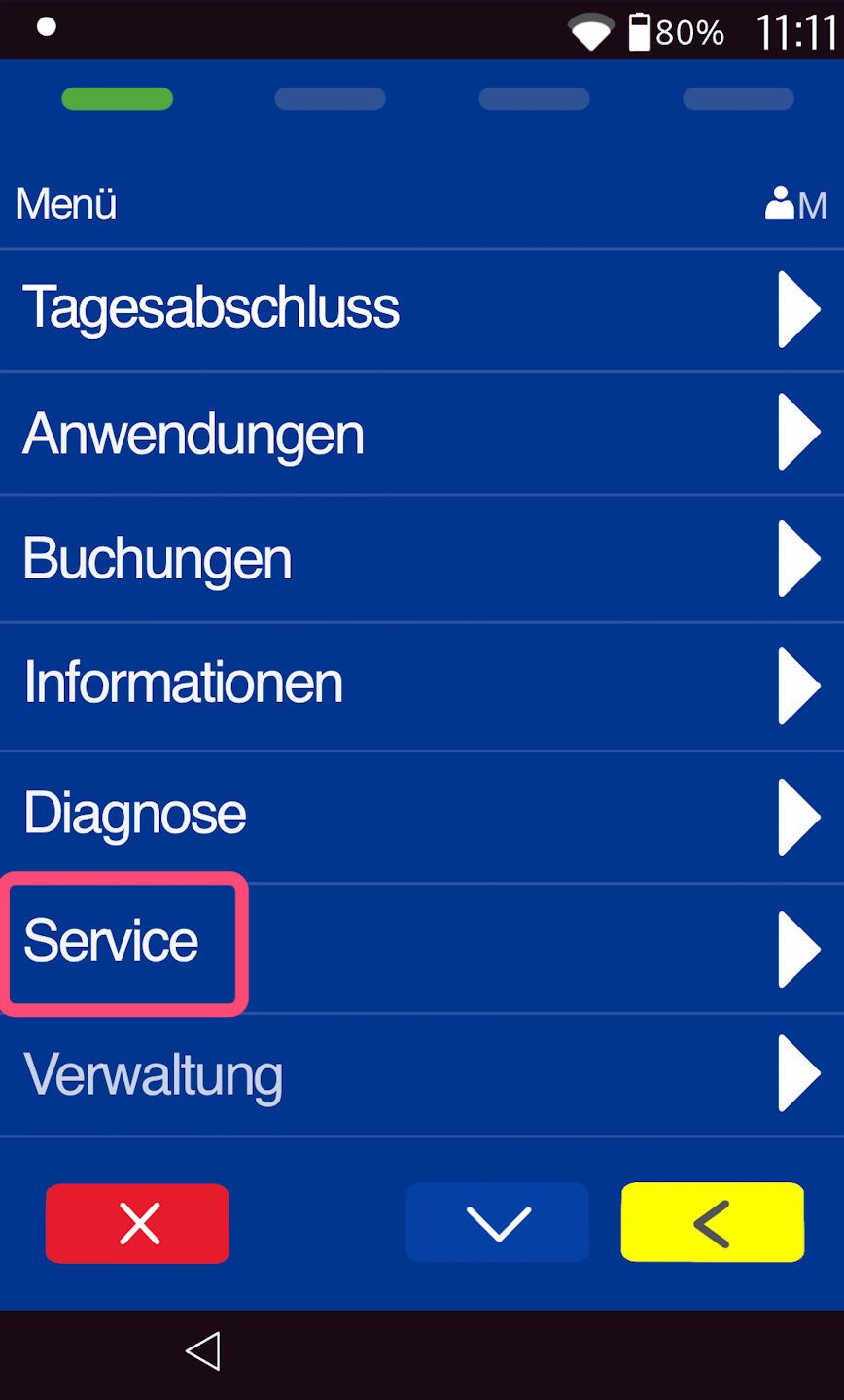
Service
Please navigate to the menu item Service.
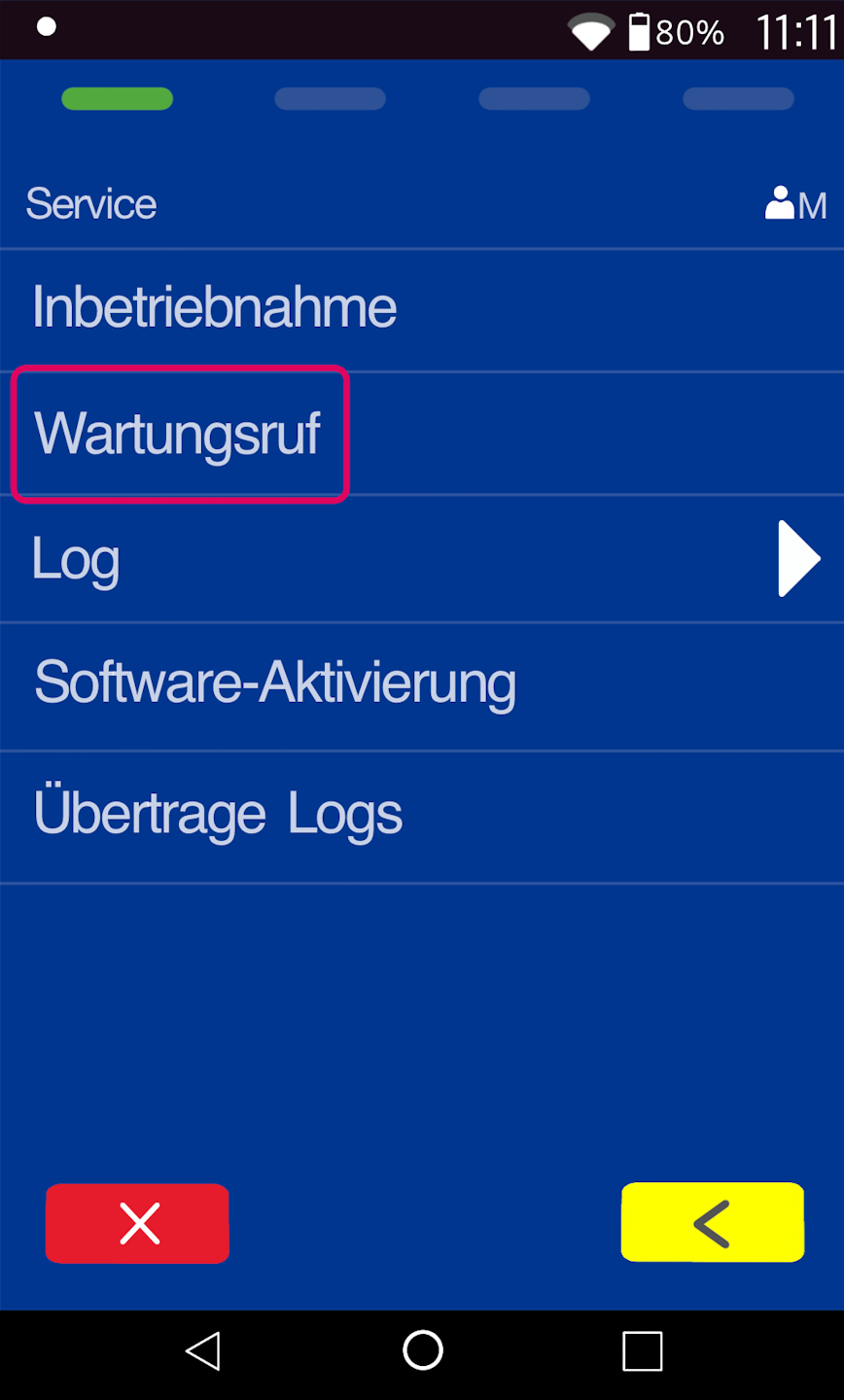
Maintenance Call
Please select Maintenance Call here.
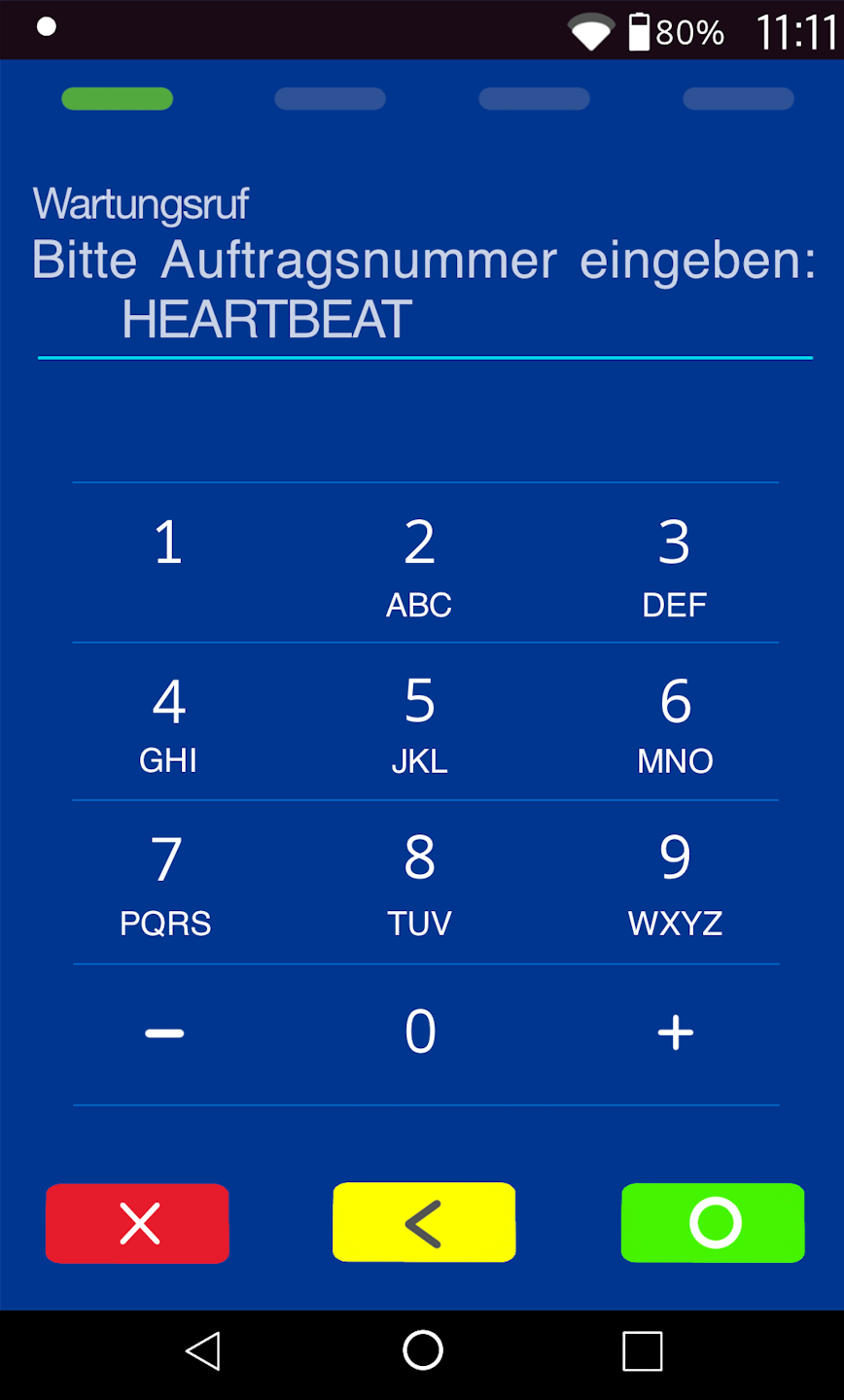
Enter Order Number
Please delete all existing entries using the yellow key and then enter the appropriate order number:
You can find the terminal ID on your merchant receipt or cash register report.
For 68xxxxxx terminal IDs:
Order number: SPS7013A920 (11 digits)
For 526xxxxx terminal IDs:
Order number: 70160202 (8 digits)
After confirming the order number with the green OK key, two small arrows will appear in the connection symbol, indicating the download.
This process will take approximately 15 minutes, during which no card payments can be processed. If using a mobile connection (SIM card), it may take up to 30 minutes.
Important Note:
Please connect the card reader to a power source and leave it connected until the update is successfully completed.
Do not use the card reader from the start of the update until it has been fully and successfully completed.
The completion of the update will be confirmed by the printing of 3 receipts. After that, the card reader will be available for use again.
Was this article helpful?
That’s Great!
Thank you for your feedback
Sorry! We couldn't be helpful
Thank you for your feedback
Feedback sent
We appreciate your effort and will try to fix the article
