CCV - Receipt Copy
Modified on Wed, 4 Feb at 9:49 AM
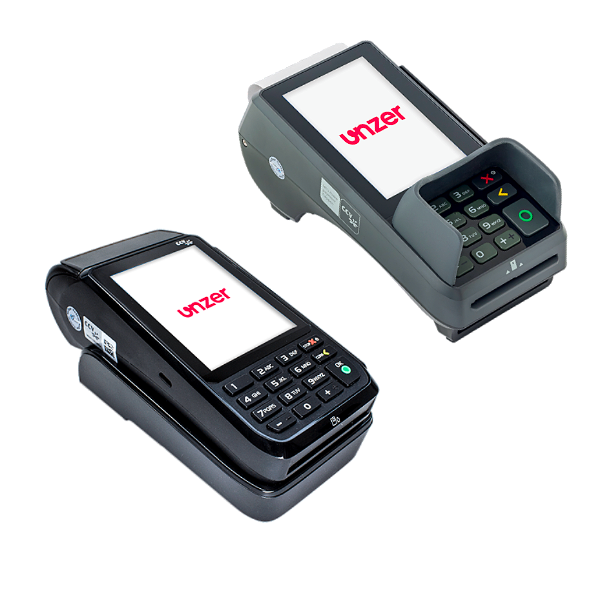
In this section, you will learn how to use the "Receipt Copy" function on your card reader from the manufacturer CCV.
Both merchant and customer receipts will always be printed.
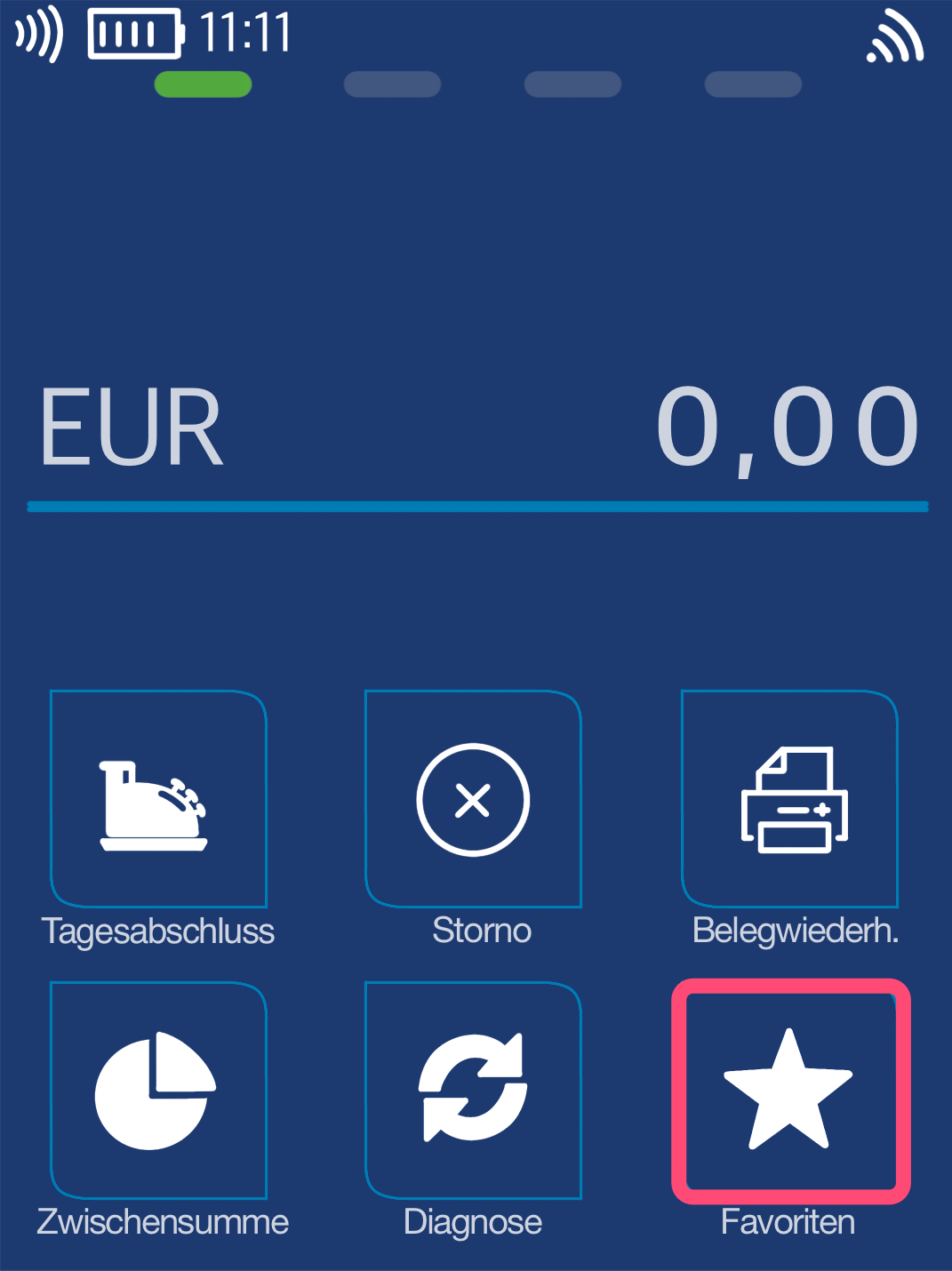
Favorites Button
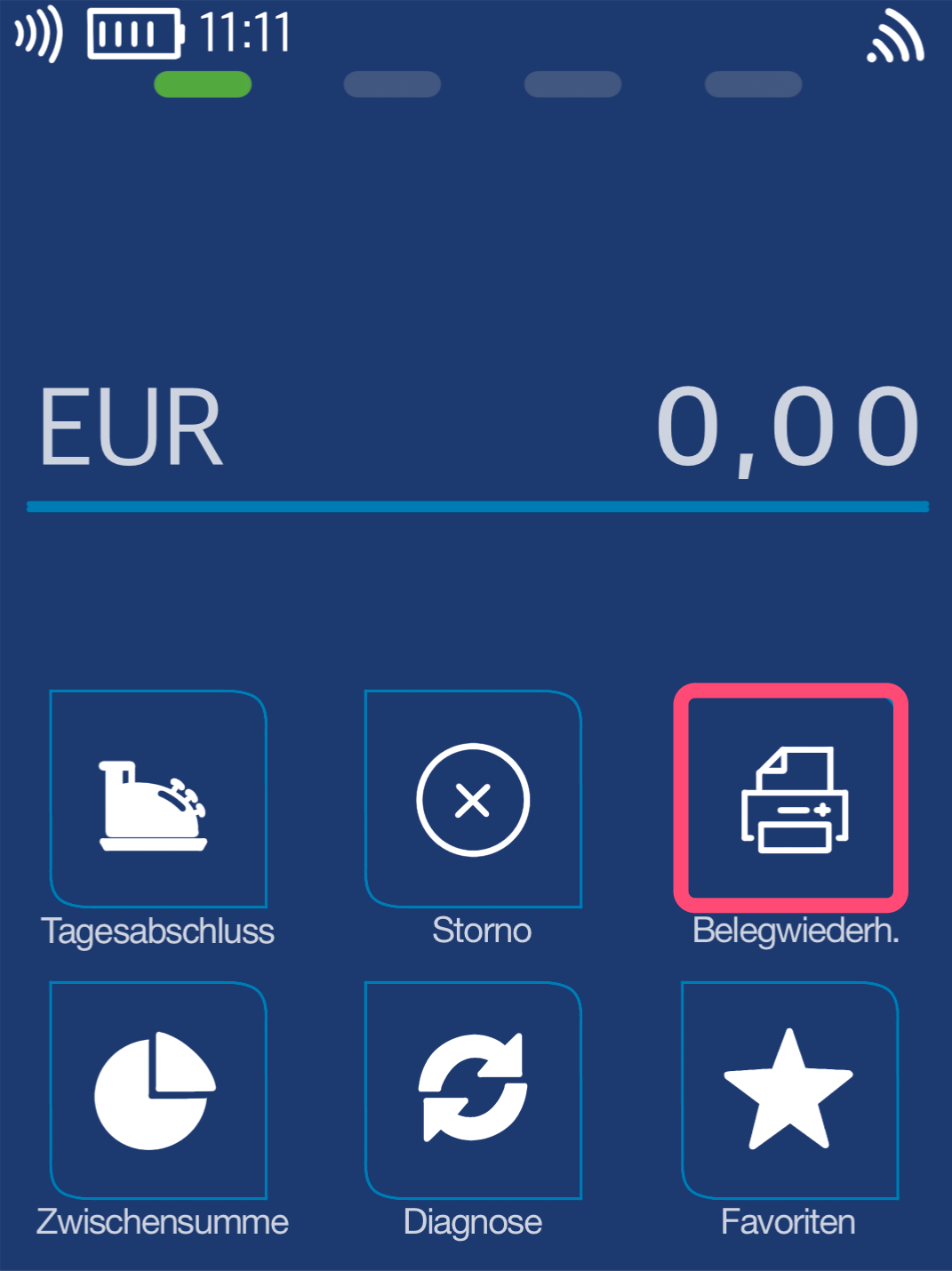
In the standard configuration, the receipt reprint button is located on the main display. Please select it.
If you do not see the receipt copy button on the main display, please use the favorites button as shown in Fig. 2. You will then see additional favorites, among which you can select the receipt reprint option.
PIN Entry
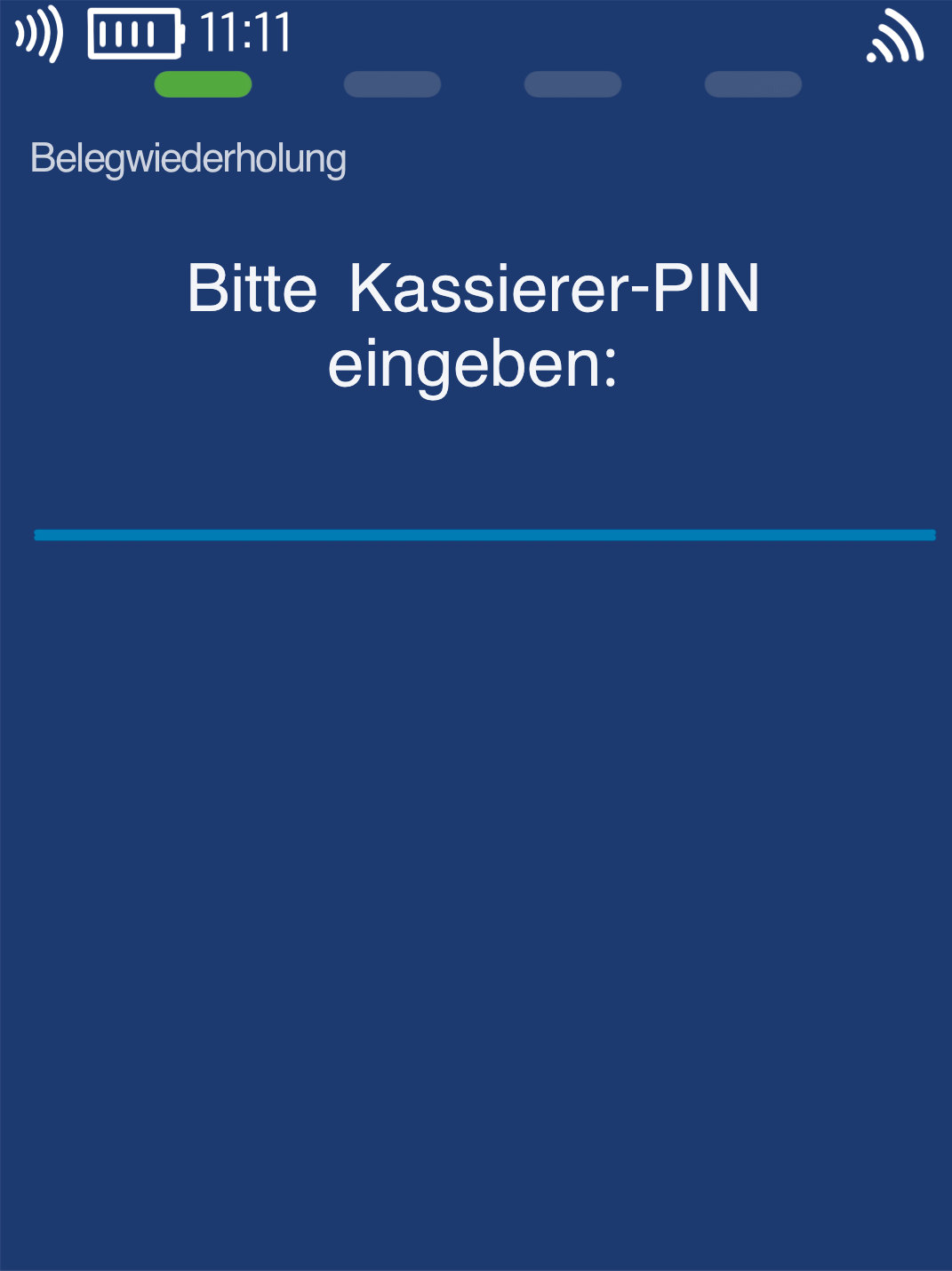
Please now enter your merchant PIN.
You can find the terminal ID on your merchant receipts or on the POS report.
Terminal IDs starting with 61xxxxxx: 111111
Terminal IDs starting with 68xxxxxx: 111111
Terminal IDs starting with 526xxxxx: 0123
Please confirm your entry by pressing the green OK button.
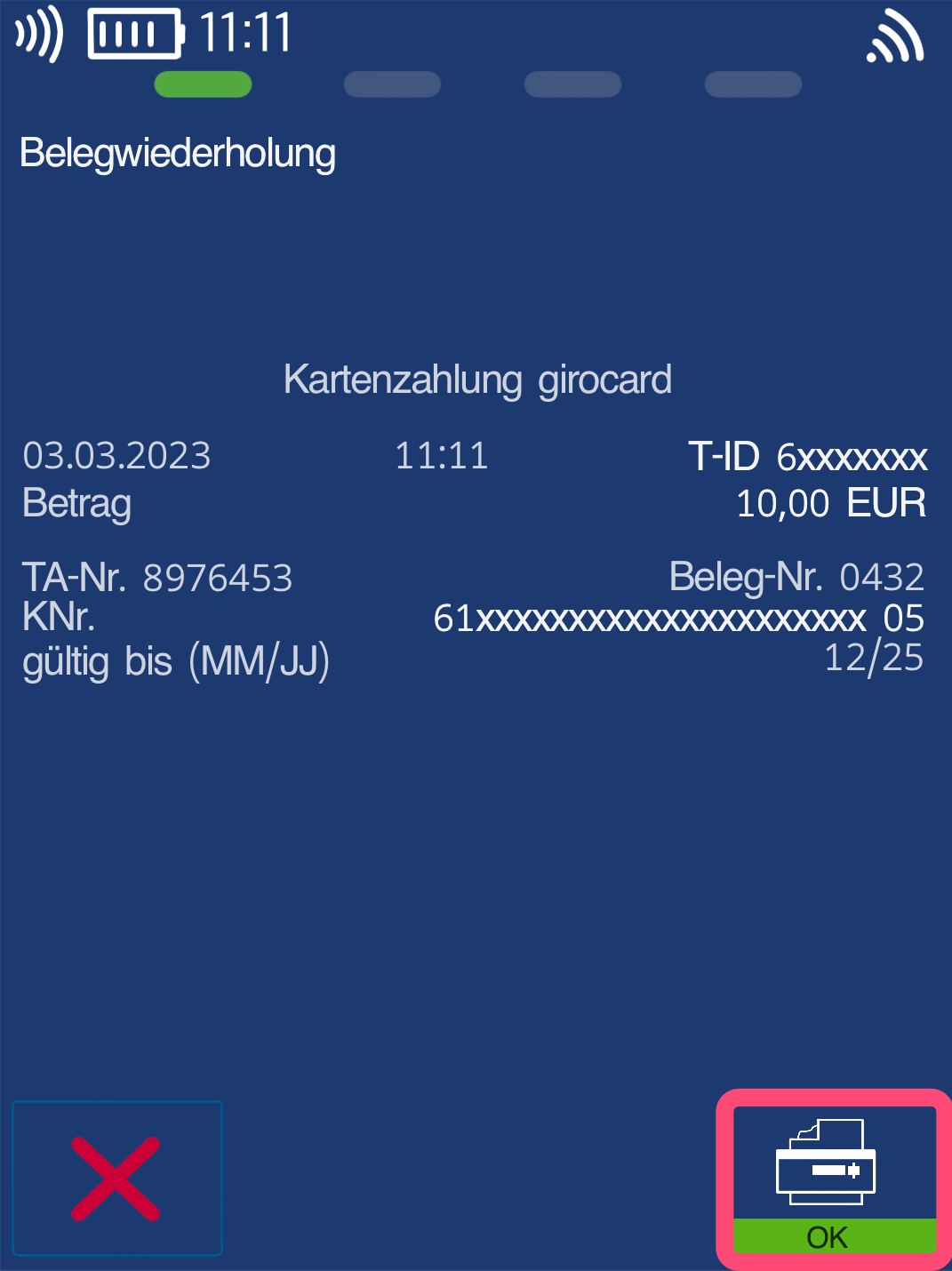
Receipt Reprint
The last receipt will be displayed.
Please use the left printer button to print a copy.
Note: Both merchant and customer receipts will always be printed!
Was this article helpful?
That’s Great!
Thank you for your feedback
Sorry! We couldn't be helpful
Thank you for your feedback
Feedback sent
We appreciate your effort and will try to fix the article
