Ingenico - F-Key Assignment (Hotkey)
Modified on Wed, 4 Feb at 11:38 AM
Your Ingenico card reader provides several function keys. These allow quick and easy access to frequently used actions.
This guide will walk you through assigning your desired function to a selected key.
Function Code
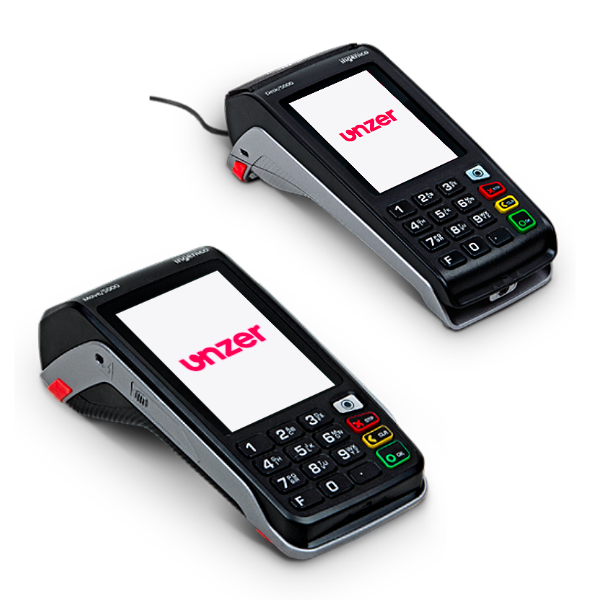
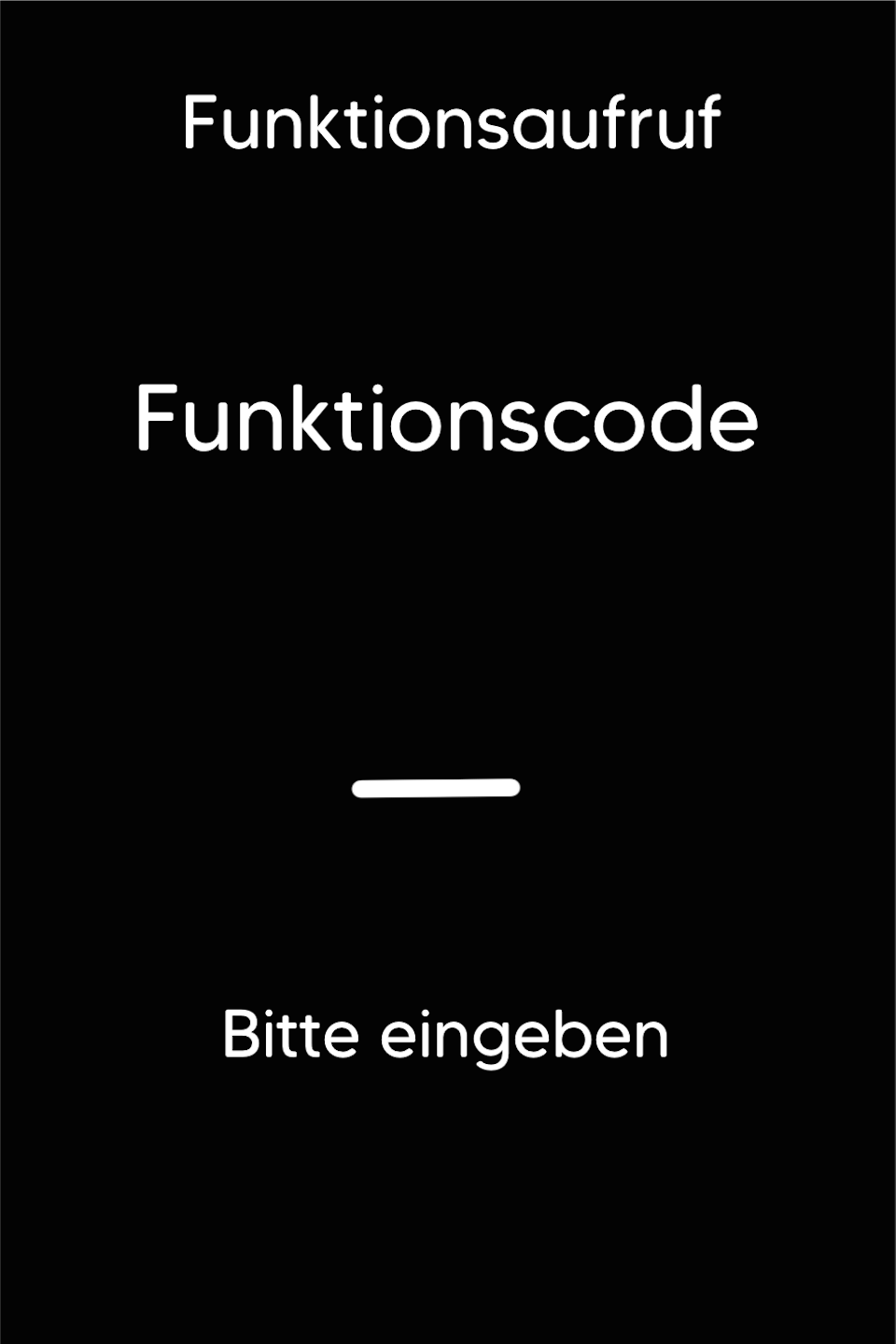
Please press the F key at the bottom left of the keypad repeatedly. You will now see the function code on the display.
Function Code 526
Please enter the number 526 and confirm the entry with the green OK button.
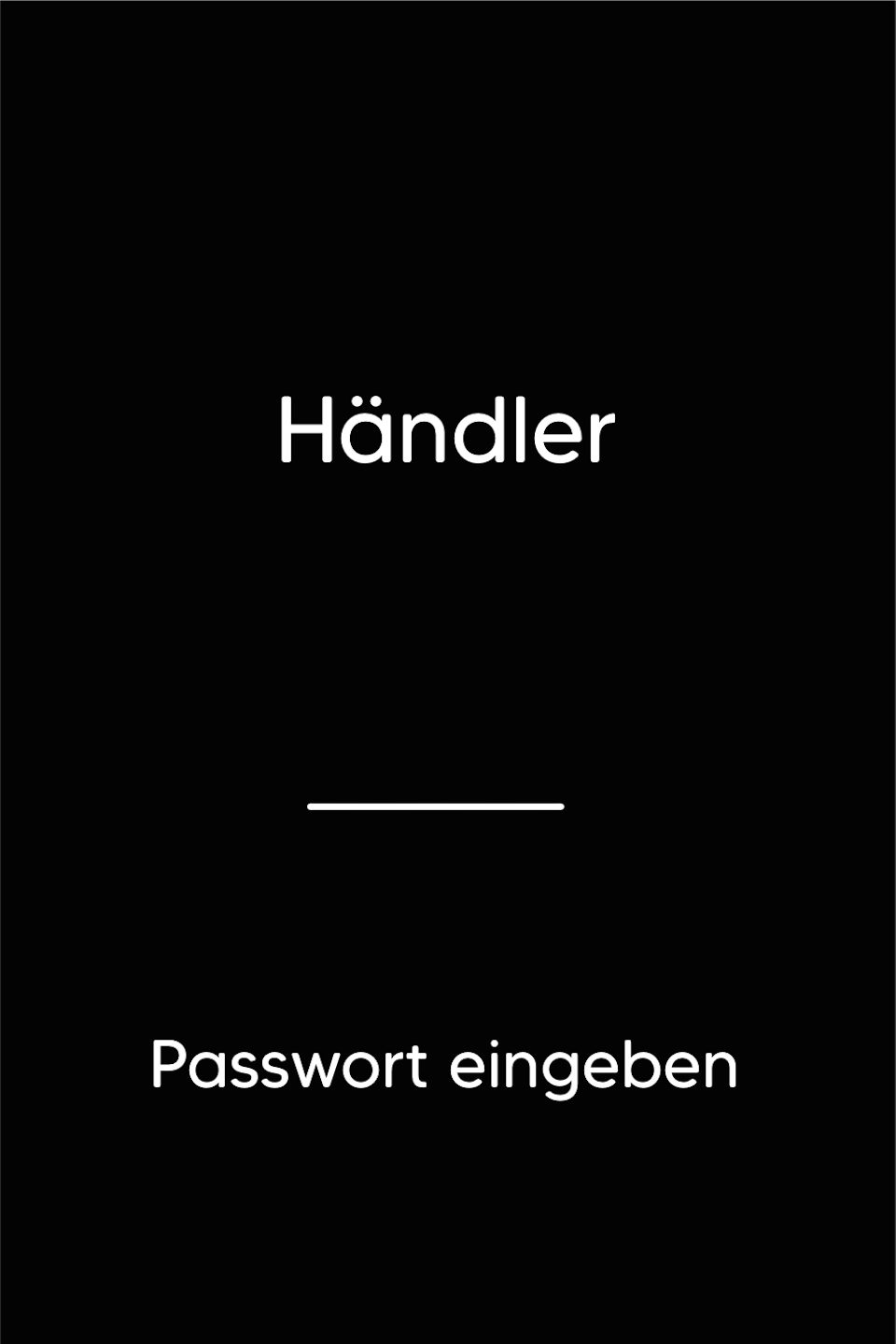
Merchant Password
Please enter your 5-digit merchant password and confirm the entry with the green OK button.
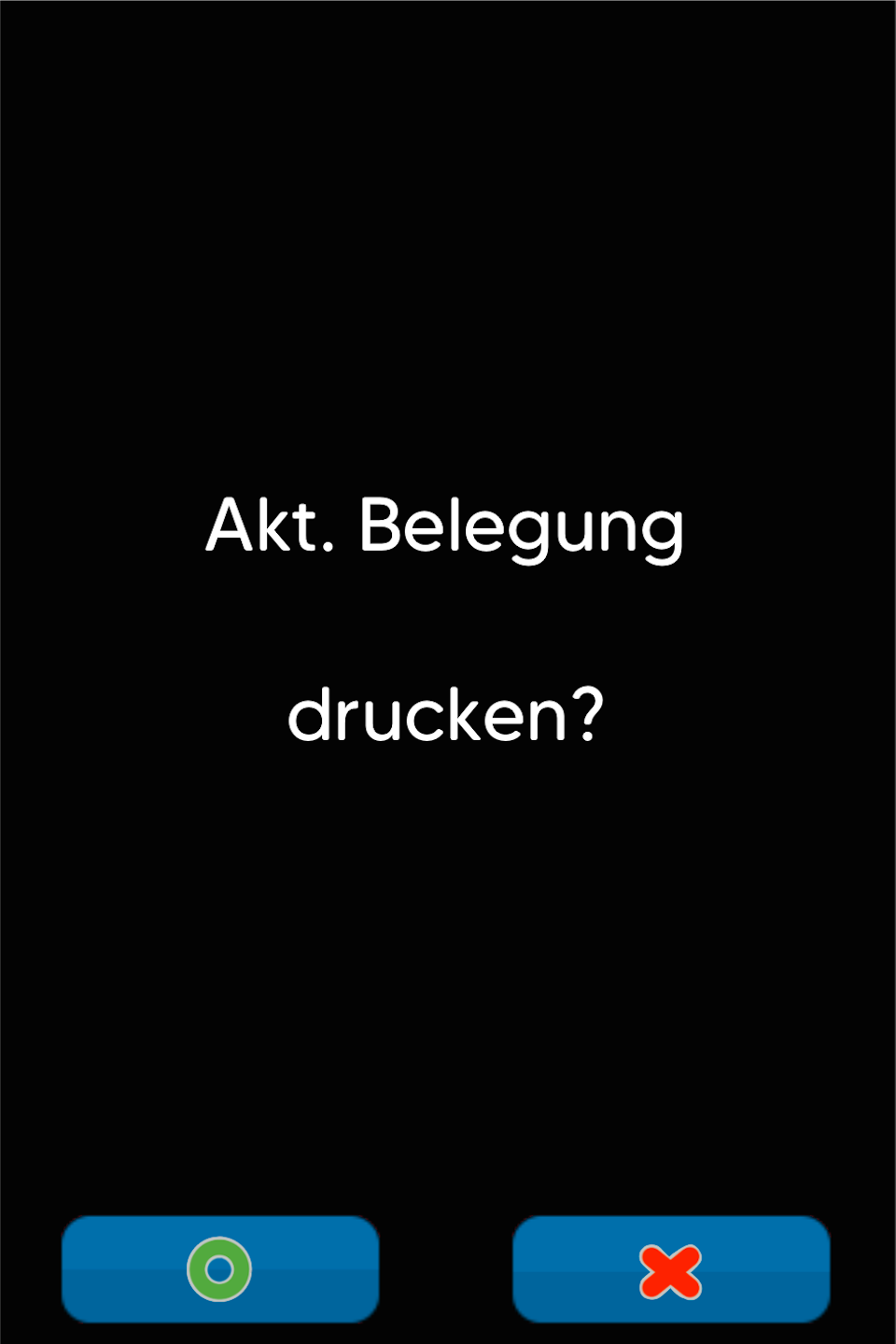
Print Current Assignment
You will now be asked whether you want to print the current key assignments.
YES – All available functions will be printed. This allows you to review and select your desired function.
NO – No printout will be made.

Key Selection
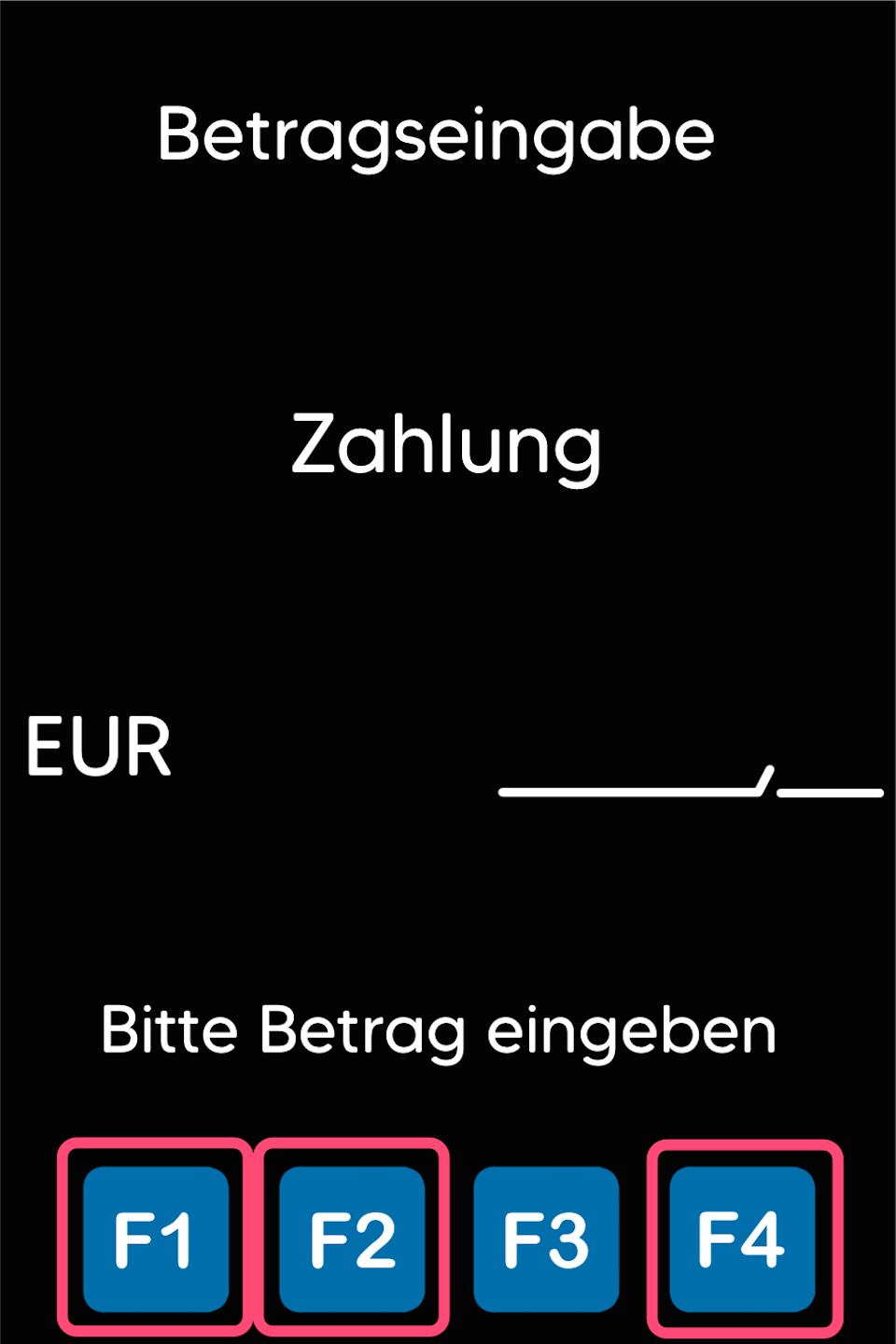
Please now select the desired F-key to which you want to assign your function for quick access.
Tap to select.
Do not use the F3 key, as it is already assigned to Favorites.
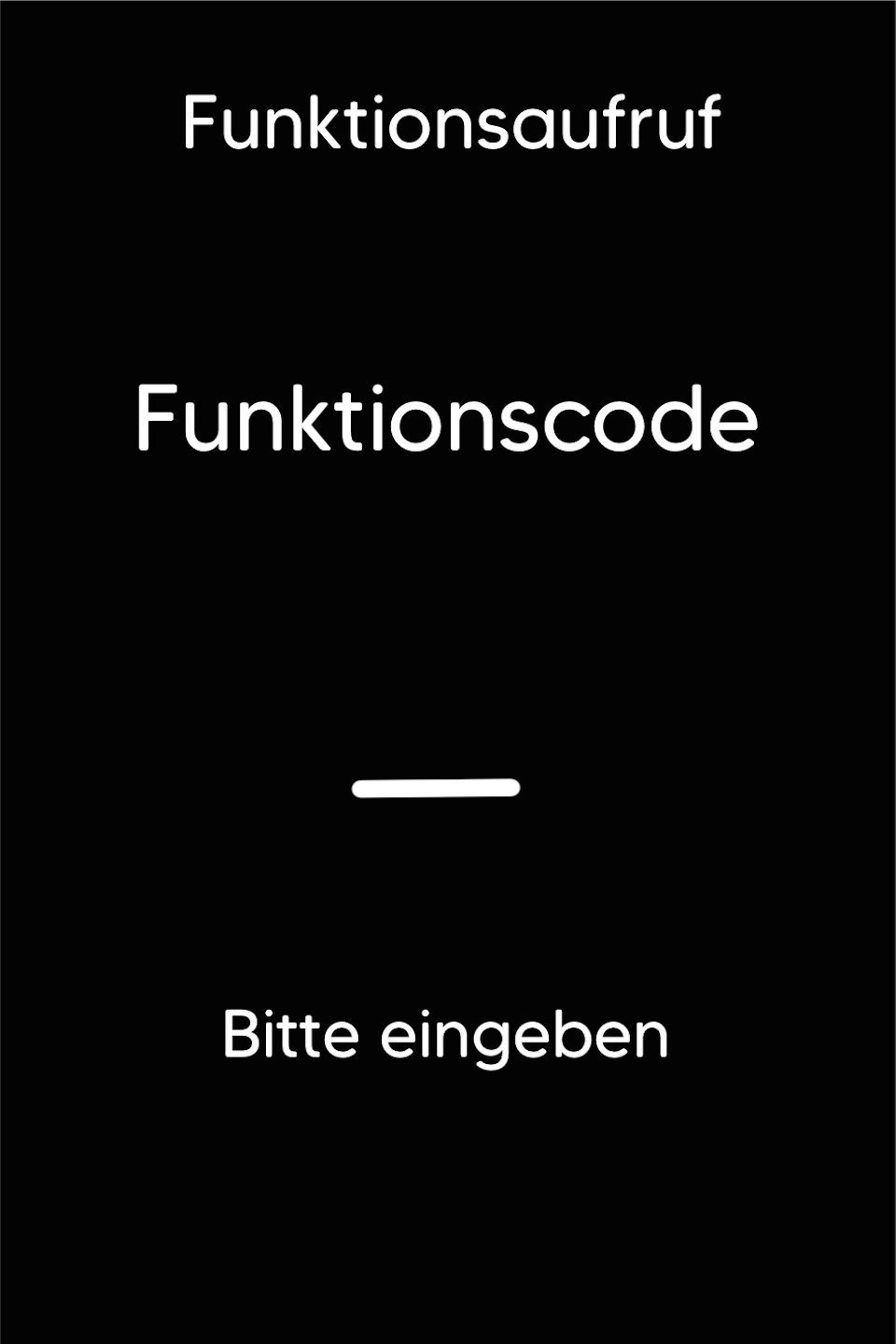
Enter Desired Function
Now you can assign your desired function using the corresponding function code.
The most commonly used functions are:
2 – Void
3 – Refund
4 – End-of-Day Report
5 – Daily Report
9 – Extended Diagnostics
82 – Copy of Last Merchant Receipt
83 – Copy of Last Customer Receipt
84 – Copy of Last End-of-Day Report
410 – Cashier Report
423 – Initialization
Please confirm your entry with the green OK button. Your new selection will now be confirmed.
Was this article helpful?
That’s Great!
Thank you for your feedback
Sorry! We couldn't be helpful
Thank you for your feedback
Feedback sent
We appreciate your effort and will try to fix the article
