Ingenico - Retrieve IP Data
Modified on Wed, 4 Feb at 1:10 PM
In this step-by-step guide, we will show you how to retrieve the assigned IP address on your card reader.
The card reader must be connected to a WLAN or LAN network.
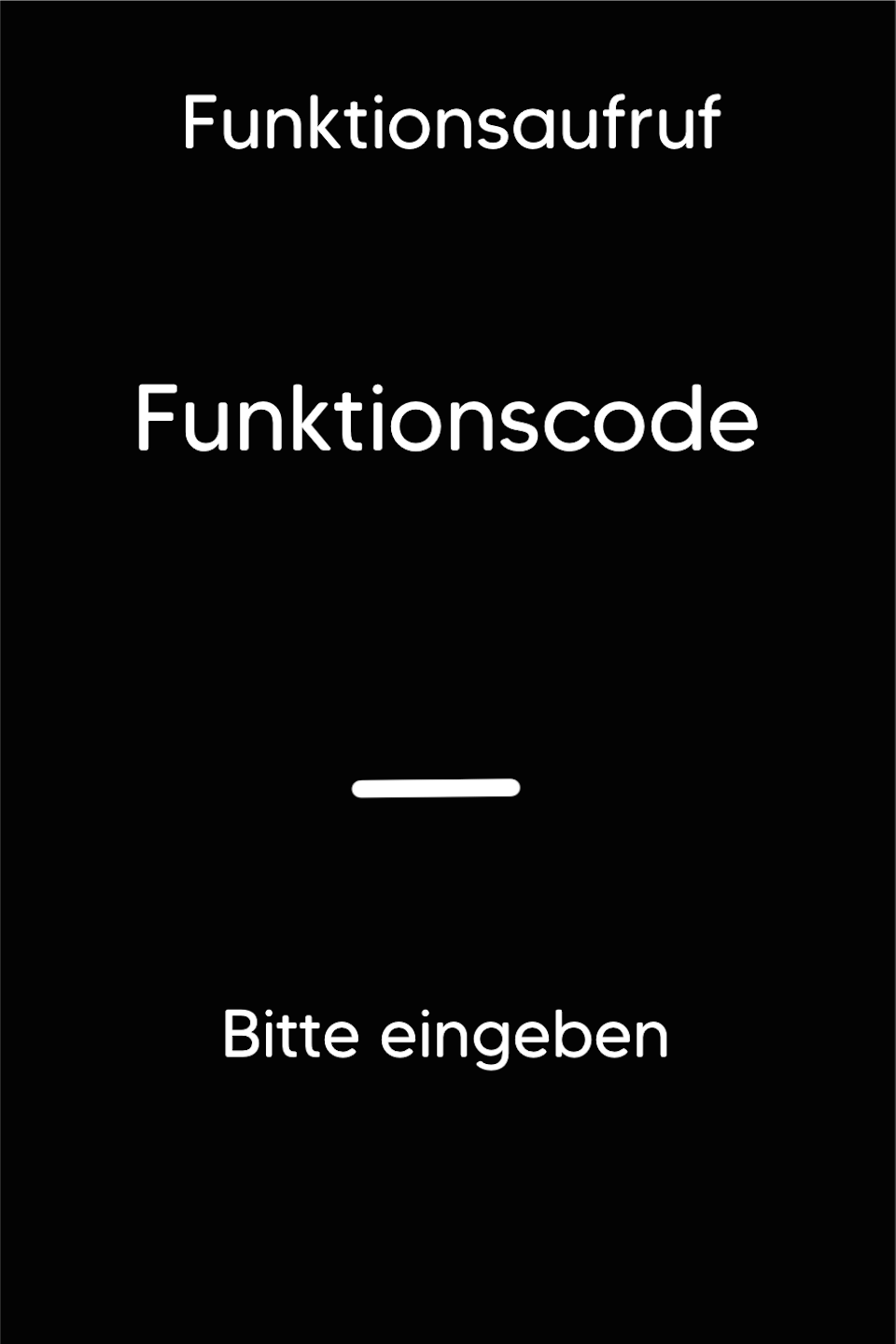
Function Code
Please press the F key at the bottom left of the keypad repeatedly. You will now see the function code on the display.
Function Code 522
Please enter the number 522 and confirm the entry with the green OK button.
If a printout is not possible, you can also display the IP data using function code 529.
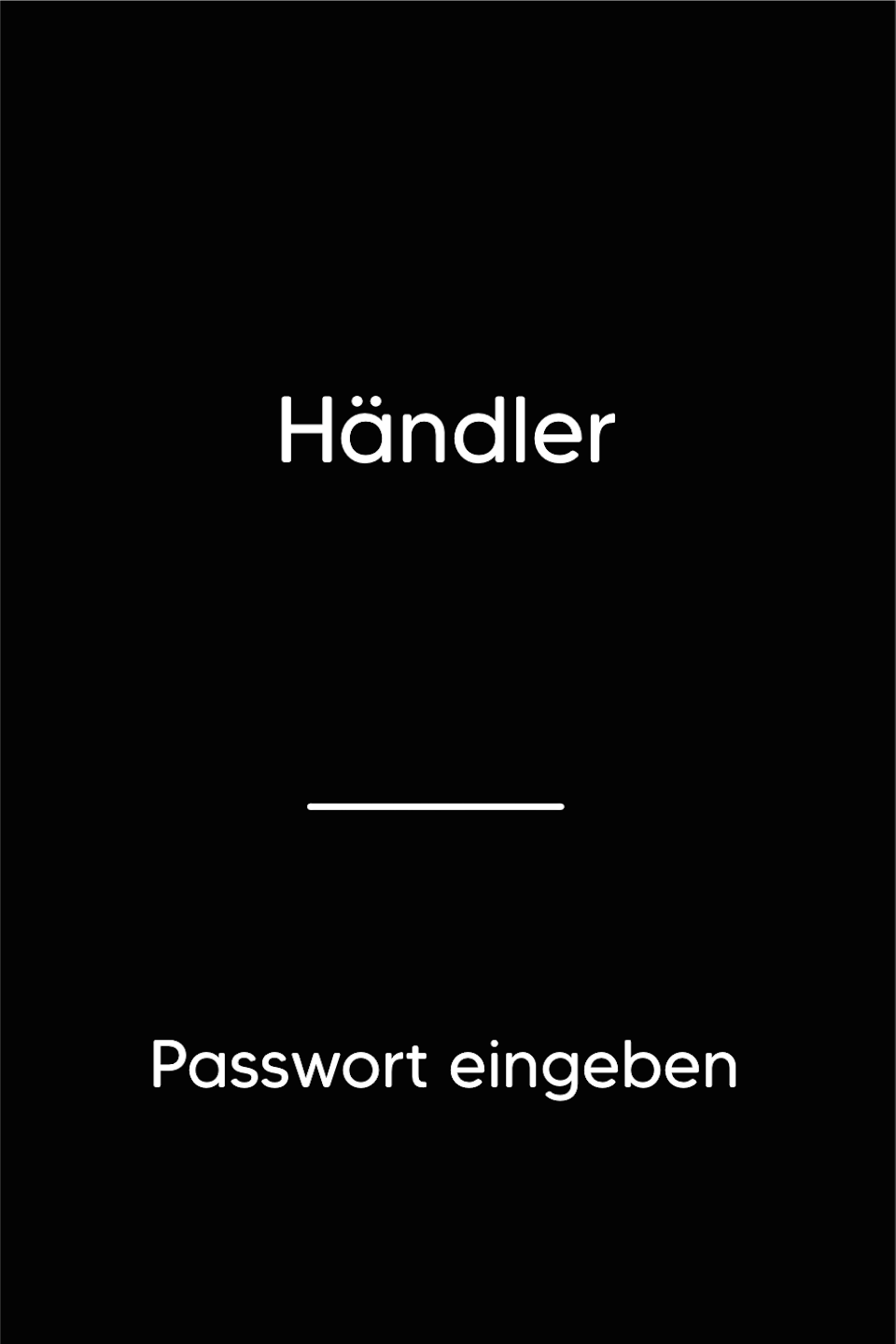
Password Entry
Please enter your 5-digit merchant password and confirm the entry with the green OK button.
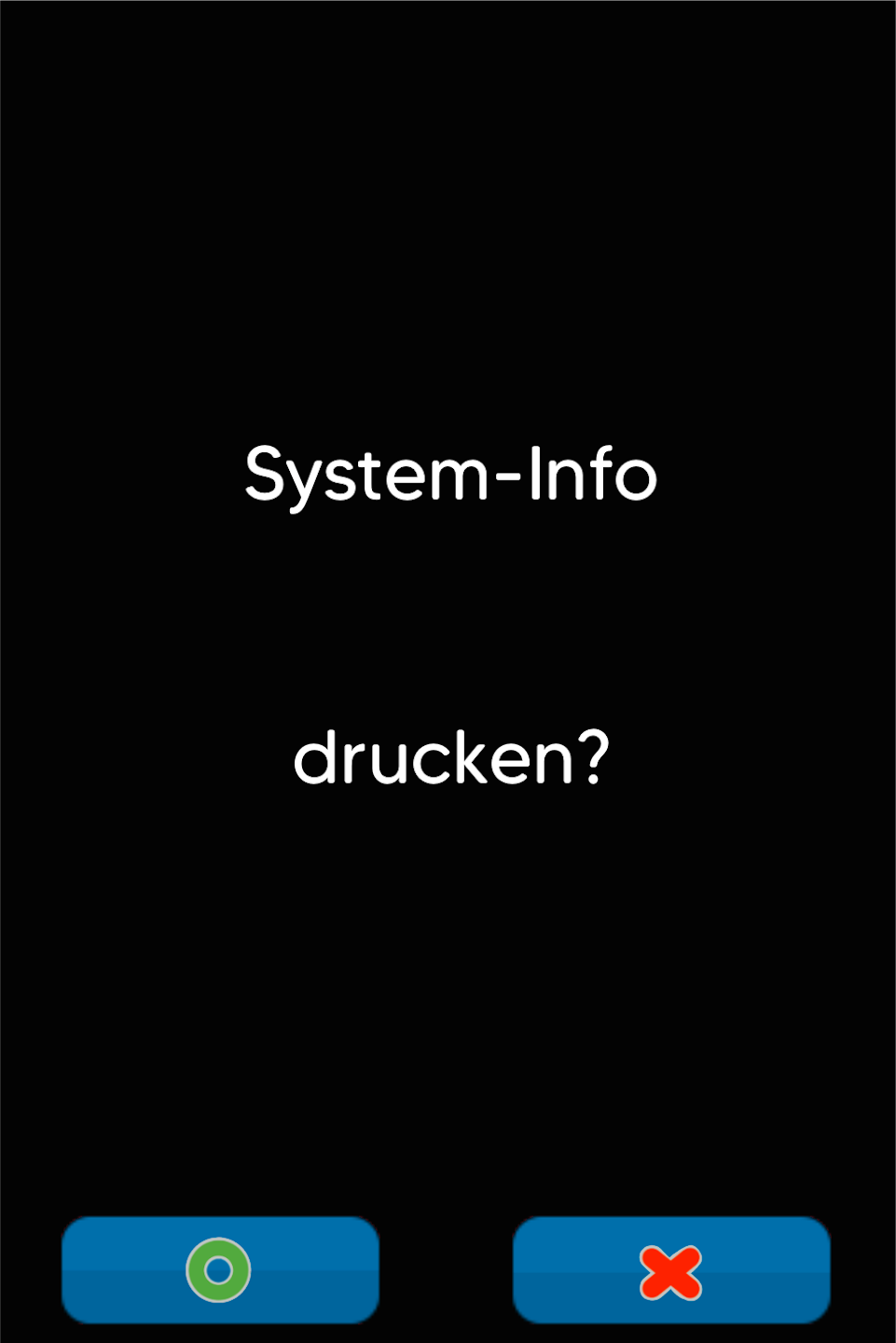
Start System Printout
Please confirm the printout of the system information.
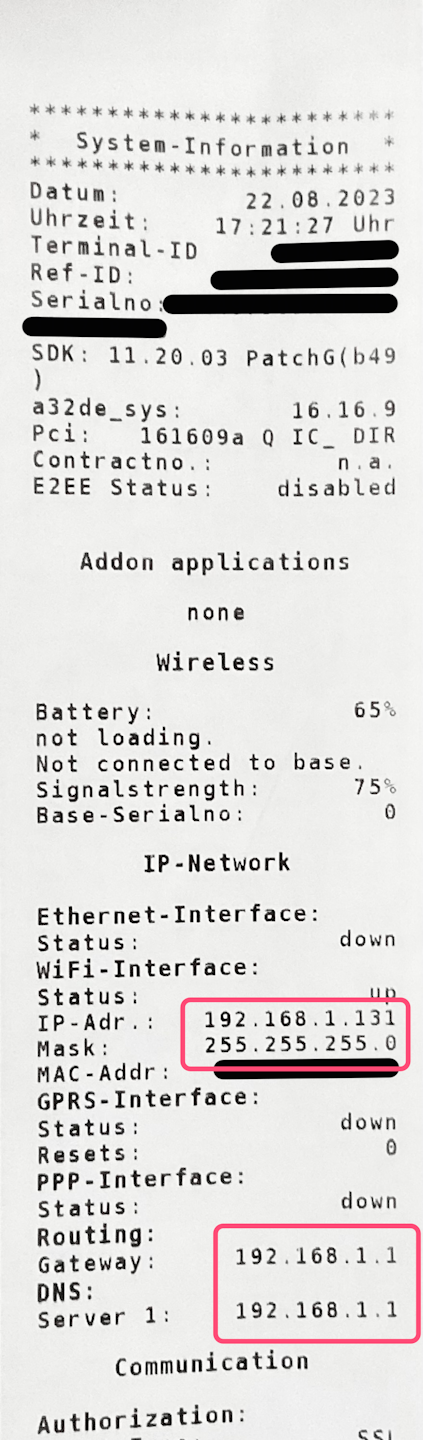
Printout
As shown in the image, you will receive a system information printout.
Please focus on the top section.
Here, as shown in the example, you can view the required IP data:
IP - Network
IP Address (usually assigned via DHCP by your internet router)
Subnet Mask
Gateway
If a printout is not possible, you can also display the above IP data using function code 529.
Was this article helpful?
That’s Great!
Thank you for your feedback
Sorry! We couldn't be helpful
Thank you for your feedback
Feedback sent
We appreciate your effort and will try to fix the article
