Ingenico - Static IP Address Assignment
Modified on Tue, 10 Feb at 4:03 PM
Setting Up a Static IP Address
In some cases, it is necessary to assign a static IP address to your card reader. Ideally, this should be configured on your internet router as a reserved IP address. If this is not possible, we will show you how to manually assign a static IP address on your Ingenico card reader.
You will typically receive the required IP address information from your IT service provider, technician, or POS integrator.
Function Code
Please press the F key at the bottom left of the keypad repeatedly. You will now see "Funktionscode" on the display.
Function Code 54
Please enter the number 54 and confirm the entry with the green OK button.

Password Entry
Please enter your 5-digit merchant password and confirm the entry with the green OK button.

Connections
You are now in the menu called "Verbindungen".
Please swipe/scroll to the menu item "Allgemeine Parameter" (Fig. 2)
Select by tapping.
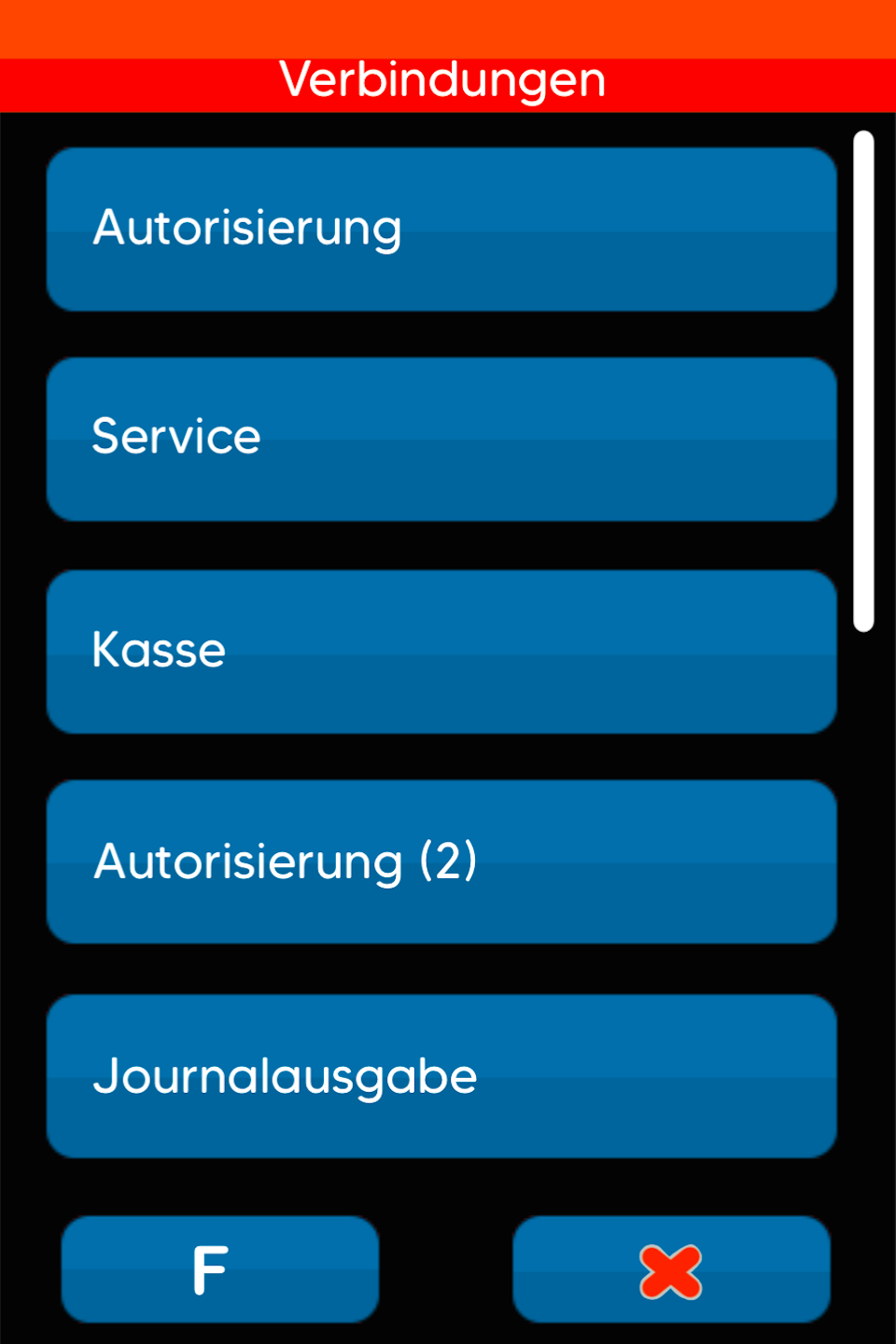
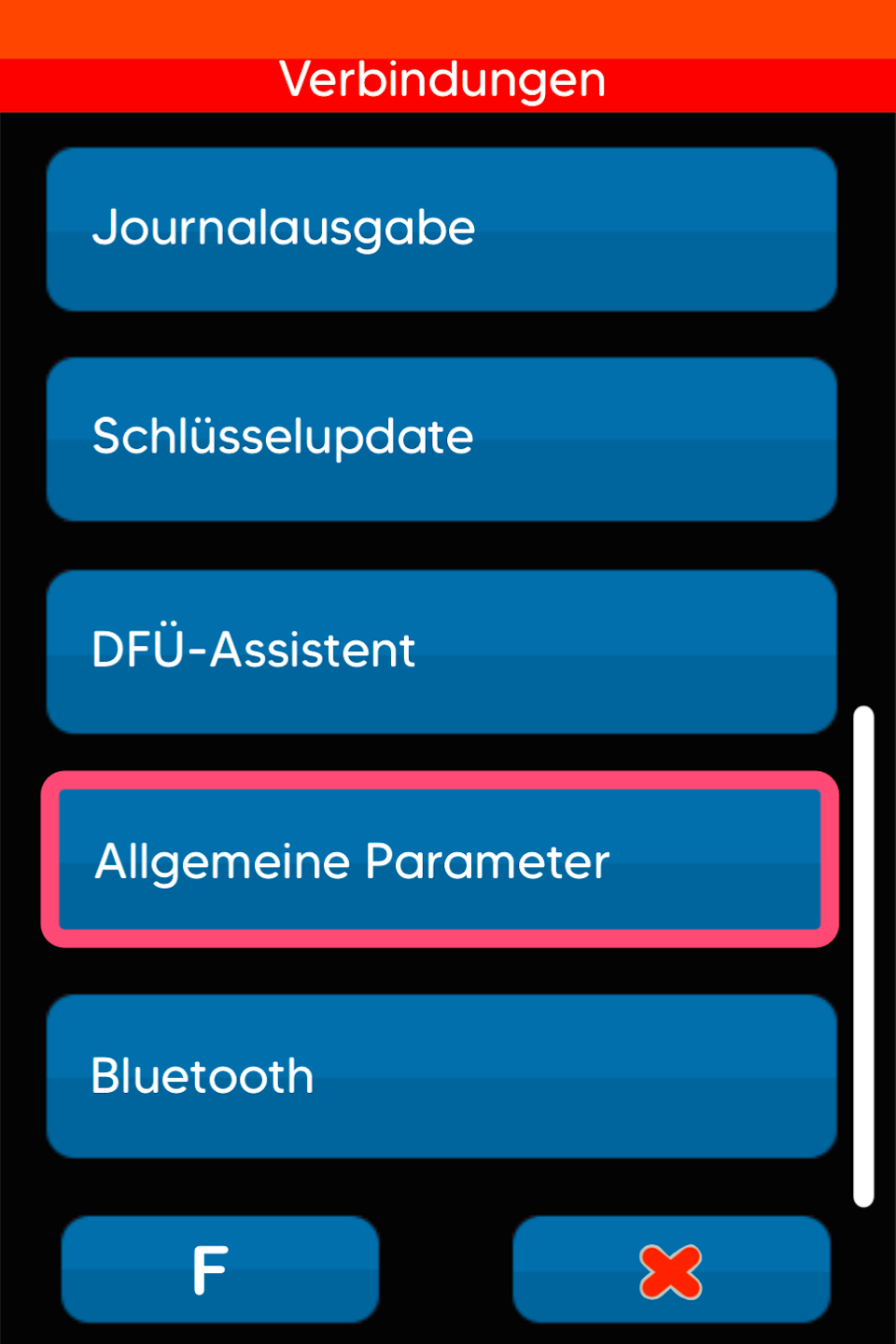
Allgemeine Parameter
Please select the menu item "Netzwerk".
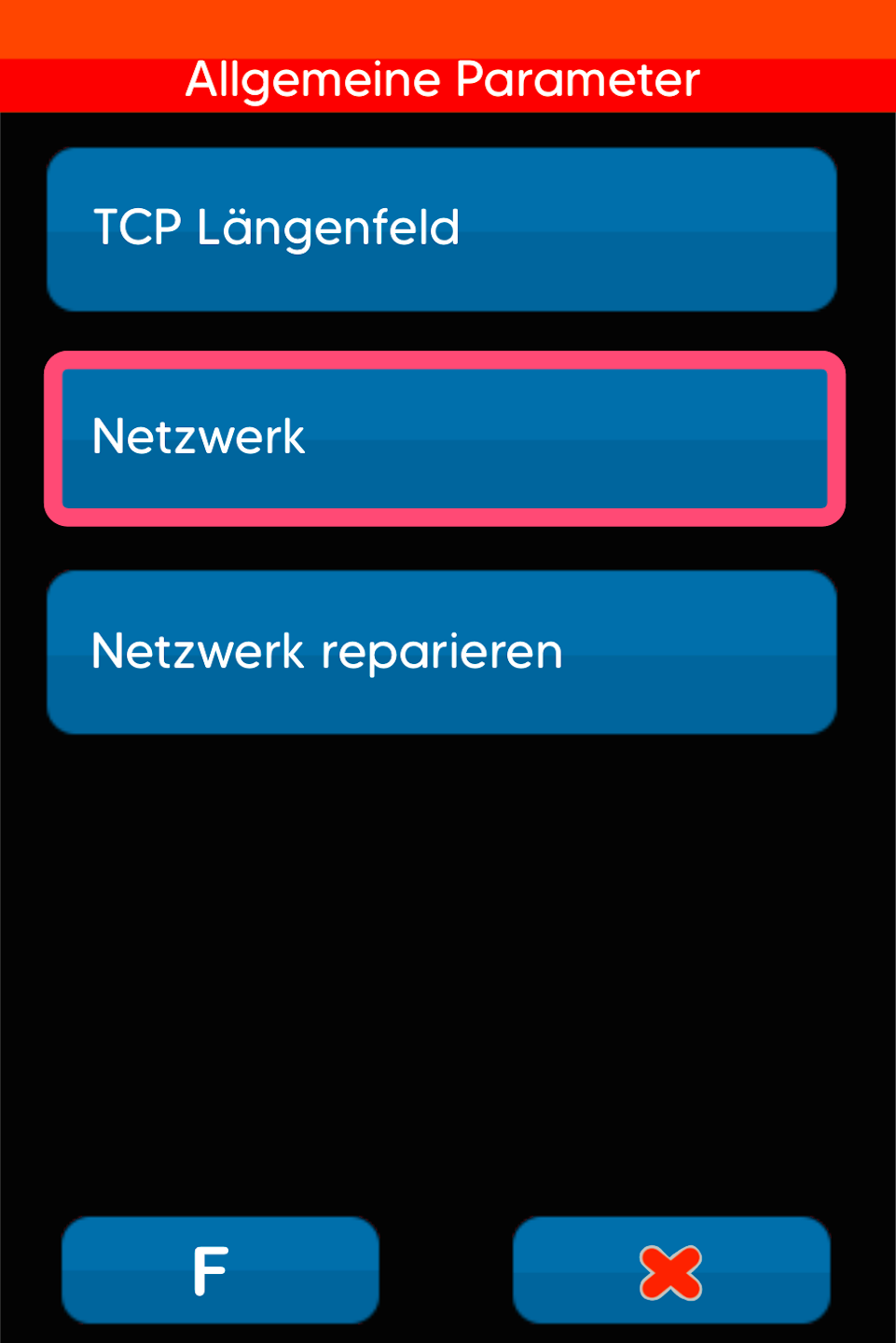
"Netzwerk"
If your card reader is connected via a network cable (LAN), select LAN.
If you are using a wireless connection, select WLAN.
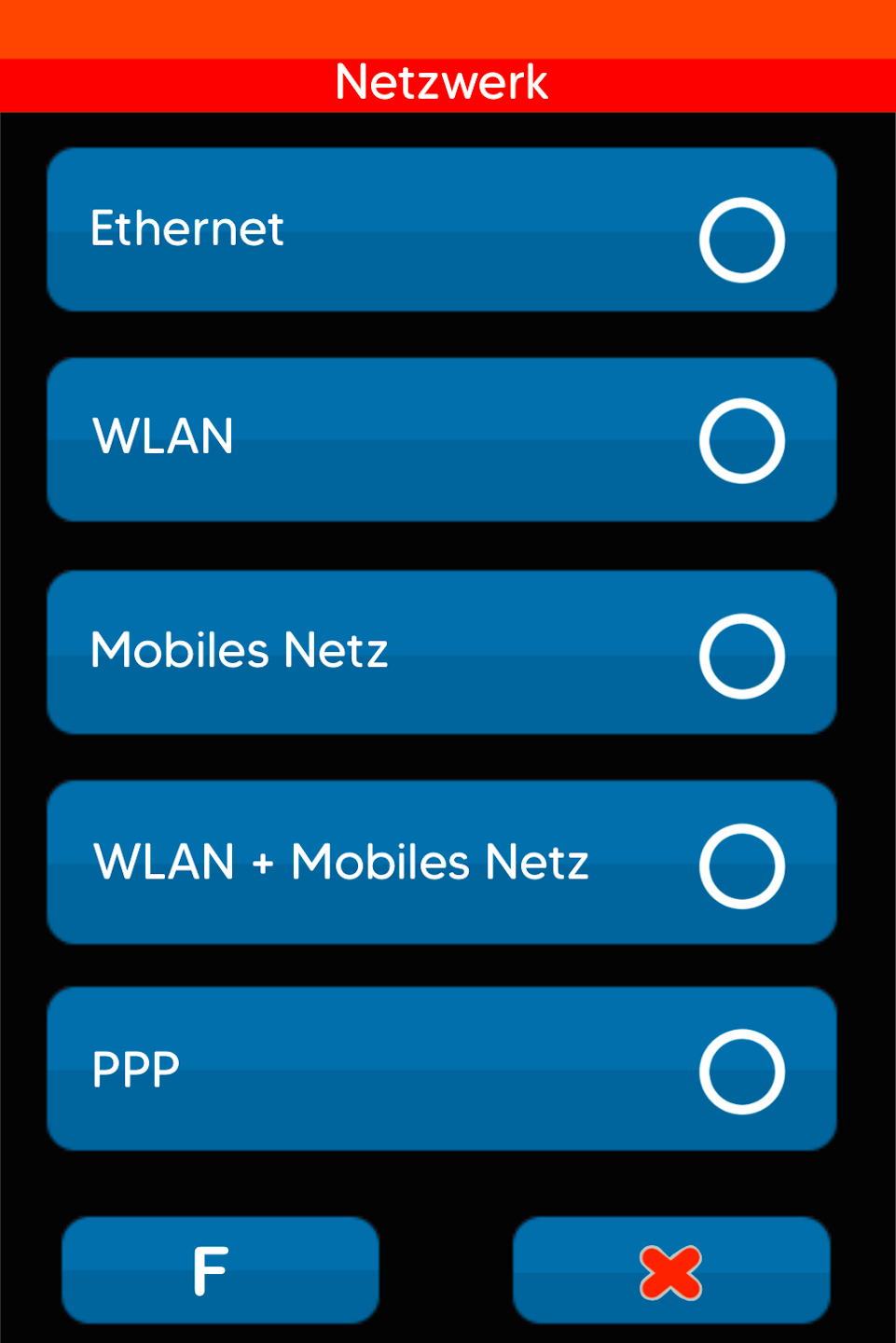
LAN Selection
If you are using a network cable (LAN), please select Ethernet.
Please confirm the entry with the green OK button or the green button on the display.
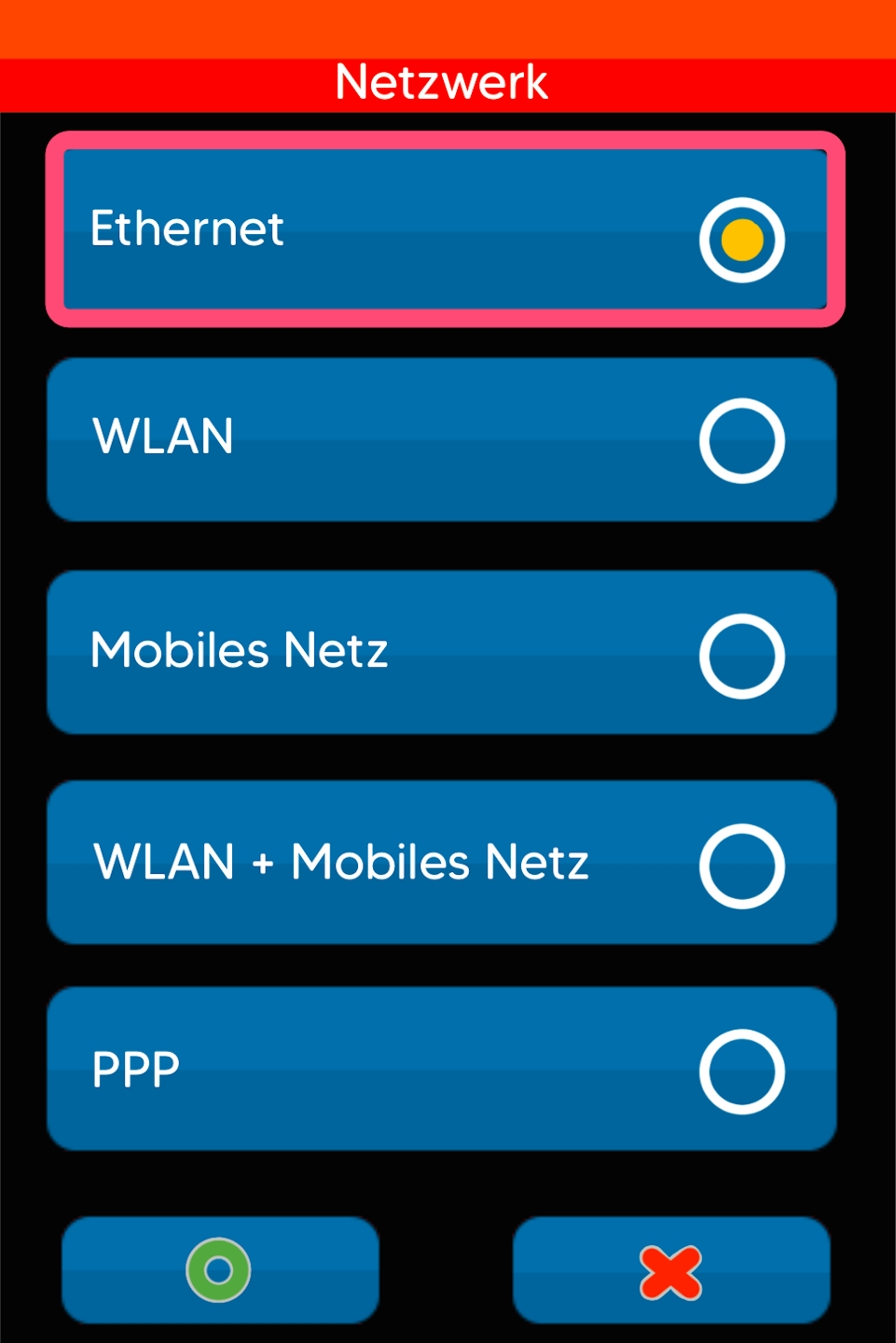
Please go to: Manual Selection
WLAN Selection
If you are using a wireless connection (WLAN), please select WLAN.
Please confirm the entry with the green OK button or the green button on the display.
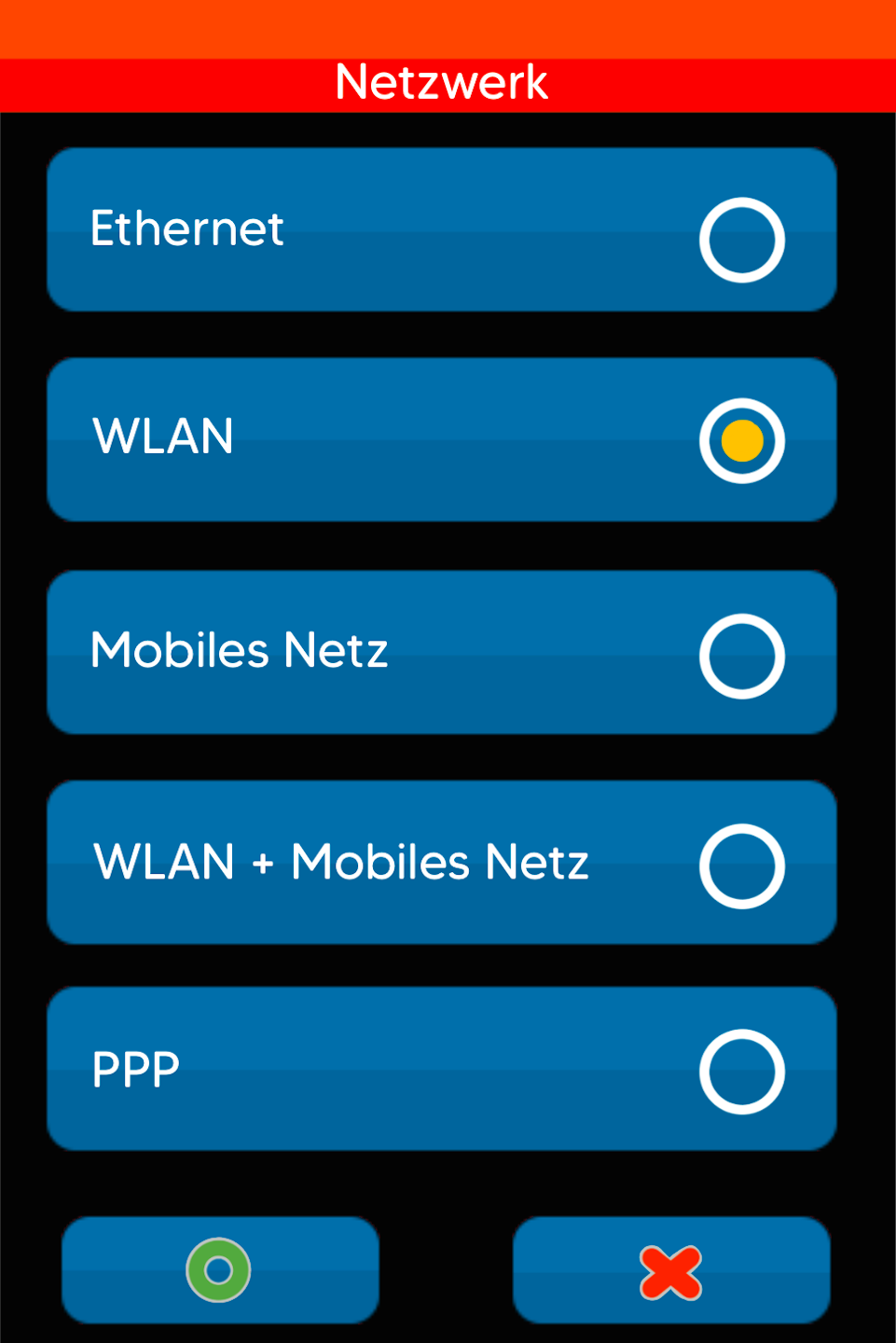
IP Konfiguration Selection
Tap to select the menu item IP Konfiguration.
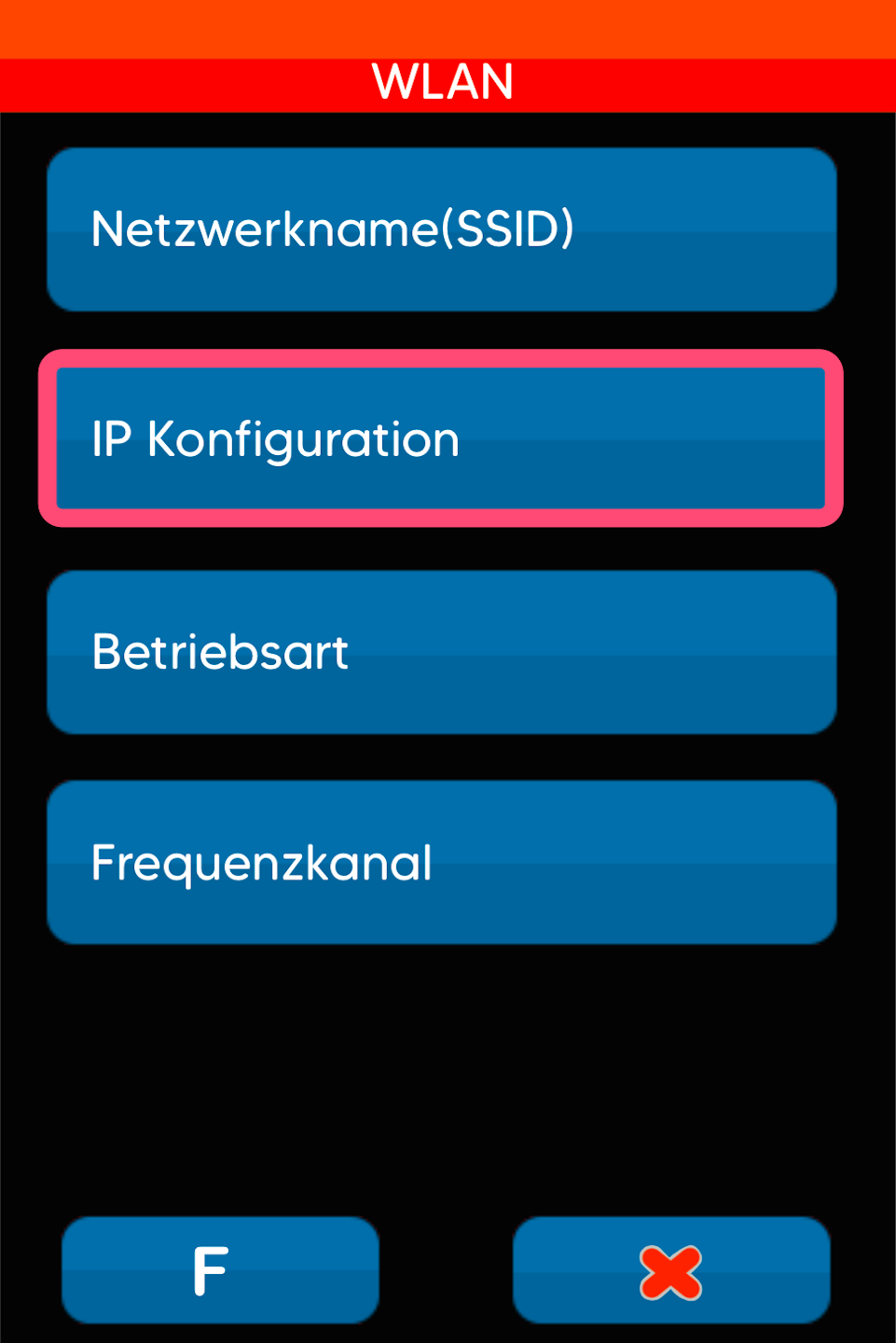
Manual Selection
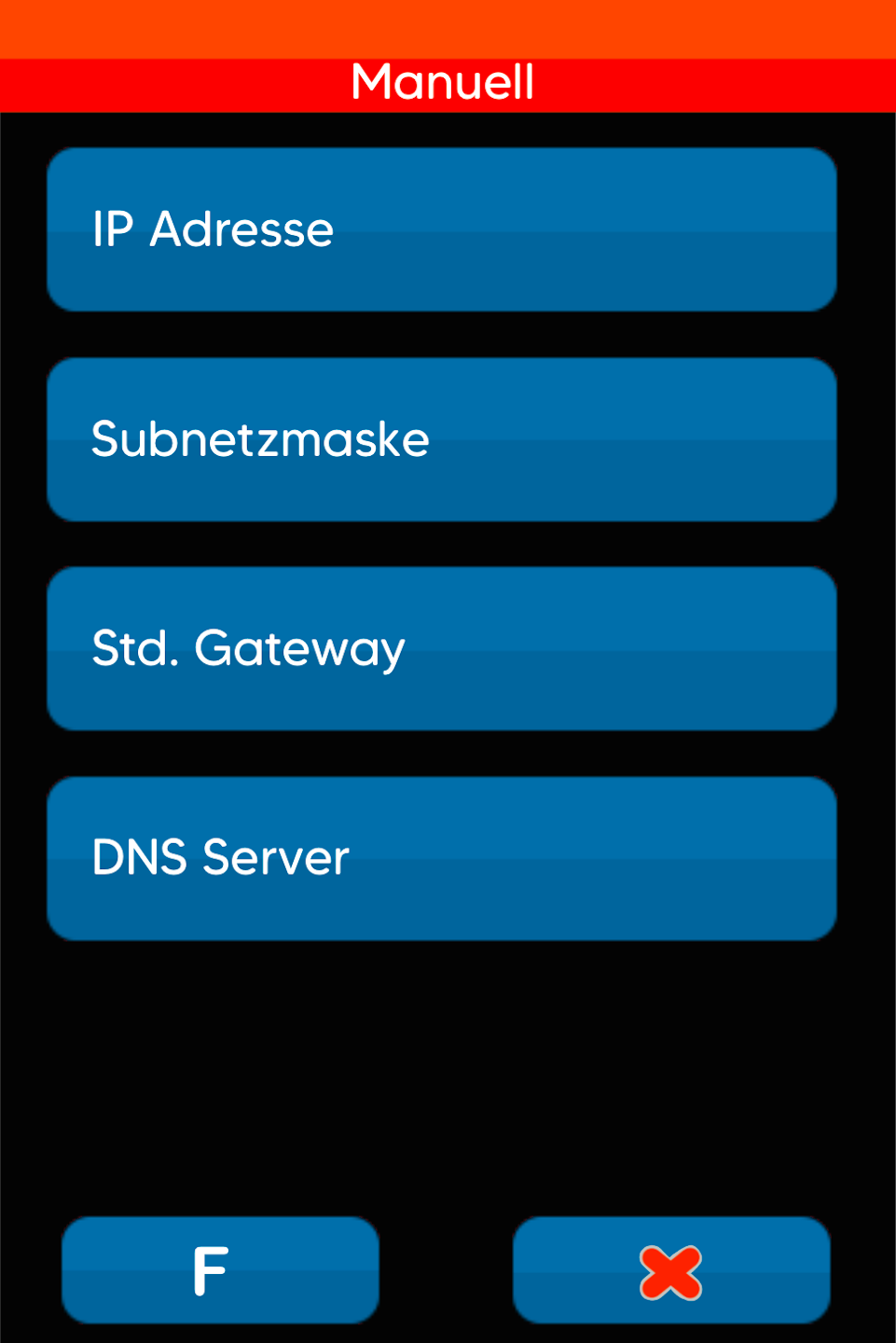
Please select the menu item Manuell.
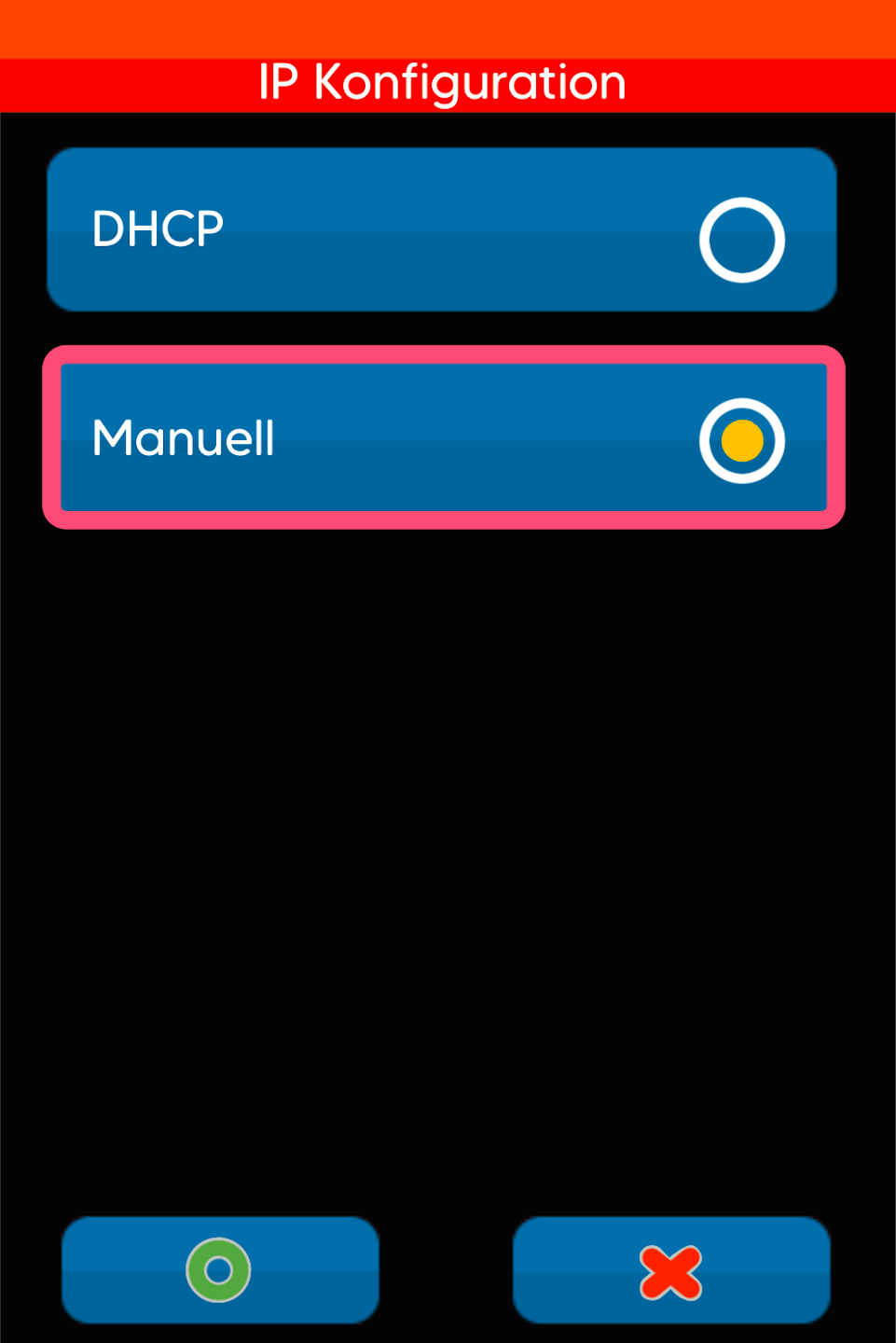
Detailed Input
Now tap each menu item to enter the required static IP information.
You will usually receive this data from your IT service provider, technician, or POS integrator.
Data Entry
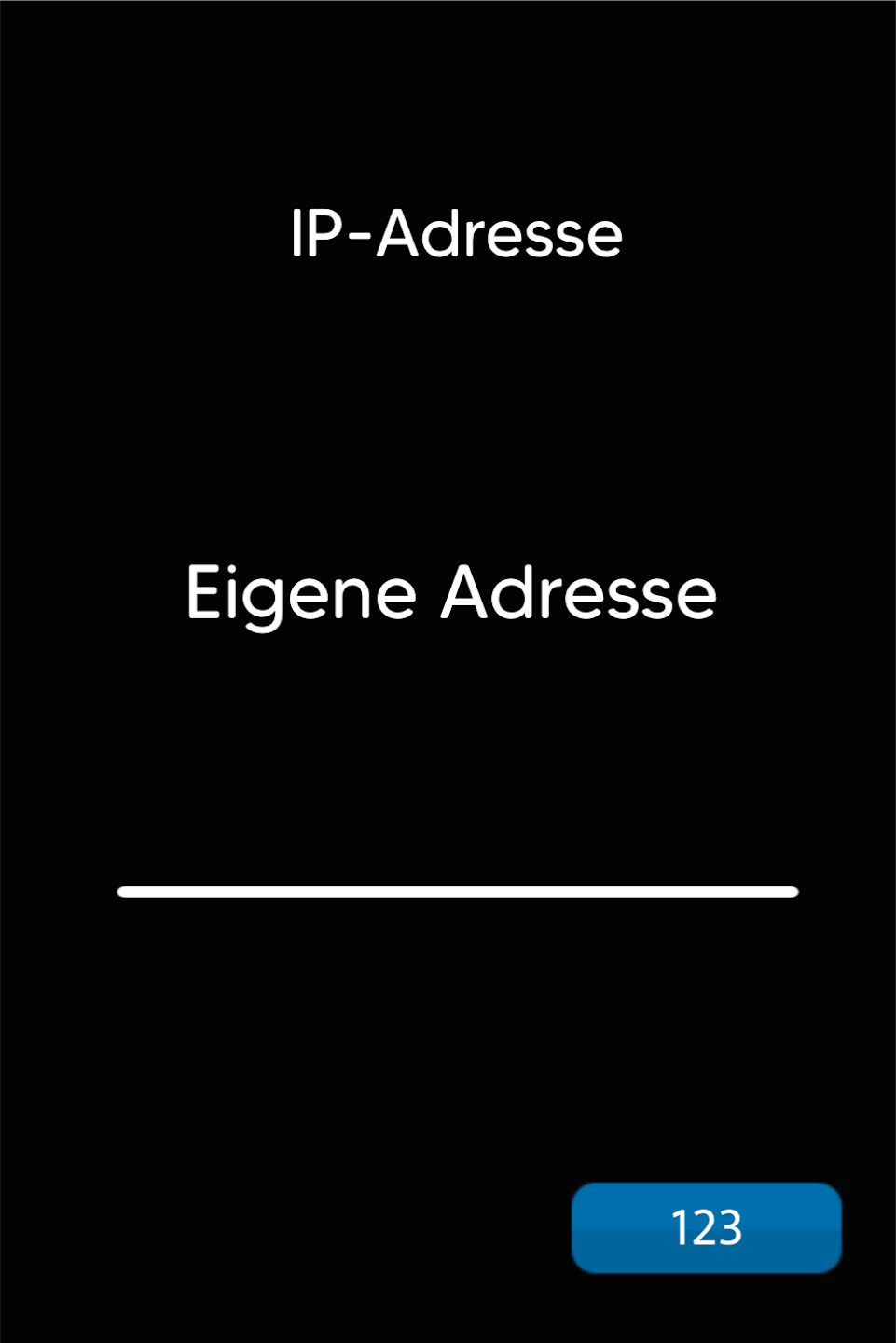
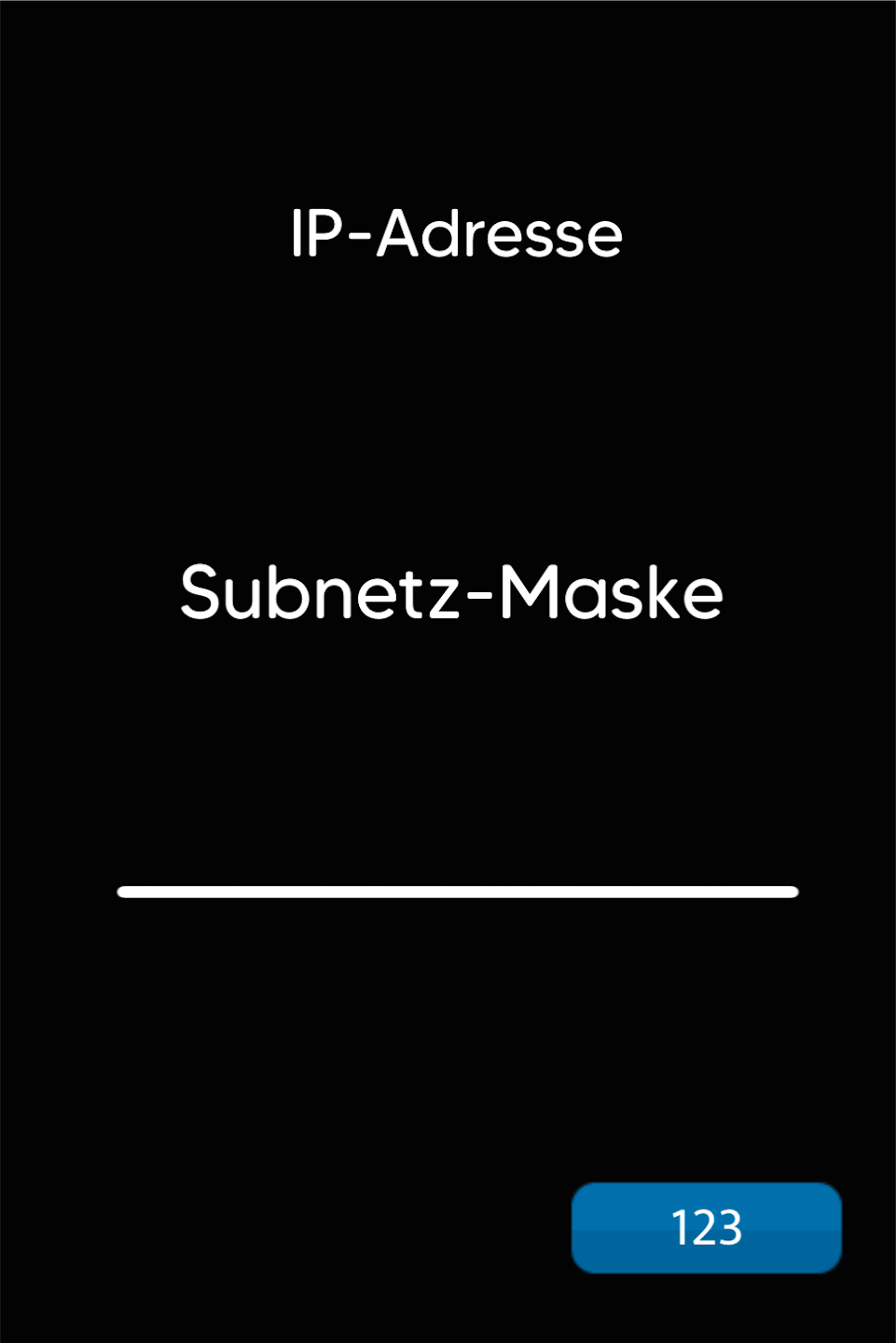
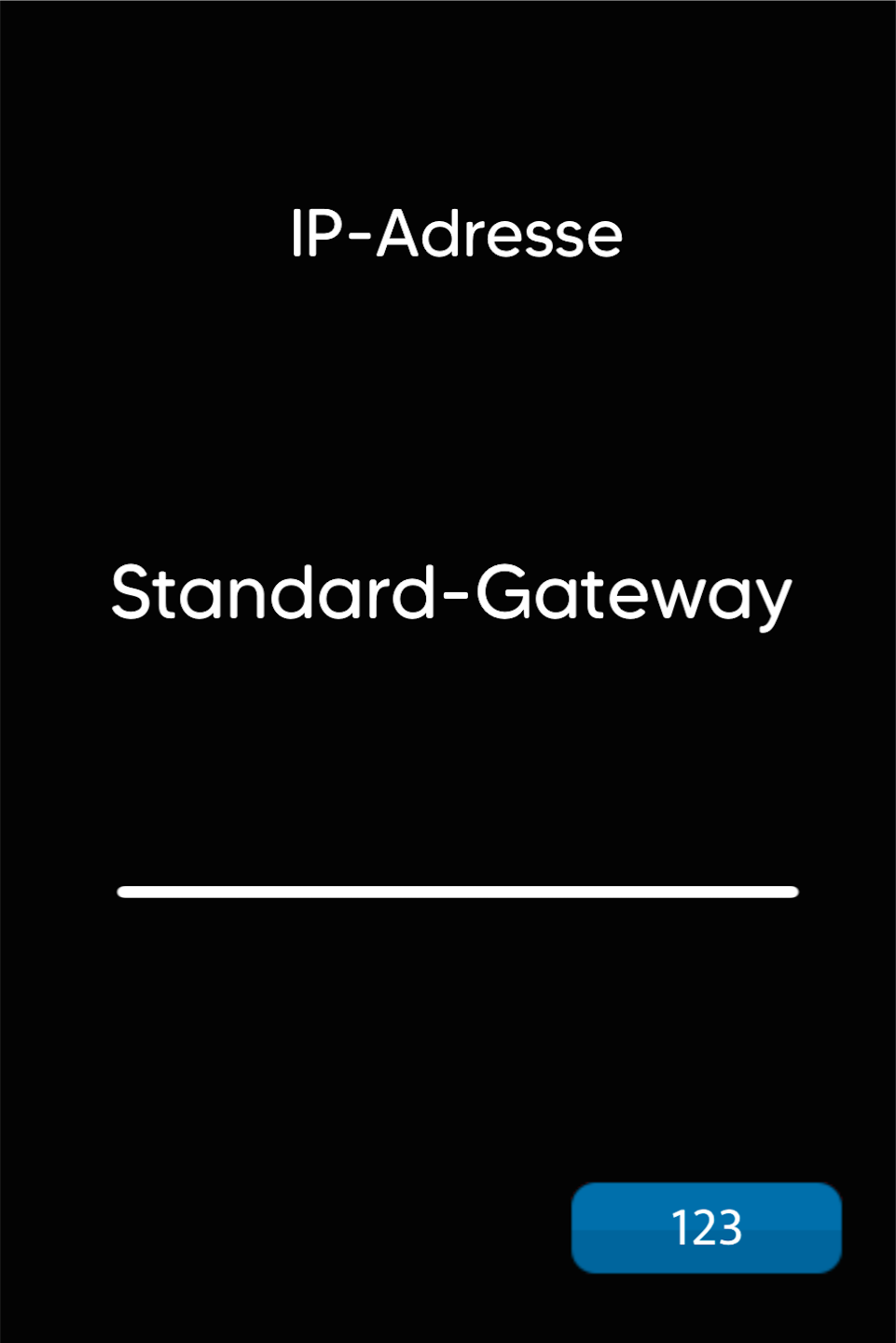
As shown in Figures 1–3, you will need to enter:
IP address
Subnet mask
Default gateway
An IP address consists of four groups of up to 3 digits, separated by periods.
Example:
IP address: 192.168.005.078
Subnet mask: 255.255.255.000
Default gateway: 192.168.005.254
Please enter the data in all three fields and confirm each with the green OK button.
After entering all data, press the red stop button four times to move to the next step.
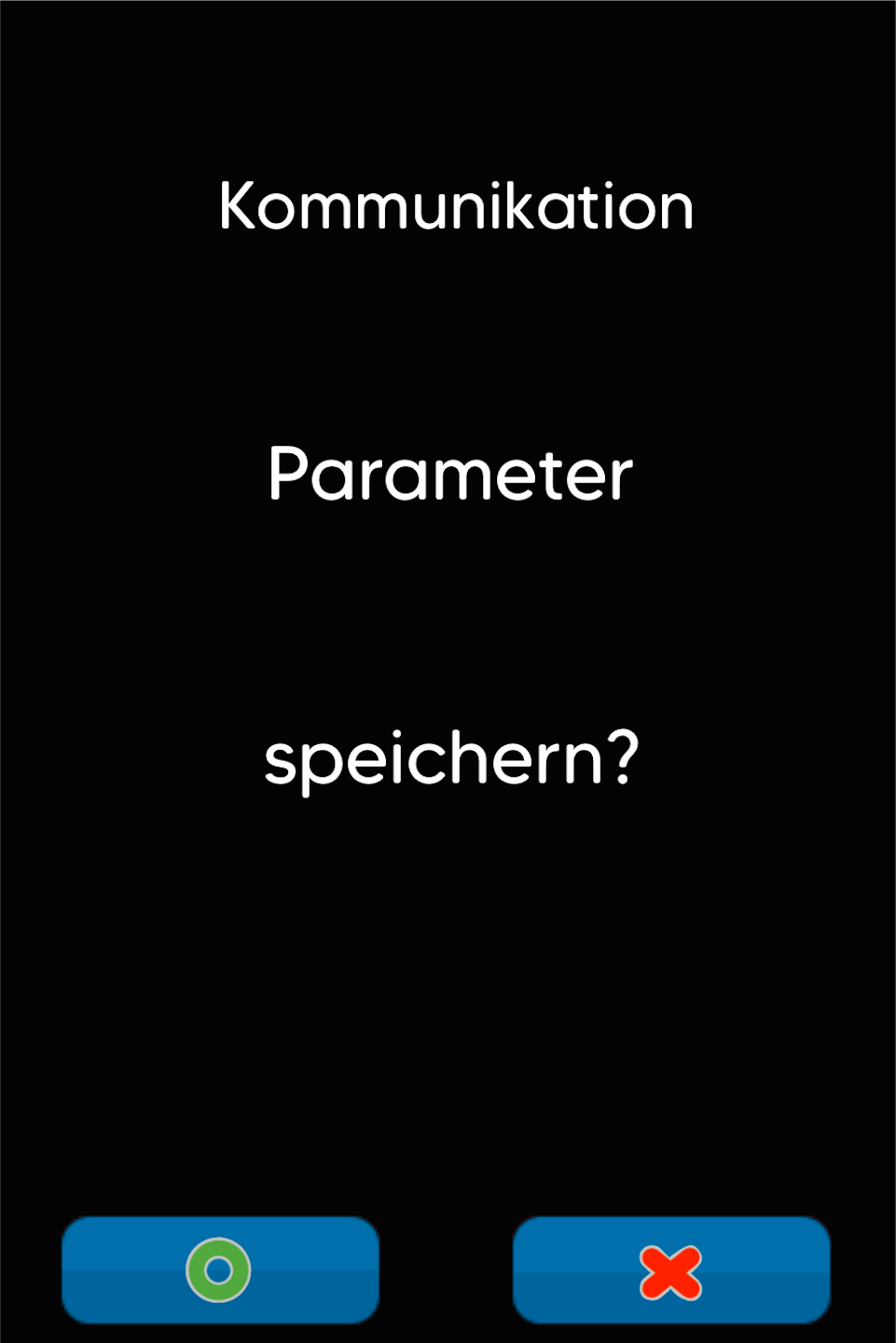
Save Parameters
Please confirm the prompt with the green OK button so that all IP data is saved.
Press the red stop button again to restart the card reader.
The restart is necessary for the device to register on the network with the new IP settings.
After the restart, please check the connection.
Was this article helpful?
That’s Great!
Thank you for your feedback
Sorry! We couldn't be helpful
Thank you for your feedback
Feedback sent
We appreciate your effort and will try to fix the article
