T650p - Setting Up a Static IP Address Assignment
Modified on Mon, 9 Feb at 4:47 PM
Sometimes it is necessary to assign a static IP address to your card reader. In general, this should be set up as an IP reservation in your internet router. However, this is not always possible. In this tutorial, we show you how to store a static IP address on your Verifone Trinity T650p card reader.
The IP address data is usually provided by your IT service provider, IT technician, or POS system provider.
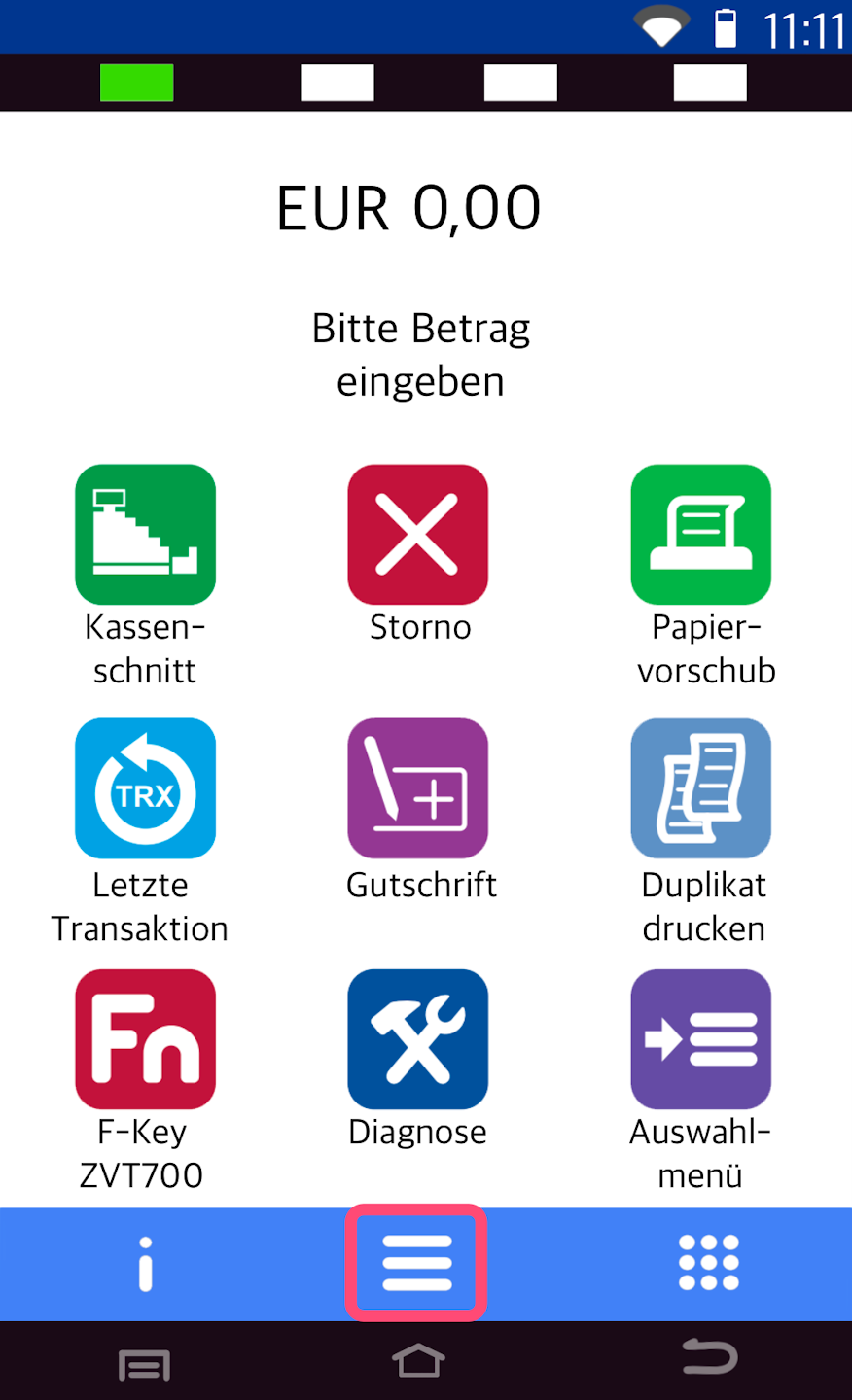
Main Menu
Fig. 1 - Please select the three horizontal lines to access the main menu.
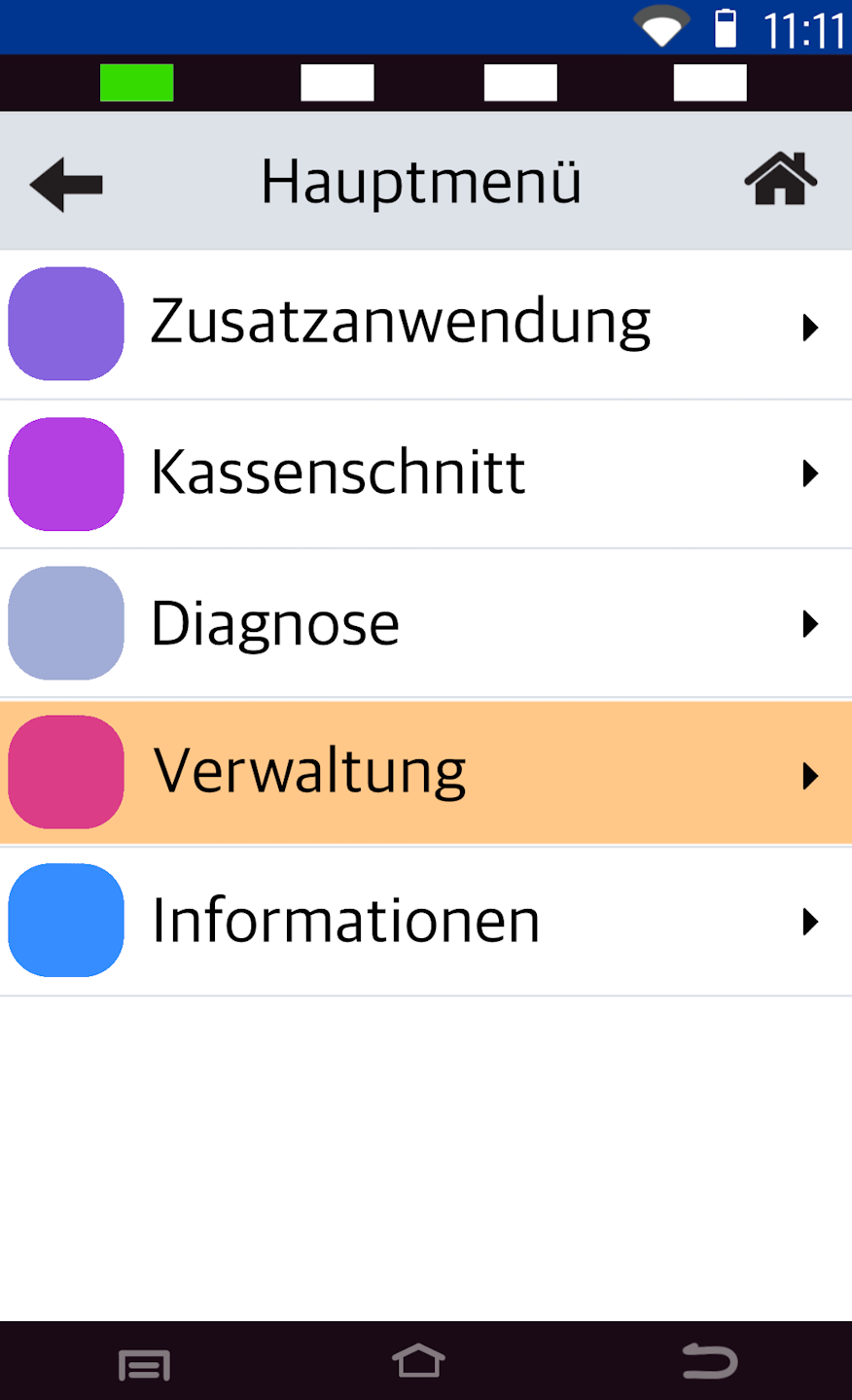
Fig. 2 - Please select Verwaltung.
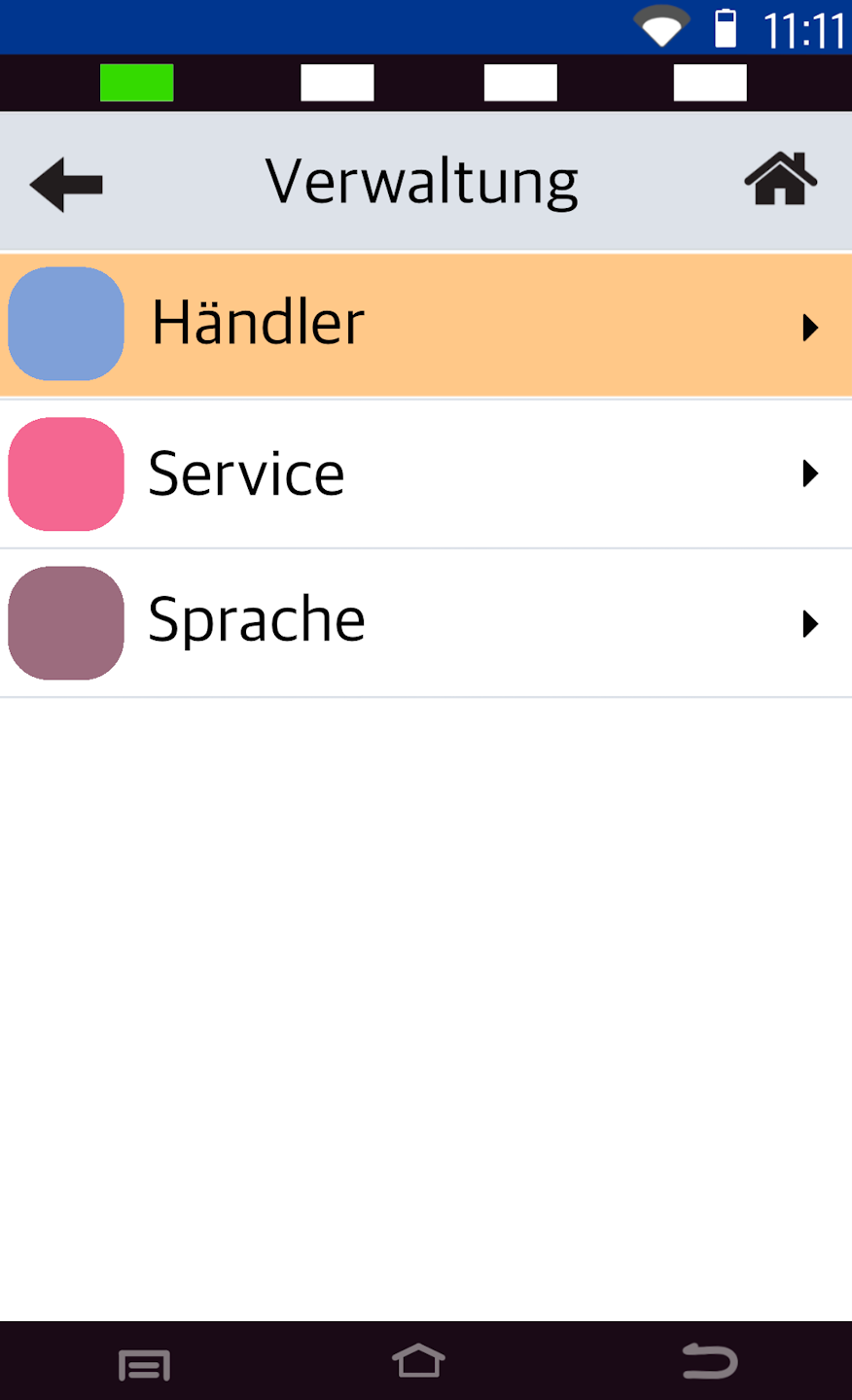
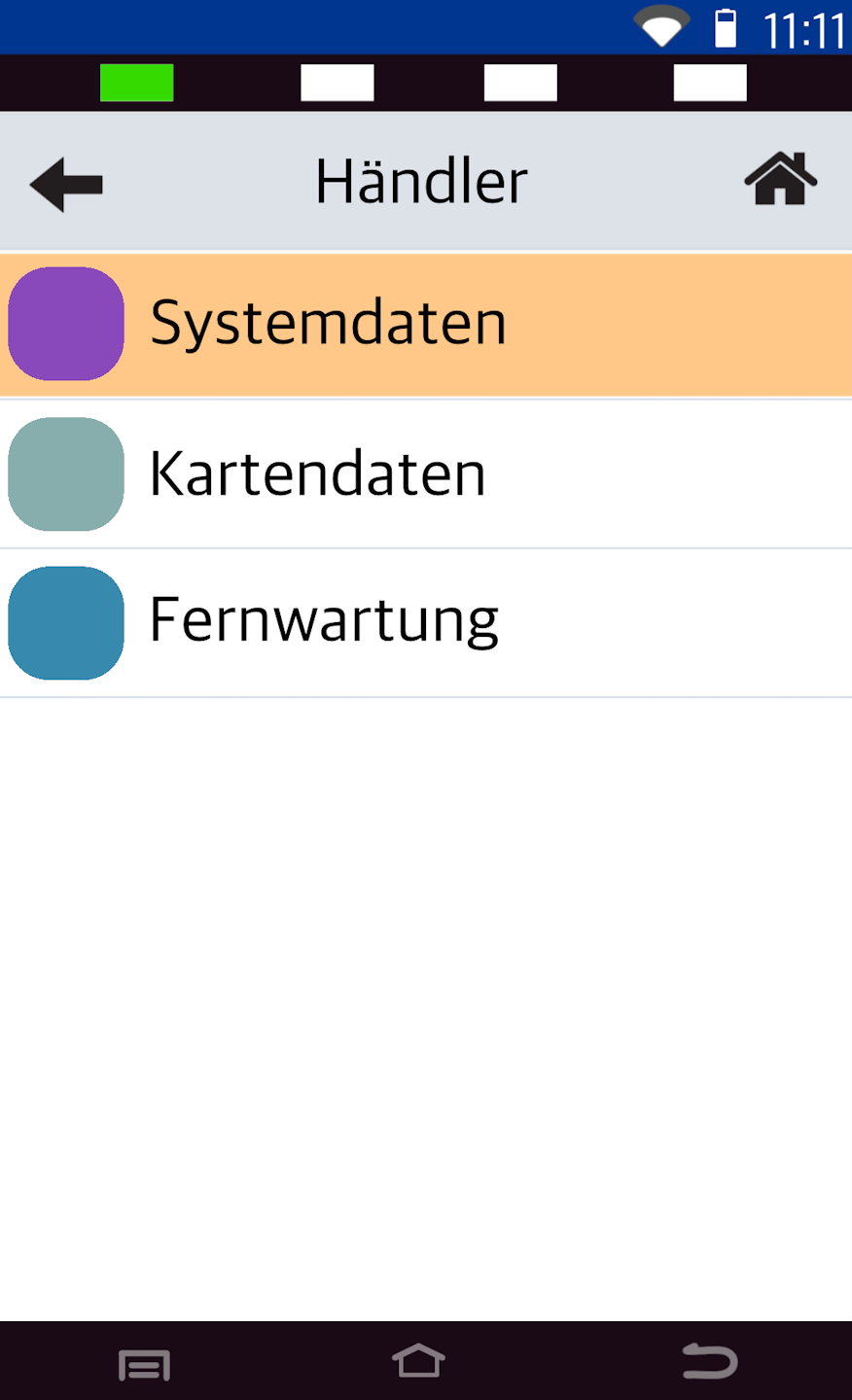
Fig. 3 - Please tap Händler.
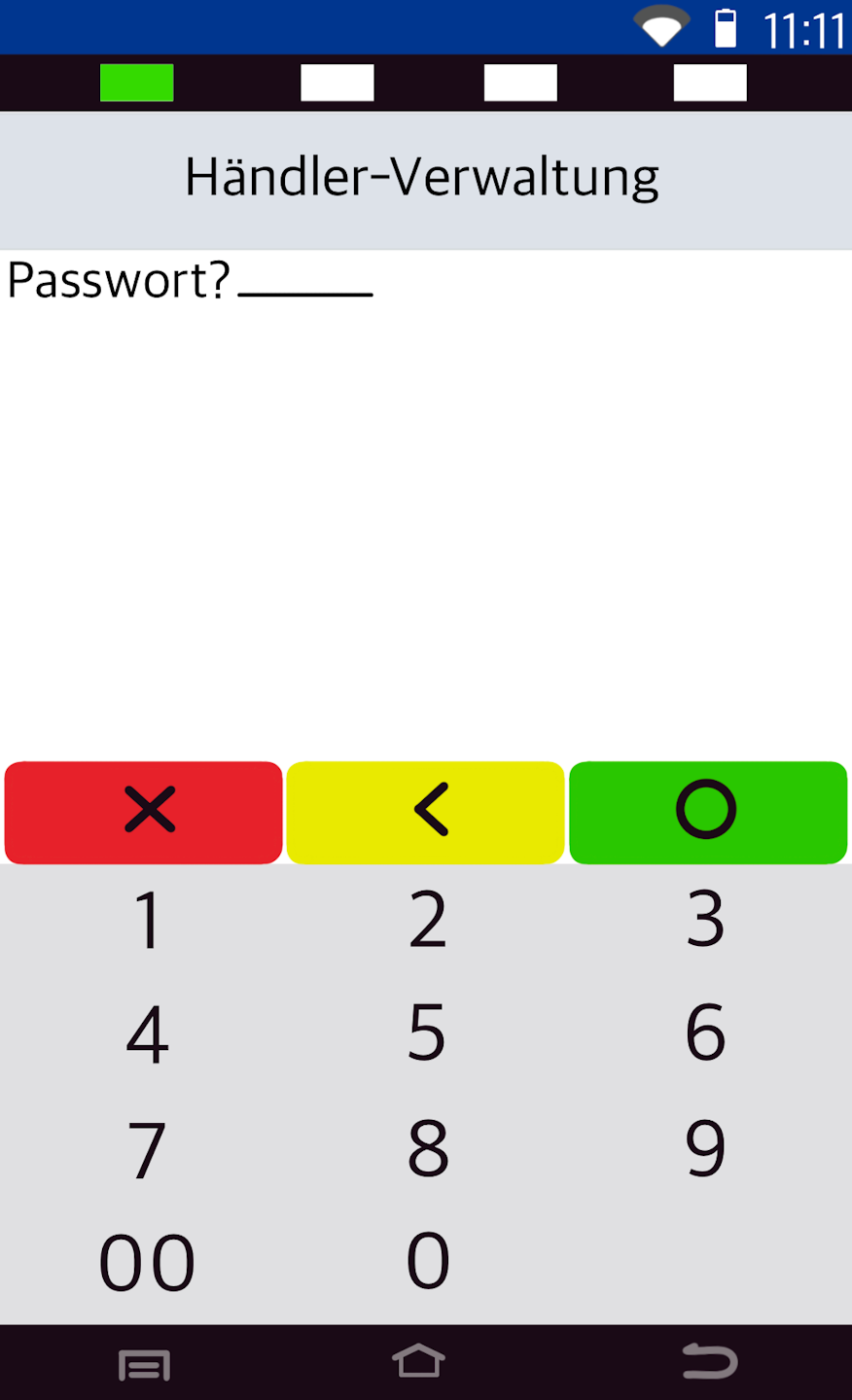
Password Entry
Fig. 1 - Please enter your 6-digit merchant password.
Fig. 2 - Select Systemdaten.
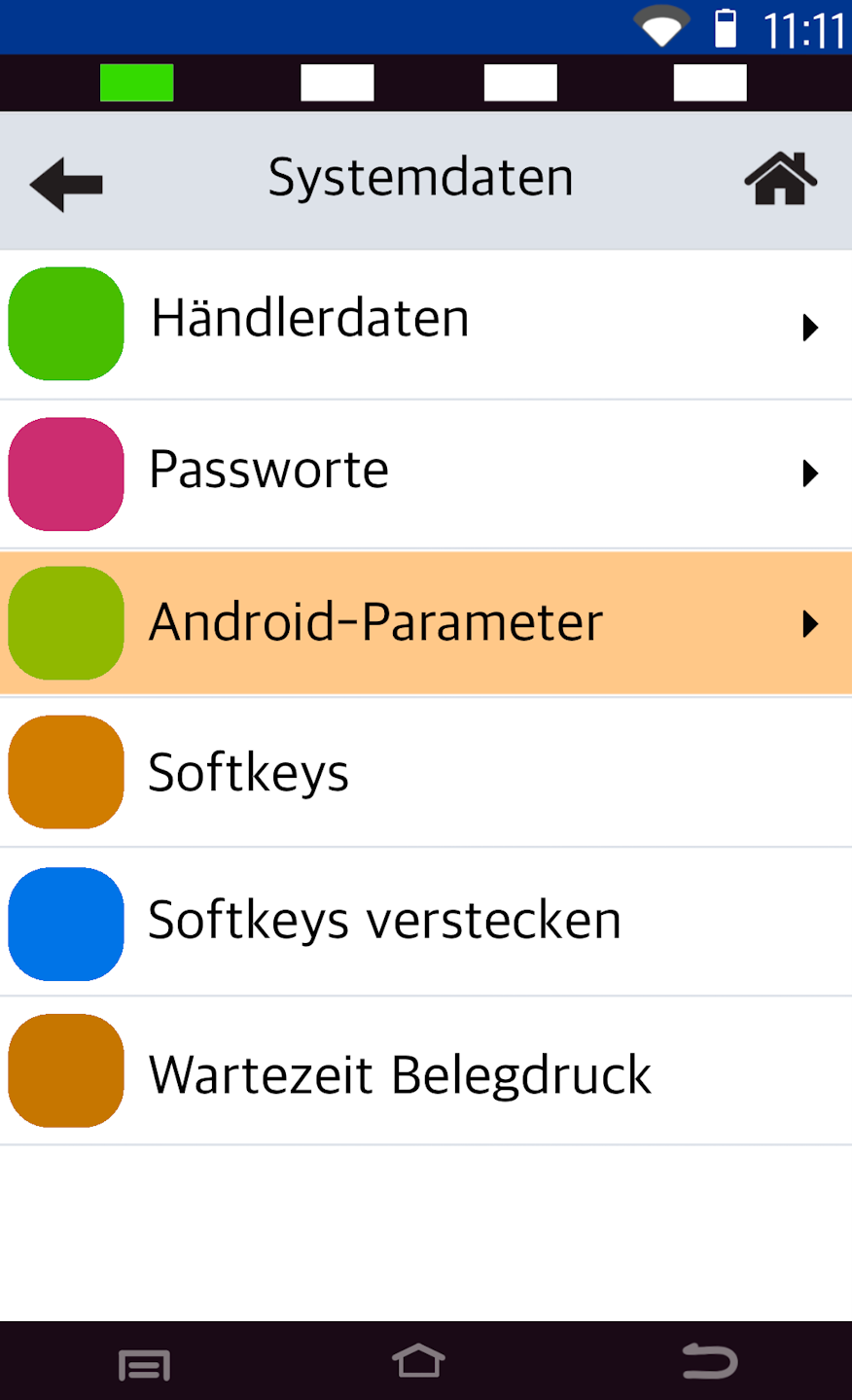
Fig. 3 - Please tap Android-Parameter.
You will now enter the Android settings.
Android System
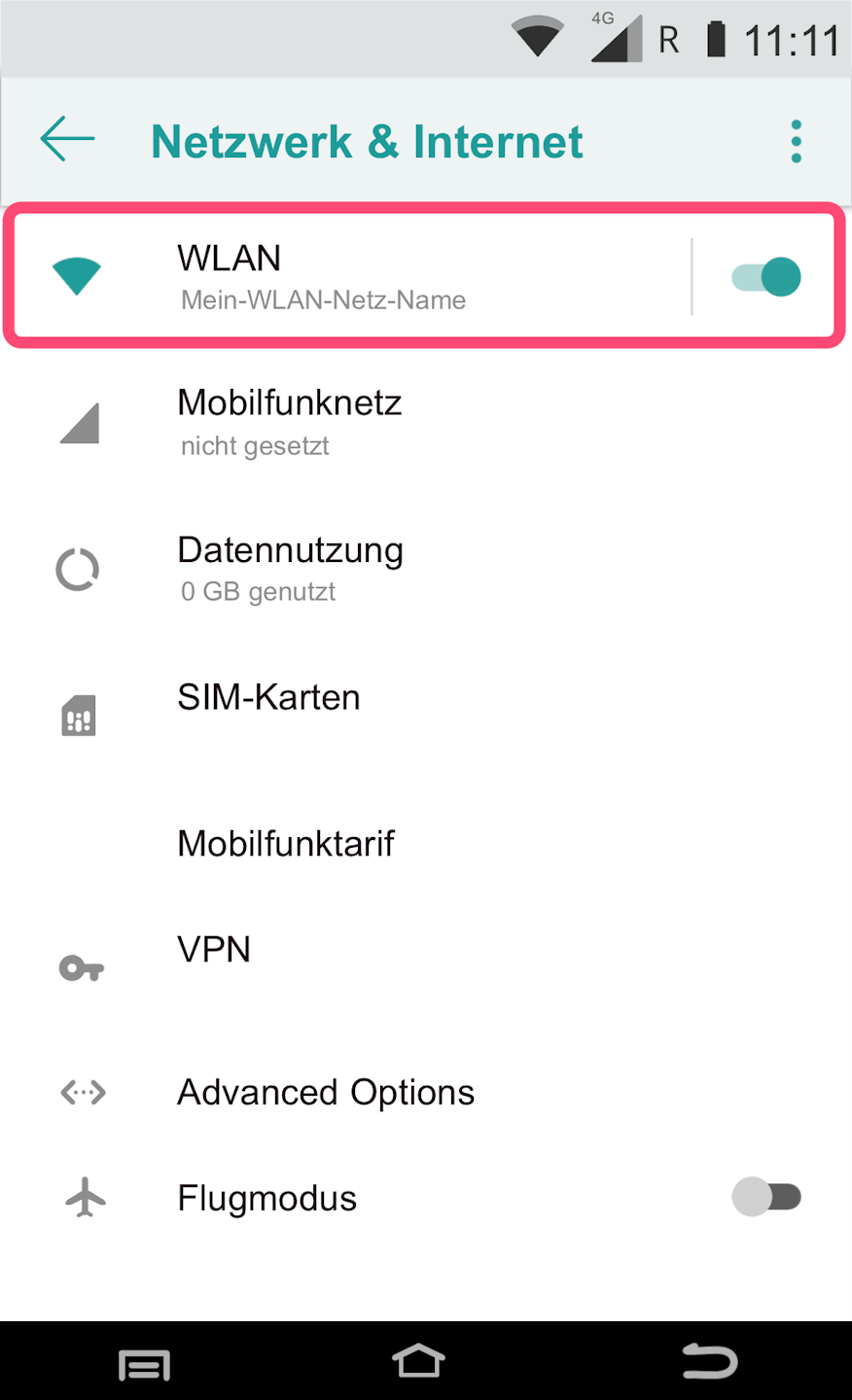
Please select WLAN (Fig. 1).
Wi-Fi must be enabled in order to enter the static IP data.
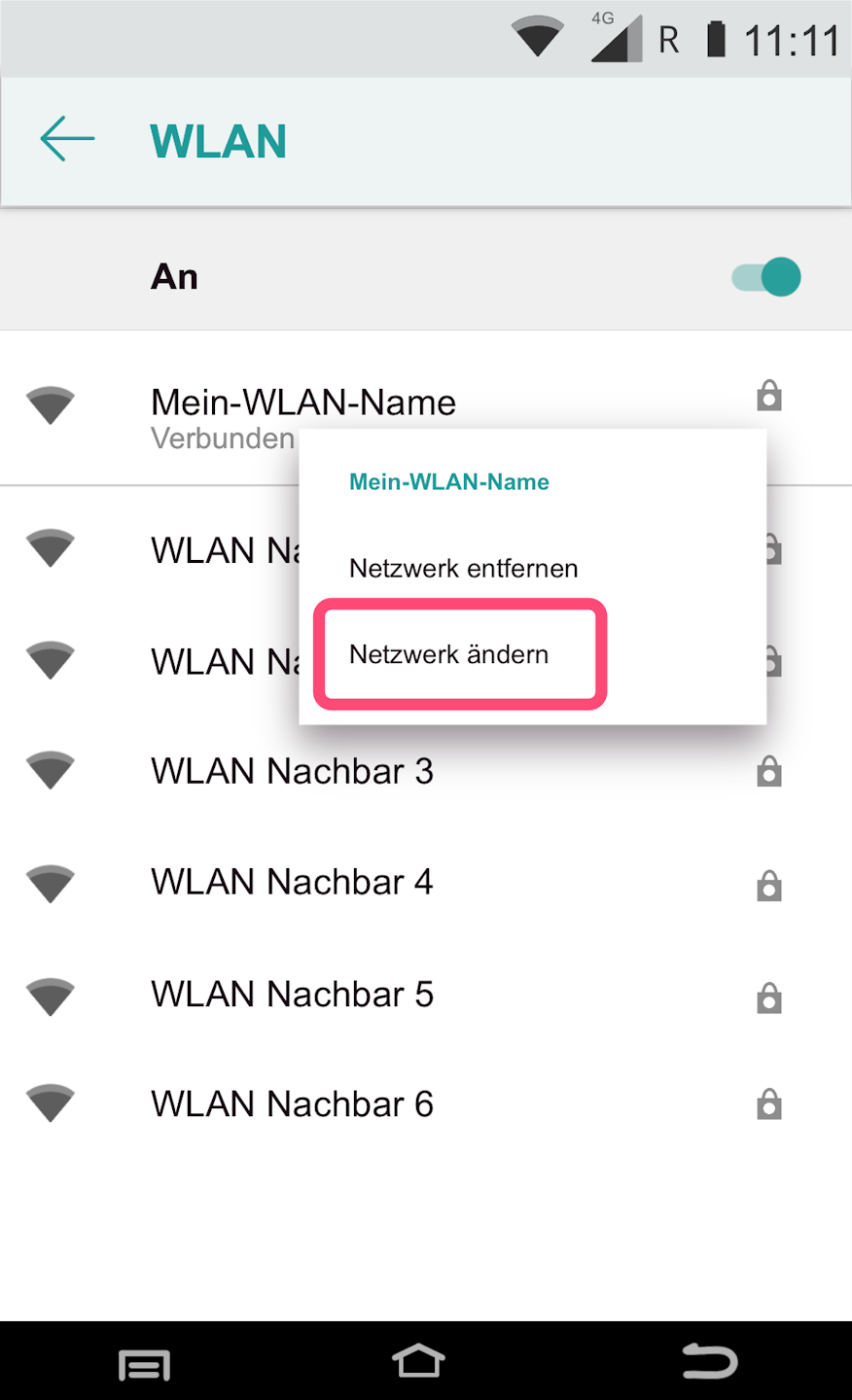
In the next step, press and hold your Wi-Fi network name to access the extended menu.
Fig. 2 - Select Netzwek ändern
IP Address Assignment
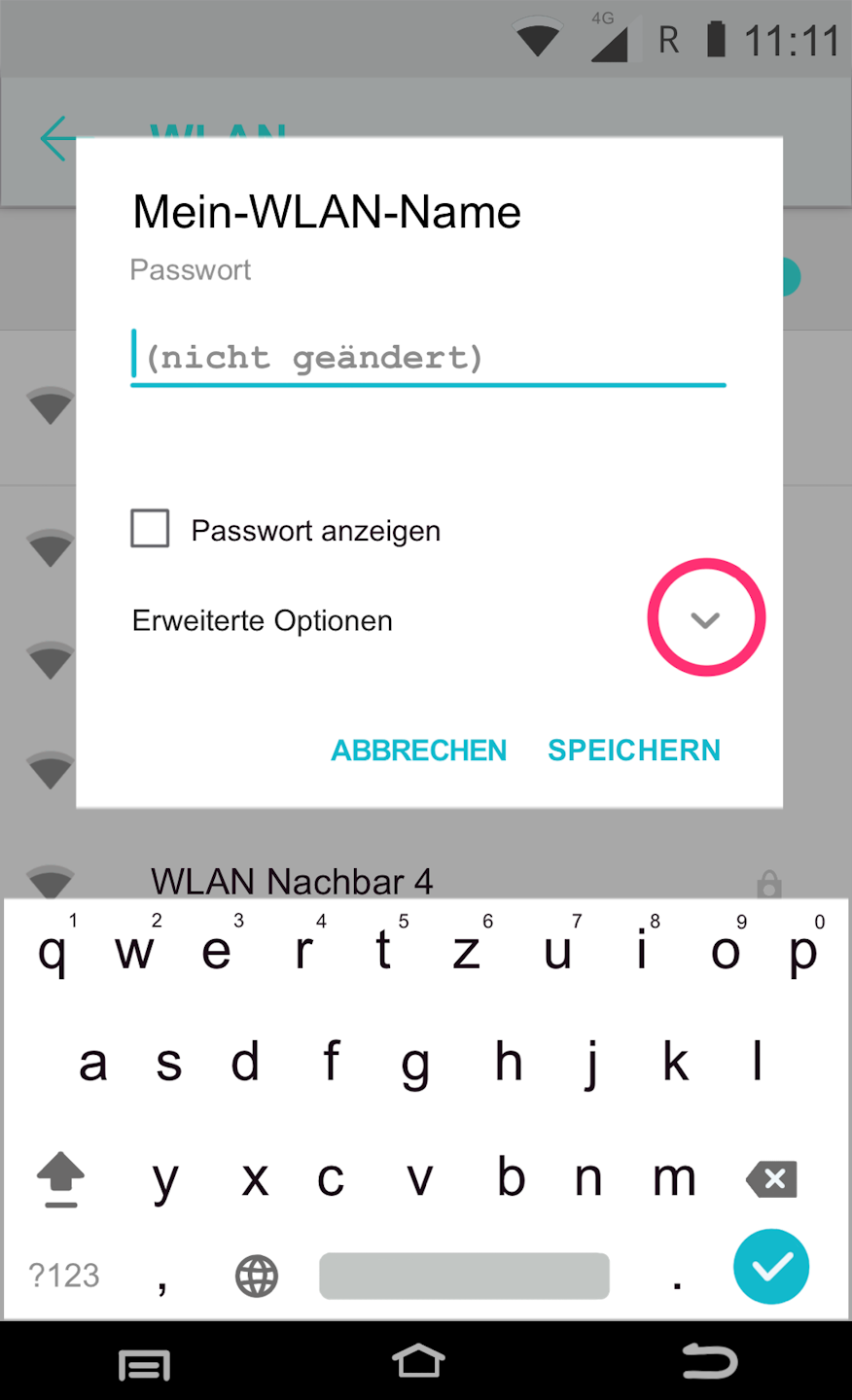
Fig. 1 - Please use the small arrow to access the extended view.
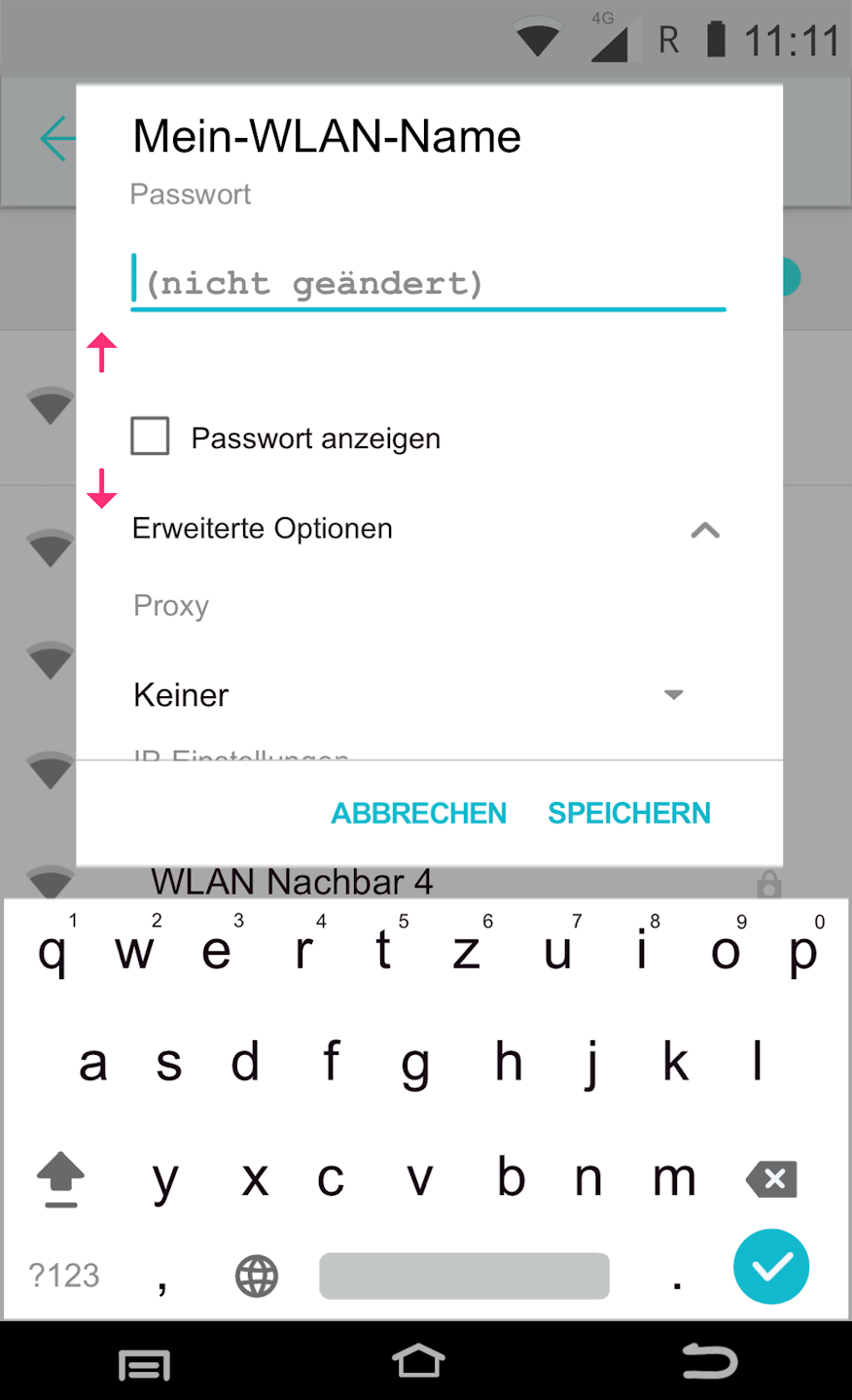
Fig. 2 - Swipe gently on the left side to reach the IP settings.
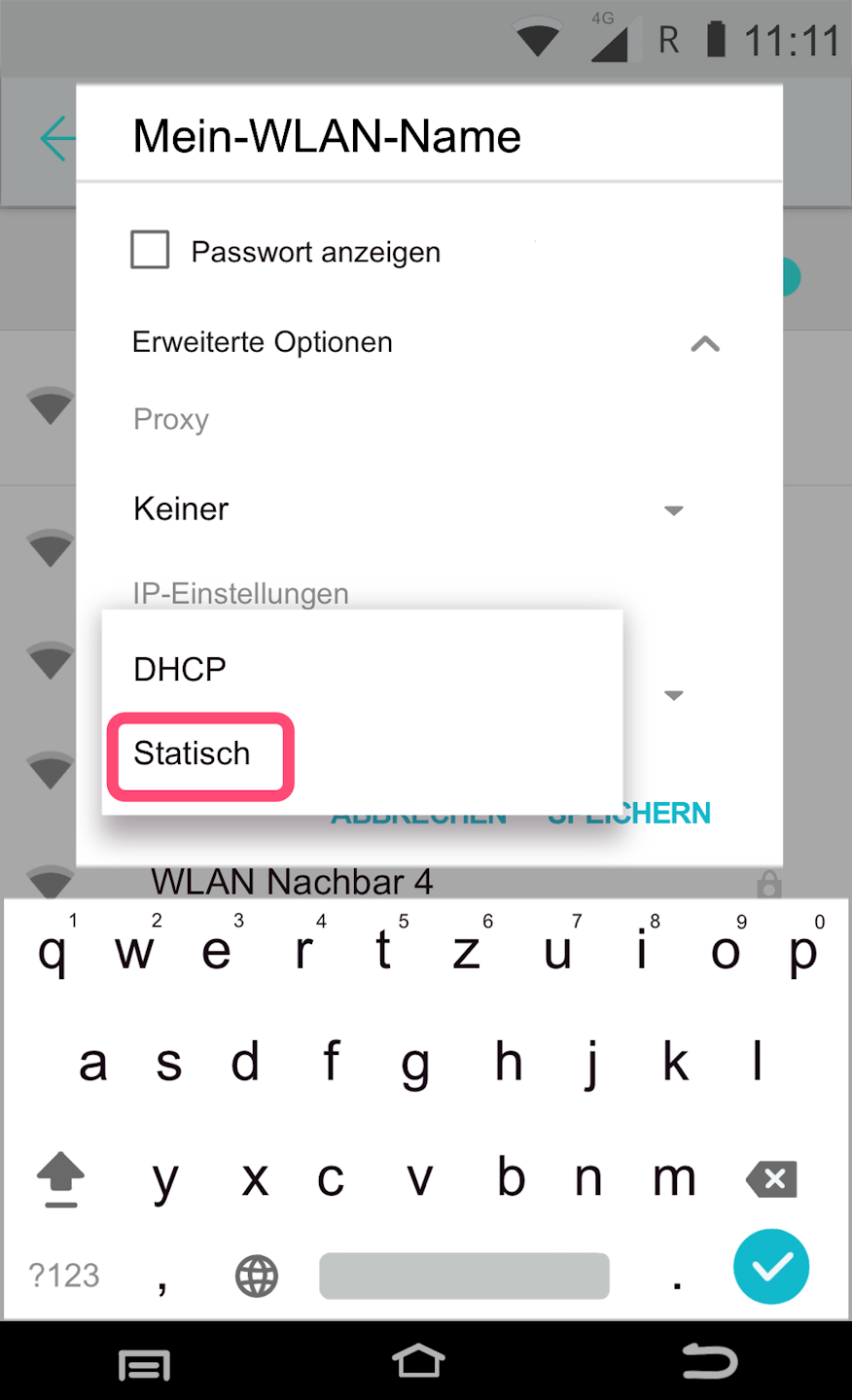
Fig. 3 - By tapping IP settings, you can now select Static.
Entering the IP Data & Completion
The required IP data are the IP address and the default gateway.
DNS is optional.
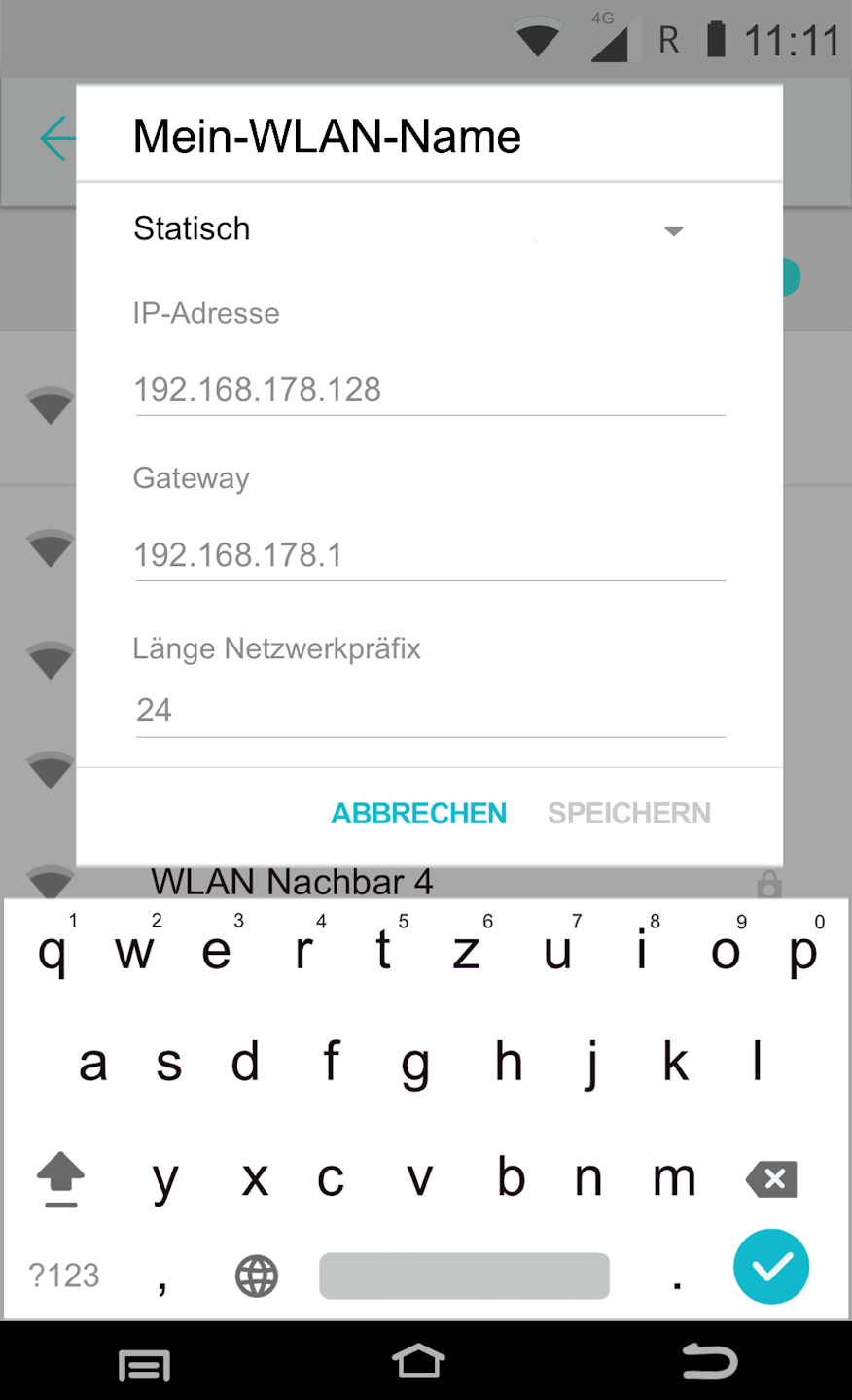
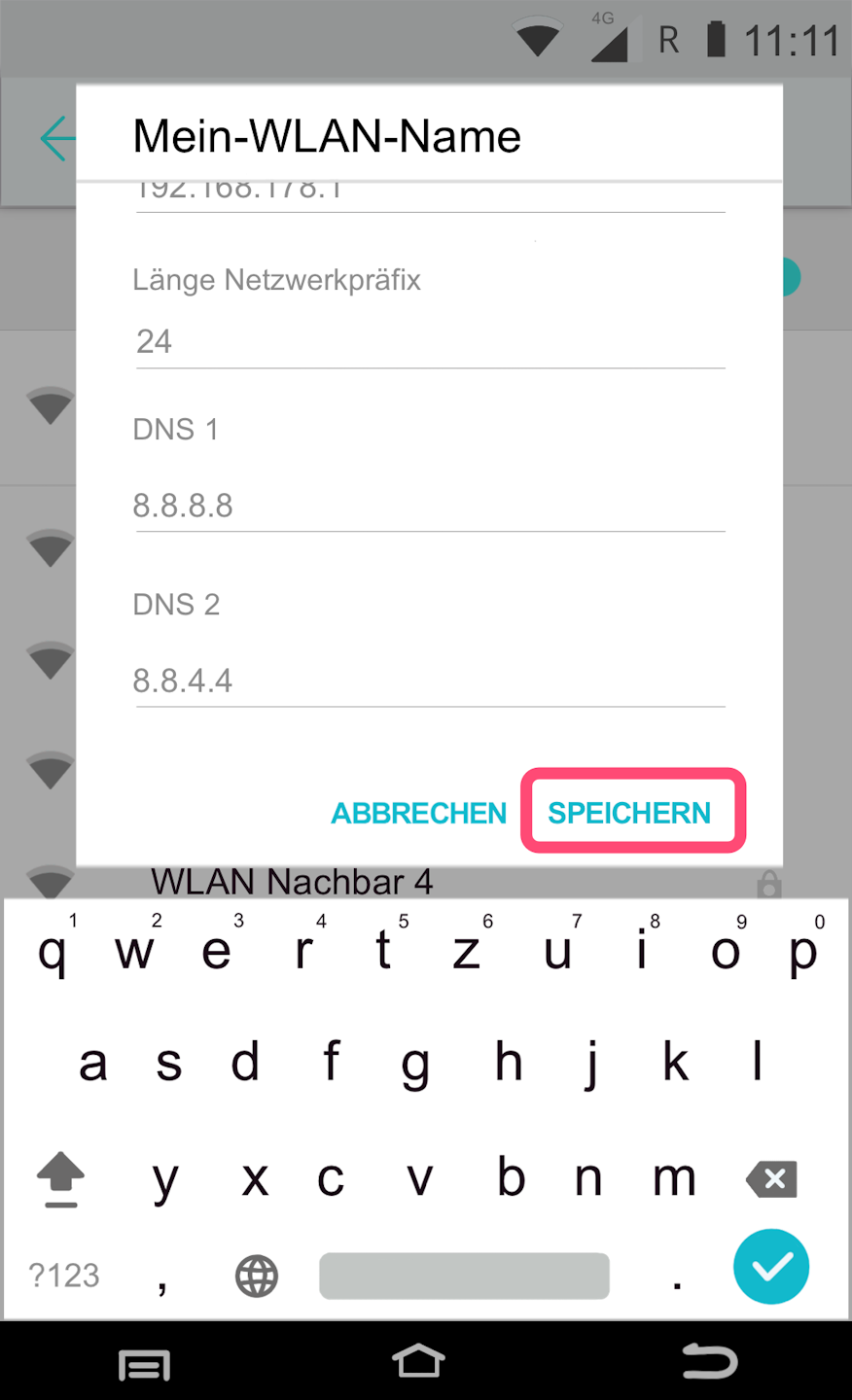
Please now enter the IP data into the designated fields (Fig. 1 & Fig. 2).
192.168.178.128 - Example IP address
192.168.178.1 - Example default gateway
Once all data is entered, please press the Speichern button at the bottom.
Please do not change the network prefix length.
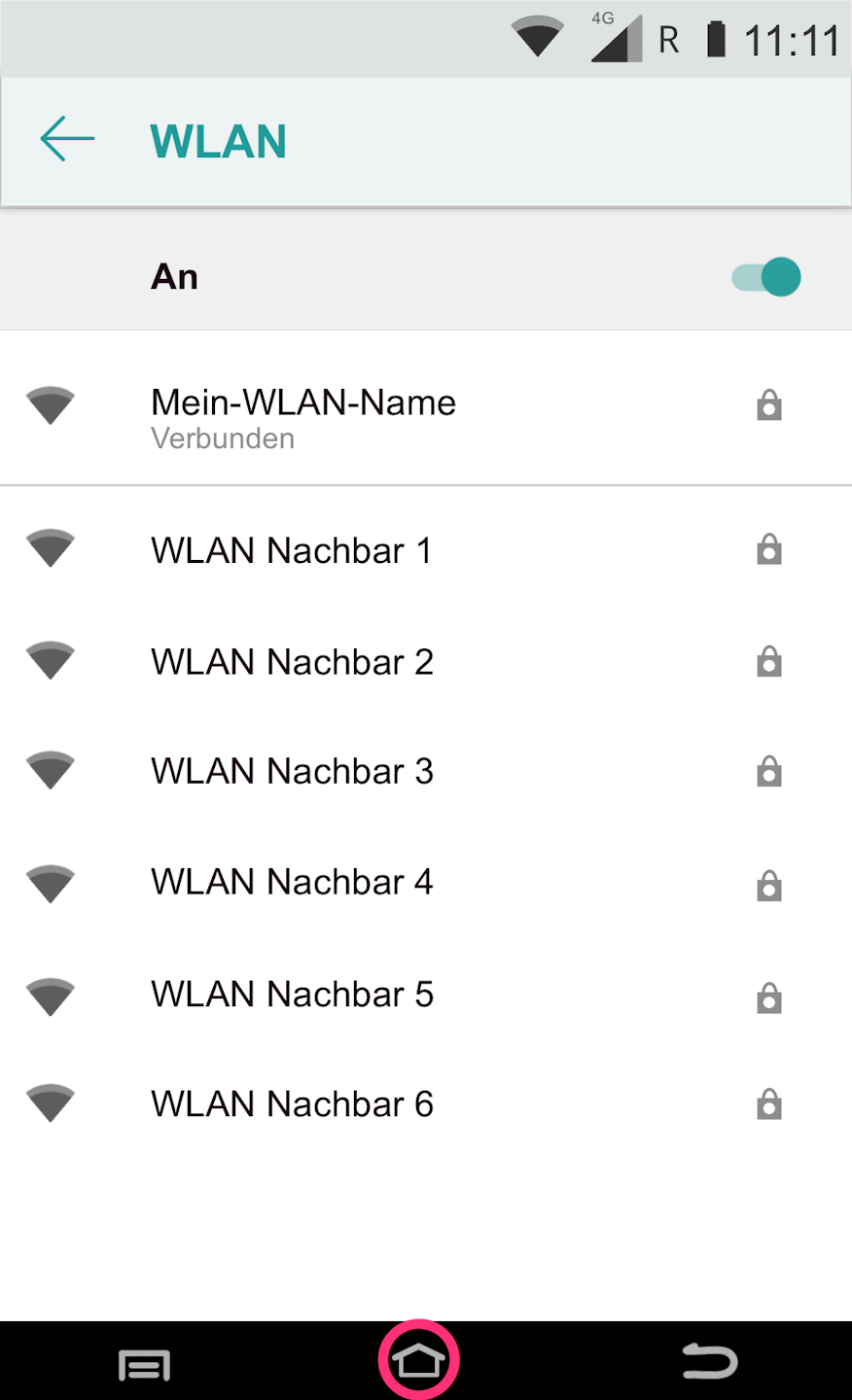
Fig. 3 shows whether the card reader can connect to your Wi-Fi network using the entered IP data.
By pressing the small house icon, you will return to your main display in the Payment App.
After completing the static IP address assignment, please carry out our connection test.
Was this article helpful?
That’s Great!
Thank you for your feedback
Sorry! We couldn't be helpful
Thank you for your feedback
Feedback sent
We appreciate your effort and will try to fix the article
