Ingenico - Explanation of Connection Symbols
Modified on Wed, 4 Feb at 9:49 AM
Ingenico card readers display various symbols to indicate the current connection status.
Please select which type of connection you would like more information about:
Do you want to set up or check your connection? We have the right tutorial for you.
- Set up your connection
- Check connection
LAN
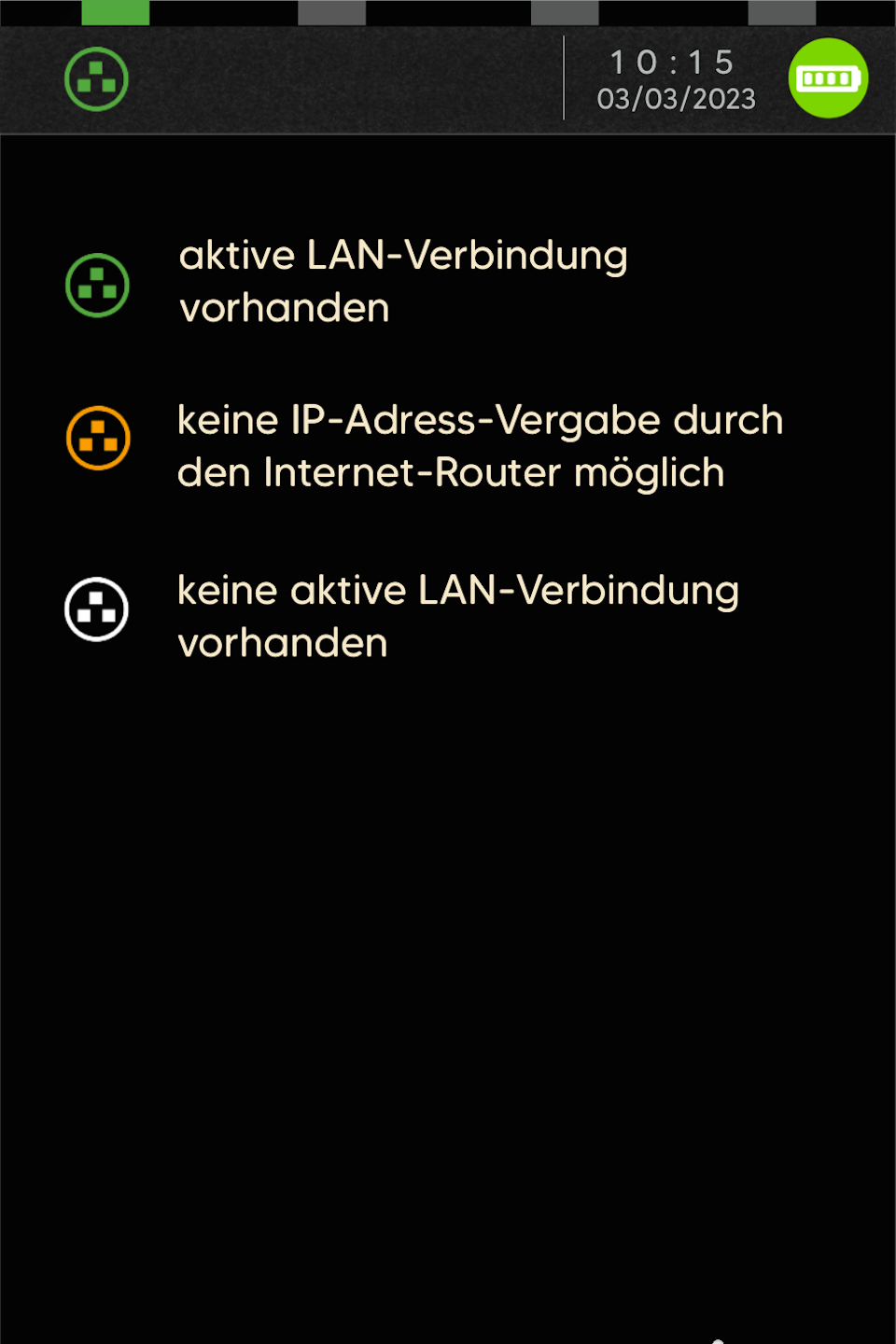
Models: Ingenico Desk3500/5000 (Figure 1)
Green LAN symbol – The LAN cable is properly plugged in and there is an active physical connection to the internet router.
Orange LAN symbol – The router cannot assign an IP address.
A restart of the internet router or unplugging the card reader from power for 10 minutes may help.
White LAN symbol – No connection to the internet router. Please check the LAN cabling on the card reader and your router.
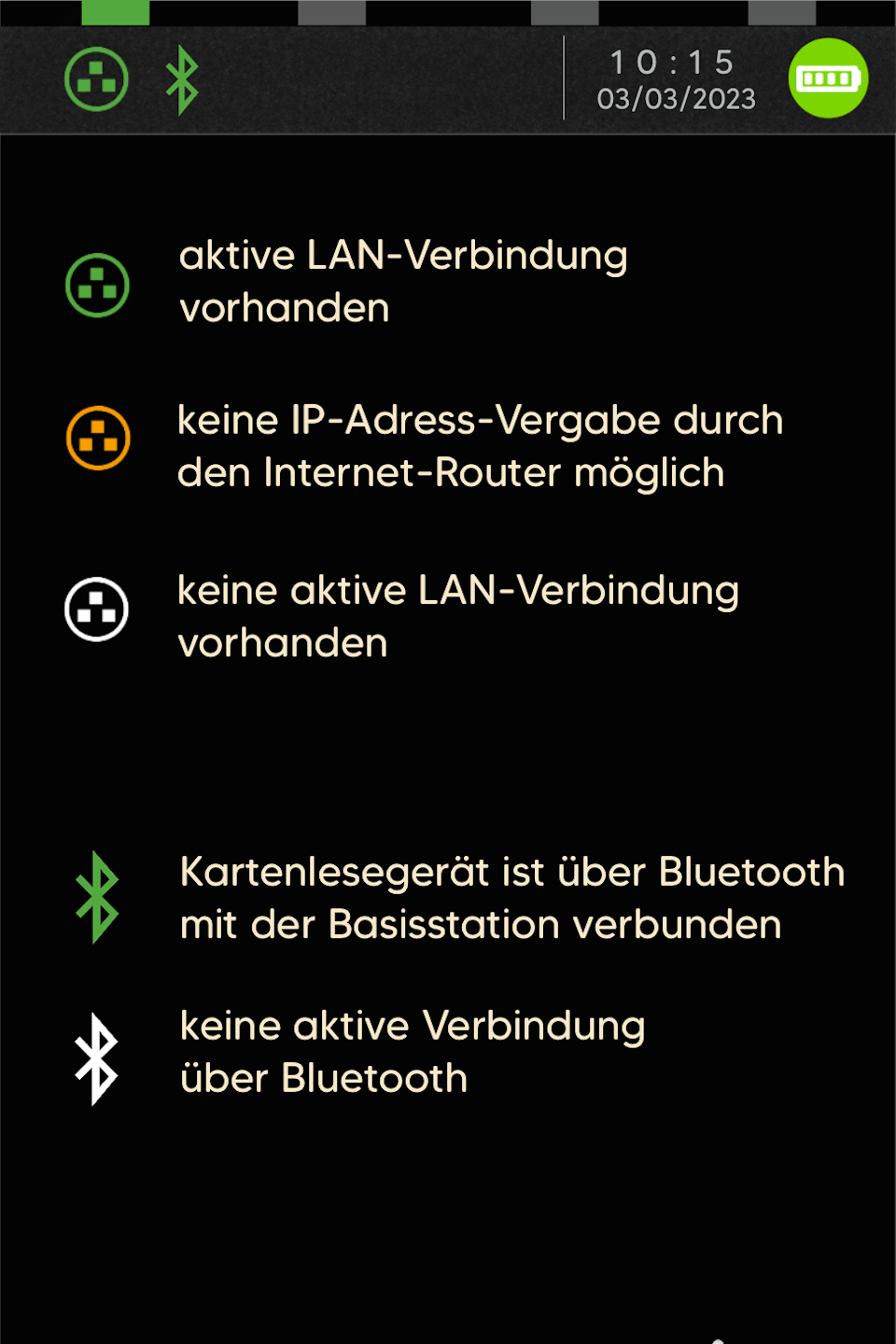
Models: Ingenico Move5000 (Figure 2)
Green Bluetooth symbol (BT) – The card reader is connected to its base station.
White Bluetooth symbol (BT) – No BT connection to the base station.
Check if the base station has a working power supply.
Turn off the card reader placed on the base station. Once it restarts, the BT connection should appear.
More information on restarting your card reader can be found here: Restart Card Reader
WLAN
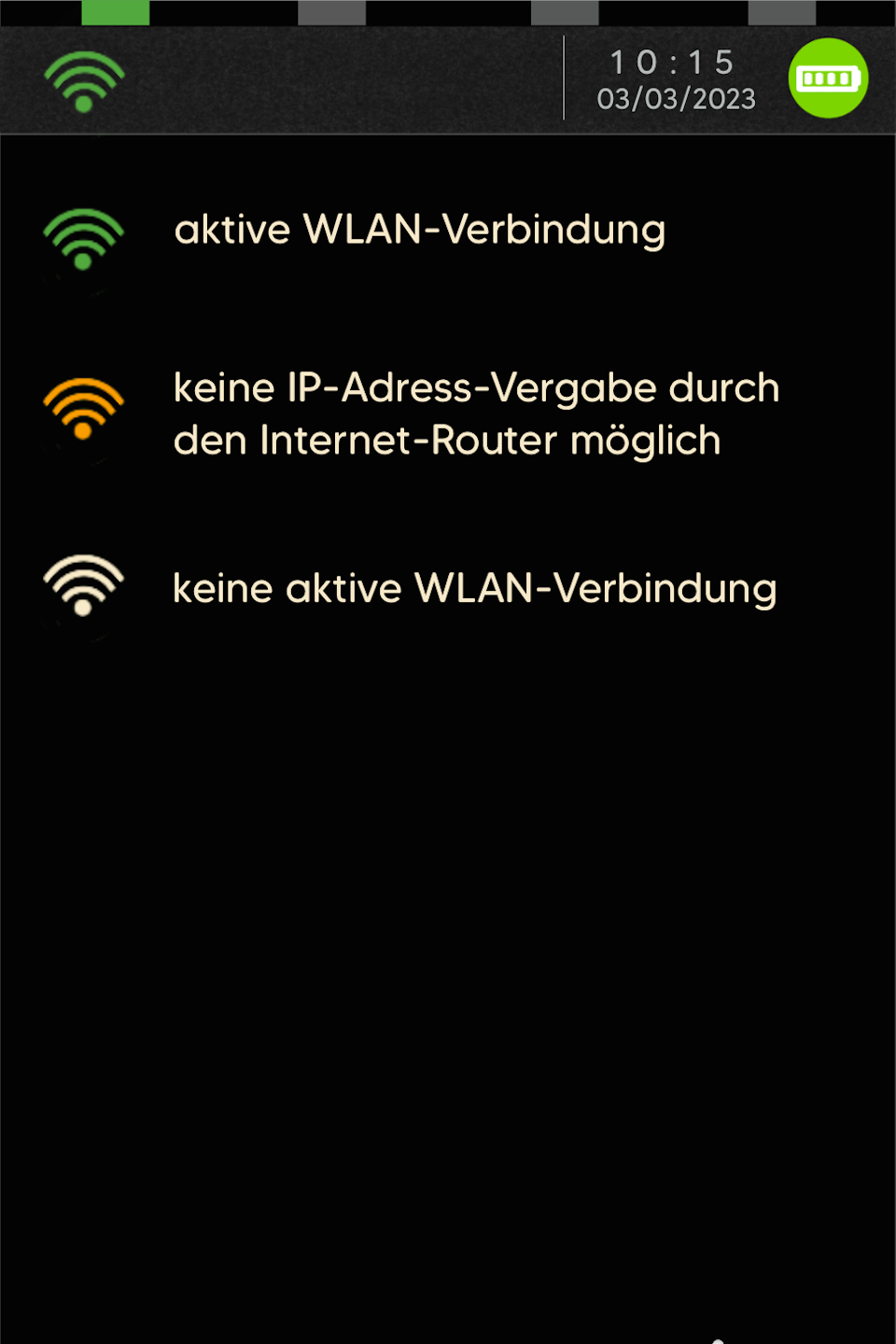
Models: Ingenico Move3500/5000 and Desk5000 WLAN
Green WLAN symbol – An active WLAN connection exists or a static IP address has been set.
Orange WLAN symbol – The router cannot assign an IP address.
A router restart or disconnecting the card reader from power for 10 minutes may help.
Another possible cause: the 5GHz WLAN network, which is not supported by the manufacturer.
White WLAN symbol – No WLAN connection. Please follow our step-by-step WLAN setup guide.
Mobile Network (SIM Card)
Models: Ingenico Move3500/5000
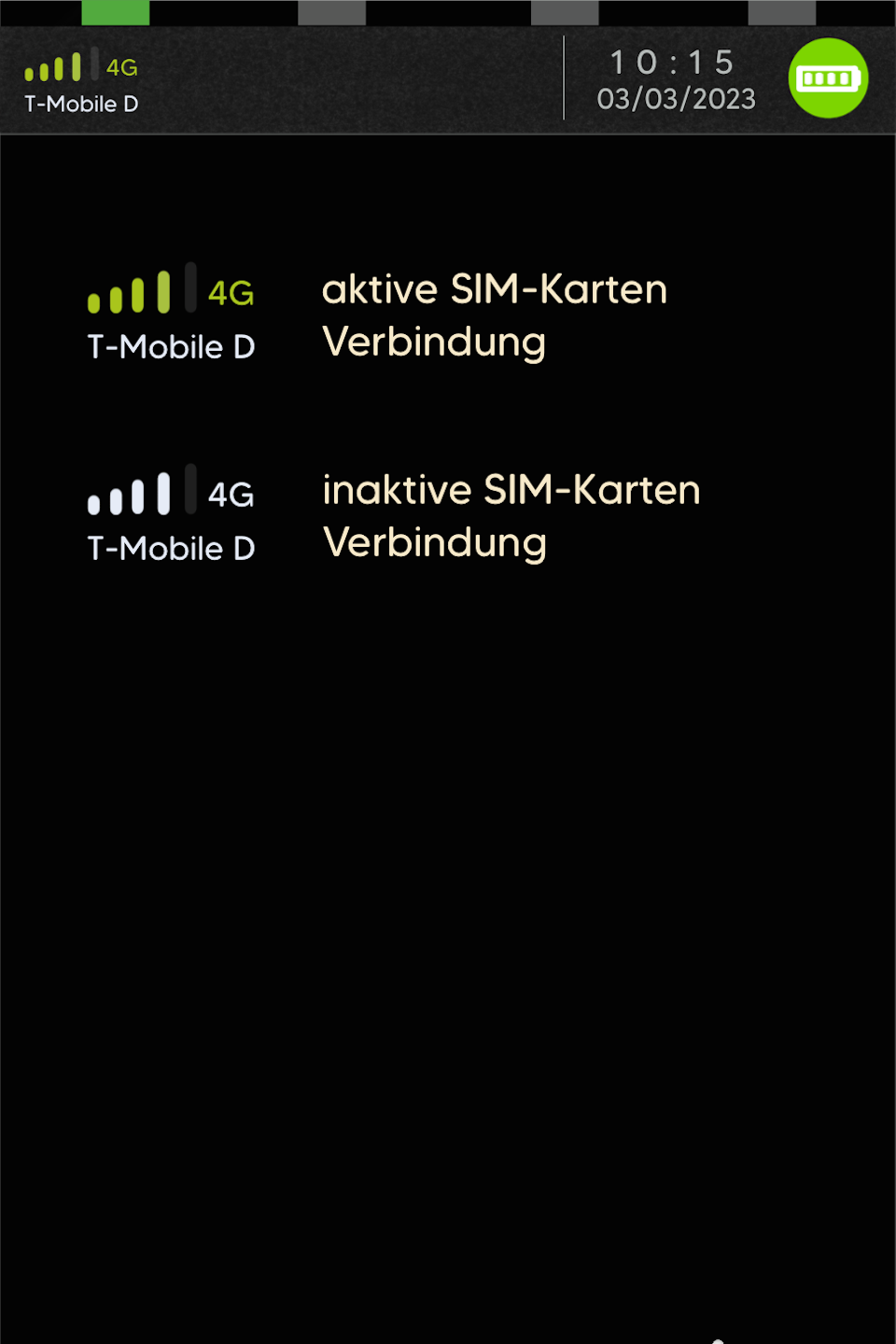
Green symbol – The mobile connection is active.
White symbol – No mobile connection.
A restart may solve the issue. Follow our guide: Restart Card Reader
Please complete the SIM card setup using our step-by-step guide.
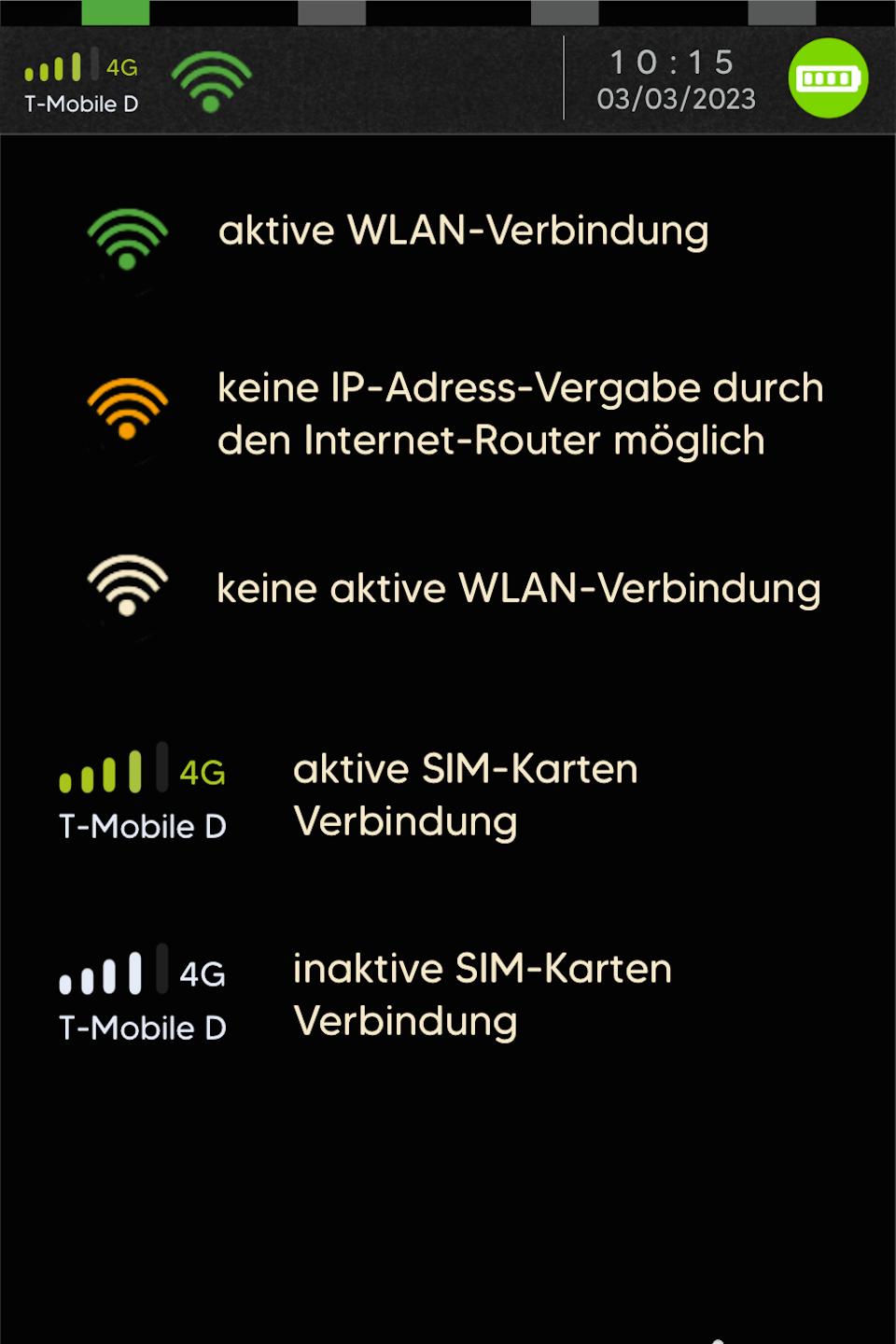
WLAN + Mobile Network
Models: Ingenico Move3500/5000
Green WLAN symbol – An active WLAN connection exists or a static IP address has been set.
Orange WLAN symbol – The router cannot assign an IP address.
A router restart or disconnecting the card reader from power for 10 minutes may help.
Another possible cause: the 5GHz WLAN network, which is not supported by the manufacturer.
White WLAN symbol – No WLAN connection. Please follow our WLAN setup guide.
Green SIM card symbol – The mobile connection is active.
White SIM card symbol – No mobile connection.
A restart may solve the issue. Please follow the guide: Restart Card Reader
Please complete the SIM card setup using our step-by-step guide.
Was this article helpful?
That’s Great!
Thank you for your feedback
Sorry! We couldn't be helpful
Thank you for your feedback
Feedback sent
We appreciate your effort and will try to fix the article
