T650p - Setting Up Automatic End-of-Day Closing
Modified on Mon, 9 Feb at 3:43 PM
Would you like the end-of-day closing to be carried out automatically every day? We will gladly show you in this step-by-step guide how to set it up.
When the automatic end-of-day closing is activated, it applies to all days of the week. The manufacturer does not offer the option to select specific weekdays.
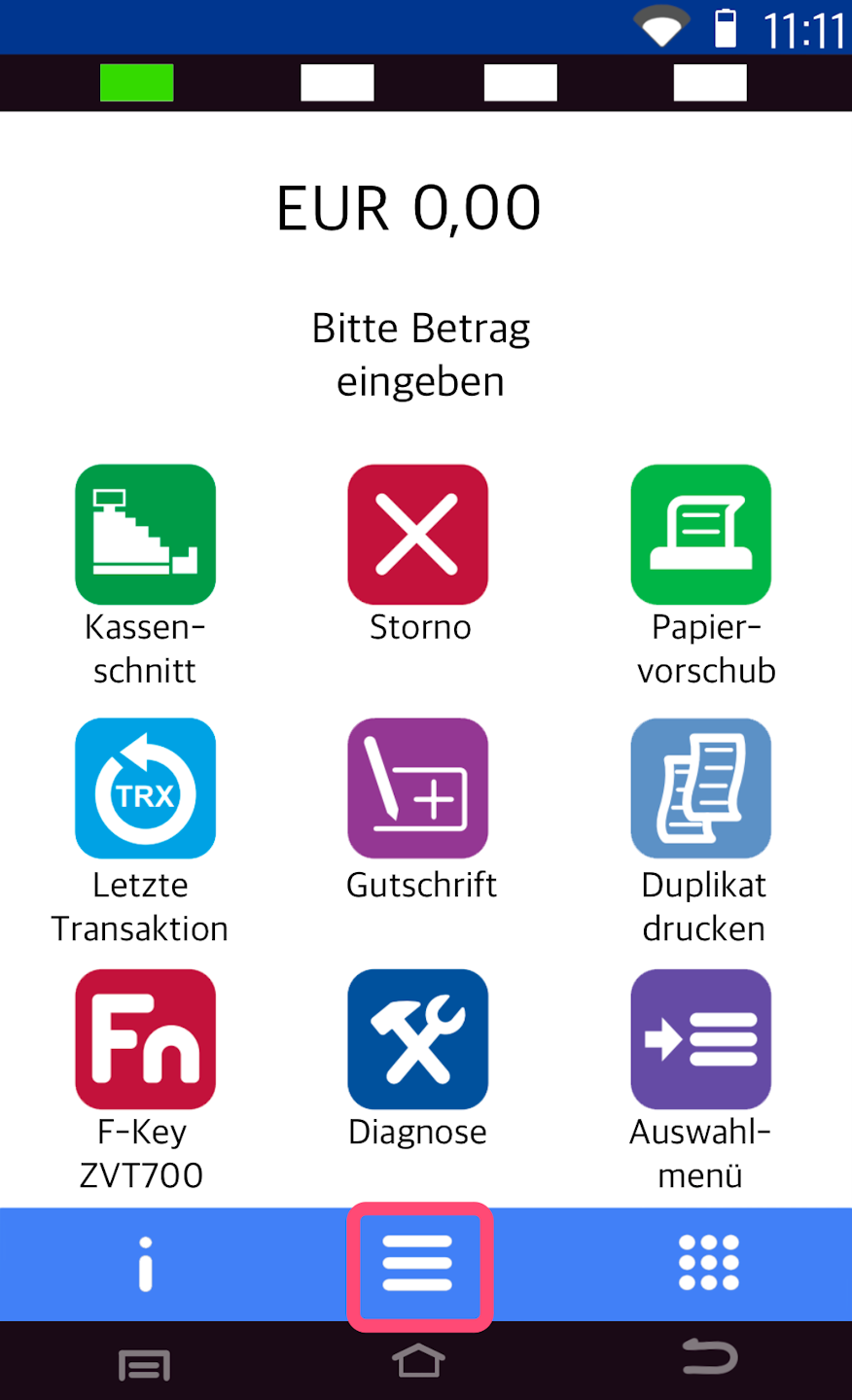
Main Menu
Here you see your starting display.
Please press the button with the three horizontal lines to access the main menu.
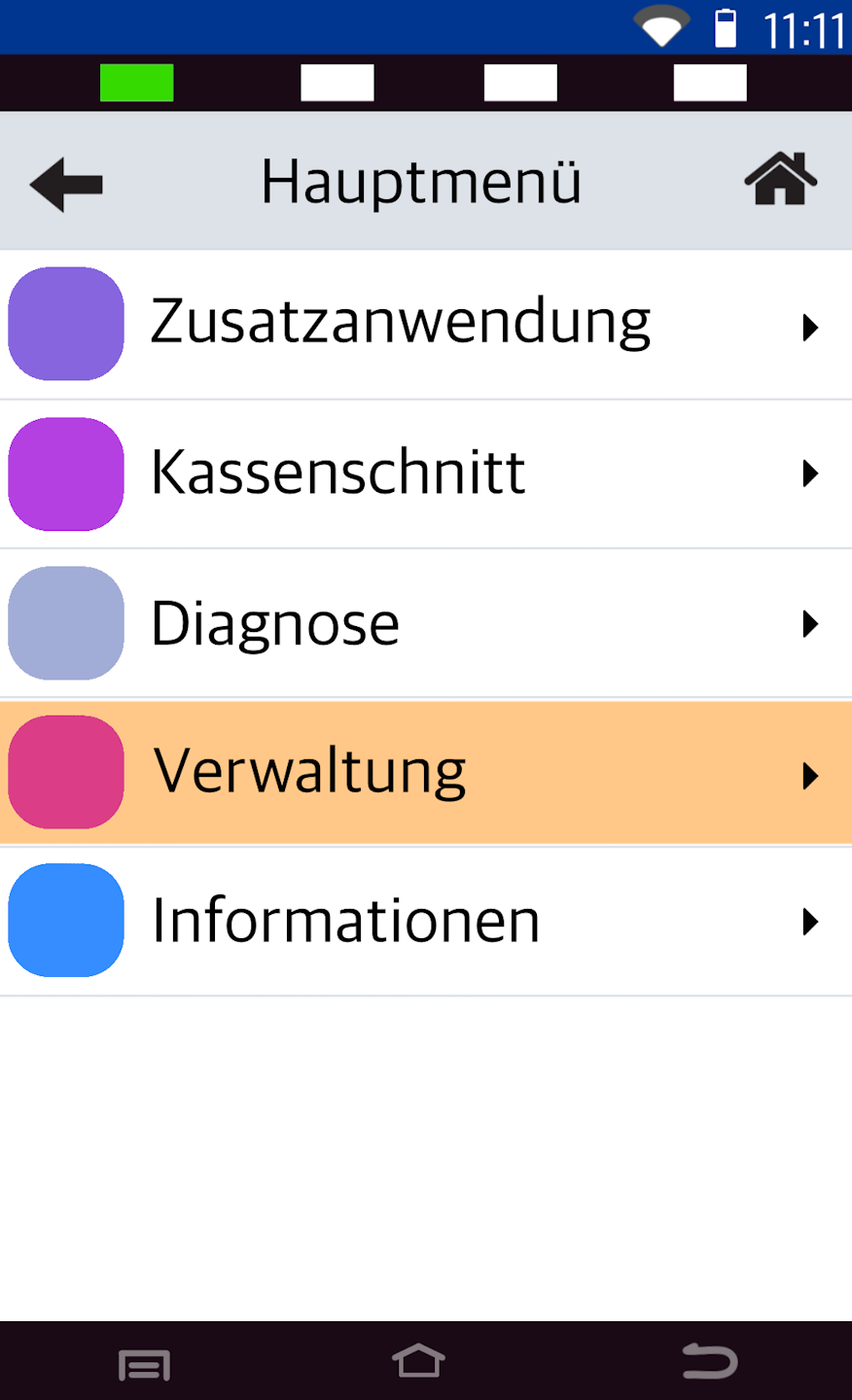
Administration
Please select the menu item Verwaltung.
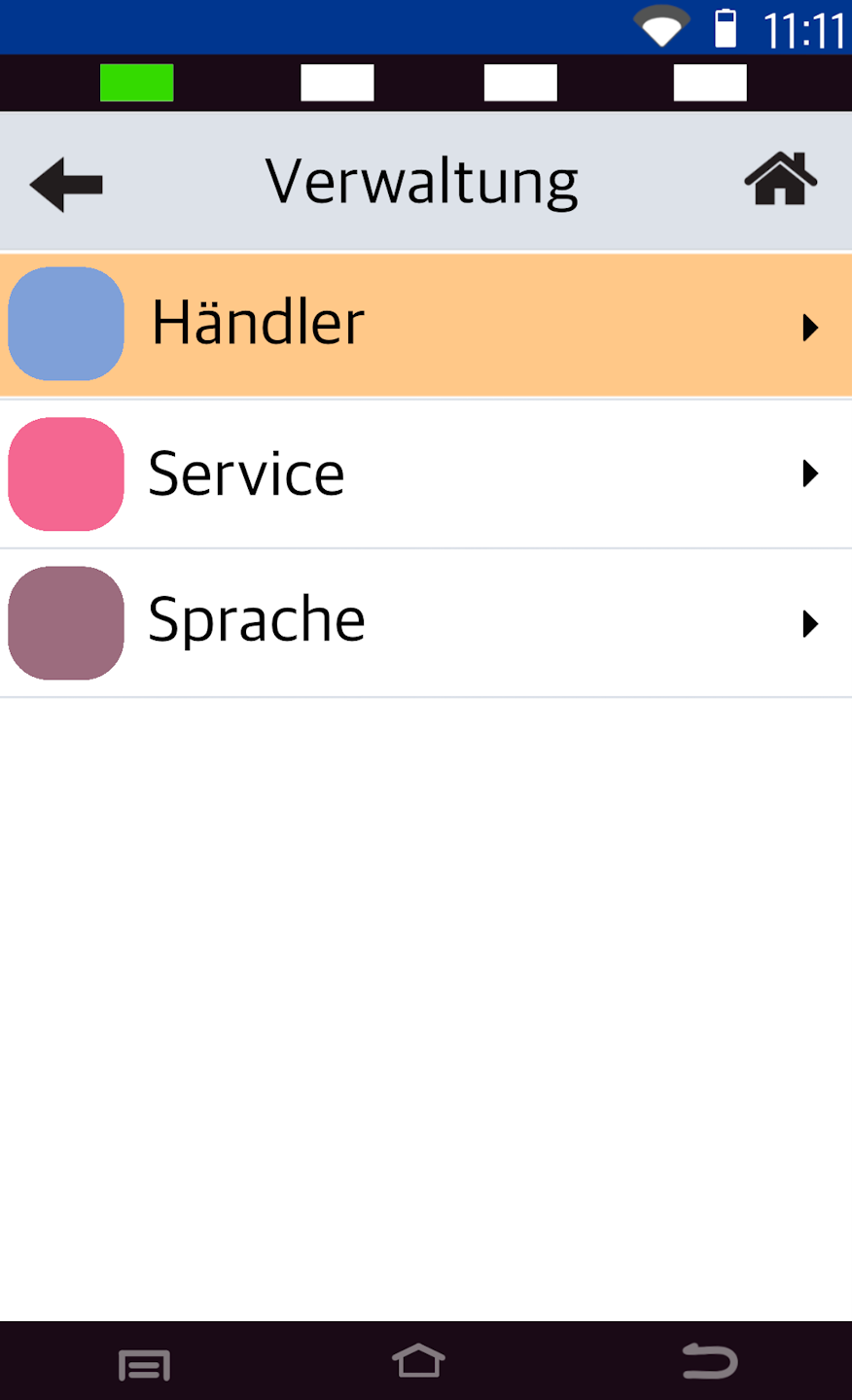
Merchant
Please select Händler.
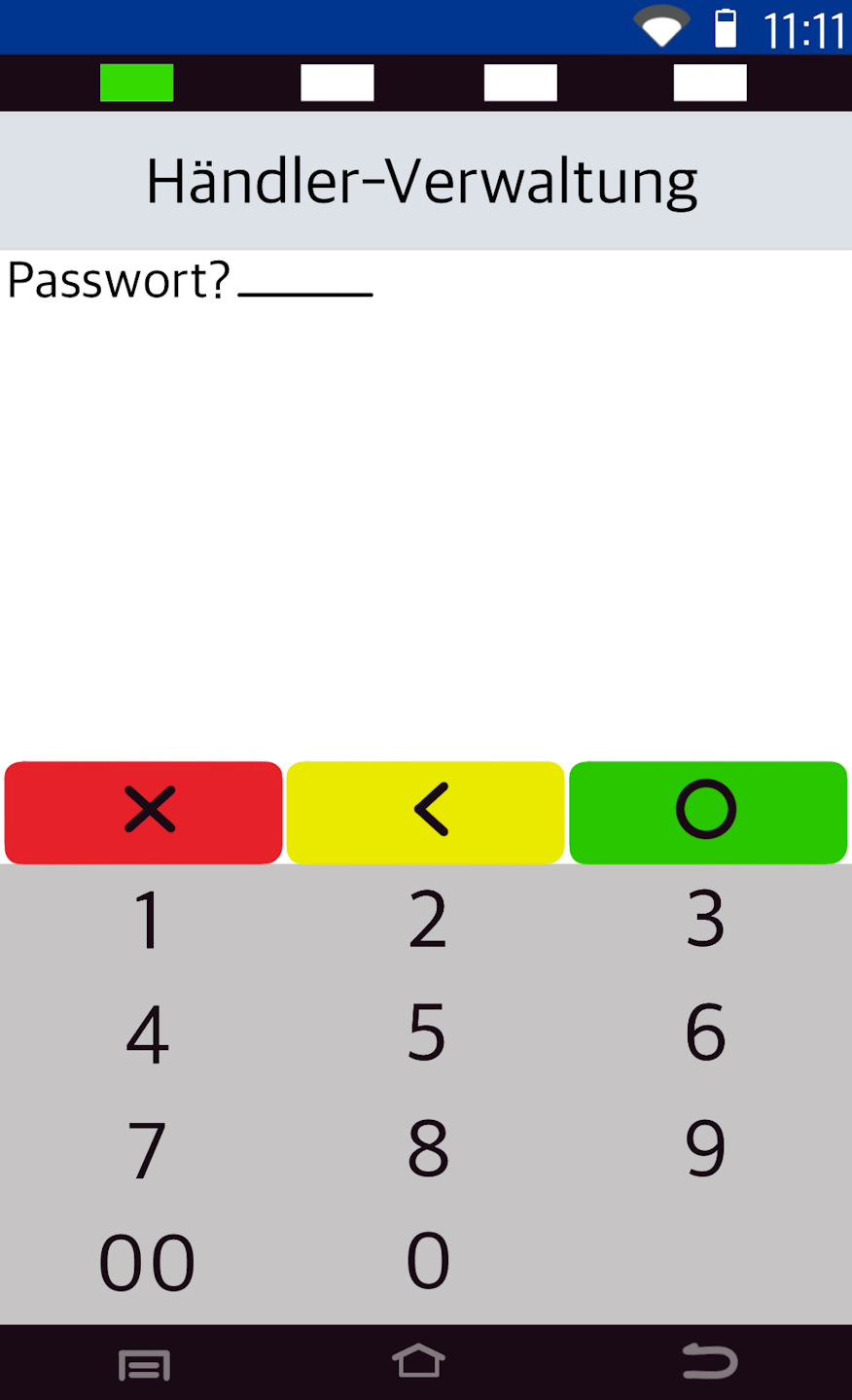
Password Entry
Please enter the 6-digit merchant password and confirm it with the green OK button on the display.
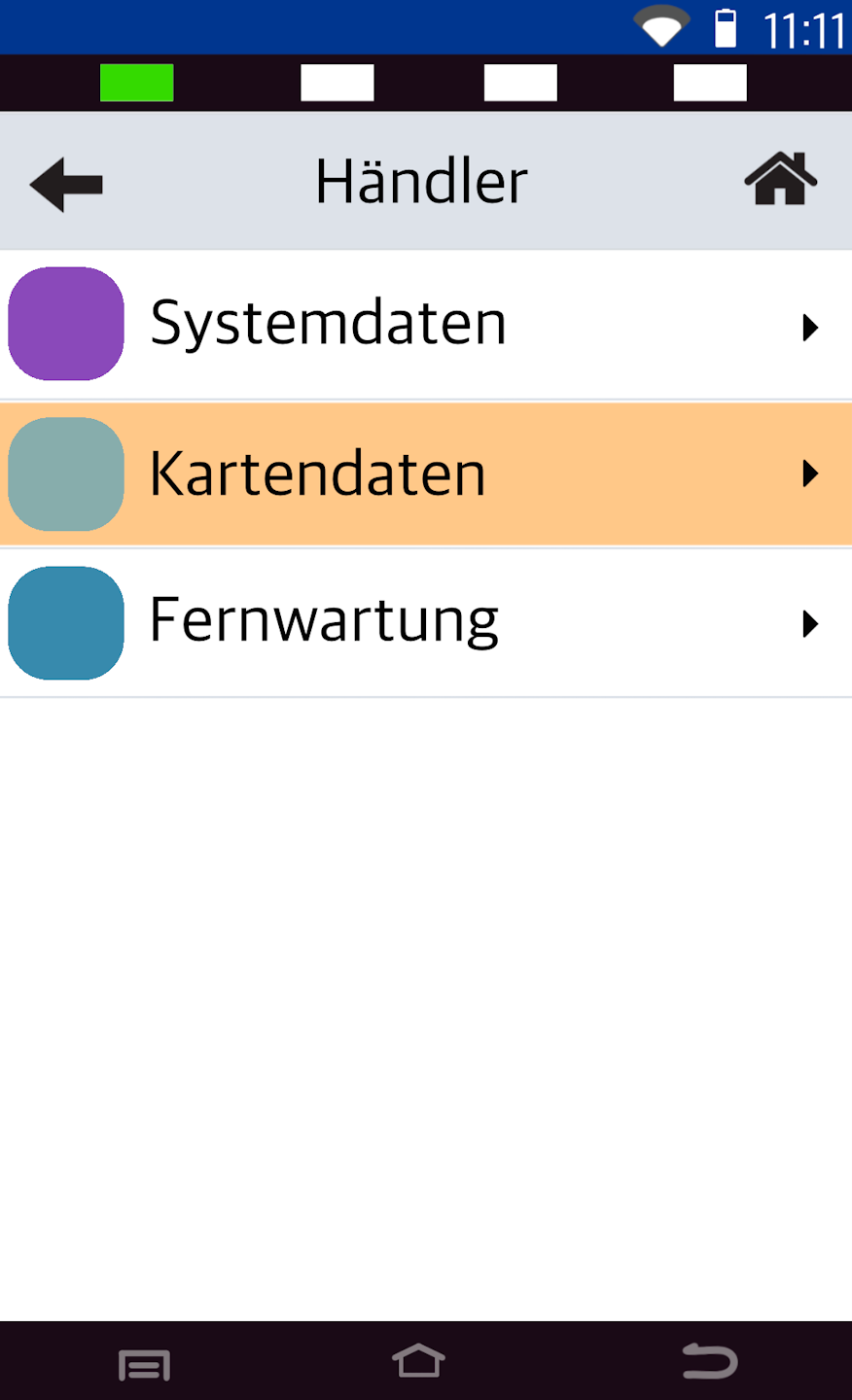
Card Data
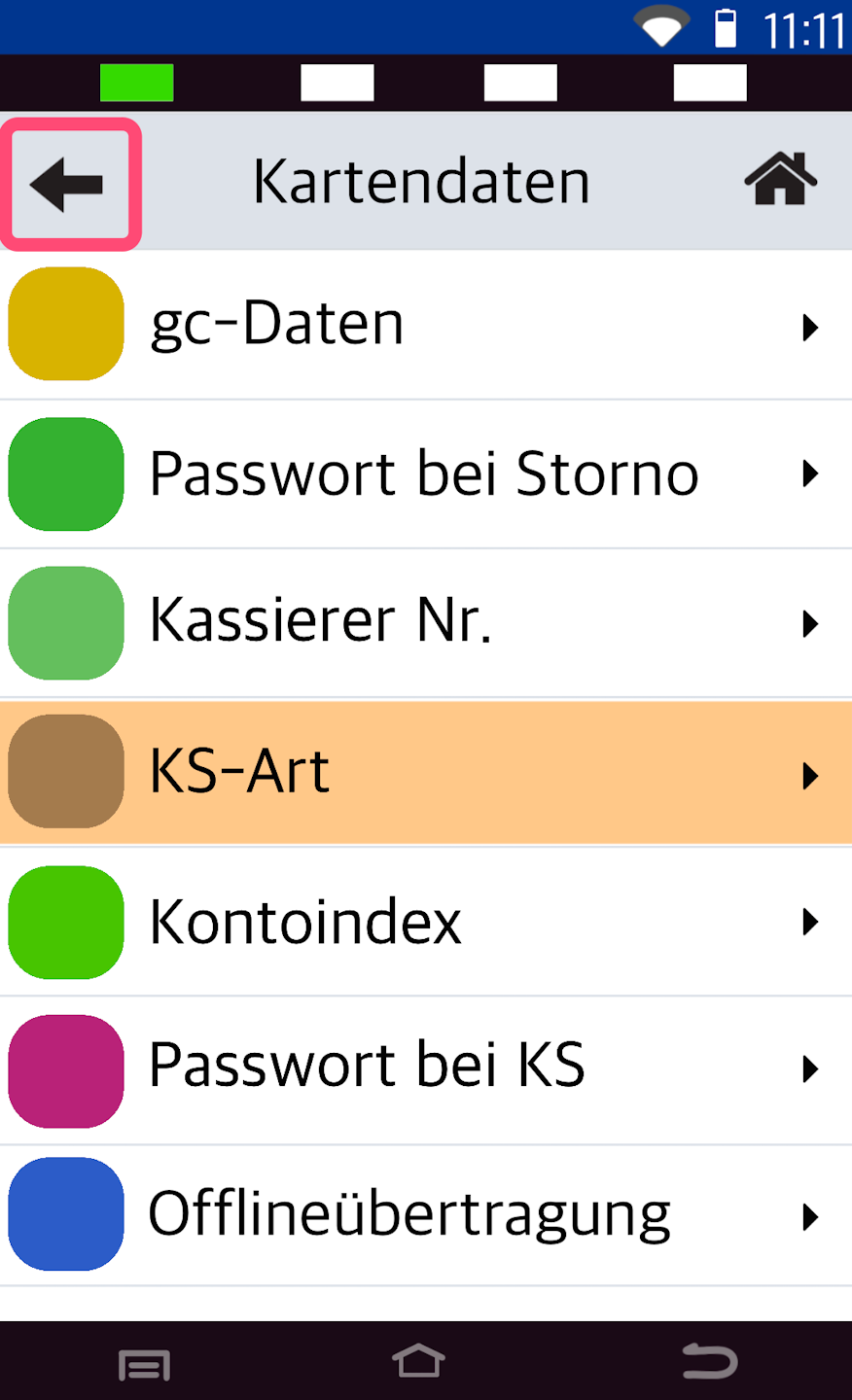
Here, the menu item Kartendaten must be selected.
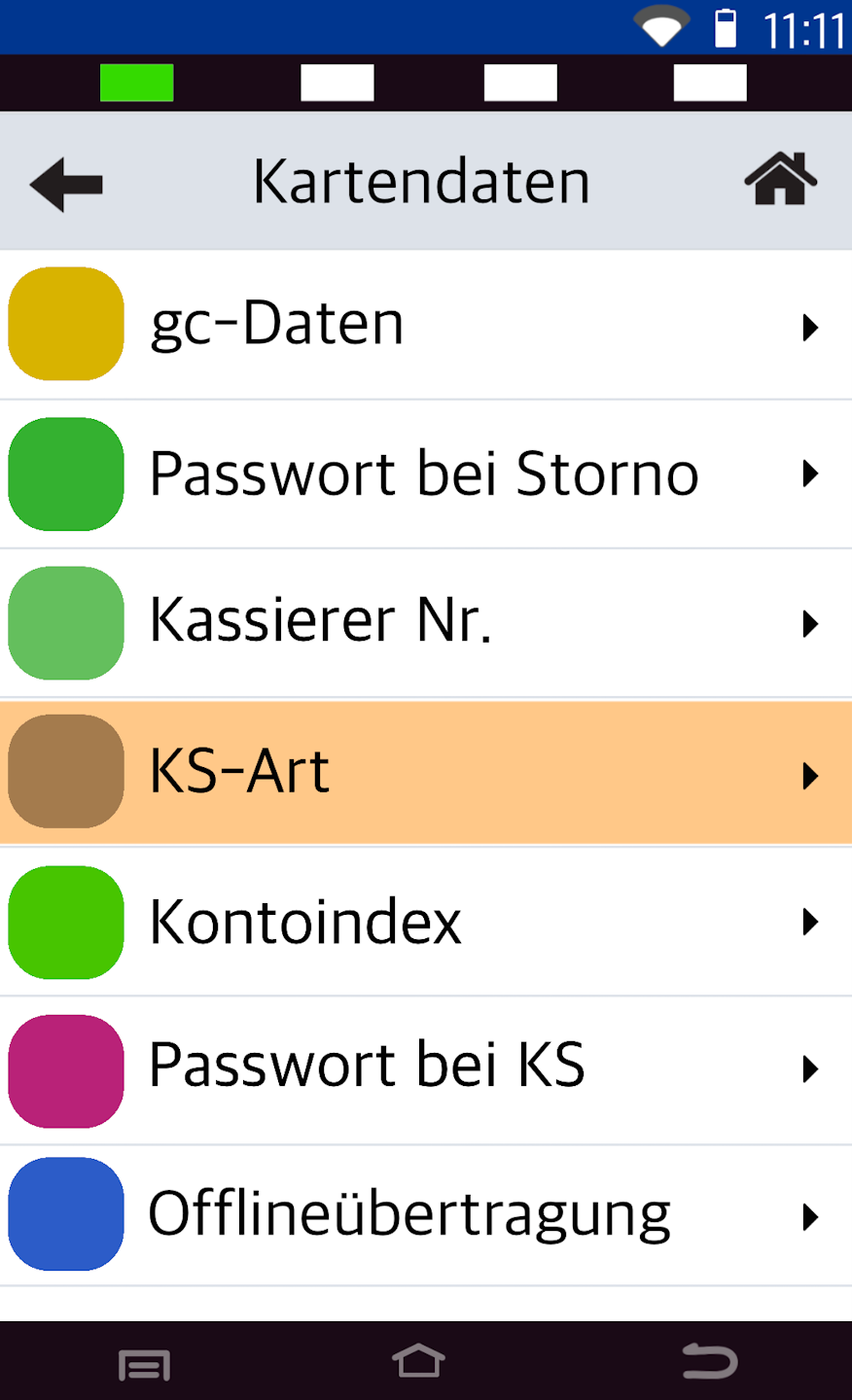
Closing Type
Please select the menu item KS-Art.
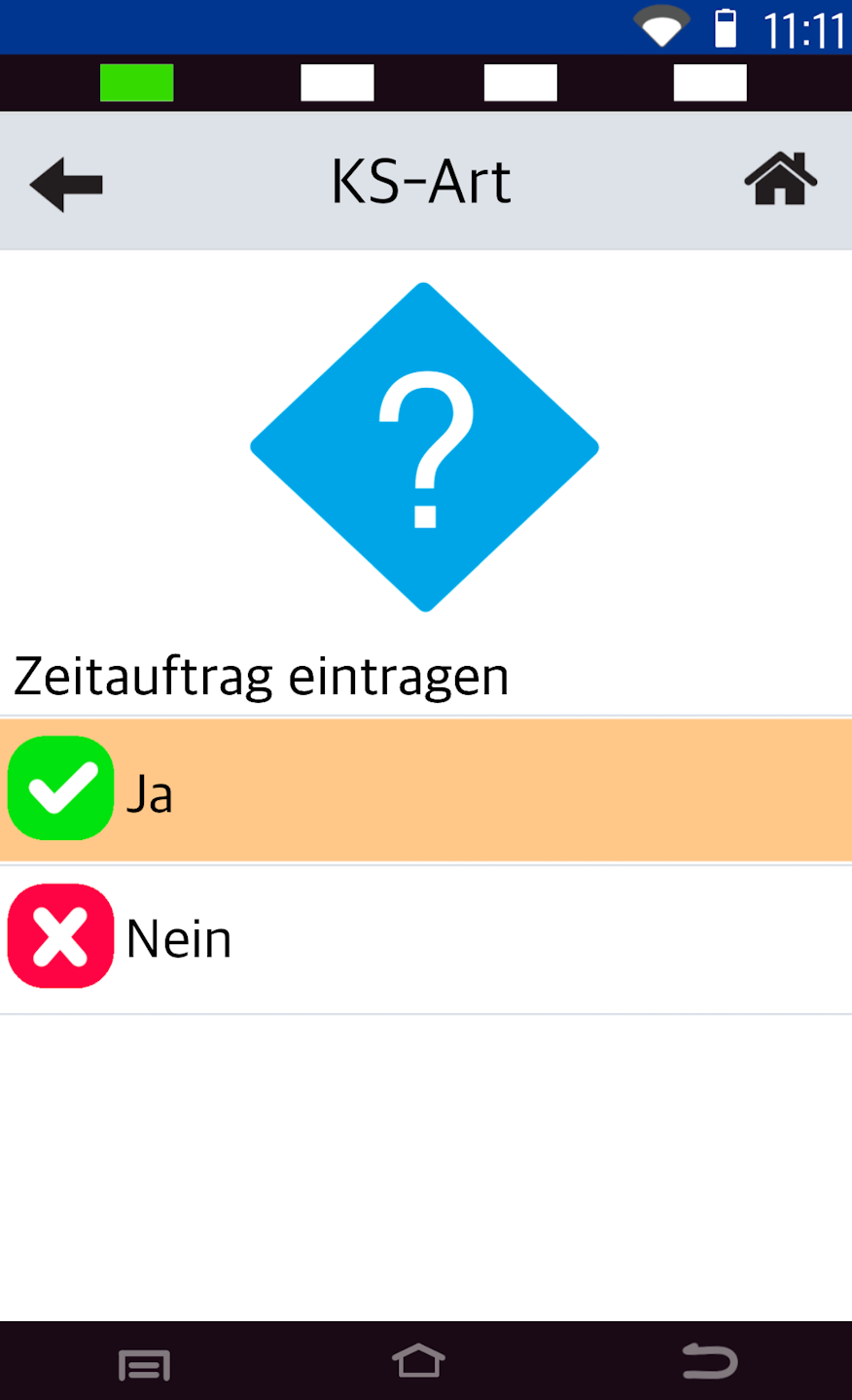
Activation
At this point, you can activate the automatic end-of-day closing.
Select YES
The scheduled task will be applied to all 7 days of the week. The manufacturer does not offer a setting for individual weekdays.
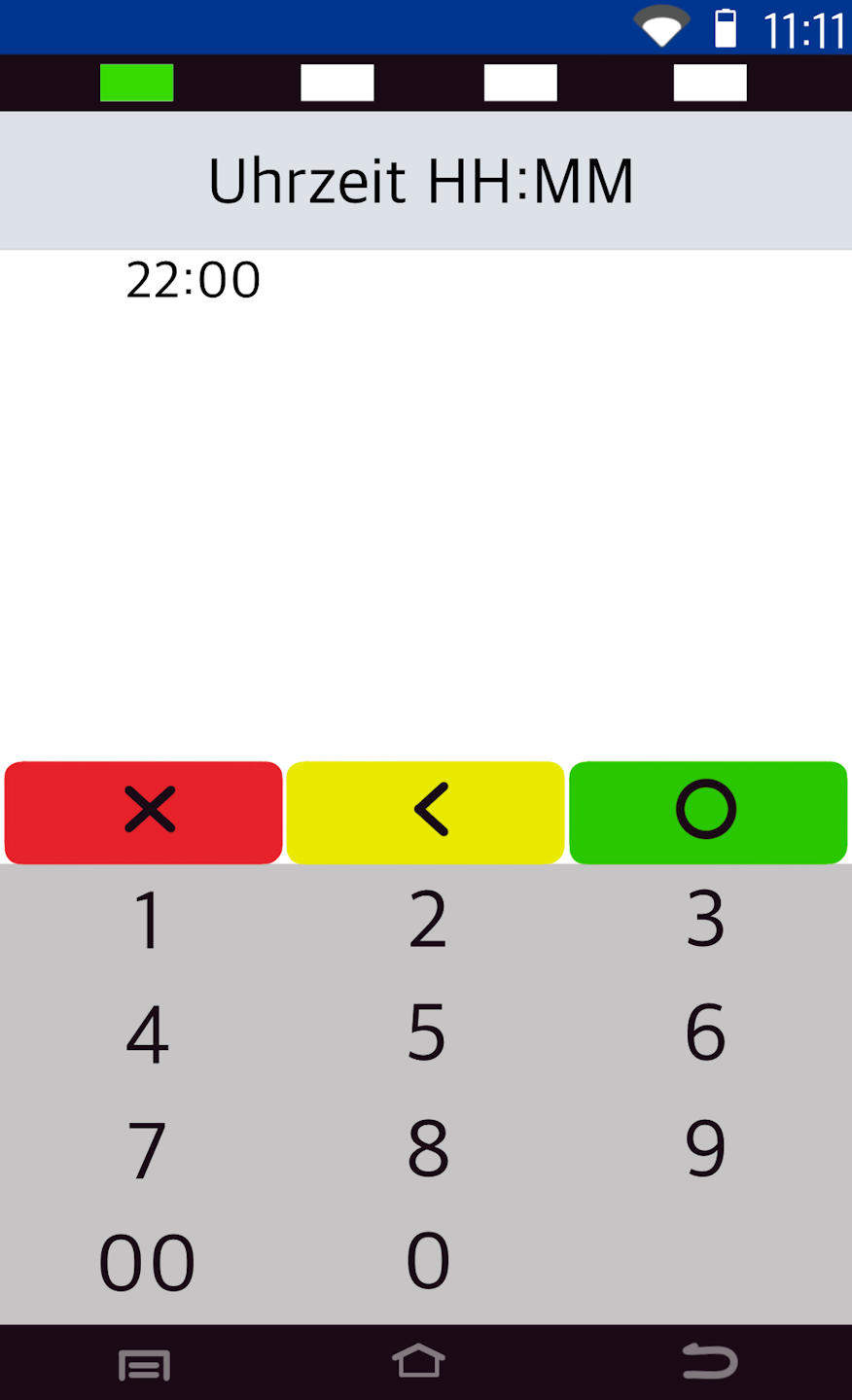
Enter Time
You can select and enter any time for performing the automatic end-of-day closing.
Please use the yellow correction key to enter a time.
Please confirm with the green button on the display.
Note!
An end-of-day closing will be triggered immediately.
(Fig. 2) By pressing the arrow key in the top left several times, you will return to the starting display.
Was this article helpful?
That’s Great!
Thank you for your feedback
Sorry! We couldn't be helpful
Thank you for your feedback
Feedback sent
We appreciate your effort and will try to fix the article
