Manage Sales Item
Modified on Wed, 18 Feb at 3:56 PM
Select variant
Note: In order to select different variants of an item during a sale, you must first create these variants in the dashboard.
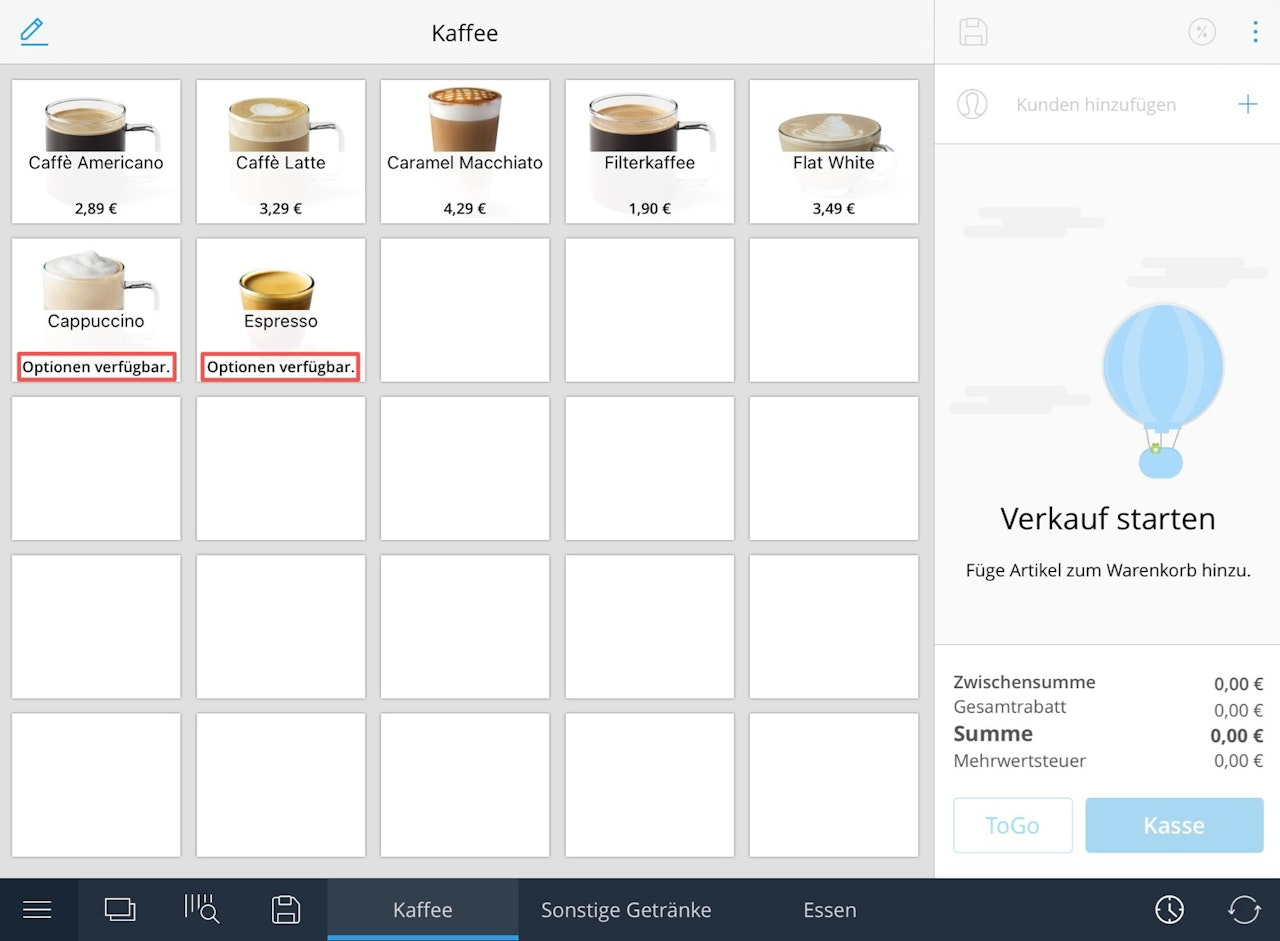
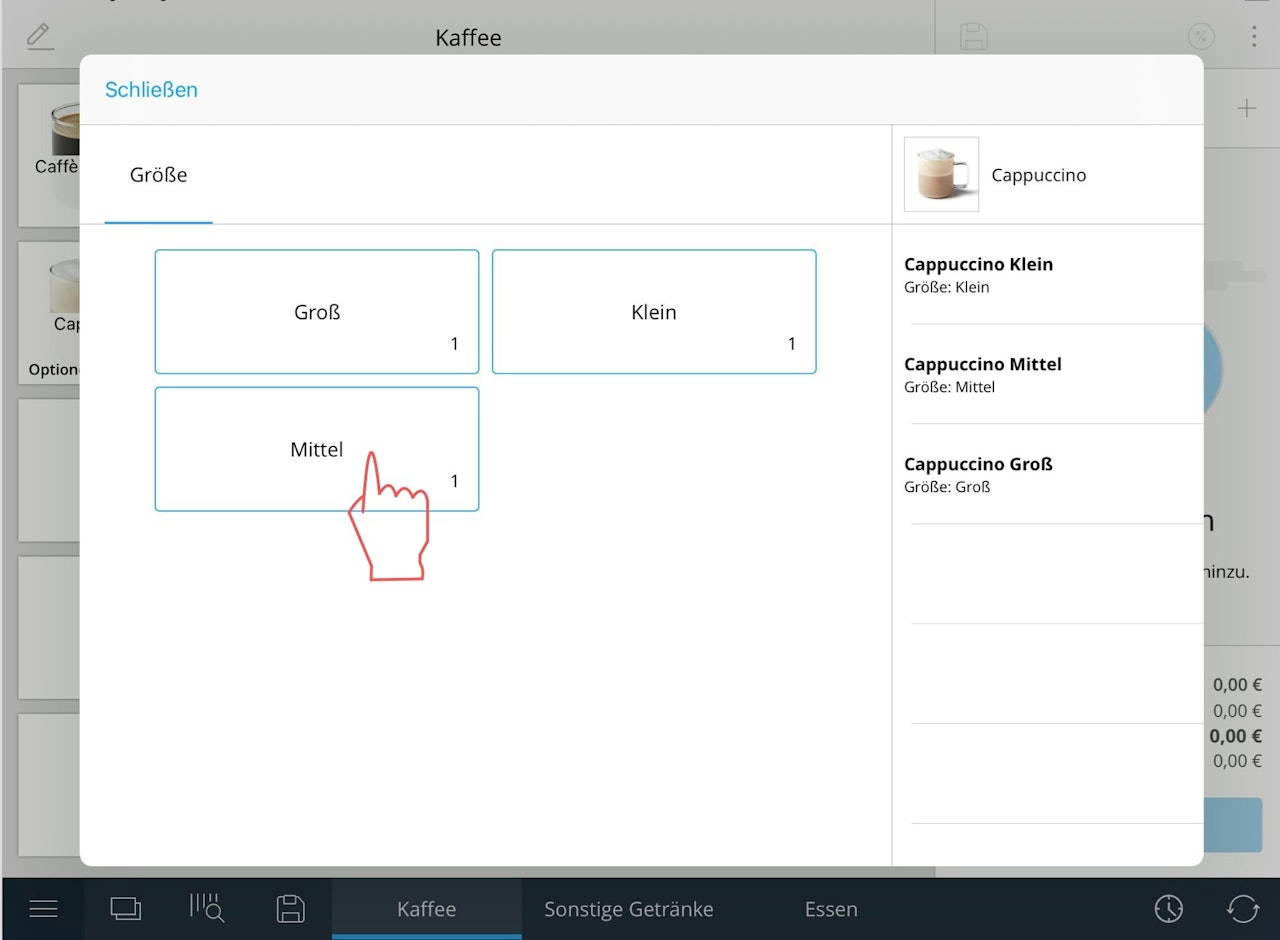
If an item with variants has been created, "Options available" will appear below the item in the tile view. Now tap on the item that you want to add to the sales item. Of course, you can also use the other options to add an item to the sales item. After tapping on the item, a new window will open. The variants will now appear in the order you selected when creating the item. The order is displayed to you above the options. Select the variants, in this example the attribute "Size". The item will then be added to the sales item, and you can add more items to the sale as usual or complete the sale.
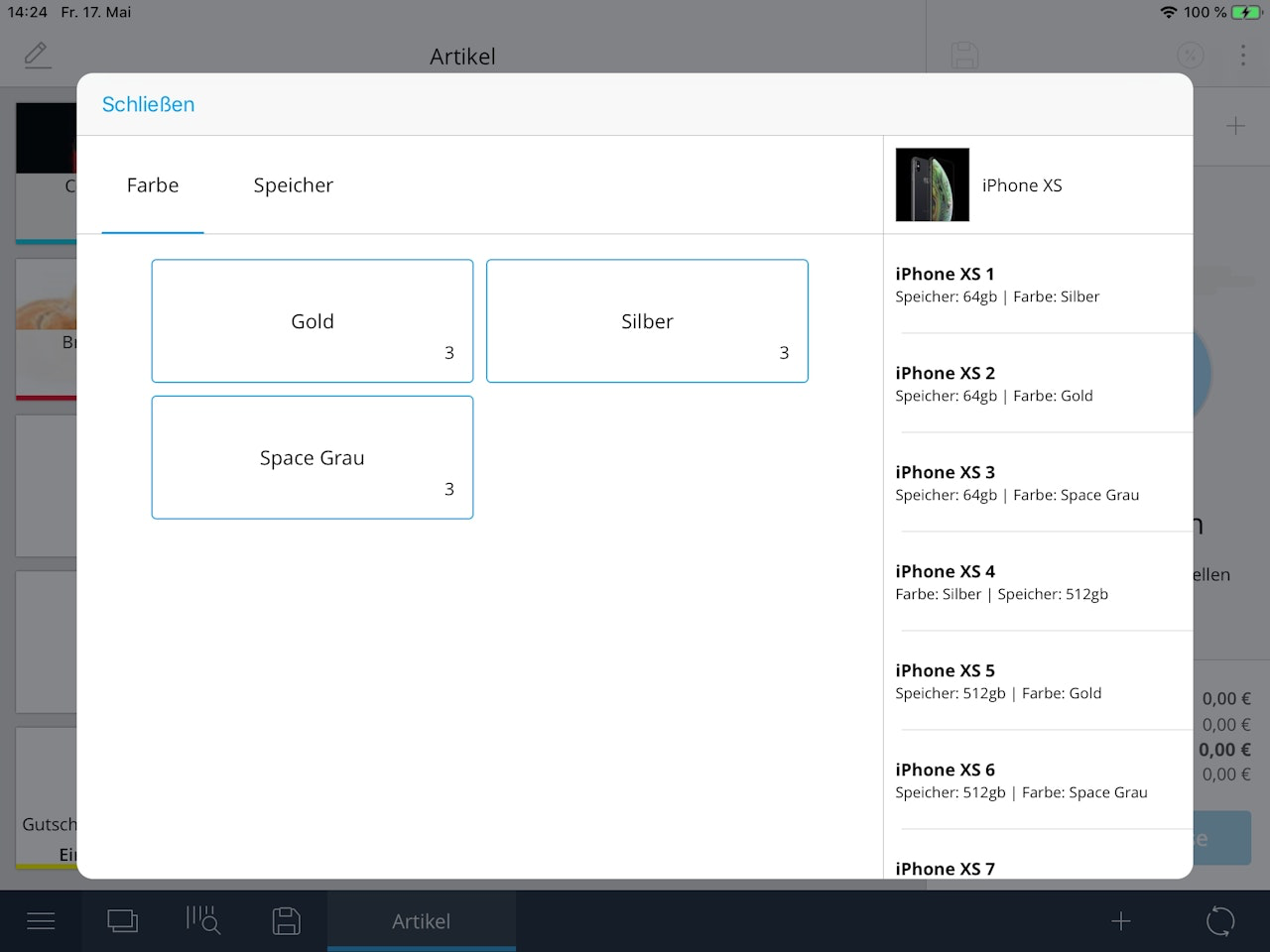
Note: Of course, you can also create items with variants that have more than one attribute.
In the following example, the product "iPhone" has two different attributes that vary depending on the item variant: "Color" and "Storage".The small number in the box of the respective attribute shows you the quantity of each variant under this attribute. For example, under "Gold" there are 3 more variants of this product that differ in storage capacity.On the right-hand side, all remaining possible variations are displayed. You can tap a variant from the right side of the screen at any time to add it directly to the cart.
Was this article helpful?
That’s Great!
Thank you for your feedback
Sorry! We couldn't be helpful
Thank you for your feedback
Feedback sent
We appreciate your effort and will try to fix the article
