Staff
Modified on Mon, 16 Feb at 10:12 AM
TABLE OF CONTENTS
General
This menu item allows you to add user accounts for your employees. Through these user accounts, it's possible to restrict the permissions of individual employees. Thus, you can control what information your employees can view, whether and what discounts they can grant, and what settings they can change.
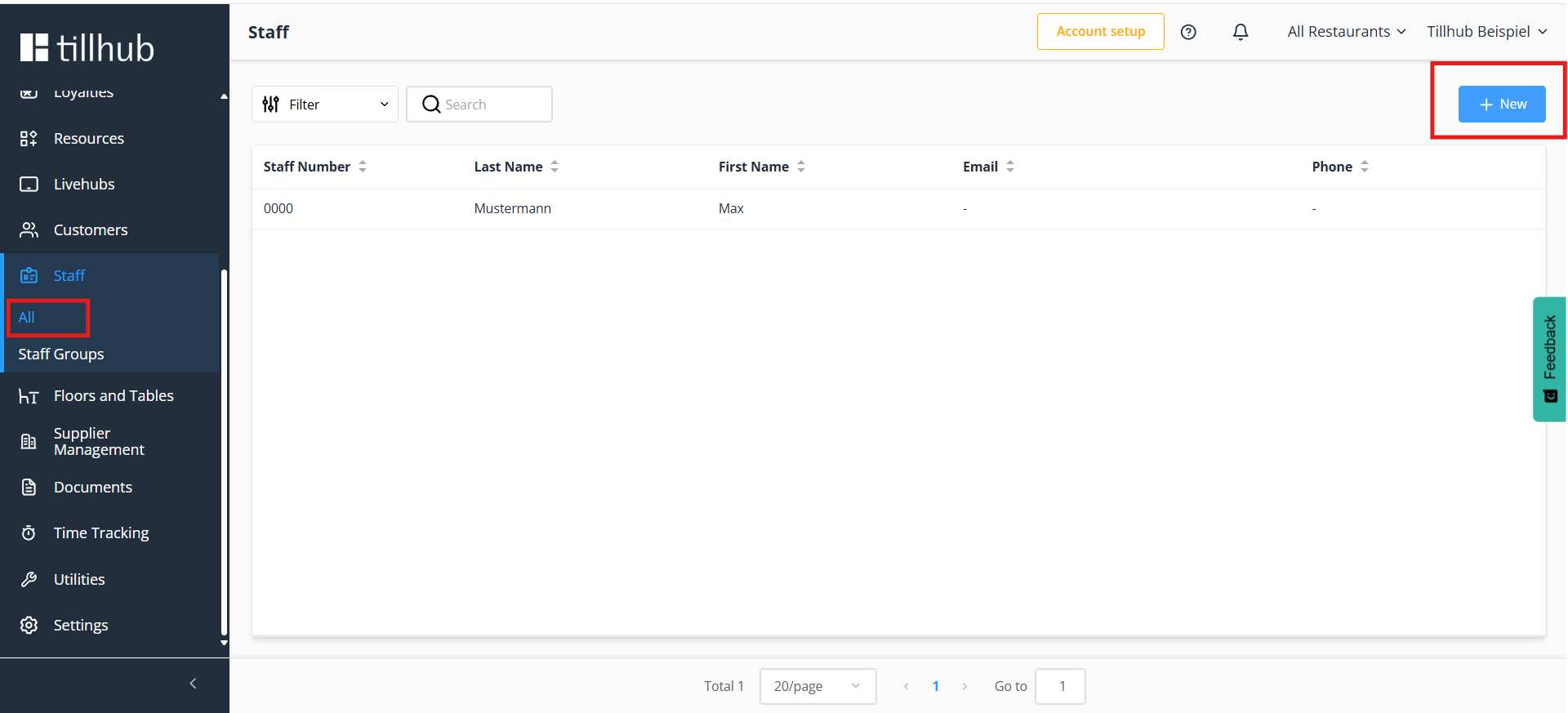
All your employees are managed in this section, and they can be added or removed. The "+ New" button takes you directly to the area where you can create new employees.
Creating Master Data
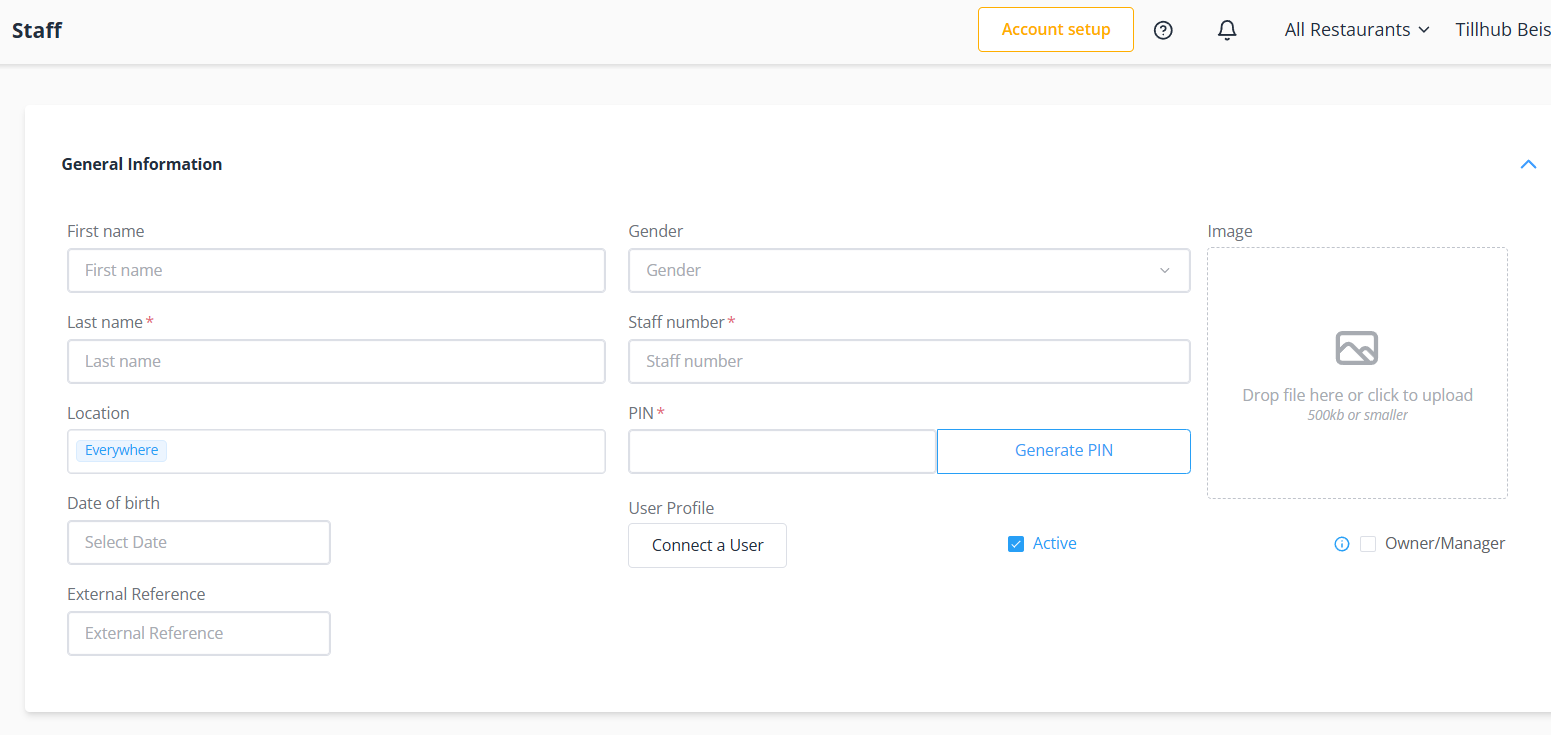
When creating a new employee, all fields marked with a red asterisk (master data) must be filled out. These include:
- Last Name
- Employee Number
- PIN
Each employee requires a PIN for logging in and out at the register. The PIN can either:
- be entered manually, or
- be automatically generated by the system via "Generate PIN."
All other fields without an asterisk are optional and can be filled out as needed.
Permissions & Cash Register Authorizations
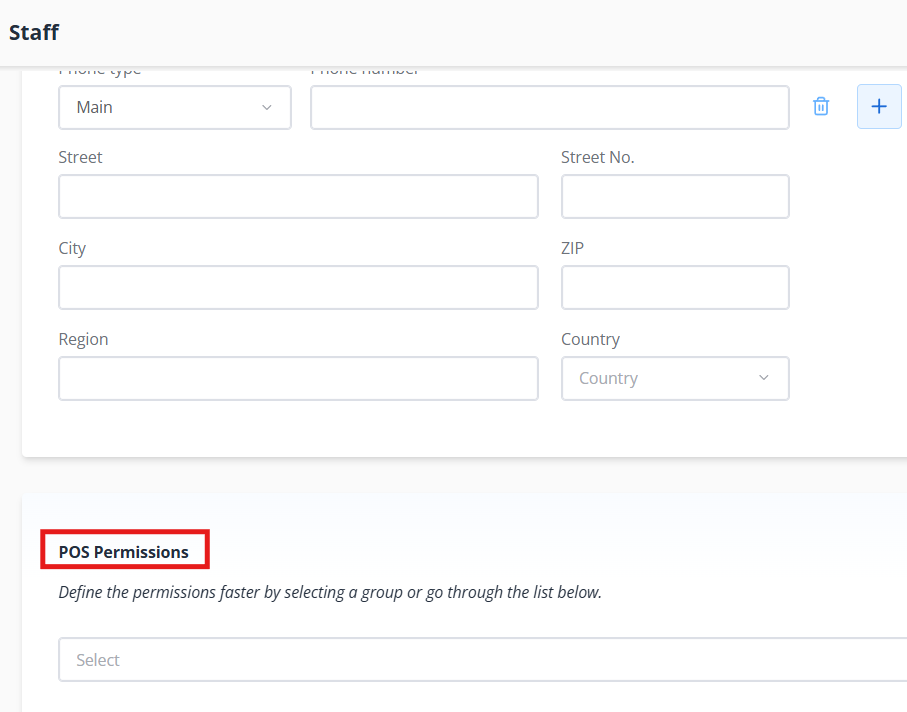
After the master data is set, permissions follow. In the "Cash Register Authorizations" section (at the end of the page), an authorization should be selected to allow the employee to operate the register. These permissions determine what the employee can perform at the register—like sales, cancellations, discounts, or specific administrative tasks.
The system recognizes exactly which actions the employee is permitted to perform and which functions are restricted, based on the assigned permissions.
You can:
- select an existing authorization and view its details, or
- create your own role with individually defined permissions using "Create Template."
Employee Groups (Optional)
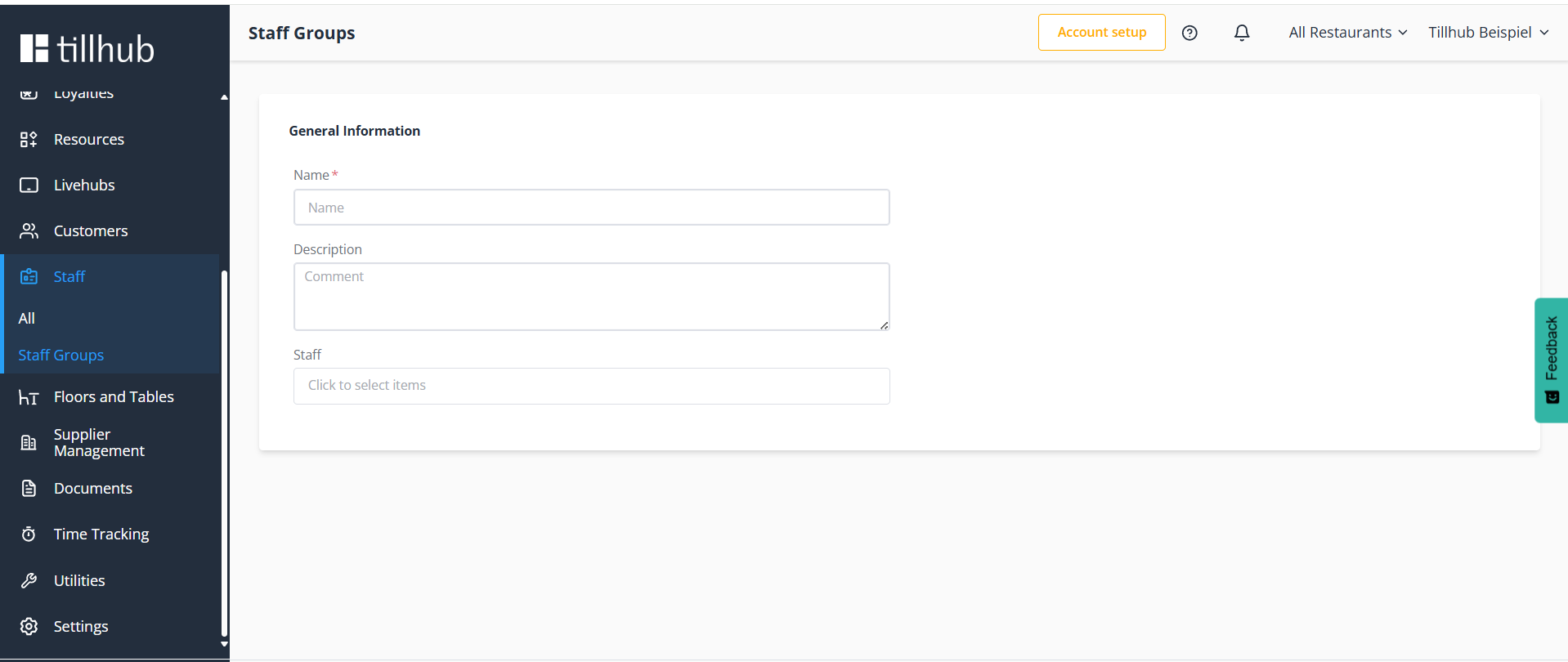
Optionally, you can create employee groups, which is helpful when organizing employees by departments, responsibility areas, or regions.
Navigate to "Personnel - Employee Groups" on the dashboard. Here you have an overview of all previously created employee groups and can create more by clicking on "+ New".
The process involves three steps:
- Give the group a name and optionally add a description.
- Select the relevant personnel. To find personnel in the list, use the search bar or browse through the listed employees below. You can also assign all personnel to the group.
- You'll receive an overview of your decisions. Verify them, and if everything is correct, click "Create" to save everything.
Was this article helpful?
That’s Great!
Thank you for your feedback
Sorry! We couldn't be helpful
Thank you for your feedback
Feedback sent
We appreciate your effort and will try to fix the article
