Cash Register Registration with the Tax Office
Modified on Mon, 16 Feb at 10:11 AM
TSE (KassenSichV)
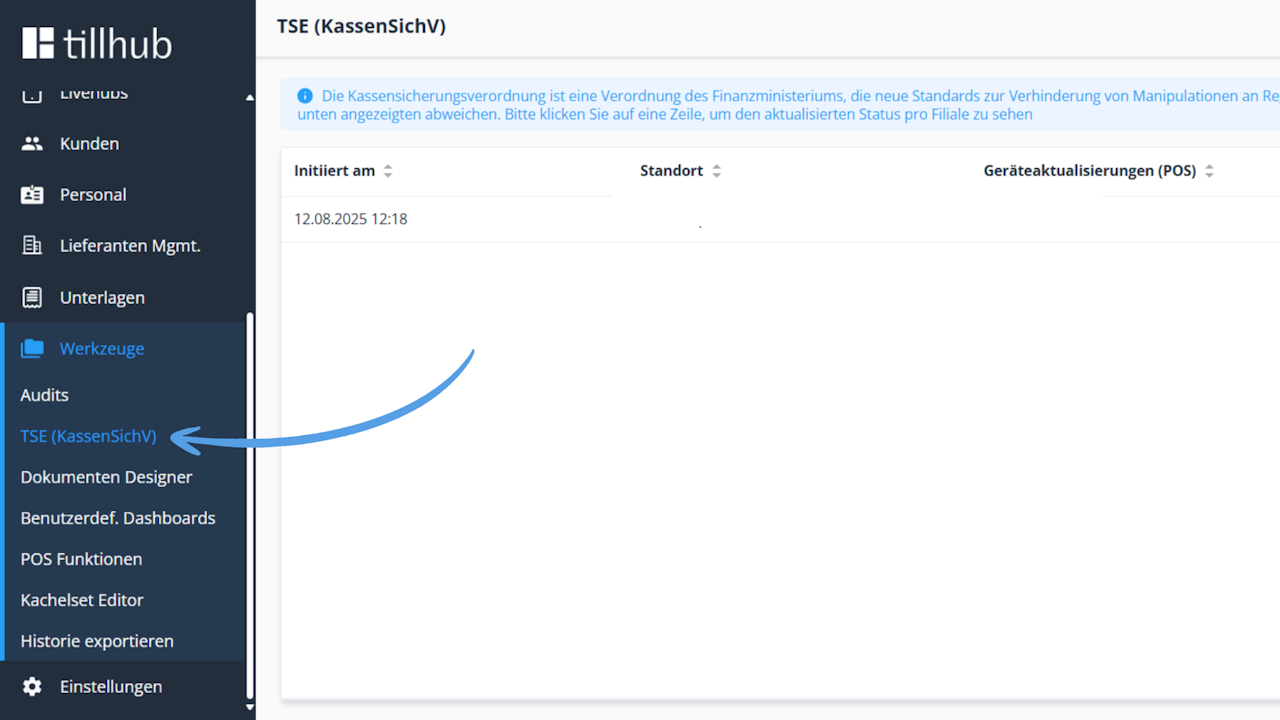
When you open the menu item TSE (KassenSichV), your business will be displayed.
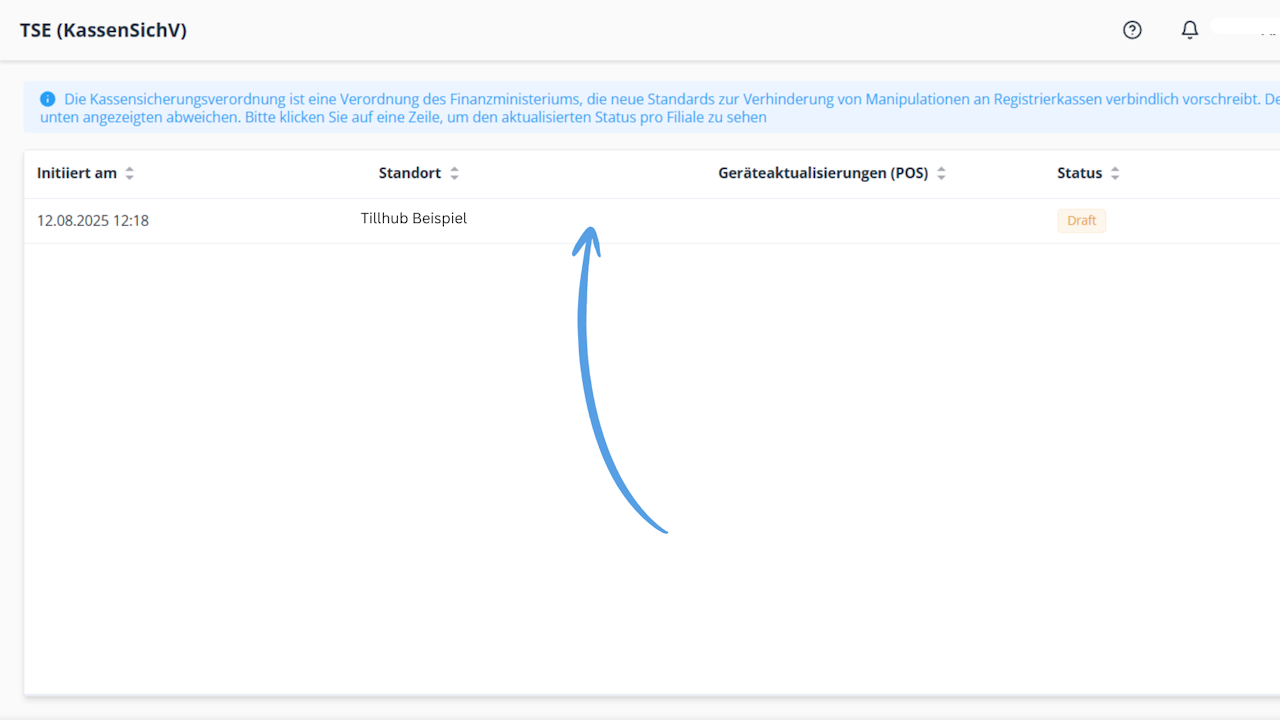
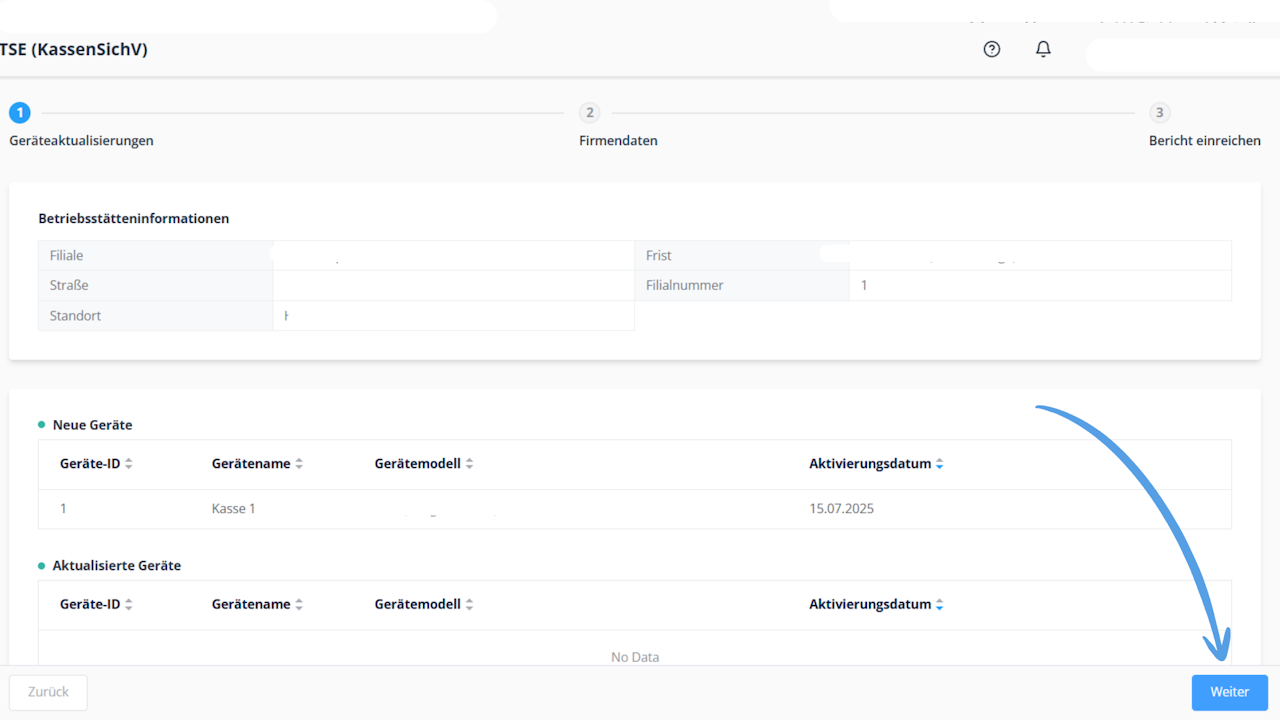
Tap your business in the center to get an overview with information about the device and your business.
Then tap Next in the bottom right.
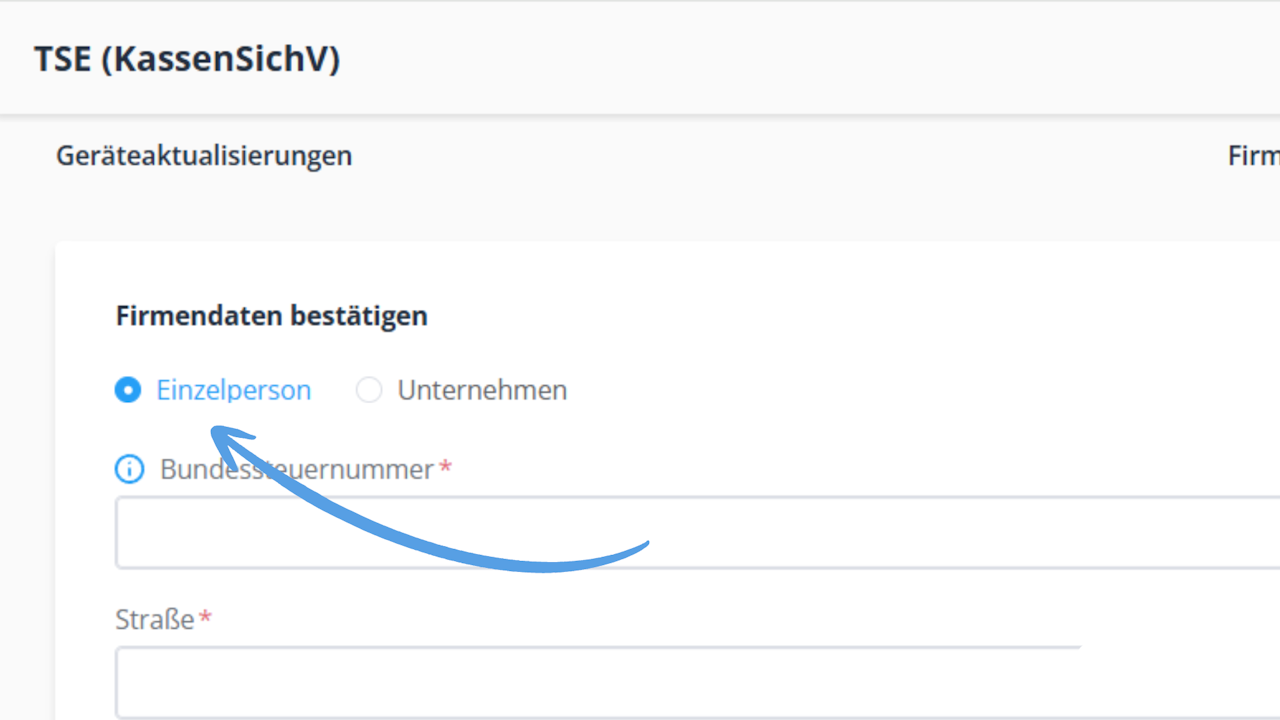
In the next step, choose whether you want to complete the registration as an individual or as a company.
Individual
If you are registering as a sole proprietor, select Individual here so that the system recognizes that it is a sole proprietorship.
Enter & review data
Next, you will see data that is already stored in the system. Please check it for accuracy.
Then enter the federal tax number (Bundessteuernummer) and your personal tax identification number. Make sure not to confuse the personal tax identification number with the tax number used for businesses or self-employed persons.
Finally, enter your date of birth for verification.
If all information is complete and correct, tap Next at the bottom.
After entering your data, you will receive a preview where you can review all details once again. Take the time to ensure that all information is correct.
If everything is correct, you can submit the report in the bottom right.
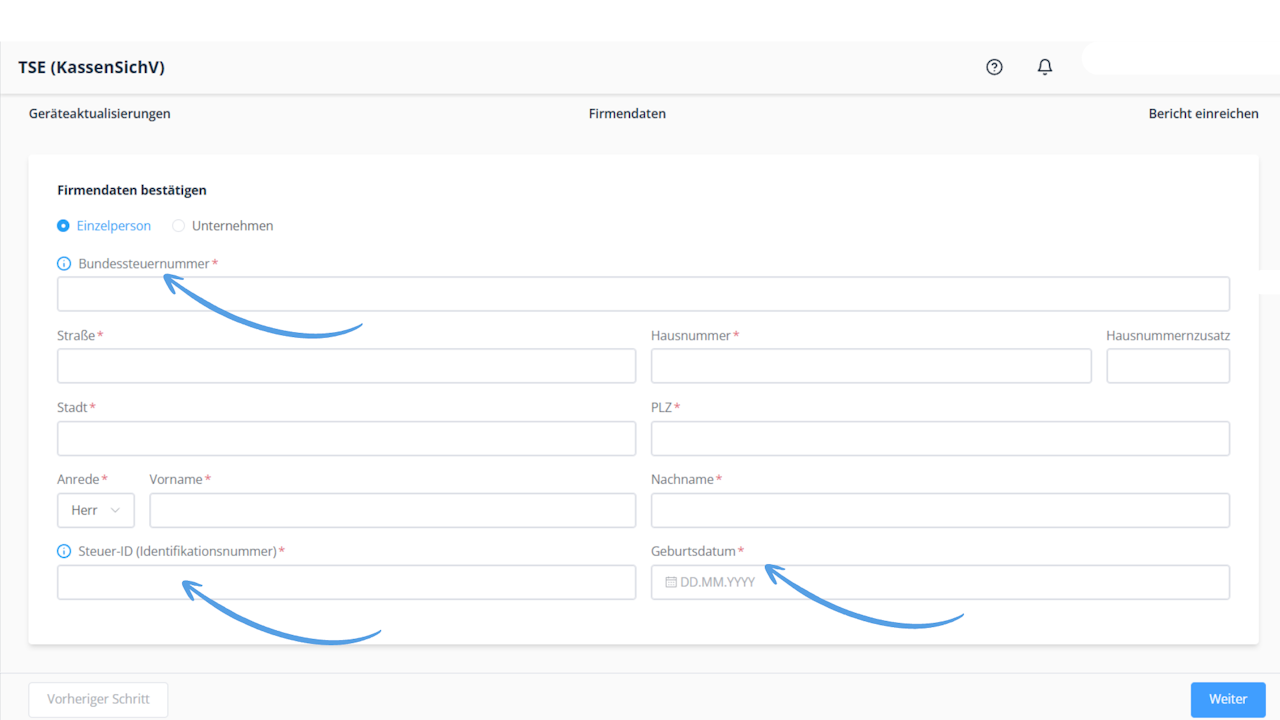
Federal tax number (Bundessteuernummer)
The federal tax number is not the tax identification number of your local or state tax office.
The federal tax number is issued by federal authorities and is a separate number that differs from the tax number of the state or local tax office.
You can easily determine it using the provided link:
Tax number converter Enter your federal state and your previous tax number to obtain the new federal tax number. You can then copy it and paste it into the dashboard.
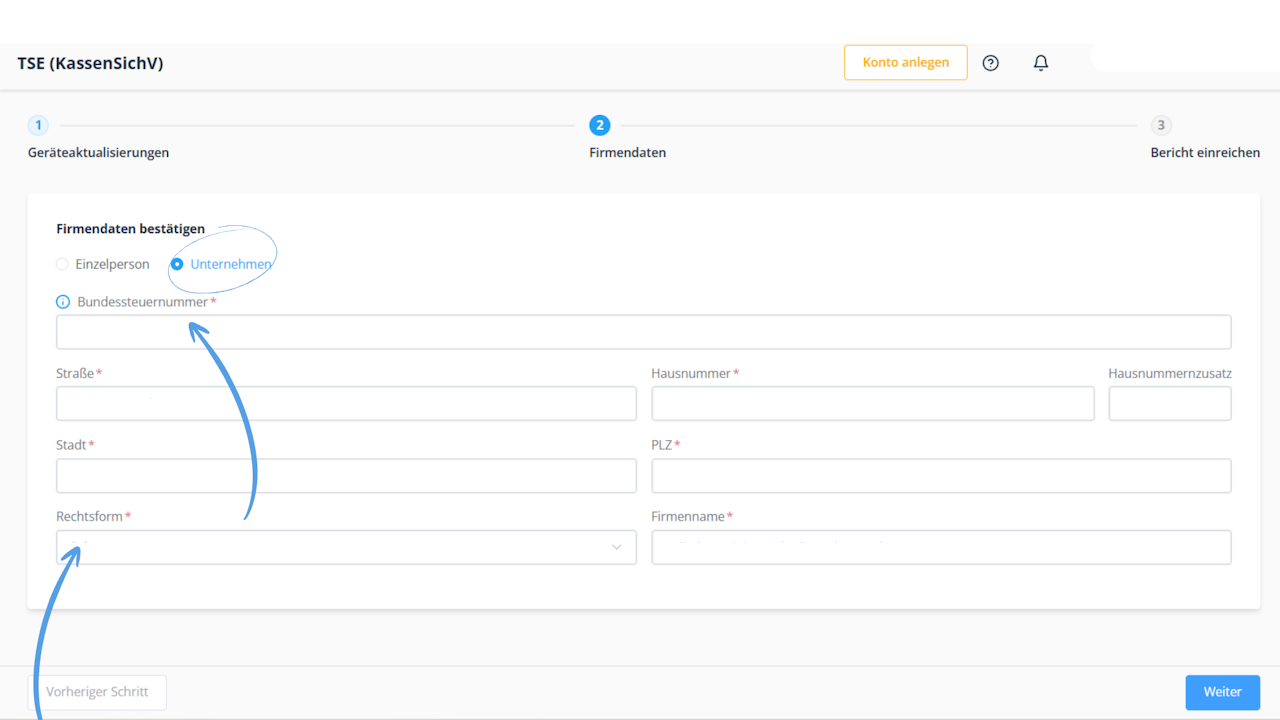
Company
After selecting Company, please carefully review the data that has already been entered.
Add the federal tax number (Bundessteuernummer) and select the appropriate legal form of your company.
Then tap Next at the bottom to proceed to the next step.
After entering all required data, a preview will be shown where you can review all details again. If all data is correct, you can submit the report using the blue button in the bottom right.
Was this article helpful?
That’s Great!
Thank you for your feedback
Sorry! We couldn't be helpful
Thank you for your feedback
Feedback sent
We appreciate your effort and will try to fix the article
