Article Import
Modified on Fri, 6 Mar at 1:17 PM
We recommend watching the video on article import for a visual step-by-step guide. The complete article list for the import can be found at the beginning of the article.
TABLE OF CONTENTS
Importing Standard Articles
Once you have filled in your article list, navigate to "Articles" and then to "Product Manager" in the main menu of the Dashboard.
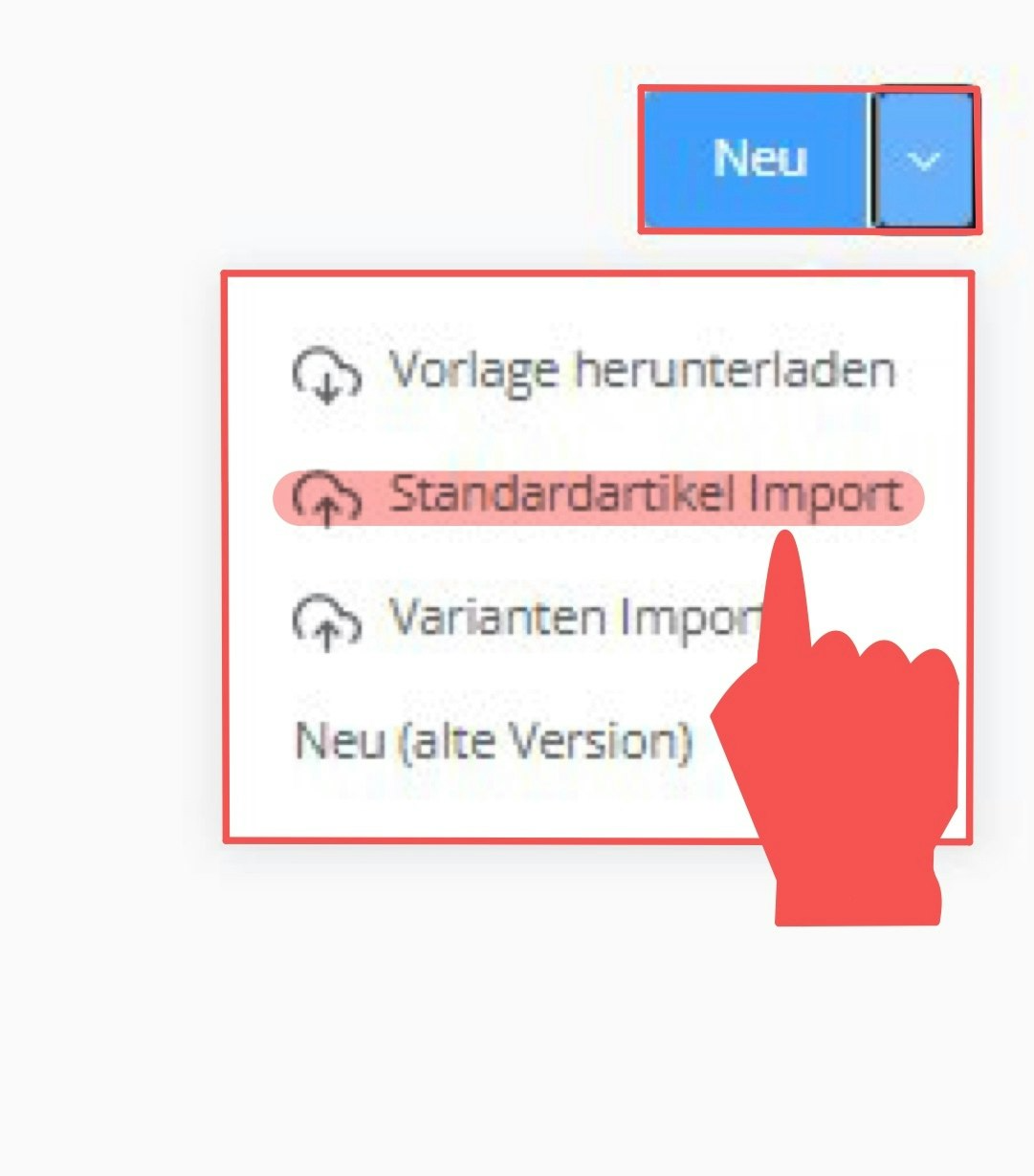
Click the arrow next to the blue "+New" button in the top right corner. A drop-down menu will appear. Select "Standard Article Import" and upload your completed Excel article list.
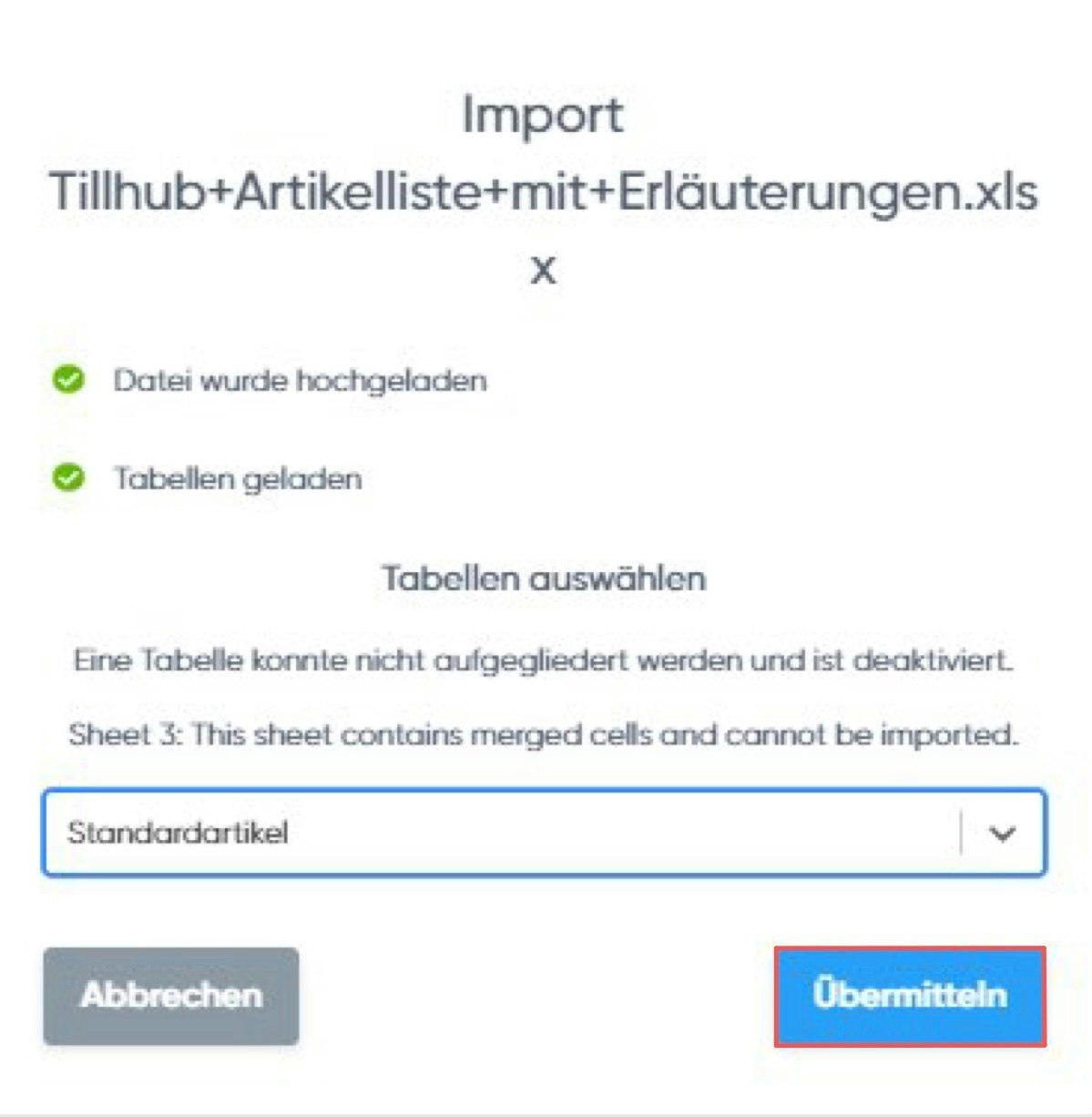
From the drop-down list, select the tab in your Excel file named "Standard Articles", then click the blue "Submit" button.

In the next window, confirm the column headers by clicking "Yes".
Review the column mappings in the following window by clicking the grey "Edit" button to view the details. Make any necessary adjustments. For example, if the "EAN" column has not been mapped correctly, select "Barcodes" as the mapping for that column.
Click the blue "Review" button in the bottom right corner. If no fields are highlighted in red in the next window, click the blue "Submit" button. Red fields indicate missing mappings and can be edited with a double-click.
After submitting, a window will appear asking: "Are you ready to send?" Click "Yes", then click "OK" in the following window.
Importing Variant Articles
Once your standard articles have been imported, navigate to "Articles" and then to "Goods Manager" in the main menu of the Dashboard.
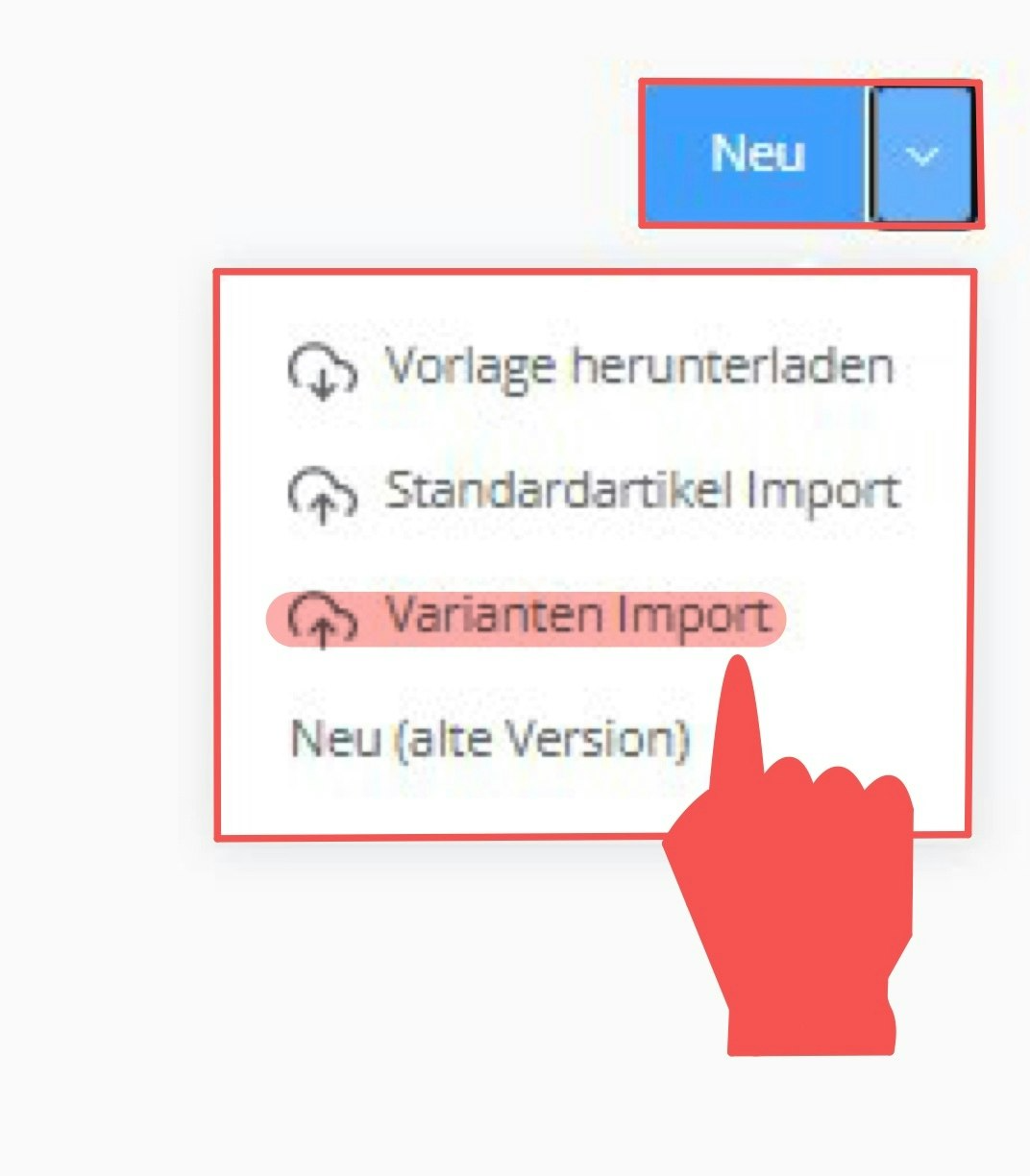
Click the arrow next to the blue "+New" button in the top right corner. A drop-down menu will appear. Select "Variant Import" and upload your completed Excel article list.
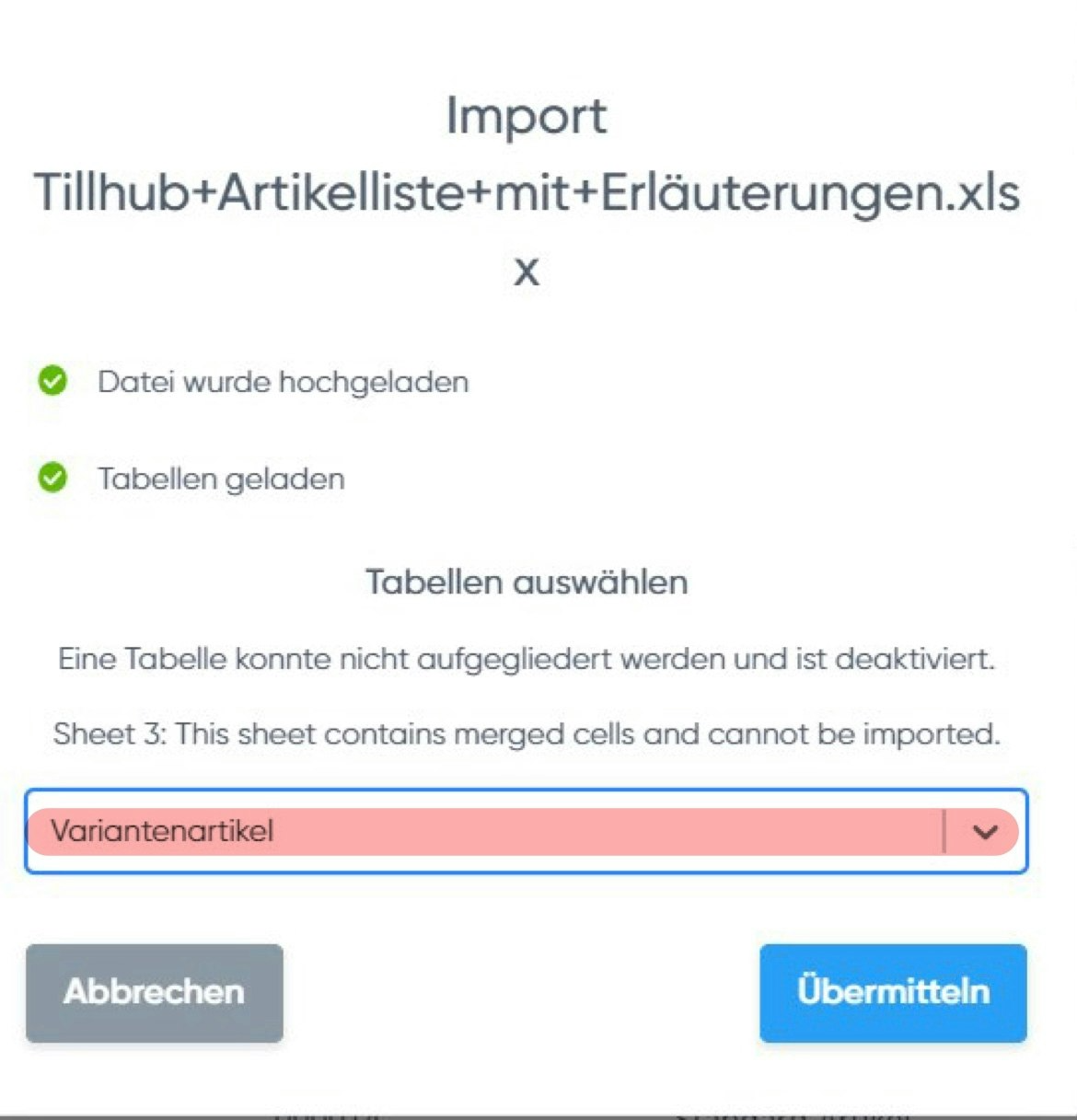
From the drop-down list, select the tab in your Excel file named "Variant Articles", then click the blue "Submit" button.

In the next window, confirm the column headers by clicking "Yes".
Review the column mappings by clicking the grey "Edit" button. Make any necessary adjustments. For example, if the attribute names and values have not been mapped correctly, assign "Name of Property" → "Attribute Name 1" and "Value of Property" → "Attribute Value 1". If you have multiple attributes, continue the mapping accordingly: "Property Name 2" → "Attribute Name 2", "Property Value 2" → "Attribute Value 2", and so on.
Click the blue "Review" button in the bottom right corner. If no fields are highlighted in red, click the blue "Submit" button. Red fields indicate missing mappings and can be edited with a double-click. Once the import is complete, click "OK".
Importing Product Groups
Once you have filled in your article list, navigate to "Articles" and then to "Product Groups" in the main menu of the Dashboard.
Click the arrow next to the blue "+New" button in the top right corner. A drop-down menu will appear. Select "Import File" and upload your completed Excel article list.
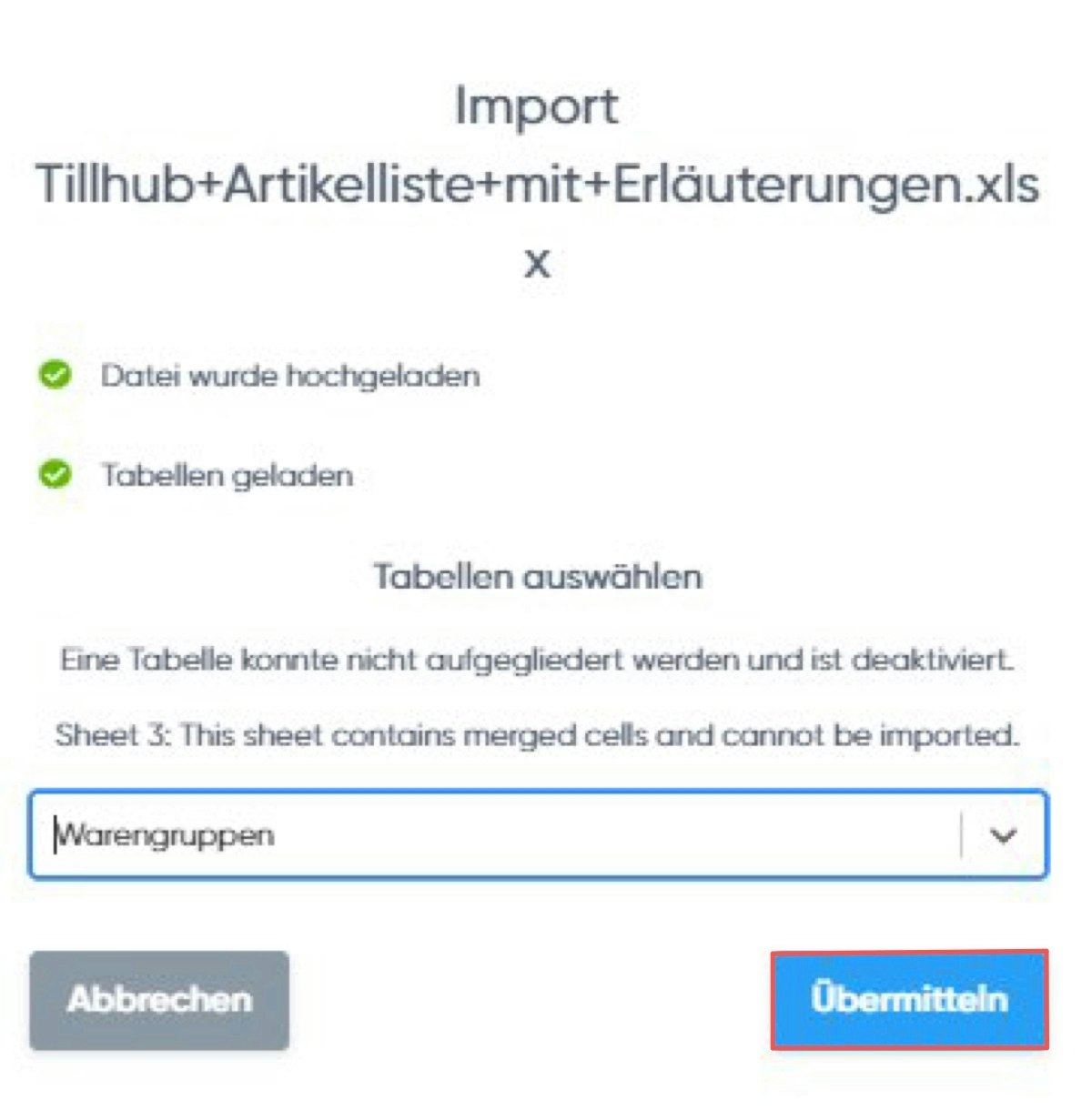
From the drop-down list, select the tab in your Excel file named "Product Groups", then click the blue "Submit" button.

Review the column mappings in the next window by clicking the grey "Edit" button. Make any necessary adjustments — for example, if the revenue and VAT accounts have not been mapped correctly, select the appropriate values. Then click the blue "Review" button.
If no fields are highlighted in red, click the blue "Submit" button. Red fields indicate missing mappings and can be edited with a double-click.
After submitting, a window will appear asking: "Are you ready to send?" Click "Yes", then click "OK" in the following window.
Was this article helpful?
That’s Great!
Thank you for your feedback
Sorry! We couldn't be helpful
Thank you for your feedback
Feedback sent
We appreciate your effort and will try to fix the article
