Password and Two-Factor Authentication Setup
Modified on Fri, 8 May at 11:34 AM
Set Up Your Password and Two-Factor Authentication (2FA)
Follow the steps below to complete your account setup. Screenshots are included to guide you through each step.
Step 1: Check your inbox - you will receive an email with a link to set up your account. Click the link to get started.
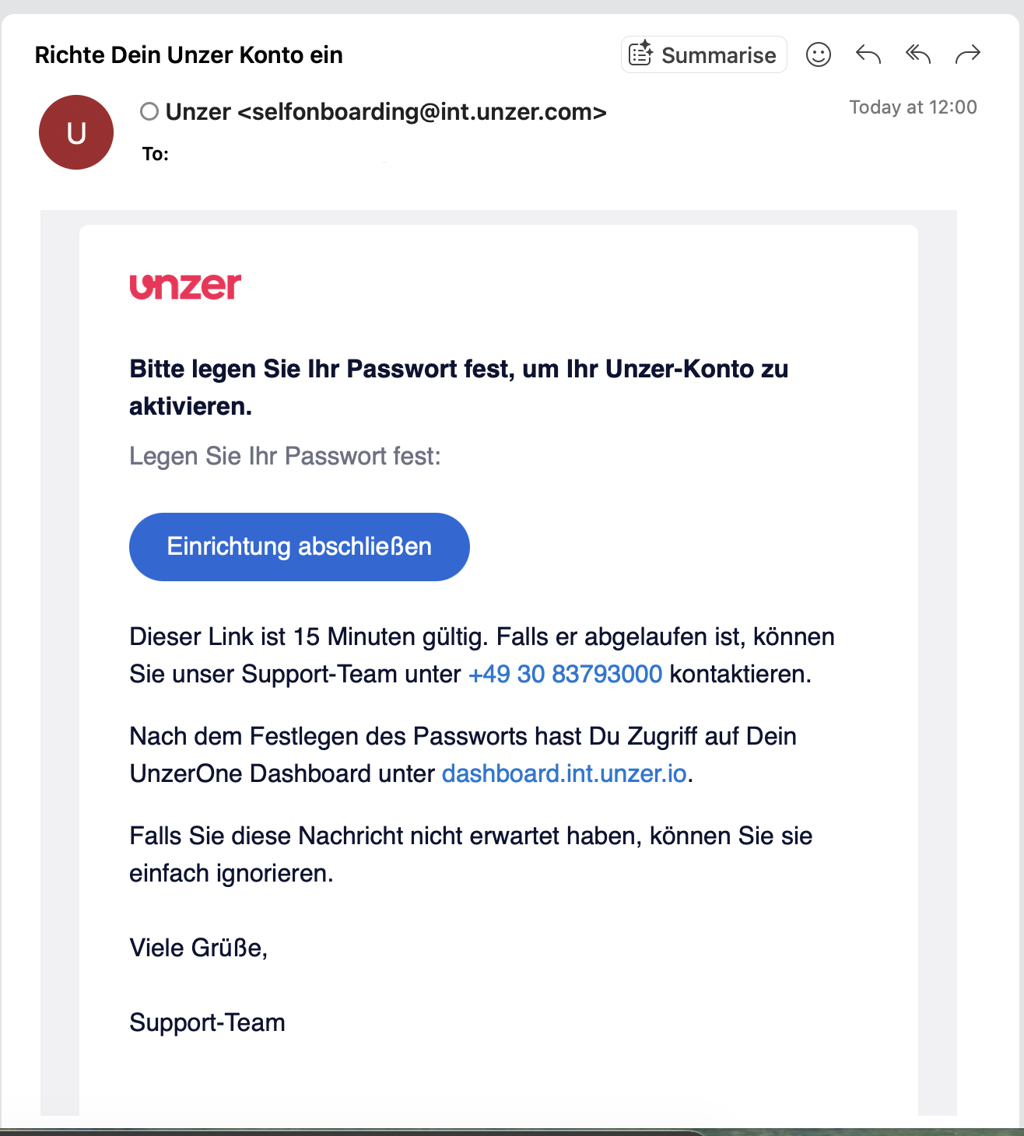
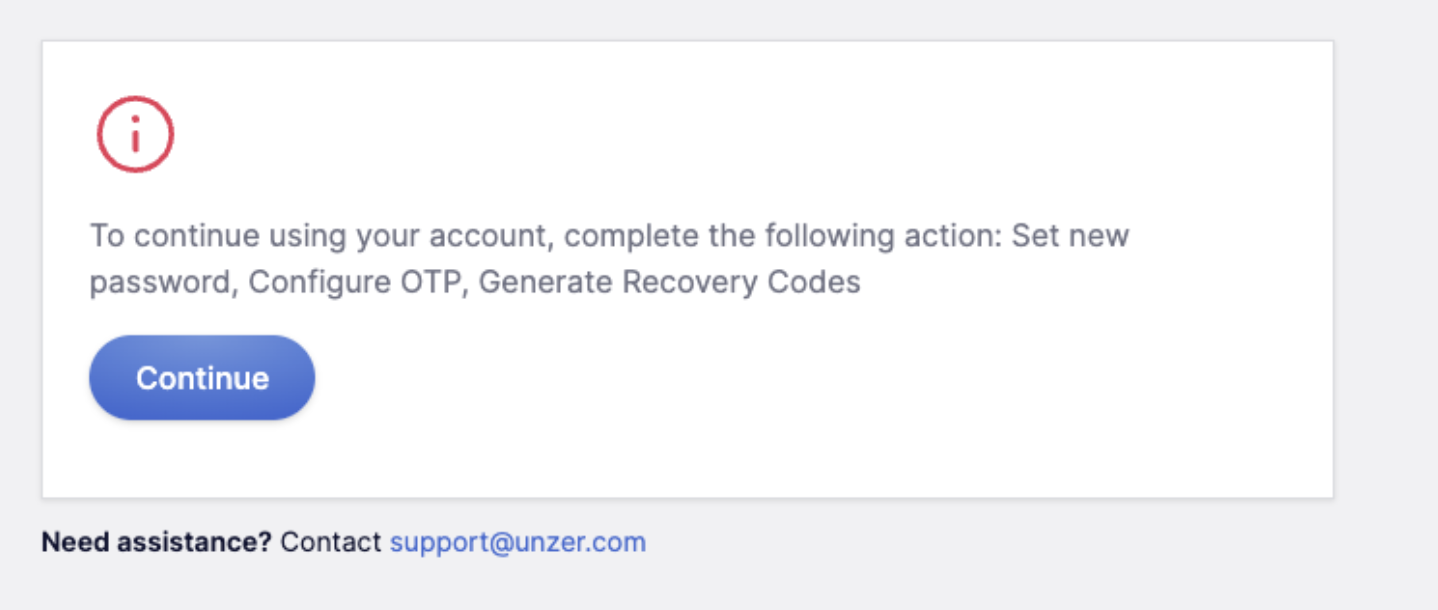
Step 2: You will be taken to the setup page. Click Continue to proceed.
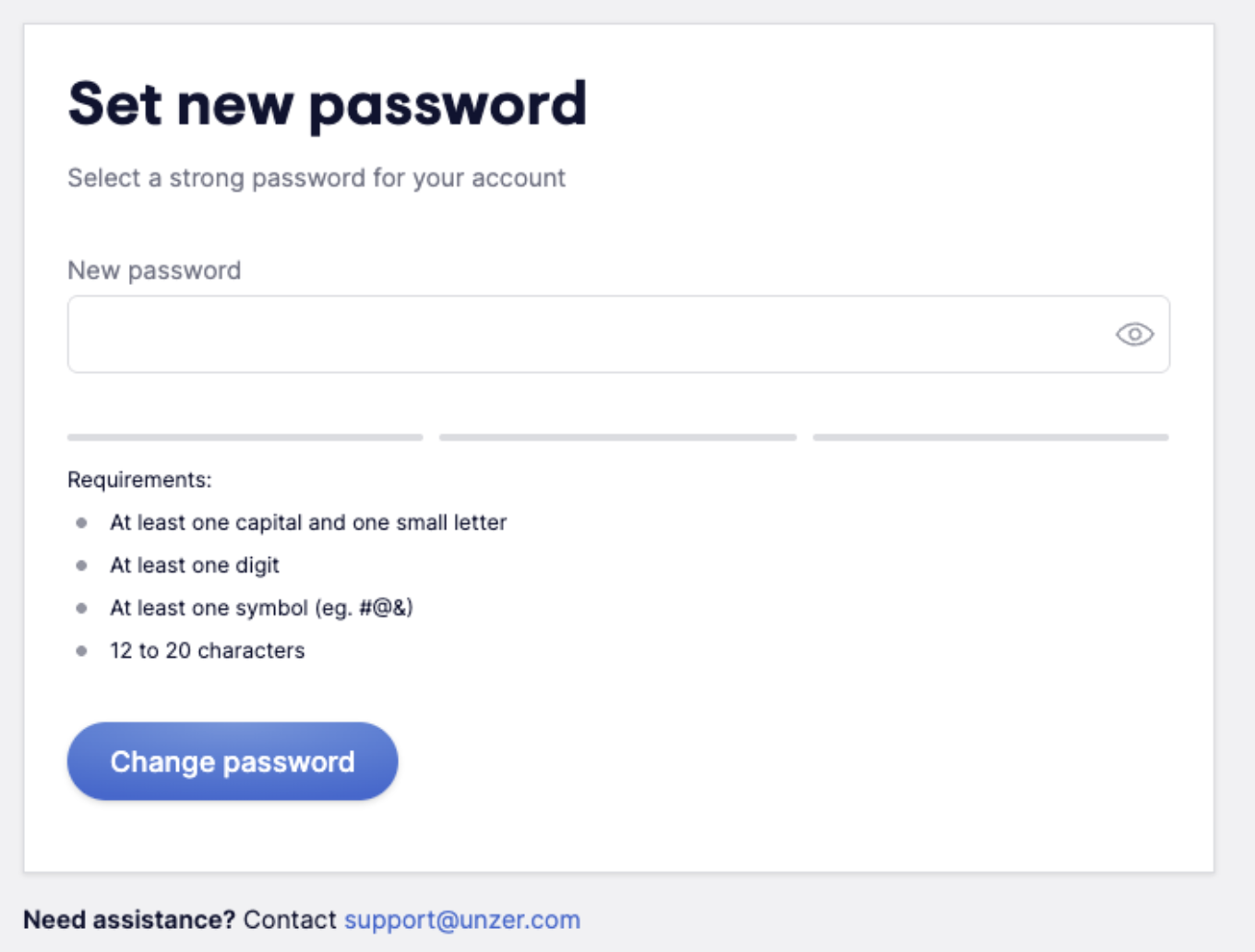
Step 3: Enter and confirm a password for your account.
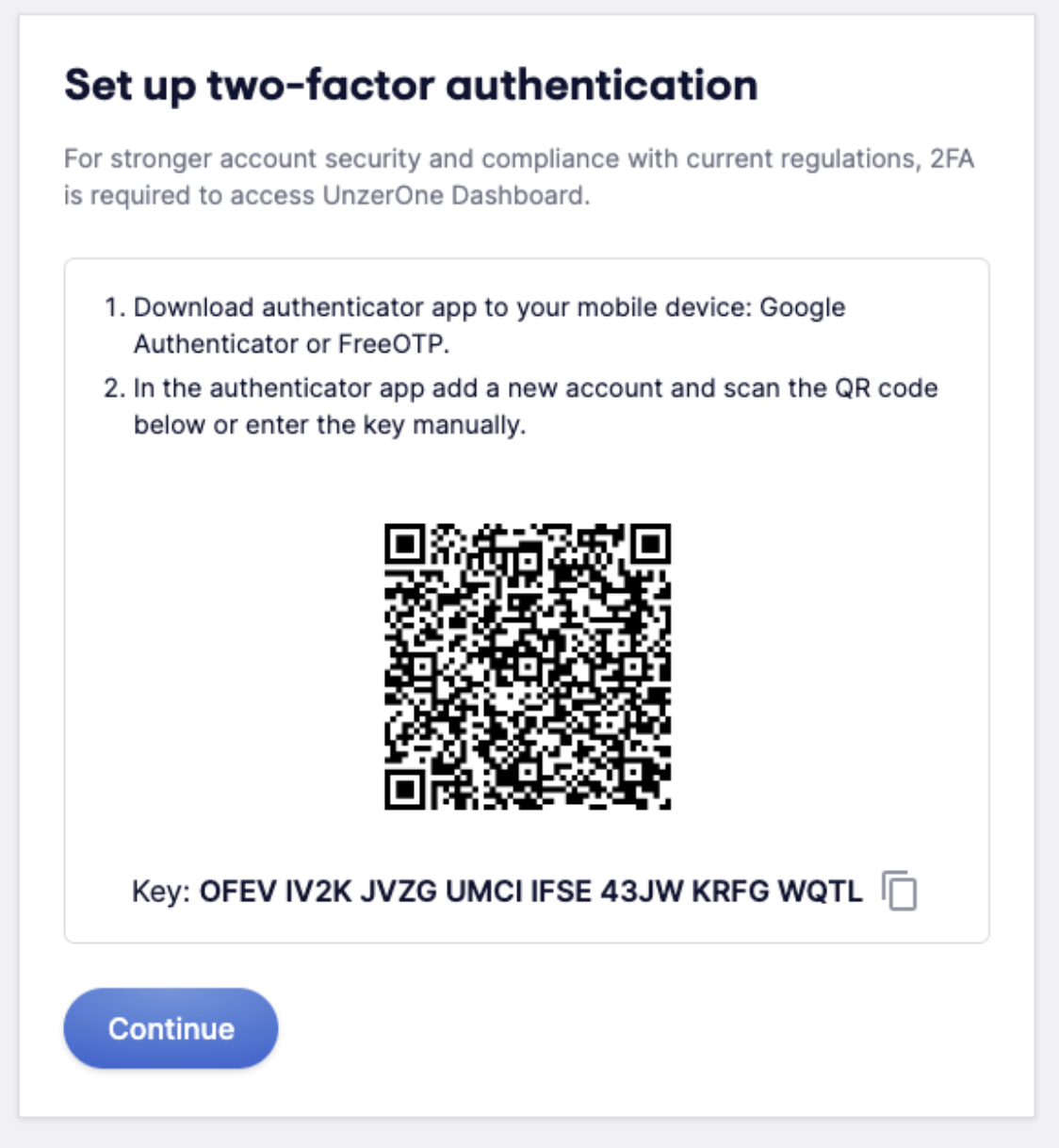
Step 4: Set up two-factor authentication (2FA)
Open your authenticator app (such as Google Authenticator or FreeOTP) and add a new account by scanning the QR code shown on the screen. If you are unable to scan the code, you can enter the key manually instead. Once your account is registered, click Continue.
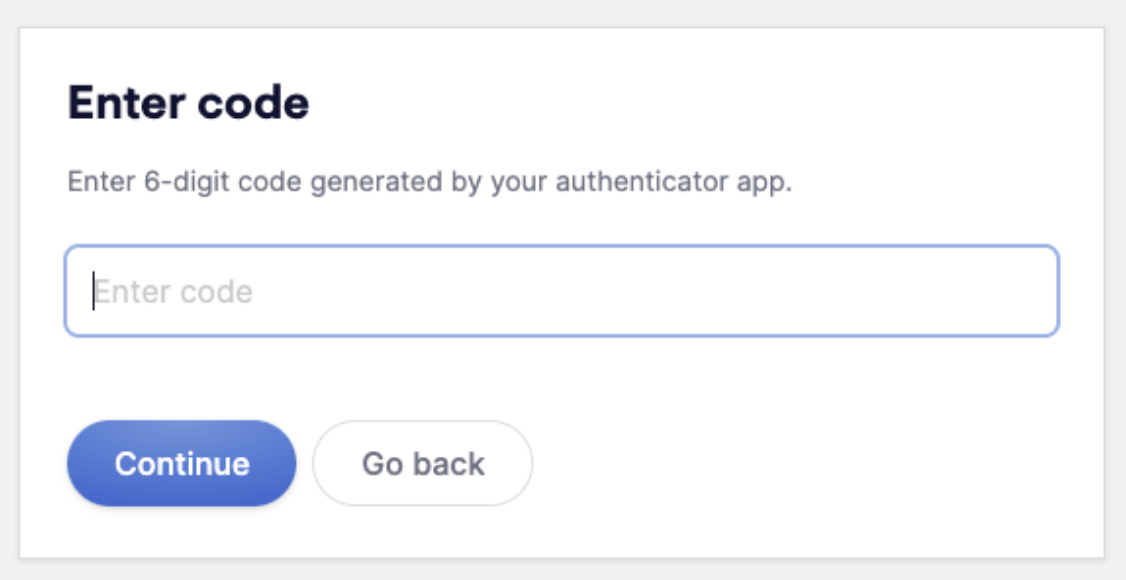
Step 5: Enter the authentication code
Type the 6-digit code from your authenticator app to verify the setup.
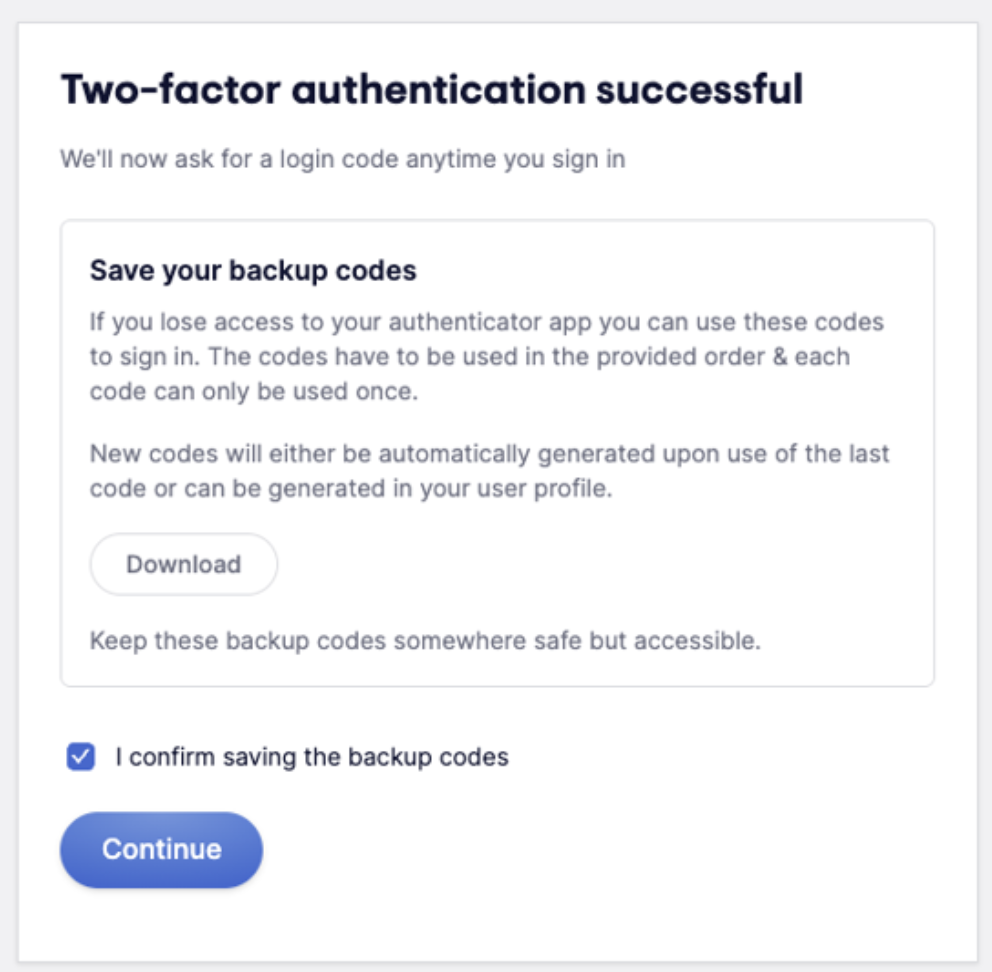
Step 6: Download your backup codes
Save your backup codes in a secure place, then click Continue. These codes can be used to access your account if you lose access to your authenticator app.
Step 7: You are all set. You will see a confirmation that your account has been successfully set up.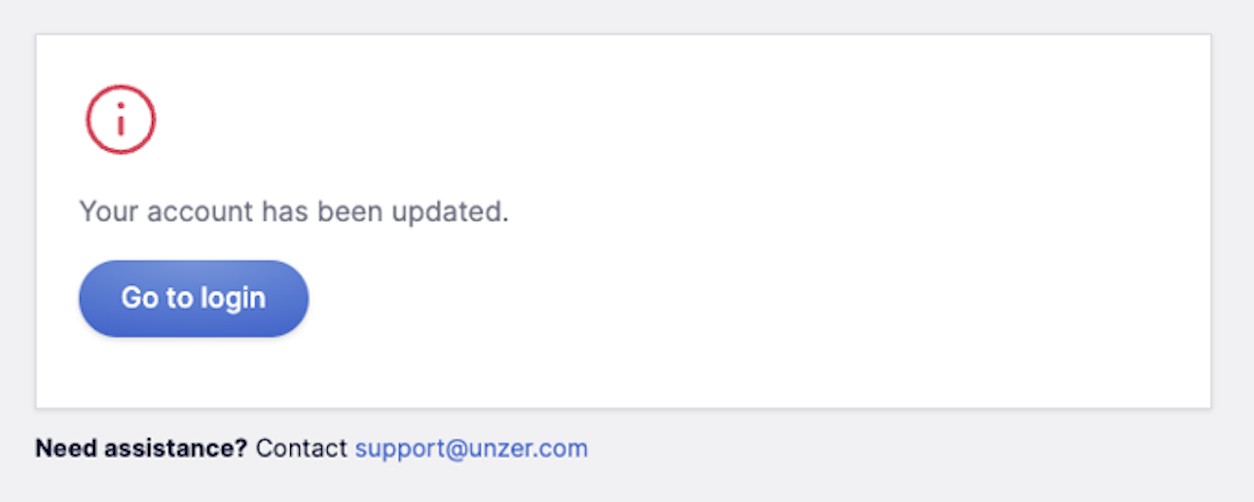
When will I be asked for my 2FA code?
After your initial login, you will be asked to verify with your 2FA code when performing the following actions:
- Resetting your 2FA
- Regenerating your backup codes
- Viewing your API private keys
Was this article helpful?
That’s Great!
Thank you for your feedback
Sorry! We couldn't be helpful
Thank you for your feedback
Feedback sent
We appreciate your effort and will try to fix the article
