API Keys on the UnzerOne Dashboard
Modified on Tue, 20 Oct at 3:33 PM
The API Keys section of the UnzerOne Dashboard shows the API keys for each of your branches. You need these keys to connect your shop or system to Unzer.
Note: All users can view the API key list. Only users with the Administrator role can view private keys.
View your API keys
1. Open the API keys list
- Navigate to Settings > API keys.
- The list shows the API keys for all your branches, with Name, Public key and Sales channel.
- To see the keys for one branch only, click the All branches dropdown at the top of the page and select a branch. You can select one branch at a time.
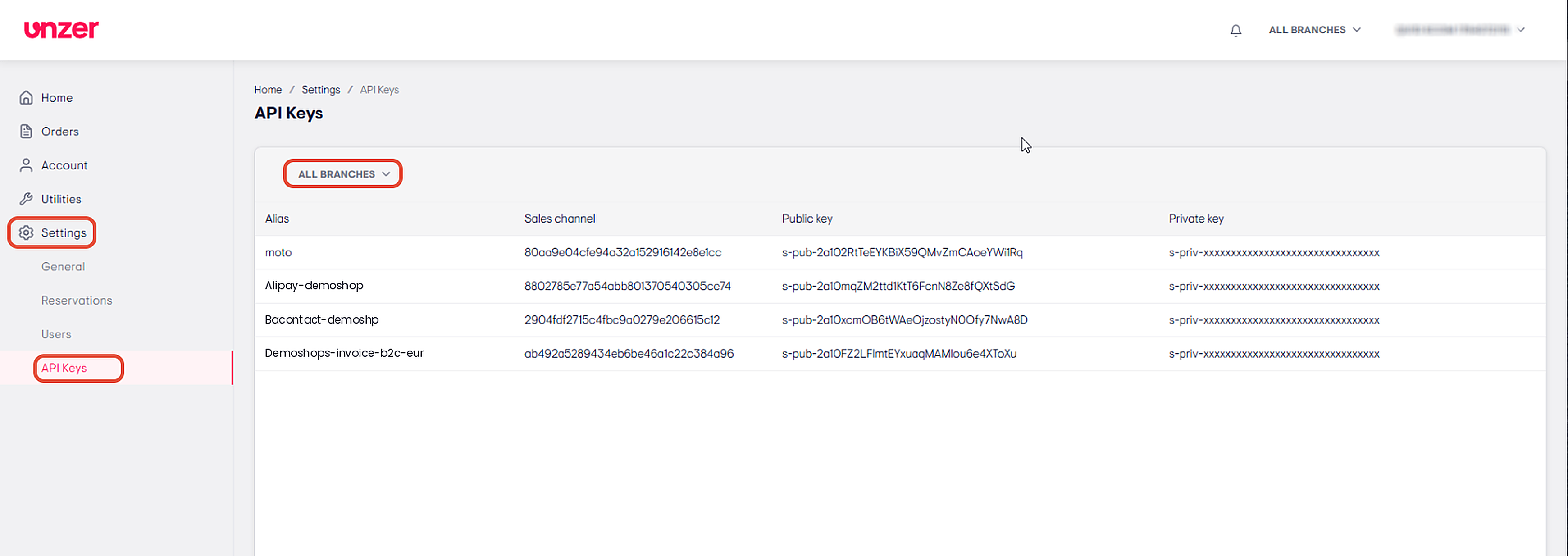
Note: If the selected branch(s) has no API keys, the page shows No results found.
2. Open the key details
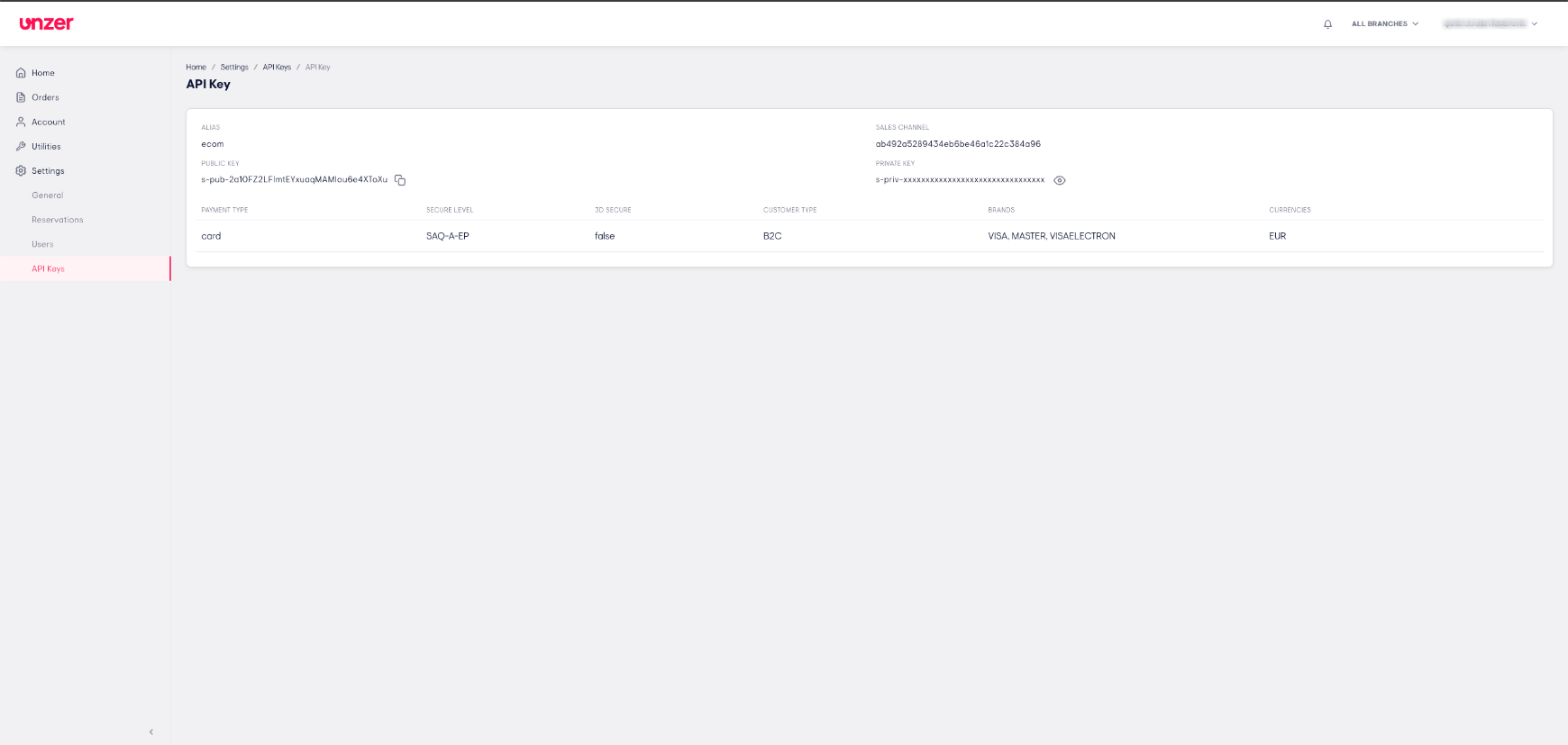
- Click a row in the list.
- The details view shows more information about the key, such as Public key, Payment type and Private key access.
View a private key
Before you start: You need the Administrator role.
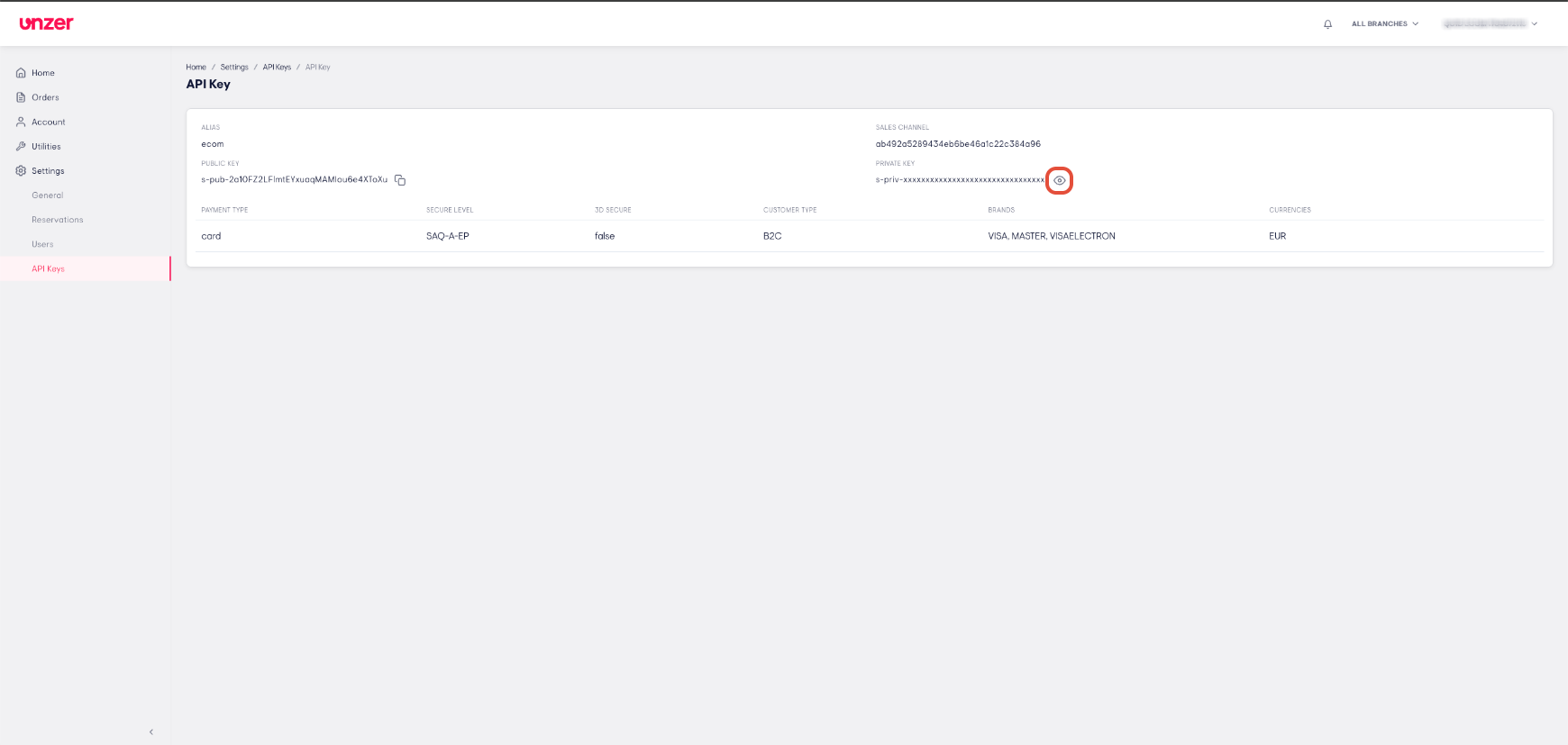
- In the details view, click the eye icon next to Private key
- A 2FA verification modal opens.
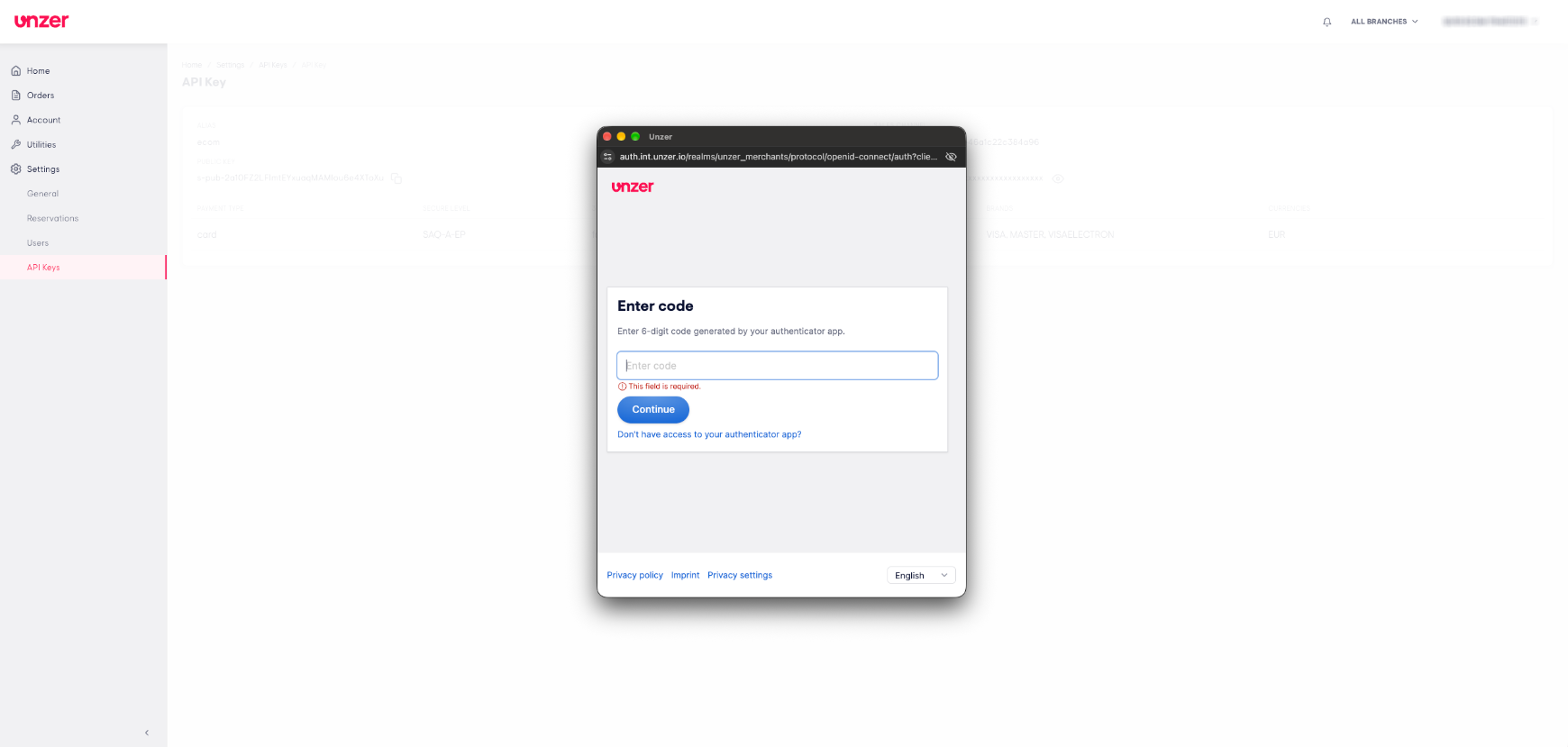
- Enter the code from your authenticator app or one of your backup codes.
- The private key is shown in the details view.
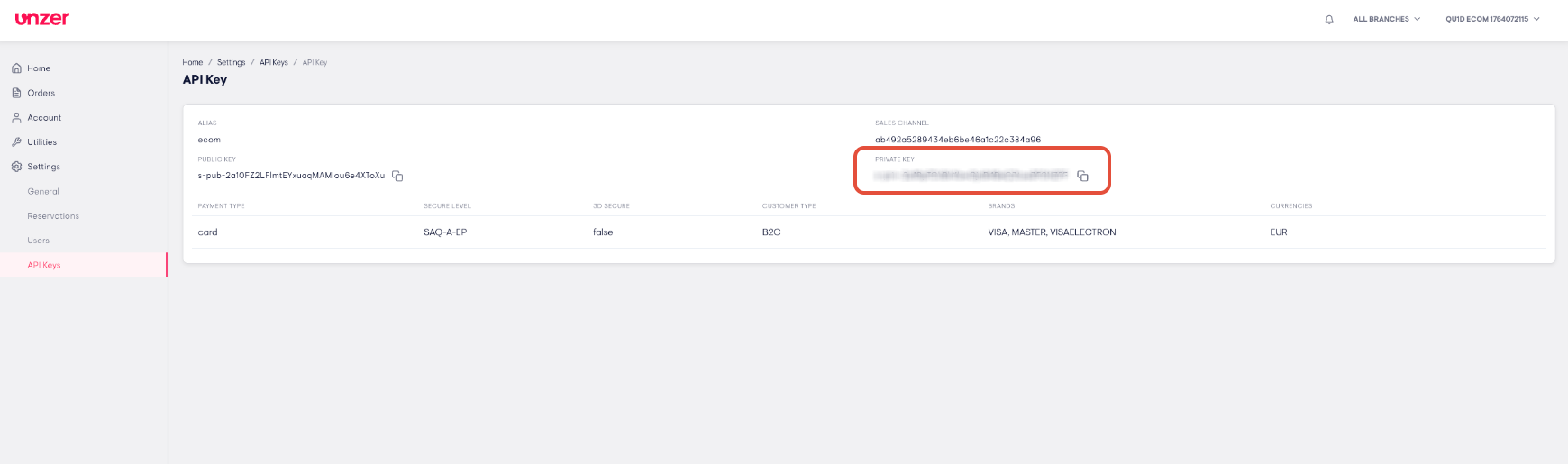
Note: If you don’t have the Administrator role, the eye icon is not shown and you can’t view the private key.
Important: Keep your private key secret. Do not share it by email or chat.
Was this article helpful?
That’s Great!
Thank you for your feedback
Sorry! We couldn't be helpful
Thank you for your feedback
Feedback sent
We appreciate your effort and will try to fix the article