Order Overview
Modified on Fri, 9 Oct at 3:07 PM
TABLE OF CONTENTS
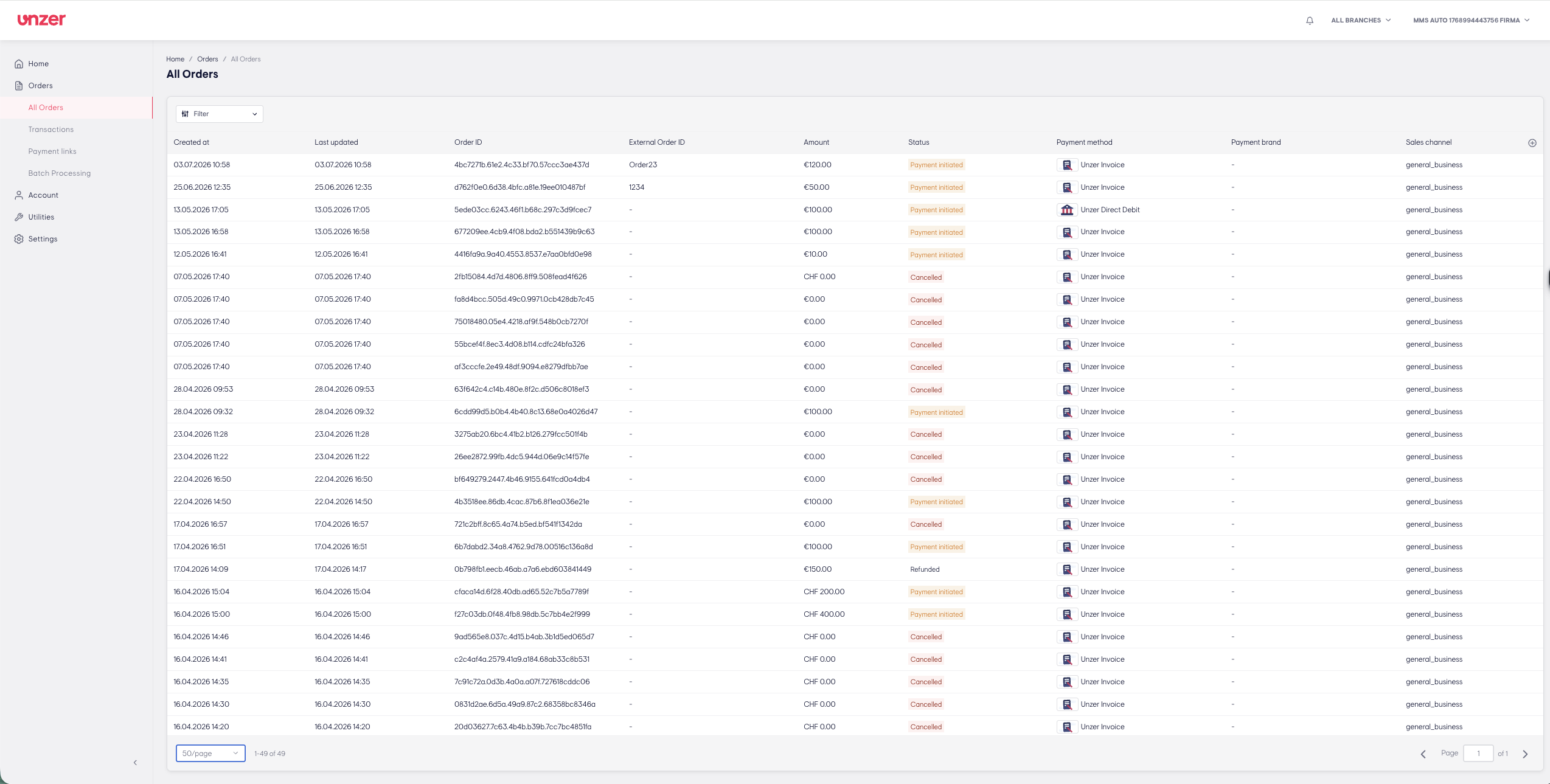
Getting an overview
You can view your Orders list easily in the Unzer dashboard.
- Navigate to the Orders -> All Orders menu on the left sidebar.
- The list of orders will be displayed, showing details such as:Timestamp Amount Currency Status Payment Method
...and more.
- You can also filter the data or export the list as needed.
Show or hide columns
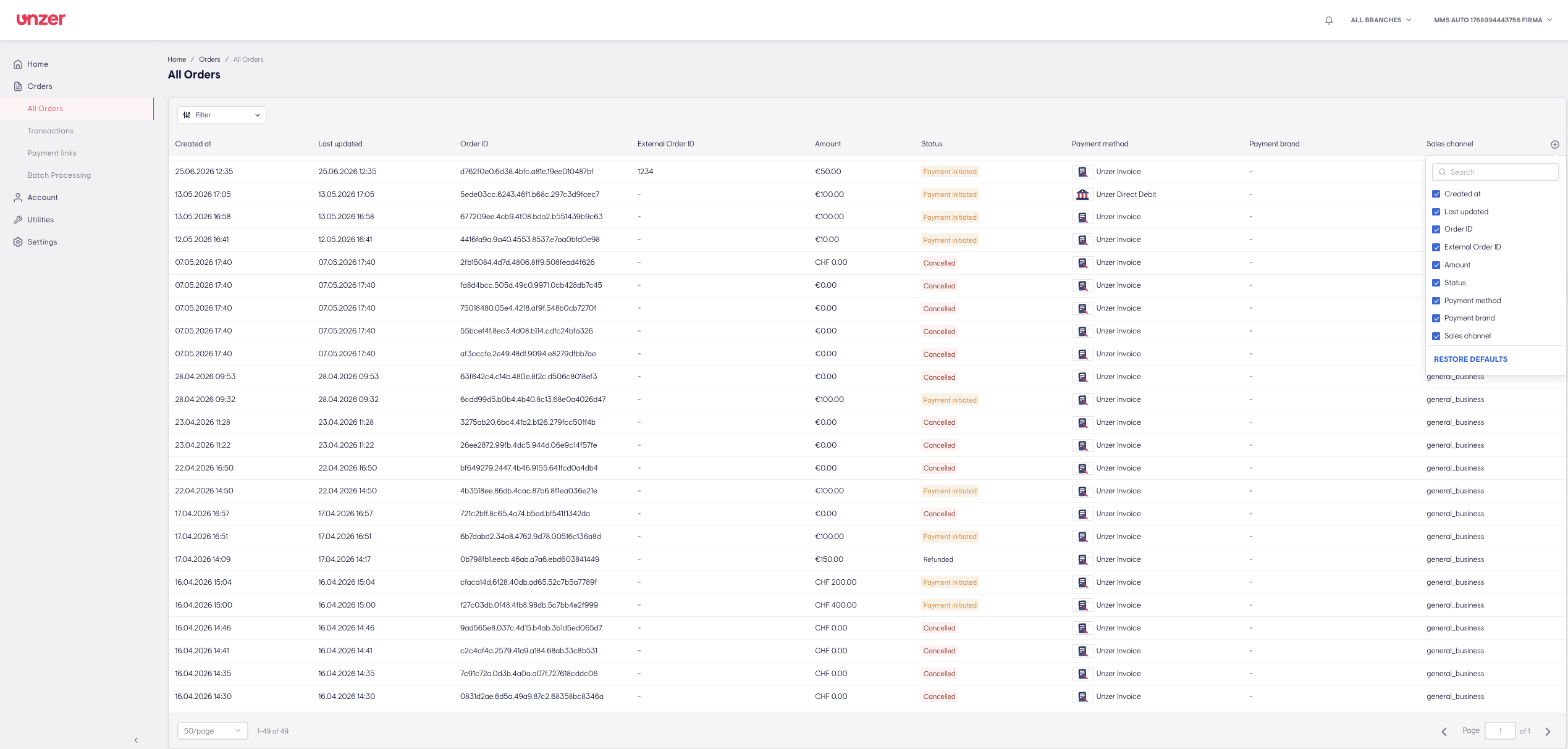
You can customise the orders table view to show only the data that’s relevant to you:
- Go to orders, and click the "+" icon in the top-right corner of the table to open the column configuration panel.
- Select or clear the checkboxes for columns you want to display or hide. The table will update instantly.
- (Optional) Click Restore defaults to return to the default column view.
Filtering
You can narrow down the orders list by applying filters:
- Navigate to the Orders page and click the Filter button at the top of the table.
- Select the desired filter criteria. You can apply multiple filters simultaneously.
- Click Search to view the filtered results.
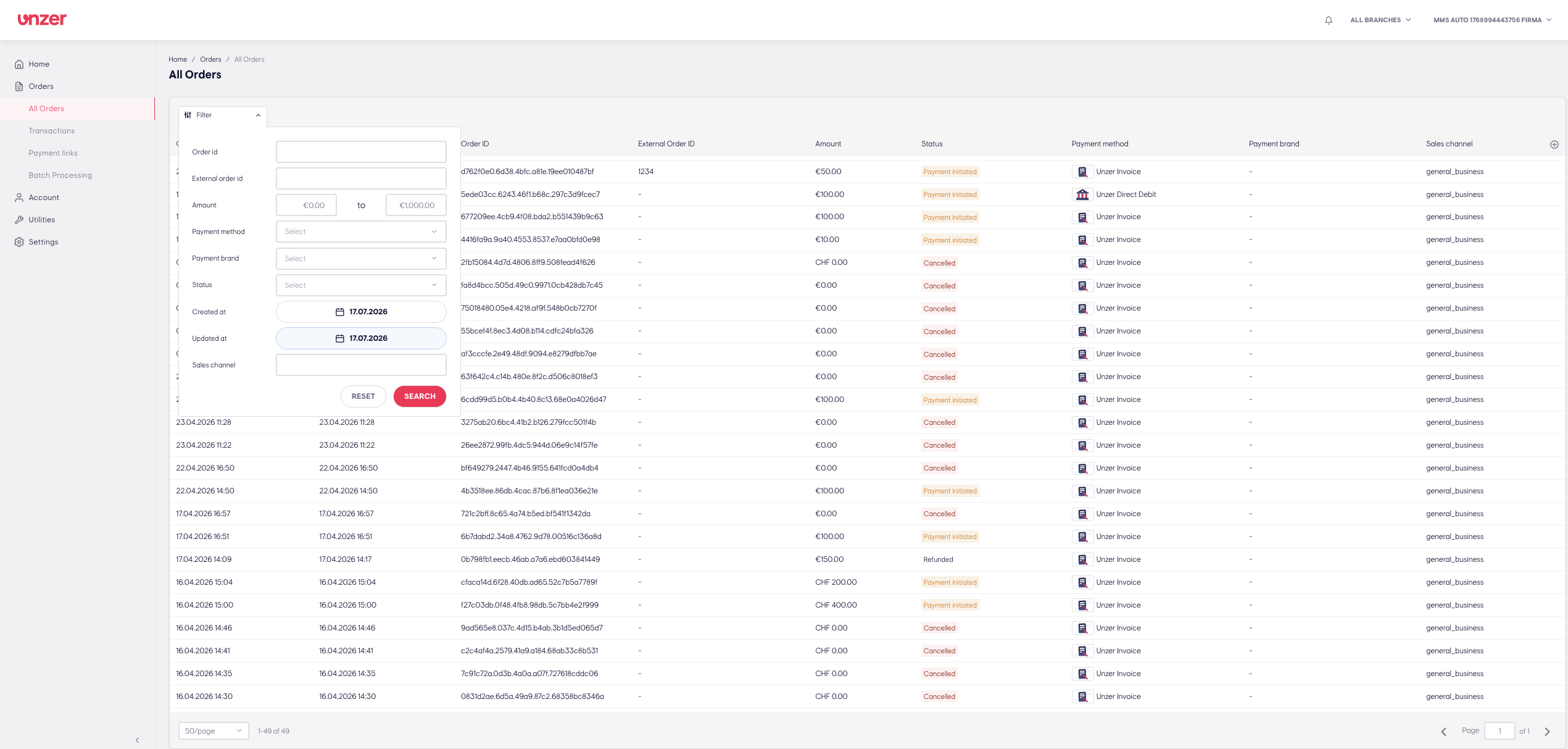
Note: The filters will reset when you navigate away from the page or sign out.
Order Details
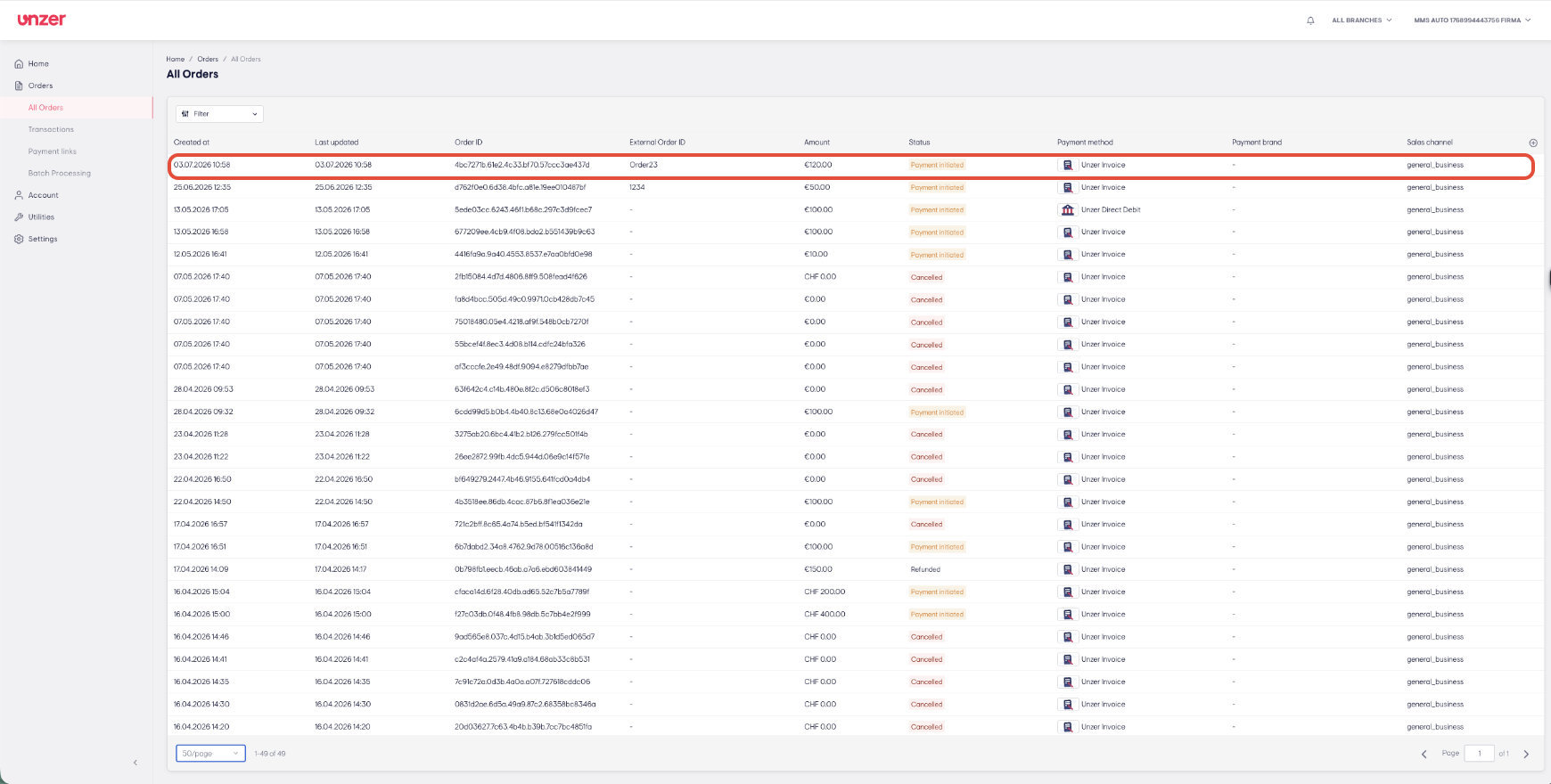
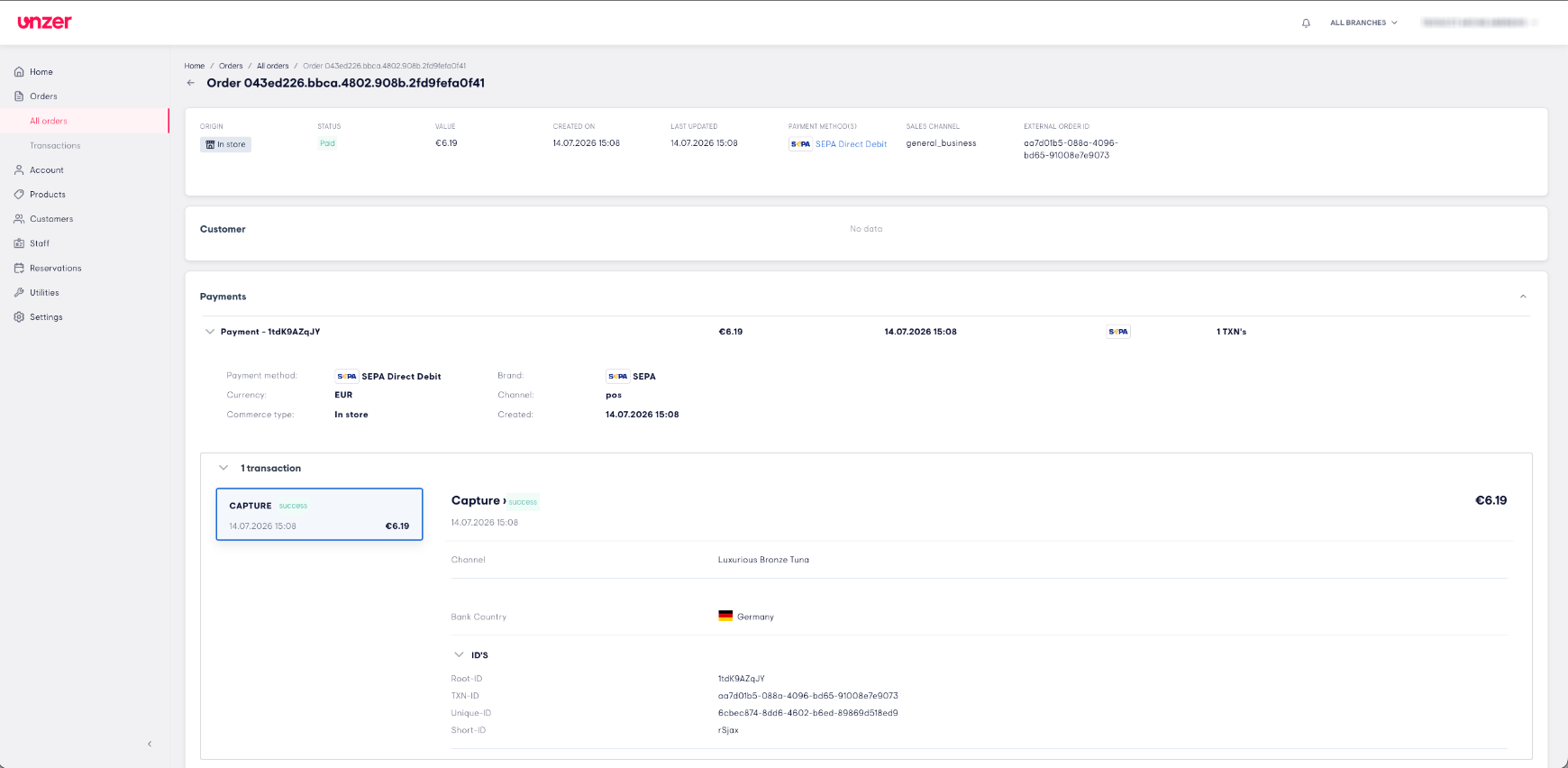
You can view details of each order to gain more information.
Step 1
Navigate to the Orders page and click on one of the rows of the order
Step 2
The order details page opens to show info such as order id, amount ,payment method, brands used, payments related to the order, transactions related to each payment and their associated information.
Was this article helpful?
That’s Great!
Thank you for your feedback
Sorry! We couldn't be helpful
Thank you for your feedback
Feedback sent
We appreciate your effort and will try to fix the article